Product Filters adds filters for categories, attributes, price, rating, stock and custom fields to your shop. Customers narrow the products down and the page updates without reloading.
Requirements
- WordPress 6.8 or newer
- WooCommerce 10.0 or newer
- PHP 7.4 or newer
- Works with classic and block themes, the Cart and Checkout blocks, and High-Performance Order Storage.
Installation
- Download
product-filters.zipfrom My account > Downloads. - In WordPress, go to Plugins > Add New Plugin > Upload Plugin, choose the zip file and click Install Now.
- Click Activate. Settings are under WooCommerce > Settings > Filters, and filter sets under Products > Filter sets.
Quick start
- Go to Products > Filter sets and add a filter set.
- Add filters, such as Category, Price and an attribute, and choose how each one shows.
- Under Where it shows, tick the shop and category pages.
- Add the Product filters block to your shop template’s sidebar, or tick Above the products to show the set as a bar above the products.
Filter sets
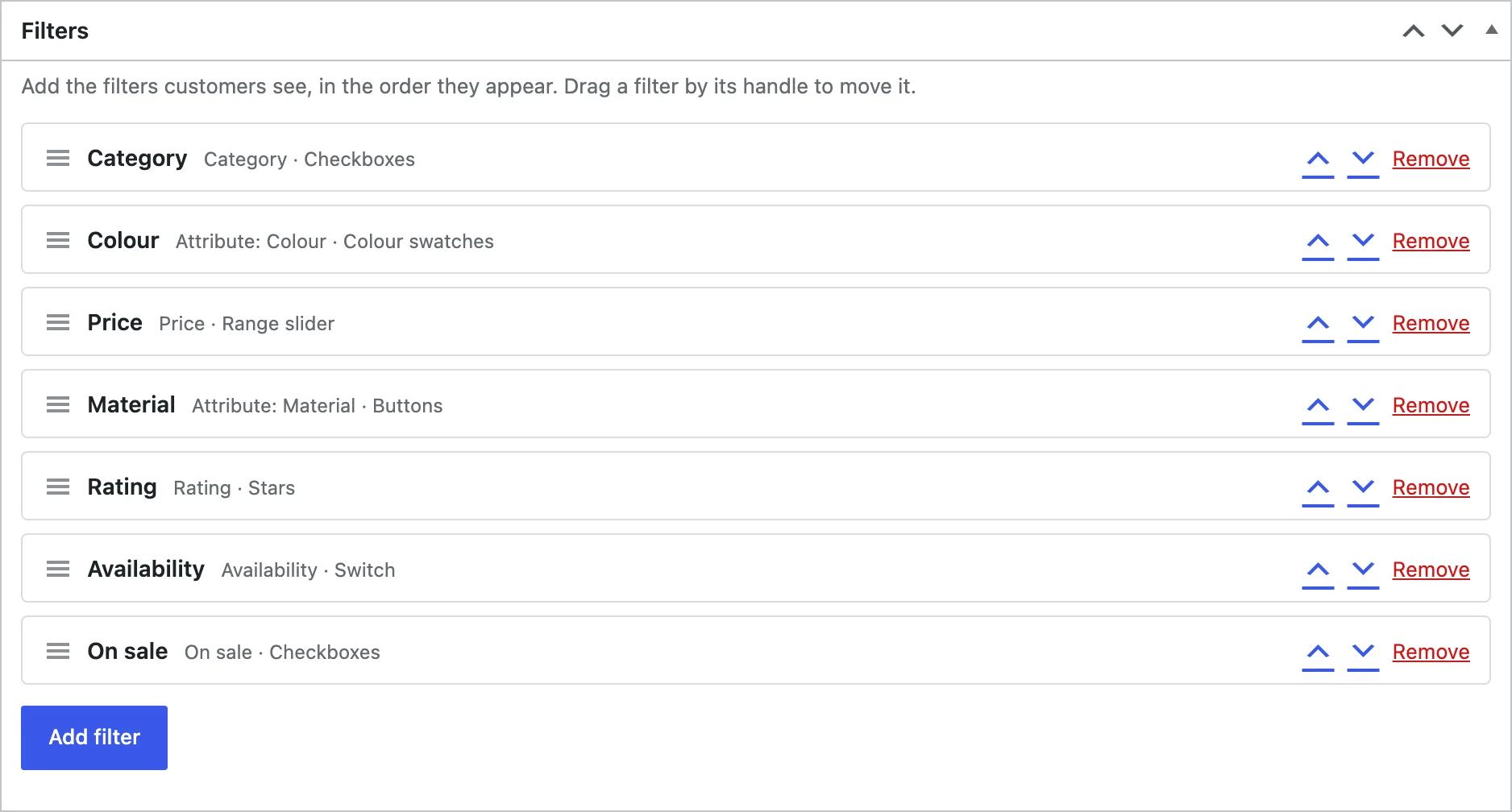
A filter set is a group of filters shown together. Each filter has a source (what it filters by), a display (how it looks), a label and a URL key. Drag filters into order.
What you can filter by
Categories, tags, brands and custom taxonomies; product attributes; price; rating; availability, on sale, featured and new arrivals; weight, length, width and height; custom fields; and a keyword box.
- Checkboxes, radio buttons, dropdowns, buttons, color swatches, image swatches, sliders, stars and switches
- “Any of” or “all of” logic per filter
- Start closed, show a few options with “Show more”, or add a search box to long lists
Color and image swatches
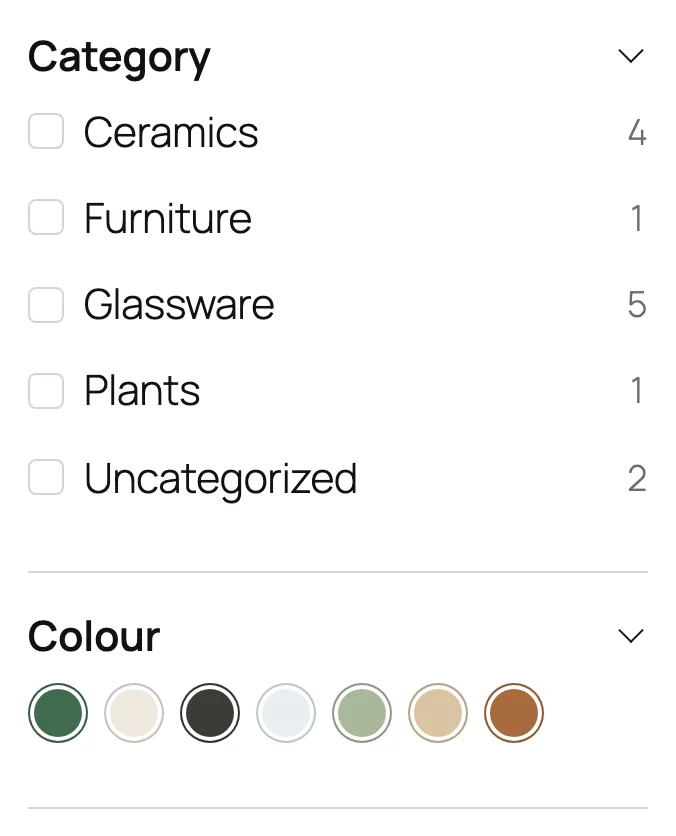
Set the color of each attribute value under Products > Attributes, in the value’s edit screen. Two colors make a split swatch. Image swatches use the image you choose for each value.
Where filters show
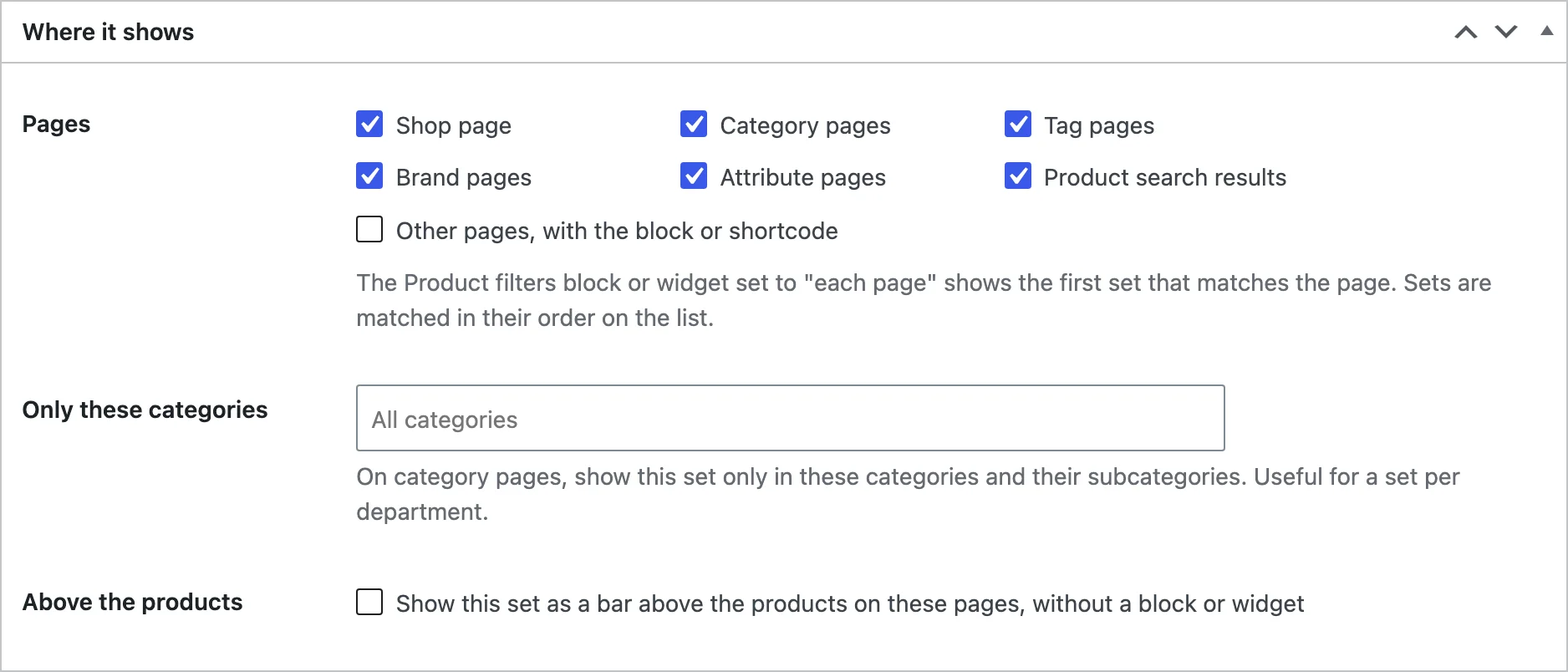
Under Where it shows, choose the page types (shop, categories, tags, brands, attributes, search) and, if you like, only some categories. The first set that matches a page is used.
Place the set with the Product filters block, the widget or the shortcode [pfpr_filters set="123"], or tick Above the products for a bar above the products without editing templates.
Phones
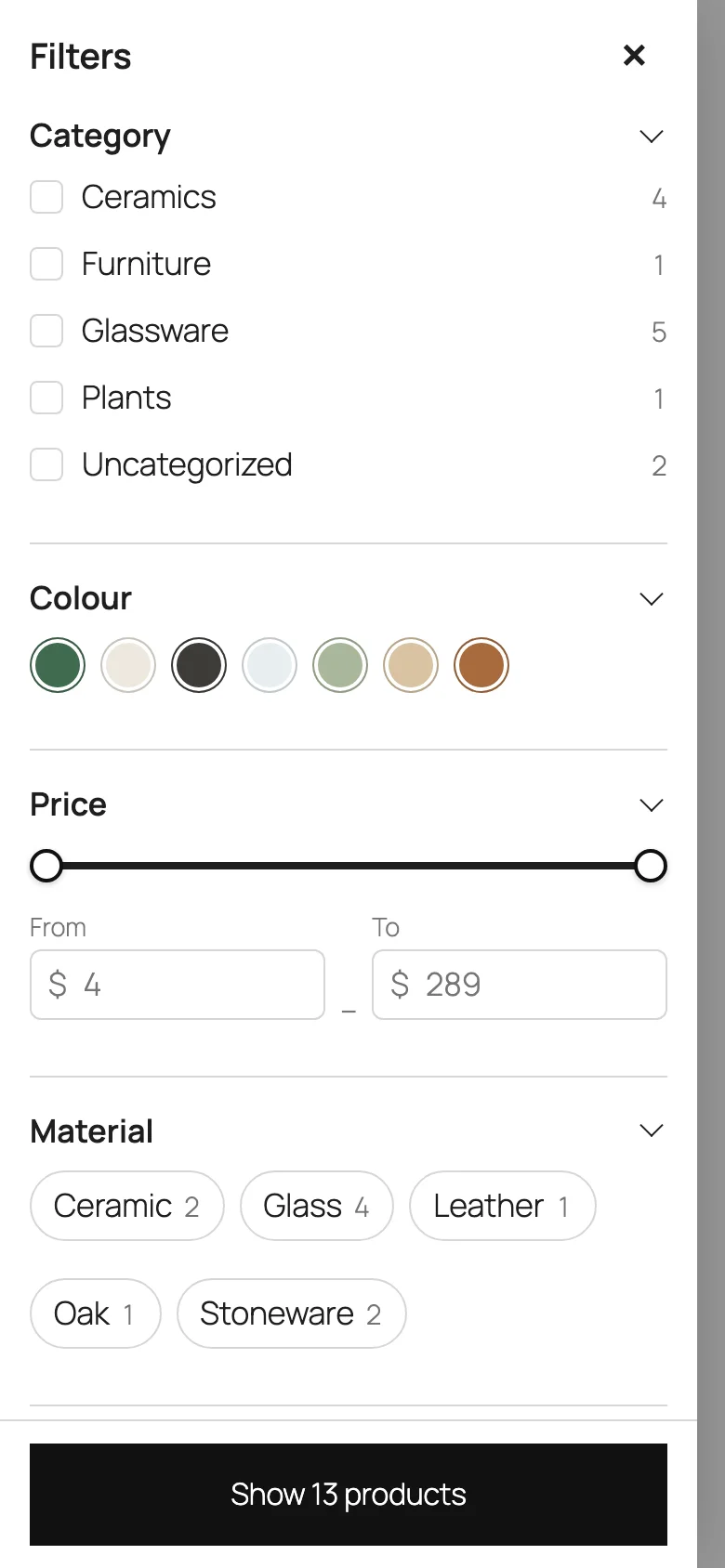
Below the breakpoint you set (768 pixels by default) the filters move behind a Filters button that opens a drawer. The drawer’s button shows how many products match.
SEO pages
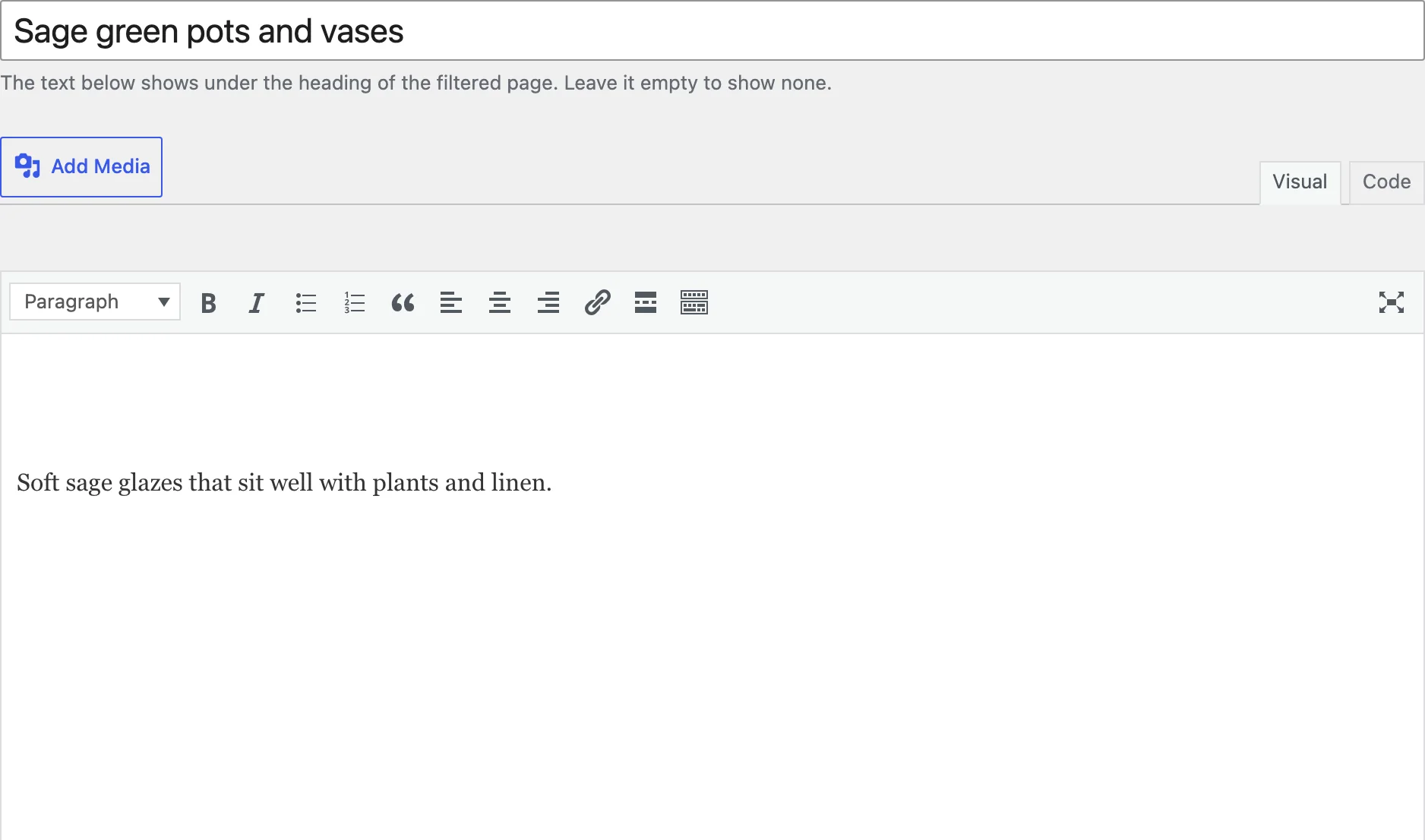
Filtered pages carry a noindex tag and point to the clean page, so they don’t compete with your categories. To make one combination rank, add one on the SEO pages tab of Products > Filter sets: choose the listing and the filter values, then write a heading, intro, title and description. The page is indexed and added to the sitemap.
Choose Path under Filter URLs for addresses such as /shop/filter/color/green/. Query strings, such as /shop/?color=green, work with every setup.
Filter usage
The usage report lists the filter values customers chose most, by week, month or year. It counts choices, not people, and stores no personal data.

Settings
| Setting | What it does |
|---|---|
| Without reloading | Update the products in place instead of reloading the page. |
| Results update | With every choice, or when the customer clicks Apply. |
| More products | Page numbers, a Load more button, or loading on scroll. |
| Counts | Show the number of products next to each option. |
| Options without products | Hide them, or show them greyed out. |
| Chosen values | Where the chosen values show with their remove links. |
| Phones, Drawer below | Use the filter drawer on screens narrower than this width. |
| Accent colour, Swatch size | The color of selected options and the size of swatches. |
| Filter URLs, Path word | Query string or path addresses for filtered pages. |
| Search engines, Page title, Sitemap | Keep filtered pages out of search results, add values to the page title, and list SEO pages in the sitemap. |
| Usage report | Count which values customers choose. |
| Remove data | Delete sets, SEO pages, the index and settings when the plugin is deleted. |
For developers
| Hook | Use |
|---|---|
pfpr_sources | Add or change filter sources. |
pfpr_filter_data | The options of a filter before it is shown. |
pfpr_filter_product_ids | The product IDs that match the chosen filters. |
pfpr_index_rows | The index rows saved for a product. |
pfpr_before_filters | Runs before a set is shown. |
pfpr_after_filters | Runs after a set is shown. |
pfpr_admin_capability | The capability needed to manage filters. |
Copy files from public/templates/ to yourtheme/product-filters/ to change the markup of a set, a filter or the chosen values.
Frequently asked questions
How do I filter WooCommerce products by a custom attribute?
Add a filter to a set and choose the attribute as its source. Global attributes (Products > Attributes) and custom fields both work.
How do I add a product filter in WooCommerce?
Create a filter set, then add the Product filters block to your shop sidebar, or tick Above the products in the set.
Why does a filter show no options?
Options without products are hidden by default. Check that the products in the current listing have values for that attribute or field.
Can I import my filter sets on another store?
Yes. Export sets and SEO pages to a file on the Import and export tab of Products > Filter sets, and import the file on the other store.
Changelog
1.0.0 · October 19, 2026
- Filter sets with categories, attributes, price, rating, stock, sale, dimensions, custom fields and a keyword box.
- Checkboxes, buttons, swatches, sliders, stars and switches with live counts.
- Filter drawer on phones, chosen values and Clear all.
- SEO pages, noindex for filtered pages and a usage report.