Email Customizer changes the design and texts of every WooCommerce email from one screen, with a live preview of real orders.
Requirements
- WordPress 6.8 or newer
- WooCommerce 10.0 or newer
- PHP 7.4 or newer
- Works with classic and block themes, the Cart and Checkout blocks, and High-Performance Order Storage.
Installation
- Download
email-customizer.zipfrom My account > Downloads. - In WordPress, go to Plugins > Add New Plugin > Upload Plugin, choose the zip file and click Install Now.
- Click Activate. The editor is under WooCommerce > Email customizer.
Quick start
- Go to WooCommerce > Email customizer.
- Pick a style, add your logo and change the colors and font.
- Choose another email in Email to preview to check it, then click Save design.
The design screen
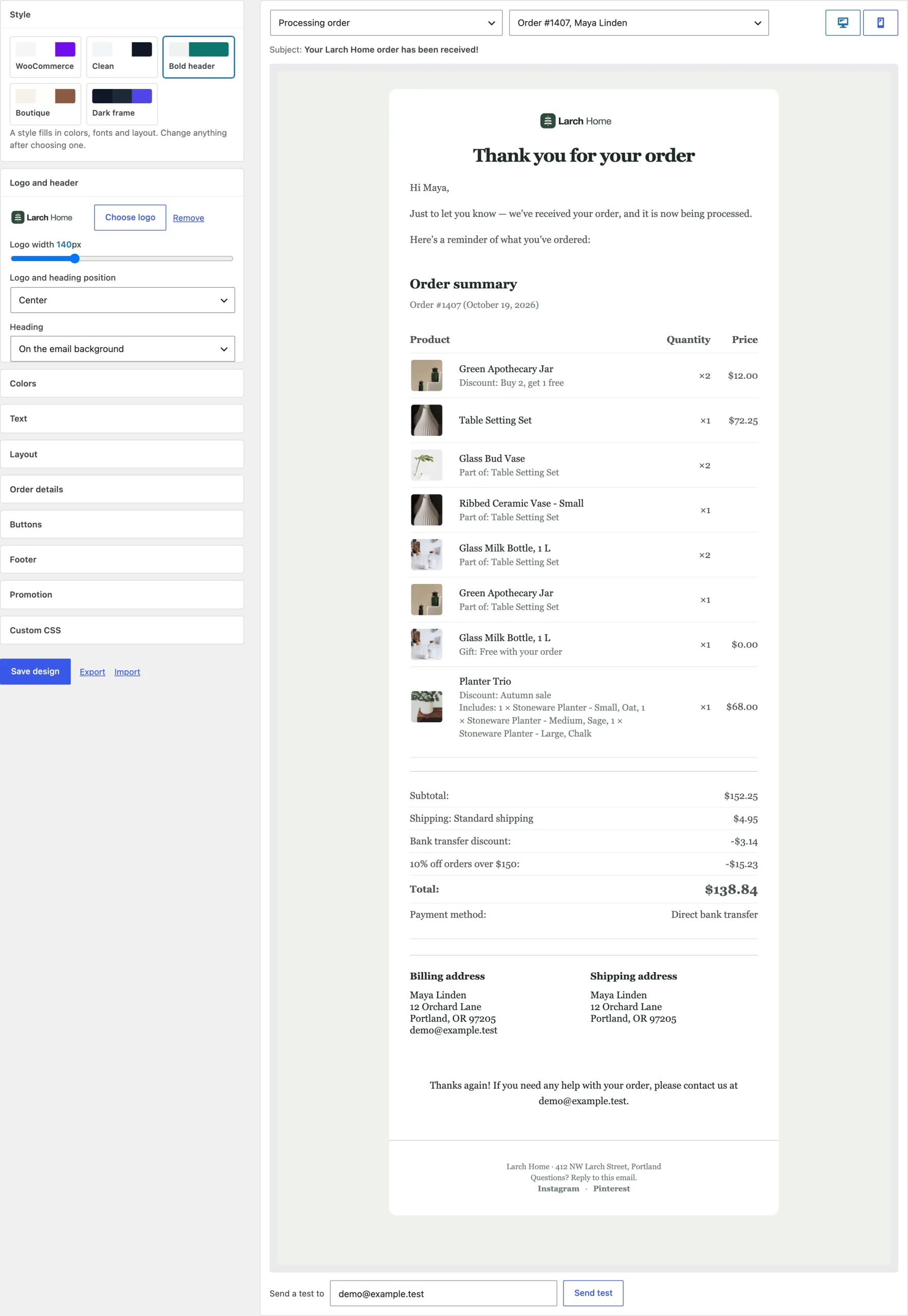
The controls are on the left and the preview on the right. The preview uses the email and order you choose above it, at desktop or phone width.
Logo and header
Choose a logo from the Media Library, set its width and position, and put the heading on the email background or on a colored band with its own colors.
Colors, fonts and layout
Set the accent color for links and buttons, the page and email backgrounds, the text and footer colors, one of seven email-safe fonts, heading size and weight, text size, line spacing, email width, corner rounding and spacing.
Order details
Choose the table style (lines, boxes or minimal), and show product images with their size and SKUs.
Promotion
Tick Add a promotion under the order details, choose the emails, and write the heading, text, coupon code and button.
The coupon code isn’t created for you. Add it under Marketing > Coupons.
Email texts
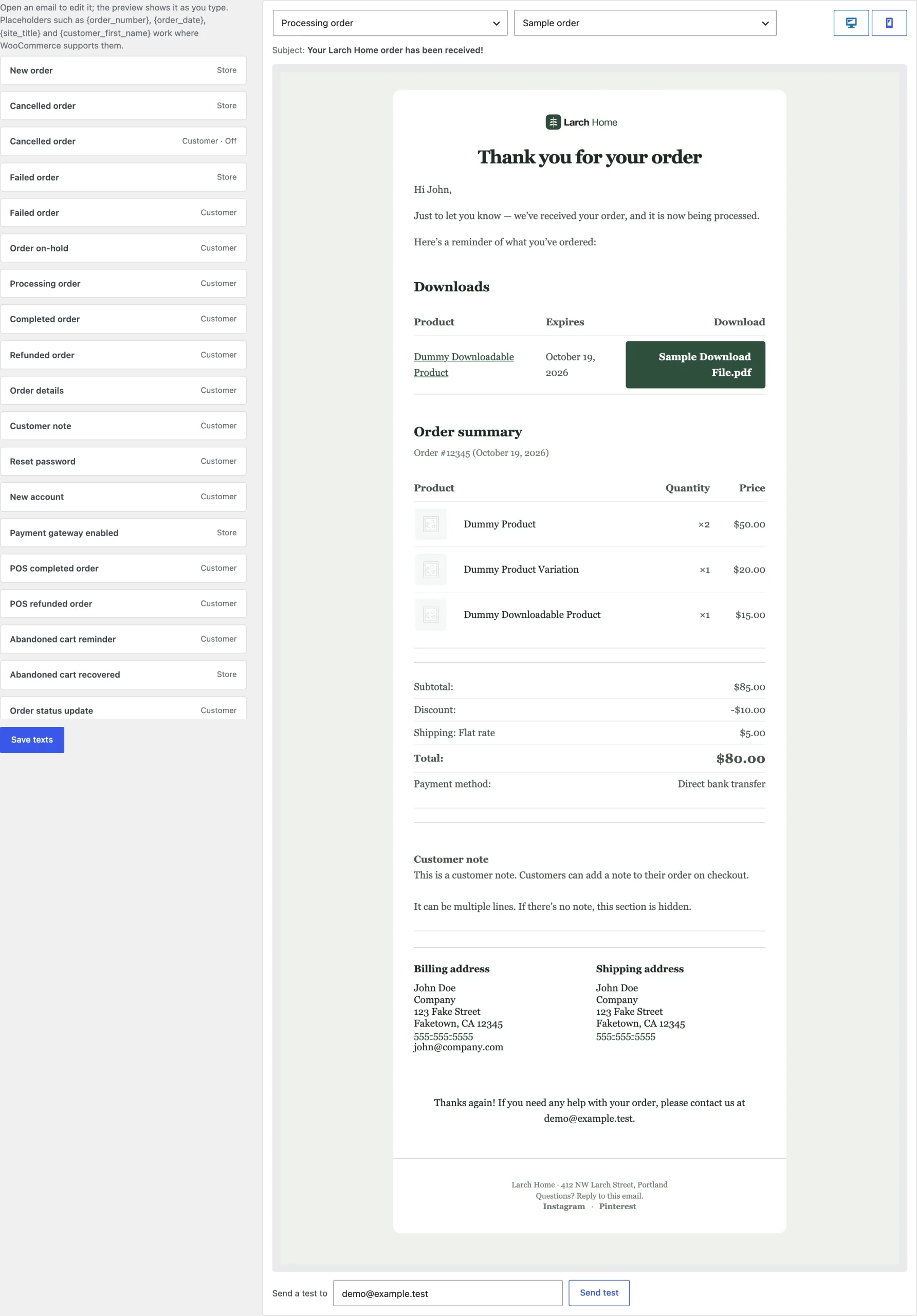
The Texts tab lists every email with its subject, heading and the text after the order details. Turn emails on or off in the same list.
Sending a test
Enter an address under Send a test to and click Send test. The test uses the saved design.
Settings
| Setting | What it does |
|---|---|
| Style | The starting style. |
| Logo and header | Logo, logo width, position and heading style. |
| Colors | Accent, backgrounds, text, footer, band and button colors. |
| Headings and text | Font, sizes, weight and line spacing. |
| Layout | Width, corner rounding and spacing. |
| Order details | Table style, product images and SKUs. |
| Footer | Footer text, background, position and social links. |
| Promotion | A coupon block in the emails you choose. |
| Custom CSS | Your own CSS, added after the design. |
For developers
| Hook | Use |
|---|---|
ecem_admin_capability | The capability needed to change the email design. |
WooCommerce email templates in your theme keep working; the design is applied on top of them.
Frequently asked questions
How do I customize WooCommerce emails?
Go to WooCommerce > Email customizer, pick a style and change the logo, colors, font and texts with the live preview.
How do I edit WooCommerce email text?
Use the Texts tab to change the subject, heading and closing text of each email.
How do I customize WooCommerce email templates?
Use the design screen for the look of every template. For changes to the structure, copy the template to your theme as usual.
Changelog
1.0.0 · October 19, 2026
- Design screen with live preview of real orders.
- Five styles, logo, colors, fonts, layout and order table options.
- Email texts and promotion block.
- Test emails and design export and import.