Inventory Management adds a stock list, stock history, stocktakes, low-stock emails, reports, suppliers and purchase orders to WooCommerce.
Requirements
- WordPress 6.8 or newer
- WooCommerce 10.0 or newer
- PHP 7.4 or newer
- Works with classic and block themes, the Cart and Checkout blocks, and High-Performance Order Storage.
Installation
- Download
inventory-management.zipfrom My account > Downloads. - In WordPress, go to Plugins > Add New Plugin > Upload Plugin, choose the zip file and click Install Now.
- Click Activate. Everything is under the Inventory menu.
Quick start
- Go to Inventory > Stock and edit stock and low-stock levels in the list.
- Add your suppliers under Inventory > Suppliers, and a supplier and cost price on your products.
- Open Inventory > Reports > Reorder and create purchase orders from the suggestions.
Stock list
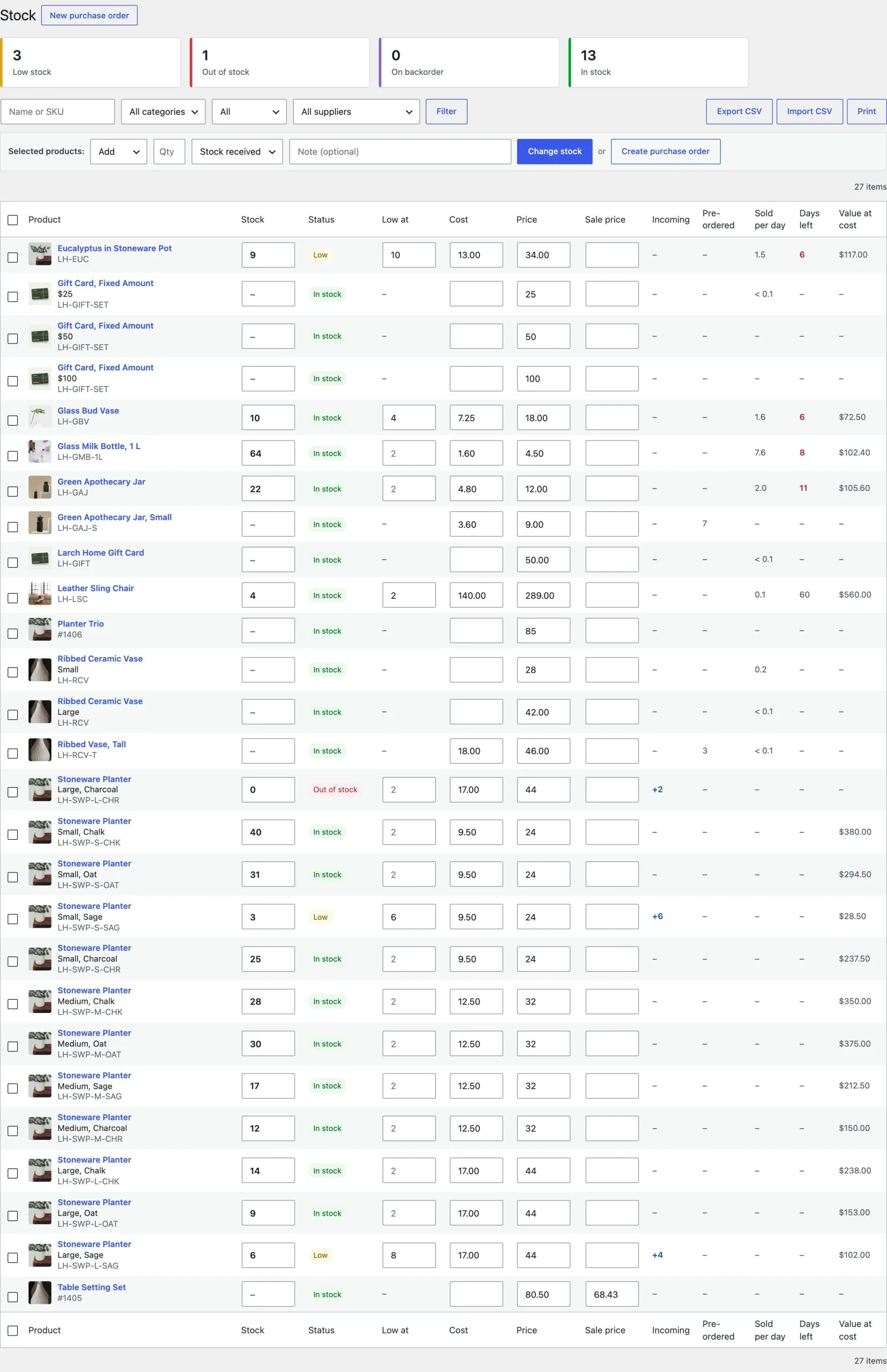
The list shows every product and variation that manages stock. Edit stock, low-stock level, cost, price and sale price in place; each field saves on its own. Select products to add, remove or set stock in one go with a reason and a note.
Stock history
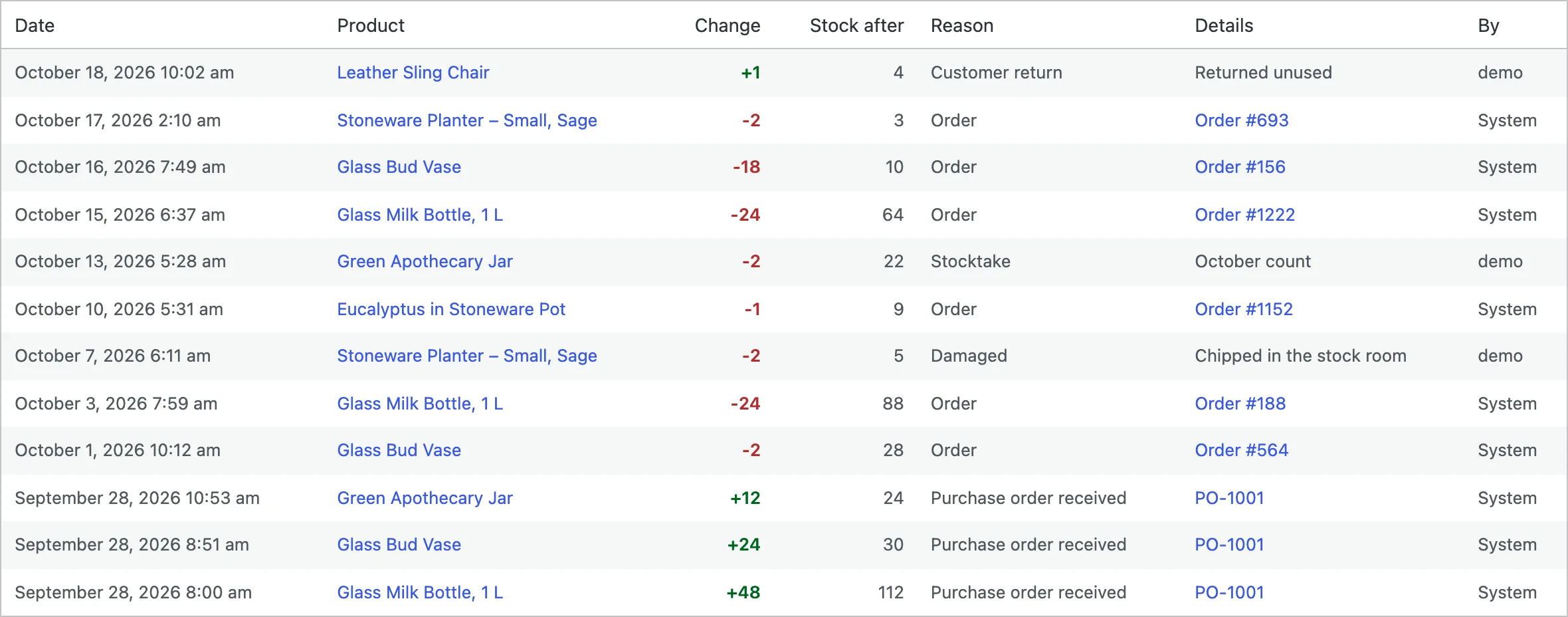
Every stock change is saved with its reason, the stock after it, the order or purchase order and the person who made it. Filter by product, reason and date.
Stocktake
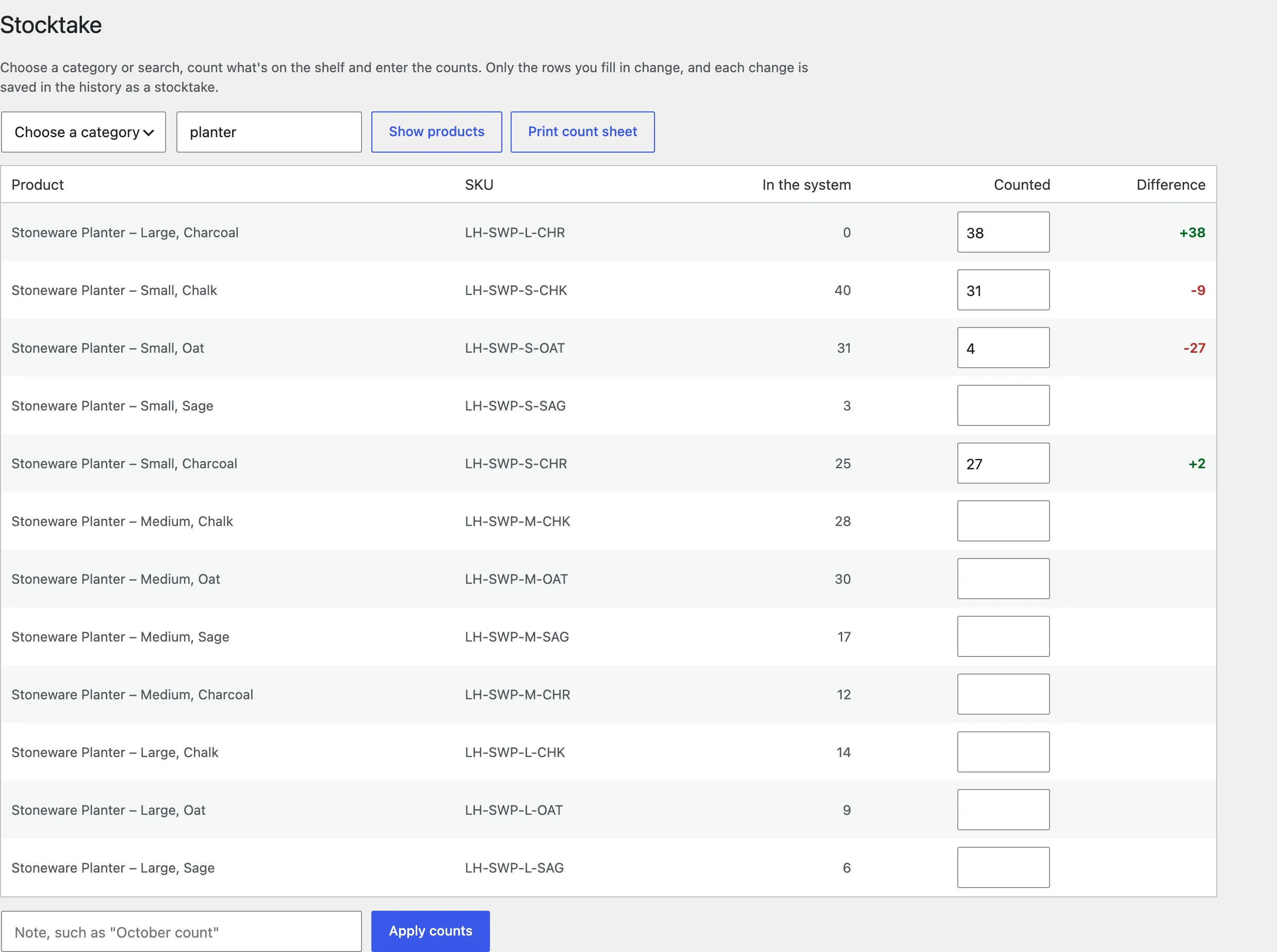
Choose a category, print the count sheet if you like, and enter what you counted. Only the rows you fill in change.
Suppliers
Add suppliers with their order email, contact, phone, address and lead time. On each product, choose the supplier and enter the supplier SKU and cost price; variations have their own cost and supplier SKU.

Purchase orders
Create a purchase order, choose the supplier, and add products one by one or every low-stock product from the supplier. Mark it as ordered to email it with a PDF. When the delivery arrives, receive everything or the quantities that arrived.
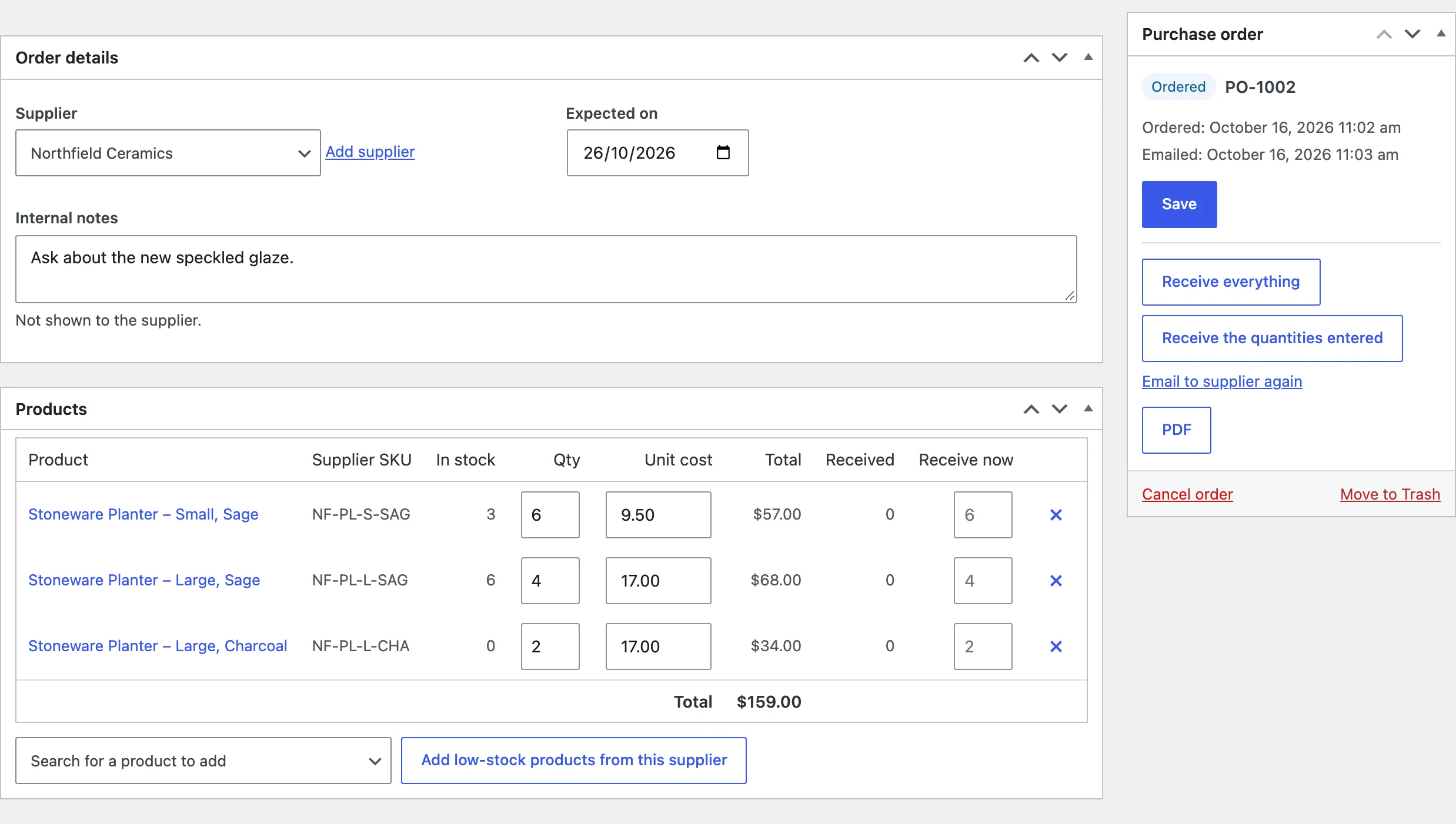
Ordered quantities show as incoming in the stock list until they are received.
Reports
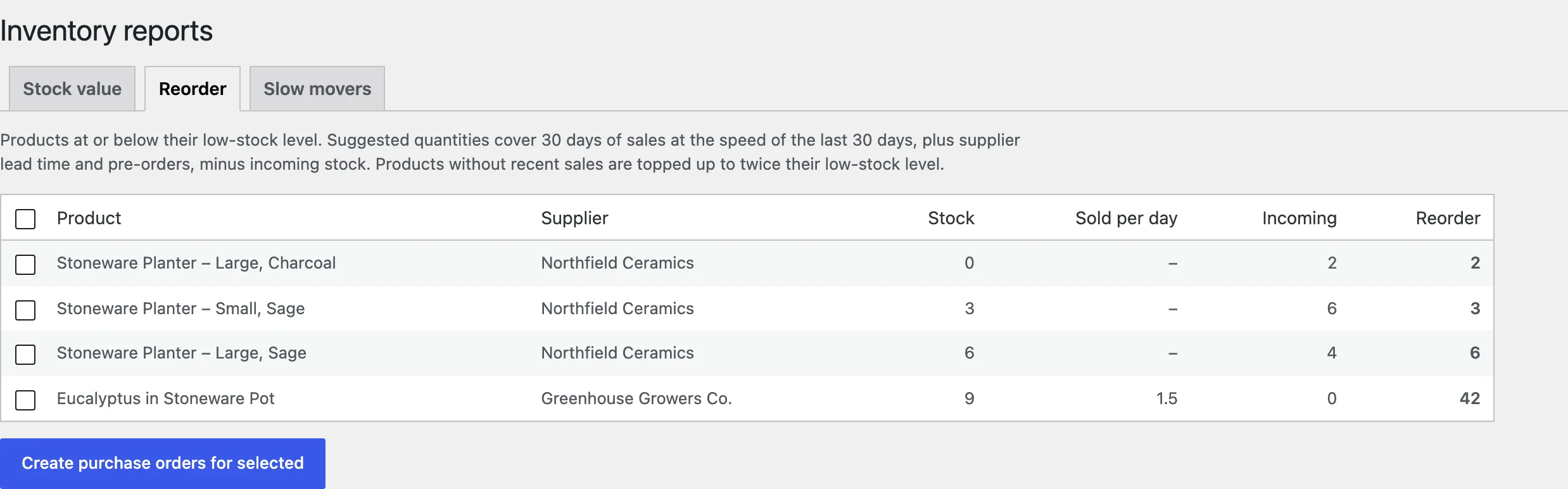
Stock value at cost, regular price and current price; reorder suggestions with quantities that cover your chosen days of sales and the lead time; and slow movers with no sales for the days you set.
Settings
| Setting | What it does |
|---|---|
| Low stock summary | A daily email of products at or below their low-stock level. |
| Sales speed from the last | Days of orders used for units sold per day. |
| Order enough stock for | Days of sales reorder suggestions should cover. |
| Slow movers | Days without sales before a product counts as slow. |
| Numbers | The prefix and next number of purchase orders. |
| Delivery address, Note to suppliers | Shown on purchase orders. |
| Attach a PDF to purchase order emails. | |
| Remove data | Delete suppliers, purchase orders, history and settings when the plugin is deleted. |
For developers
| Hook | Use |
|---|---|
imin_po_status_changed | Runs when a purchase order changes status. |
imin_admin_capability | The capability needed to manage inventory. |
Frequently asked questions
How do I manage inventory in WooCommerce?
Turn on stock management for your products, then use Inventory > Stock to edit stock in one list, and purchase orders to restock.
How are reorder quantities worked out?
Units sold per day times the days you want to cover plus the supplier’s lead time, minus stock on hand and incoming units.
Can I undo a stock change?
Make the opposite change with a reason and a note; the history keeps both.
Changelog
1.0.0 · October 19, 2026
- Stock list with inline editing, incoming units, sales speed and days left.
- Stock history and stocktakes.
- Low-stock email, dashboard widget and reports.
- Suppliers and purchase orders with emails and PDFs.