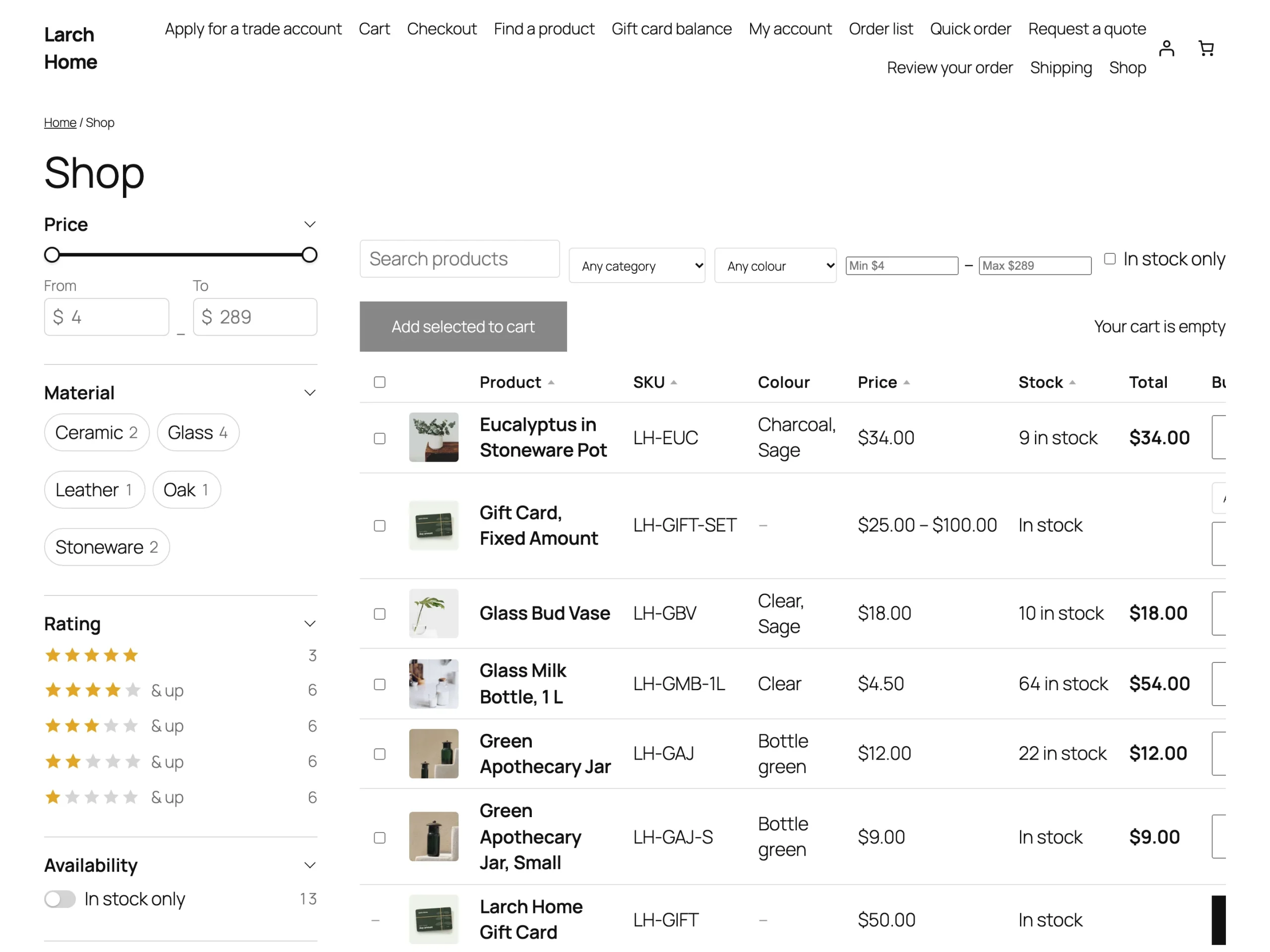
Product Table lists products in a table shoppers can search, filter, sort and buy from, on any page, instead of the shop grid, or for the variations of a product.
Requirements
- WordPress 6.8 or newer
- WooCommerce 10.0 or newer
- PHP 7.4 or newer
- Works with classic and block themes, the Cart and Checkout blocks, and High-Performance Order Storage.
Installation
- Download
product-table.zipfrom My account > Downloads. - In WordPress, go to Plugins > Add New Plugin > Upload Plugin, choose the zip file and click Install Now.
- Click Activate. Tables are under Products > Product tables, and settings under WooCommerce > Settings > Products > Product tables.
Quick start
- Go to Products > Product tables and open the table the plugin made on activation, or add a new one.
- Choose the products, columns and filters, and save.
- Add the Product table block to a page and choose the table.
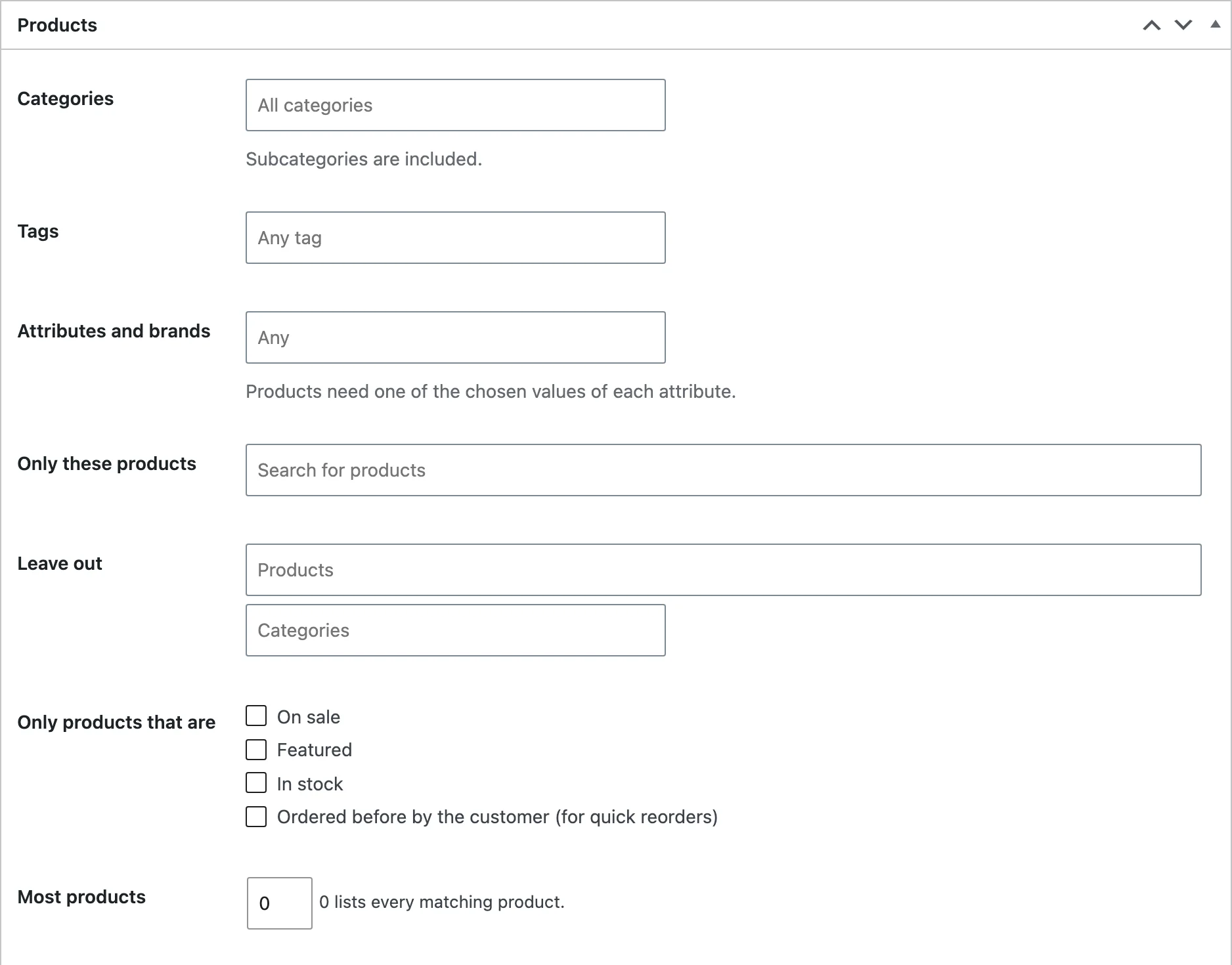
Products
Choose the products by category, tag, attribute, brand or one by one, and leave out products or categories. Show only products on sale, featured, in stock, or ones the customer ordered before.
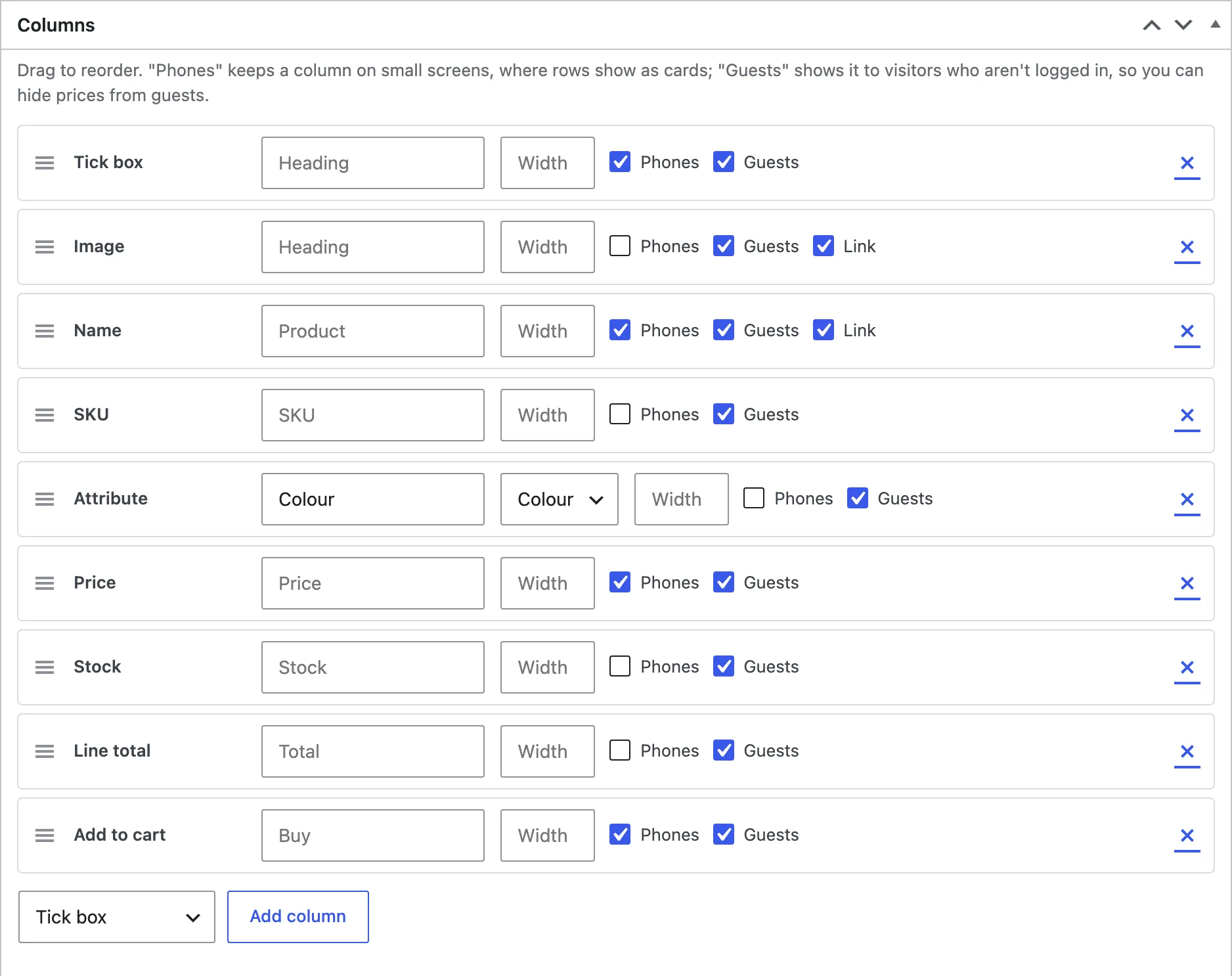
Columns
Add columns, drag them into order, rename headings and set widths. Choose which columns stay on phones, where each row becomes a card, and which columns guests see.
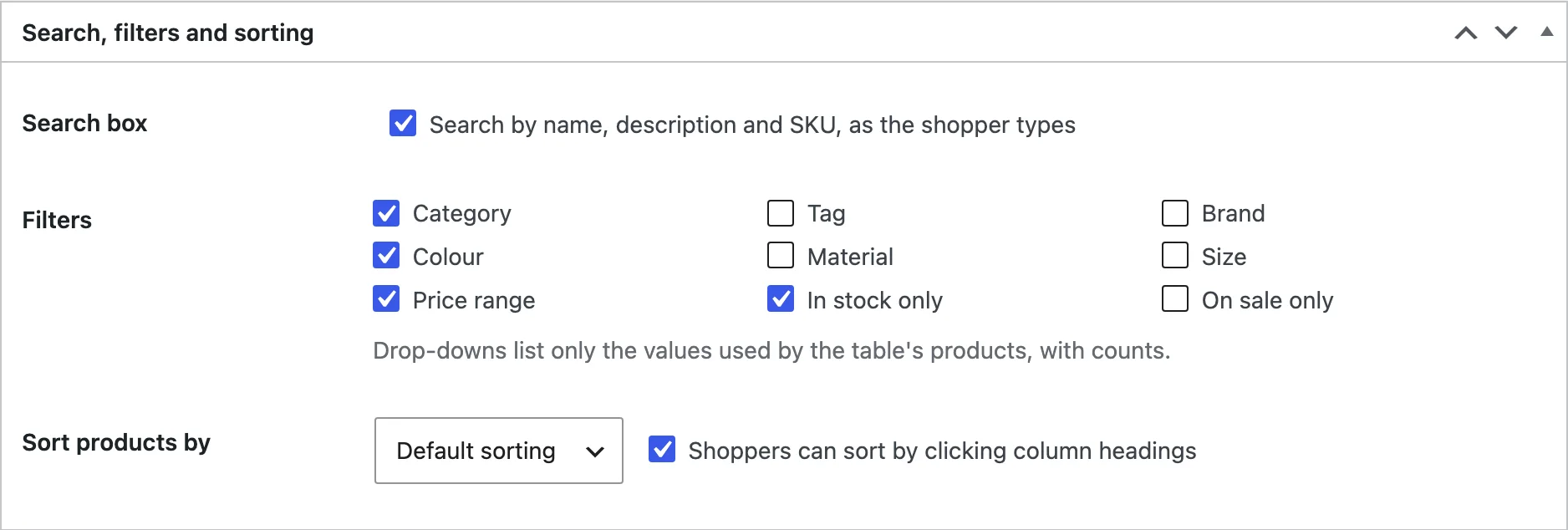
Search, filters and sorting
Turn on the search box, choose filters (categories, tags, brands, attributes, price, in stock, on sale) and the default sort. Shoppers sort by clicking column headings.
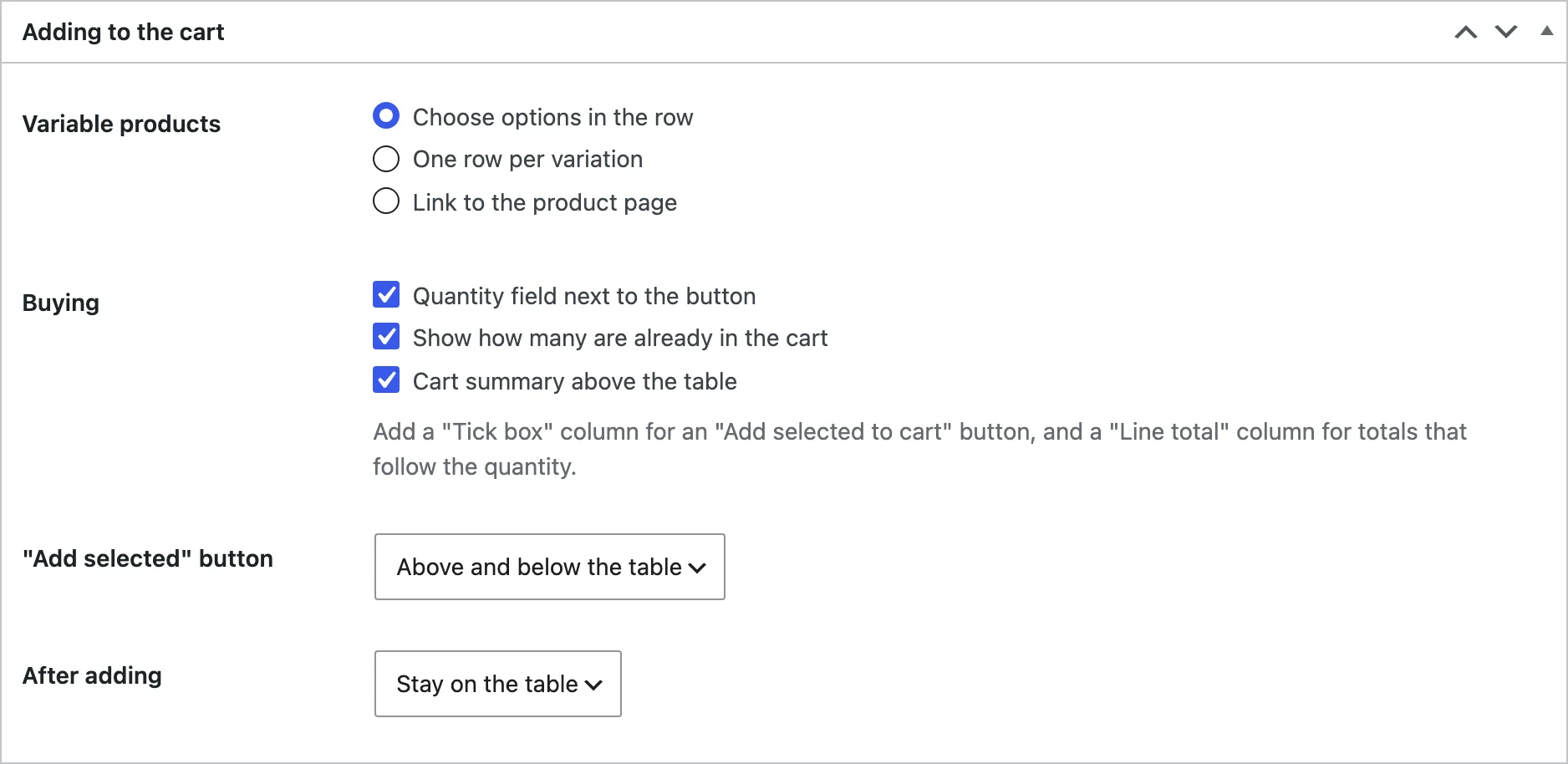
Buying
Choose how variable products work, whether rows have tick boxes and line totals, whether a cart summary shows above the table, and where customers go after adding.
Placing a table
Add the Product table block, or the shortcode [product_table id="123"]. Change the products for one page in the shortcode: category, tag, ids, skus, exclude, limit, rows, sort, order and search.
Shop pages and product pages
In the settings, choose a table for the shop pages and the page types it replaces the grid on, and a table for the variations of variable products. On a category’s edit screen, choose its own table, or none to keep the grid.
Settings
| Setting | What it does |
|---|---|
| Table on shop pages | The table shown instead of the product grid. |
| Shop pages | The page types where the table replaces the grid. |
| Variations table | The table that lists the variations of variable products. |
| Only in these categories | Limit the variations table to some categories. |
| Remove data | Delete tables and settings when the plugin is deleted. |
For developers
| Hook | Use |
|---|---|
ptpr_query_args | The product query of a table. |
ptpr_column_types | Add or change column types. |
ptpr_cell | The content of one cell. |
ptpr_can_view_table | Whether the current customer can see a table. |
ptpr_shop_page_table | The table shown on a shop page. |
ptpr_show_variations_table | Whether a variable product shows its variations in a table. |
ptpr_added_to_cart | Runs after products are added from a table. |
Frequently asked questions
How do I create a WooCommerce product table?
Add a table under Products > Product tables, choose its products and columns, and add the Product table block to a page.
Can I show a table only in one category?
Yes. Use the shortcode with category="slug", or choose a table on the category’s edit screen.
Why does a product link to its page instead of adding to the cart?
Products that need choices the table can’t show, such as required options, quote-only products and bundles, link to their page.
Changelog
1.0.0 · October 19, 2026
- Product tables with 22 column types, search, filters and sorting.
- Quantities, tick boxes, line totals and cart updates without reloading.
- Tables instead of the shop grid and variations tables on product pages.
- Phone cards, guest columns and access by role.