Bookings and Reservations turns products into things customers book for a date and time: appointments, classes, rentals and stays. Customers pick a free date and time on a calendar, choose how many are coming and pay at checkout.
Requirements
- WordPress 6.8 or newer
- WooCommerce 10.0 or newer
- PHP 7.4 or newer
- Works with classic and block themes, the Cart and Checkout blocks, and High-Performance Order Storage.
Installation
- Download
bookings-reservations.zipfrom My account > Downloads. - In WordPress, go to Plugins > Add New Plugin > Upload Plugin, choose the zip file and click Install Now.
- Click Activate. Bookings are under WooCommerce > Bookings, and settings under WooCommerce > Settings > Bookings.
Quick start
- Add a product and choose Bookable product as the product type.
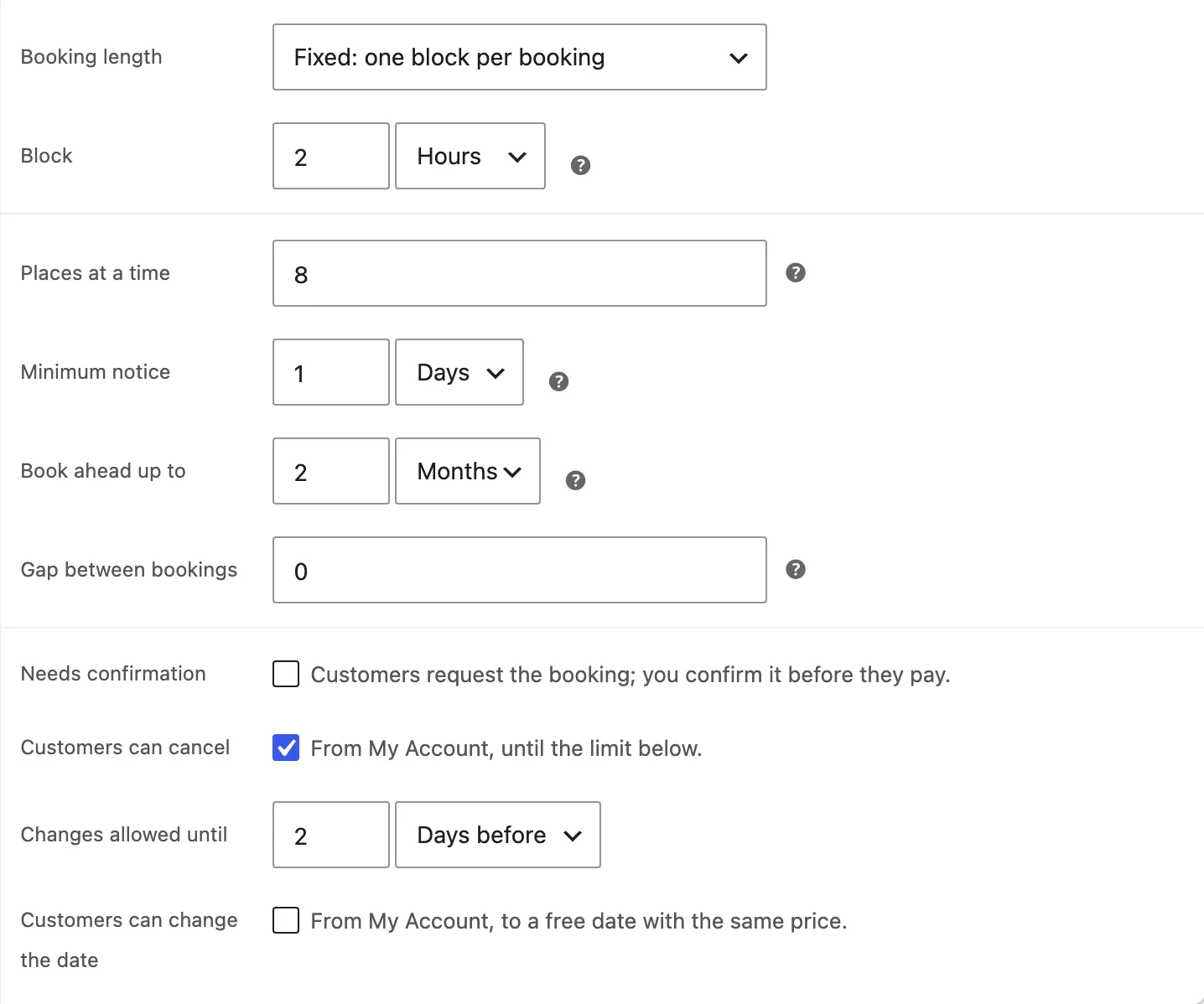
- On the Booking tab, choose the unit (minutes, hours, days or nights), the length and the places at a time.
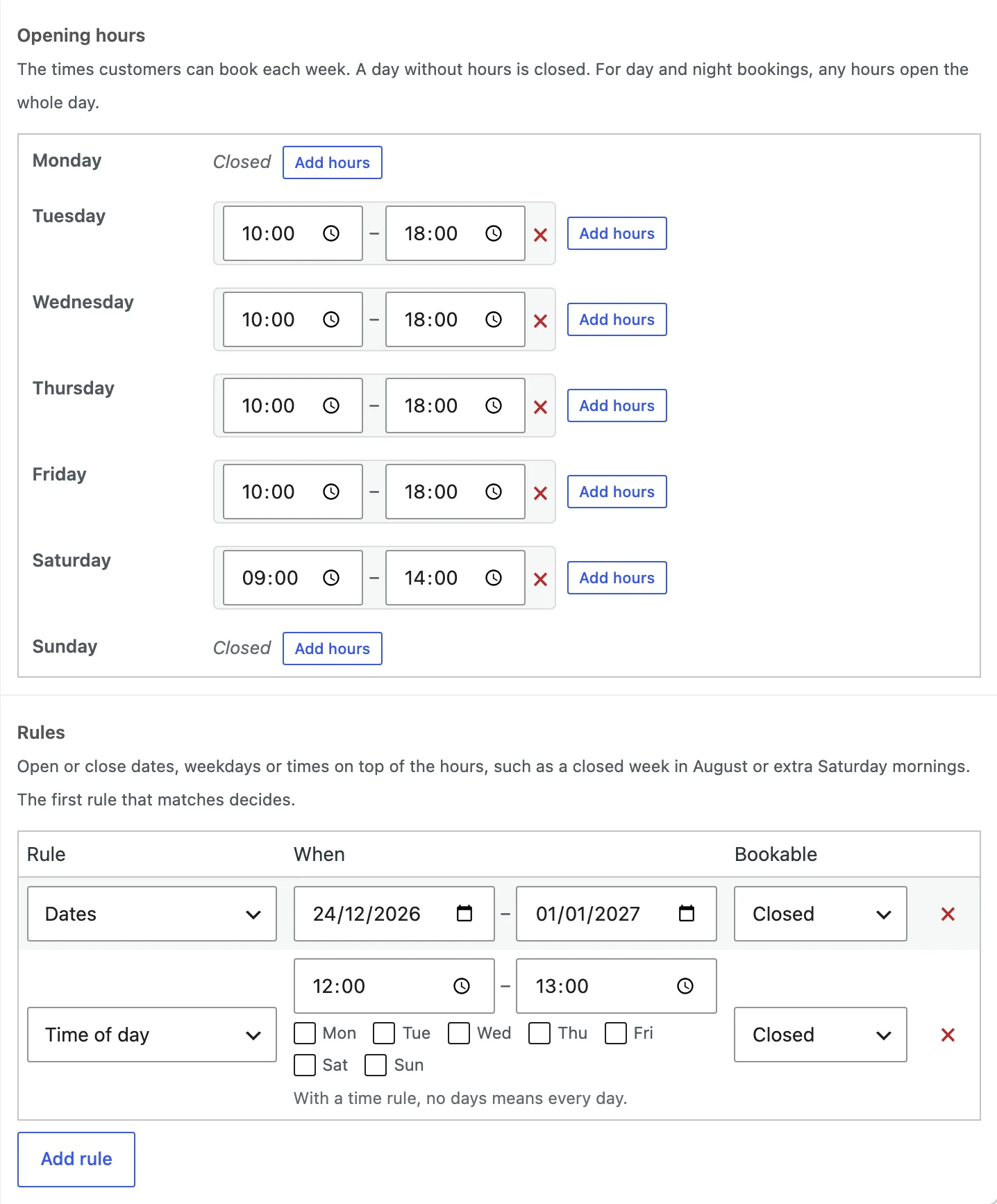
- On the Availability tab, set the opening hours for each weekday.
- On the Costs tab, enter the booking cost or the cost per block, then publish the product.
- Open the product page: customers now pick a date and time and add the booking to the cart.
Booking settings
The Booking tab sets how long a booking is and how many can be booked at once. Choose a fixed length, or let customers choose how long between a minimum and maximum. For nights, set the check-in and check-out times.
Minimum notice stops last-minute bookings, the booking window sets how far ahead customers can book, and a gap keeps time free between bookings.
- Needs confirmation: customers request the booking and pay once you confirm it
- Customers can cancel: up to a number of hours before the start
- Customers can change the date: to another free date at the same price
Availability
Set the opening hours for each day of the week; a day without hours is closed. Add more than one range to a day for a lunch break.
Rules open or close dates, weekdays or times on top of the hours, such as a closed week in August or extra Saturday mornings. Store-wide closed dates, such as public holidays, are under WooCommerce > Settings > Bookings.
Persons
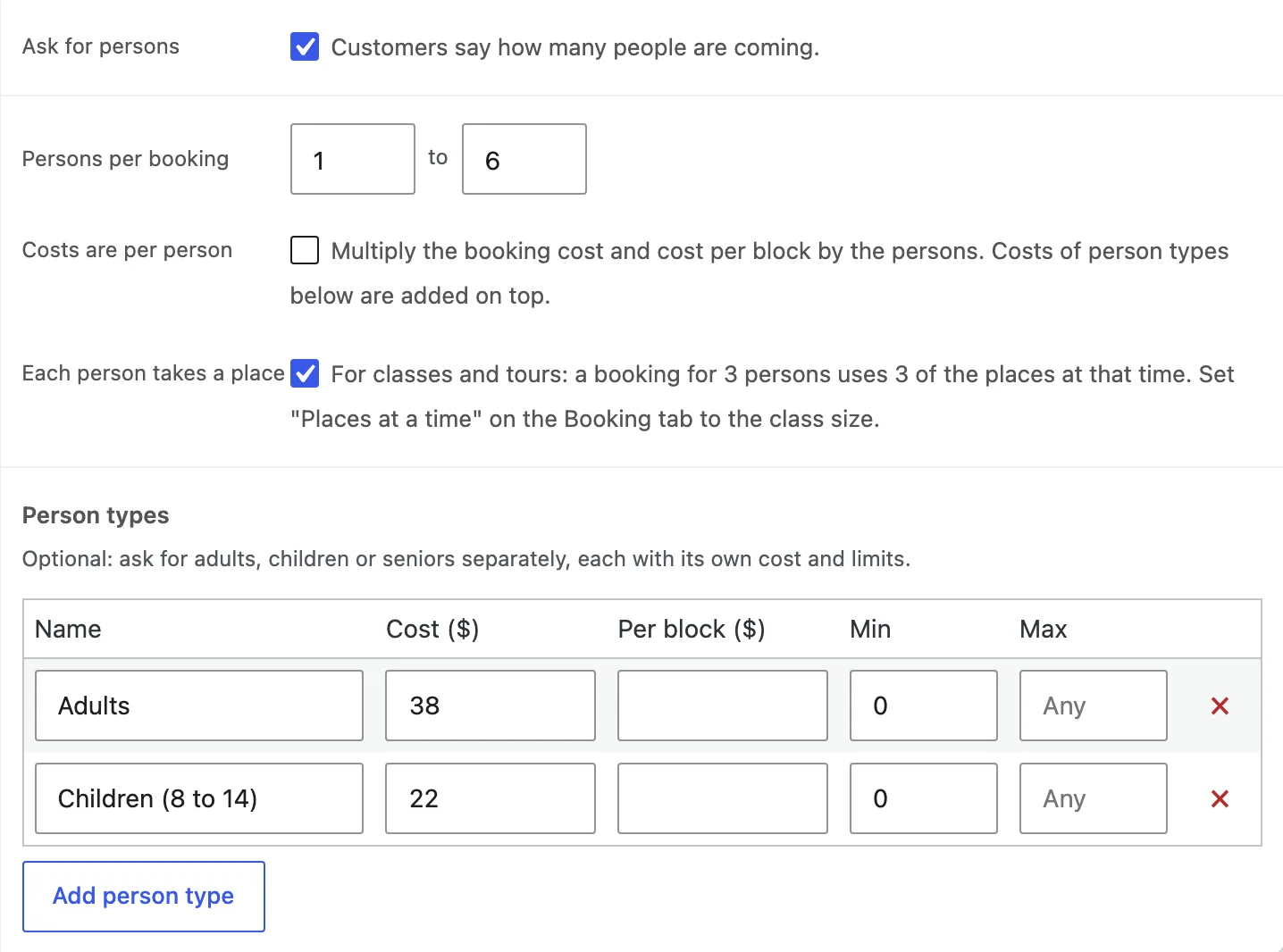
Tick Ask for persons to ask how many people are coming, with a minimum and maximum. Add person types such as adults and children, each with its own cost per person and limits.
Tick Each person takes a place for classes and tours, so a booking for three uses three places. Tick Costs are per person to multiply the costs by the number of people.
Resources
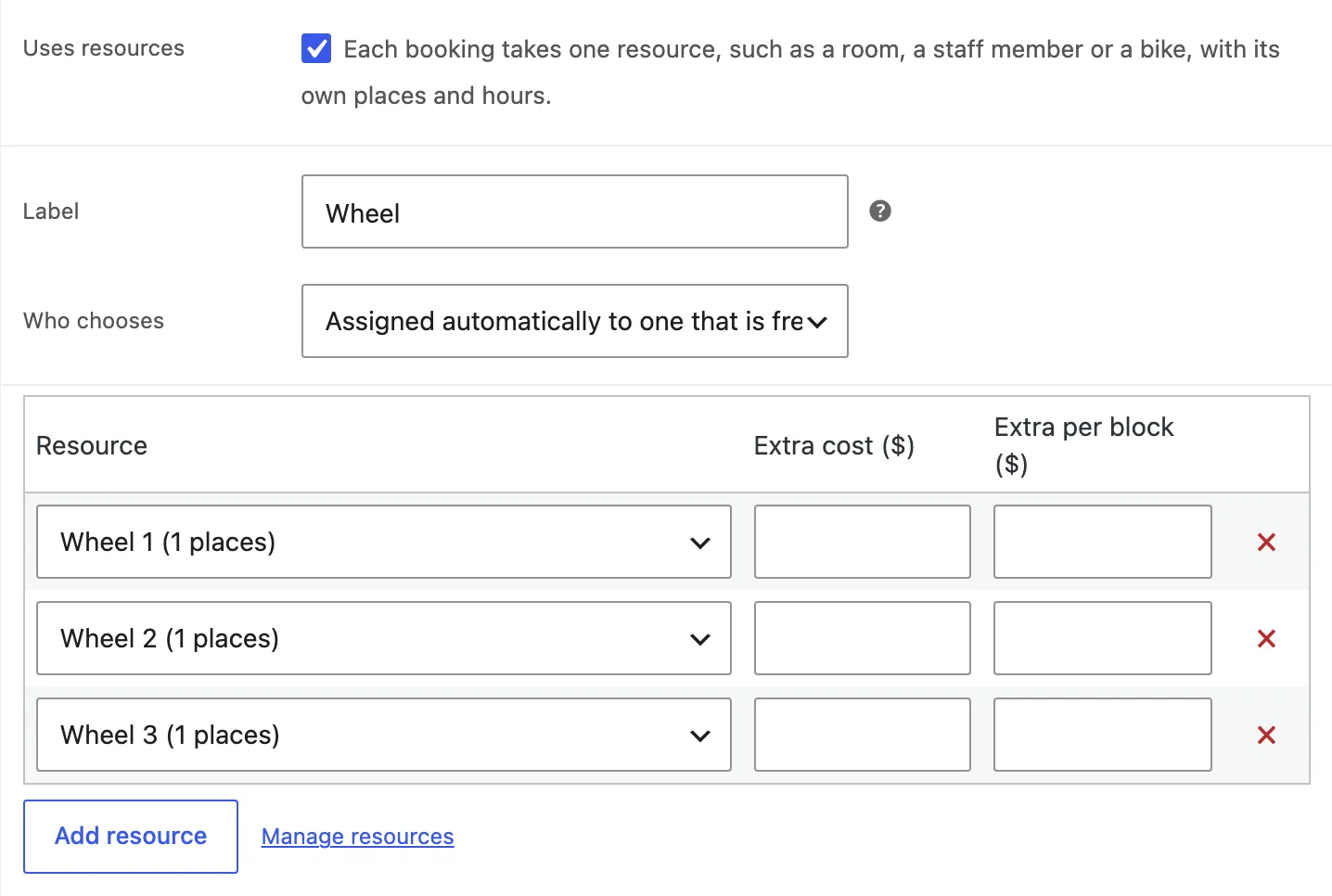
Resources are rooms, staff, boats or anything else a booking uses. Add them under WooCommerce > Bookings > Resources, give each one its places and availability, then choose them on a product’s Resources tab with an extra cost if you like.
Under Who chooses, let customers choose a resource from a list, or have one that is free assigned to them.
Costs
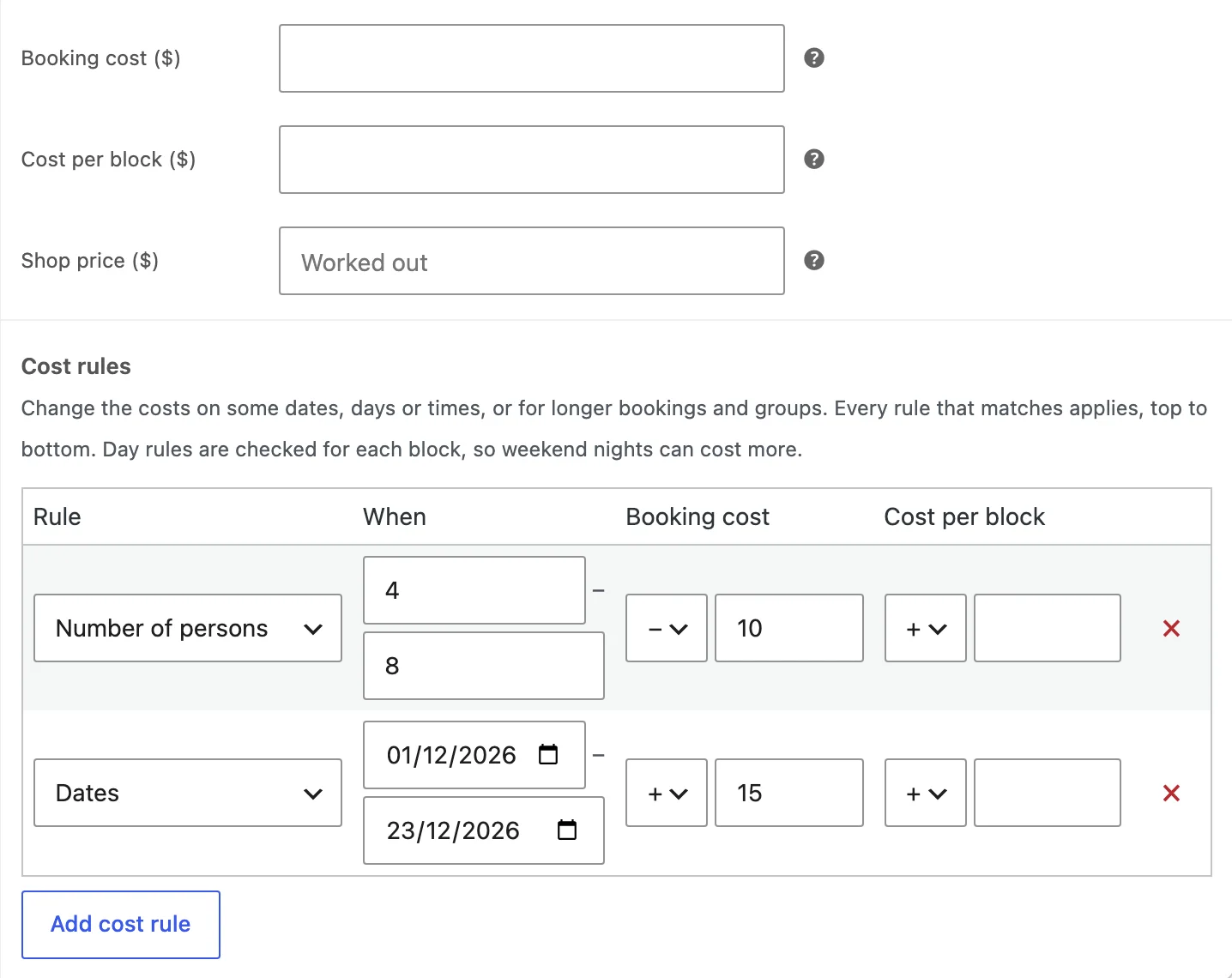
A booking has a booking cost and a cost per block (per hour, day or night). Cost rules change them by date, weekday, time of day, length or number of persons, such as higher weekend nights or a lower price for a week.
The shop price shows as “From $40”; set your own with Shop price.
Managing bookings
WooCommerce > Bookings lists every booking with filters by product, upcoming or past, and status. Confirm or cancel bookings in bulk, and export the list to CSV.
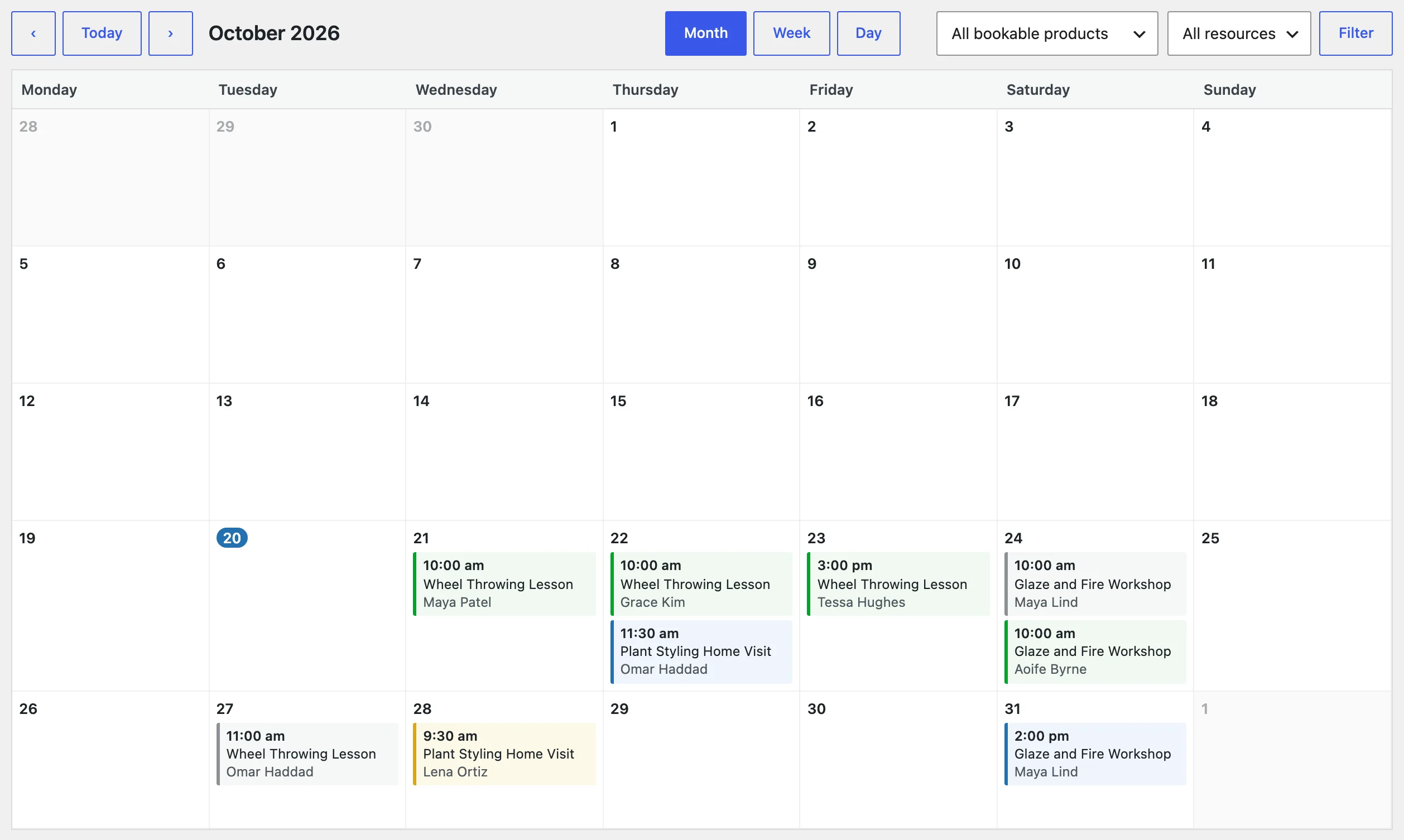
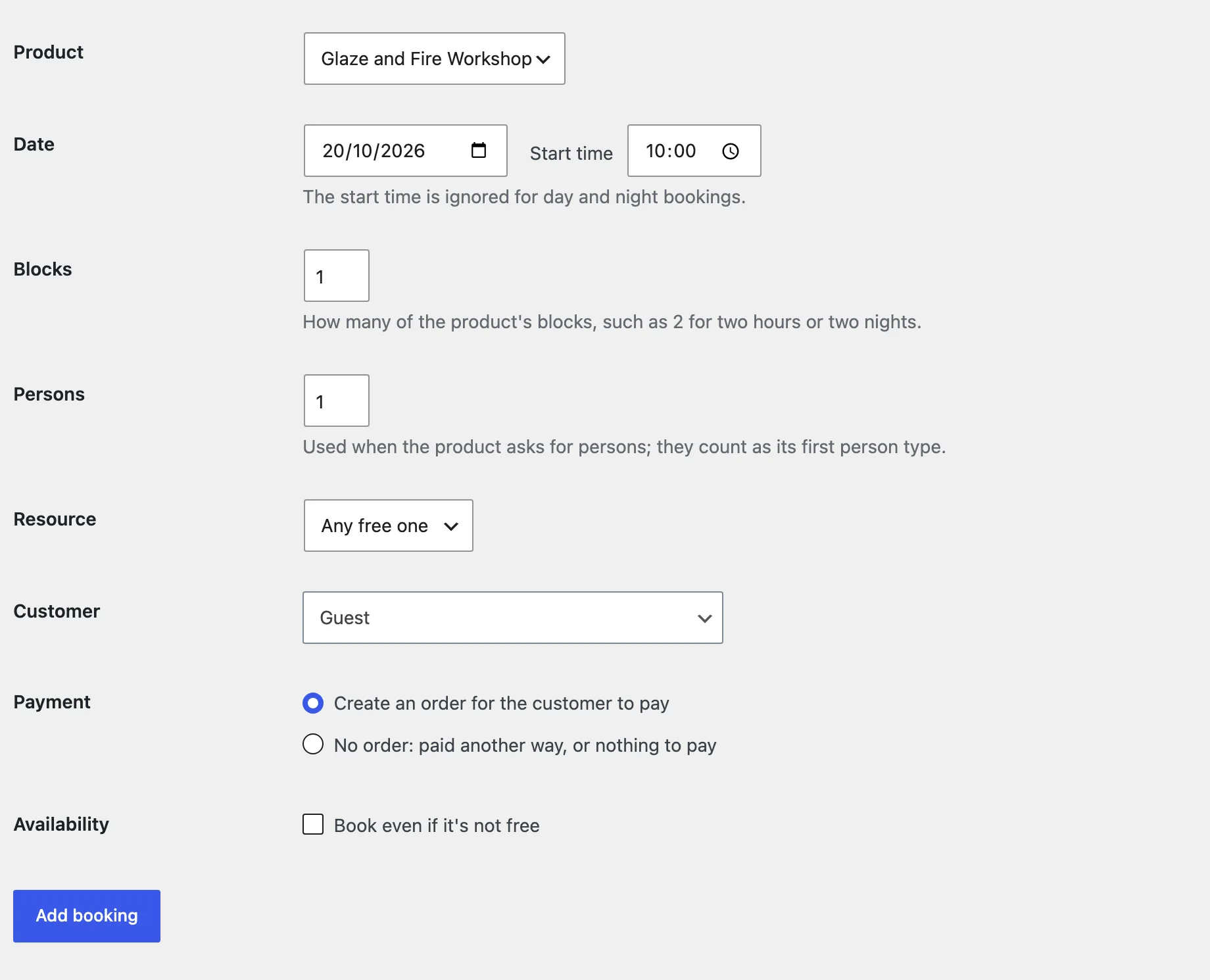
The Calendar tab shows bookings by month, week or day, for all products or one product or resource. Add booking adds a booking for a phone or walk-in customer, with an order for them to pay or marked as paid.
Customers and emails
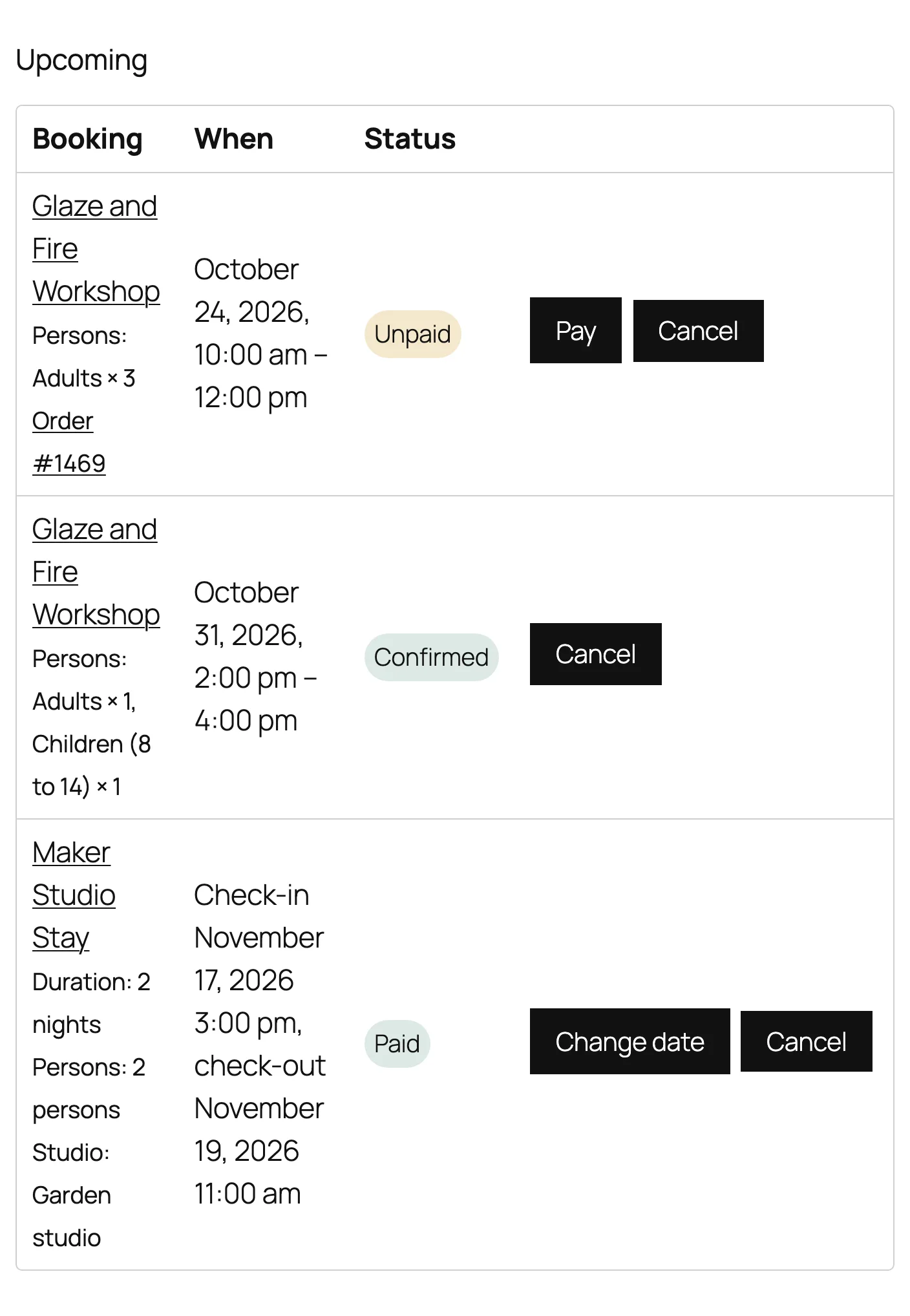
Customers find their bookings on the Bookings page of My Account, where they can cancel or change the date when you allow it.
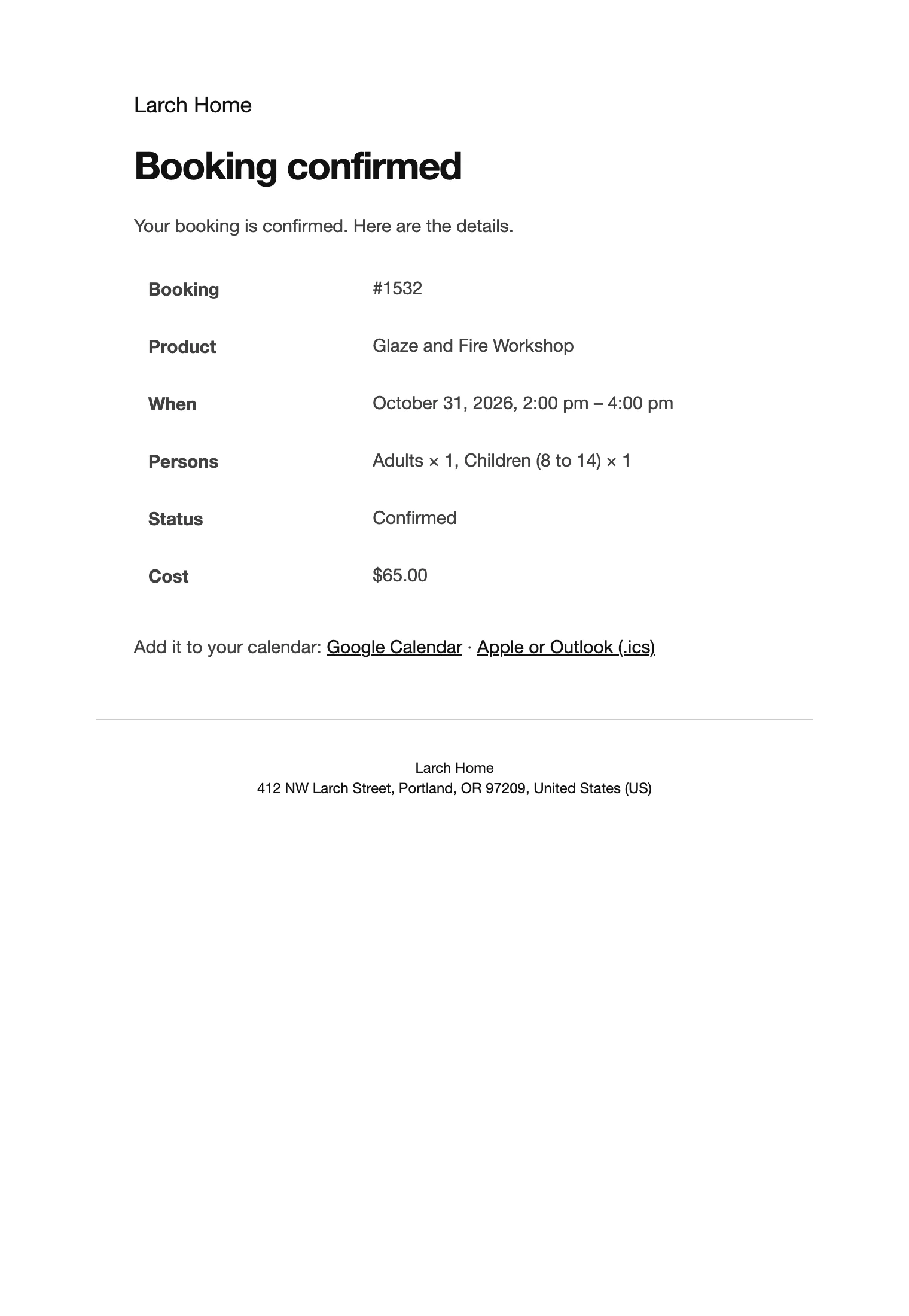
Emails go out when a booking is requested, confirmed or cancelled, and as a reminder before it starts (24 hours by default). Each has Add to calendar links for Google Calendar, Apple Calendar and Outlook. You get an email for each new booking.
Availability search
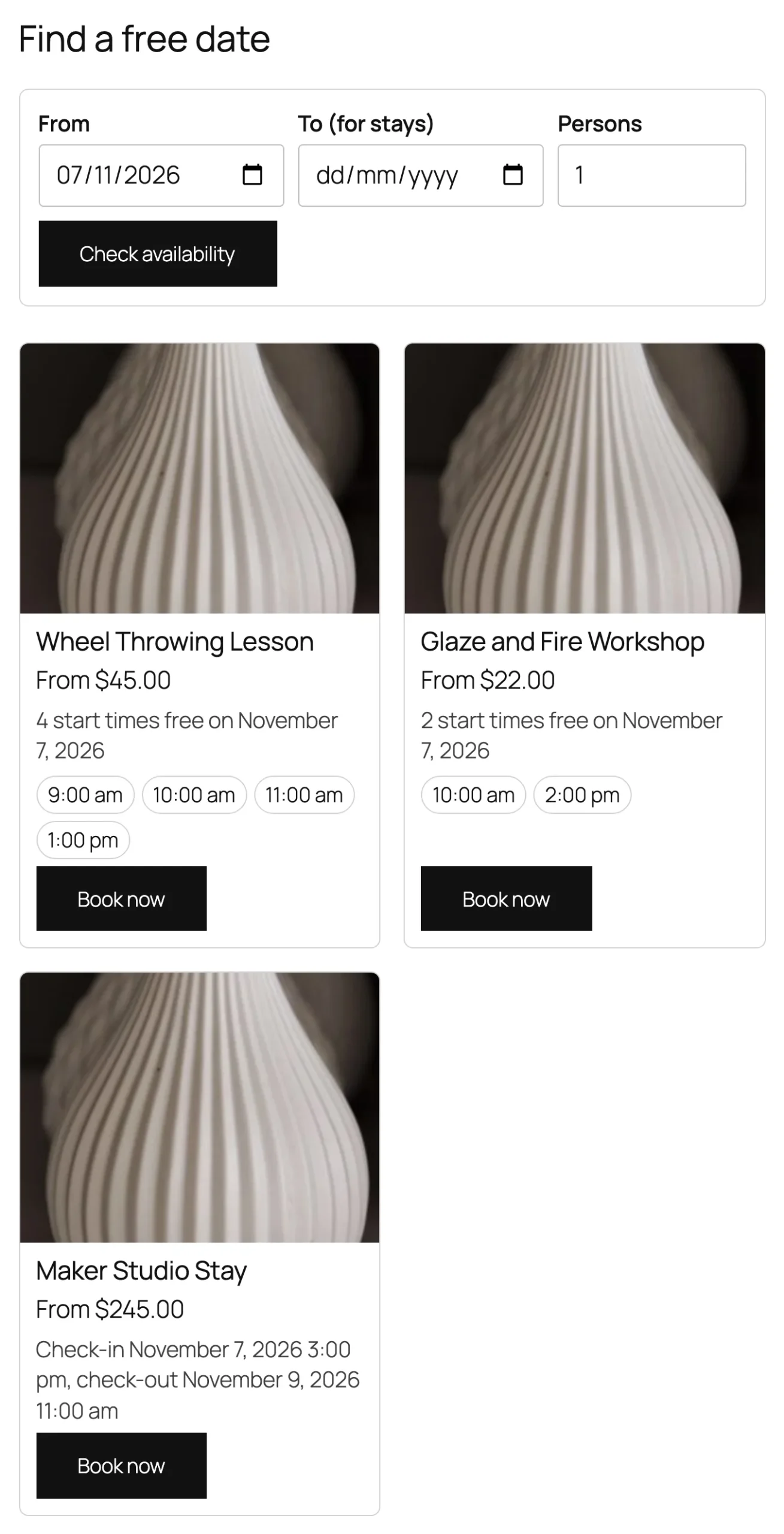
Add the Availability search block, or the [brbo_search] shortcode, to any page. Customers enter dates and the number of people and see which bookable products are free, then book with the dates filled in.
Calendar feed
Copy the address under Calendar feed in WooCommerce > Settings > Bookings and add it in Google Calendar (From URL), Apple Calendar or Outlook. The feed is read-only and updates on its own. Make a new address if the old one was shared by mistake.
Settings
| Setting | What it does |
|---|---|
| Hold time | Minutes a place is kept for a booking in the cart before it is freed. |
| Reminder | Hours before the start that the reminder email is sent. |
| End times | Show when a booking ends as well as when it starts. |
| My Account address | The last part of the address of the Bookings page in My Account. |
| Closed dates | Dates closed for every bookable product, such as public holidays. |
| Calendar feed | The feed address for Google Calendar, Apple Calendar or Outlook. |
For developers
| Hook | Use |
|---|---|
brbo_booking_cost | Change the price of a booking before it is added to the cart. |
brbo_booking_created | Runs when a booking is created. |
brbo_booking_status_changed | Runs when a booking’s status changes. |
brbo_booking_moved | Runs when a customer moves a booking to another date. |
brbo_before_booking_fields | Add fields before the booking fields. |
brbo_after_booking_fields | Add fields after the booking fields, before the price. |
brbo_settings | Add or change settings. |
brbo_admin_capability | The capability needed to manage bookings. |
Copy public/templates/booking-form.php to yourtheme/bookings-reservations/booking-form.php to change the booking form.
Frequently asked questions
How do I make a booking need my confirmation?
Tick Needs confirmation on the product’s Booking tab. The customer requests the booking without paying; when you confirm it, they get an email with a link to pay.
How do I close a day for all products?
Add the date under Closed dates in WooCommerce > Settings > Bookings.
Why can’t customers pick a date?
Check the opening hours on the Availability tab, the minimum notice and the booking window on the Booking tab, and the store-wide closed dates.
How do I remove all data when deleting the plugin?
Add define( 'BRBO_REMOVE_ALL_DATA', true ); to wp-config.php before deleting the plugin. Without it, bookings and settings are kept.
Changelog
1.0.0 · October 20, 2026
- Bookable products by minutes, hours, days or nights, with places, persons, resources and cost rules.
- Opening hours, availability rules and store-wide closed dates.
- Bookings in My Account with cancel and change date, emails with Add to calendar links.
- Bookings list, calendar, bookings added by hand, CSV export and a calendar feed.
- Availability search block and shortcode.