Point of Sale is a register in the browser for selling in person from your WooCommerce products, stock and customers. Each sale is a WooCommerce order.
Requirements
- WordPress 6.8 or newer
- WooCommerce 10.0 or newer
- PHP 7.4 or newer
- Works with classic and block themes, the Cart and Checkout blocks, and High-Performance Order Storage.
Installation
- Download
point-of-sale.zipfrom My account > Downloads. - In WordPress, go to Plugins > Add New Plugin > Upload Plugin, choose the zip file and click Install Now.
- Click Activate. Registers, outlets and sessions are under WooCommerce > Point of Sale, and settings under WooCommerce > Settings > POS Register.
Quick start
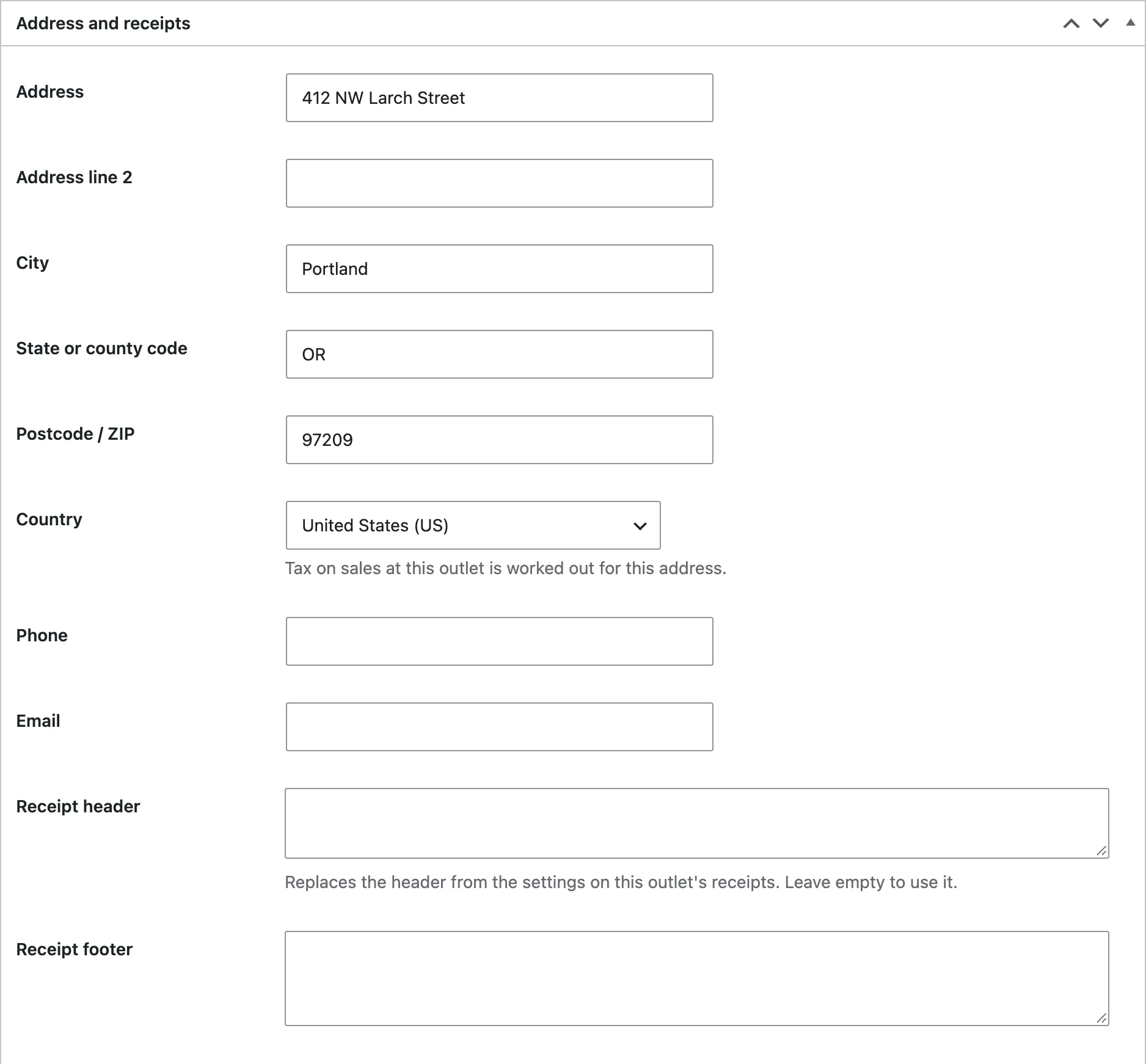
- Go to WooCommerce > Point of Sale > Outlets and add an outlet with your shop’s address.
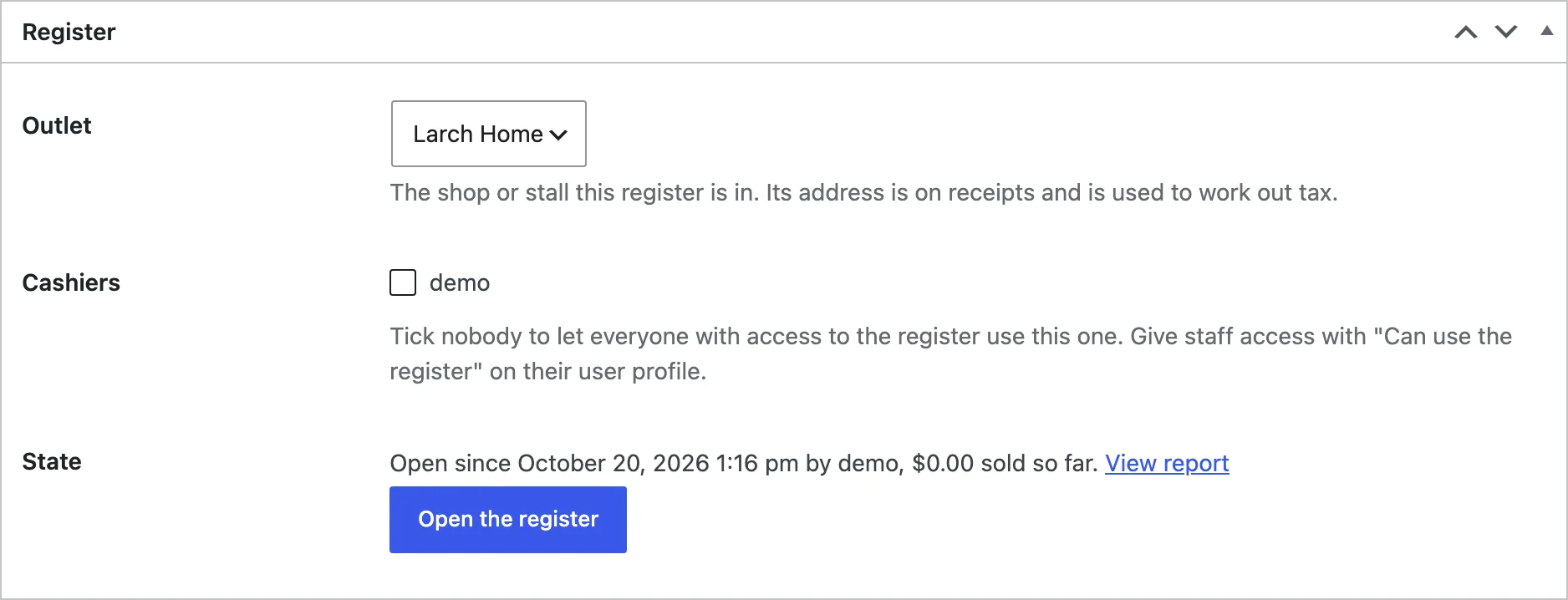
- Under Registers, add a register in that outlet and choose its cashiers.
- Click Open the register, enter the cash float and start selling.
- Tap or scan products, click Pay, take the payment and print the receipt.
- At the end of the day, click Close register and count the cash.
Outlets and registers
An outlet is a shop or a stall, with its own address (used for tax and receipts) and receipt header and footer. A register belongs to an outlet; add as many as you have tills.
Choose which users may use each register. Give any user Can use the register on their profile to let them sell without other access to the store admin.
Selling
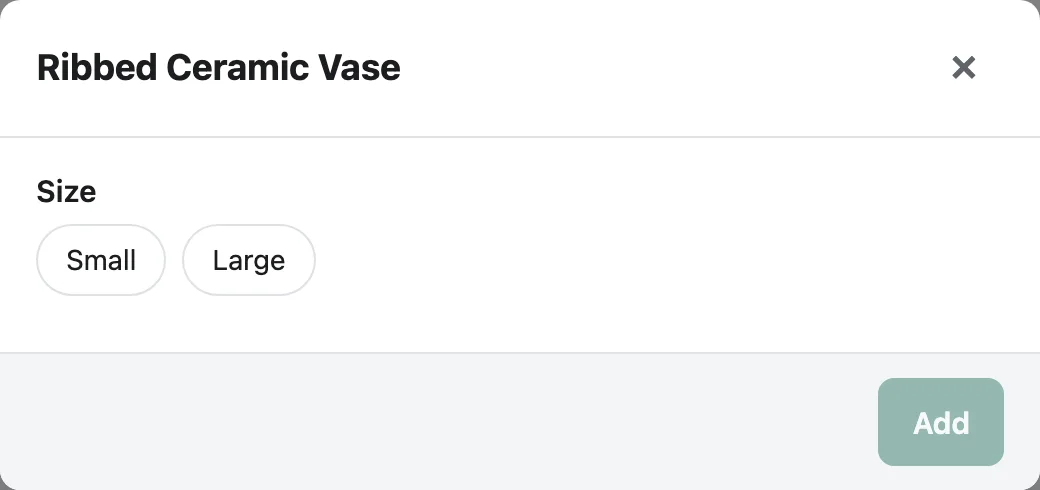
Tap a product, search by name or SKU, or scan its barcode. Variable products open a chooser for their options. Change the quantity, give a line a discount or a new price, add an order discount, a coupon or a note, or sell a custom item with a name and price.
Park keeps a sale to pick up later, and Clear starts again.
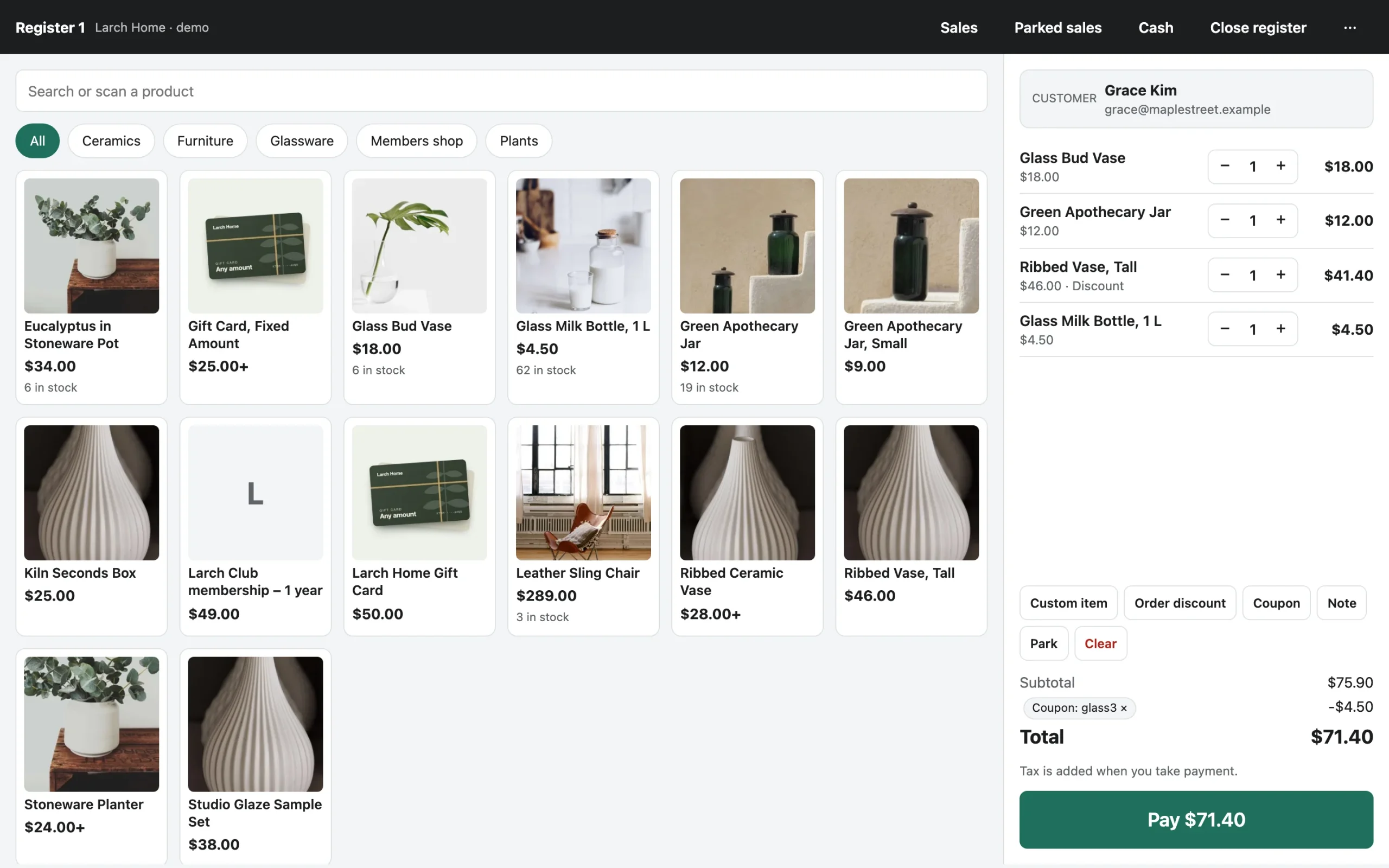
The register keeps the catalog in the browser, so searching and scanning are instant and sales can go on when the internet drops.
Customers
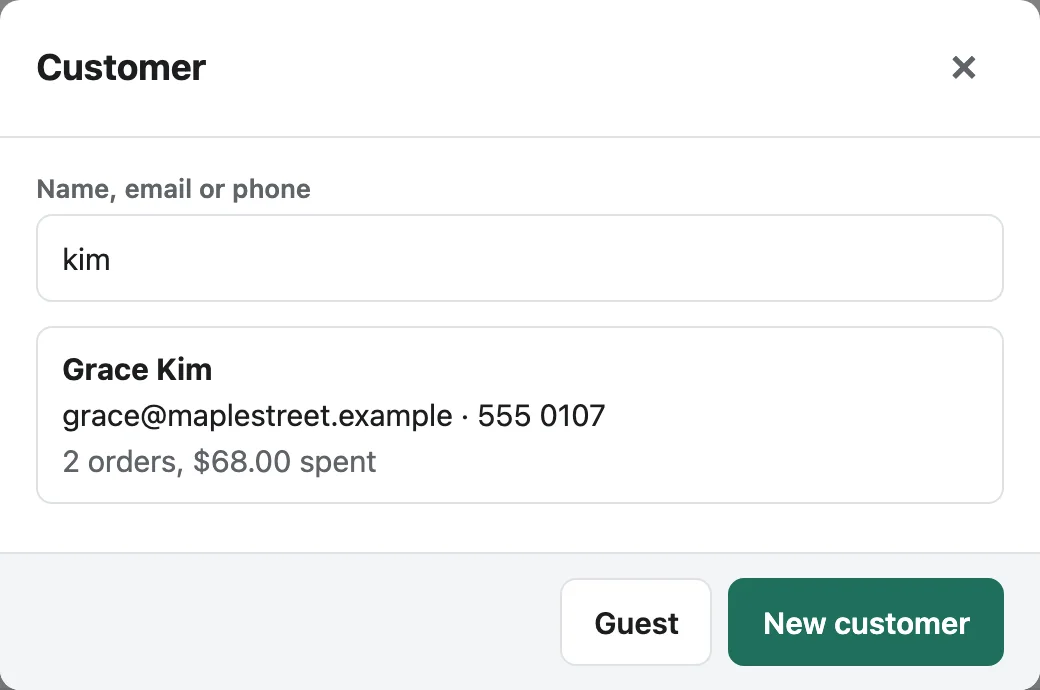
Click Customer to search by name, email or phone, add a new customer, or sell as a guest. The customer’s orders and spending show in the cart.
Payments
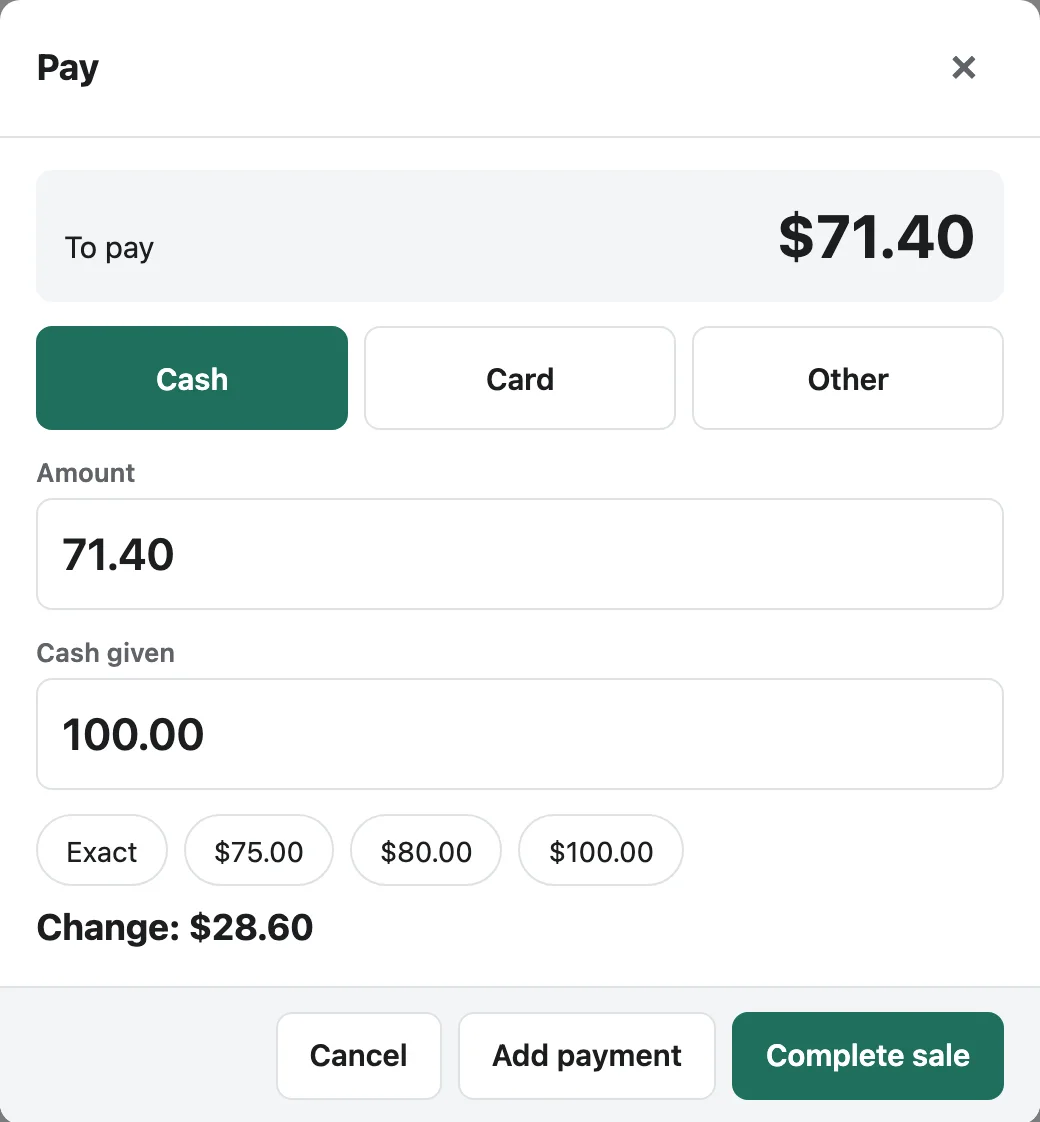
Click Pay and choose cash, card or your third method. For cash, enter what the customer gave or tap a quick amount, and the change shows. Add payment splits the sale across methods.
With Round cash to set, sales paid all in cash are rounded to your smallest coin and a rounding line keeps the order total right.
Receipts
Receipts print from the browser after each sale on 80 mm or 58 mm paper or A4, with the outlet’s address, your header and footer, SKUs and the cashier if you like. Print a gift receipt without prices, reprint an old receipt, or email it to the customer.
Cash in, cash out and closing
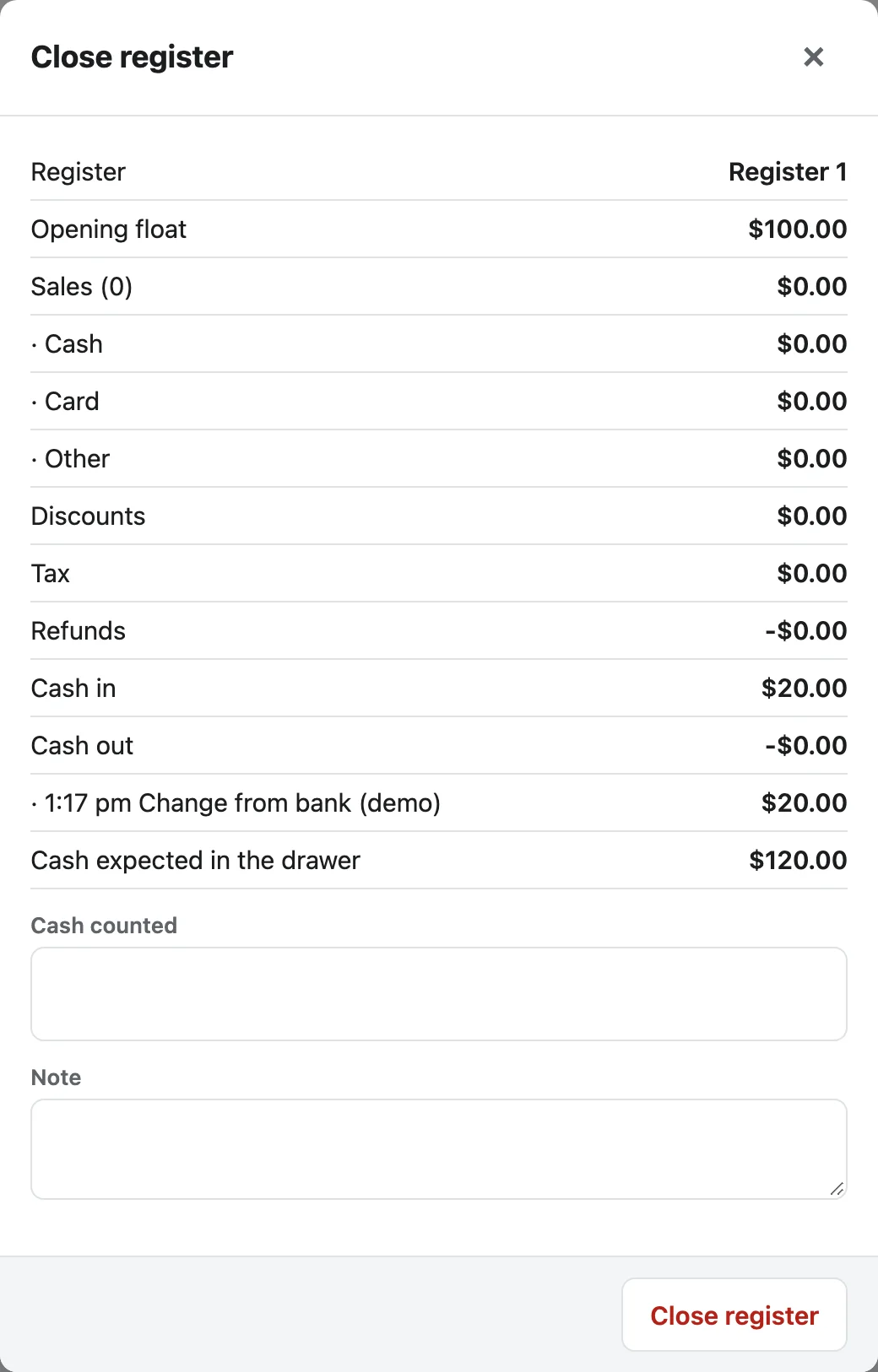
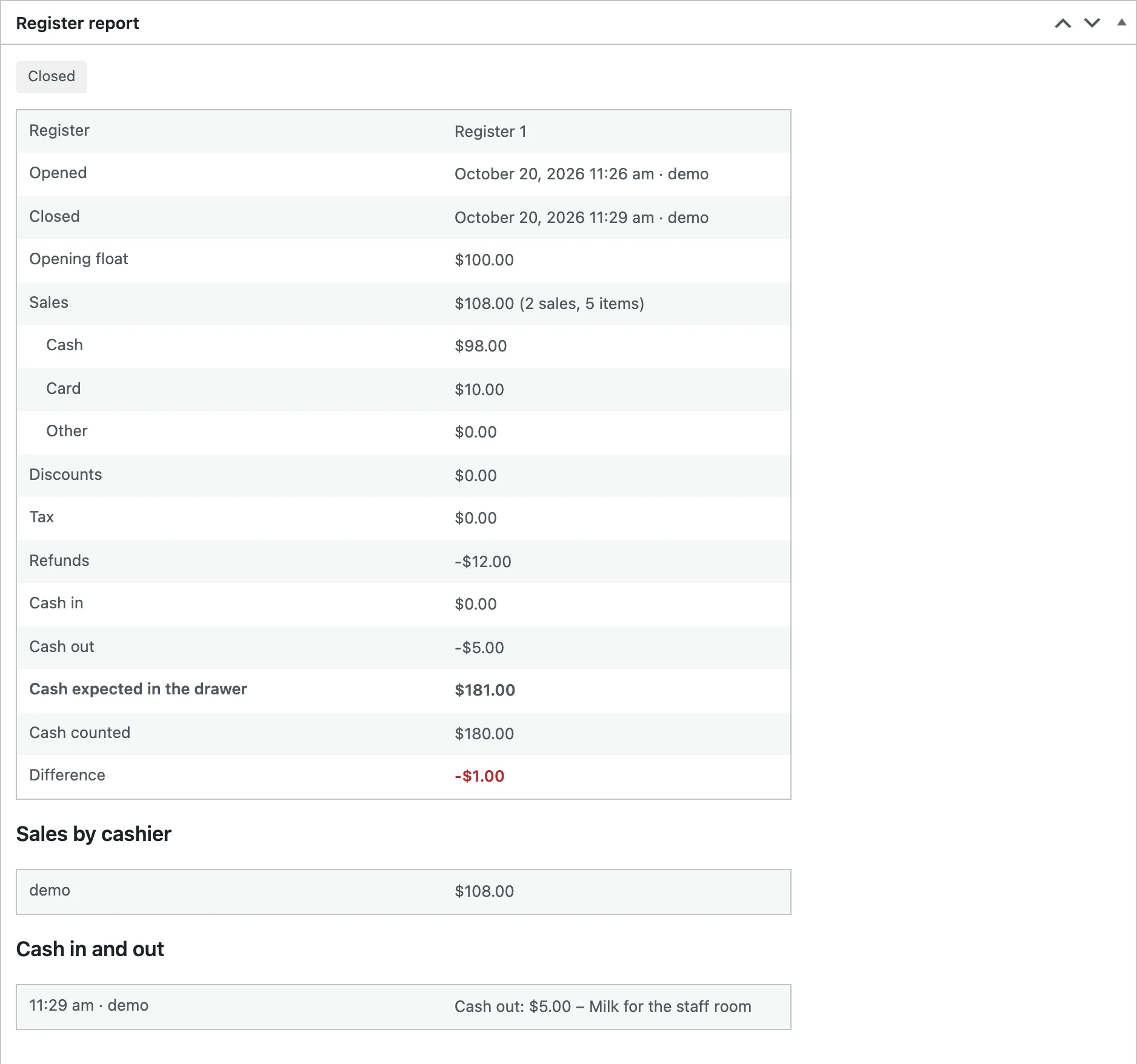
Open the register with a cash float. Record cash put in or taken out, with a reason, with the Cash button. Close register shows sales by payment method, discounts, tax, refunds, cash in and out and the cash expected; enter the cash counted and a note to close.
Read every session’s report later under WooCommerce > Point of Sale > Sessions.
Refunds
Find a past sale from the register’s Sales list, choose the items to refund and how (cash or card). Refunded items go back to stock.
Orders
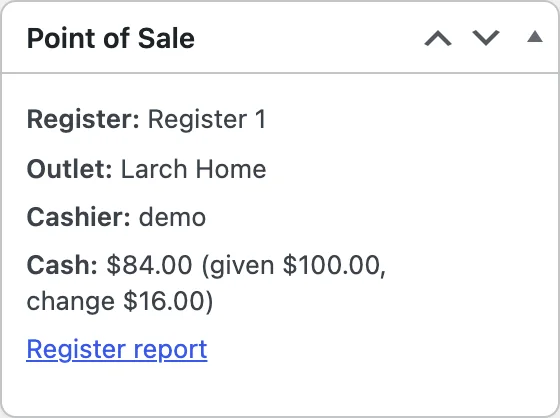
Register sales are WooCommerce orders with a Point of Sale box showing the register, outlet, cashier and payment. They count in reports and lower stock like online orders.
Settings
| Setting | What it does |
|---|---|
| Register address | The last part of the register’s address, such as pos or till. |
| Payment methods | Cash, card and a third method; card payments are taken on your own terminal. |
| Name of “Other” | The name of the third method, such as Voucher. |
| Round cash to | Round sales paid all in cash to your smallest coin. |
| Favourites | Products shown first at the register. |
| New customers get | The role of accounts created at the register. |
| Paper | 80 mm or 58 mm receipt paper, or A4. |
| Header, Footer | Text at the top and bottom of every receipt (outlets can have their own). |
| Show SKUs, Show the cashier | Print SKUs under product names and the cashier’s name. |
| Email receipts | Let cashiers email the receipt after a sale. |
For developers
| Hook | Use |
|---|---|
pspi_sale_created | Runs after a register sale is saved as an order. |
pspi_register_opened | Runs when a register is opened. |
pspi_register_closed | Runs when a register is closed. |
pspi_session_totals | The totals of a register report. |
pspi_payment_methods | The payment methods offered at the register. |
pspi_product_barcode | The code a scan is matched against. |
pspi_product_types | The product types the register lists. |
pspi_settings | Add or change settings. |
pspi_admin_capability | The capability needed to manage registers and outlets. |
Frequently asked questions
How do I add a barcode to a product?
Enter it in the product’s GTIN, UPC, EAN or ISBN field on the Inventory tab. Products without one are matched by SKU.
Can I print a receipt again?
Yes. Find the sale in the register’s Sales list and print or email the receipt again.
Where are register sales in WooCommerce?
Under WooCommerce > Orders, like online orders, with the register and cashier in the Point of Sale box.
How do I remove all data when deleting the plugin?
Add define( 'PSPI_REMOVE_ALL_DATA', true ); to wp-config.php before deleting the plugin. Orders made at the register are kept.
Changelog
1.0.0 · October 20, 2026
- A full-screen register with search, barcode scanning, favourites and variations.
- Discounts, coupons, custom items, notes and parked sales.
- Cash, card and split payments with cash rounding.
- Receipts, gift receipts and emailed receipts.
- Outlets, registers, cashiers, cash in and out and register reports.