Memberships sells plans that give access to members-only posts, pages and products, member prices and free shipping, for as long as the plan lasts.
Requirements
- WordPress 6.8 or newer
- WooCommerce 10.0 or newer
- PHP 7.4 or newer
- Works with classic and block themes, the Cart and Checkout blocks, and High-Performance Order Storage.
Installation
- Download
memberships.zipfrom My account > Downloads. - In WordPress, go to Plugins > Add New Plugin > Upload Plugin, choose the zip file and click Install Now.
- Click Activate. Members and plans are under WooCommerce > Memberships, and settings under WooCommerce > Settings > Memberships.
Quick start
- Create a product for the membership, such as “Gold club – 1 year”.
- Go to WooCommerce > Memberships > Plans and add a plan. Set how long it lasts and choose the product under Products that give access.
- Add perks: member discounts, free shipping and members-only products.
- Edit a post and tick the plan in the Members only box.
- Buy the product as a test customer, then open the post and My Account > Memberships.
Plans
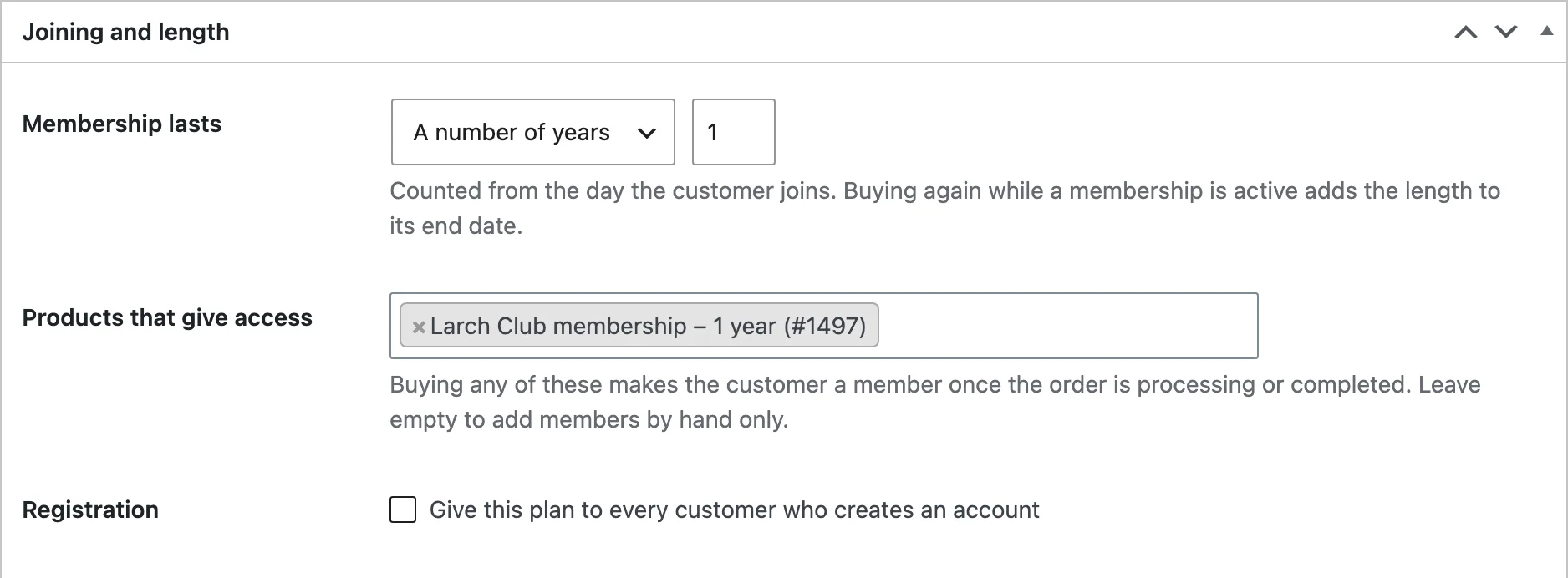
A plan has a name and a length: forever, a number of days, months or years, or until a set date. Customers join by buying any of its products or variations, by creating an account (when you tick Registration), or you add them by hand.
Buying again while a membership is active adds the length to its end date.
Locking content
Edit a post or page and tick plans in the Members only box. To lock everything in a category or tag, tick plans on its edit screen. Visitors who aren’t members see what you choose under Visitors who aren’t members see: the excerpt with a message and join links, only the message, or a redirect to a page.
Enter days in Opens after to drip a post: it opens that many days after the member joined.
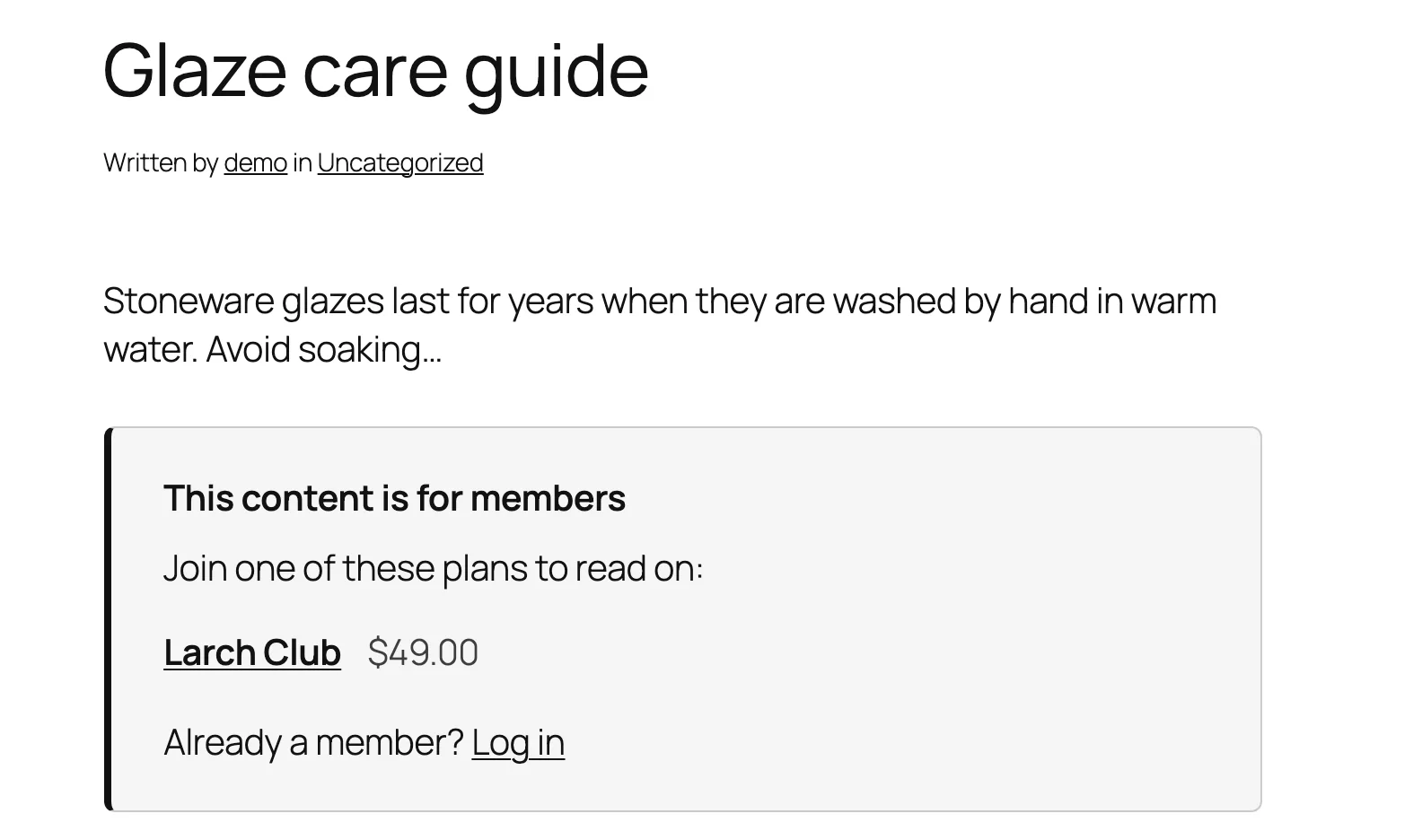
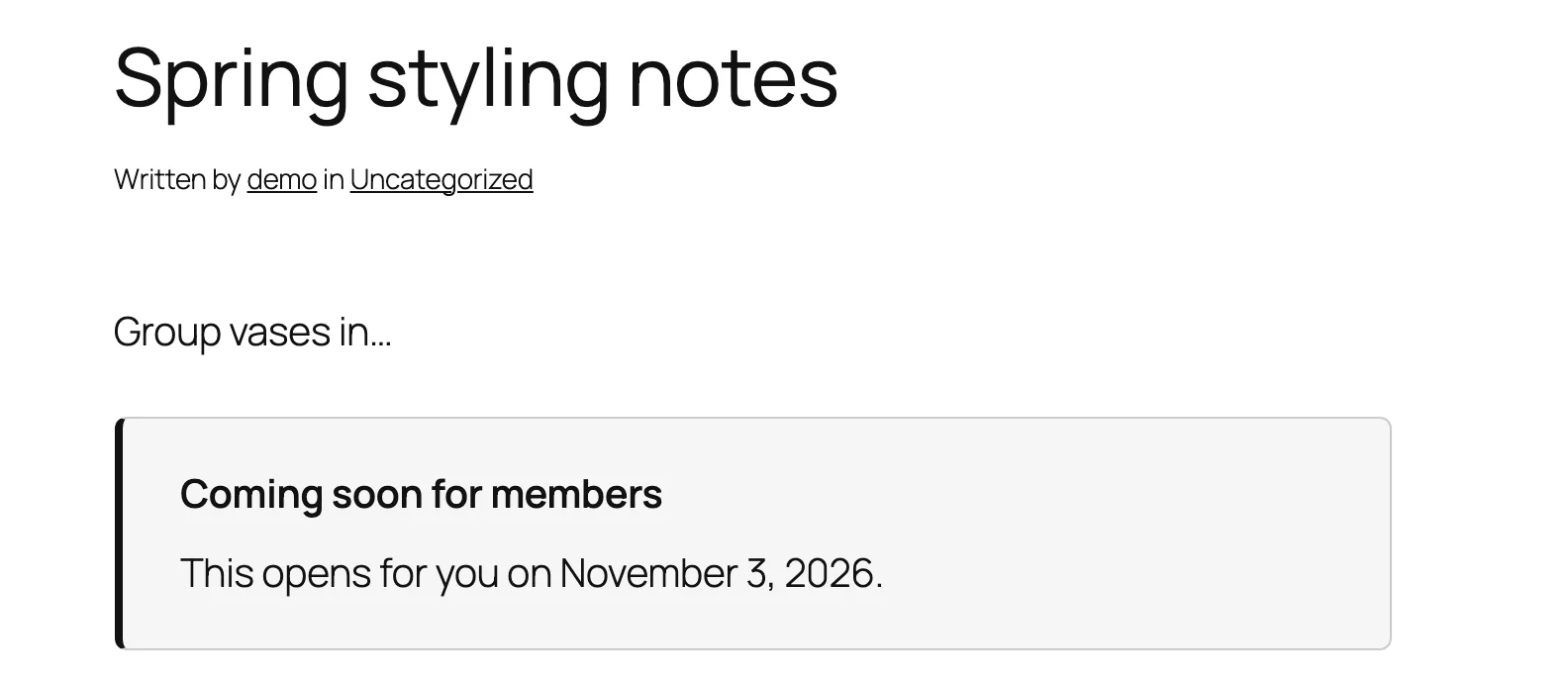
Use [mmem_members] … [/mmem_members] or the Members only block to show part of a page to members, and [mmem_non_members] for everyone else.
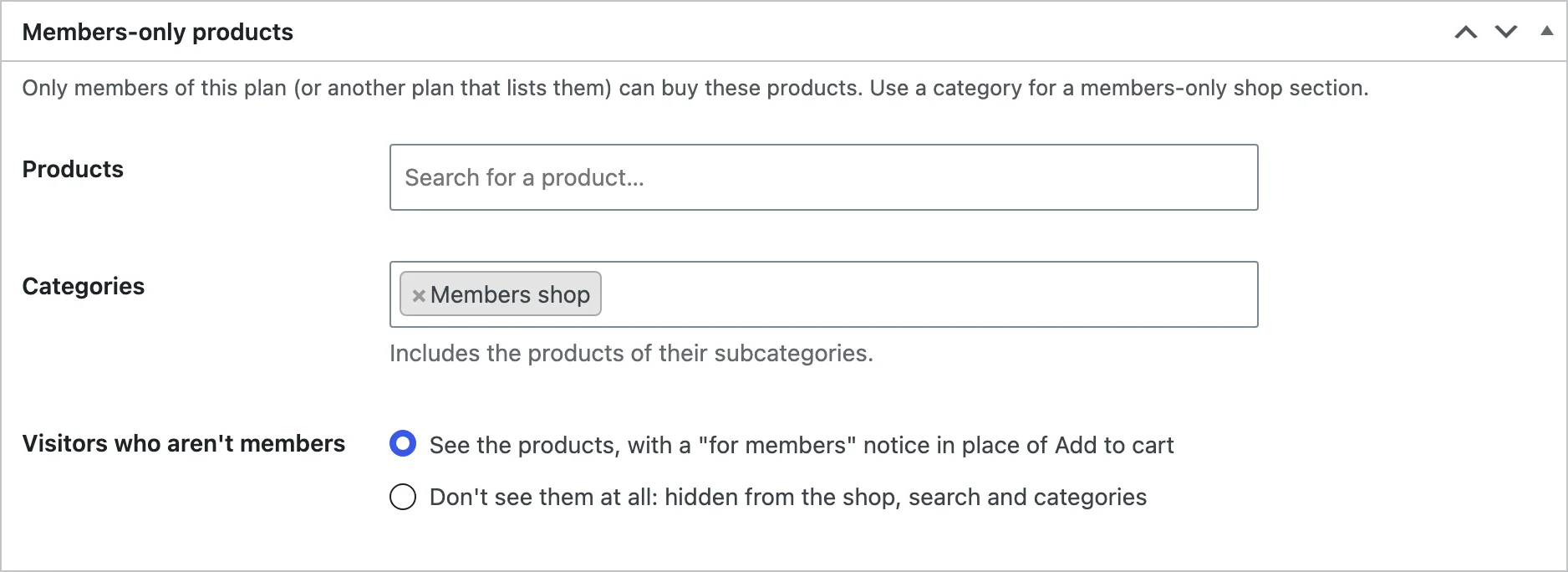
Members-only products
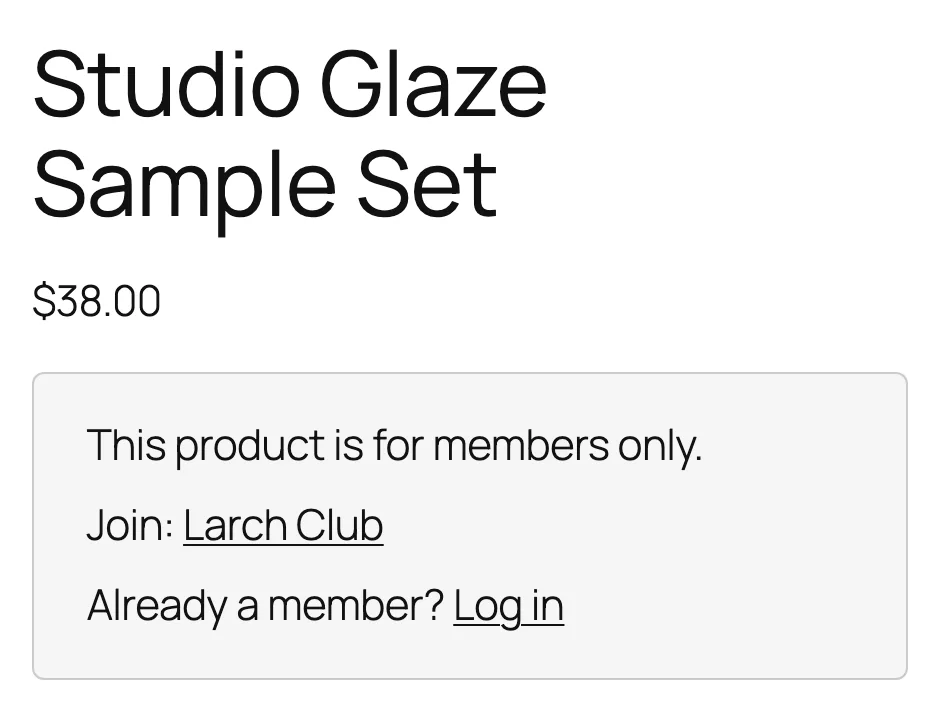
In the plan’s Members-only products box, choose products and categories. Under Visitors who aren’t members, show them with a “for members” notice in place of Add to cart, or hide them from the shop, search and direct links.
Member discounts and free shipping
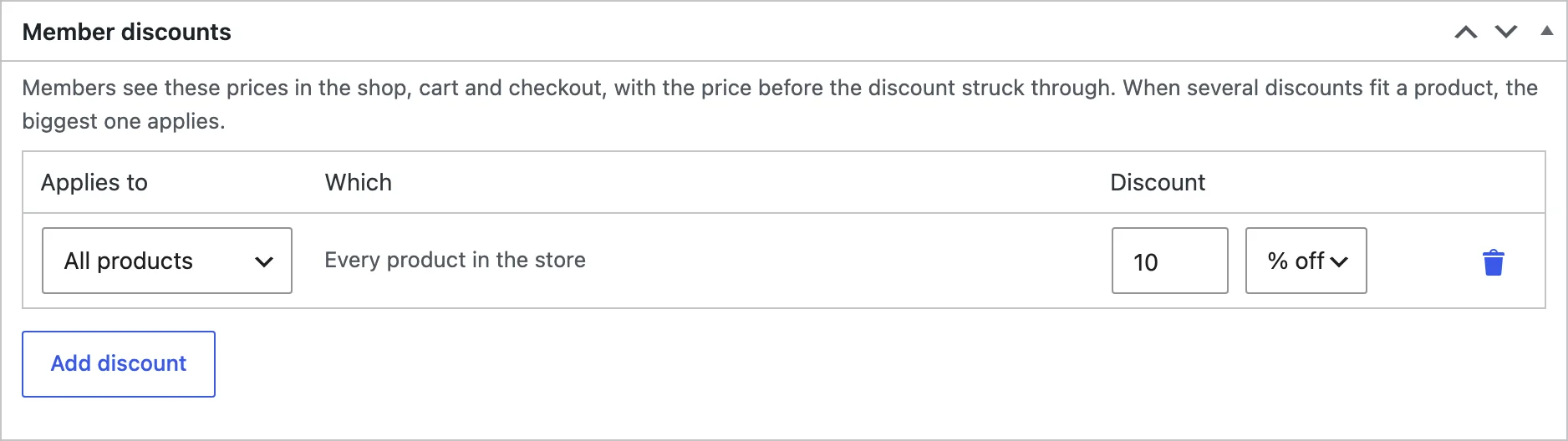
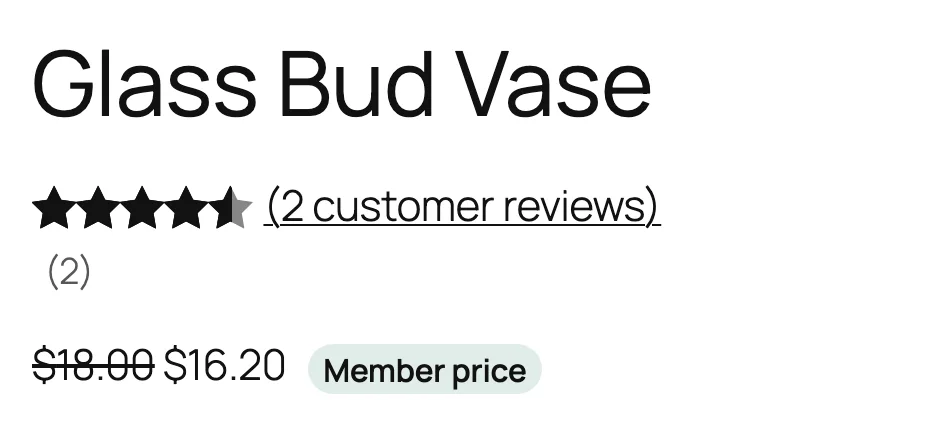
In Member discounts, add a percentage or amount off all products, chosen categories or chosen products. With several discounts on a product, the biggest one applies. Tick Free shipping to give members free shipping on any method.
The members area
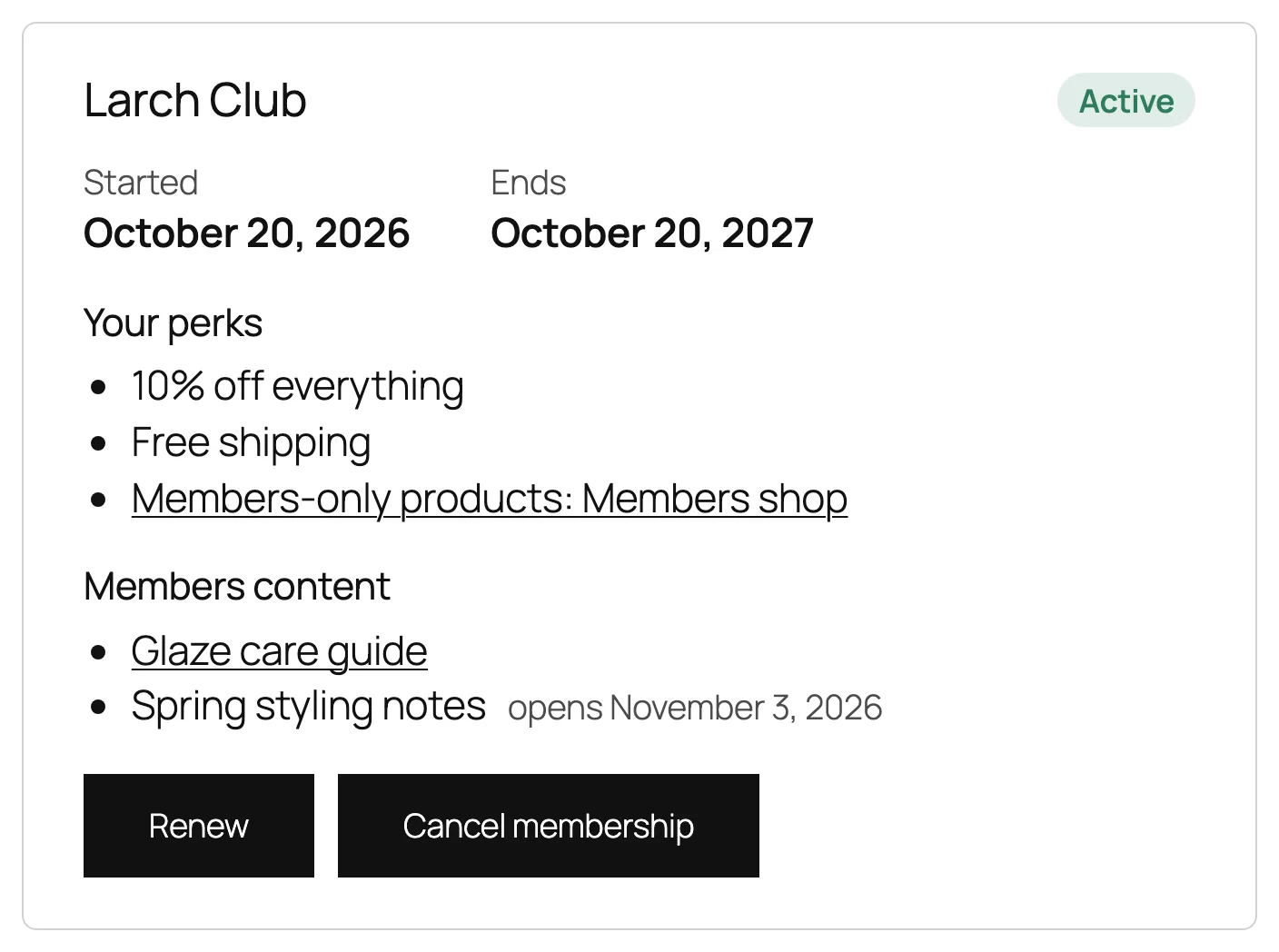
The Memberships page in My Account shows each plan with its status, dates, perks and members content, and buttons to renew or cancel (when you allow cancelling).
Managing members
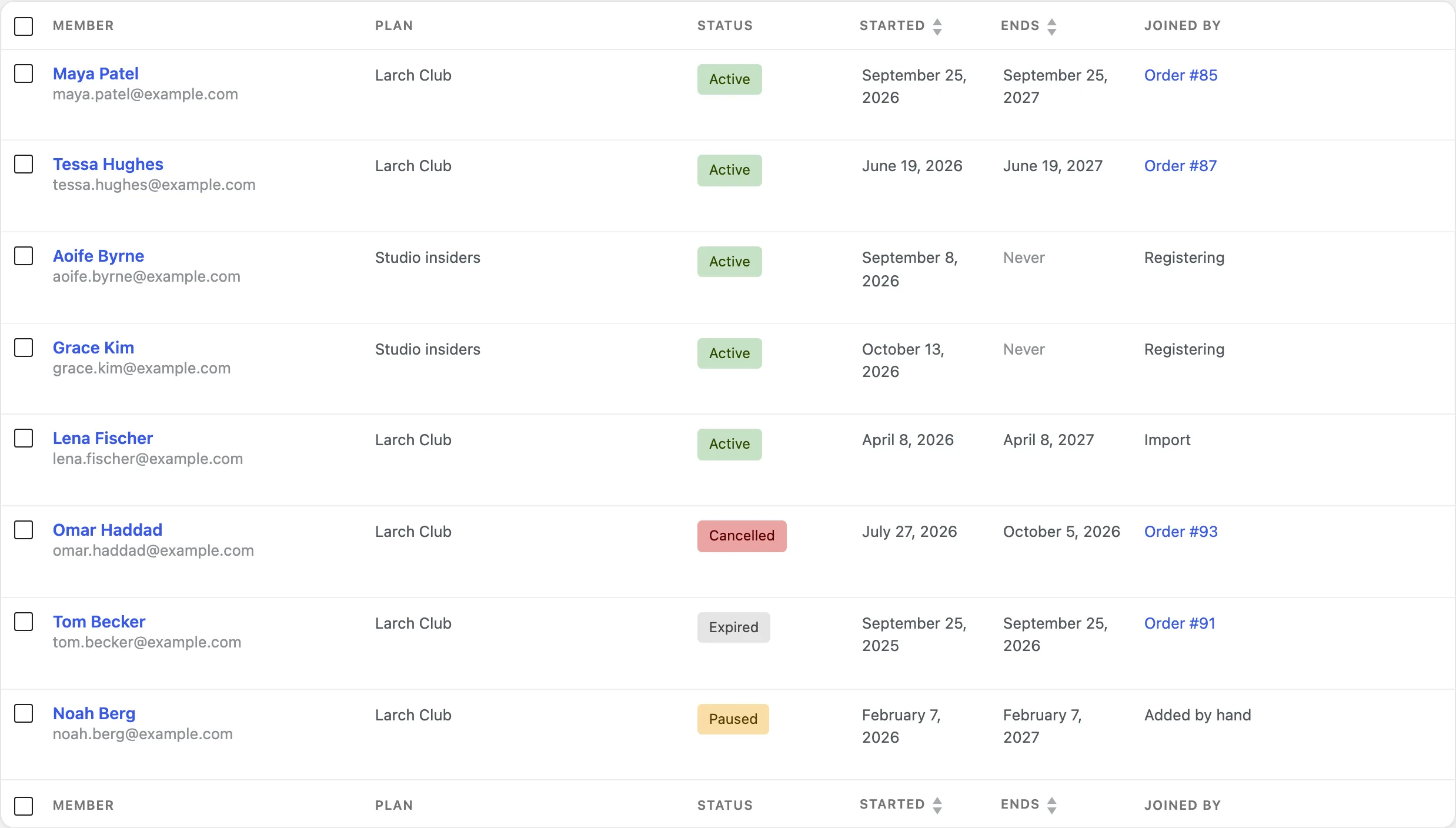
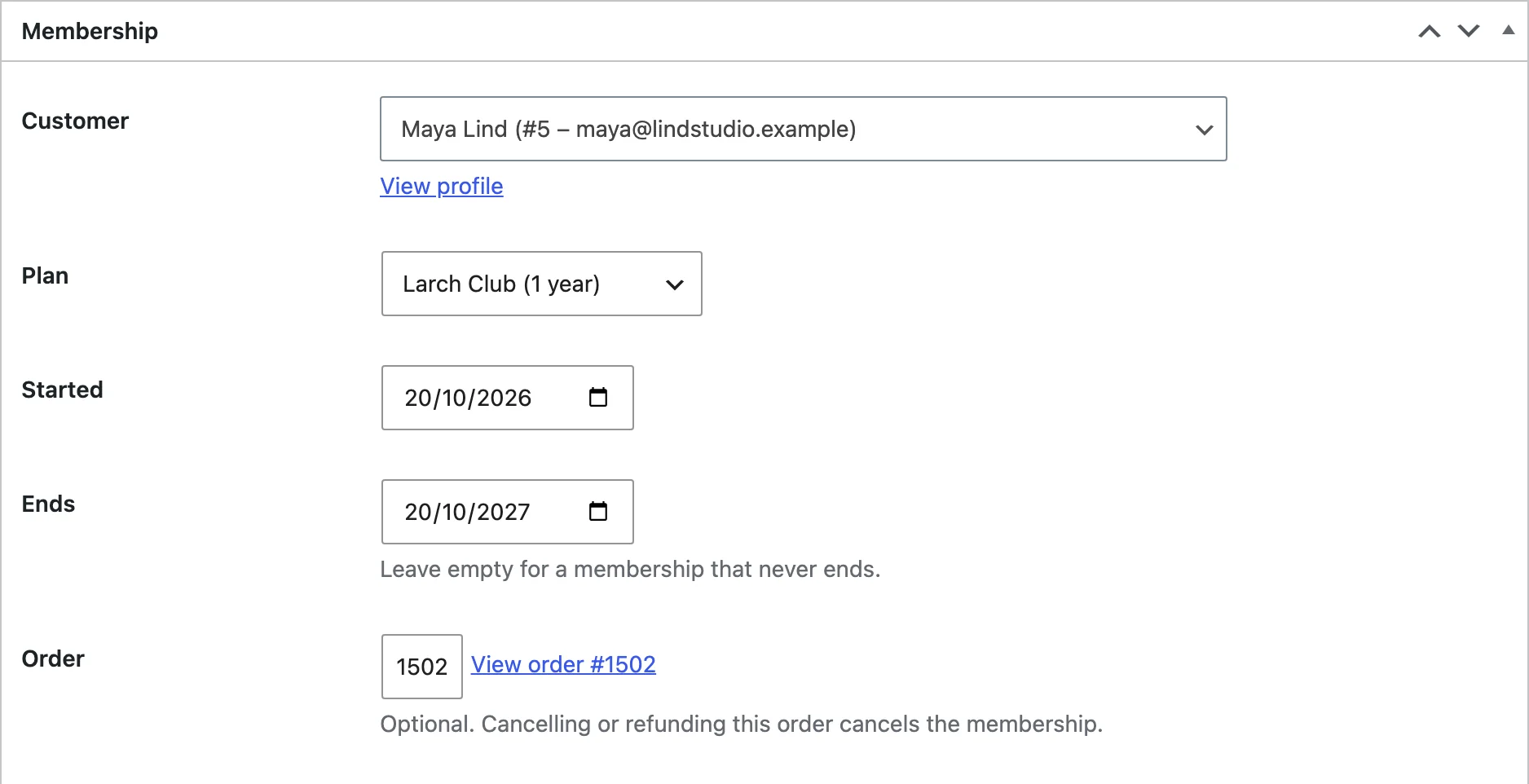
WooCommerce > Memberships lists every membership. Filter by plan and status, search by name or email, and change statuses in bulk. Add member gives a customer a plan by hand, with or without the welcome email.
Each membership is active, paused, expired or cancelled. Paused and cancelled members lose access until the membership is active again.
Emails
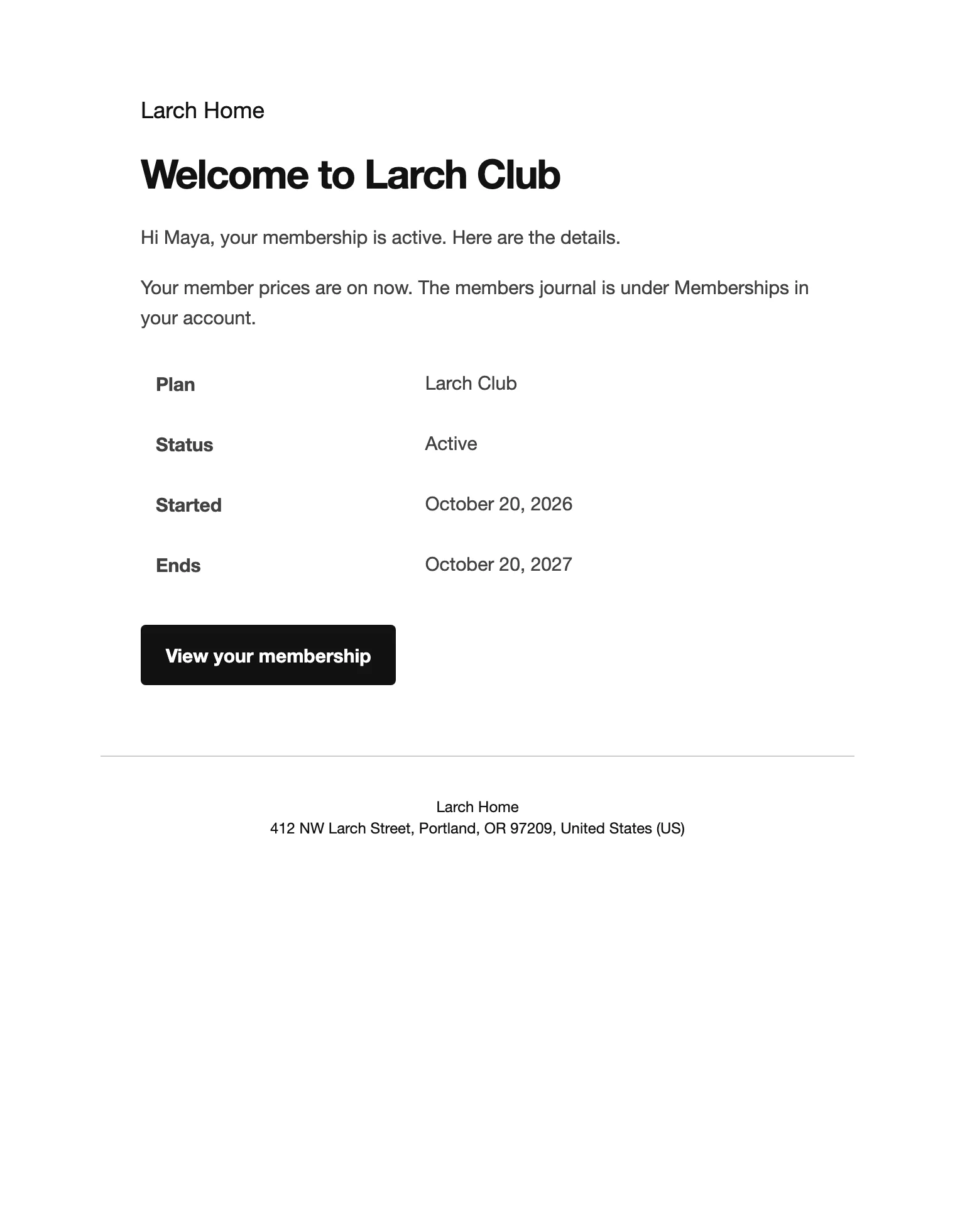
Welcome, ending soon and ended emails go to members in your WooCommerce email design. Change their wording under WooCommerce > Settings > Emails, and choose how many days before the end the reminder goes out under Ending soon email.
Reports, import and export
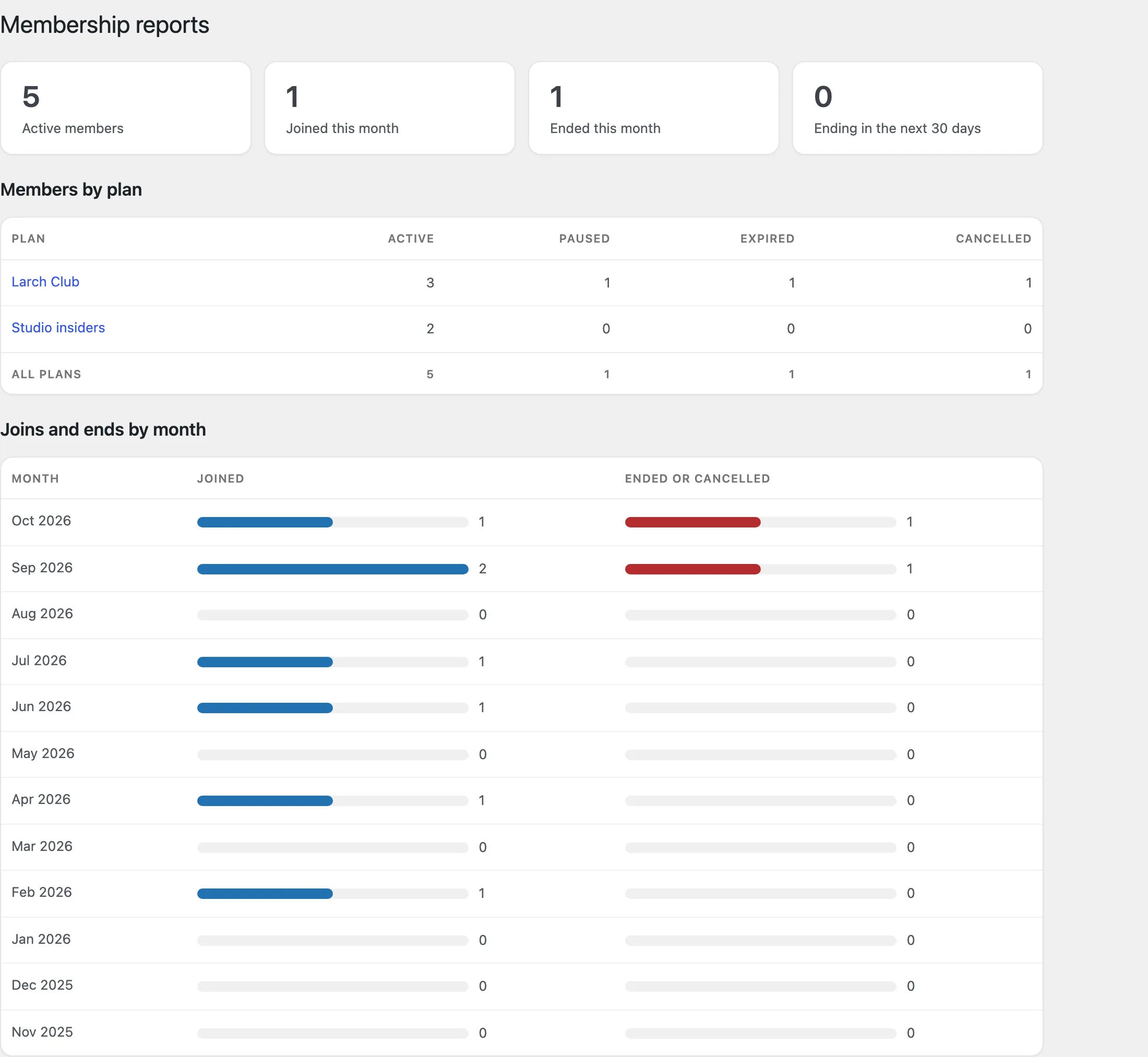
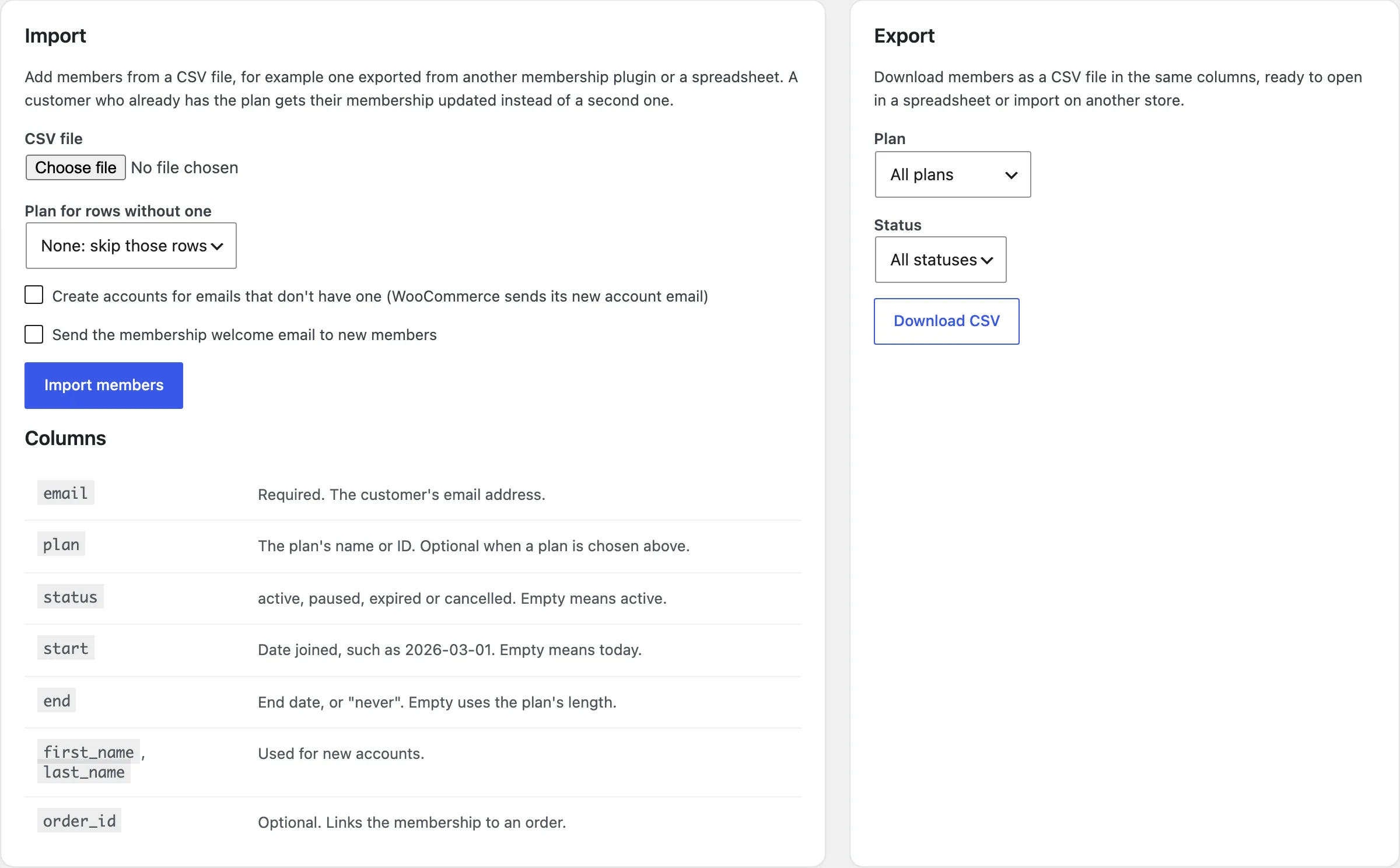
The Reports tab shows members per plan by status, and joins and ends for each of the last 12 months. Import / export downloads members as CSV and imports them from a CSV file, for moving from another plugin or a spreadsheet.
Menus for members
In Appearance > Menus, each menu item can show to everyone, only members of chosen plans, or only visitors who aren’t members.
Settings
| Setting | What it does |
|---|---|
| Visitors who aren’t members see | The excerpt with the members message, only the message, or nothing and a redirect. |
| Send them to | The page visitors are sent to when they are redirected. |
| Members message | The text shown above the join links. |
| Search and feeds | Leave members-only posts out of search results and RSS feeds for visitors who can’t read them. |
| Notice on members’ products | The text shown in place of Add to cart for visitors. |
| Cancelling | Let members cancel a membership from My Account. |
| My Account address | The last part of the address of the Memberships page. |
| Ending soon email | Days before the end that the reminder is sent; 0 sends none. |
For developers
| Hook | Use |
|---|---|
mmem_content_access | Change whether a user can read a post. |
mmem_teaser_words | The number of words in the teaser of a locked post. |
mmem_restricted_post_types | The post types that get the Members only box. |
mmem_grant_from_order | Change whether an order gives a membership. |
mmem_registration_roles | The roles that get a plan given on registration. |
mmem_membership_created | Runs when a membership is created. |
mmem_membership_status_changed | Runs when a membership’s status changes. |
mmem_membership_ending_soon | Runs when a membership is about to end. |
mmem_settings | Add or change settings. |
mmem_admin_capability | The capability needed to manage memberships. |
Copy files from public/templates/ to yourtheme/memberships/ to change the members message, the members product notice, the Memberships page or the welcome message.
Frequently asked questions
How do I make a WooCommerce membership site?
Add a plan, choose the product that gives access, then lock posts, pages or categories to the plan in their Members only box.
Why can I still read a locked post?
Store managers see all content. Log out or use a private window to see the post as a visitor.
Can members get a plan when they register?
Yes. Tick Registration on the plan to give it to every customer who creates an account.
How do I remove all data when deleting the plugin?
Add define( 'MMEM_REMOVE_ALL_DATA', true ); to wp-config.php before deleting the plugin. Plans, memberships, content locks and settings are then removed.
Changelog
1.5.0 · September 21, 2026
Compatibility update
- Updated compatibility checks for current WooCommerce releases.
- Improved translated notices and settings labels.
1.4.2 · June 18, 2026
Hotfix
- Fixed a member discount not applying to a variation that was on sale.
1.4.0 · February 3, 2026
Feature update
- Added drip content scheduling for posts, pages and products.
- Added CSV import and export for the members list.
1.3.0 · September 24, 2025
Feature update
- Added the Members only block and shortcodes for locking content.
- Added welcome messages and free shipping for new members.
1.2.1 · May 14, 2025
Hotfix
- Fixed a member-only category still appearing in the shop menu for guests.
1.2.0 · April 22, 2025
Feature update
- Added member discounts on products and variations.
- Added a Memberships page in My Account.
1.1.0 · November 12, 2024
Feature update
- Added membership emails for sign-up, renewal and cancellation.
- Added menu items for members only.
1.0.1 · June 4, 2024
Hotfix
- Fixed a membership ending early when the store timezone differed from the server.
1.0.0 · February 16, 2024
Initial release
- Plans sold as products and given on registration or added by hand.
- Members-only posts, pages, categories, tags and products.
- Members list and reports.