Dropshipping Supplier Manager sends each supplier their items when an order is paid, by email, as a CSV file on their FTP server or in a supplier portal, and passes their tracking numbers on to customers.
Requirements
- WordPress 6.8 or newer
- WooCommerce 10.0 or newer
- PHP 7.4 or newer
- Works with classic and block themes, the Cart and Checkout blocks, and High-Performance Order Storage.
- SFTP needs the PHP ssh2 extension.
Installation
- Download
dropshipping-supplier-manager.zipfrom My account > Downloads. - In WordPress, go to Plugins > Add New Plugin > Upload Plugin, choose the zip file and click Install Now.
- Click Activate. Suppliers, the overview and statements are under WooCommerce > Dropshipping, and settings under WooCommerce > Settings > Dropshipping.
Quick start
- Go to WooCommerce > Dropshipping > Suppliers and add a supplier with their order email.
- Under Dropshipping: sending orders, choose how they get orders: by email, as a CSV file by FTP, or only in the portal.
- Edit a product, open its Inventory tab and choose the supplier, their SKU and your cost.
- Place a test order and mark it Processing: the supplier gets their items.
- Mark the items shipped with a tracking number, from the order screen or the portal.
Suppliers
A supplier has an order email, contact, phone, address and notes. Products get a supplier, the supplier’s SKU and your cost price on their Inventory tab, with a different SKU and cost per variation.
The Assign products box on a supplier gives every product in chosen categories that supplier in one go. Under Ship from, a product can always ship from the supplier, only when you’re out of stock, or from your own stock.
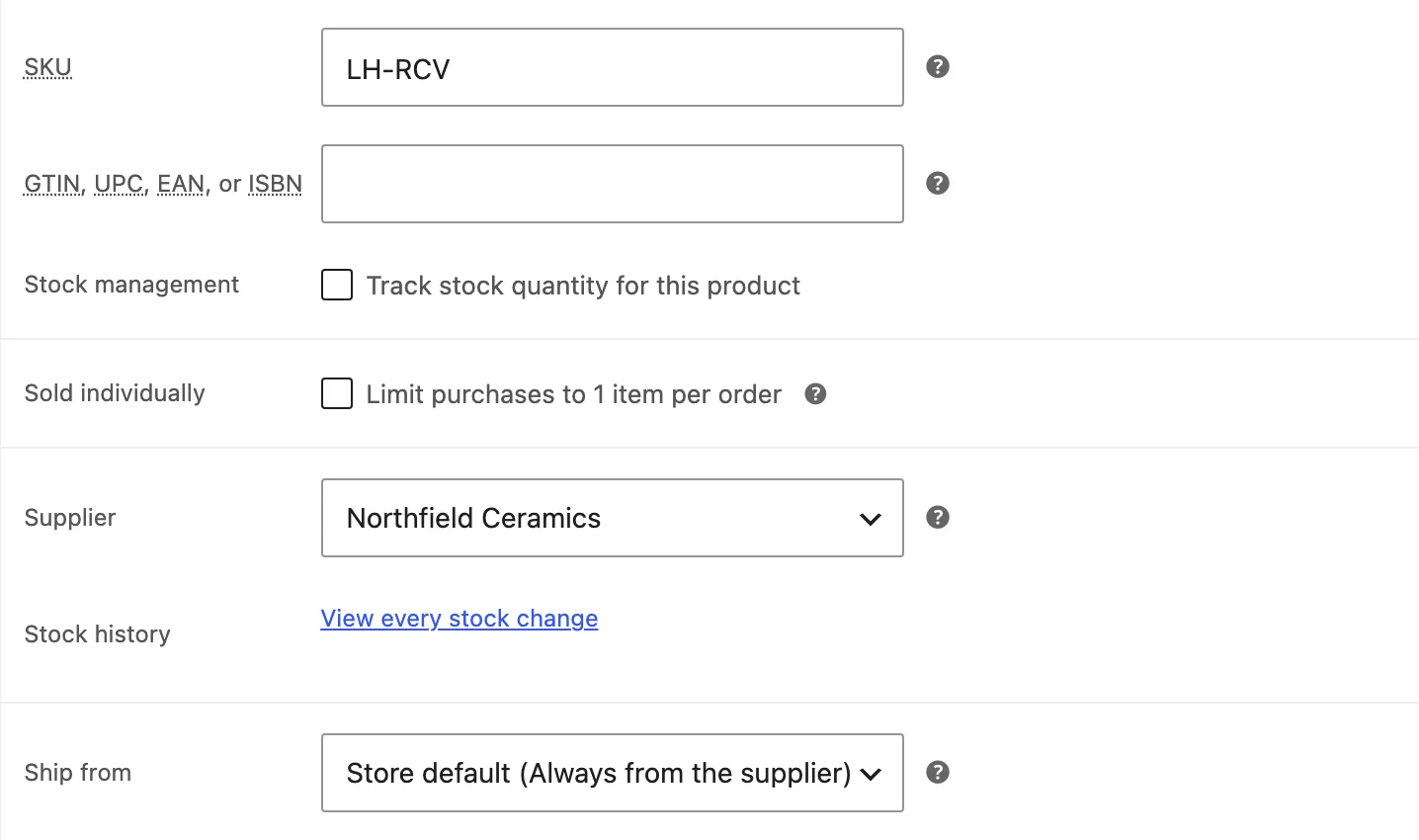
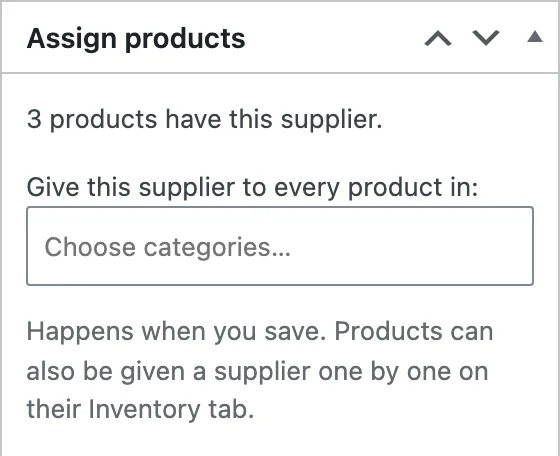
With Inventory Management active, suppliers, supplier SKUs and cost prices come from it, so there is one supplier list.
Sending orders
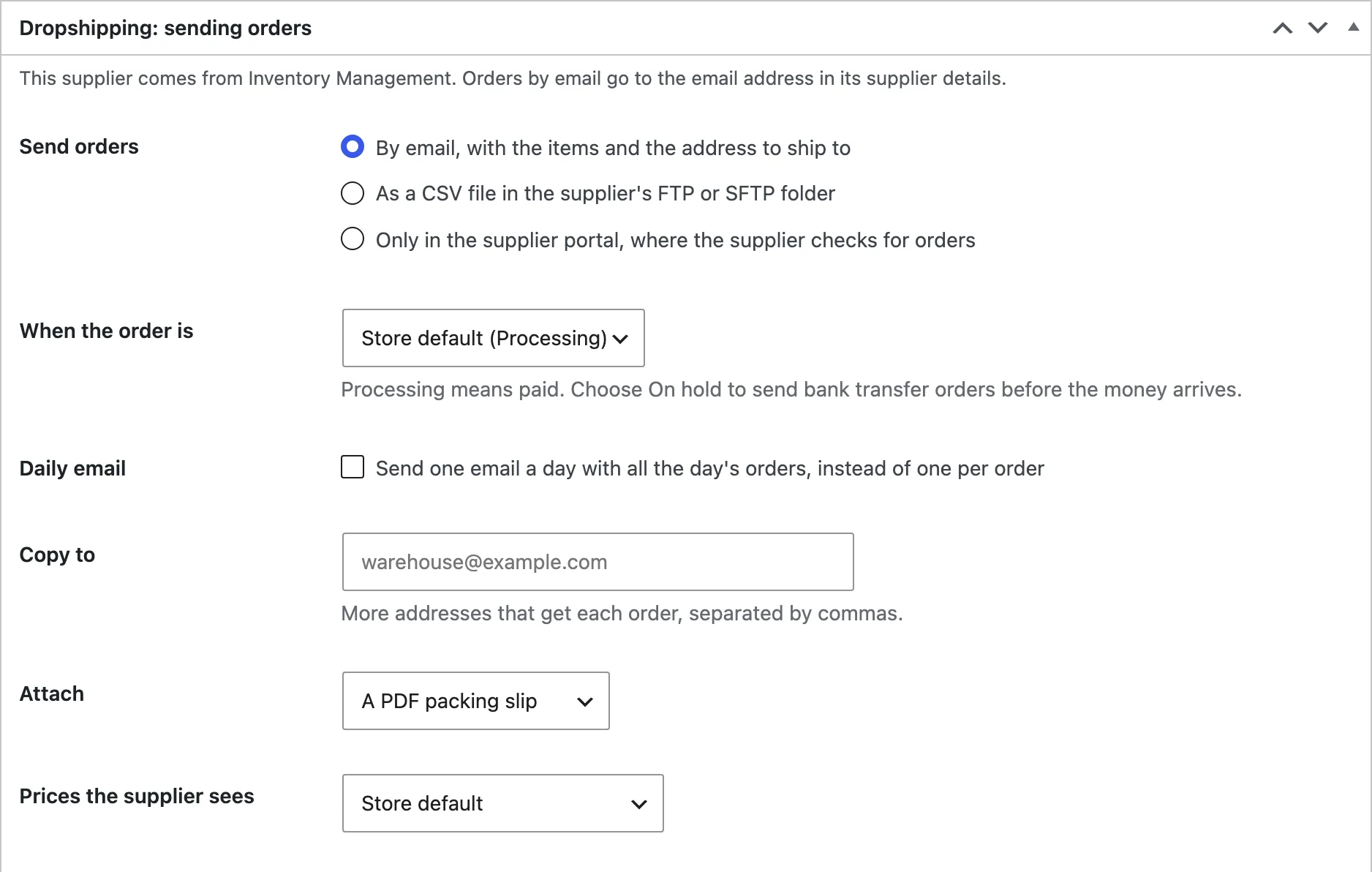
Each supplier gets their items when the order reaches the status chosen under When the order is (Processing by default, which means paid). Choose per supplier:
- By email, with the items, quantities, the supplier’s SKUs and the shipping address, and a CSV file (or a PDF packing slip with PDF Invoices & E-Invoicing) attached
- As a CSV file in the supplier’s FTP, FTPS or SFTP folder
- Only in the supplier portal
- A daily email with all the day’s orders instead of one email per order
FTP and SFTP
Enter the server, port, username, password and folder, then click Test connection. Each order is written as a CSV file to the folder. Passwords are stored encrypted.
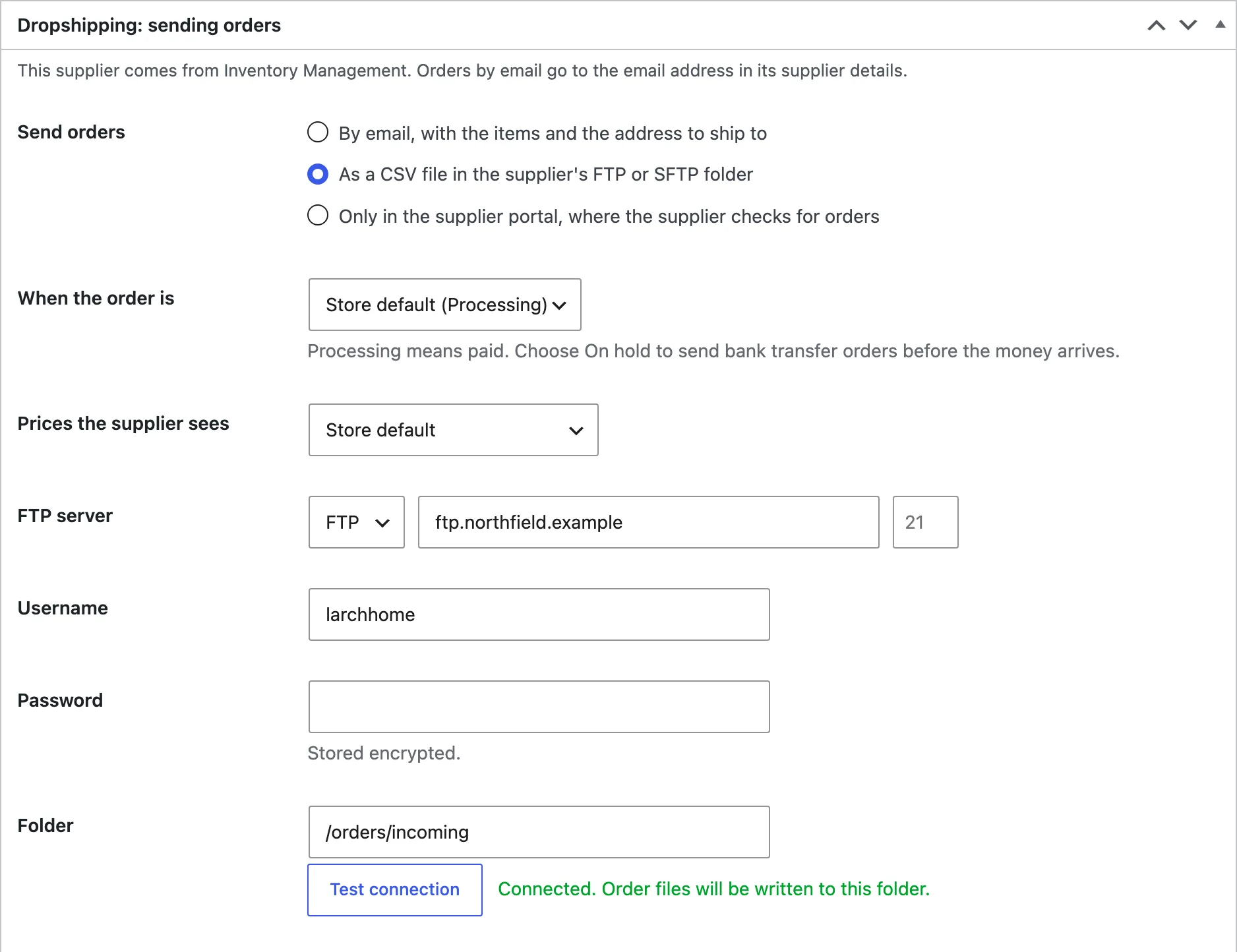
SFTP needs the PHP ssh2 extension on your server. FTP and FTPS work on most servers.
Supplier portal
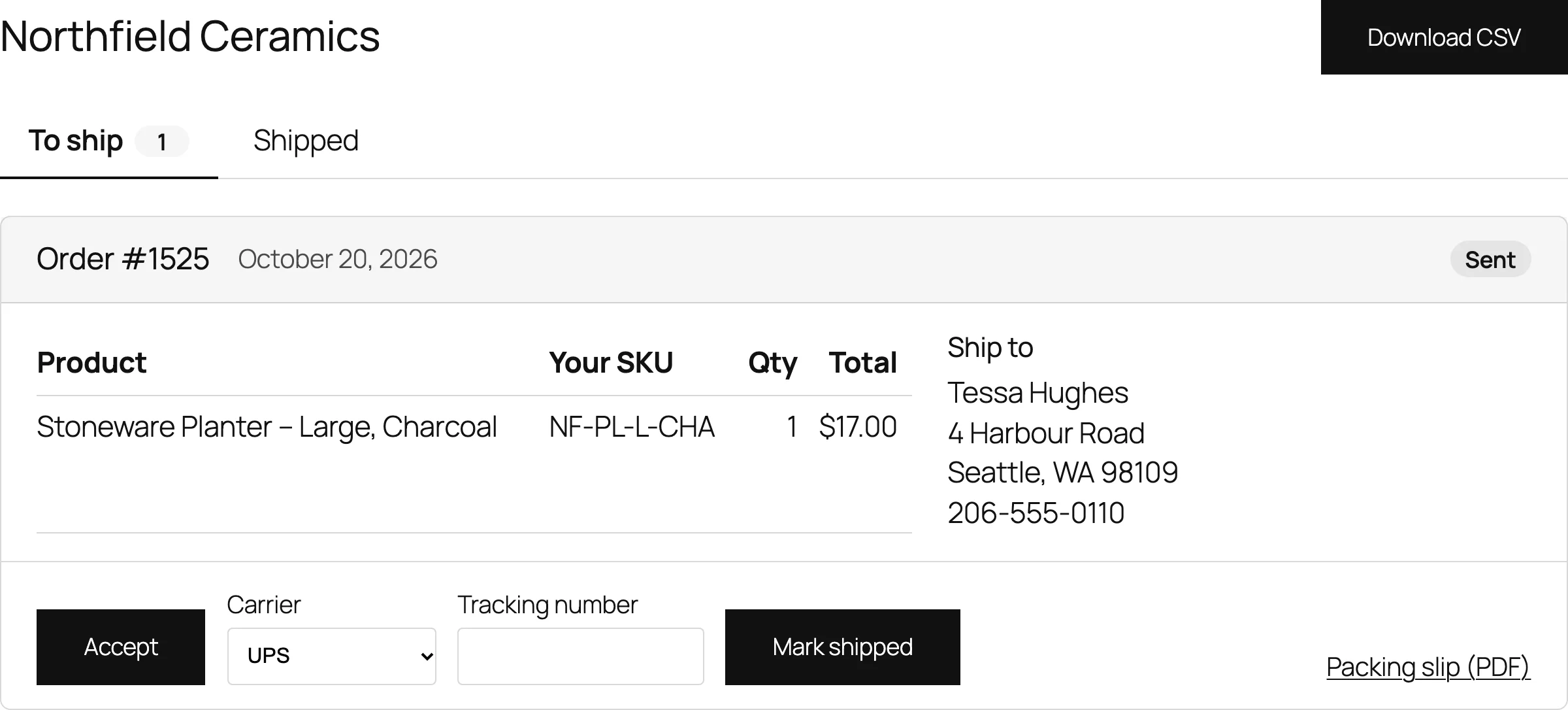
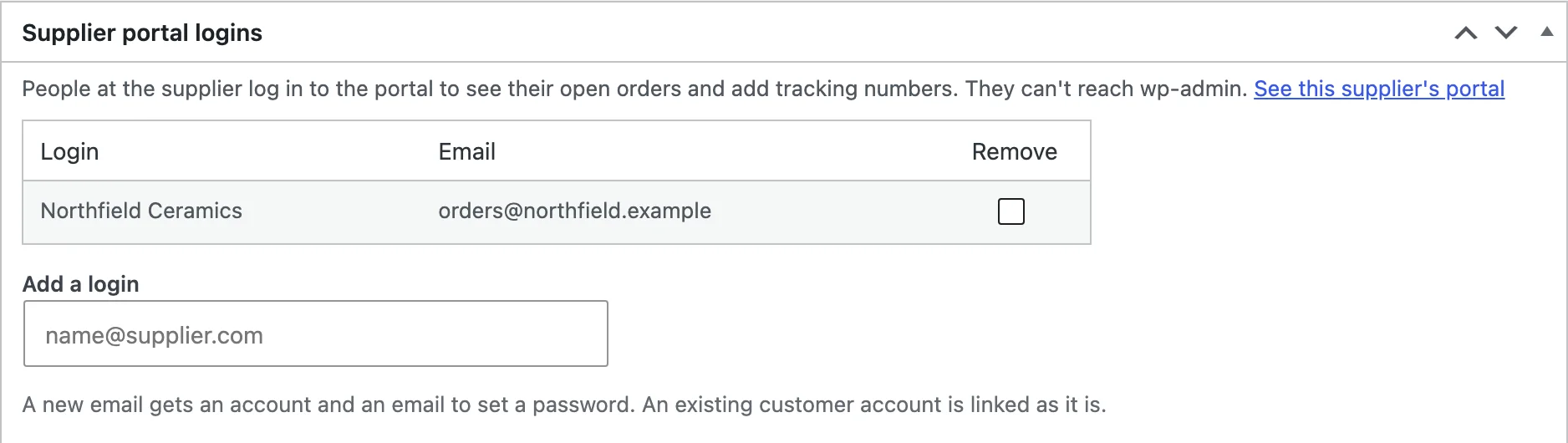
Under Supplier portal logins, add a login for the supplier. They log in at the portal page, see their open orders with the items and address, download them as CSV, accept orders and mark them shipped with the carrier and tracking number. With PDF Invoices & E-Invoicing active, they also download packing slips.
Orders and tracking
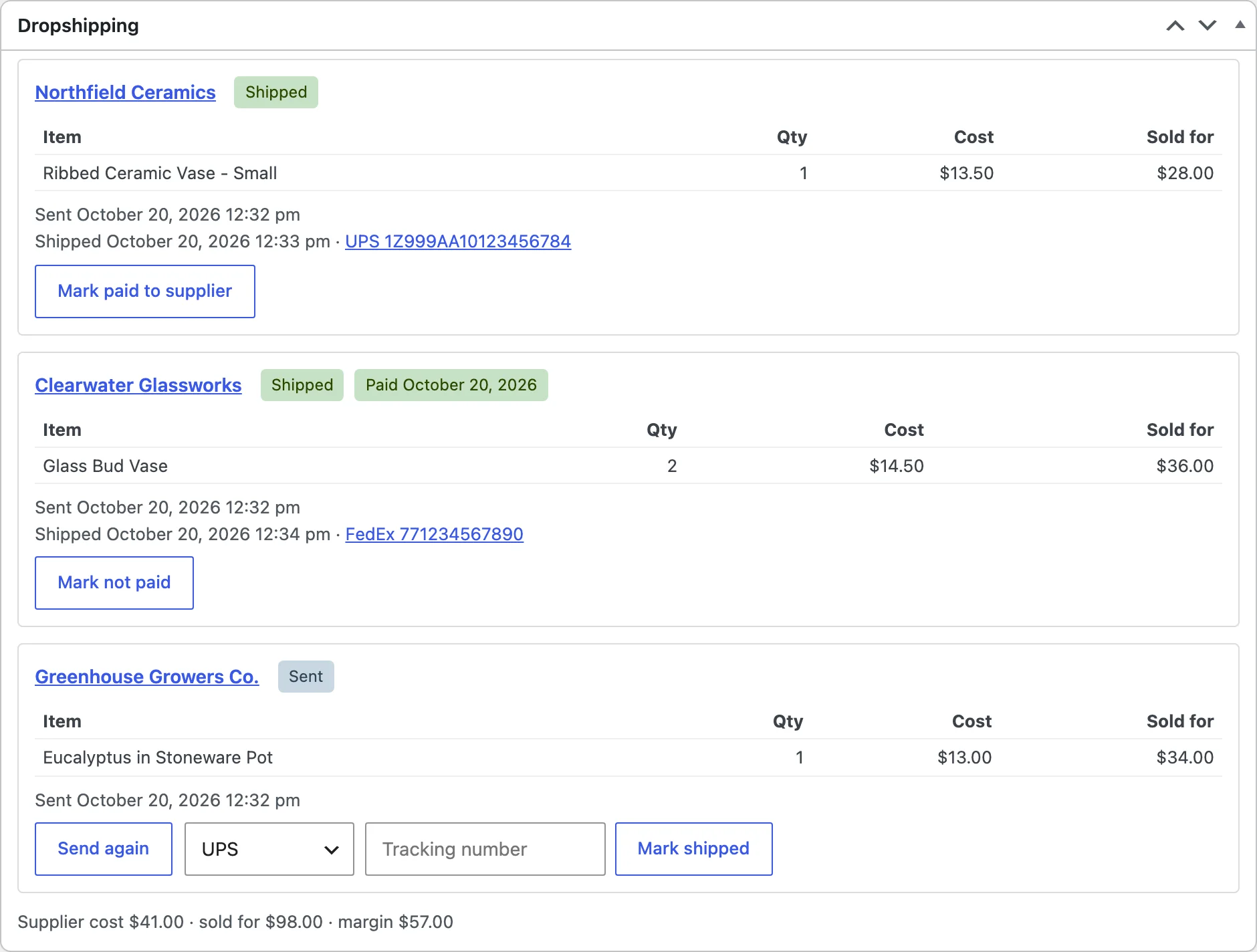
The Dropshipping box on the order screen shows each supplier’s items, status, tracking, cost and margin, with buttons to send again, mark shipped and mark paid. Filter the orders list by supplier and dropship status.
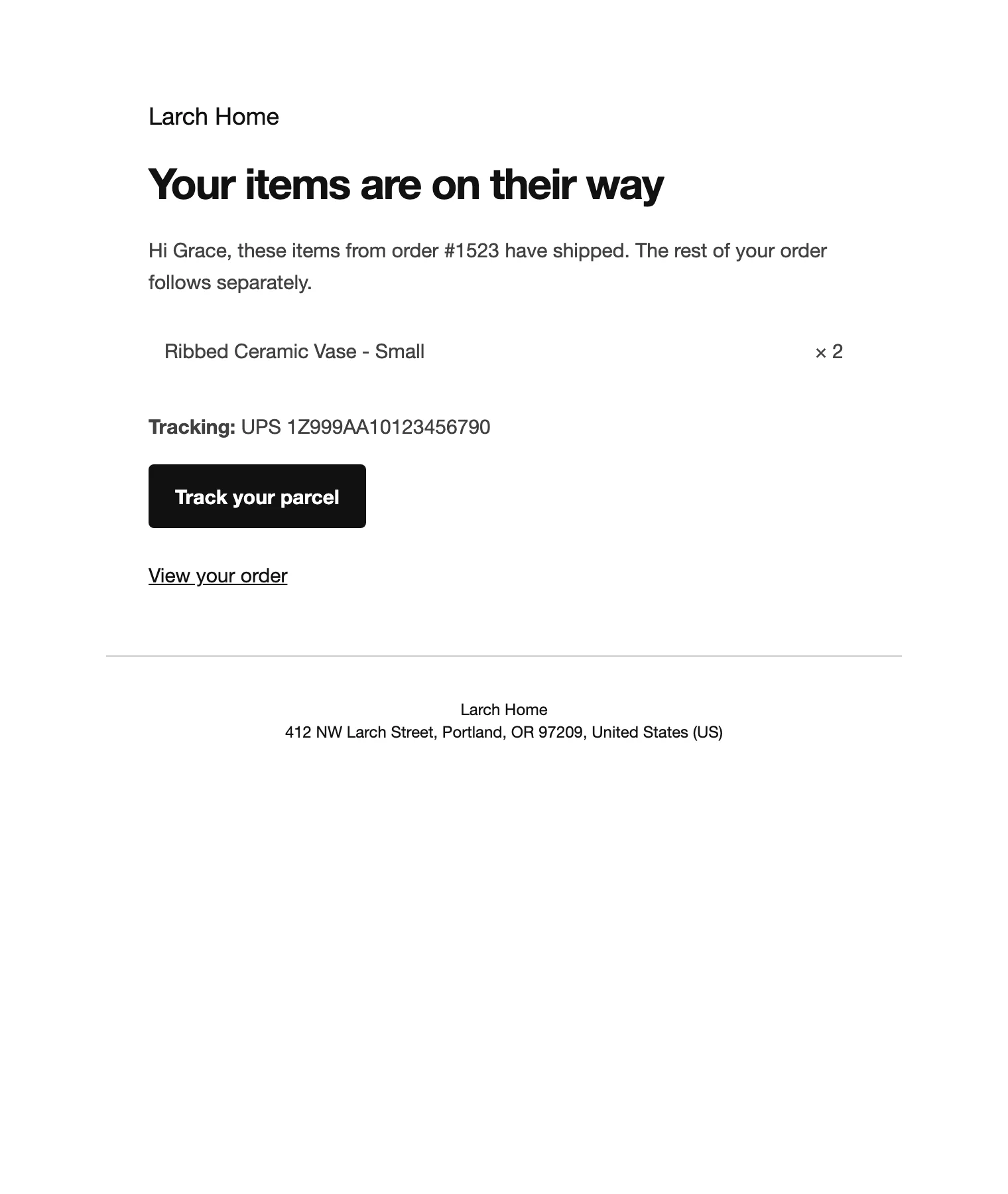
When items ship, the customer gets an email with the tracking number and sees it in My Account. The order completes when every item has shipped.
Paying suppliers
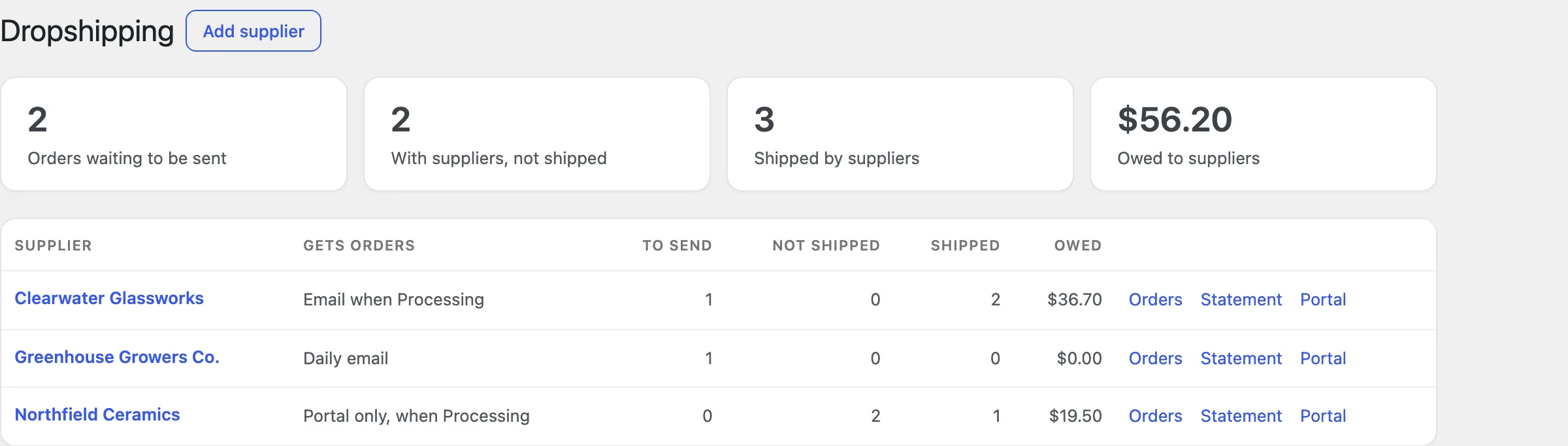
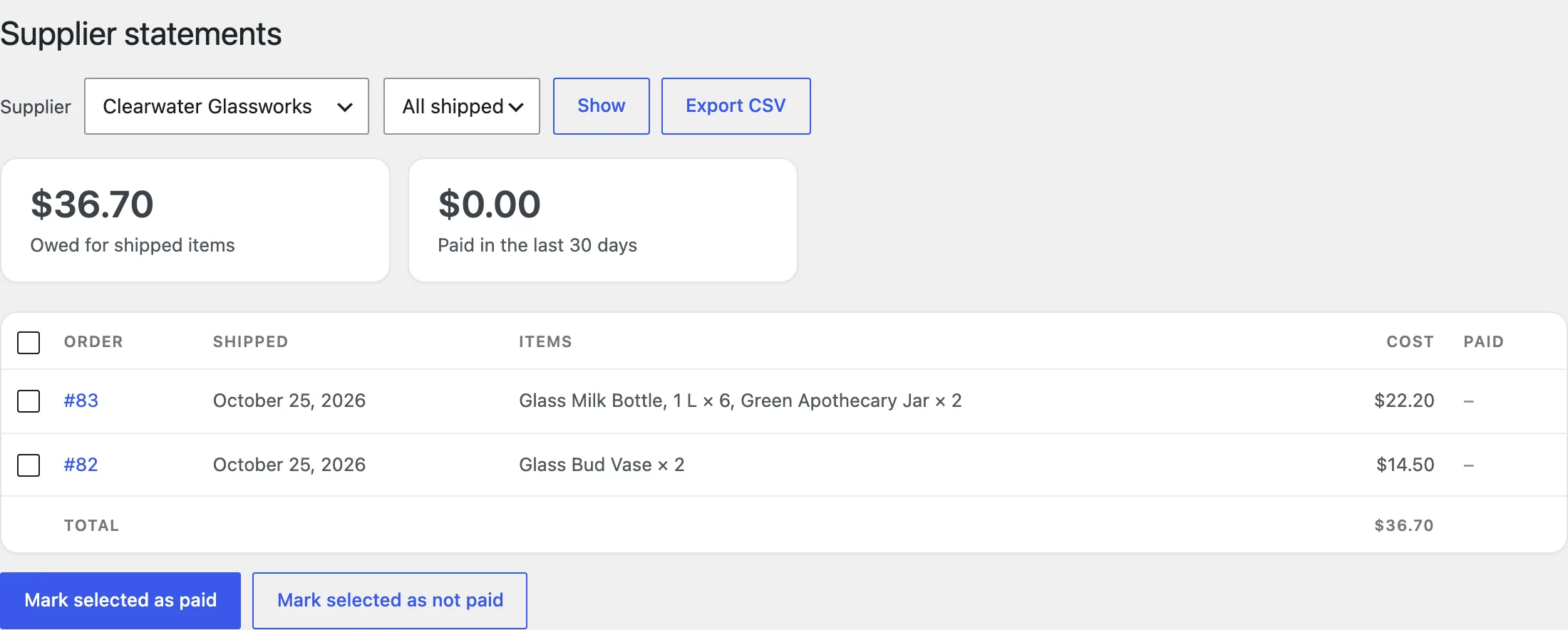
The Overview shows orders waiting to be sent, what suppliers still have to ship and what you owe each one. Statements lists a supplier’s shipped orders with their cost; mark them paid in bulk and export them to CSV to check against the supplier’s invoice.
Settings
| Setting | What it does |
|---|---|
| Send when the order is | The order status that sends items to suppliers. |
| Prices suppliers see | Your cost price, the price the customer paid, or no prices. |
| Attach to order emails | A CSV file of the items, a PDF packing slip (with PDF Invoices & E-Invoicing), or nothing. |
| Customer details | Share the customer’s phone and email with suppliers. |
| Daily email time | When suppliers set to one email a day get it. |
| Products with a supplier ship | Always from the supplier, only when out of stock, or from your stock. |
| Completing orders | Complete an order when every item has shipped from its supplier. |
| Carriers | Carrier names and their tracking addresses. |
| Portal page | The page with the supplier portal. |
For developers
| Hook | Use |
|---|---|
dsmd_item_supplier | Change the supplier of an order item. |
dsmd_items_shipped | Runs when a supplier marks items shipped. |
dsmd_share_inventory_suppliers | Use the plugin’s own supplier list even when Inventory Management is active. |
dsmd_settings | Add or change settings. |
dsmd_admin_capability | The capability needed to manage suppliers. |
Copy files from public/templates/ to yourtheme/dropshipping-supplier-manager/ to change the portal or the tracking shown to customers.
Frequently asked questions
How do I start dropshipping with WooCommerce?
Add your suppliers, choose how each one gets orders, and give products a supplier on their Inventory tab. Orders are sent when they are paid.
Why didn’t a supplier get an order?
Check the order’s status against Send when the order is, that the products have the supplier, and the order notes, which say what was sent and any error.
Can a supplier see other suppliers’ orders?
No. A portal login only shows that supplier’s items.
How do I remove all data when deleting the plugin?
Add define( 'DSMD_REMOVE_ALL_DATA', true ); to wp-config.php before deleting the plugin. Orders keep their notes.
Changelog
1.0.0 · October 20, 2026
- Suppliers with SKUs and cost prices per product and variation.
- Orders sent by email, as CSV by FTP, FTPS or SFTP, or in a supplier portal, with daily emails.
- Tracking passed on to customers and orders completed when all items ship.
- Overview, supplier statements and CSV export.