Advanced Sales Reports adds reports for sales, profit, products, customers, channels, timing and stock to WooCommerce, with saved views, CSV export and a weekly or monthly email report.
Requirements
- WordPress 6.8 or newer
- WooCommerce 10.0 or newer
- PHP 7.4 or newer
- Works with High-Performance Order Storage and posts storage.
- Channels need WooCommerce’s order attribution.
Installation
- Download
advanced-sales-reports.zipfrom My account > Downloads. - In WordPress, go to Plugins > Add New Plugin > Upload Plugin, choose the zip file and click Install Now.
- Click Activate. The reports are under WooCommerce > Sales Reports. Existing orders are read in the background after activation.
Quick start
- Go to WooCommerce > Sales Reports. The reports fill in as your orders are read.
- Under Settings, choose the order statuses that count and, if you like, a weekly or monthly email report.
- Give your products a cost, so profit and margin can be worked out: in the product’s price settings, or in Inventory Management if you use it.
- Pick dates and a comparison in the filter bar, and save the views you use often.
The overview
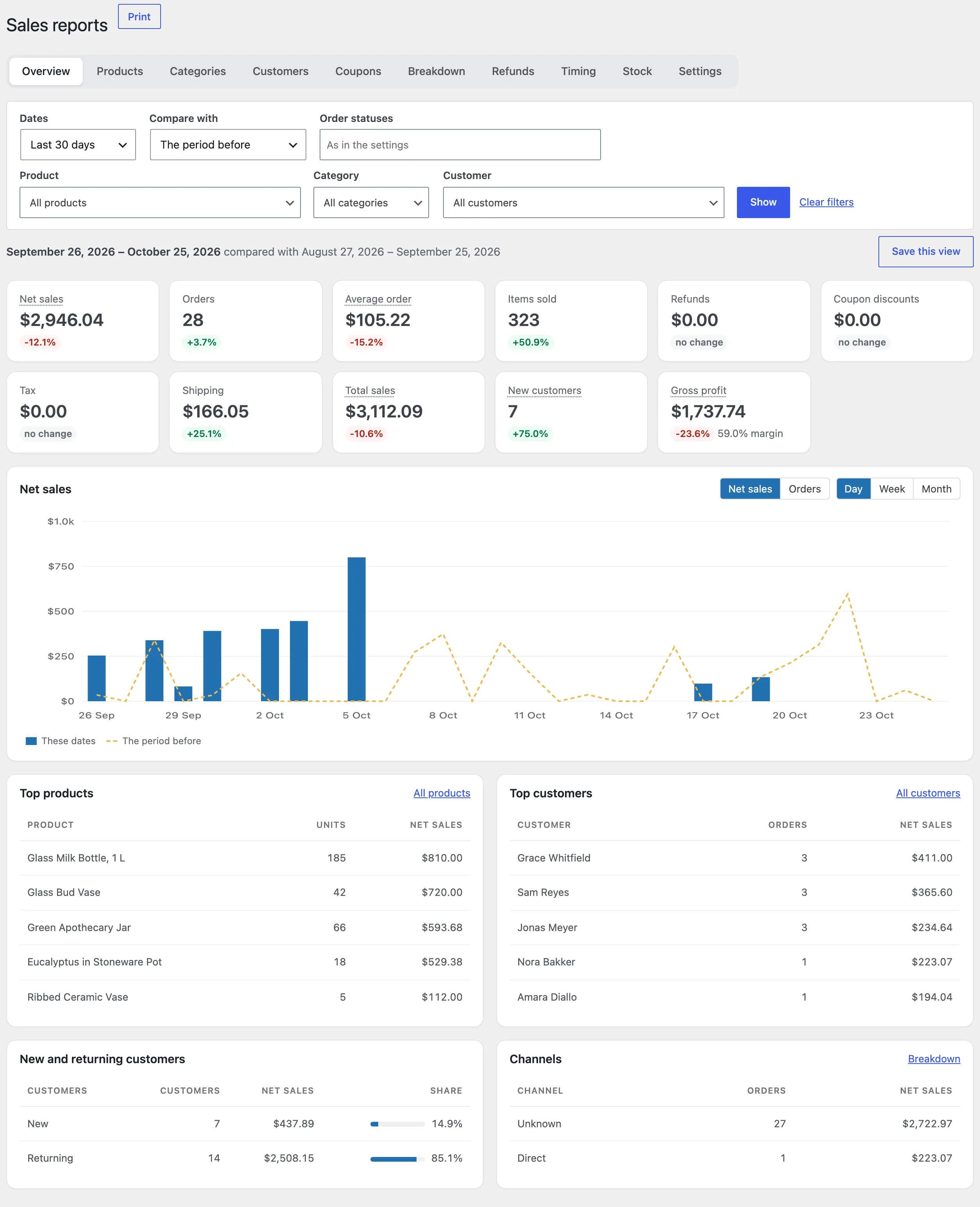
The overview shows net sales, orders, average order, items sold, refunds, coupon discounts, tax, shipping, total sales, new customers and gross profit, each with its change from the period you compare with. Below are the sales chart, top products, top customers, new and returning customers and channels.
Dates, filters and saved views
Choose a preset such as the last 30 days or this quarter, or your own dates, and compare with the period before or the same dates last year. Filter by order status, product, category or customer. Save this view keeps the dates and filters under a name.

Product costs and profit
Profit is net sales minus the cost of the products sold. Costs come from WooCommerce’s cost of goods sold when that feature is on, from Inventory Management when it’s active, or from a Cost field the plugin adds to simple products, variable products and variations. A variation without its own cost uses the product’s.
Each order line keeps the cost from when it was ordered, so changing a cost doesn’t change past profit.
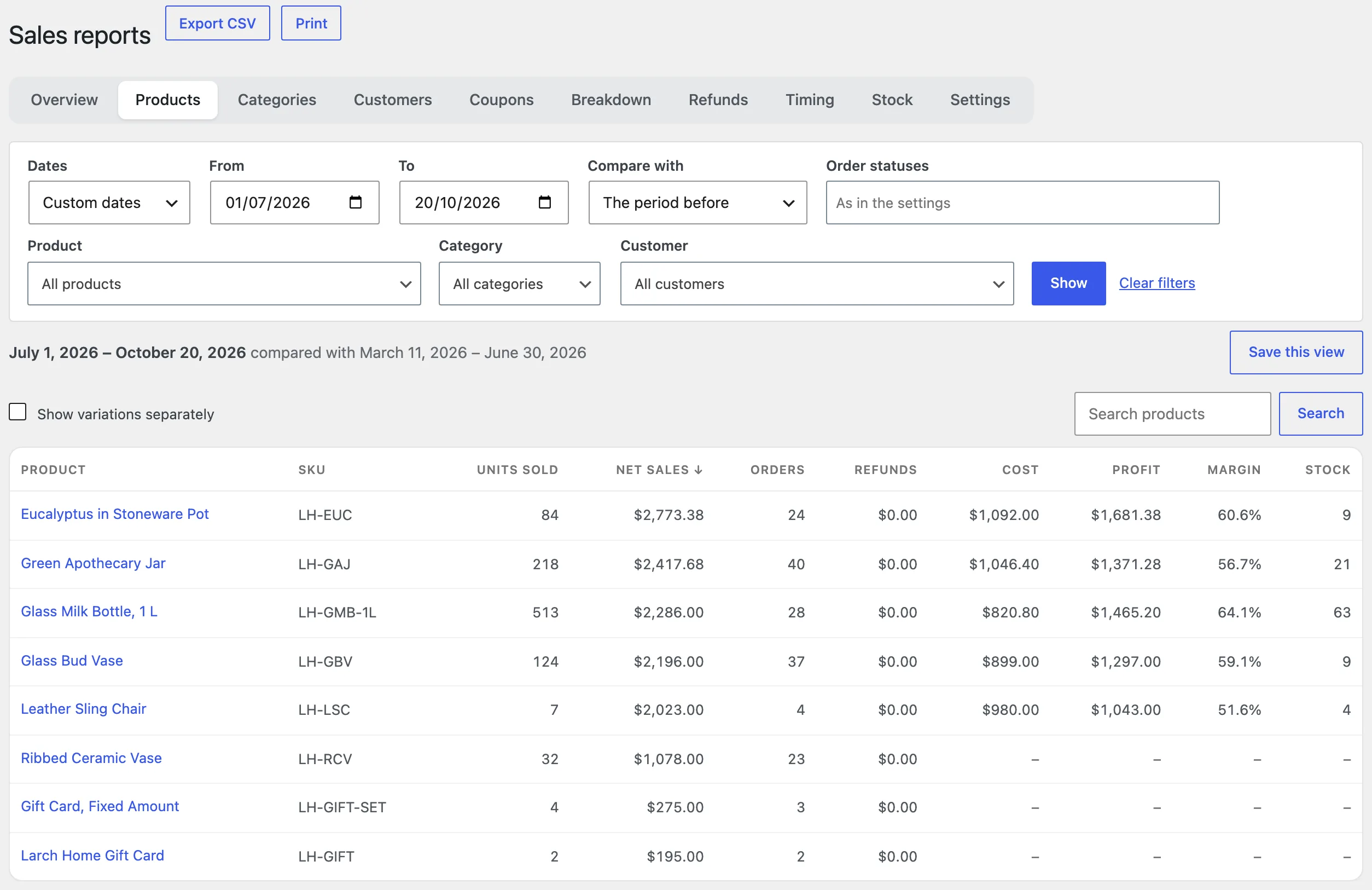
Orders placed before a product had a cost show no profit. The Products report says so when no order in the dates has a cost.
Customers, groups and cohorts
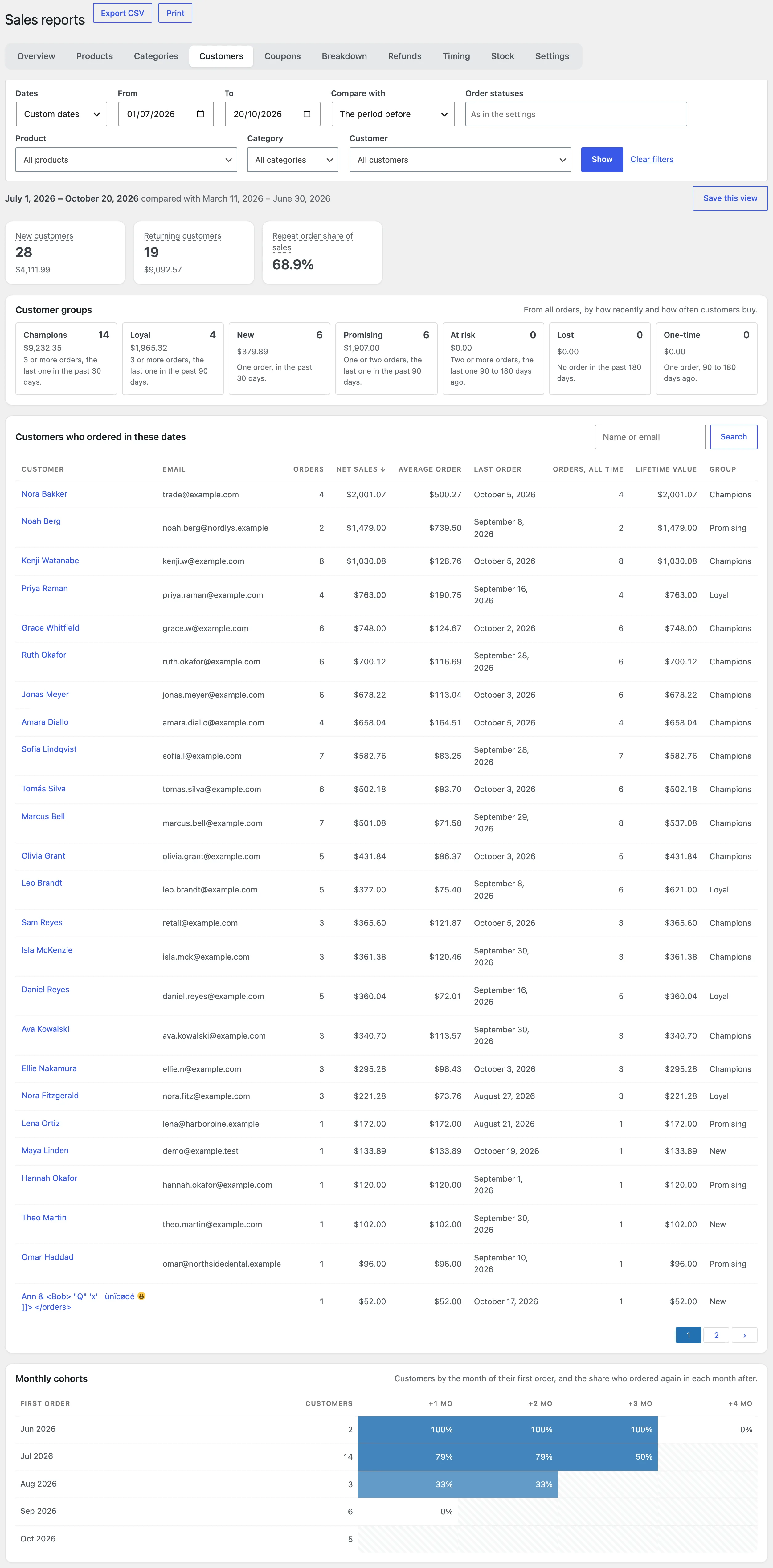
The Customers report lists the customers who ordered in the dates, with their orders, net sales, average order, last order and lifetime value. Guest orders with the email of a customer account count for that customer.
Customer groups sort every customer by how recently and how often they buy. Monthly cohorts show how many of each month’s new customers ordered again in the months after.
Breakdowns and channels
Break sales down by payment method, shipping method, country, state, order status, channel or campaign. Channels and campaigns come from WooCommerce’s order attribution.
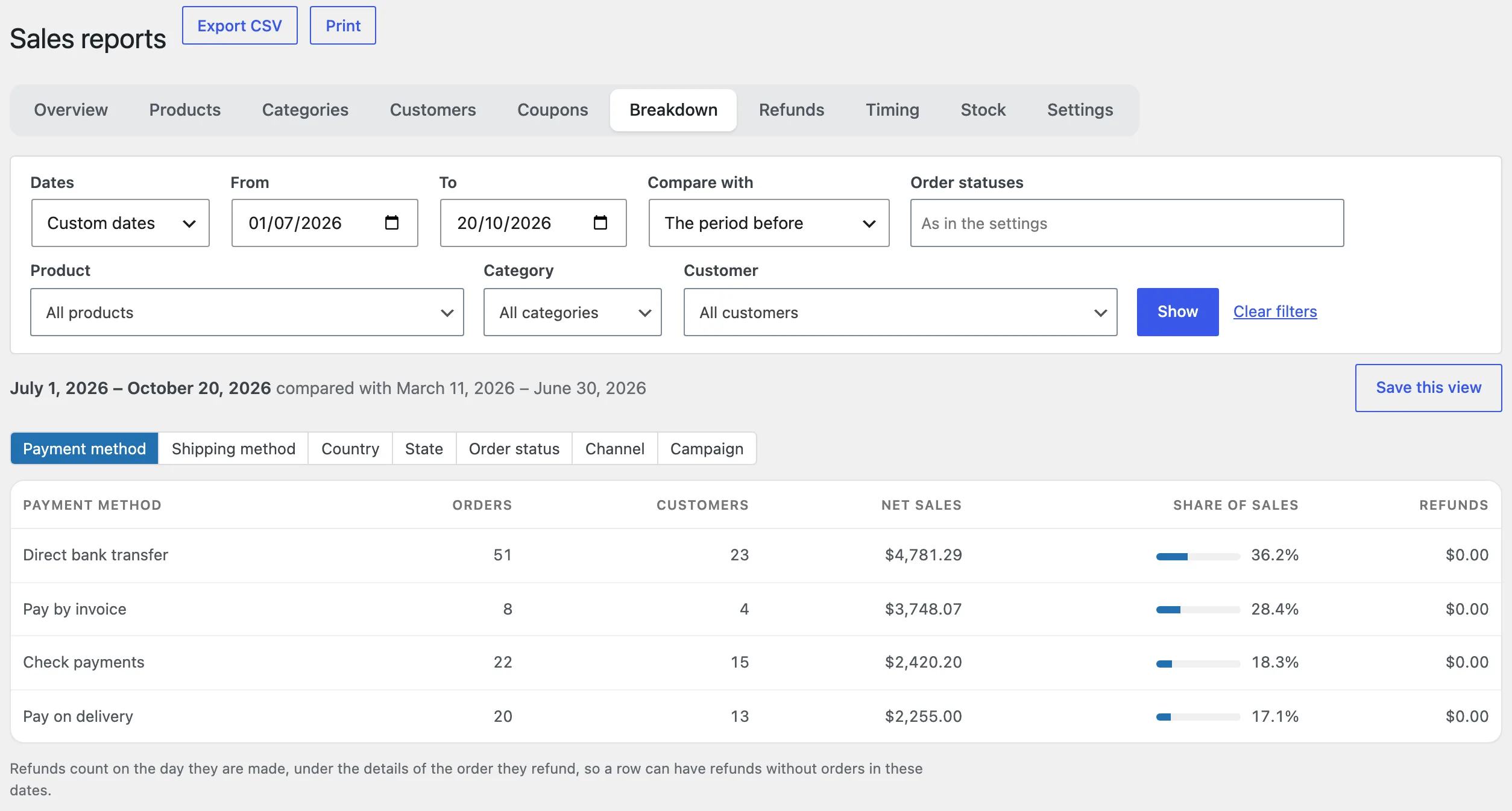
Refunds count on the day they are made, under the details of the order they refund, so a row can show refunds without orders.
Timing and stock
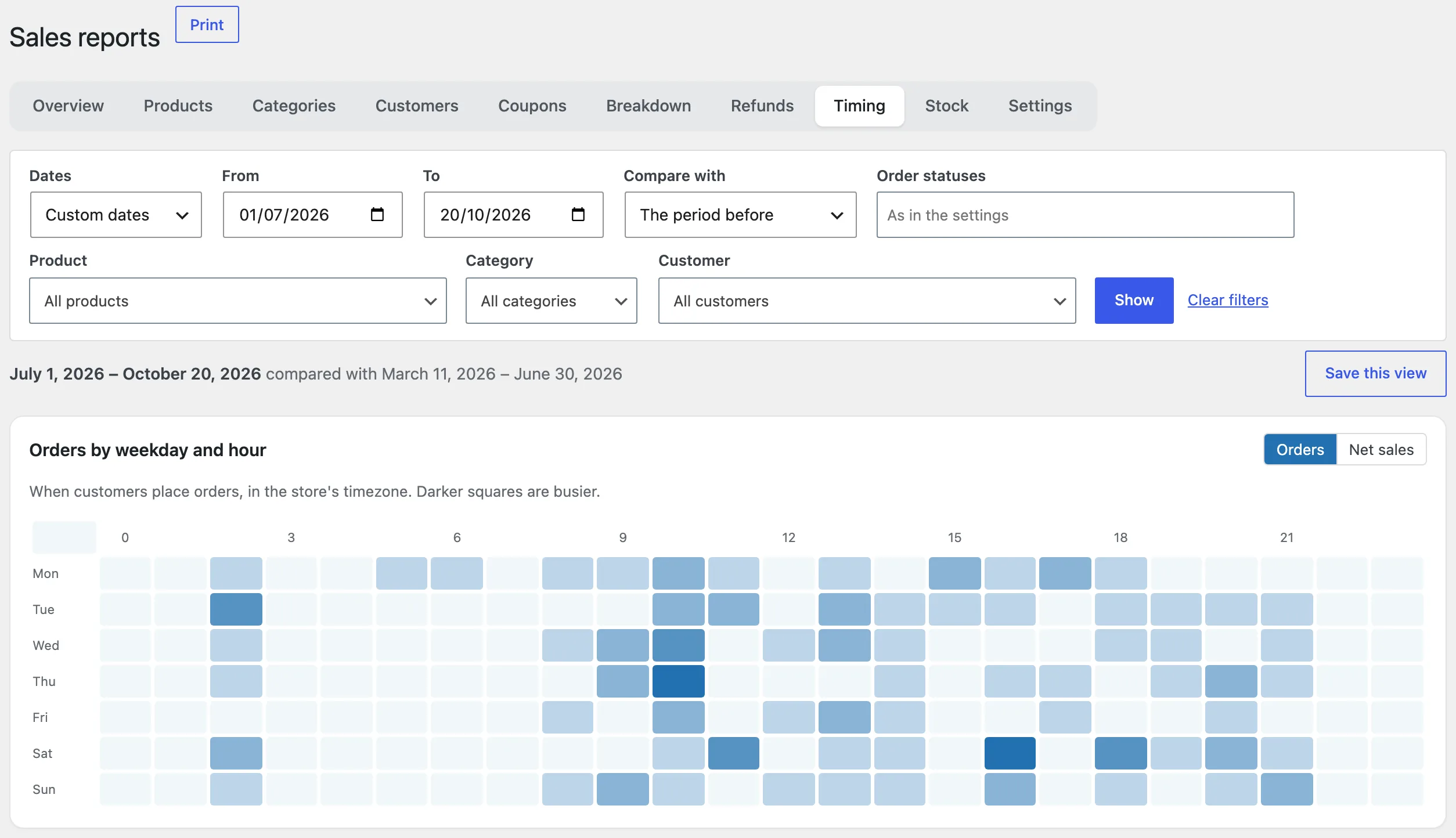
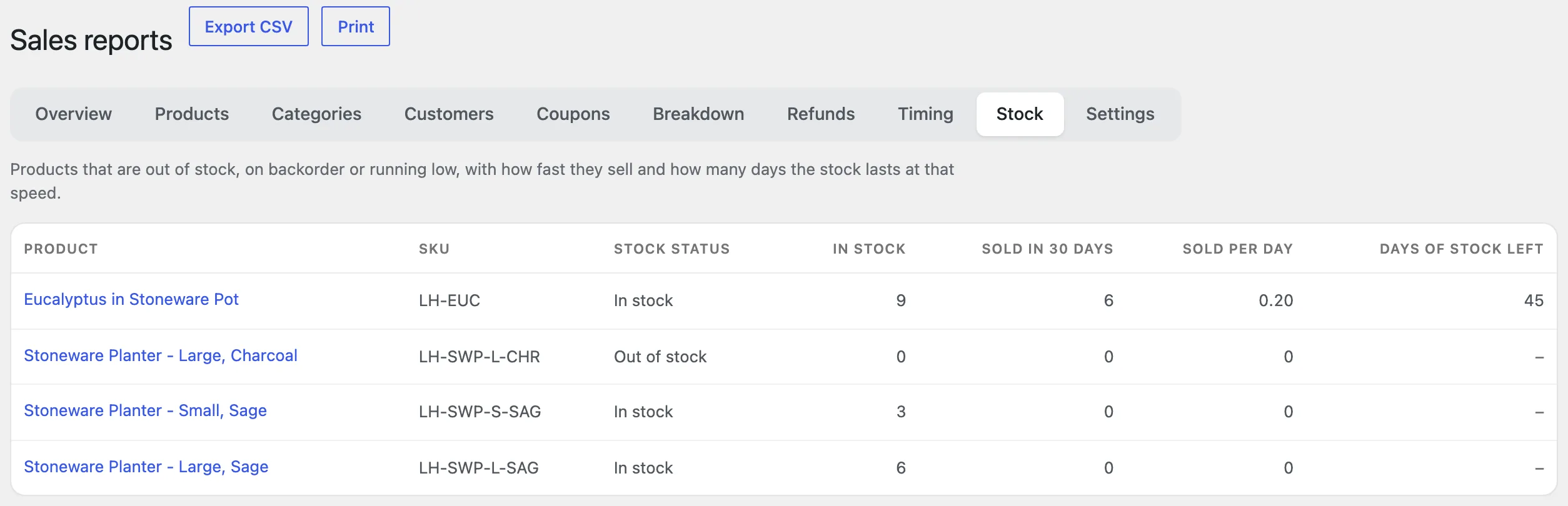
Timing shows orders or net sales by weekday and hour in your store’s timezone. Stock lists products that are out of stock, on backorder or running low, with how many sell per day and how many days the stock left lasts.
The email report
Under Settings, choose Every Monday, for the week before or On the 1st, for the month before, and the addresses to send to. The email shows the main figures with their change, top products and categories, new and returning customers and channels, with the products report attached as a CSV file. Send the email report now sends it straight away.
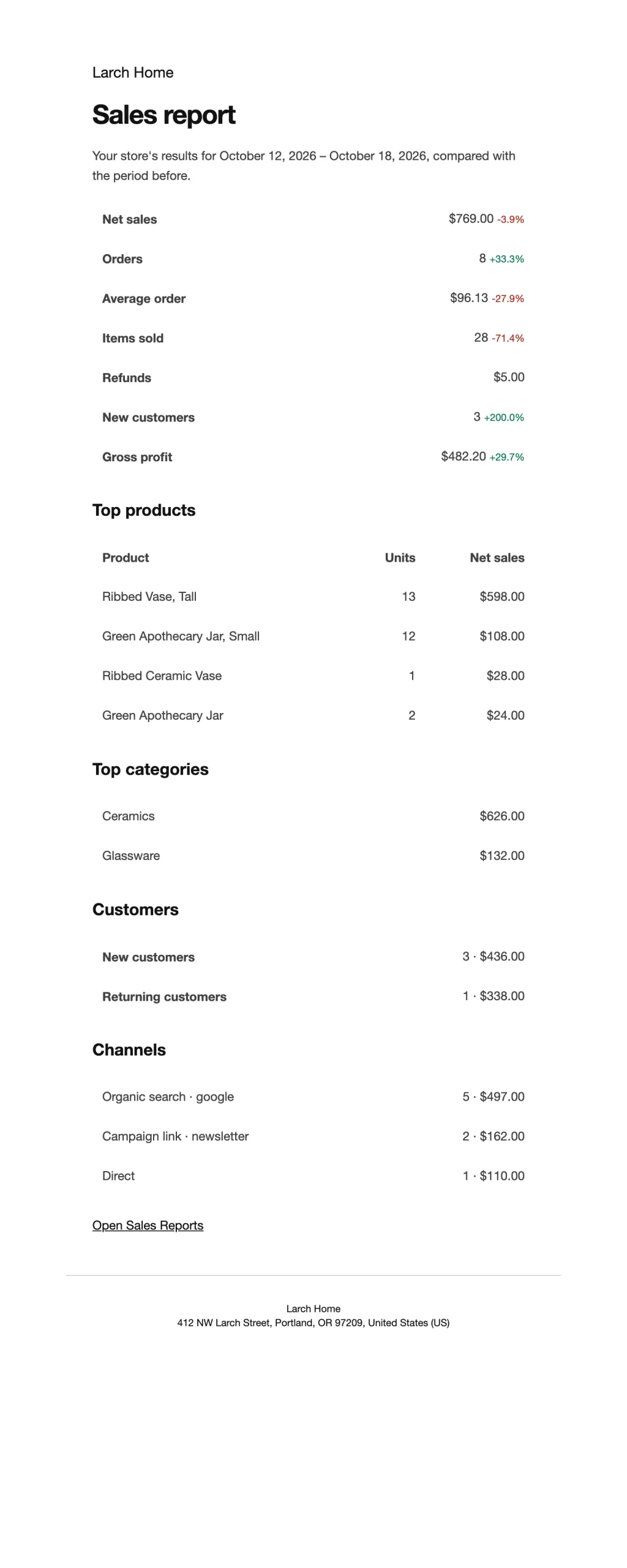
The email’s subject, heading and design are set in WooCommerce > Settings > Emails > Sales report.
Settings
| Setting | What it does |
|---|---|
| Order statuses | The statuses whose orders the reports count. |
| Product costs | Where costs come from: WooCommerce, Inventory Management or the plugin’s Cost field. |
| Send a report | Never, every Monday for the week before, or on the 1st for the month before. |
| Send to | The email addresses that get the report. |
| Attachment | Attach the products report as a CSV file. |
| Sales speed from the last | How many days of sales the Stock report uses. |
| Read all orders again | Reads every order into the reports again, after changes made outside WooCommerce. |
For developers
| Hook | Use |
|---|---|
asra_unit_cost | Change the unit cost used for a product’s profit. |
Copy templates/emails/sales-report.php to yourtheme/woocommerce/emails/ to change the email report.
Frequently asked questions
Why are the reports empty after activation?
Existing orders are read in the background, about a minute per few thousand orders. The reports fill in as this goes on.
Why don’t I see profit?
Profit needs product costs on the orders. Add costs to your products; orders placed after that keep them.
Why does a breakdown show Unknown?
Orders placed before WooCommerce’s order attribution was on have no channel or campaign.
How do I remove all data when deleting the plugin?
Add define( 'ASRA_REMOVE_ALL_DATA', true ); to wp-config.php before deleting the plugin. Orders aren’t changed.
Changelog
1.0.0 · October 21, 2026
- Overview, products, categories, customers, coupons, breakdowns, refunds, timing and stock reports.
- Profit and margin from WooCommerce, Inventory Management or the plugin’s own costs.
- Customer groups, lifetime value and monthly cohorts.
- Saved views, CSV export, printing, a dashboard widget and a weekly or monthly email report.