Checkout Field Editor changes WooCommerce’s checkout fields and adds your own, with conditions, checks, fees and file uploads, and shows the answers on orders, in emails and in My Account.
Requirements
- WordPress 6.8 or newer
- WooCommerce 10.0 or newer
- PHP 7.4 or newer
- Works with classic and block themes, the Cart and Checkout blocks, and High-Performance Order Storage.
Installation
- Download
checkout-field-editor.zipfrom My account > Downloads. - In WordPress, go to Plugins > Add New Plugin > Upload Plugin, choose the zip file and click Install Now.
- Click Activate. The editor is under WooCommerce > Checkout Fields.
Quick start
- Go to WooCommerce > Checkout Fields and open the Billing tab.
- Drag fields into the order you want, and turn off the ones you don’t need with their Enabled switch.
- Click Add field, choose a type, give it a label and save.
- Open the field’s Conditions tab to show it only when it applies, and Display to choose where its value shows.
- Place a test order to see the field at checkout and its value on the order.
The editor
Each tab, Billing, Shipping and Additional, lists its fields in checkout order. Drag a row or use the arrows to move it, and the Enabled switch to turn it off. Edit opens the field’s settings; Reset section puts WooCommerce’s fields back.
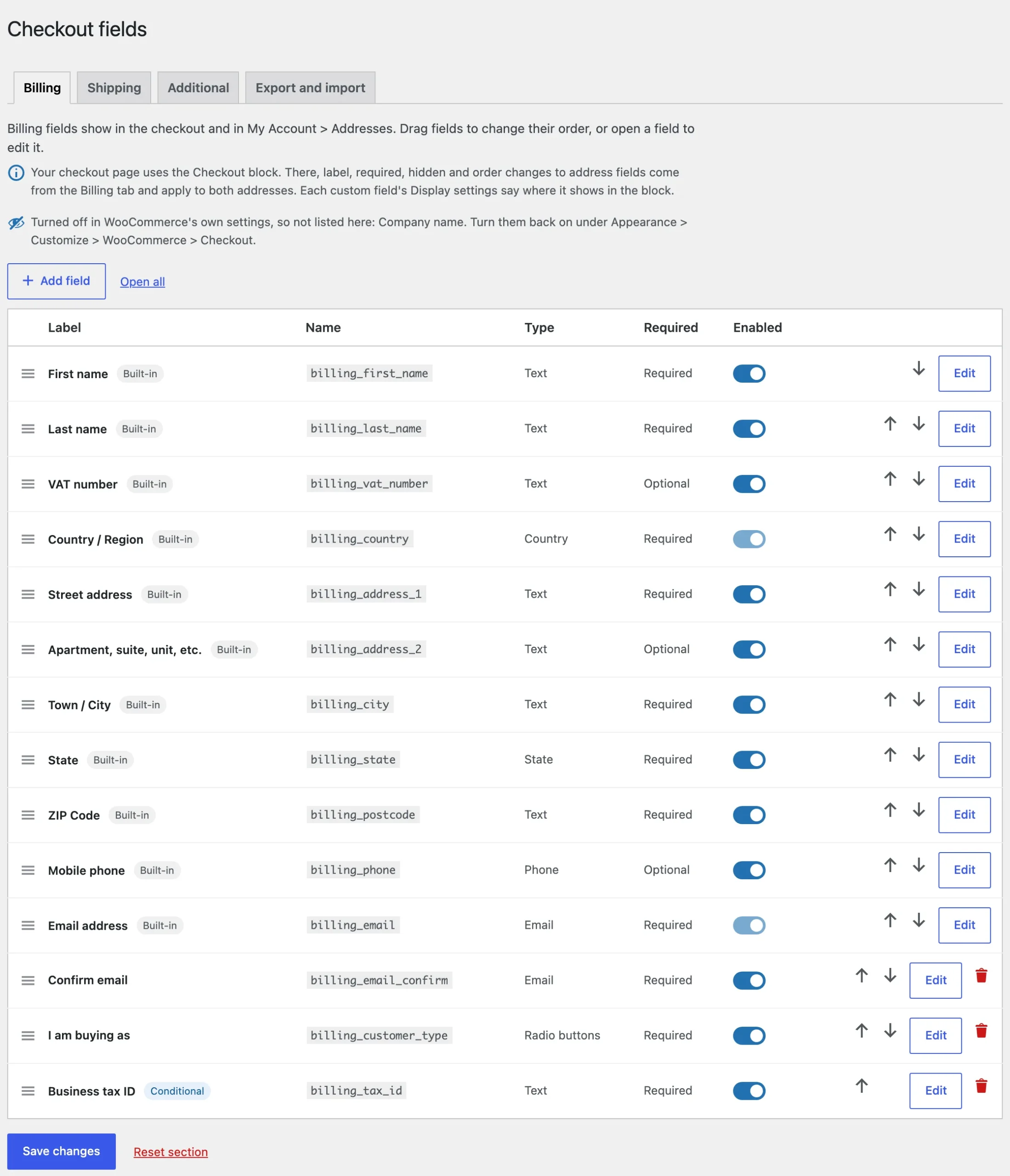
Fields turned off in WooCommerce’s own settings, such as Company, are listed in a note above the table.
Field settings
Each field has a label, a name, a type, a placeholder, help text, a default value, a width and CSS classes, and can be required. Dropdowns, radio buttons and checkboxes have their options on the Options tab.
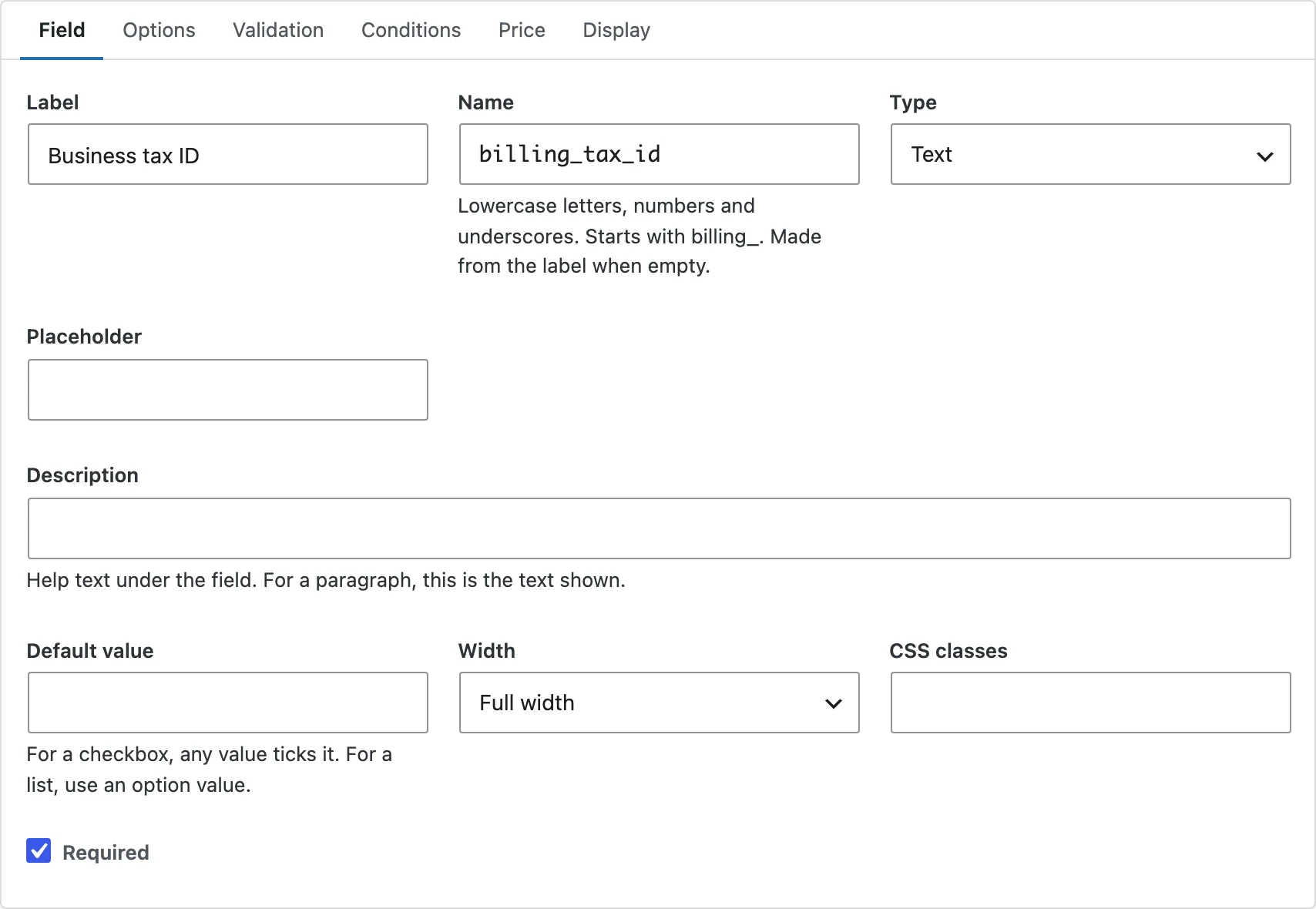
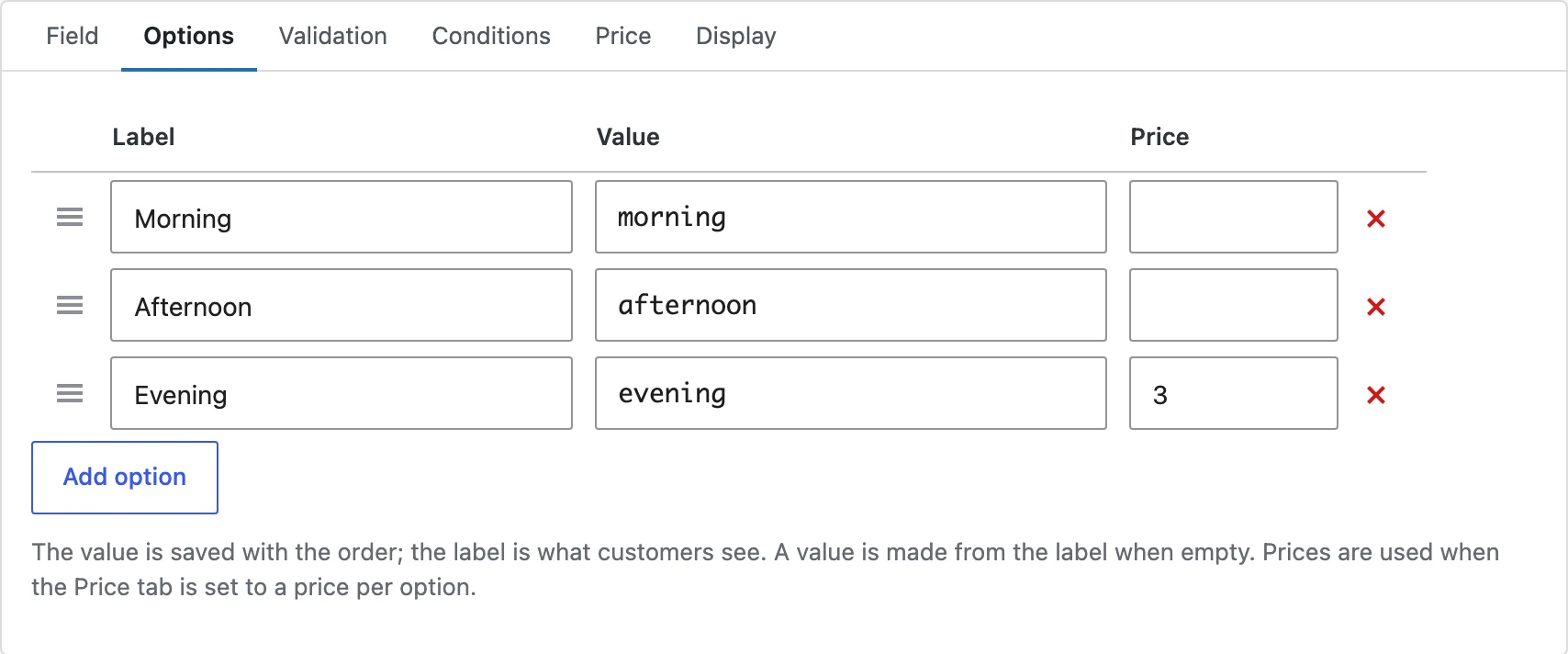
Checks
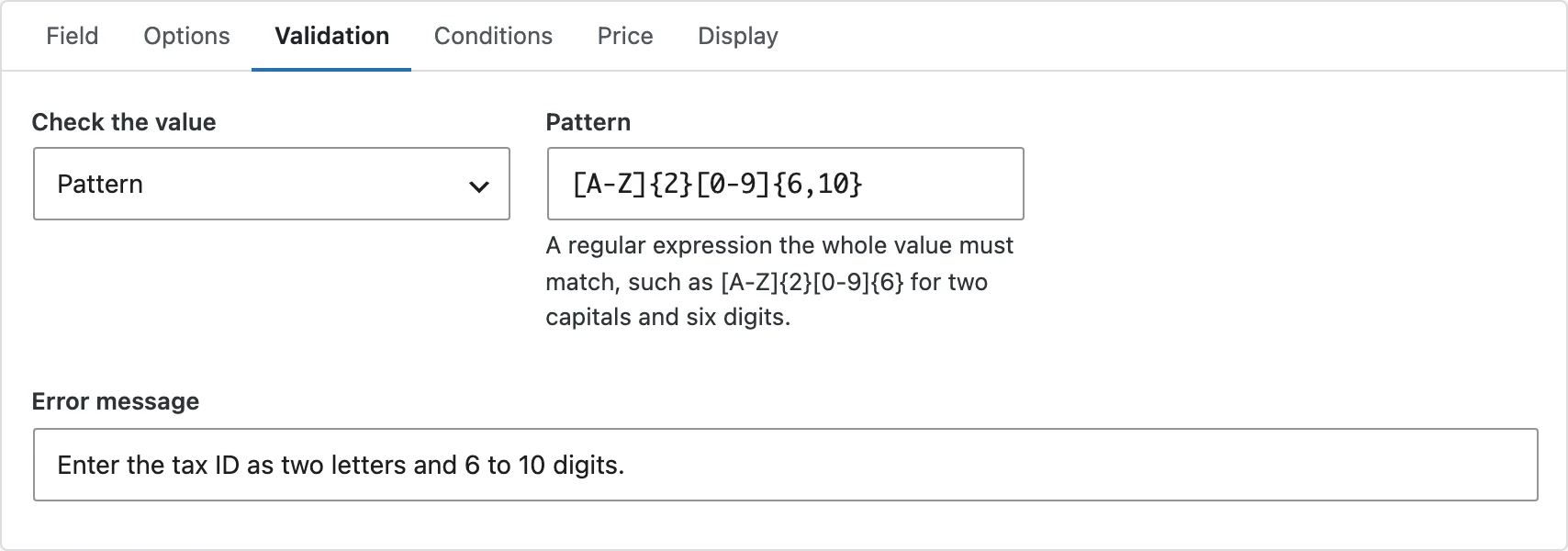
The Validation tab checks an email, phone, number or postcode, or a pattern of your own with your own error message. Must match makes a field repeat another, such as Confirm email.
Conditions
Show a field only when its rules match: another field’s value, products, variations or categories in the cart, the cart subtotal, the customer’s role, the shipping or payment method, or the billing or shipping country.
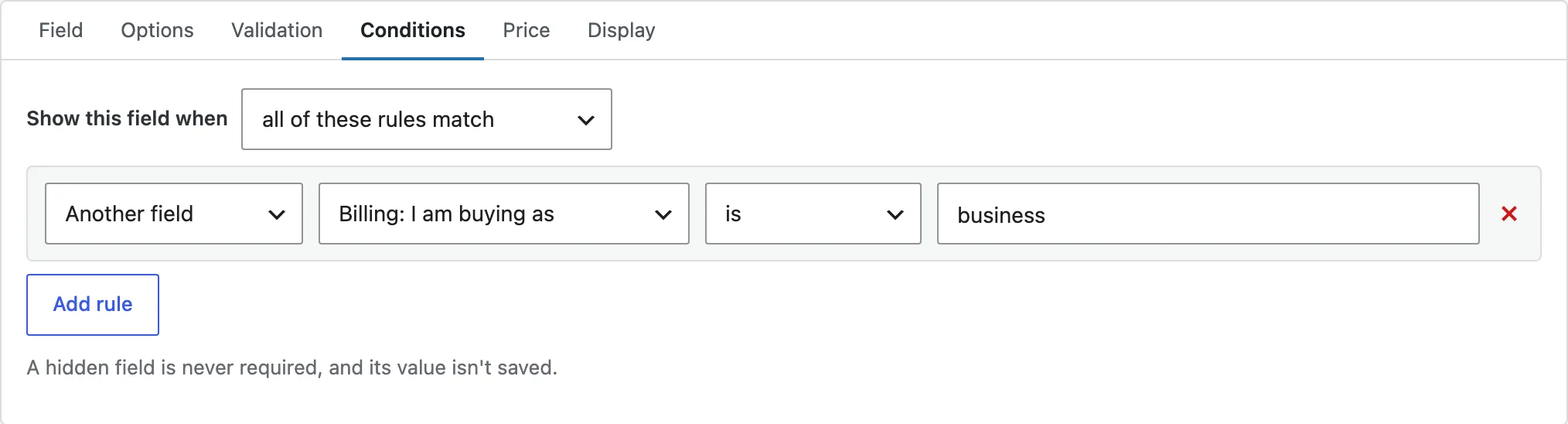
A field hidden by its rules is never required, and its value isn’t saved.
Fees and file uploads
The Price tab adds a fee when the field is filled in: a fixed amount, a percentage of the subtotal, or the prices of the chosen options. File upload fields take the file types and the largest size you allow.
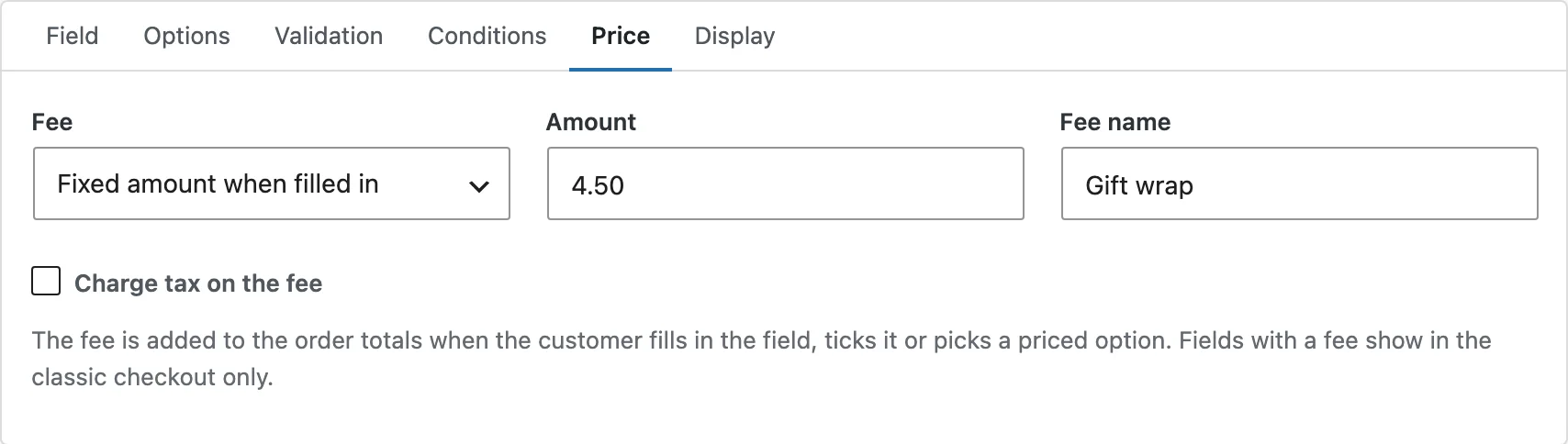
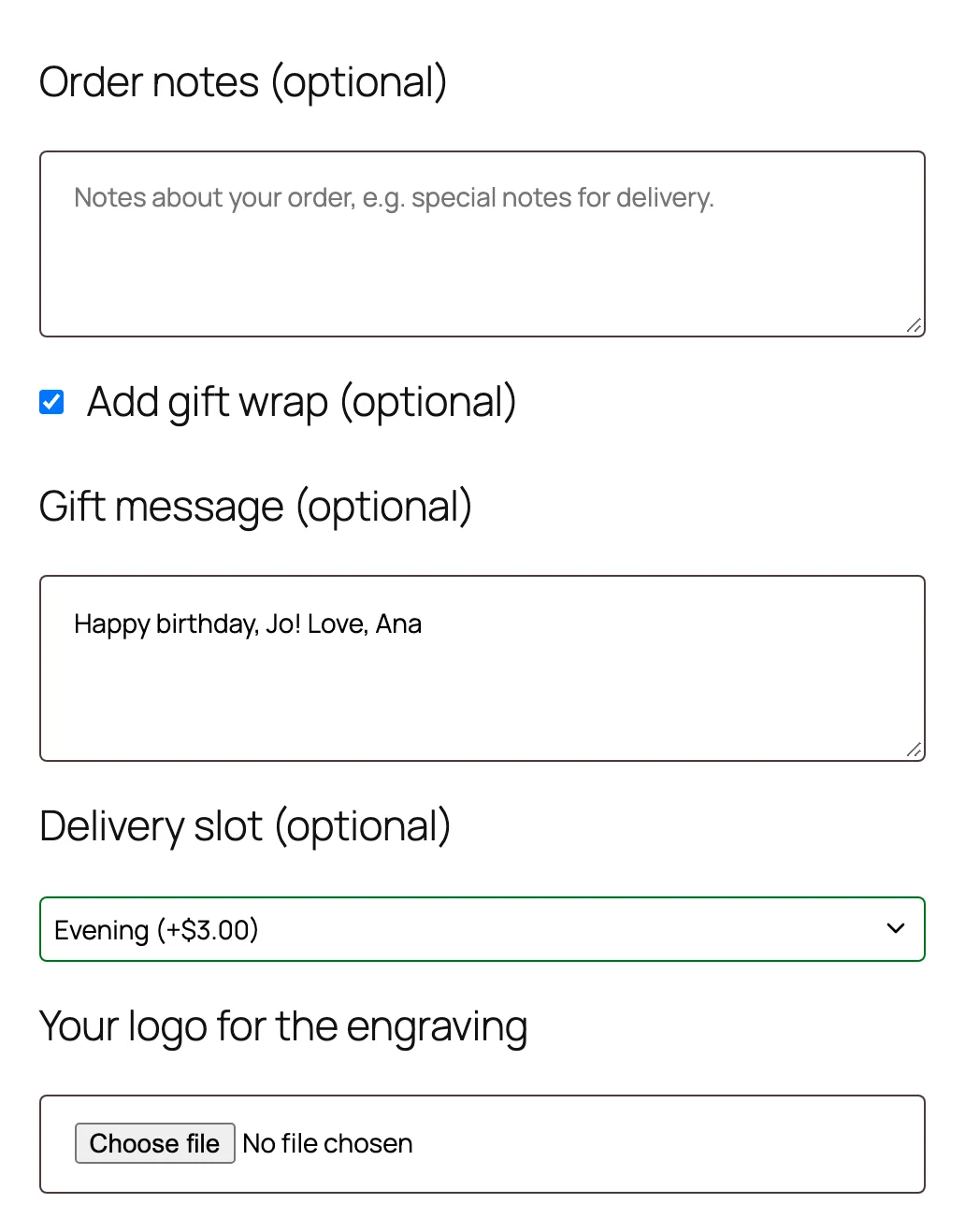
Fields with a fee show in the classic checkout only, where the fee can be added to the totals.
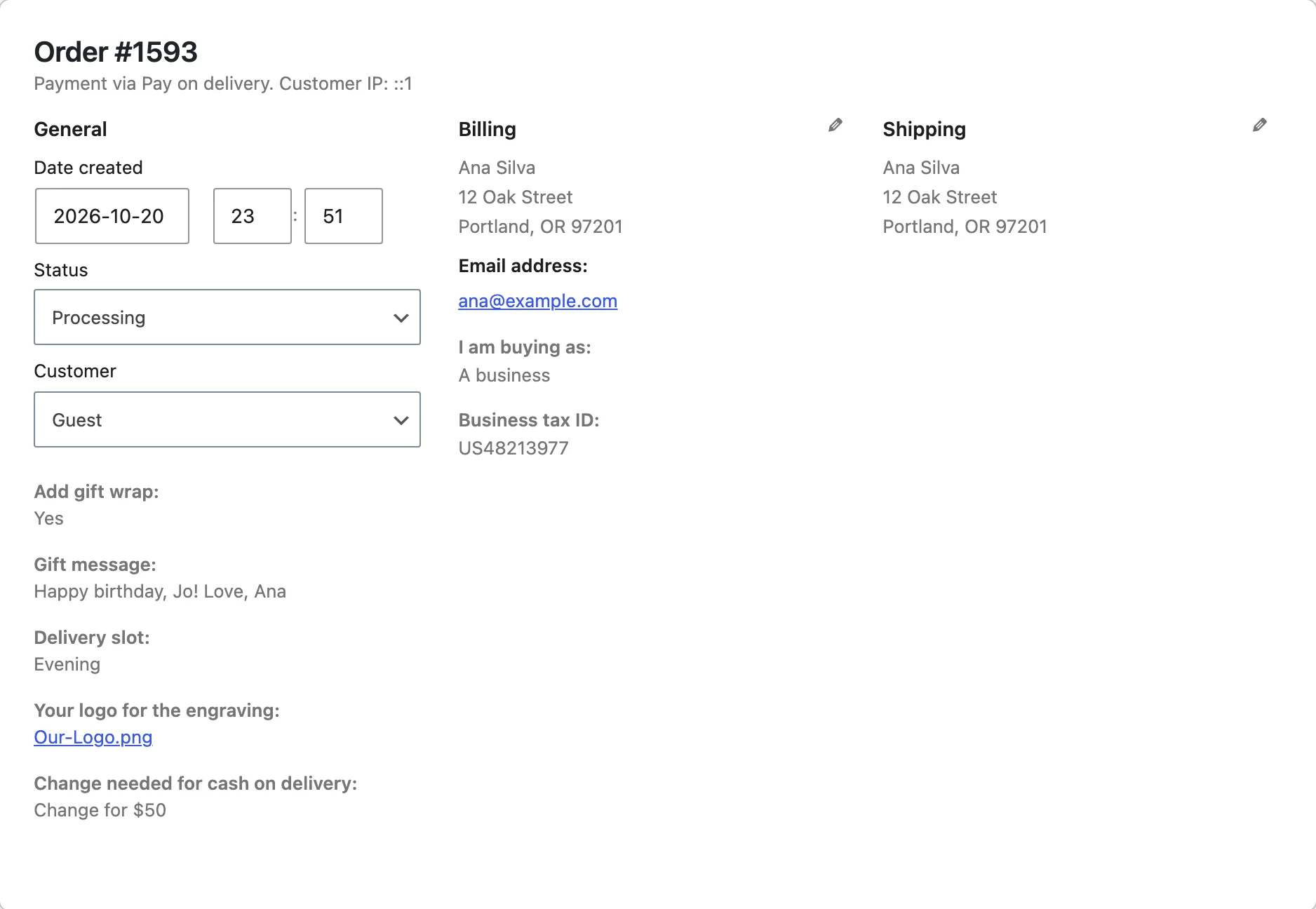
Where values show
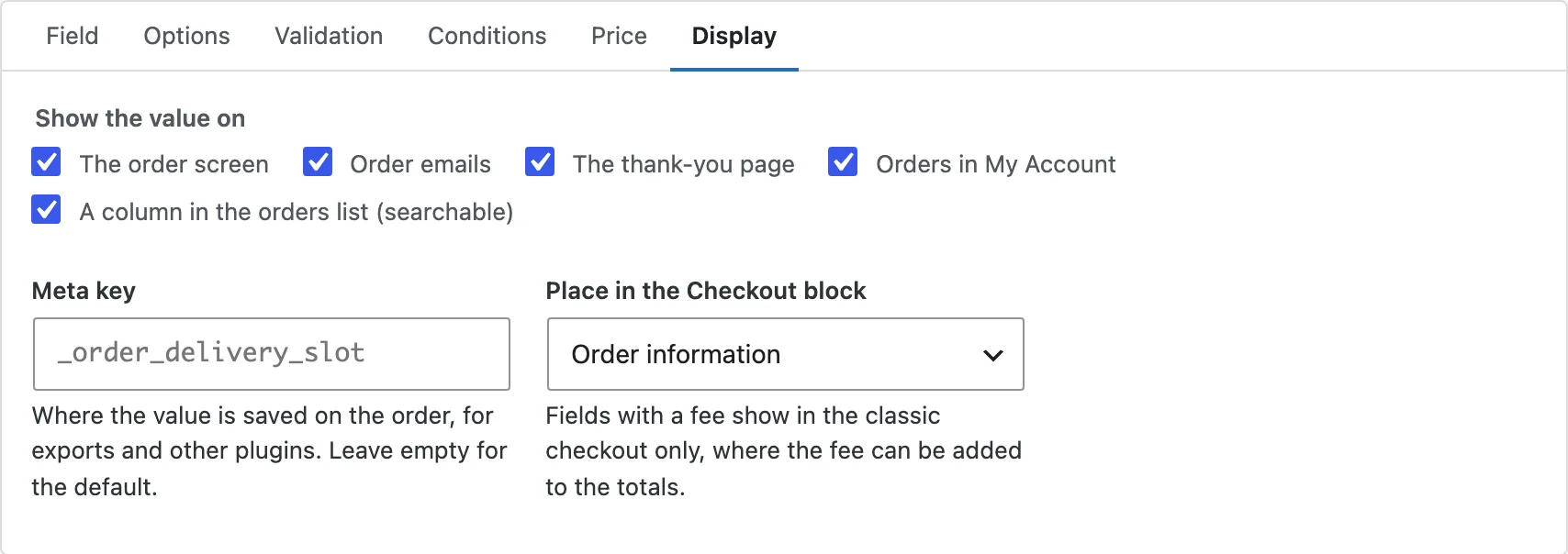
The Display tab chooses the order screen, order emails, the thank-you page, My Account and a searchable column in the orders list, the meta key the value is saved under, and the Checkout block step the field appears in.
The Checkout block
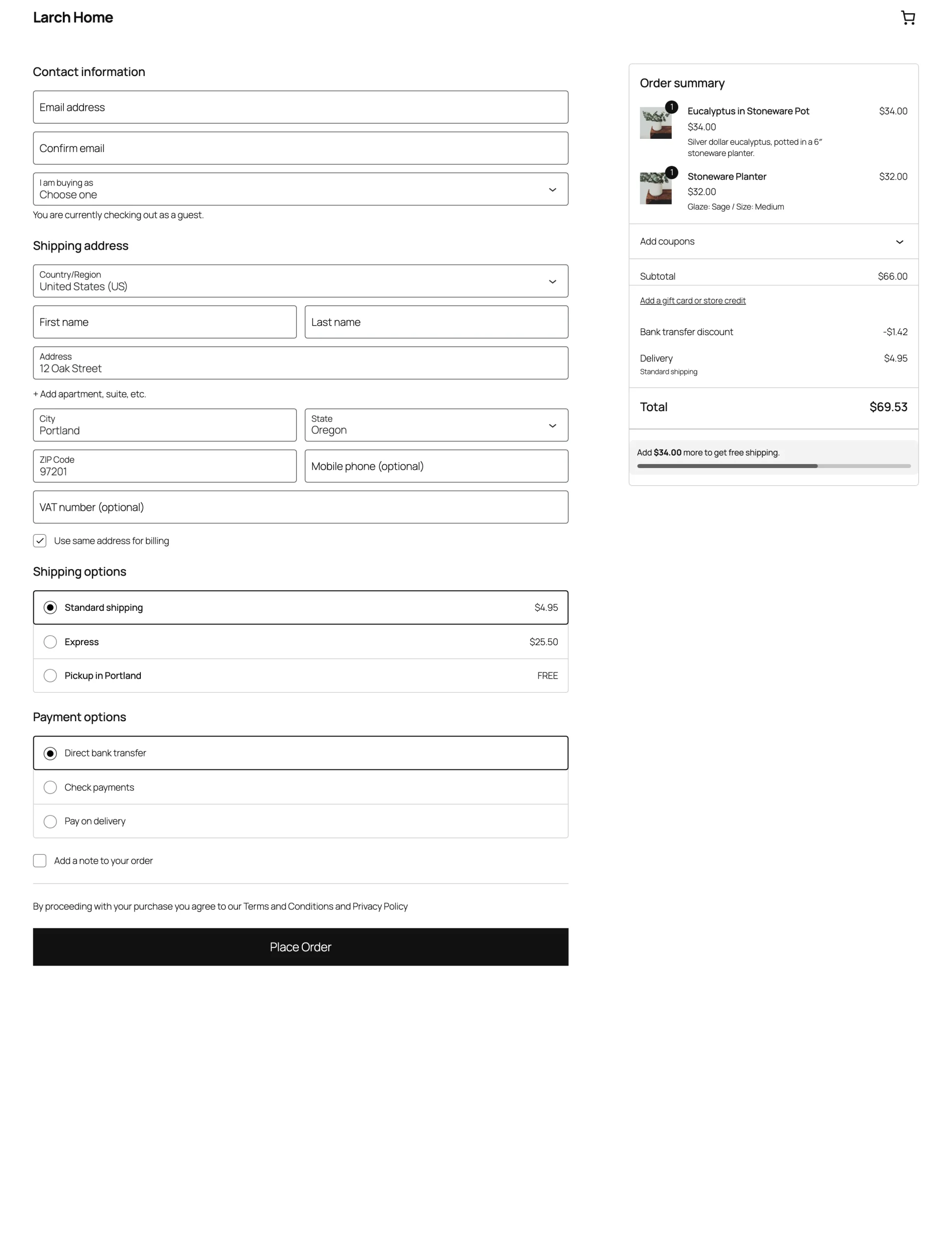
Label, required, hidden and order changes to address fields apply in the Checkout block, from the Billing tab for both addresses. Text, dropdown, radio, checkbox and date fields show in the block through WooCommerce’s additional checkout fields.
Settings
| Setting | What it does |
|---|---|
| Label and placeholder | What customers see. |
| Name and meta key | Where the value is saved on the order. |
| Type | Text, dropdown, radio, checkbox, date, upload and more. |
| Width | Full width, left half or right half. |
| Required | Customers must fill it in when it shows. |
| Validation | Email, phone, number, postcode, a pattern or must match. |
| Conditions | When the field shows. |
| Price | A fee when it’s filled in. |
| Display | Where the value shows. |
For developers
| Hook | Use |
|---|---|
cfec_form_field | Change a custom field’s WooCommerce field arguments. |
cfec_block_field | Change a custom field before it is registered with the Checkout block. |
Frequently asked questions
Why doesn’t my field show in the Checkout block?
Fields with a fee, uploads, multi-select, checkboxes, time, heading, paragraph, password and hidden fields show in the classic checkout only. The editor marks them.
Why can’t I turn off the Country field?
WooCommerce needs the country and the email address, so those stay on.
What happens to old orders if I delete a field?
Their values stay on the orders, but no longer show on the order screen.
How do I remove all data when deleting the plugin?
Add define( 'CFEC_REMOVE_ALL_DATA', true ); to wp-config.php before deleting the plugin. Values saved on orders stay.
Changelog
1.0.0 · October 21, 2026
- Edit, reorder and turn off WooCommerce’s checkout fields.
- Custom fields of 20 types with checks, conditions, fees and file uploads.
- Values on orders, emails, the thank-you page, My Account and the orders list.
- Checkout block support, export and import, and WPML and Polylang.