Variation Swatches shows the options of variable products as colour, image, button or radio swatches, on product pages and in the shop.
Requirements
- WordPress 6.8 or newer
- WooCommerce 10.0 or newer
- PHP 7.4 or newer
- Works with classic themes and block themes using the Add to Cart form block, and with High-Performance Order Storage.
Installation
- Download
variation-swatches.zipfrom My account > Downloads. - In WordPress, go to Plugins > Add New Plugin > Upload Plugin, choose the zip file and click Install Now.
- Click Activate. Swatch types are set under Products > Attributes, and settings under WooCommerce > Settings > Products > Swatches.
Quick start
- Go to Products > Attributes and edit an attribute such as Colour.
- Choose Color as its swatch type and save.
- Click Configure terms, edit each value and set its colour.
- Open a product with that attribute: the dropdown is now swatches.
Swatch types
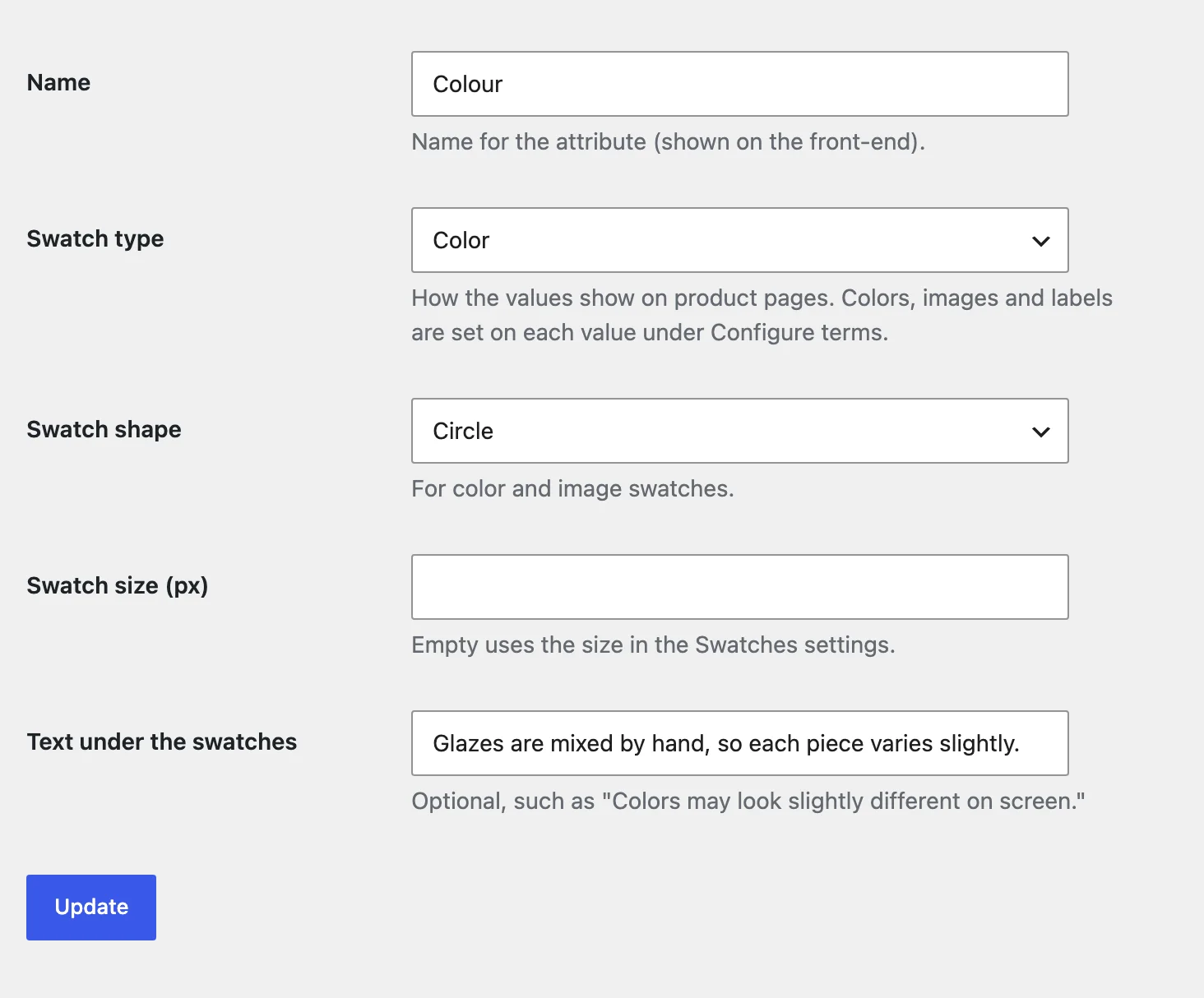
Each attribute gets a swatch type: Color, Image, Label (buttons) or Radio, a shape, a size and an optional note under its swatches. Attributes without a type follow the store setting.
Colours, pictures and labels
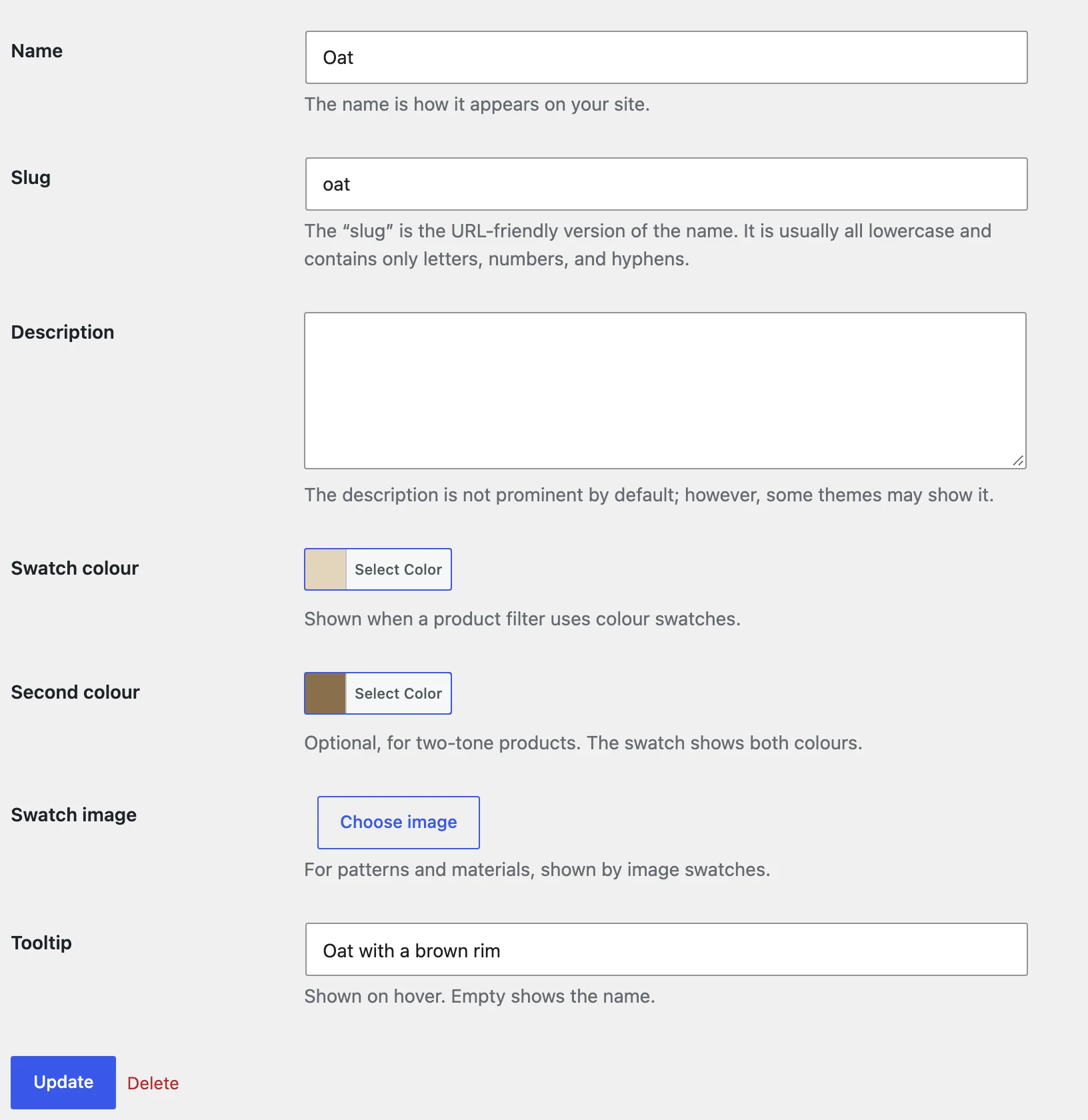
Each value gets a colour, a second colour for two-tone products, a picture, a short label and a tooltip on its edit screen. With Product Filters active, colours and pictures are set in its fields and shared.
One product
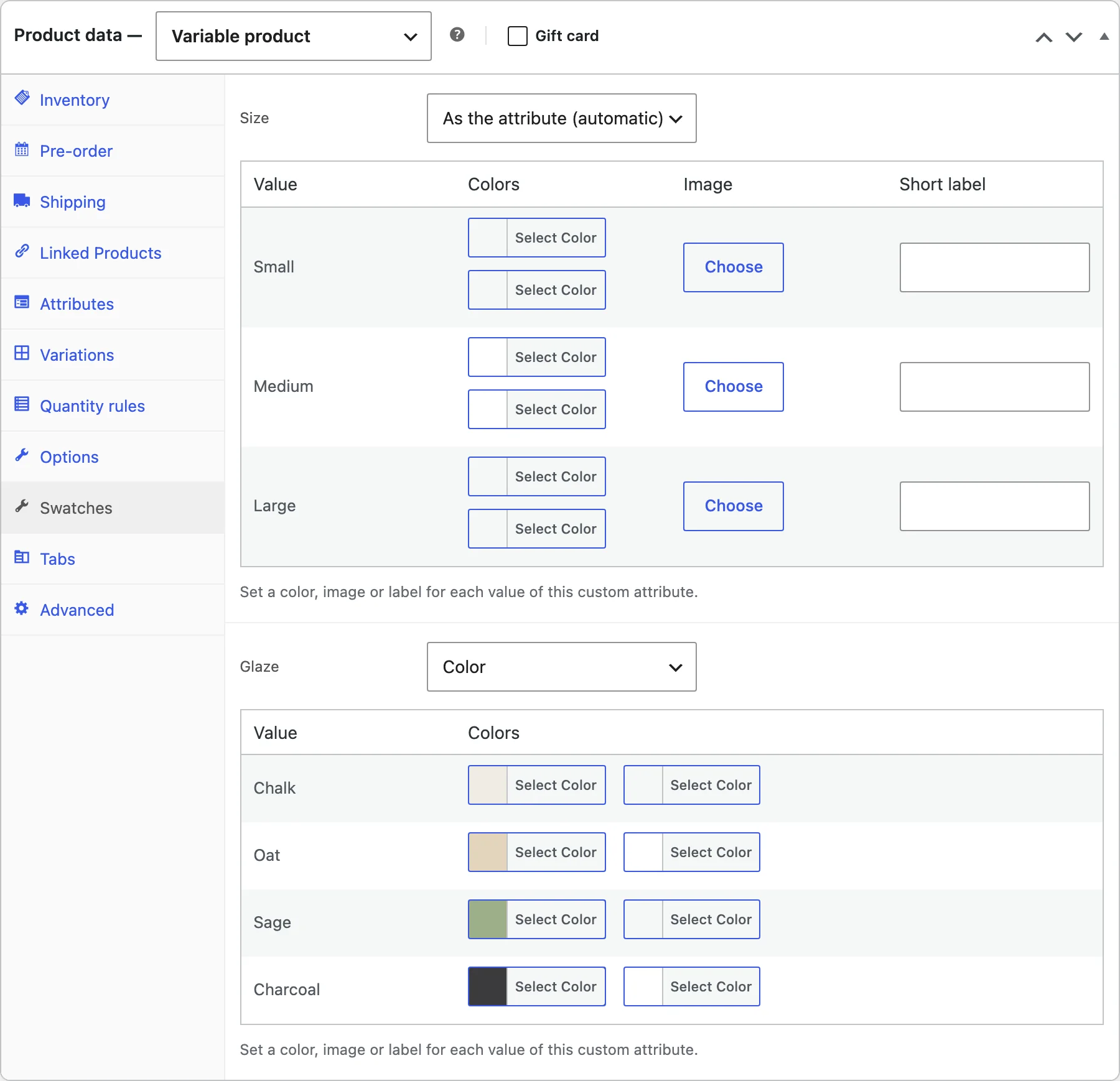
The Swatches tab on a variable product changes the type and the colours, pictures and labels for that product, including attributes added on the product itself.
On the product page
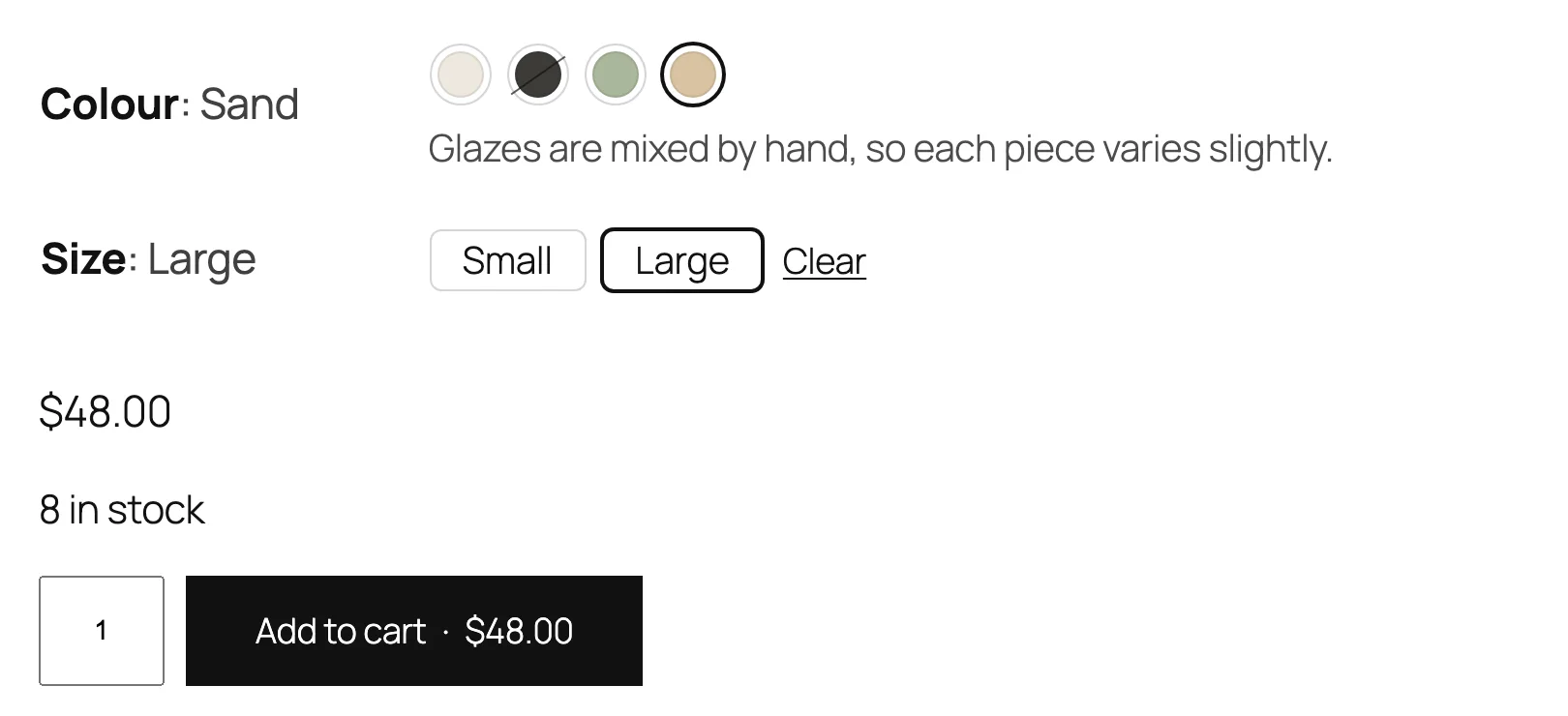
Swatches replace the dropdowns, with the chosen value next to the attribute name. Combinations that don’t exist are greyed out, and out-of-stock choices are crossed out, faded or hidden.
In the shop
Swatches of one attribute show under variable products in the shop, categories, search results and Product Collection blocks. A click changes the picture and price; products with one attribute can be added to the cart from there.
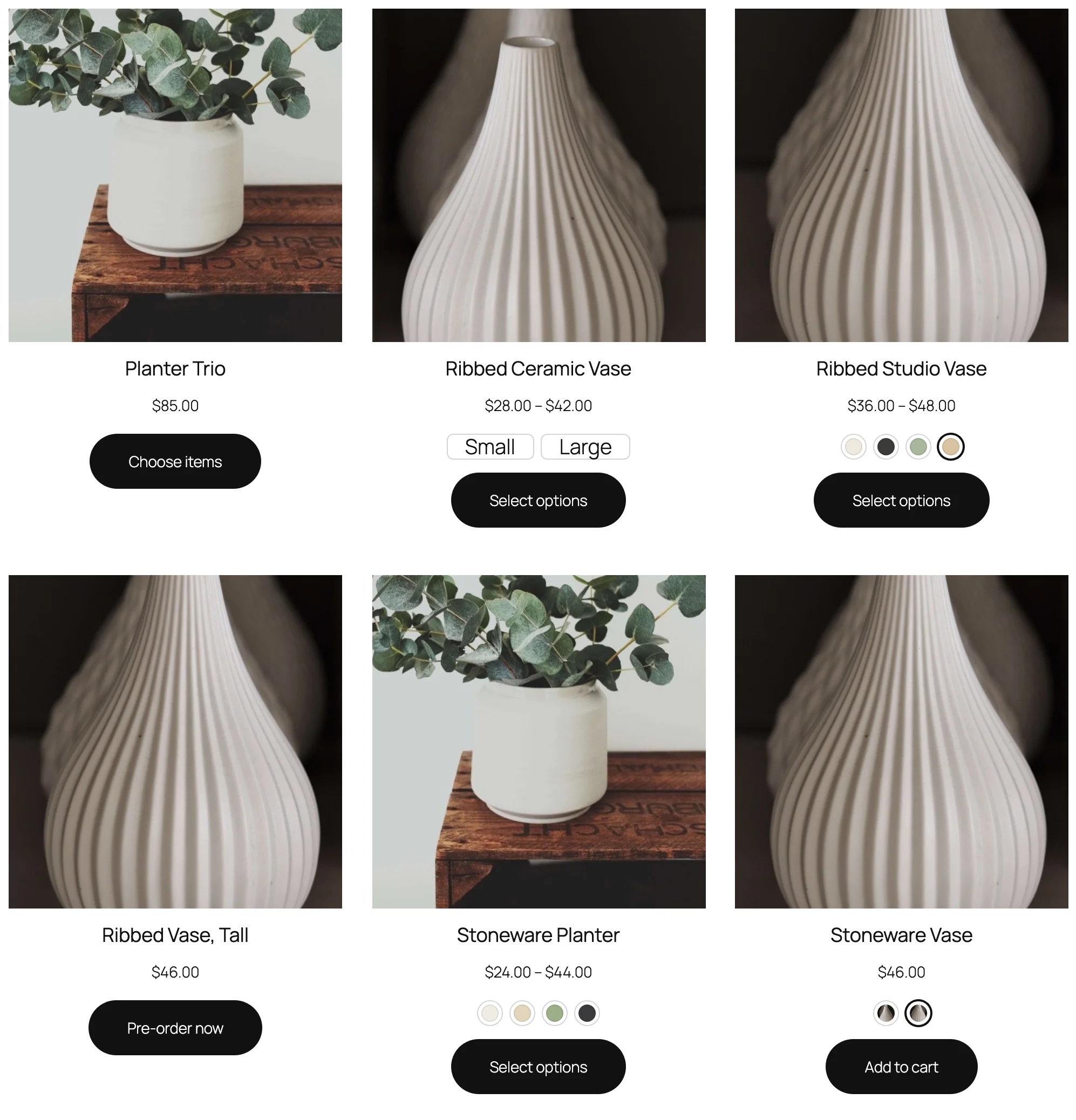
Settings
| Setting | What it does |
|---|---|
| Attributes without a type | Show as buttons, or as pictures when variations have them. |
| Shape and size | Circle, square or rounded, and the size in pixels. |
| Out of stock options | Crossed out, faded or hidden. |
| Chosen value | Show the chosen value next to the attribute name. |
| Tooltips | Show the name, or a larger picture, on hover. |
| Border and selected colors | The swatch border and the chosen swatch’s colour. |
| Swatches in shop lists | Show swatches under variable products, which attribute, how many and their size. |
| Attribute filter | Colours and pictures in the Filter Products by Attribute widget. |
| Variations sent with the page | Products with more variations load them as customers choose. |
For developers
| Hook | Use |
|---|---|
vsva_swatches | Change the swatches of one attribute of a product. |
vsva_settings | Add or change settings. |
vsva_share_filter_visuals | Choose whether colours and pictures come from Product Filters. |
Frequently asked questions
Why do some products still show dropdowns?
Block themes need the Add to Cart form block; the newer Add to Cart with Options block shows WooCommerce’s own selector.
Can I use the variation’s own picture?
Yes. Image swatches without a picture of their own use the variation’s picture.
How do I remove all data when deleting the plugin?
Add define( 'VSVA_REMOVE_ALL_DATA', true ); to wp-config.php before deleting the plugin.
Changelog
1.0.0 · October 21, 2026
- Colour, image, button and radio swatches for variable products.
- Per attribute, per value and per product settings.
- Sold-out choices crossed out, faded or hidden.
- Swatches in shop lists and the attribute filter.