Visual Product Configurator adds step-by-step configurators to simple products, with layered pictures, option prices, rules, stock per option, linked products and quote requests.
Requirements
- WordPress 6.8 or newer
- WooCommerce 10.0 or newer
- PHP 7.4 or newer
- Works with classic and block themes, the Cart and Checkout blocks, and High-Performance Order Storage.
Installation
- Download
visual-product-configurator.zipfrom My account > Downloads. - In WordPress, go to Plugins > Add New Plugin > Upload Plugin, choose the zip file and click Install Now.
- Click Activate. Configurators are under Products > Configurators, and settings under WooCommerce > Settings > Products > Configurator.
Quick start
- Go to Products > Configurators > Add configurator and give it a name.
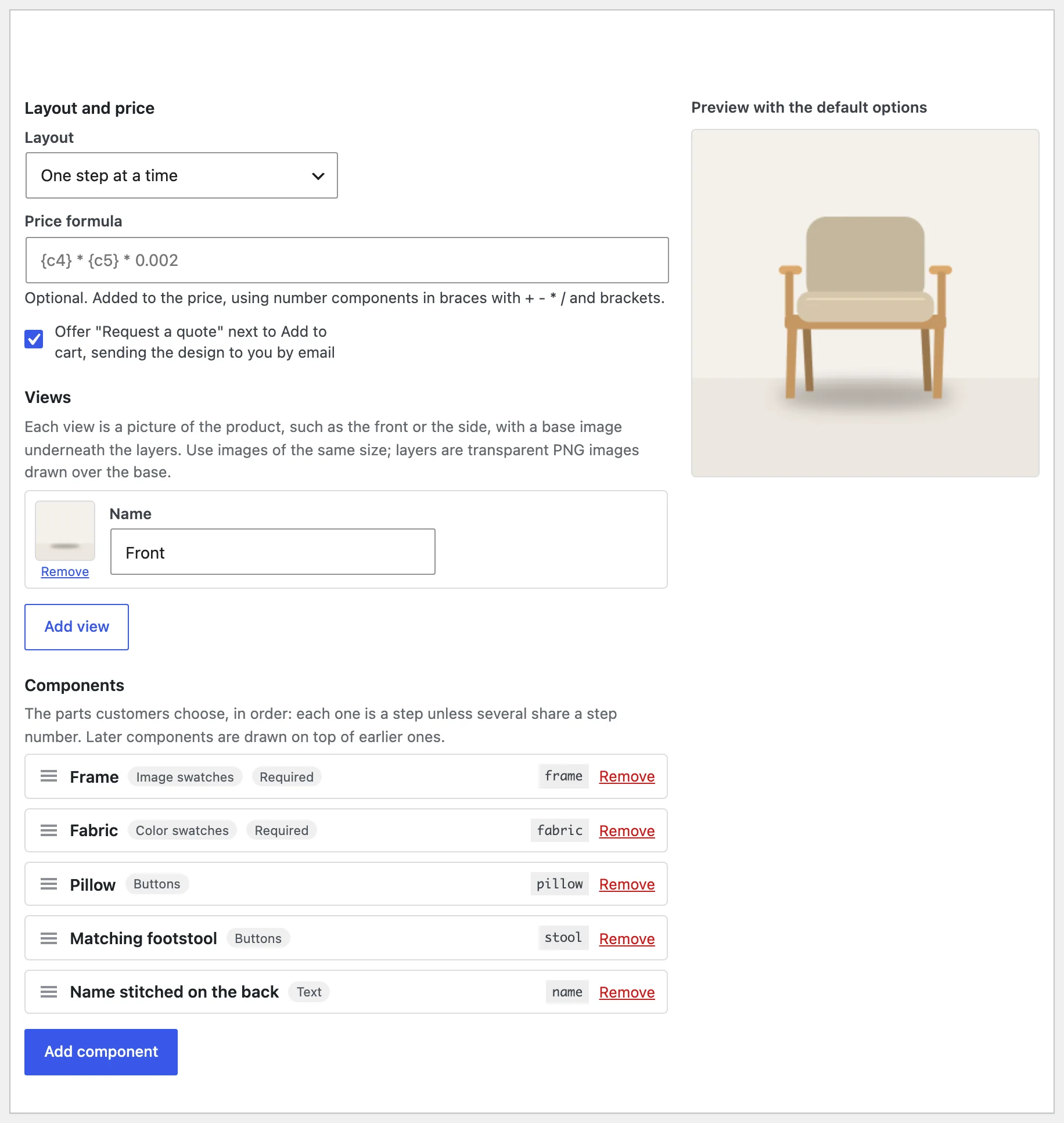
- Under Views, choose the base picture, such as the empty room or the bare frame.
- Add components, such as Frame and Fabric, and their options, each with its layer picture and price.
- Publish, then edit a simple product and choose the configurator in its General tab.
- Open the product: customers build it step by step and see it change.
Views and layers
A view is a picture of the product, such as the front or the side, with a base picture underneath. Each option has a transparent layer per view, drawn over the base in component order. Use pictures of the same size. Without a base picture, the product’s photo is used.
Components and options
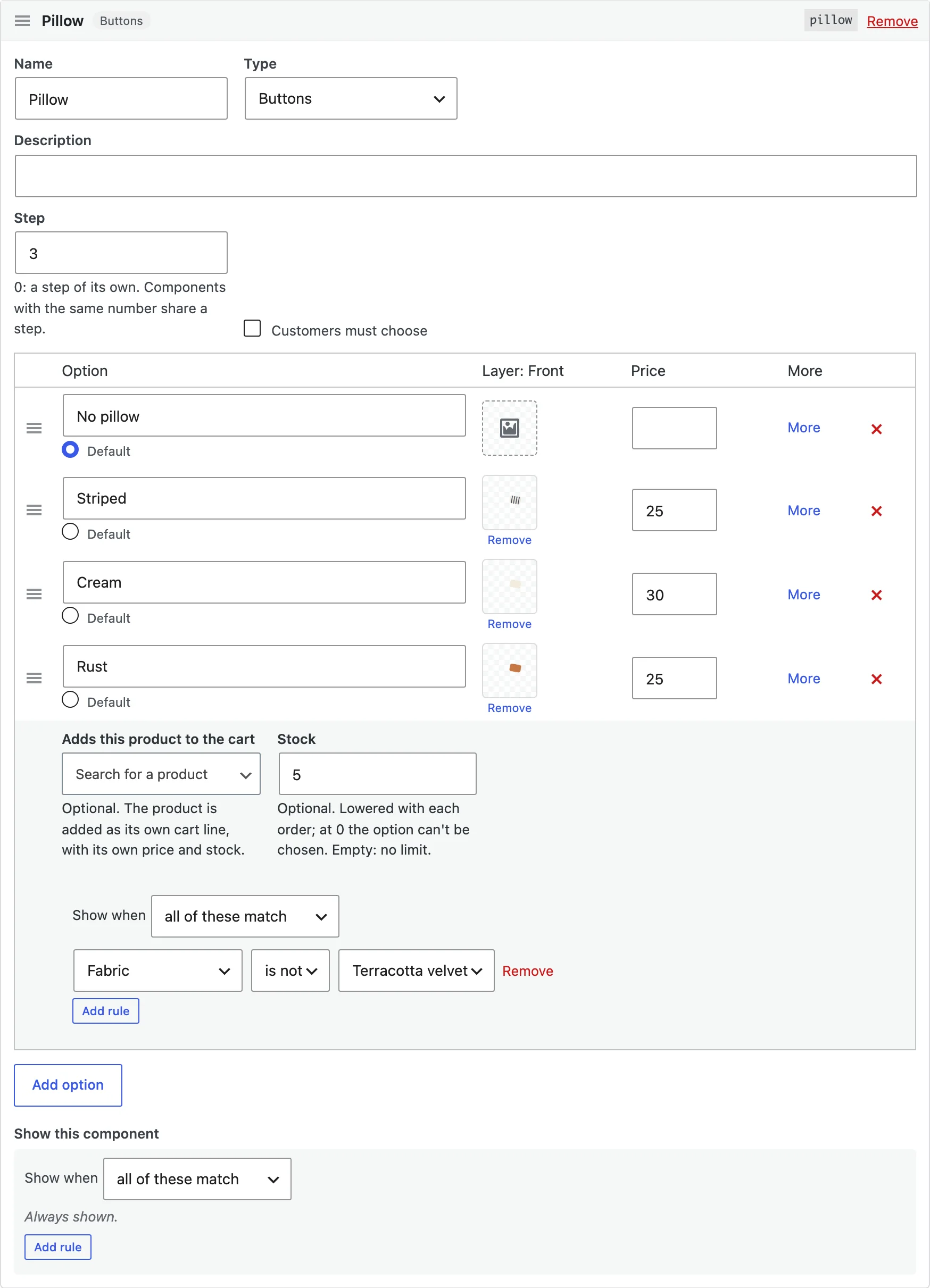
A component, such as Frame, has a type: image swatches, colour swatches, buttons, a dropdown, text, a number or an upload. Options have a name, a swatch picture or colour, a layer per view, a price and a default. More opens an option’s stock, linked product and rules.
Rules
Show a component, or an option, only when other choices are made: all the rules or any one. A hidden component isn’t required and adds nothing to the price.
Prices and formulas
Option prices are added to the product’s regular price. Number components can have a price per unit, and a price formula can use number components, such as {c4} * {c5} * 0.002 for width times height. The price is worked out again on the store when the product is added.
Linked products and stock
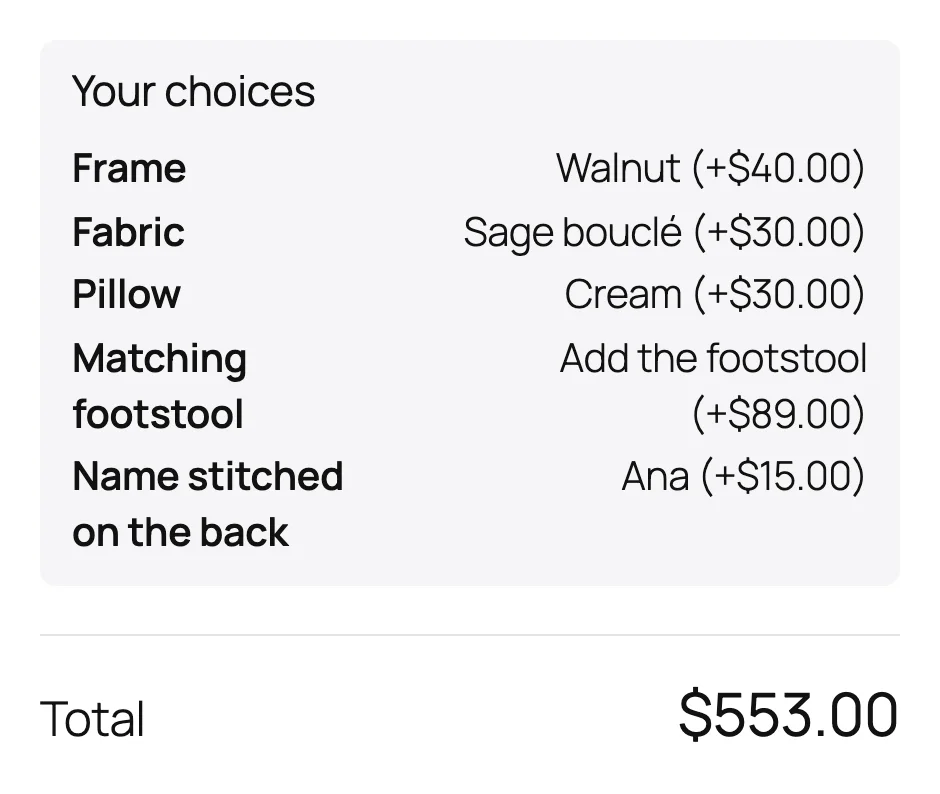
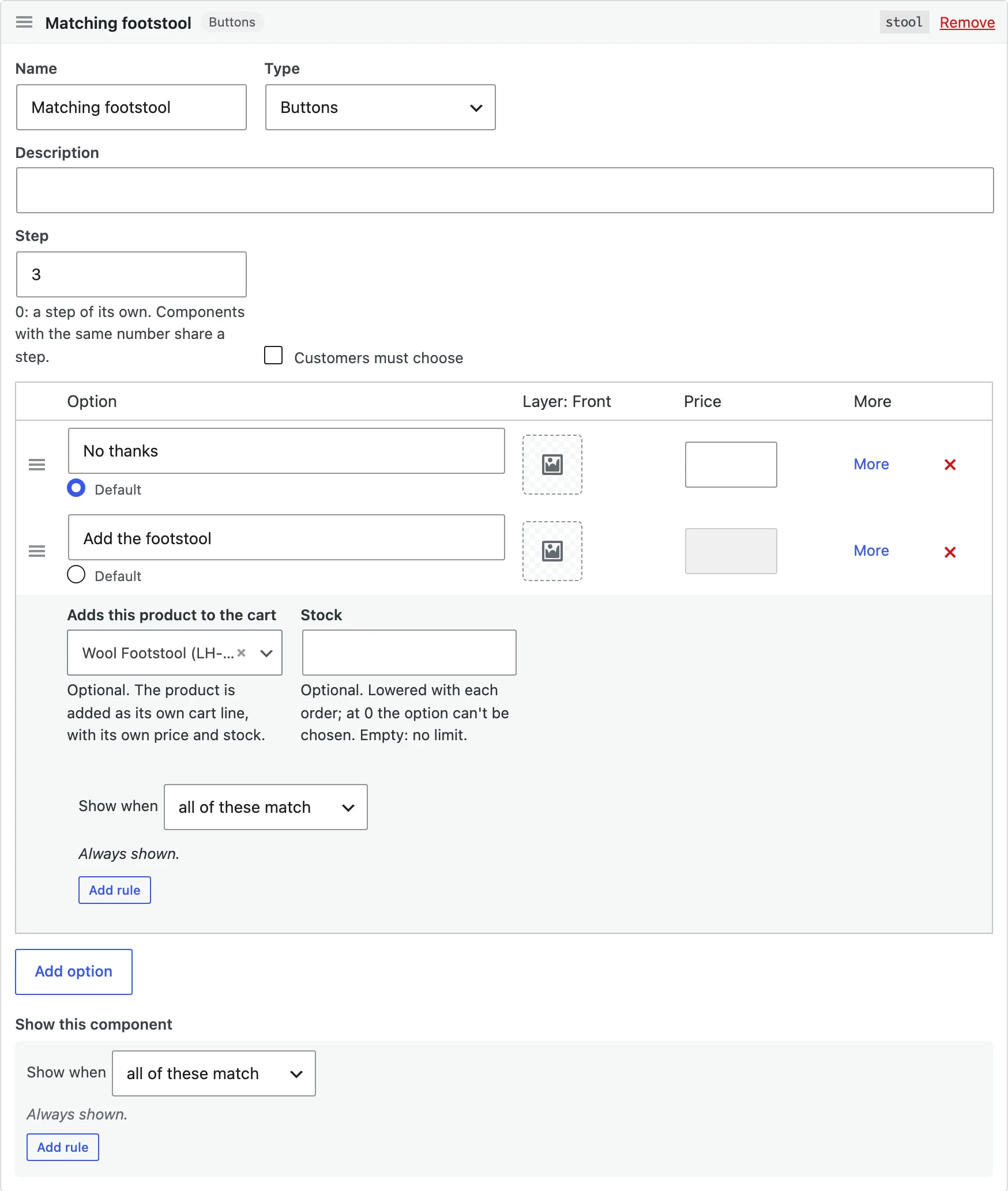
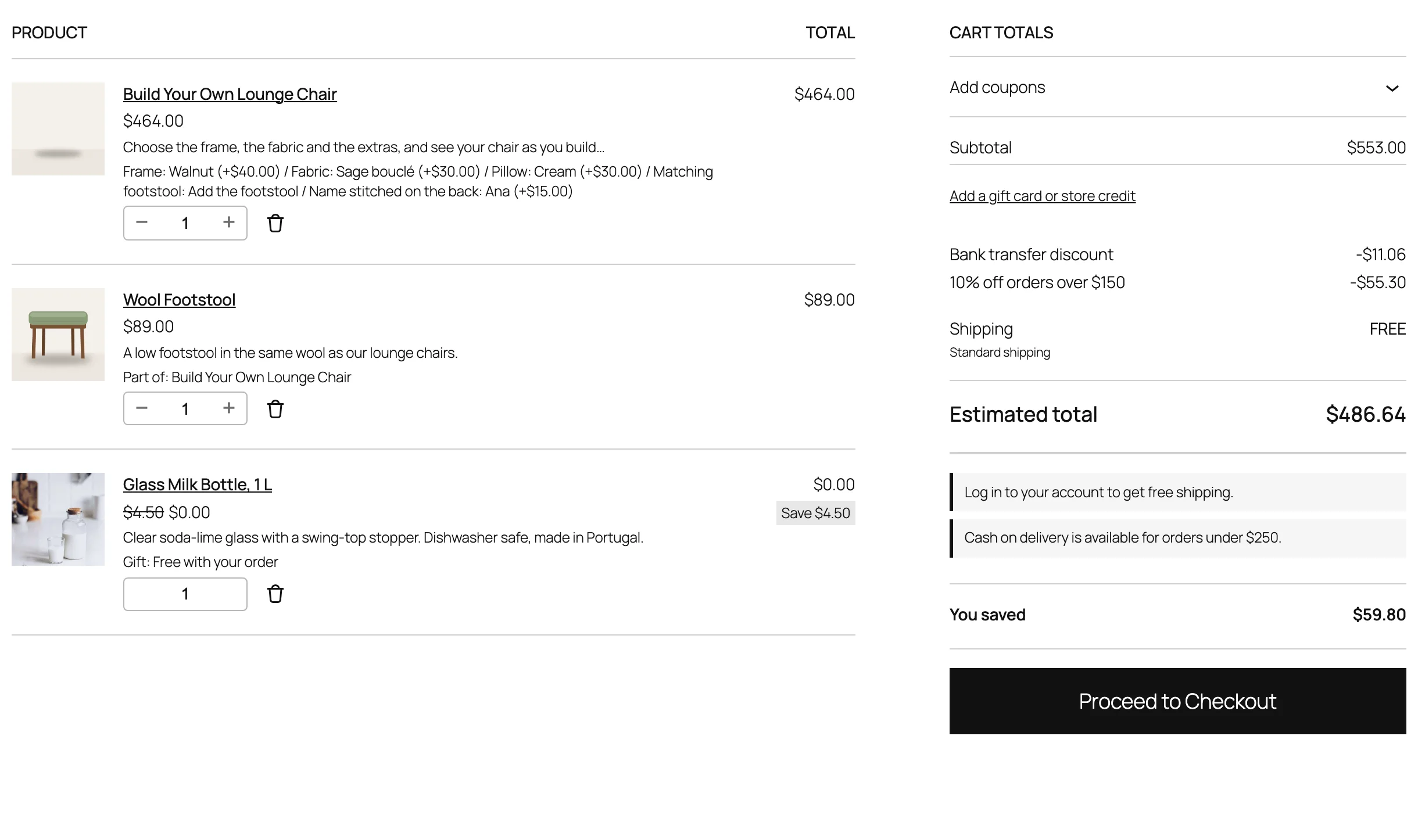
An option can add a WooCommerce product to the cart as its own line, with its own price and stock, following the configured product’s quantity. An option with stock can’t be chosen once it runs out, and its stock goes down with each order.
Text on the picture
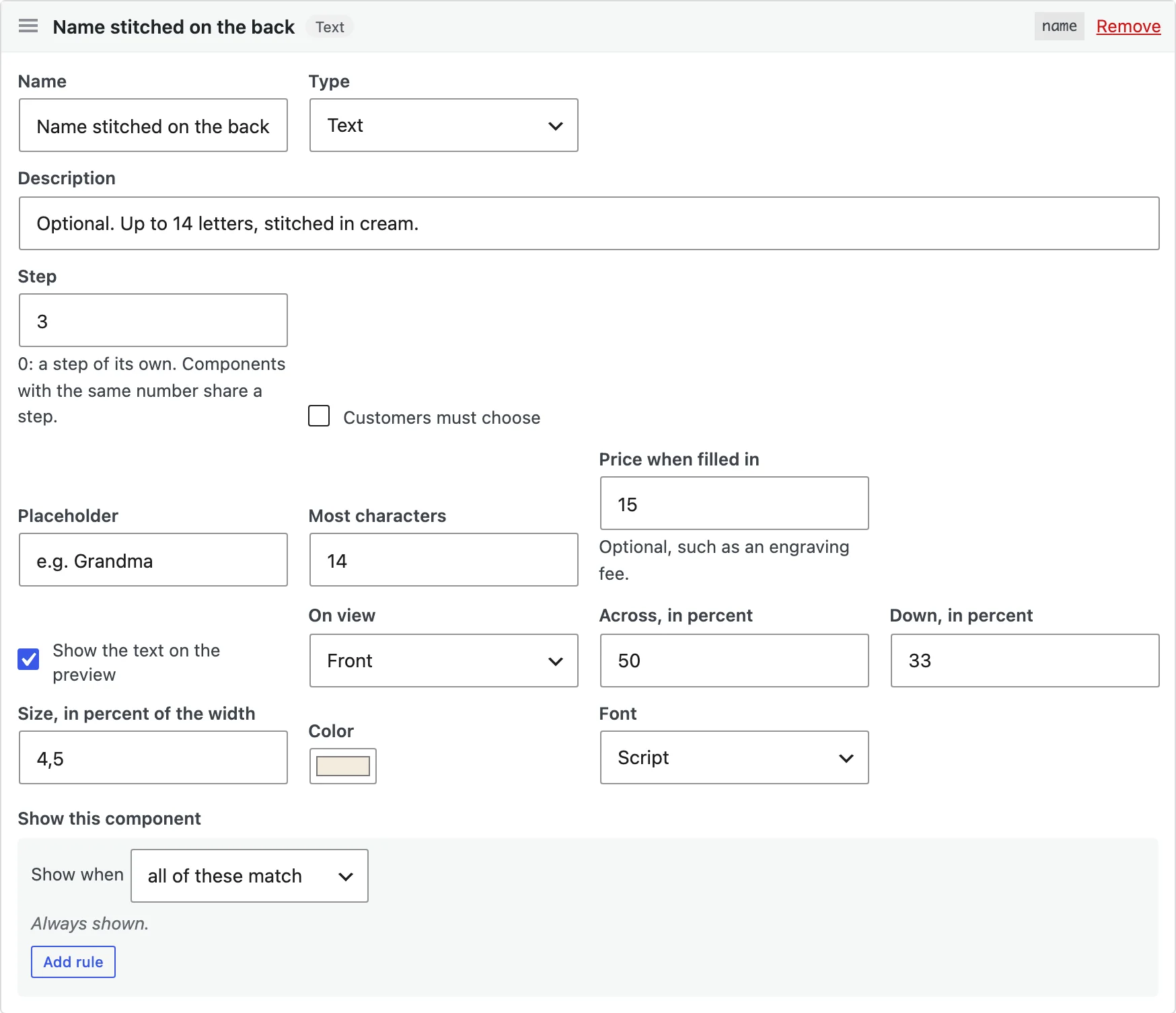
A text component can draw what customers type on the picture, in the view, place, size, font and colour you choose, for names and engravings.
Cart, orders and quotes
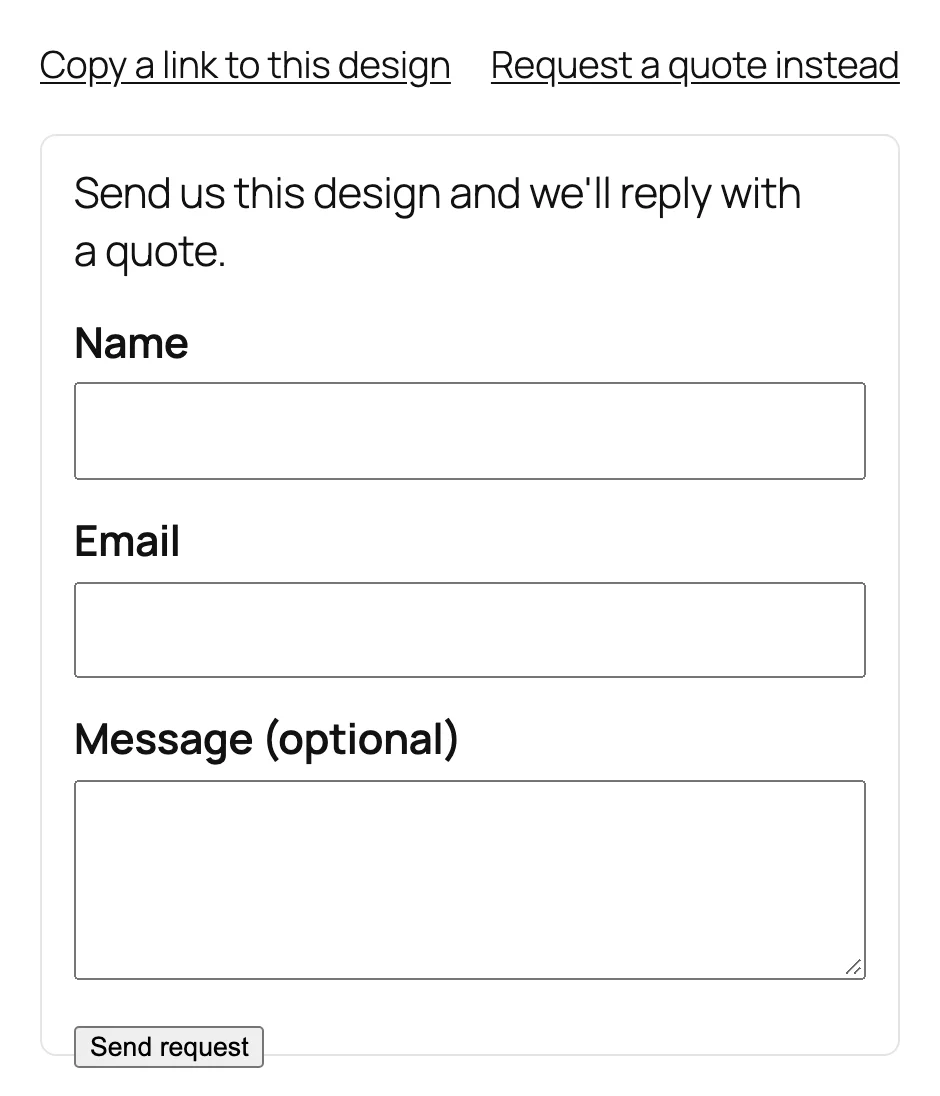
The configured picture and every choice show in the cart, on the order and in order emails. With Request a quote on, customers can send their design instead of buying.
Settings
| Setting | What it does |
|---|---|
| Accent color | The selected option, the current step and the view buttons. |
| Option prices | Show prices on the options. |
| Summary | A summary of the choices before add to cart. |
| Share link | A link customers can copy to come back to a design. |
| Configured image | The configured picture in the cart, order and emails. |
| Layout | Per configurator: one step at a time, grouped steps or one page. |
| Request a quote | Per configurator: offer a quote request next to add to cart. |
For developers
| Hook | Use |
|---|---|
vpcv_cart_item_extra_price | Change what a configuration adds to the product’s price. |
vpcv_quote_recipient | Change who receives quote requests. |
Copy configurator.php or preview.php from public/templates/ to yourtheme/visual-product-configurator/ to change the markup.
Frequently asked questions
Why is the preview empty?
Give the view a base picture, or the product a photo, and give options a layer for that view.
Why doesn’t an option change the picture?
An option only changes the picture when it has a layer for the view shown.
Who can download uploaded files?
Store staff, from the link on the order. Files are kept in a protected folder.
How do I remove all data when deleting the plugin?
Add define( 'VPCV_REMOVE_ALL_DATA', true ); to wp-config.php before deleting the plugin. Choices saved on orders stay.
Changelog
1.0.0 · October 21, 2026
- Configurators with views, layered pictures and components shared by products.
- Image, colour, button, dropdown, text, number and upload components with prices and formulas.
- Rules, stock per option and linked products.
- The configured picture on cart, orders and emails, share links and quote requests.