Marketing Automation Workflows sends emails, text messages, coupons and webhooks when something happens in your store, with abandoned cart reminders, ready-made workflows and results per workflow.
Requirements
- WordPress 6.8 or newer
- WooCommerce 10.0 or newer
- PHP 7.4 or newer
- Works with classic and block themes, the Cart and Checkout blocks, and High-Performance Order Storage.
- SMS and WhatsApp steps need a Twilio account.
Installation
- Download
marketing-automation-workflows.zipfrom My account > Downloads. - In WordPress, go to Plugins > Add New Plugin > Upload Plugin, choose the zip file and click Install Now.
- Click Activate. Workflows are under WooCommerce > Automations.
Quick start
- Go to WooCommerce > Automations and click Add workflow.
- Pick a ready-made workflow, such as Abandoned cart reminders, or start from scratch.
- Check the trigger and each step. Open the email step and click Preview to see it with your latest order.
- Switch the workflow on and click Save workflow.
- Watch Activity for waiting steps and the log, and the workflow list for opens, clicks and orders won.
Workflows
A workflow is a trigger with steps under it. Each step is a wait, a check or an action, and runs in order. Open a step to change it, and use the arrows to move it. The sidebar has the on and off switch, how often a customer can get the workflow, and whether it counts as marketing.
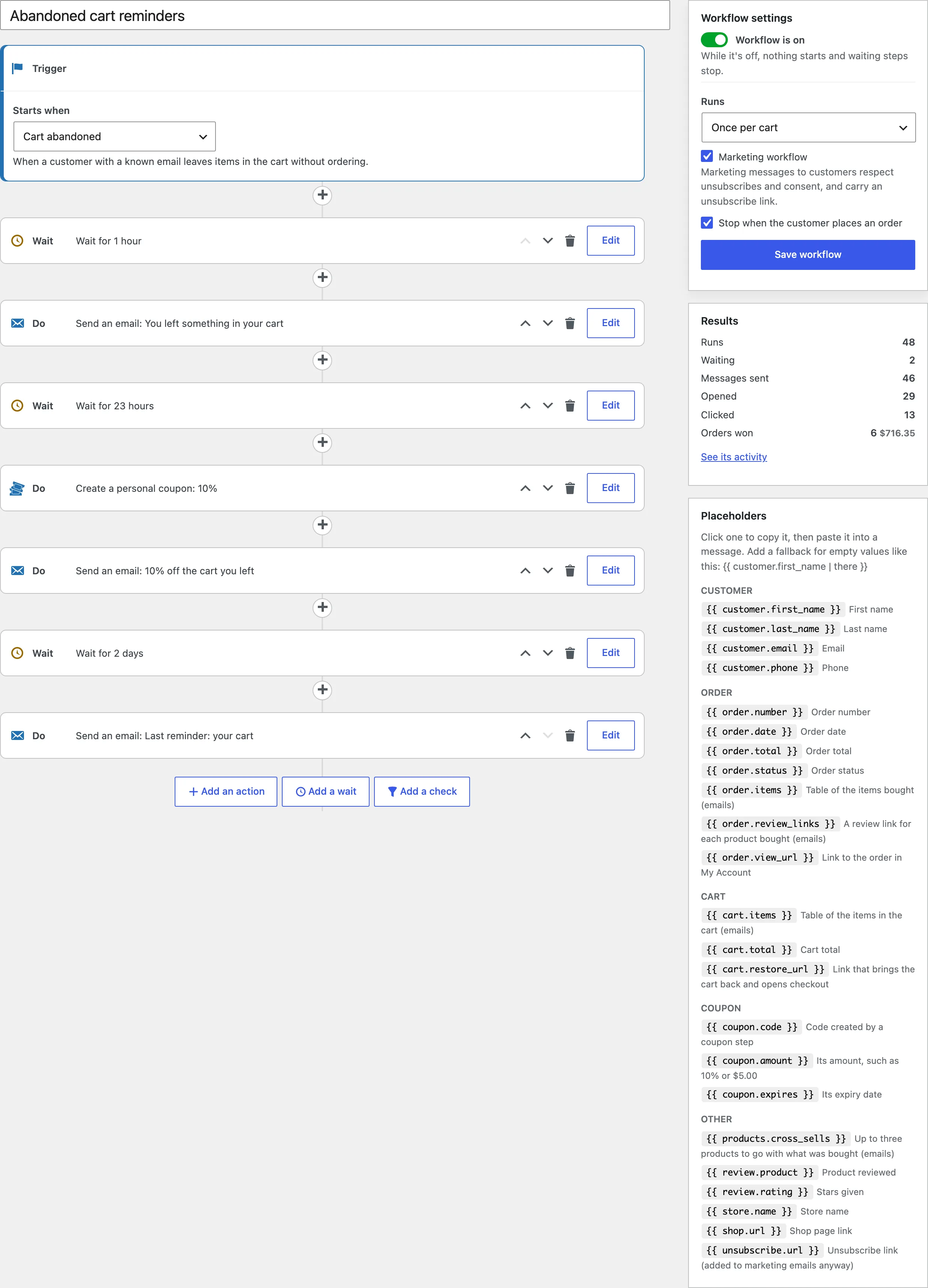
Ready-made workflows
Click Add workflow to start from a ready-made workflow: abandoned cart reminders, welcome email, review request, win-back coupon, first order thank-you, products that go with an order, regular customer recognition and big order alert. Each opens in the editor, switched off, for you to check.
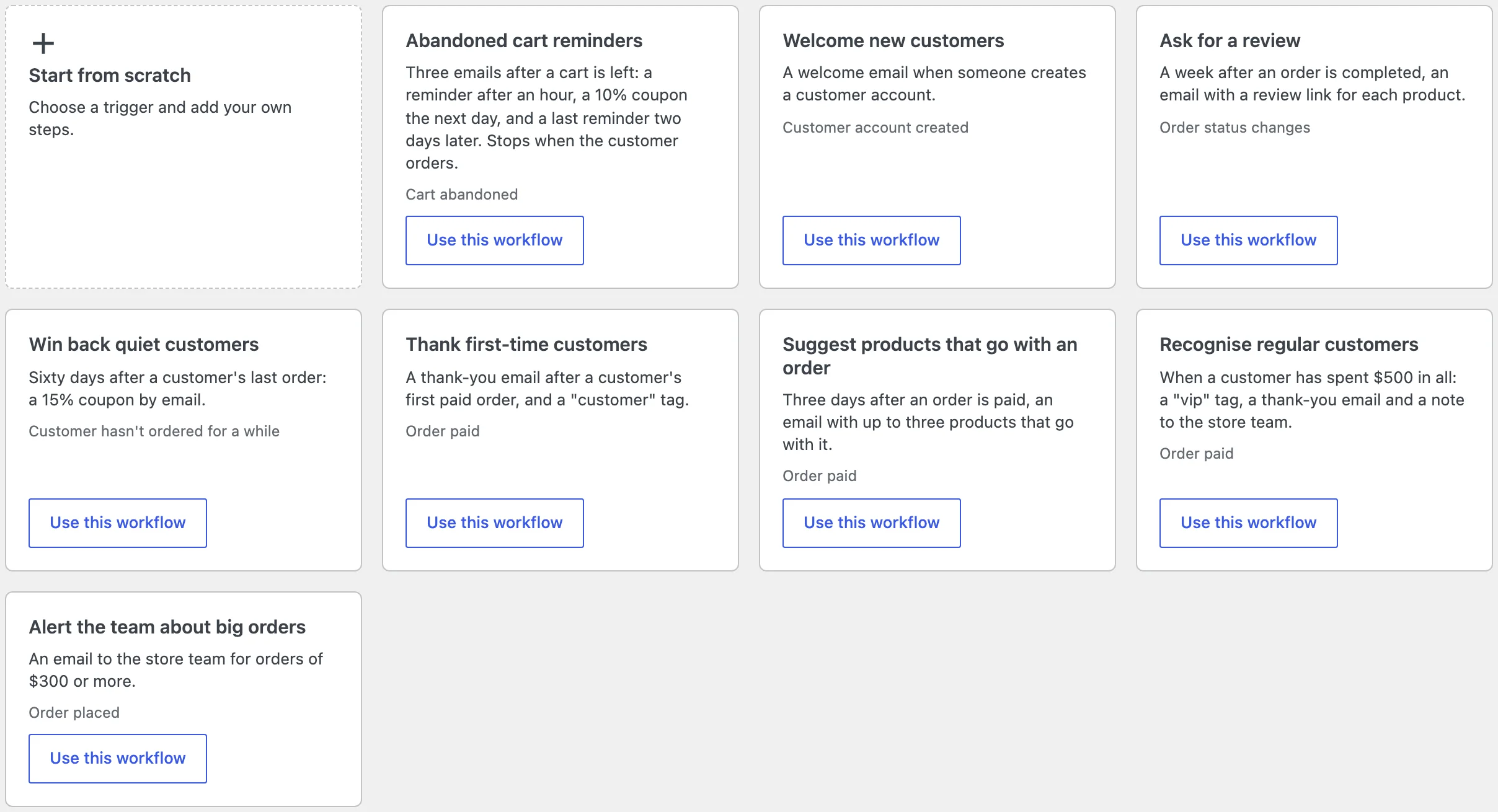
Triggers
Order placed, order paid, order status changed, order refunded, cart abandoned, account created, review posted, and customer hasn’t ordered for a number of days. The last one runs once a day for customers whose last paid order was exactly that many days ago.
Emails and placeholders
Email steps use your WooCommerce email design. Type {{ placeholders such as {{ customer.first_name | there }}, where the part after the bar shows when the value is empty. {{ order.items }} lists the order, {{ cart.items }} and {{ cart.link }} the abandoned cart, {{ coupon.code }} a coupon made by an earlier step, and {{ products.cross_sells }} products that go with the order.
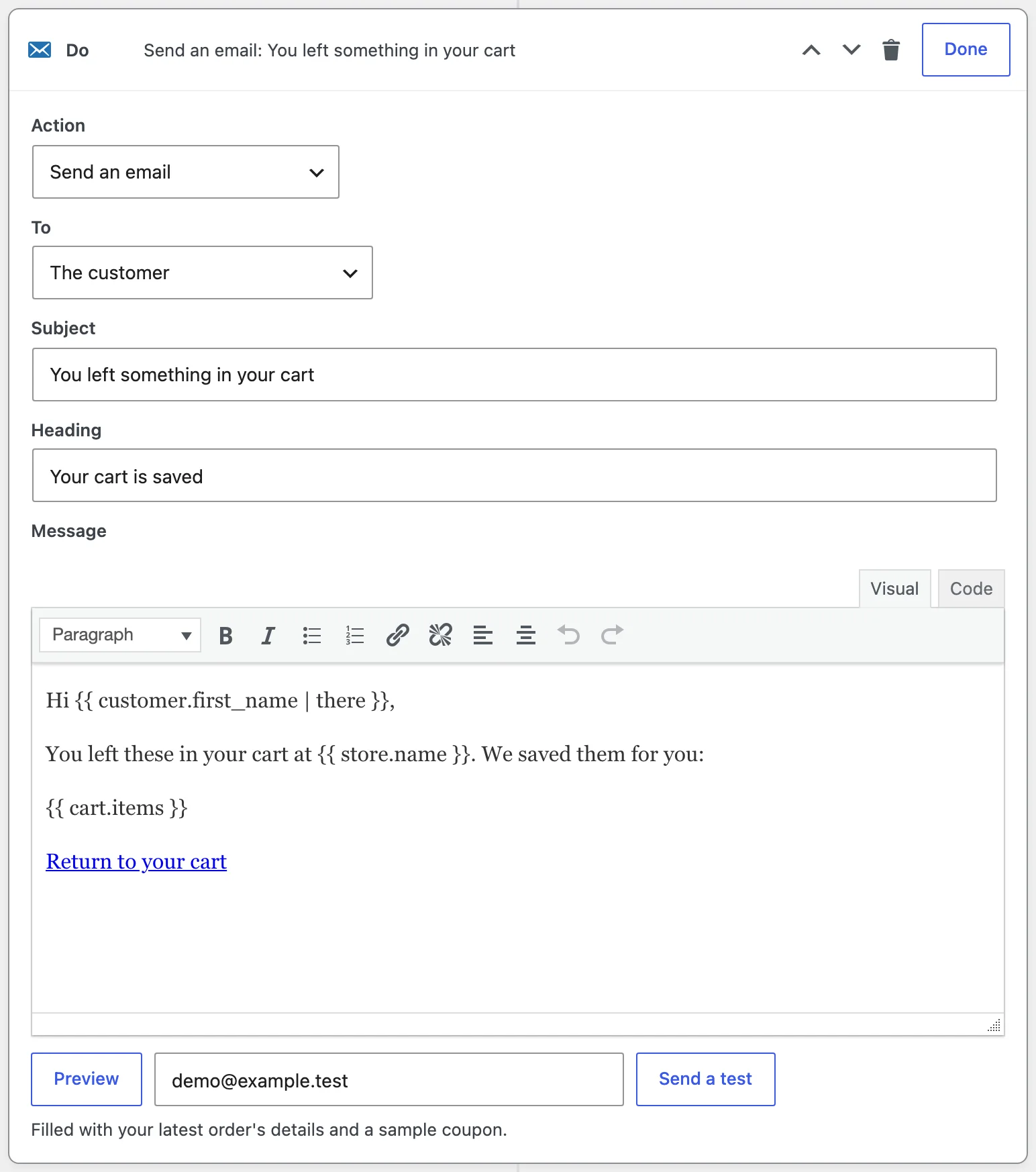
Use Preview to see the email with your latest order before switching the workflow on.
Abandoned carts
Carts are saved for customers with an account, and for guests once they type their email at checkout, in the classic checkout or the Checkout block. A cart counts as abandoned when it hasn’t changed for the time set under Settings. The Carts tab lists active, abandoned, recovered and ordered carts with their value.
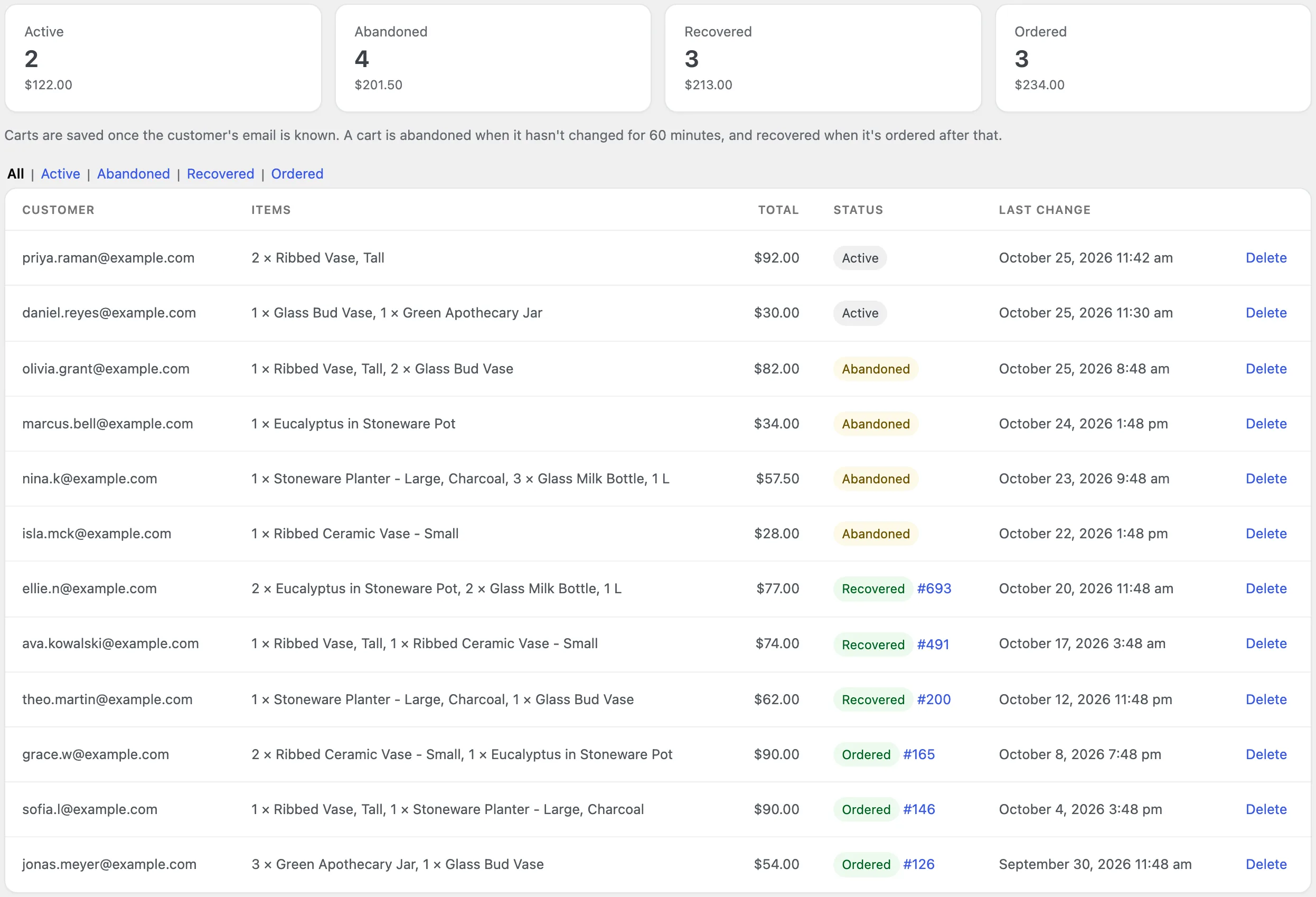
Activity and results
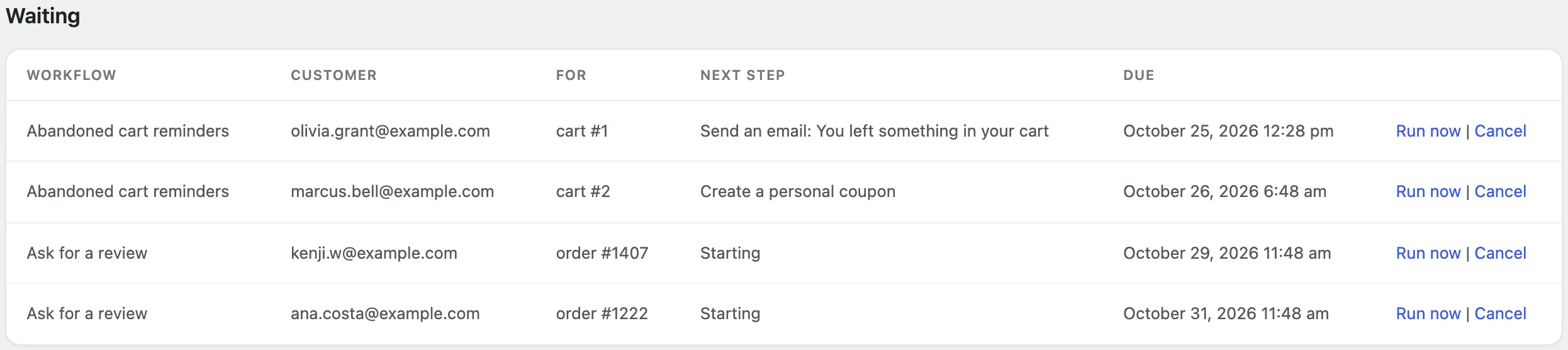
The Activity tab shows waiting steps with Run now and Cancel, and a log of every run: started, sent, skipped, stopped by a check, or finished. Filter it by workflow or result.
Settings
| Setting | What it does |
|---|---|
| From name and address | Who workflow emails come from; empty uses WooCommerce’s email settings. |
| Orders won | How many days after a click an order counts for the workflow. |
| Marketing workflows go to | Every customer who hasn’t unsubscribed, or only those who ticked the consent checkbox. |
| Consent checkbox | Show it at checkout and in My Account, with your own label. |
| Abandoned after | Minutes without a change before a cart counts as abandoned. |
| Guests | A note under the checkout email field; guests’ carts are saved once they type it. |
| Keep carts for | Days to keep saved carts; ordered and recovered carts stay for the reports. |
| Text messages (Twilio) | Account SID, auth token, SMS sender and WhatsApp sender. |
| Keep activity for | Days to keep the log and finished runs. |
For developers
| Hook | Use |
|---|---|
mawm_templates | Add or change ready-made workflows. |
mawm_placeholder | Fill your own placeholders. |
mawm_start_workflow | Stop a workflow from starting for an order or customer. |
mawm_run_context | Add data to a run before its steps. |
mawm_webhook_payload | Change the JSON a webhook step sends. |
Frequently asked questions
Why didn’t a guest’s cart show up?
Guests’ carts are saved once they type their email at checkout. Carts without an email can’t get reminders.
How do I stop reminders for a cart?
They stop when the cart is ordered. You can also cancel waiting steps on the Activity tab.
How do I remove all data when deleting the plugin?
Add define( 'MAWM_REMOVE_ALL_DATA', true ); to wp-config.php before deleting the plugin.
Changelog
1.0.0 · October 21, 2026
- Workflows with ten triggers, waits, checks and actions.
- Emails in the WooCommerce design, SMS and WhatsApp through Twilio, coupons, tags, webhooks and Slack.
- Abandoned cart capture for customers and guests, with restore links.
- Ready-made workflows, opens, clicks, orders won and an activity log.