Shop Page Customizer changes how the shop, category and search pages list products: grid and list views, columns, product cards, styles, badges and layouts per category.
Requirements
- WordPress 6.8 or newer
- WooCommerce 10.0 or newer
- PHP 7.4 or newer
- Works with classic and block themes, the Cart and Checkout blocks, and High-Performance Order Storage.
Installation
- Download
shop-page-customizer.zipfrom My account > Downloads. - In WordPress, go to Plugins > Add New Plugin > Upload Plugin, choose the zip file and click Install Now.
- Click Activate. Settings are under WooCommerce > Shop layout, with a live preview. A category’s own layout is on its edit screen.
Quick start
- Activate the plugin: a grid/list toggle shows above your products.
- Go to WooCommerce > Shop layout.
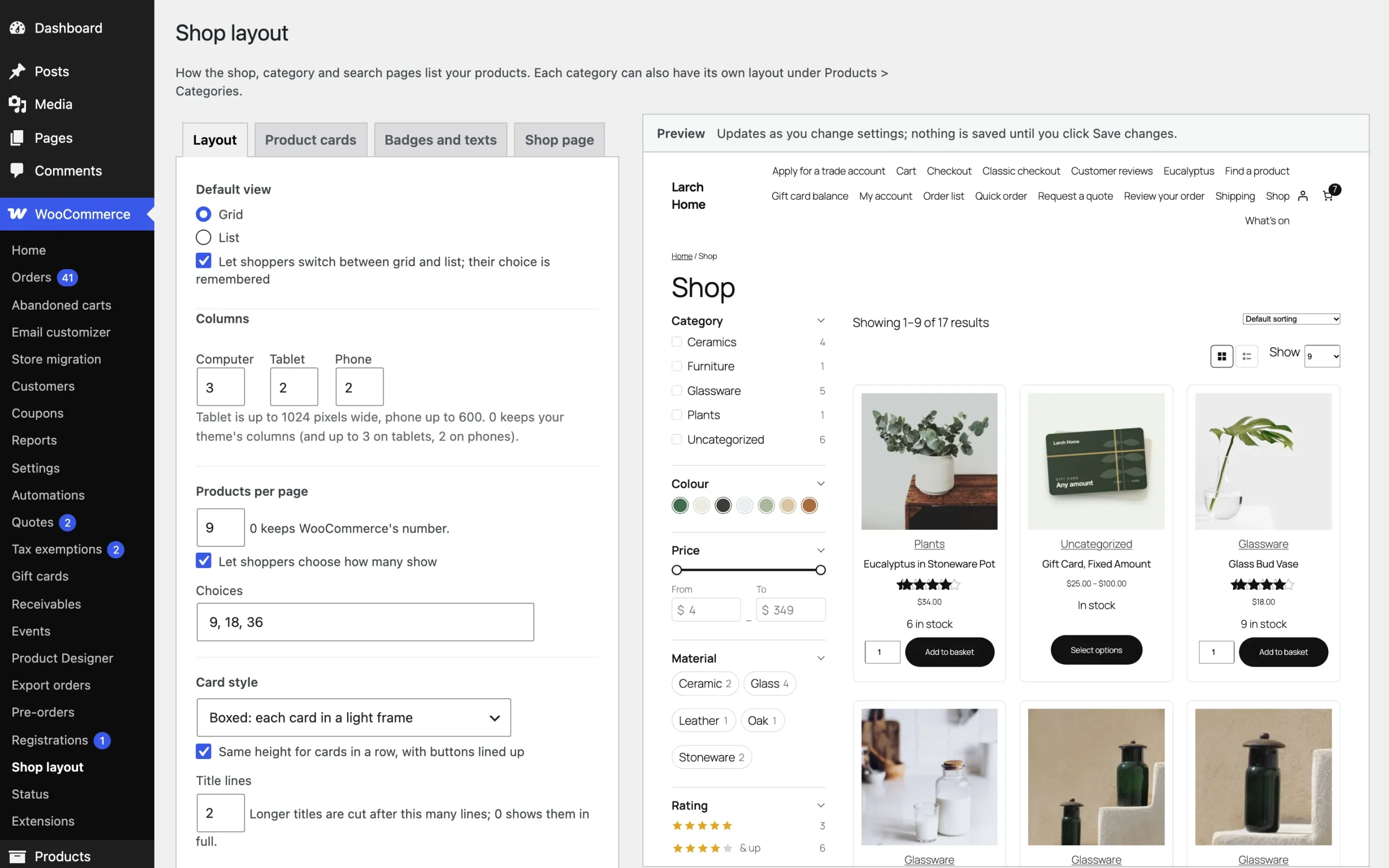
- On Layout, choose the columns per device and products per page; the preview shows each change.
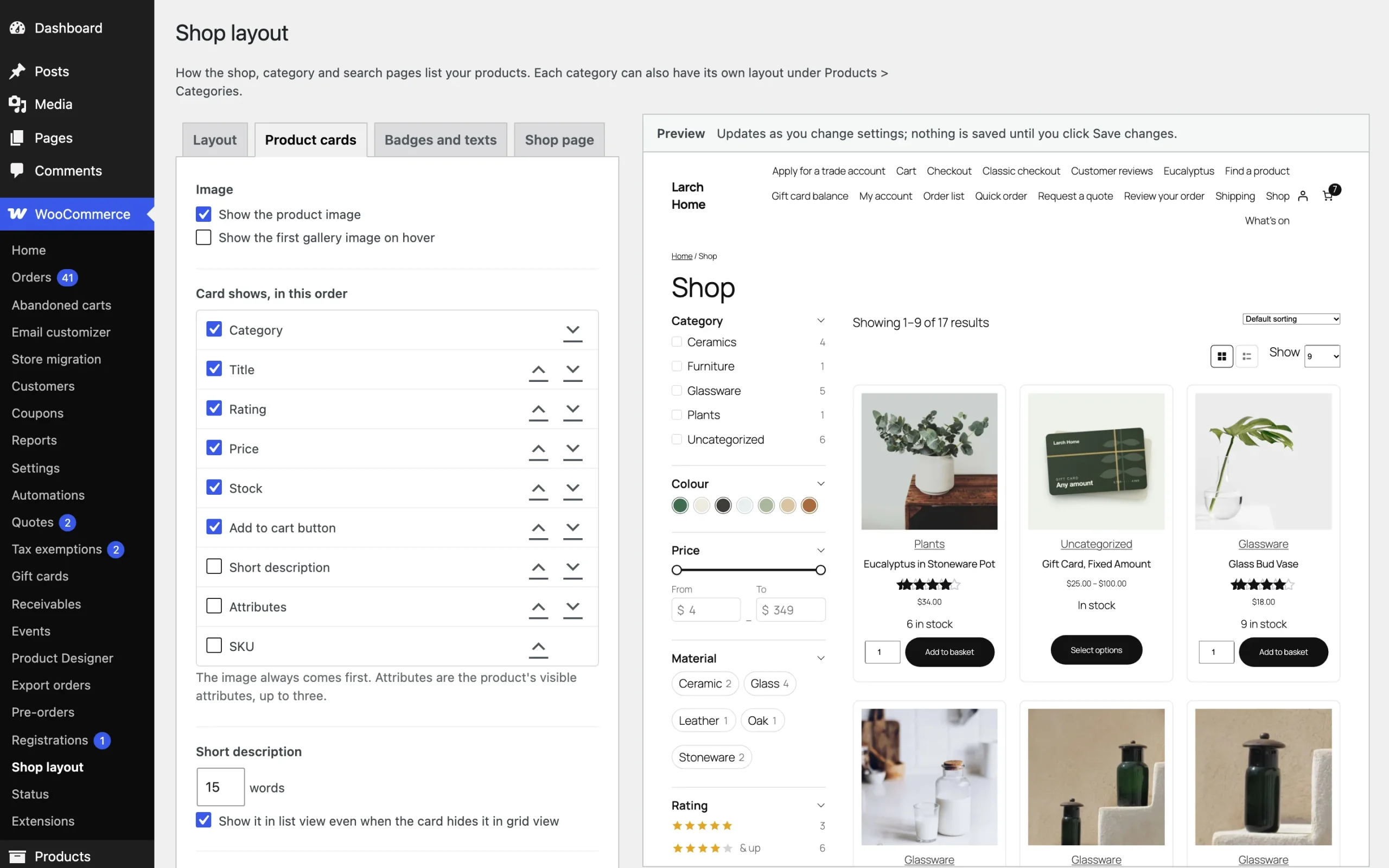
- On Product cards, tick and drag what each card shows, and pick a card style.
- Click Save changes and open your shop.
Layout
Choose the default view and the toggle, the columns for computers, tablets and phones, products per page and the choice for shoppers, and whether cards share one height.
Product cards
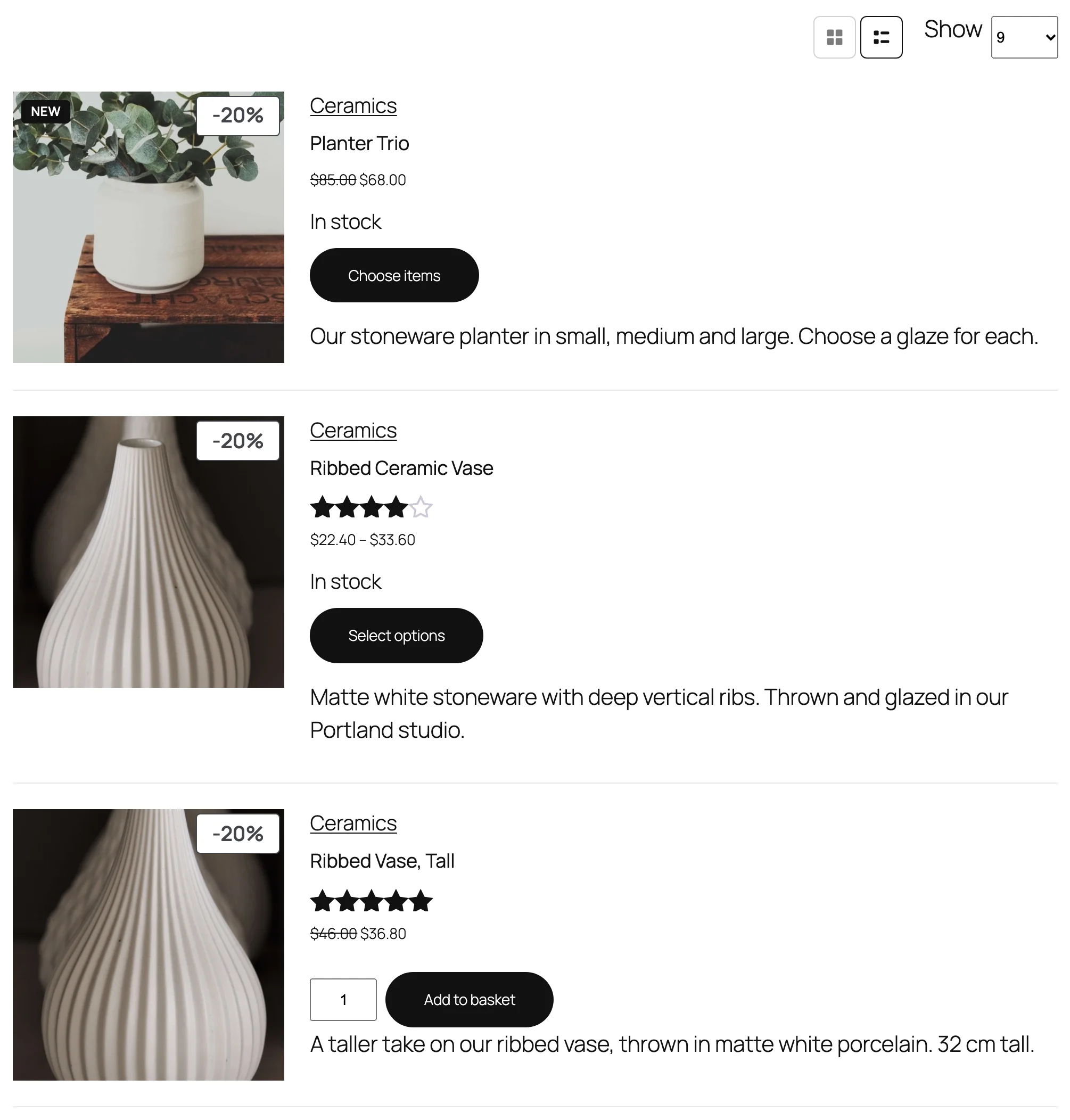
Tick the elements each card shows and drag them into order: title, rating, price, category, short description, attributes, SKU, stock and Add to cart. Add a quantity box and your own Add to cart texts.
Card styles and badges
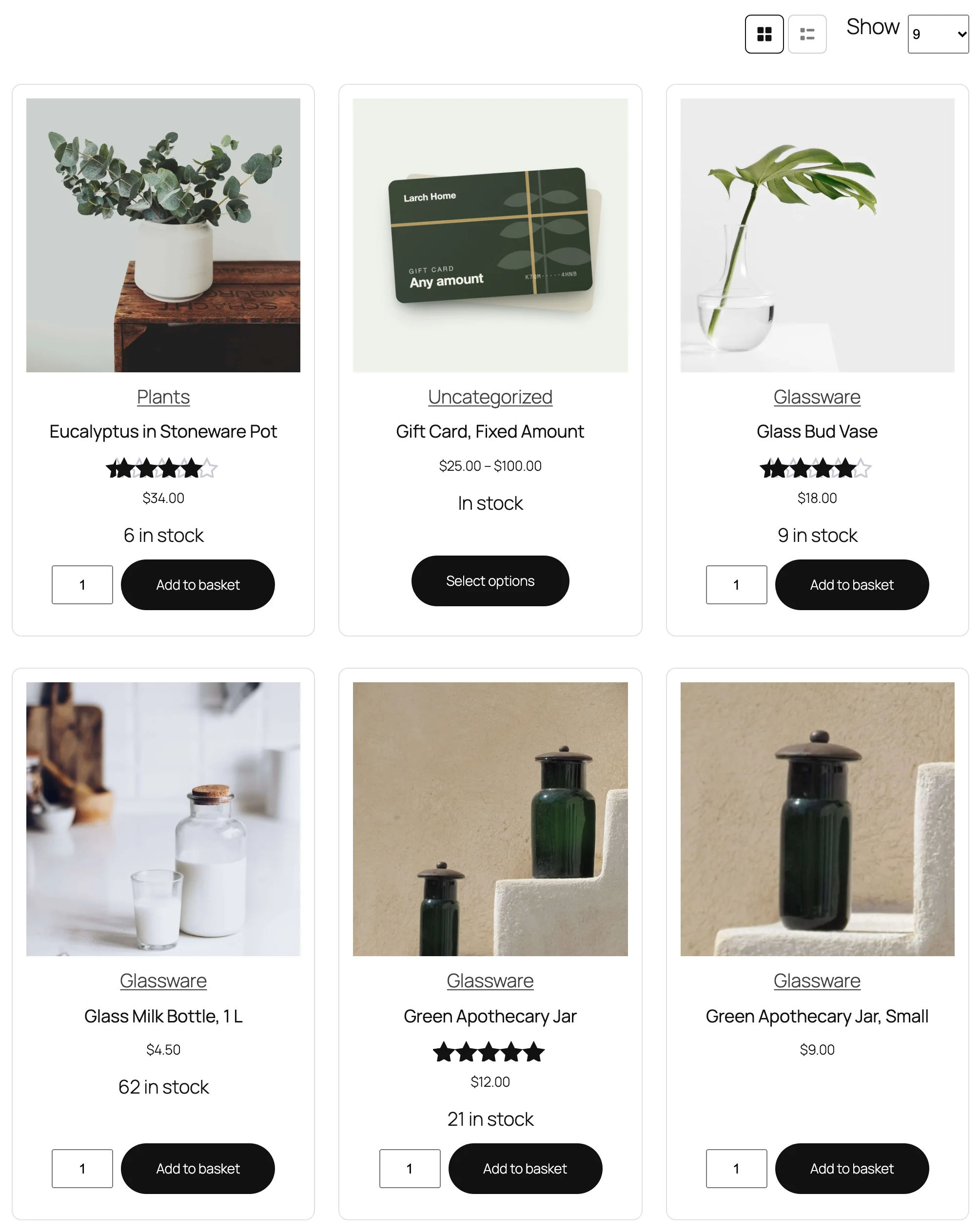
Choose the theme’s cards, boxed, minimal or overlay. Show the sale badge as text, percent or amount off, and a New badge for recent products.
List view
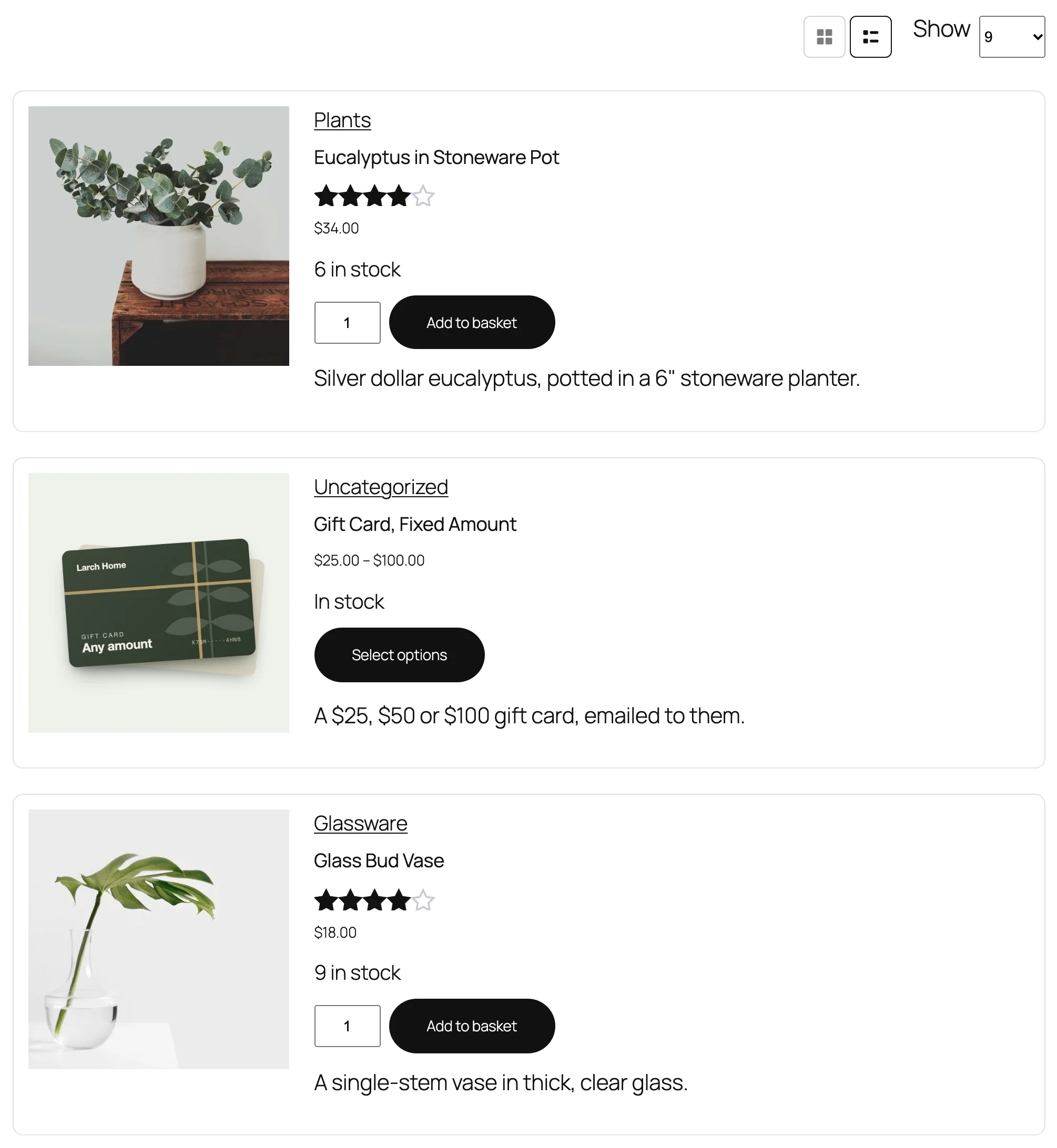
In list view the picture sits beside the details, and the short description can show there only. Shoppers switch with the toggle and their choice is remembered.
Per category
Edit a category under Products > Categories and choose Its own layout in the Shop layout section.
Shop page
Hide the page title, breadcrumbs, result count, sorting or category counts.
Settings
| Setting | What it does |
|---|---|
| Default view and toggle | Grid or list, and the toggle for shoppers. |
| Columns | For computers, tablets and phones. |
| Products per page | And the choice offered to shoppers. |
| Card style | Theme, boxed, minimal or overlay. |
| Card content | Elements to show and their order. |
| Quantity box and texts | A quantity box and Add to cart texts per product type. |
| Badges | Sale badge format and the New badge. |
| Shop page | Hide the title, breadcrumbs, result count, sorting or category counts. |
For developers
| Hook | Use |
|---|---|
spcs_applies_here | Decide whether the layout applies on a page. |
spcs_page_settings | Change the settings used on a page. |
spcs_element_html | Change a card element’s markup. |
spcs_uses_block_templates | Tell the plugin whether the theme uses block templates. |
Frequently asked questions
Why doesn’t my page builder grid change?
Page builders’ own product widgets keep their settings. The plugin applies to WooCommerce’s shop pages.
Can I turn the toggle off?
Yes, under WooCommerce > Shop layout > Layout.
How do I remove all data when deleting the plugin?
Add define( 'SPCS_REMOVE_ALL_DATA', true ); to wp-config.php before deleting the plugin.
Changelog
1.0.0 · October 21, 2026
- Grid and list views with a toggle, columns per device and products per page.
- Product card content, order, styles, quantity box and texts.
- Sale and New badges, and shop page parts to hide.
- Layouts per category and a live preview.