Product Video Gallery adds YouTube, Vimeo, Dailymotion and self-hosted videos to WooCommerce’s product gallery, to variations and to shop pages.
Requirements
- WordPress 6.8 or newer
- WooCommerce 10.0 or newer
- PHP 7.4 or newer
- Works with classic and block themes, the Cart and Checkout blocks, and High-Performance Order Storage.
Installation
- Download
product-video-gallery.zipfrom My account > Downloads. - In WordPress, go to Plugins > Add New Plugin > Upload Plugin, choose the zip file and click Install Now.
- Click Activate. Add videos in each product’s Videos tab. The settings are under WooCommerce > Settings > Product videos, and WooCommerce > Product videos lists the products with videos and their plays.
Quick start
- Edit a product and open the Videos tab in Product data.
- Paste a YouTube, Vimeo or Dailymotion link and click Add link, or click Choose from Media Library.
- Choose where the videos go, then update the product.
- View the product: the video is a slide in the gallery, with its own thumbnail.
- Under WooCommerce > Settings > Product videos, choose how videos play and what shop pages show.
Adding videos
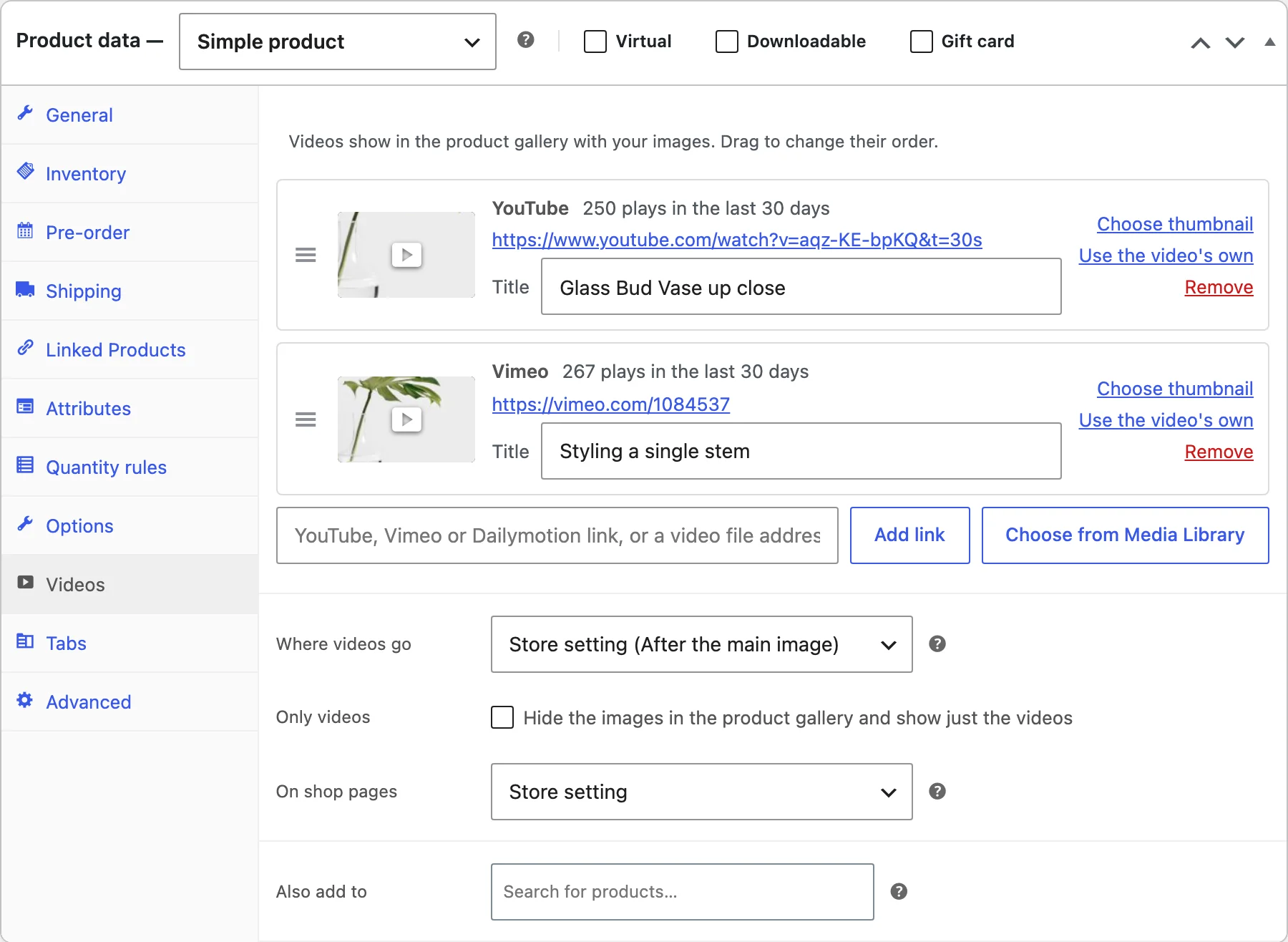
Paste a link or choose files from the Media Library, drag videos into order, give each a title and choose a thumbnail if you don’t want the one from the video site. Also add to copies the videos to other products when you update.
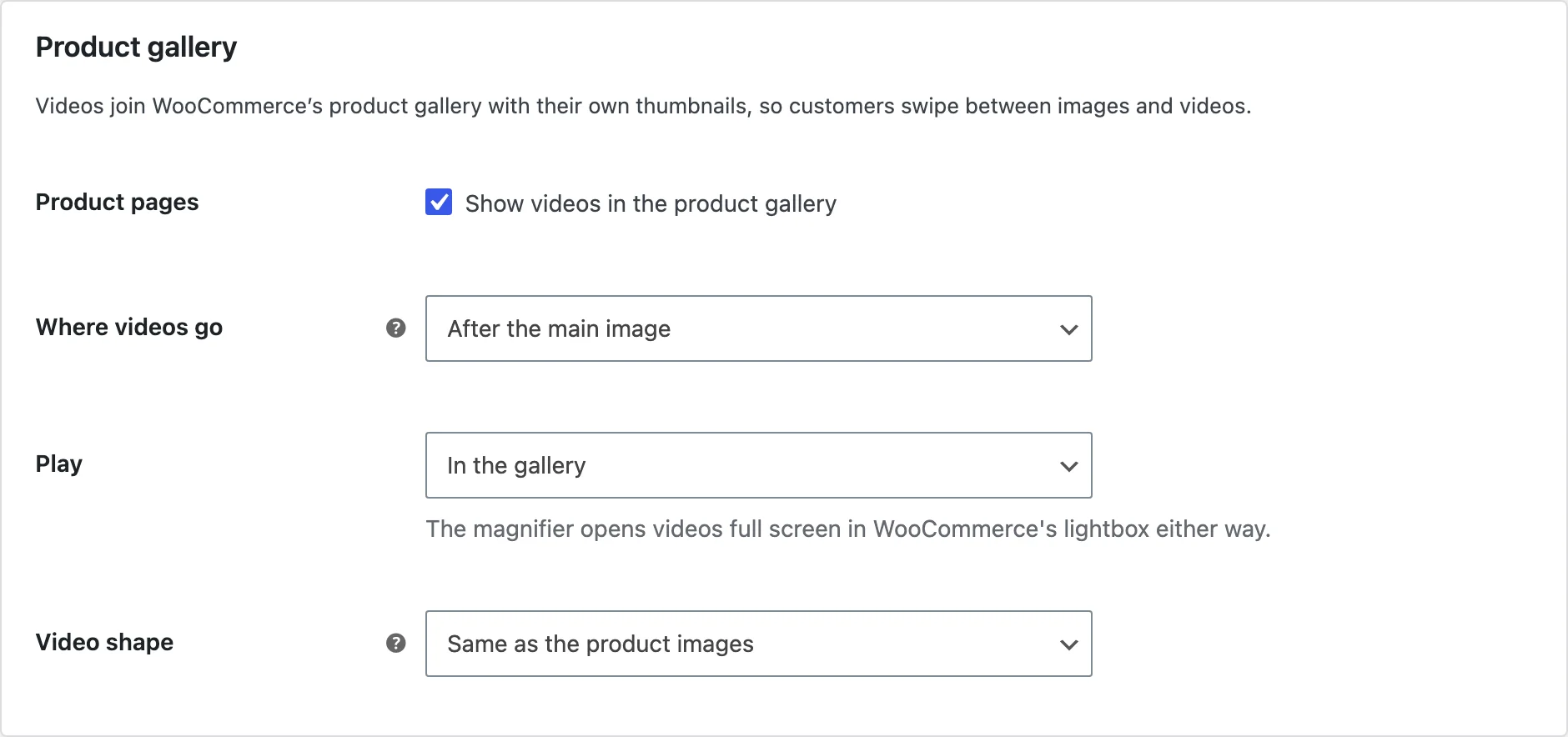
The product gallery
Choose where videos go, how they play, their shape, and the player options: autoplay without sound, loop, controls and related videos. A product can choose its own place or show only videos.
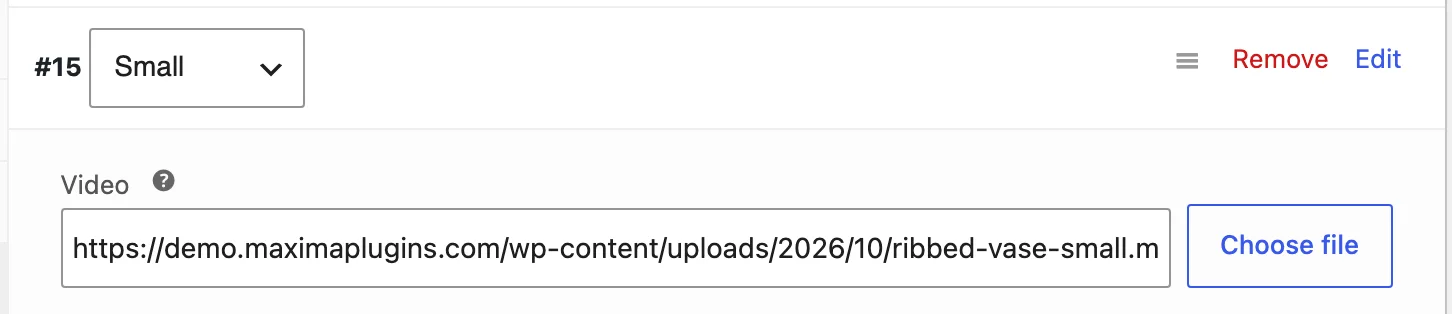
Variations
Each variation has a Video field: paste a link or choose a file. The video plays on the main image when that variation is chosen.
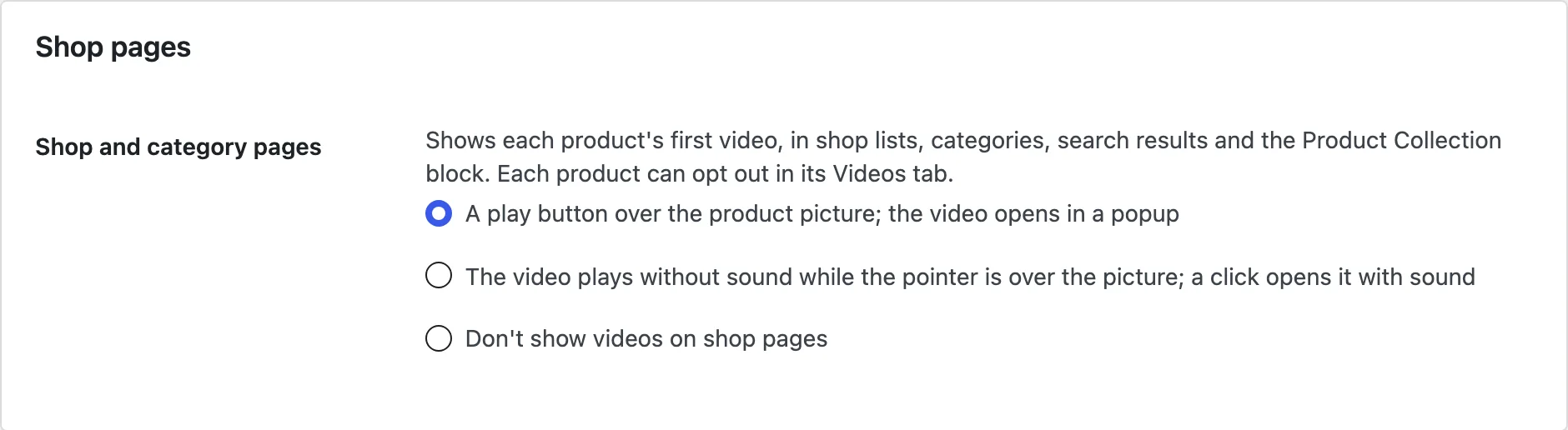
Shop pages
Show a play button that opens a popup, a silent preview while the pointer is over the picture, or nothing. A product can opt out in its Videos tab.
Play button
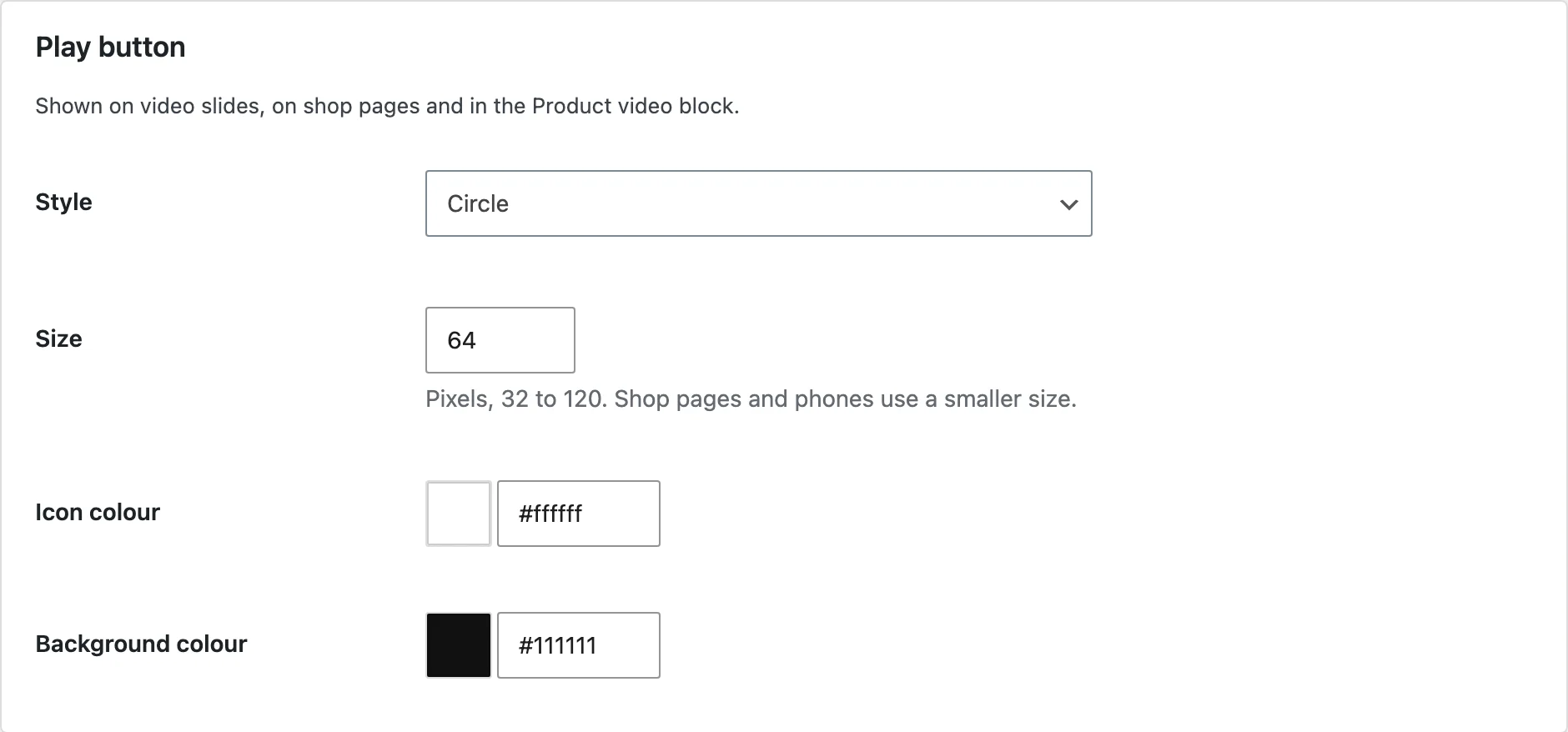
Choose the play button’s style, size and colours, or use your own image, and add your own CSS.
Block and shortcode
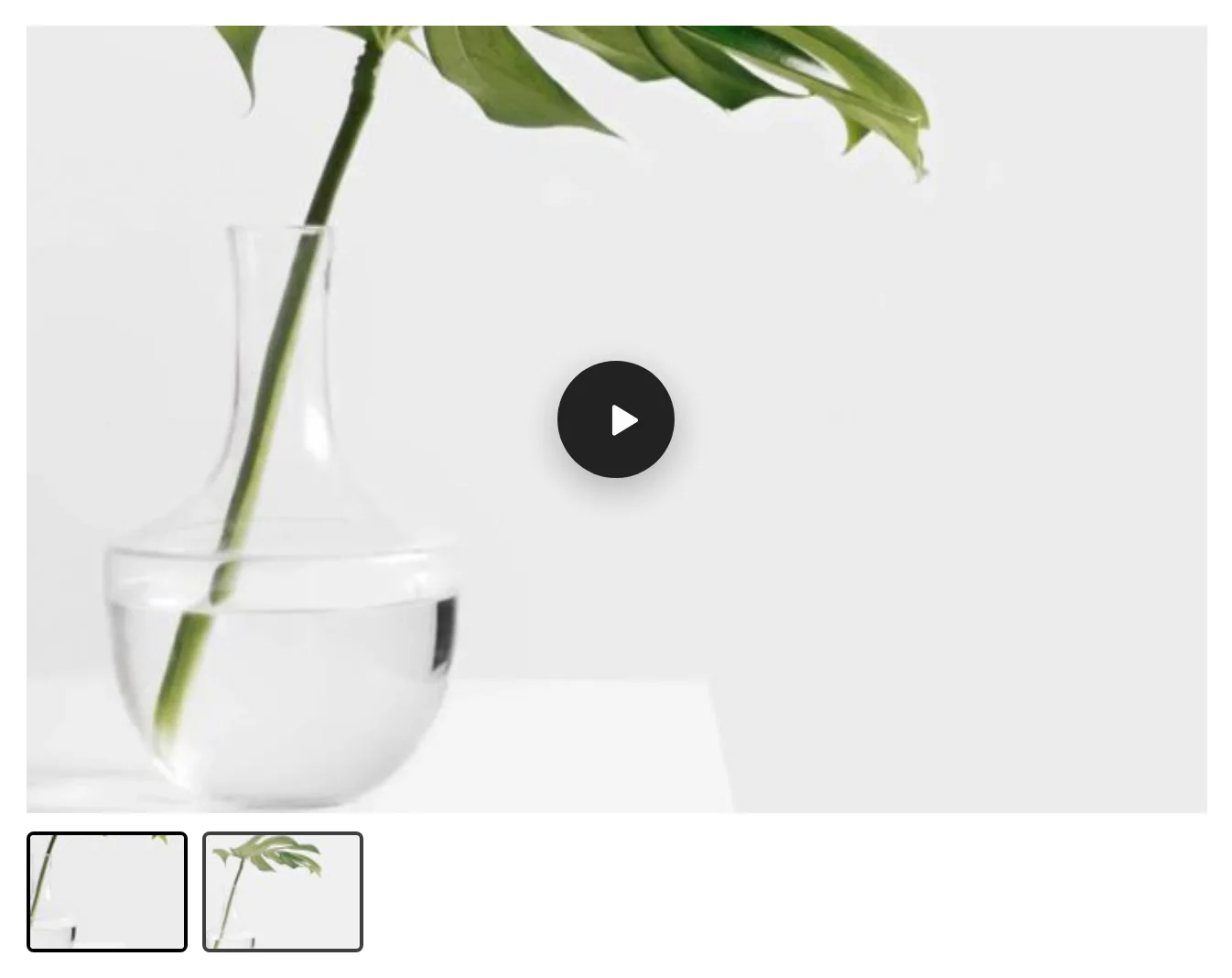
The Product video block and the [product_video] shortcode show a product’s videos anywhere, with thumbnails to switch between them. In product templates they show the current product.
Plays and privacy
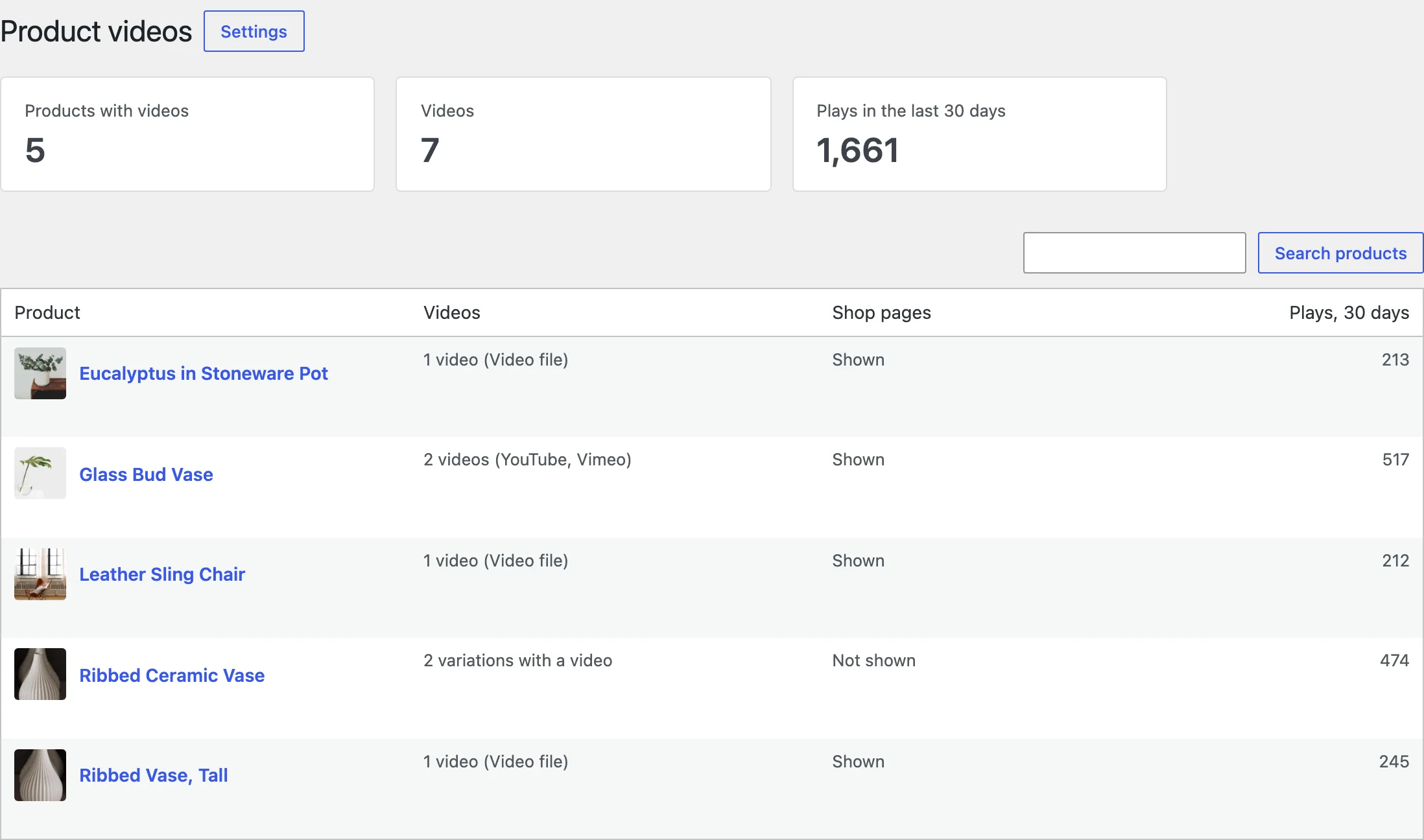
WooCommerce > Product videos lists each product with videos and its plays in the last 30 days. The privacy settings choose the privacy-enhanced players, copying thumbnails, the VideoObject structured data and counting plays.
Settings
| Setting | What it does |
|---|---|
| Where videos go | First as the featured video, after the main image, or after all images. |
| Play | In the gallery or in a popup. |
| Video shape | The product images’ shape, or wide, standard, square or vertical. |
| Player | Autoplay without sound, start without sound, loop, controls and related YouTube videos. |
| Thumbnails | Below, left or right of the main image, and the play badge. |
| Arrows | Previous and next arrows on the main image. |
| Shop and category pages | A play button, a silent preview on hover, or nothing. |
| Play button | Style, your own image, size, colours and custom CSS. |
| Privacy and data | Privacy-enhanced players, thumbnails, structured data and plays. |
For developers
| Hook | Use |
|---|---|
pvgp_product_videos | Change a product’s videos before they’re shown. |
pvgp_player_options | Change the player options for product pages or shop pages. |
pvgp_structured_data | Change the VideoObject data of a product’s videos. |
pvgp_admin_capability | Change who sees the Product videos screen. |
Frequently asked questions
Why does a new video show the product image?
The video site’s picture is copied in the background a moment after you save. If your server can’t reach the video site, choose a thumbnail yourself.
Can I change how a slide looks?
Yes. Copy the templates from the plugin’s public/templates folder to a product-video-gallery folder in your theme.
How do I remove all data when deleting the plugin?
Add define( 'PVGP_REMOVE_ALL_DATA', true ); to wp-config.php before deleting the plugin.
Changelog
1.1.0 · October 13, 2026
Feature update
- Added play buttons and silent previews on shop pages.
- Added the product video block, shortcode, play counts and VideoObject structured data.
1.0.0 · August 26, 2026
Initial release
- YouTube, Vimeo, Dailymotion and self-hosted videos in the product gallery, with their own thumbnails.
- A featured video and a video for each variation.