Private Store and Login Wall locks your whole site, the store or chosen products and pages for the customers you choose.
Requirements
- WordPress 6.8 or newer
- WooCommerce 10.0 or newer
- PHP 7.4 or newer
- Works with classic and block themes, the Cart and Checkout blocks, and High-Performance Order Storage.
Installation
- Download
private-store-login-wall.zipfrom My account > Downloads. - In WordPress, go to Plugins > Add New Plugin > Upload Plugin, choose the zip file and click Install Now.
- Click Activate. The settings are in WooCommerce > Settings > Private store. Accounts to approve and the access log are in WooCommerce > Private store, and the emails in WooCommerce > Settings > Emails.
Quick start
- Go to WooCommerce > Settings > Private store and choose what to lock: the whole site, the store, or chosen products, categories and pages.
- Under Who gets in, choose whether customers who log in get in, and add a store password if you like.
- Under Login wall, add your logo and colours, then click Preview the login wall.
- Back on What to lock, tick Lock it for visitors who don’t get in and save.
- To approve new accounts first, turn it on under Account approval.
What to lock
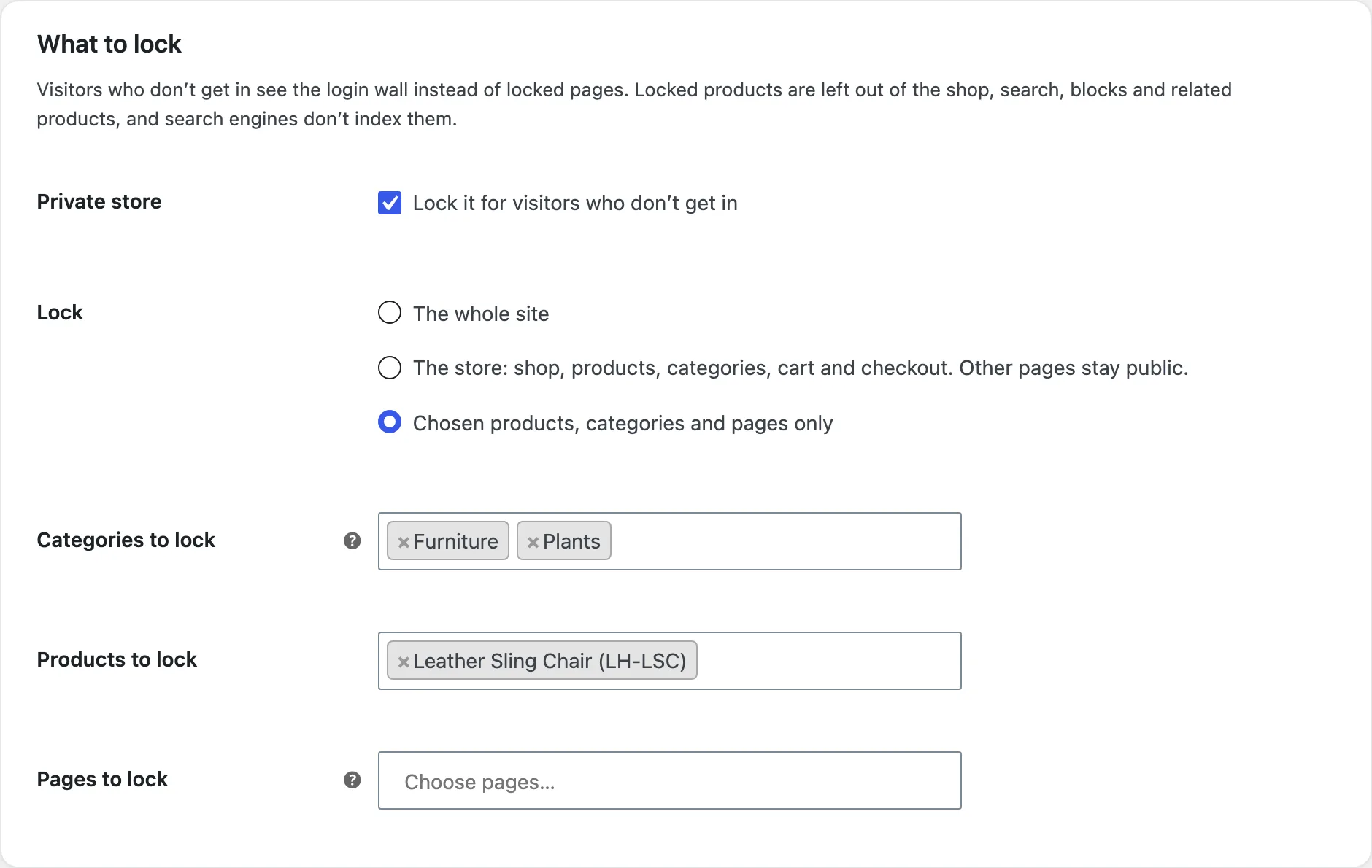
The whole site, with pages you keep public; the store (shop, products, categories, tags, cart and checkout) with more pages if you like; or chosen categories, products and pages. My account and the privacy policy always stay public, so customers can log in and sign up.
Who gets in
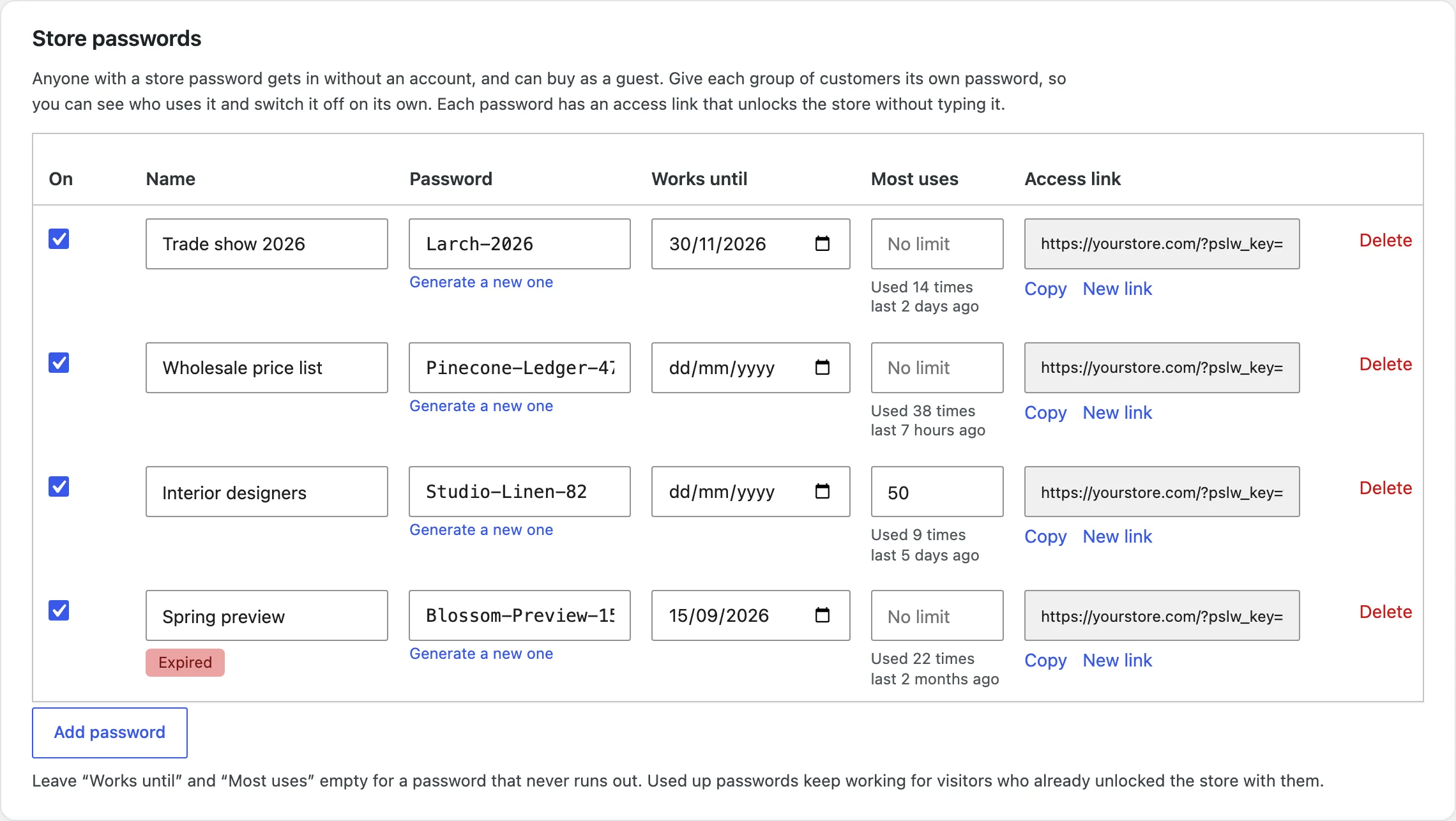
Customers who log in, or only chosen roles. Store passwords for visitors without an account, each with a last day, a use limit and an access link. IP addresses and ranges for your team. Administrators and shop managers always get in.
The login wall
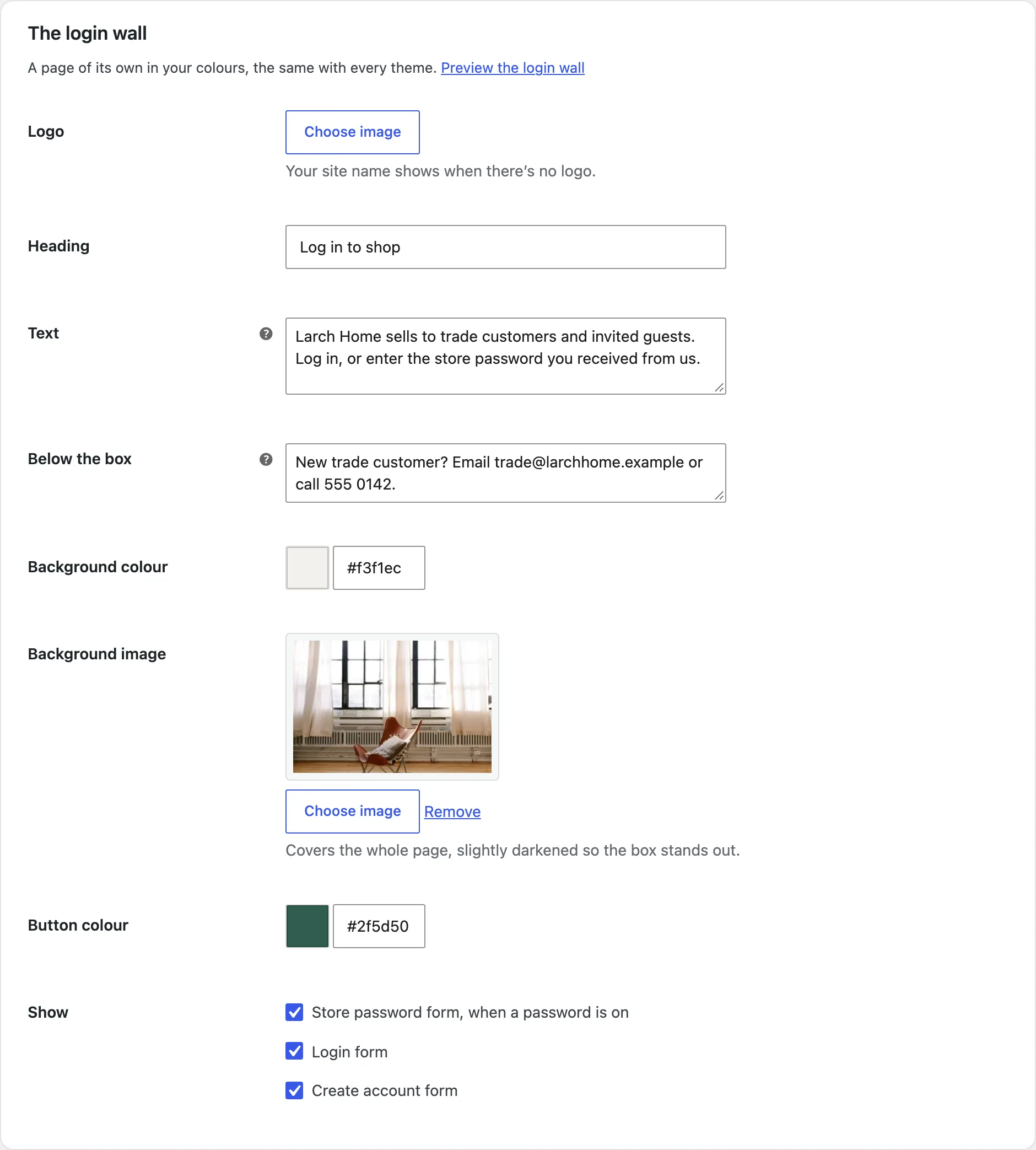
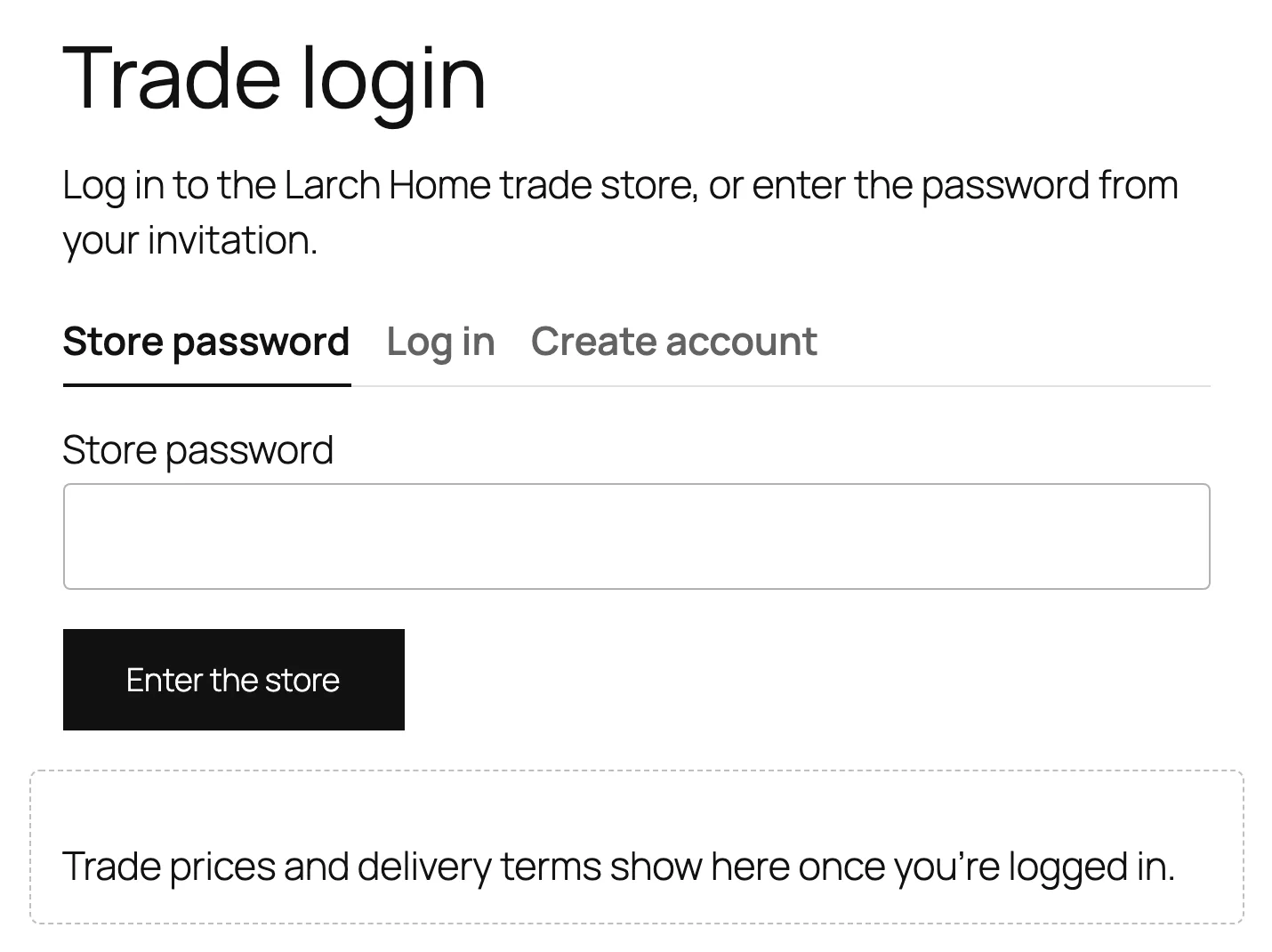
Visitors who don’t get in see the login wall in place of the page, with your logo, text, colours and background image. You can send them to My account or to a page of your own with the Store unlock form block instead.
Account approval
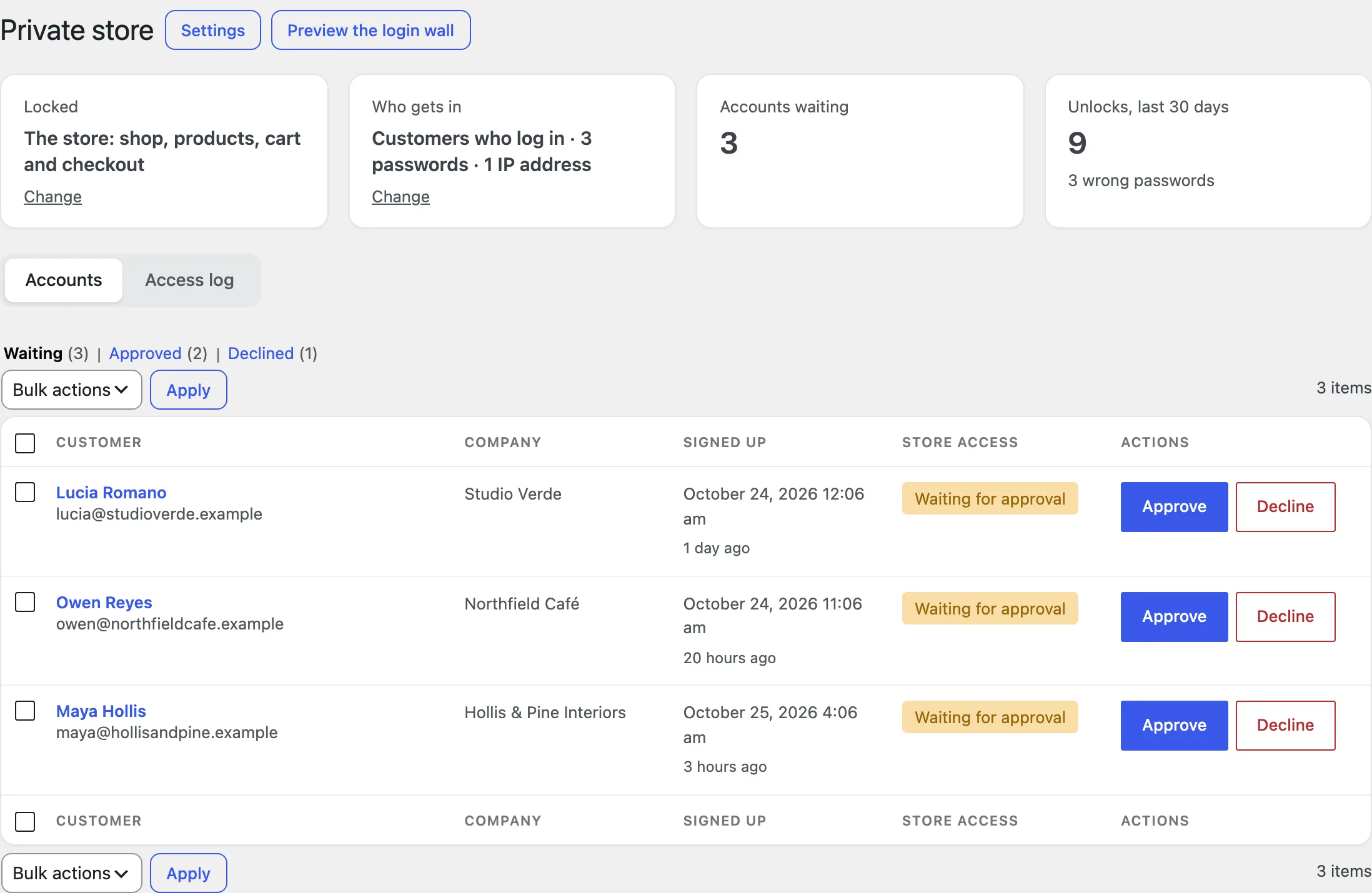
New accounts from the login wall, My account or checkout wait in WooCommerce > Private store until you approve them. You get an email for each; customers get one when you approve or decline them. You can also change an account’s access on its profile.
Access log
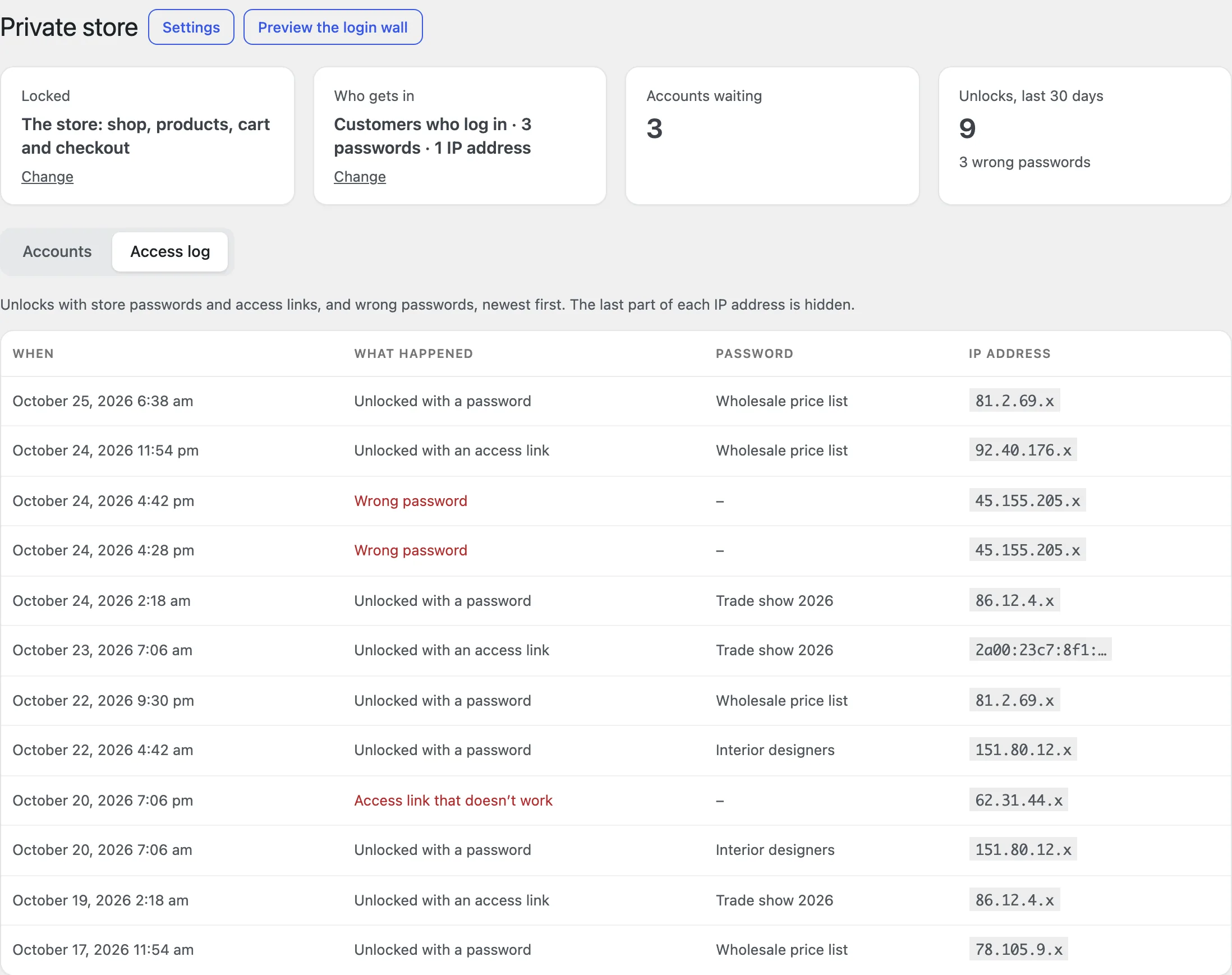
Each unlock with a store password or an access link, and each wrong password, with the password’s name and the first part of the IP address. After the number of wrong passwords you choose, the visitor waits 15 minutes.
Blocks and shortcodes
The Store unlock form block (or [pslw_unlock_form]) shows the password, login and sign-up forms on a page of your own. The Private content block (or [pslw_private]) shows its content only to visitors who get in, with a message for others.
Settings
| Setting | What it does |
|---|---|
| Private store | Lock the store for visitors who don’t get in. |
| Lock | The whole site, the store, or chosen products, categories and pages. |
| Hide | Leave links to locked pages out of menus, and lock the REST API too. |
| Customers and roles | Whether customers who log in get in, and which roles. |
| Store passwords | Passwords with a last day, a use limit and an access link. |
| Stays unlocked for | Days a password keeps the store open in a browser. |
| Wrong passwords | How many in a row before a 15-minute wait. |
| IP addresses | Addresses and ranges that always get in. |
| Visitors who don’t get in | The login wall, My account, or a page of your own. |
| After unlocking or logging in | Back to the page they asked for, or a page you choose. |
| The login wall | Logo, heading, text, colours, background image and the forms shown. |
| Messages | For accounts without access, waiting or declined. |
| Account approval | New accounts wait for your approval. |
For developers
| Hook | Use |
|---|---|
pslw_is_allowed | Change whether a visitor gets in. |
pslw_is_request_locked | Change whether a page is locked. |
pslw_capability | Change who manages the private store and always gets in. |
pslw_unlocked | Runs when a visitor unlocks the store with a password or link. |
Frequently asked questions
Why don’t I see the login wall?
You’re logged in as an administrator or shop manager, who always get in. Use Preview the login wall in the toolbar, or open the store in a private window.
A customer with a password is asked again.
The password was changed, switched off or passed its last day, or the days it stays unlocked ran out.
Does it work with caching plugins?
The login wall is never cached. If your cache serves pages to visitors who unlocked with a password, exclude the cookie that starts with pslw_access_, as for logged-in users.
How do I remove all data when deleting the plugin?
Add define( 'PSLW_REMOVE_ALL_DATA', true ); to wp-config.php before deleting the plugin.
Changelog
1.4.1 · October 14, 2026
Maintenance
- Fixed a settings notice remaining visible after the configuration had been saved.
- Improved validation of saved settings during plugin updates.
1.4.0 · August 26, 2026
Compatibility update
- Updated compatibility checks for current WooCommerce releases.
- Improved translated notices and settings labels.
1.3.0 · April 15, 2026
Feature update
- Added account approval, with approve and decline in bulk.
- Added approval, decline and welcome emails for new accounts.
1.2.0 · November 18, 2025
Feature update
- Added store passwords per group, with a last day and a use limit.
- Added one-click access links for emails.
1.1.1 · July 22, 2025
Hotfix
- Fixed locked items still appearing in search and the REST API.
1.1.0 · June 10, 2025
Feature update
- Added the access log of unlocks and wrong passwords.
- Added the unlock form and private content blocks.
1.0.1 · January 28, 2025
Hotfix
- Fixed the login wall showing the default WordPress logo instead of the store logo.
1.0.0 · September 17, 2024
Initial release
- Lock the whole site, the store, or chosen products, categories and pages.
- A branded login wall with password, login and sign-up forms.
- Roles, IP addresses and per-role access.