Out of Stock Display Manager shows your own stock statuses with colours, icons and badges, and handles sold-out products in the shop.
Requirements
- WordPress 6.8 or newer
- WooCommerce 10.0 or newer
- PHP 7.4 or newer
- Works with classic and block themes, the Cart and Checkout blocks, and High-Performance Order Storage.
Installation
- Download
out-of-stock-display-manager.zipfrom My account > Downloads. - In WordPress, go to Plugins > Add New Plugin > Upload Plugin, choose the zip file and click Install Now.
- Click Activate. The statuses, rules and options are in WooCommerce > Settings > Stock display. Each product’s status is in Product data > Inventory, and each variation’s in its settings.
Quick start
- Activate the plugin: the ready-made statuses show at once.
- Go to WooCommerce > Settings > Stock display and change the statuses’ texts and colours, or add your own.
- Under Rules, choose which status each product shows, by stock level, category and customer.
- To give one product its own status or a date, open it and go to Product data > Inventory.
- Under Sold-out products, show them last or hide them in chosen categories.
Statuses
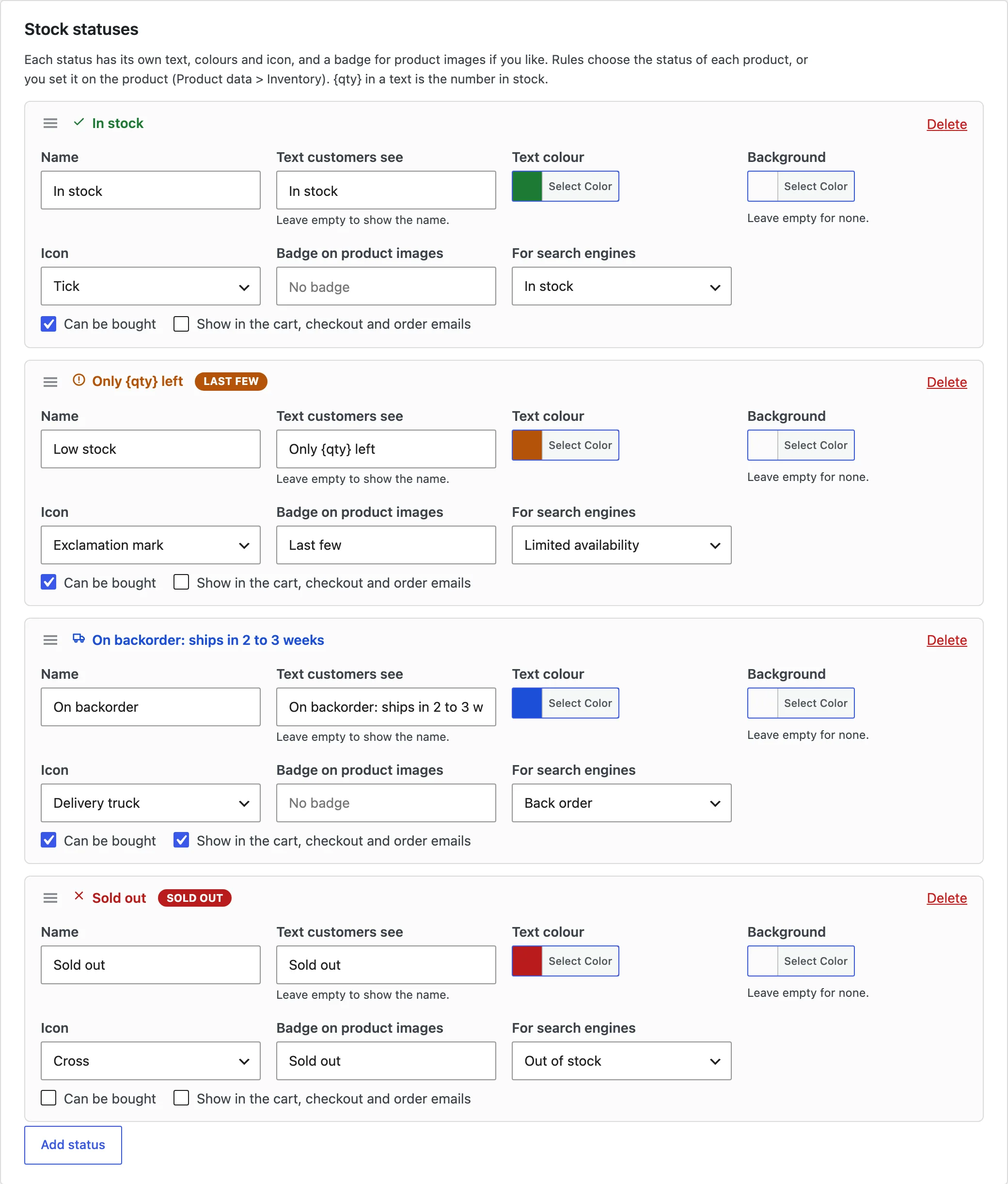
Each status has a name, the text customers see ({qty} is the number in stock), text and background colours, an icon, a badge for product images, whether it can be bought, whether it shows in the cart and emails, and what search engines see.
Rules
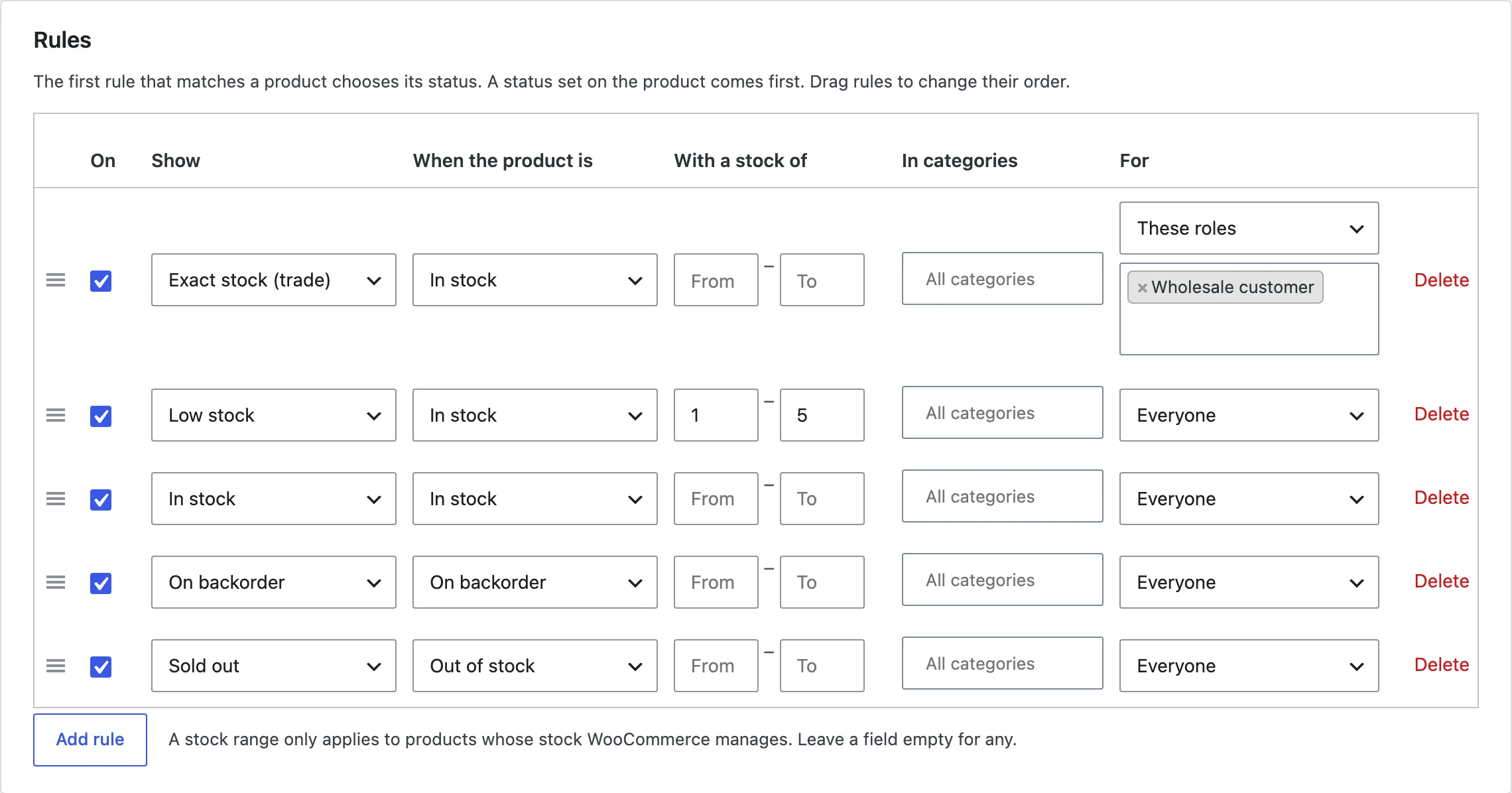
Rules are checked in order and the first that matches chooses the status: by stock status, a stock range (for products whose stock is managed), categories and customers. When no rule matches, WooCommerce’s own text shows, or none.
Products and variations
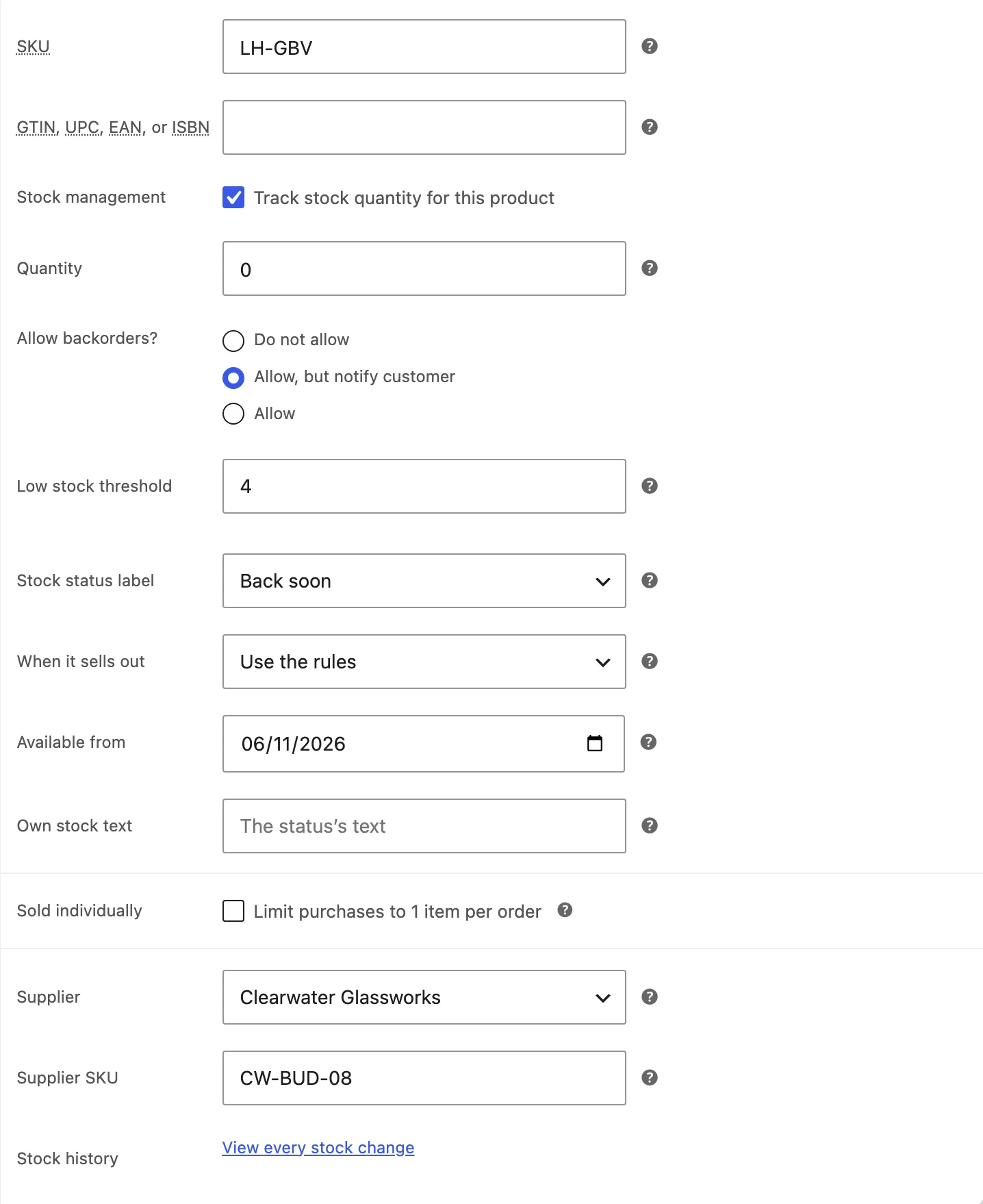
A product can always show a status, show one when it sells out, have a date it’s available from, and its own text. Variations can have their own, or follow the product. Bulk edit sets the status of many products at once.
Where statuses show
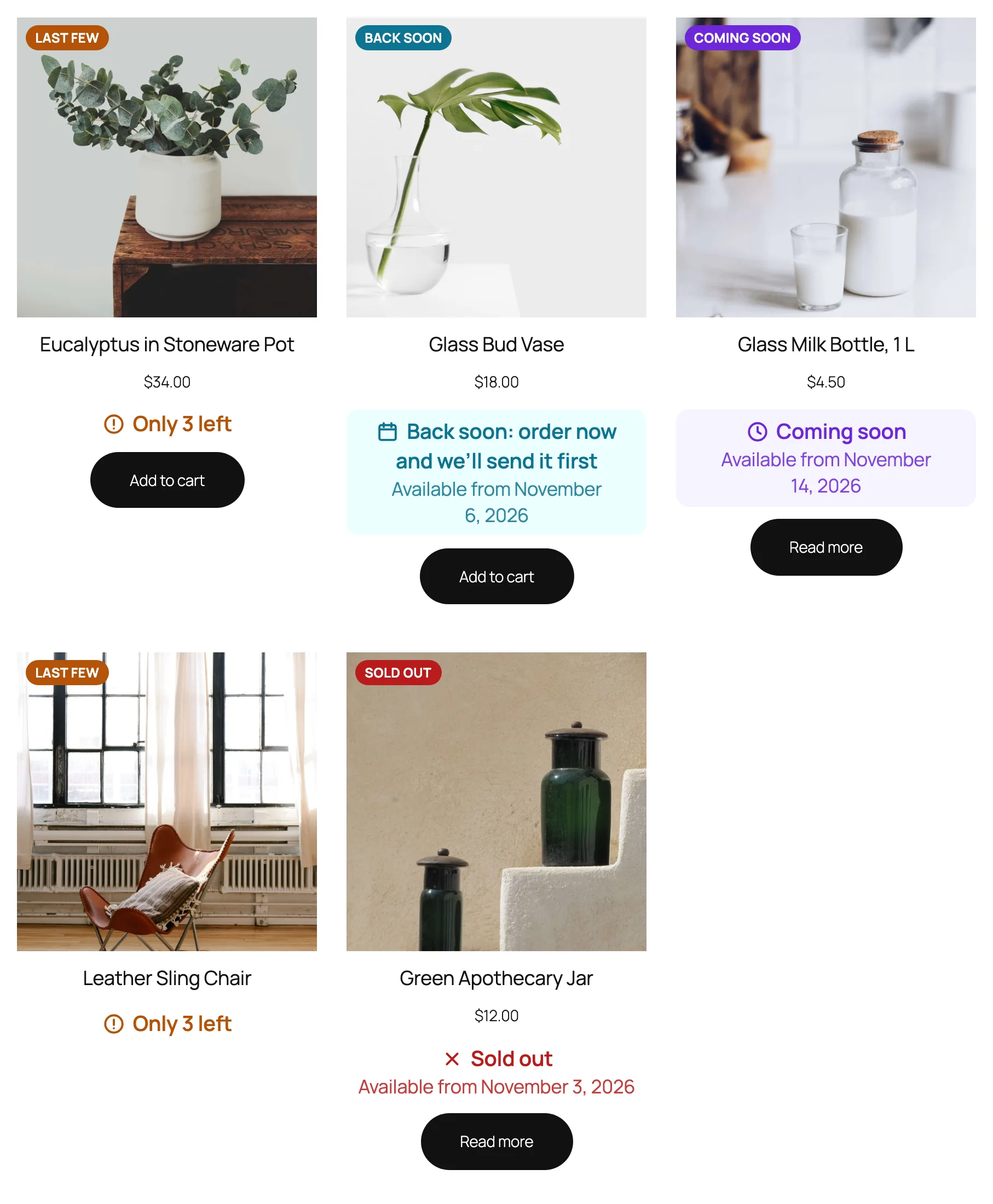
Product pages, shop pages and product blocks (after the name, price or button), badges on product images, and for statuses you choose, the cart, checkout, the order and its emails. The [osdm_stock] shortcode shows a product’s status anywhere.
Sold-out products
Show them after the others, hide them in chosen categories (with their subcategories) or in search, and grey out or leave out sold-out variations.
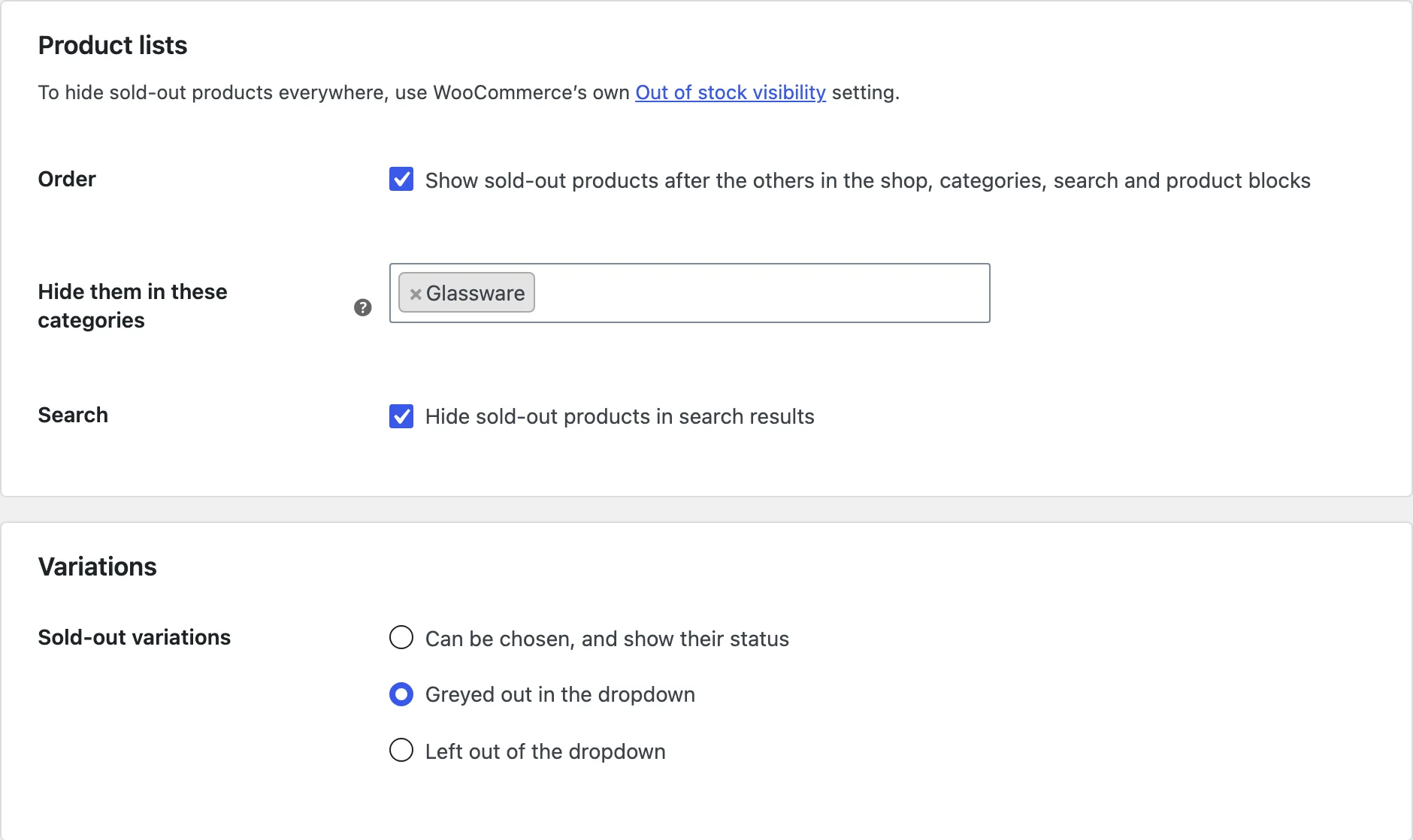
Settings
| Setting | What it does |
|---|---|
| Statuses | Text, colours, icon, badge, buying, cart and search engines for each status. |
| Rules | Which status each product shows. |
| When no rule matches | WooCommerce’s own text, or none. |
| Product pages | Where WooCommerce shows the stock, or under the title. |
| Shop pages | Show the status, and where. |
| Badges | Badges on product images in the shop. |
| Icons and text size | How statuses look. |
| Availability date | The text with a product’s date. |
| Order | Sold-out products last. |
| Hide them in these categories | And in search results. |
| Sold-out variations | Can be chosen, greyed out or left out. |
For developers
| Hook | Use |
|---|---|
osdm_resolve_status | Change the status a product shows. |
Frequently asked questions
Why does a stock range rule not apply?
Ranges only apply to products whose stock WooCommerce manages, as they need a number.
Why is there no Add to cart button?
The product’s status can’t be bought, such as Coming soon or Discontinued.
How do I remove all data when deleting the plugin?
Add define( 'OSDM_REMOVE_ALL_DATA', true ); to wp-config.php before deleting the plugin. Orders keep the availability their items were ordered with.
Changelog
1.1.0 · October 7, 2026
Feature update
- Added rules by stock status, stock range, category and customer, and statuses per product and variation.
- Added statuses to the cart, checkout, orders and emails.
- Added sorting sold-out products last and hiding them in chosen categories and search.
1.0.0 · August 21, 2026
Initial release
- Stock statuses with text, colours, icons and badges, and statuses that can’t be bought.
- Statuses on product and shop pages and in product blocks.