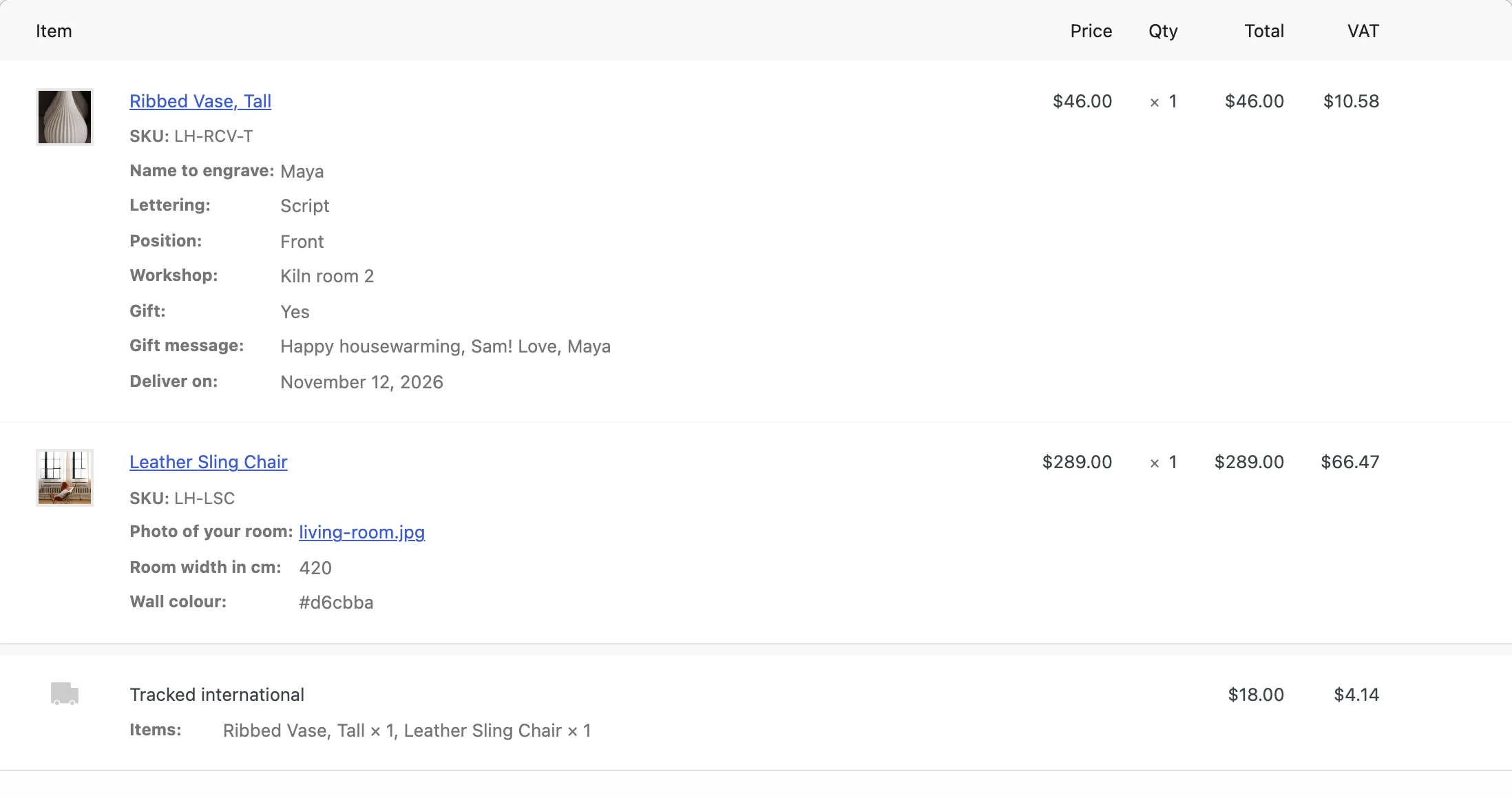
Product Input Fields adds fields for customers to fill in on your product pages, and keeps what they enter with the cart item, the order and its emails.
Requirements
- WordPress 6.8 or newer
- WooCommerce 10.0 or newer
- PHP 7.4 or newer
- Works with classic and block themes, the Cart and Checkout blocks, and High-Performance Order Storage.
Installation
- Download
product-input-fields.zipfrom My account > Downloads. - In WordPress, go to Plugins > Add New Plugin > Upload Plugin, choose the zip file and click Install Now.
- Click Activate. Field groups are in WooCommerce > Settings > Product input fields, and how fields show in its Display section. Each product has an Input fields tab in Product data for fields of its own.
Quick start
- Activate the plugin. No fields show until you add them.
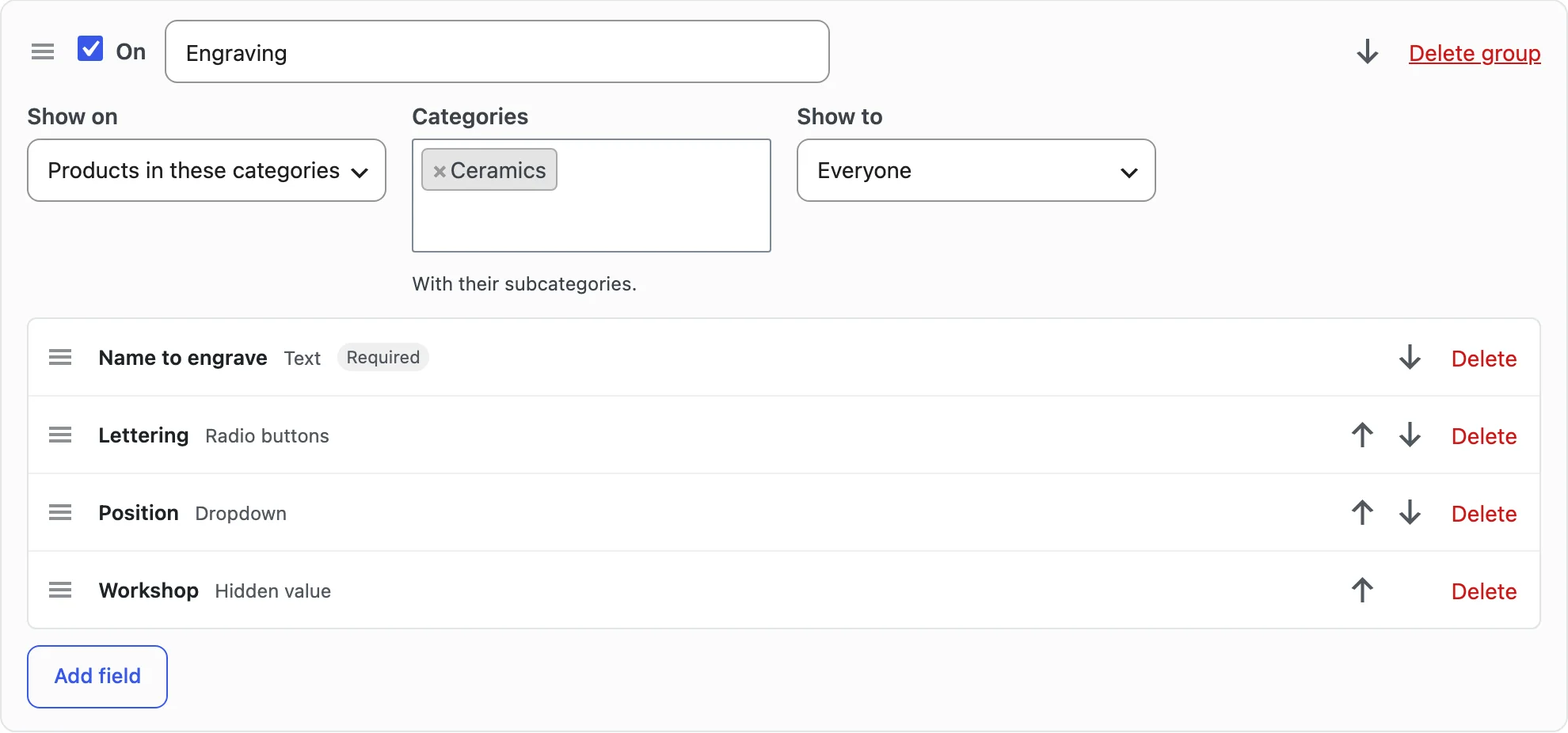
- Go to WooCommerce > Settings > Product input fields and click Add field group.
- Choose where the group shows (all products, categories, tags or products) and who it shows to.
- Click Add field, choose its type and give it a label. Tick Required if customers must fill it in.
- Save, open one of the products and fill in the fields: what you enter shows in the cart and on the order.
Field groups
A field group adds its fields to all products, products in chosen categories (with their subcategories), products with chosen tags or chosen products. It shows to everyone, guests, logged-in customers or chosen roles. Use the arrows or drag the handles to change the order of groups and fields; a product shows the fields of every group that covers it, in this order.
Fields and their settings
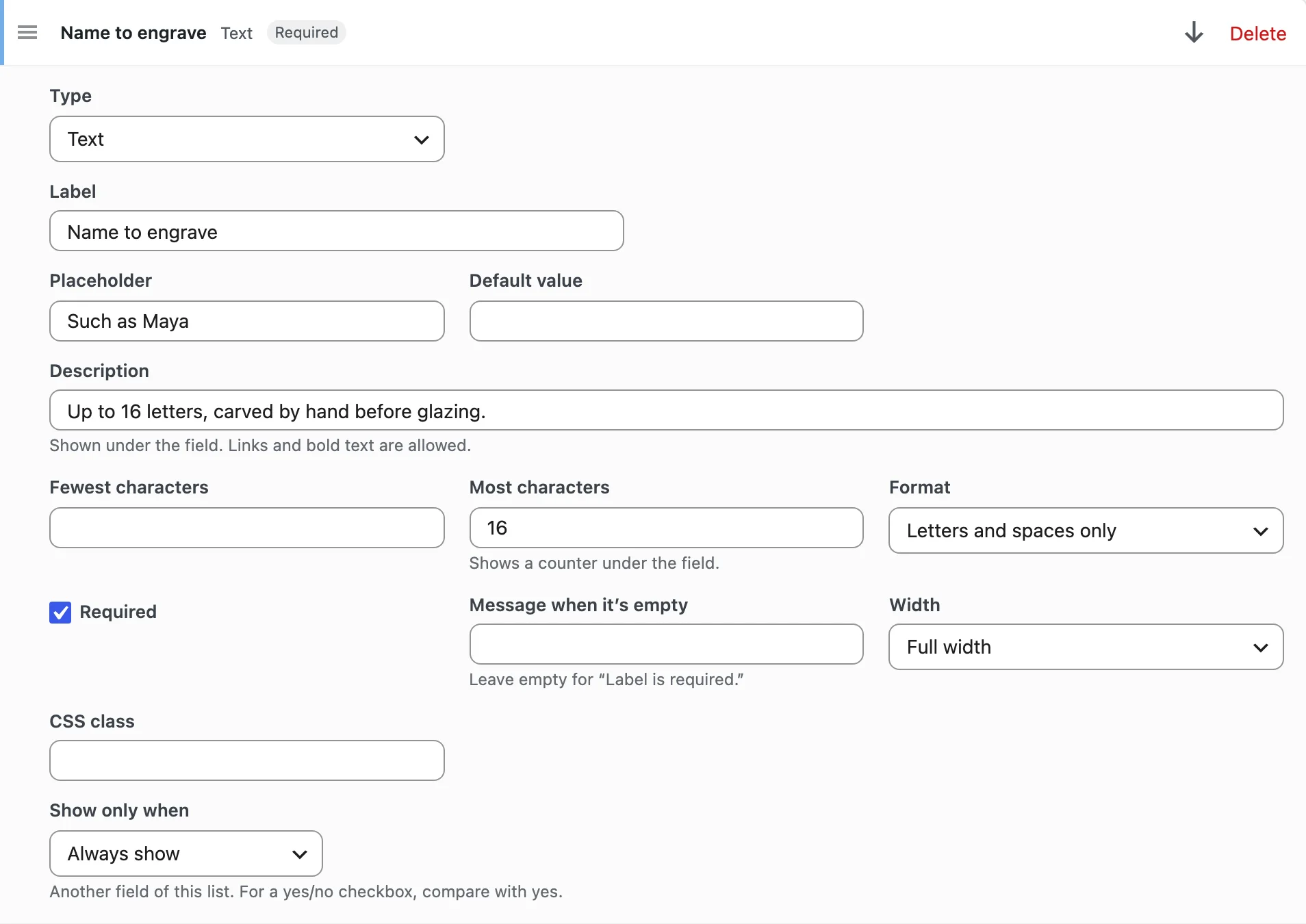
Each field has a type, a label, and the settings of its type: a placeholder, a default value, a description, character or number limits, a format for text, the earliest and latest date, file types and size, the width and a CSS class. Every field needs a label, and dropdowns, radio buttons and checkboxes need at least one choice.
Show only when
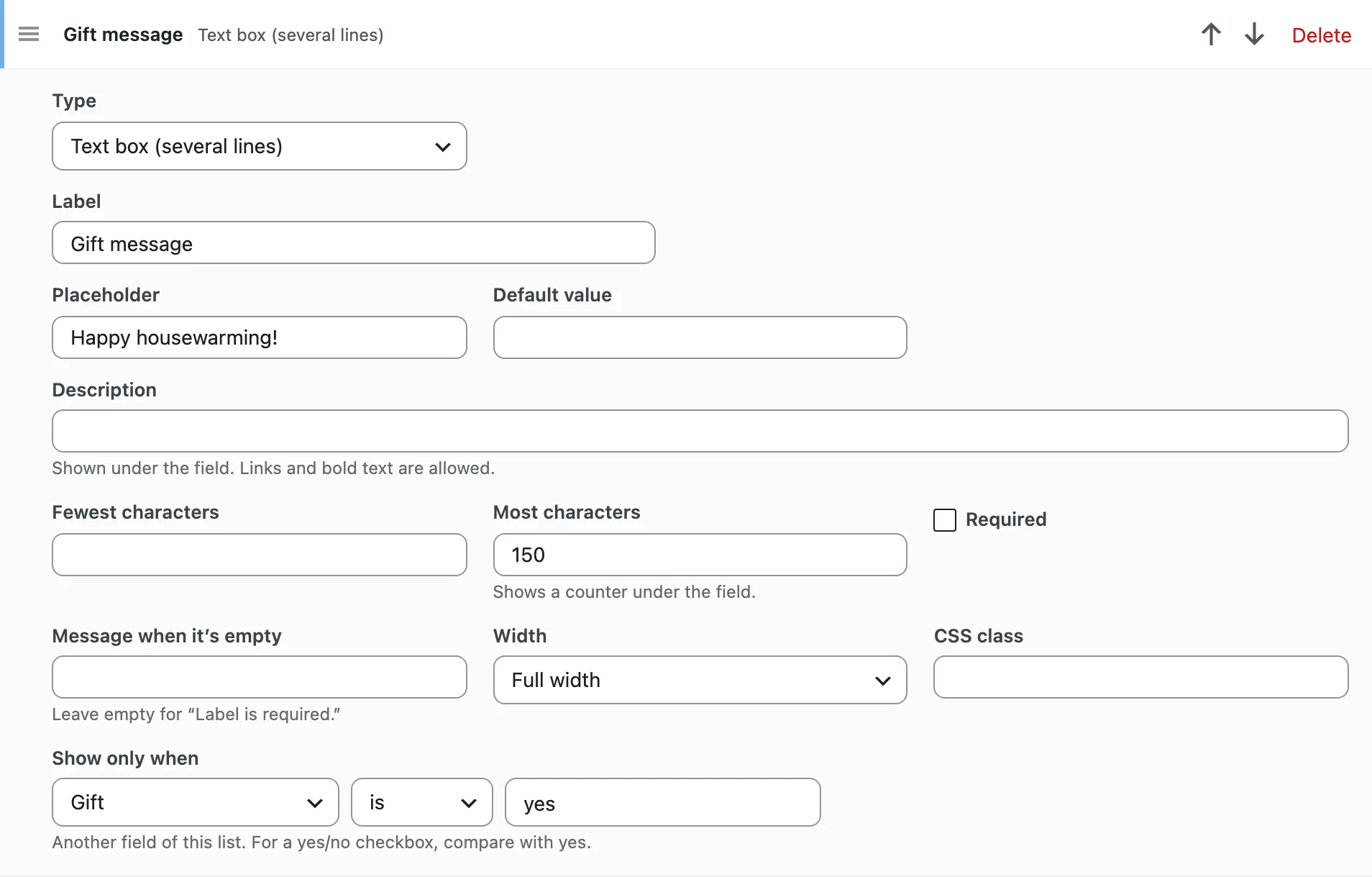
A field can show only when another field of the same list is filled in, is empty, is a chosen value or isn’t. For a yes/no checkbox, compare with yes. Answers to fields that aren’t shown aren’t kept.
A product’s own fields
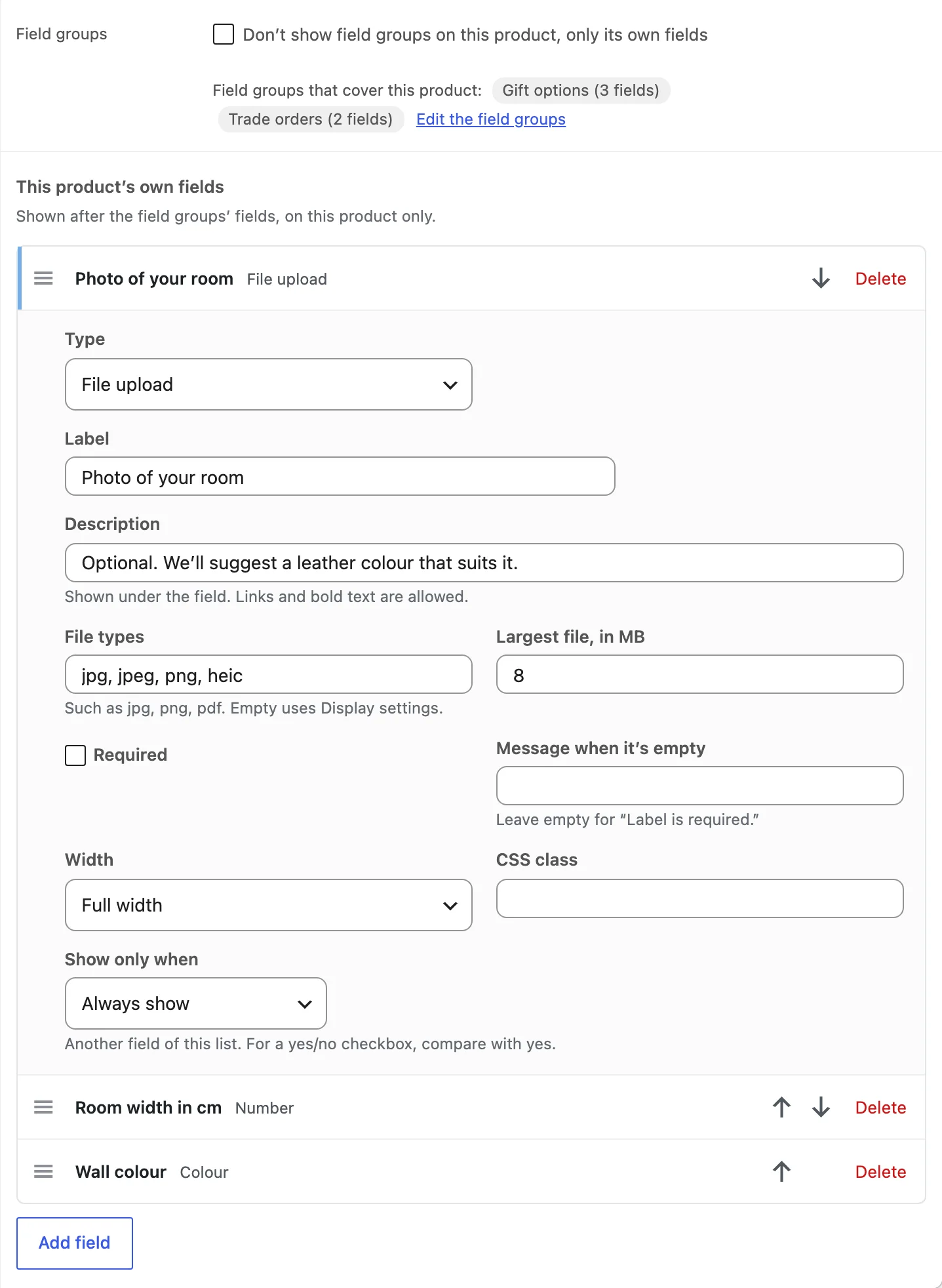
Open a product and go to Product data > Input fields to add fields to that product only. They show after the field groups’ fields. Tick the box to leave the field groups out on that product.
File uploads
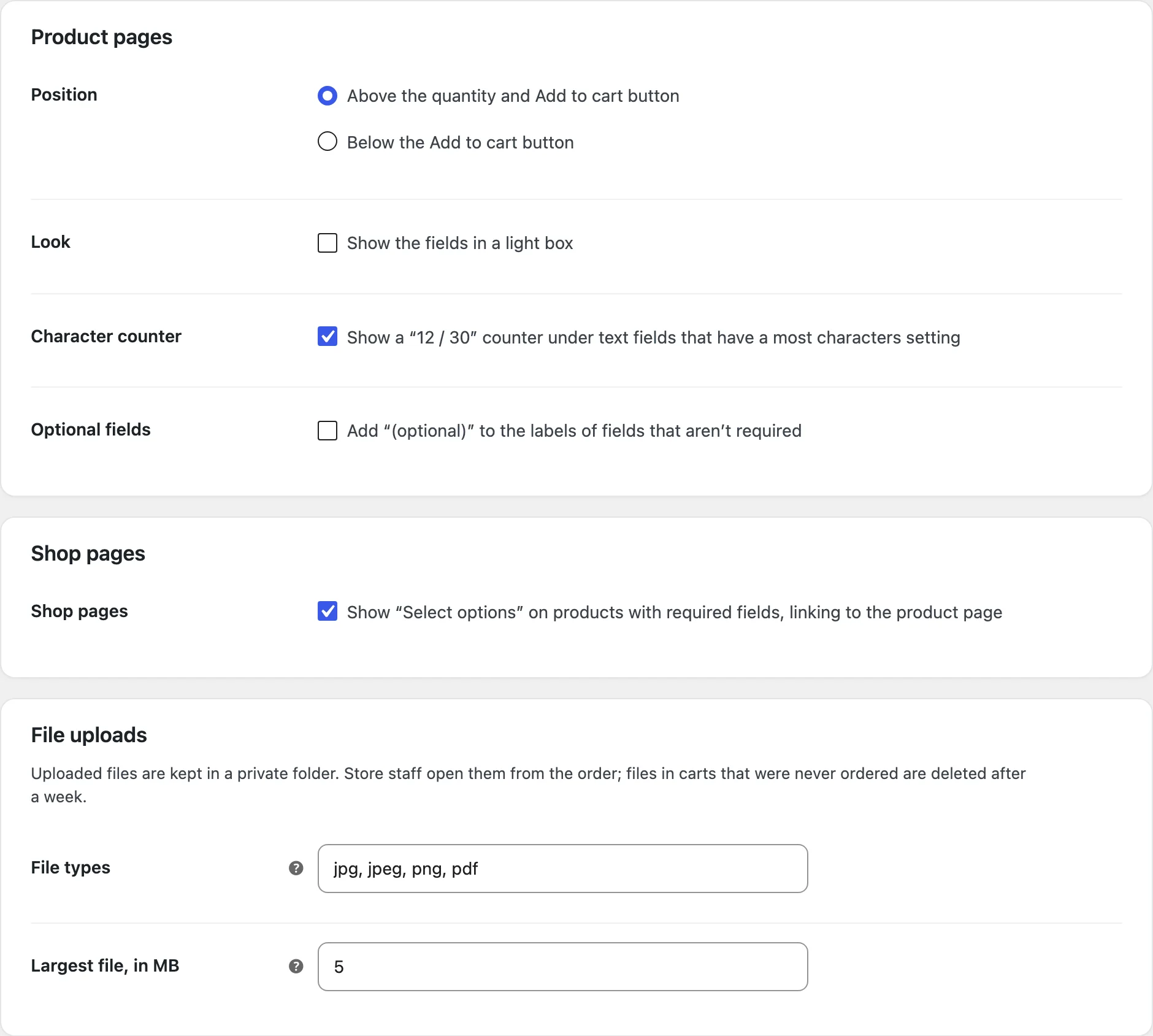
File fields accept the file types and largest size set on the field, or in the Display section. Programs, scripts and web pages are never accepted. Files are kept in a private folder; store staff download them from the order, and files in carts that weren’t ordered are deleted after a week.
Display
Choose whether fields show above the quantity and Add to cart button or below the button, in a light box or not, with a character counter and an “(optional)” mark. On shop pages, products with required fields show Select options and link to the product page.
Settings
| Setting | What it does |
|---|---|
| Field groups | Fields, where they show and who to. |
| Position | Above the quantity and Add to cart button, or below the button. |
| Look | Show the fields in a light box. |
| Character counter | A “12 / 30” counter under text fields with a character limit. |
| Optional fields | Add “(optional)” to the labels of fields that aren’t required. |
| Shop pages | Select options on products with required fields. |
| File uploads | File types and largest size, unless a field has its own. |
For developers
| Hook | Use |
|---|---|
pipr_product_fields | Change the fields a product shows the current customer. |
pipr_cart_upload_days | Change how many days uploads in unordered carts are kept (7). |
Frequently asked questions
Why doesn’t a field show on a product?
Check that its group is on, covers the product and shows to the customer, and that the product doesn’t leave field groups out. A field with a condition shows only when the condition is met.
Why does a hidden value not show to customers?
Hidden values are for store staff: they show on the order screen and in emails to the store, not to customers.
How do I remove all data when deleting the plugin?
Add define( 'PIPR_REMOVE_ALL_DATA', true ); to wp-config.php before deleting the plugin. What customers entered stays on their orders.
Changelog
1.0.1 · November 2, 2026
Hotfix
- Fixed a colour field without a default value saving black when the customer didn’t pick a colour. It shows as empty until they pick one.
- Fixed screen readers announcing the Select options button on shop pages as Add to cart.
1.0.0 · November 1, 2026
Initial release
- Input fields on products: text, number, date, time, colour, choices, file upload, hidden values and headings.
- Field groups by category, tag or product, for everyone, guests, customers or chosen roles, and fields of a product’s own.
- Required fields, limits, formats, date ranges and conditions.
- Answers in the cart, checkout, order, emails and My account; private uploads with download links for staff.