Tiered Pricing Table sets a lower price each for larger quantities on products, variations, categories or the whole store, shows the tiers on the product page in a table that updates as the quantity changes, and charges the same prices in the cart, checkout and orders.
Requirements
- WordPress 6.8 or newer
- WooCommerce 10.0 or newer
- PHP 7.4 or newer
- Works with classic and block themes, the Cart, Checkout and Mini-Cart blocks, High-Performance Order Storage, WPML and Polylang, product add-on plugins, and currency switchers such as WooPayments, Aelia, WOOCS, CURCY and our Multi Currency Switcher.
Installation
- Download
tiered-pricing-table.zipfrom My account > Downloads. - In WordPress, go to Plugins > Add New Plugin > Upload Plugin, choose the zip file and click Install Now.
- Click Activate. The settings are in WooCommerce > Settings > Tiered pricing: Rules, Pricing, Product page, Shop pages, Cart and orders and Tools. Each product has a Tiered pricing tab in Product data, and each variation has tier fields of its own.
Quick start
- Activate the plugin. No prices change until a product or a rule has tiers.
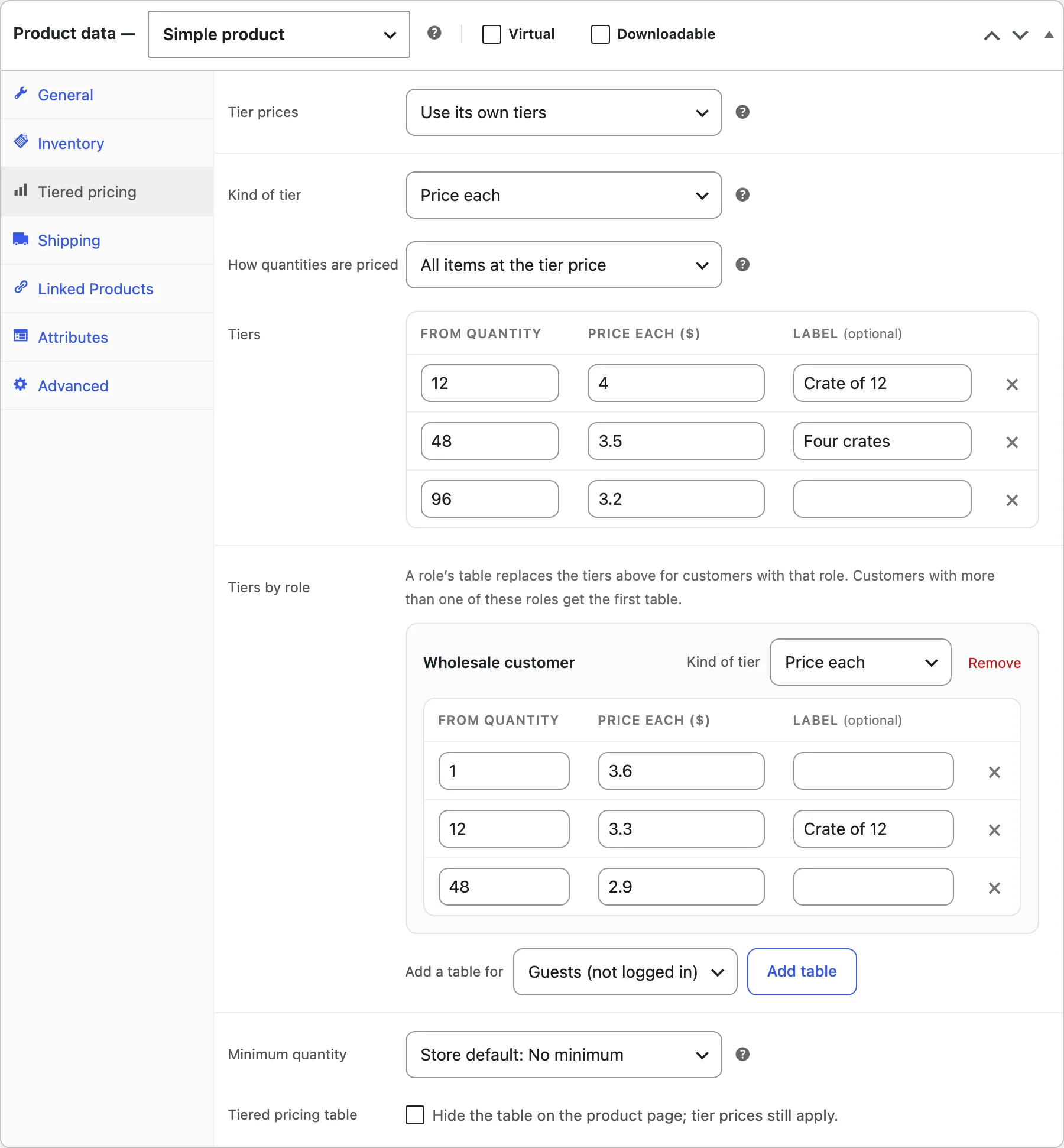
- Open a product, go to Product data > Tiered pricing, set Tier prices to Use its own tiers and add a tier for each quantity that gets a better price, such as 10 at $9.00 and 25 at $8.00.
- To give a category its tiers instead, go to WooCommerce > Settings > Tiered pricing, click Add rule and choose the category.
- In Product page, choose the layout and where the tiers show, and check the preview.
- Open the product, change the quantity and add it to the cart to see the tier price.
Tiers on a product
In Product data > Tiered pricing, Tier prices chooses where the product’s tiers come from: Use the store’s rules (the default), Use its own tiers or No tiers, which leaves the product at its price whatever the rules say. With its own tiers, choose the Kind of tier (price each, percentage off or amount off each) and How quantities are priced, then add a row for each quantity that gets a better price, with an optional label such as Best value. A table can have up to 30 tiers.
Count toward a tier chooses whether different variations in the cart add up toward the product’s tiers. Minimum quantity can make the first tier’s quantity the smallest a customer can buy, and Tiered pricing table hides the table on the product page while the tier prices still apply.
Variations
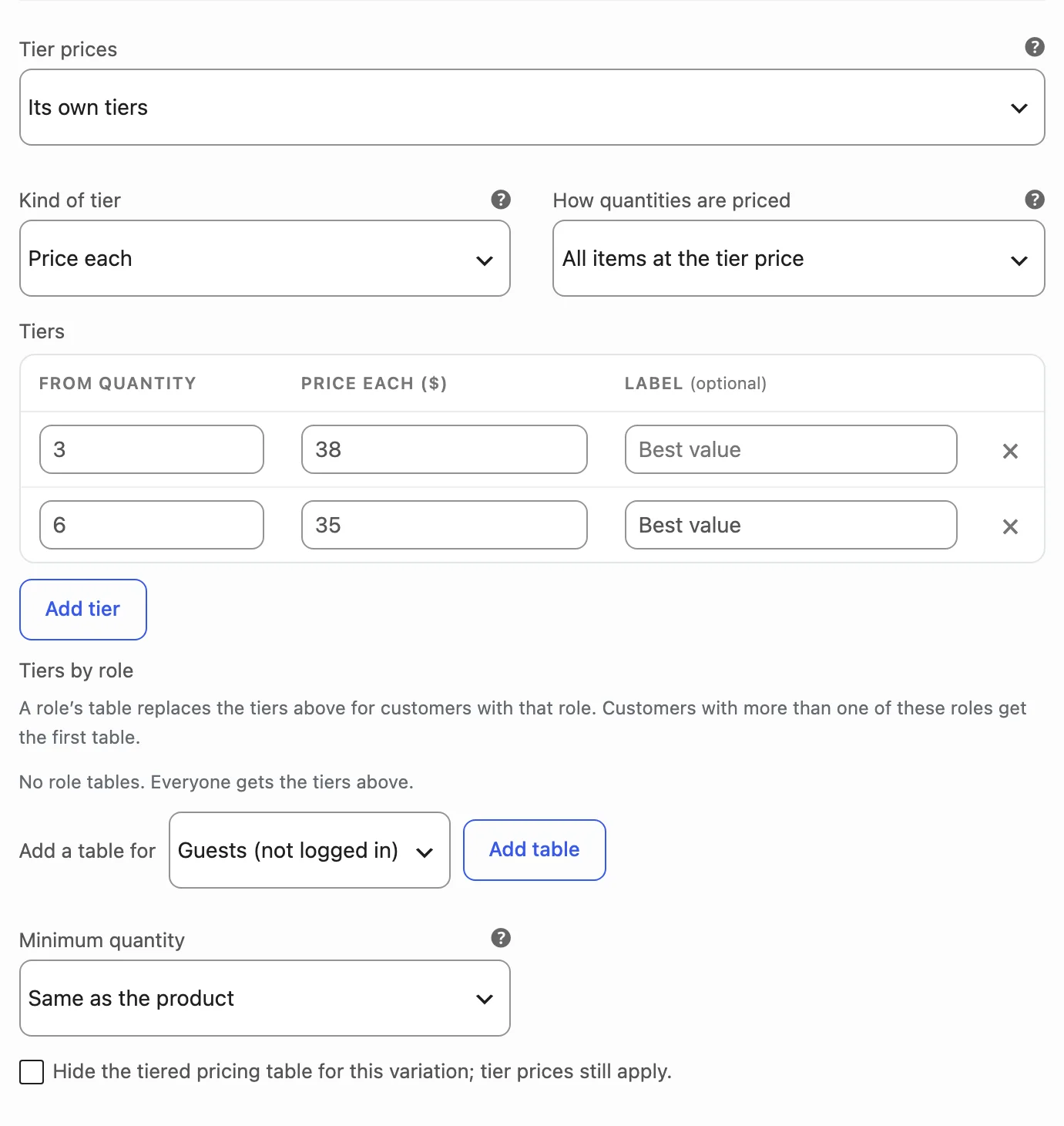
Each variation has Tier prices of its own. Same as the product follows the product’s Tiered pricing tab, Its own tiers replaces those tiers for this variation, with role tables of its own, and No tiers leaves the variation at its price. On the product page, the table changes when a customer chooses a variation.
Tiers by role
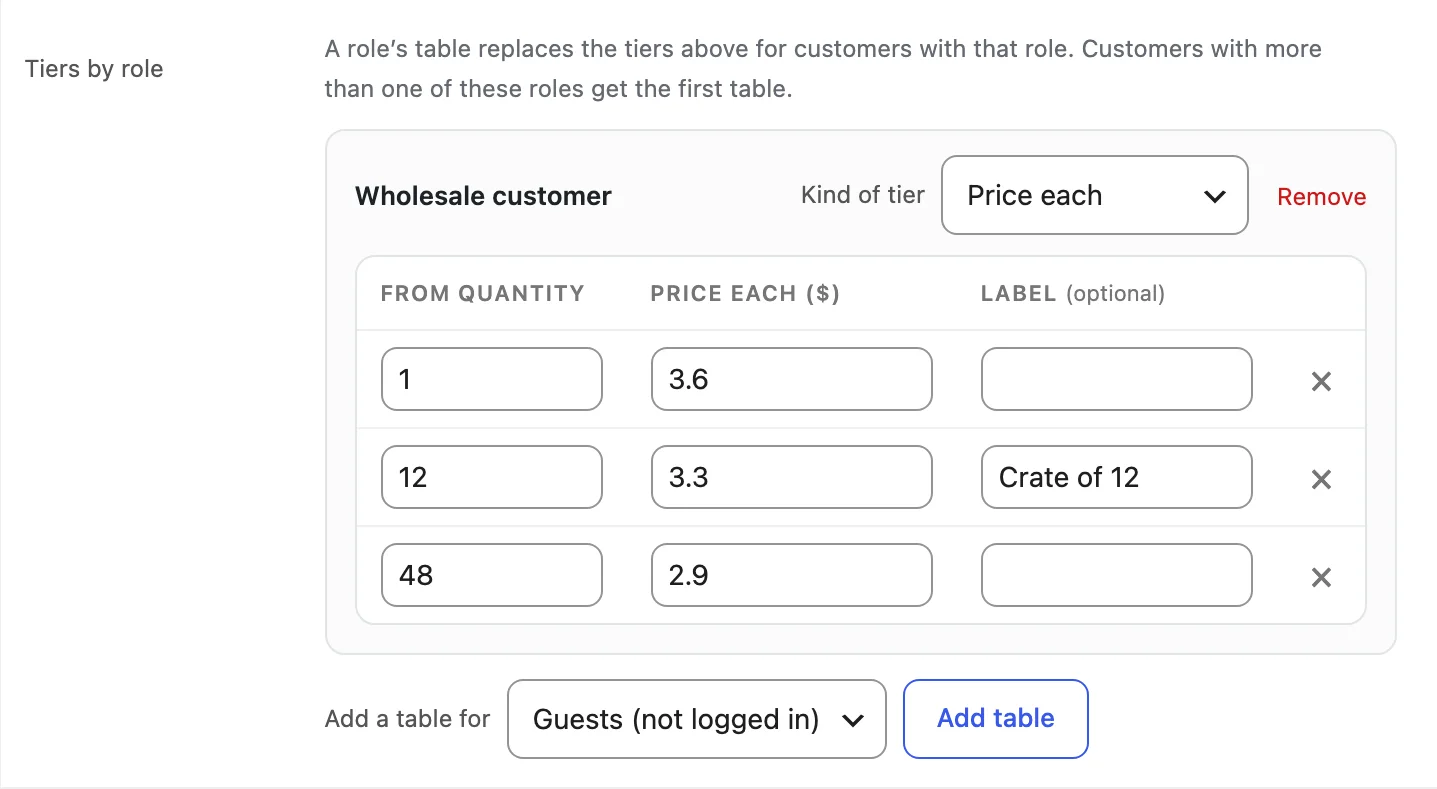
Under Tiers by role, choose a role in Add a table for and click Add table. A role’s table has its own kind of tier and tiers, and replaces the general tiers for customers with that role. Guests (not logged in) can have a table too. Customers with more than one of these roles get the first table.
Rules
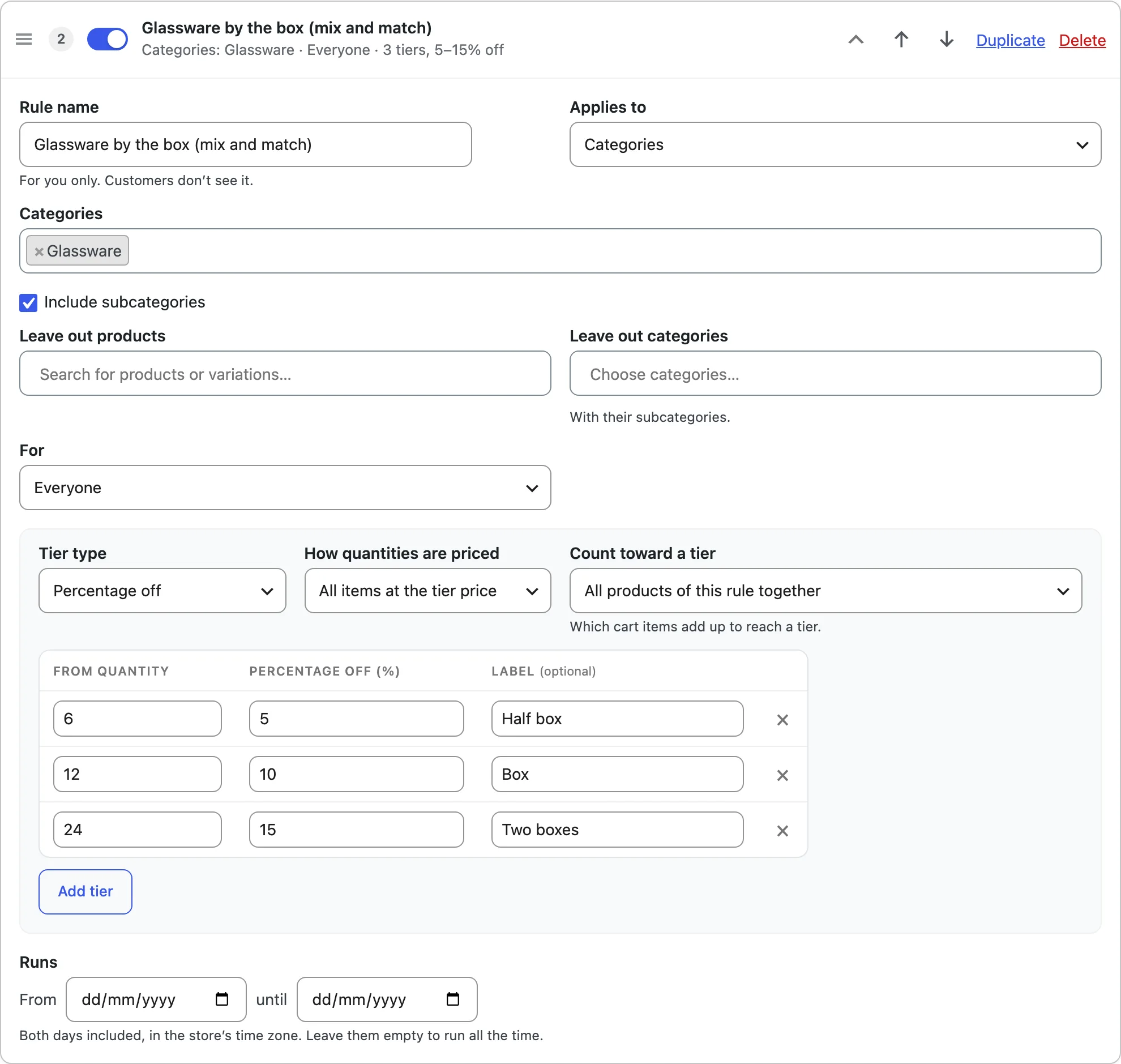
Rules give tiers to many products at once: all products, categories (with their subcategories if you like), tags, brands, chosen products, product types or attribute values. A rule can leave out products and categories, and For chooses everyone, guests, logged-in customers, chosen roles or chosen customers. Set the tier type, how quantities are priced, what counts toward a tier, and the dates the rule runs. A store can have up to 50 rules.
The first active rule that matches a product and the customer wins: drag the rules, or use the arrows, to set their order. Products and variations with their own tiers, or set to no tiers, don’t use the rules. The switch turns a rule off without deleting it, and Duplicate copies it.
With attribute values, a variation counts by its own value; one set to “Any” counts by the value the customer chooses.
Pricing and counting
All items at the tier price gives the whole quantity the tier’s price. Each band at its own price gives each tier’s price only to the items past its quantity: with tiers from 1 at $10.00 and from 10 at $9.00, 12 items cost 9 × $10.00 plus 3 × $9.00.
The Pricing section sets, for the whole store, whether variations of a product count together or each on its own (each product can change it; rules can also count all their products, or everything in the cart, together) and whether the first tier’s quantity is the smallest customers can buy. Base price chooses whether tiers work from the sale price or the regular price, or leave products on sale alone, and whether a tier may raise a price, for surcharges. Coupons and other discounts chooses whether coupons work as usual on tier prices, turn tier prices off, or skip items at a tier price, and whether tiers apply on top of prices other plugins have lowered.
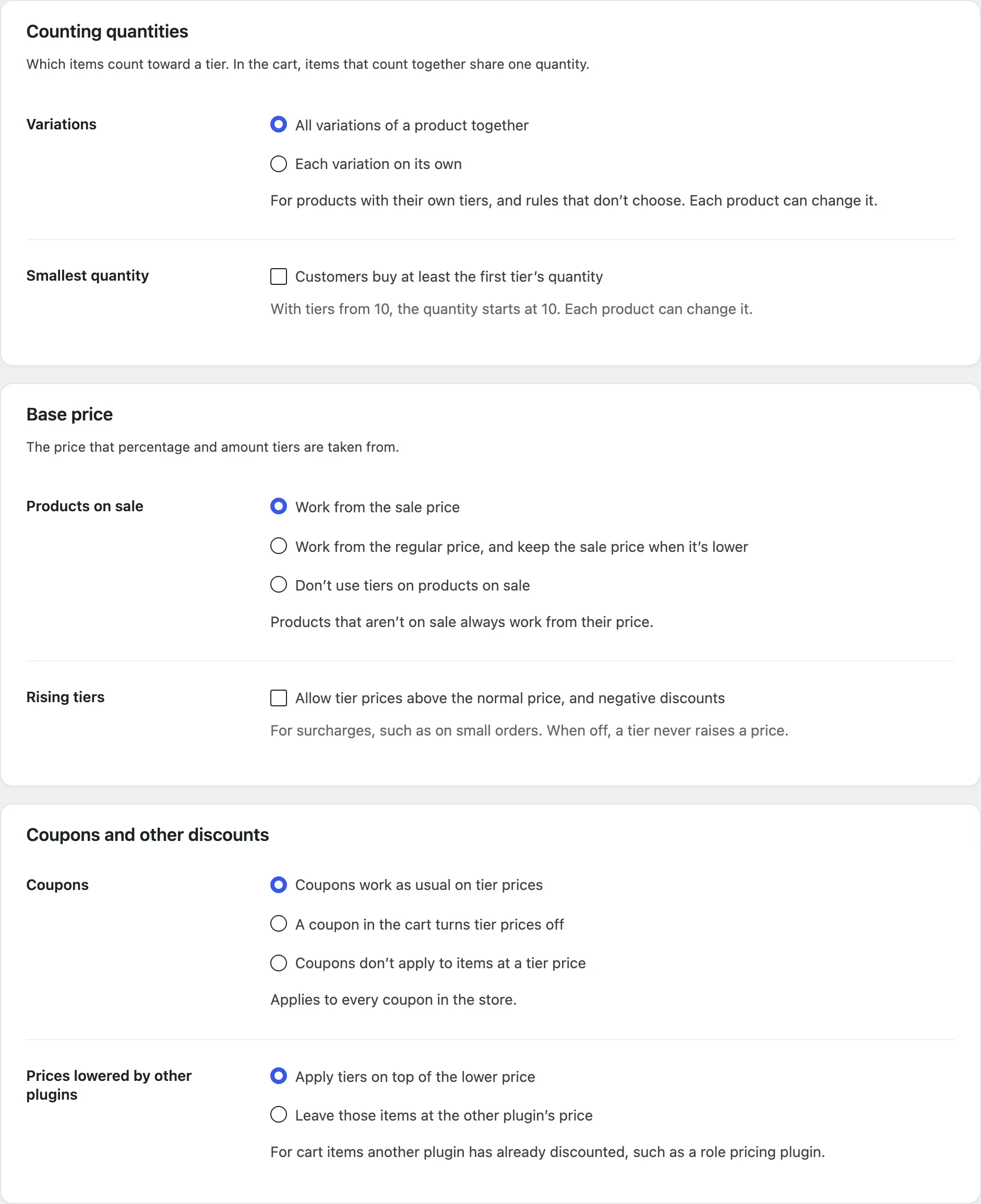
In the cart, items that count together share one quantity, and the product page adds what’s already in the cart.
Product page
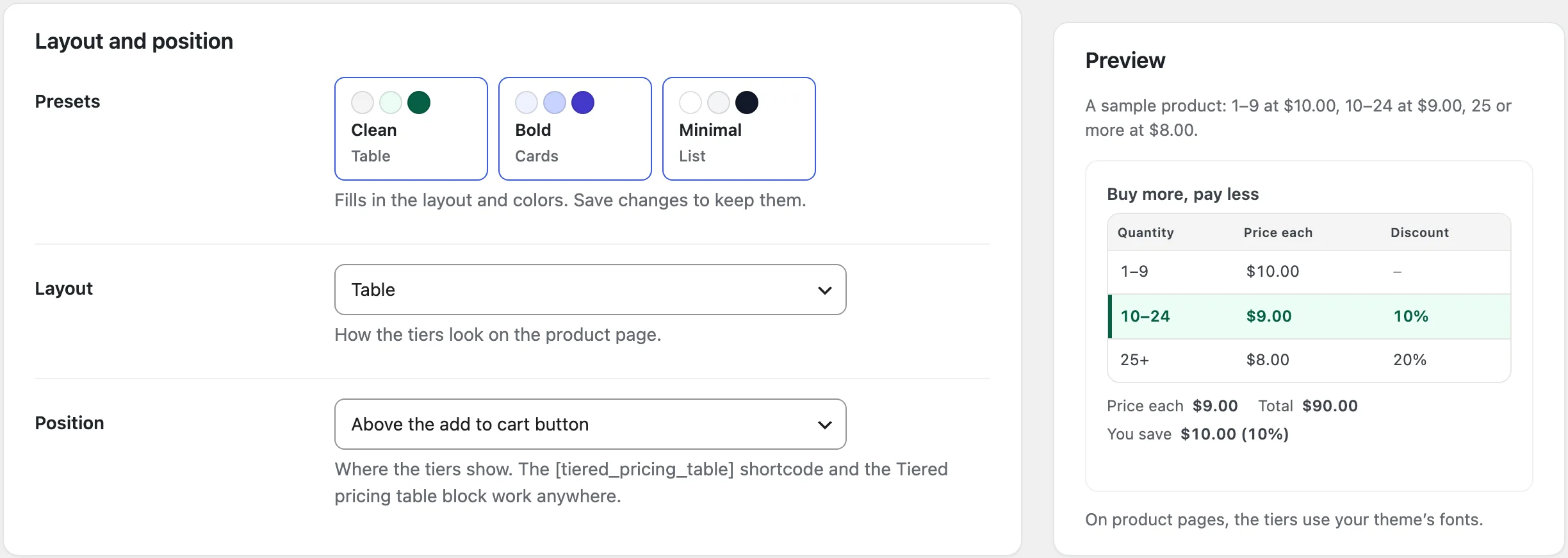
Layout sets how the tiers look: a table, a horizontal table, cards, a list, options to choose from, a dropdown, a tooltip on the price or one line of text. Position puts them above or below the add to cart button, under the price, after the product summary, in a Pricing tab, or only where you add the shortcode or the Tiered pricing table block. The presets fill in a layout and colors, and the preview shows the result before you save.
You can also set the title and the text above and below the tiers, the columns (quantity, price each, discount, saving each and tier label) and their headings, and a row at the normal price for quantities below the first tier. Live price and total chooses whether the product’s price, the total and the saving update with the quantity, whether clicking a tier sets the quantity, and whether tiers that need more than the stock left are left out. Colors sets the header, borders and the chosen tier, with a box for custom CSS.
[tiered_pricing_table id="123" display="cards"]shows a product’s tiers anywhere; withoutid, the current product’s, and withoutdisplay, the layout in the settings.[tiered_pricing_best_saving id="123"]shows its biggest saving, such as Save up to 15%.[tiered_pricing_lowest_price id="123"]shows its lowest tier price, such as From $8.00 each.
Shop pages
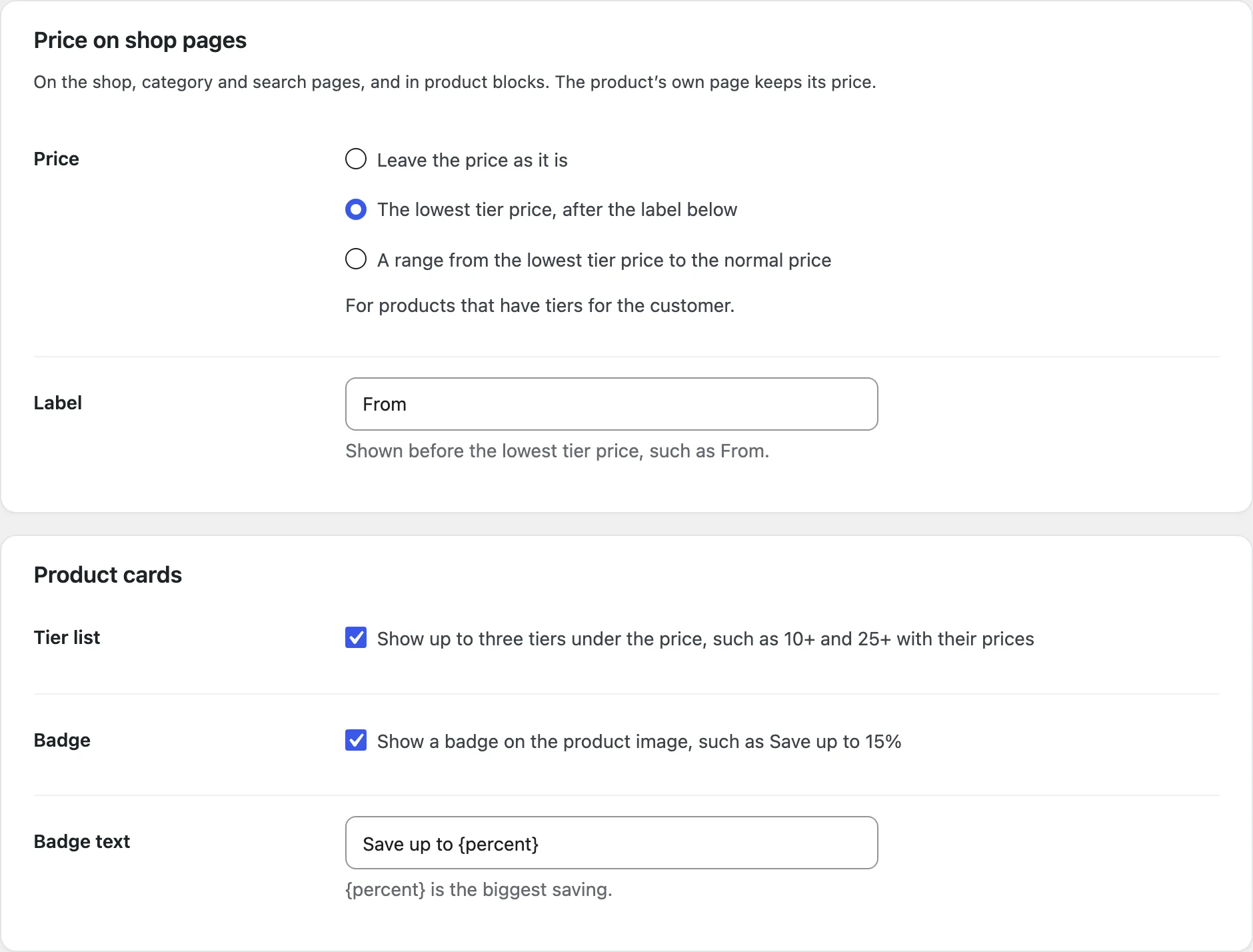
Price can stay as it is, show the lowest tier price after a label such as From, or show a range from the lowest tier price to the normal price. It applies on the shop, category and search pages and in product blocks; the product’s own page keeps its price. Tier list shows up to three tiers under the price, and Badge shows a badge on the product image, such as Save up to 15%, where {percent} is the biggest saving.
The All Products block draws prices from WooCommerce’s Store API, so it shows WooCommerce’s price without the tier list or badge.
Cart and orders
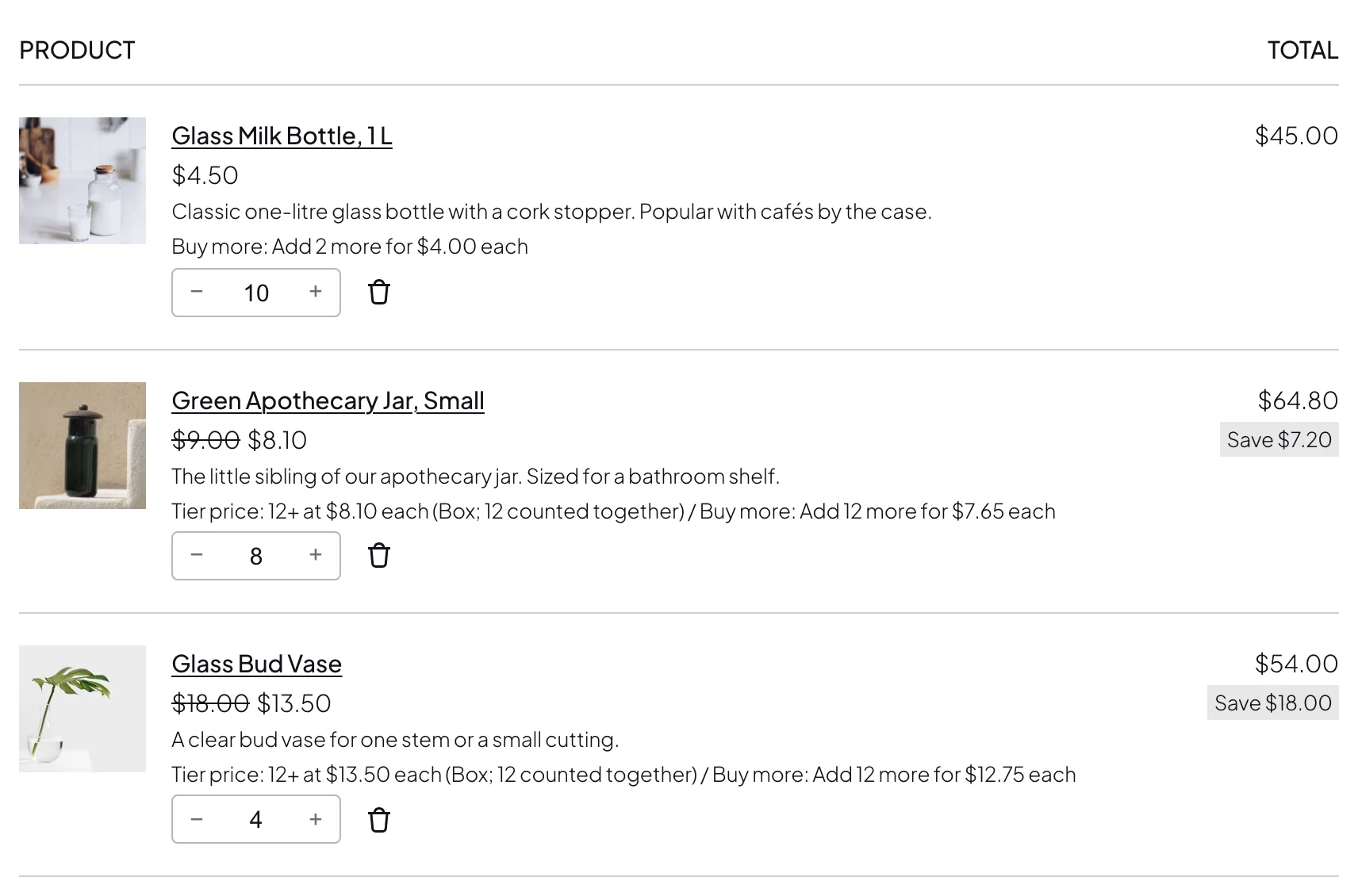
Cart and checkout chooses whether the normal price shows struck through next to the tier price (in the classic cart and the mini cart; the Cart and Checkout blocks always show it, with a Save badge on lines where all items get the tier price), whether each item names its tier, such as Tier price: 10+ at $9.00 each, and whether a nudge says how many more to add for the next tier. In the nudge text, {qty} is how many more to add and {price} the next tier’s price each. On lines priced band by band the nudge says which items get the next price, such as Add 13 more: items 25 and up cost $3.50 each.
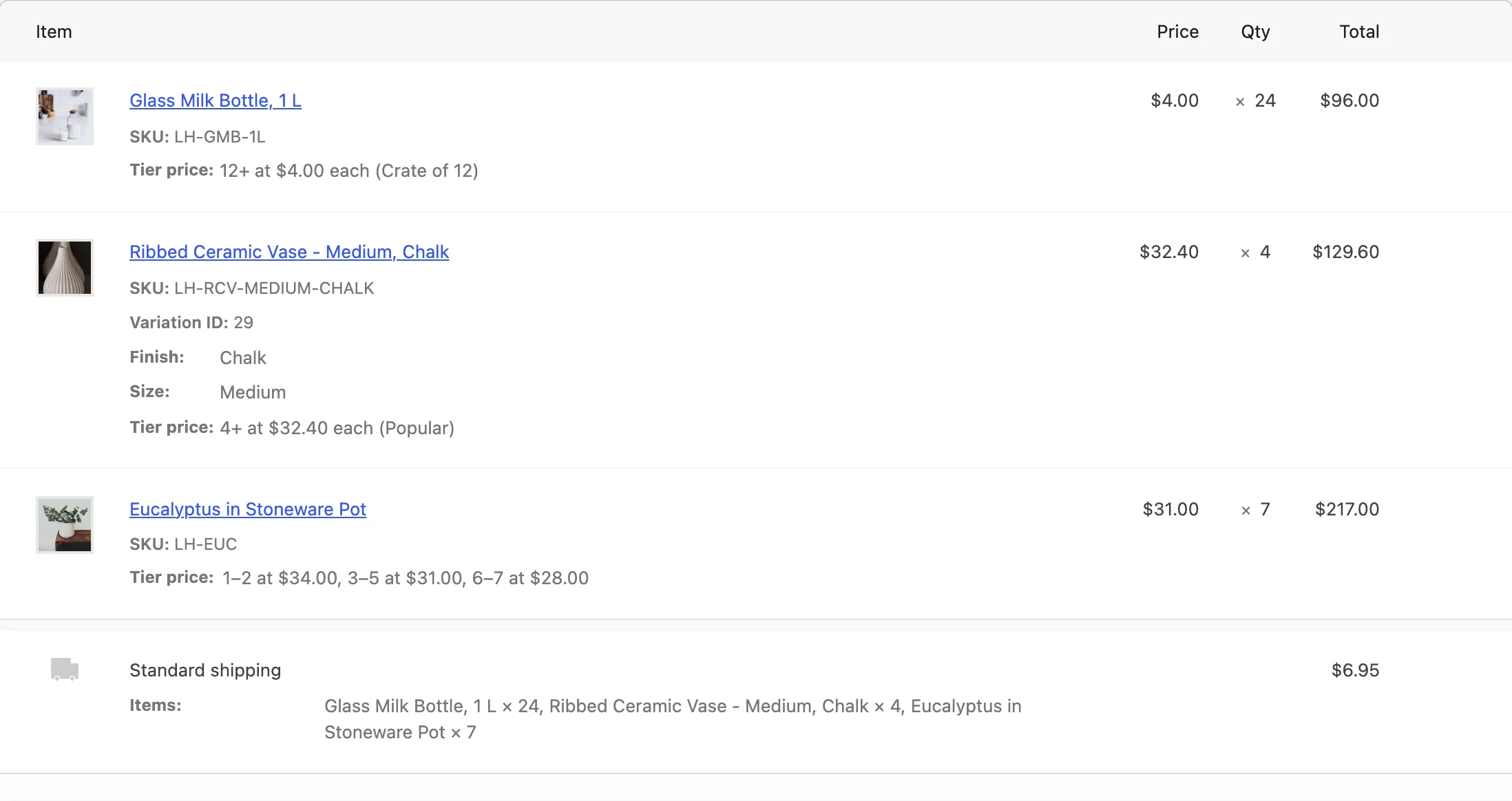
Order details saves the tier on each order item and shows it in the order and its emails. Orders edited in admin uses tier prices, with the tiers of the order’s customer, when you recalculate a pending, on-hold or failed order.
Tools
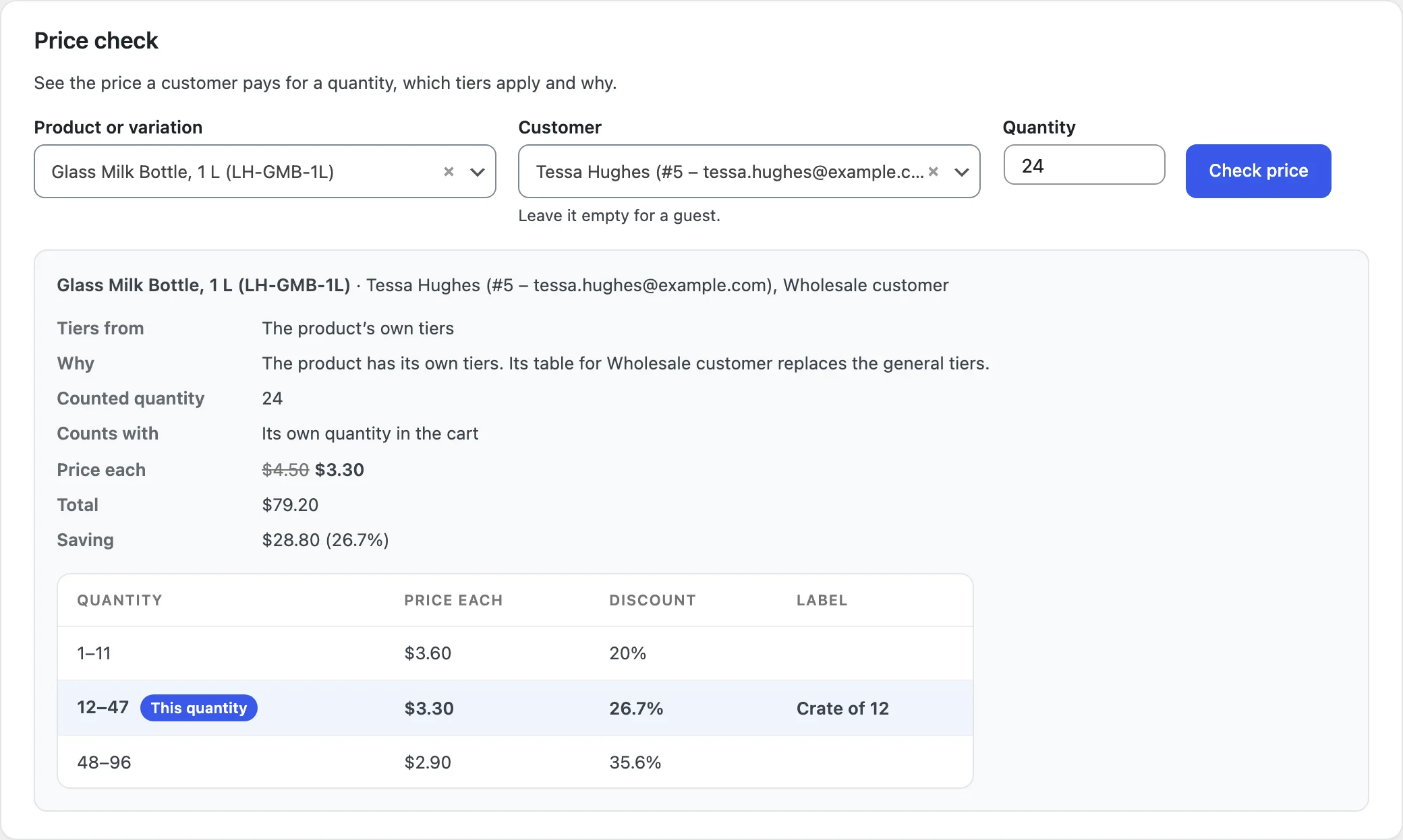
Price check shows the price a customer pays: choose a product or variation, a customer (or none for a guest) and a quantity to see the price each, total and saving, where the tiers come from and why, and the counted quantity.
Export rules downloads the rules and the Tiered pricing settings as a file. Import rules adds them after your rules or in their place, and can replace the settings too. Remove all product tiers clears the tiers saved on every product and variation; the rules stay as they are.
Product import and export
WooCommerce’s product CSV export and import have Tiered pricing columns: mode, kind, calculation, tiers, role tables, counting, minimum and hide table. Tiers are written as 10:9.50|25:9.00:Best value (quantity, value and an optional label) and role tables as wholesale_customer=percent:10:5|50:10;guest=fixed:5:9. A row with a value that isn’t valid fails with a message, and nothing on that product changes.
The REST API has a tiered_pricing field on products and variations. A request with a value that isn’t valid gets a 400 error, and nothing is saved.
Settings
| Setting | What it does |
|---|---|
| Rules | Tiers for all products, categories, tags, brands, products, product types or attribute values, for the customers you choose. |
| Pricing | Counting quantities, the smallest quantity, products on sale, rising tiers, coupons and other discounts. |
| Product page | Layout, position, title and texts, columns and labels, live price and total, colors and custom CSS. |
| Shop pages | The price on shop pages, a tier list and a badge on product cards. |
| Cart and orders | The struck-through price, the tier line, the nudge, order details and orders edited in admin. |
| Tools | Price check, export and import rules, and remove all product tiers. |
For developers
| Hook | Use |
|---|---|
tptt_pricing | Change the tiers that apply to a product or variation for a customer. |
tptt_tier_price | Change a tier’s price each. |
tptt_unit_price | Change the price each for a counted quantity. |
tptt_skip_cart_item | Leave a cart item at its own price. |
tptt_cart_priority | Set when tier prices are applied in the cart, before or after other pricing plugins (default 30). |
tptt_show_table | Show or hide a product’s pricing table. |
tptt_table_rows | Change the rows of a pricing table before they show. |
tptt_shop_price_html | Change the price shown on shop pages. |
tptt_before_pricing | Add something before a product’s tiers. |
tptt_after_pricing | Add something after a product’s tiers. |
Copy files from public/templates/ to yourtheme/tiered-pricing-table/ to change the markup, such as tiered-pricing-table.php for the table or tiered-pricing-loop.php for the tier list on product cards. On the product page, the pricing block fires the jQuery event tptt:updated with the quantity, price each, total and saving whenever they change.
Frequently asked questions
Why doesn’t a product show its tiers?
Check that the product isn’t set to no tiers, that a rule covers it for that customer today, and that its table isn’t hidden. Tiers don’t show when none of them lowers the price, such as when the sale price is lower or the stock is below the first tier. Tools > Price check says which tiers apply and why.
Do items already in the cart count?
Yes. The product page adds the items in the cart that count toward the same tiers, such as the same product or, when they count together, its other variations or the rule’s other products, and says so: Quantity counted: 12, including 8 already in your cart.
Which product types can have tiers?
Simple and variable products and their variations.
Does it work with the All Products block?
The All Products block draws prices from WooCommerce’s Store API, so it shows WooCommerce’s price without the tier list or badge. The other product blocks and shop pages show them.
How do I remove all data when deleting the plugin?
Add define( 'TPTT_REMOVE_ALL_DATA', true ); to wp-config.php before deleting the plugin.
Changelog
1.0.1 · November 2, 2026
Maintenance
- Code notes on WooCommerce’s own Save button setting, so Plugin Check reports no warnings. Nothing changes in how the plugin works.
1.0.0 · November 2, 2026
Initial release
- Quantity price breaks for products, variations, categories, tags, brands, attribute values, product types or the whole store.
- Separate tables for roles and guests, rules for chosen customers, and four ways to count quantities.
- Pricing table on the product page in eight layouts, with a live price, total and saving.
- Tier prices in the classic and block cart and checkout, the mini cart and orders.