Catalog Mode shows WooCommerce products without selling them: for the whole store or chosen products, for chosen visitors, always or on a schedule, with call, email, WhatsApp and enquiry buttons in place of Add to cart.
Requirements
- WordPress 6.8 or newer
- WooCommerce 10.0 or newer
- PHP 7.4 or newer
- Works with classic and block themes, the Cart and Checkout blocks, the Mini-Cart block, High-Performance Order Storage, WPML and Polylang.
- Country rules use the billing country or WooCommerce’s geolocation.
- Clears the page caches of WP Rocket, LiteSpeed Cache, W3 Total Cache, WP Super Cache and SiteGround Optimizer when a schedule starts or ends.
- Works with our Hide Products & Prices by User Role, Custom Add to Cart Button, Request a Quote & PDF Quotes and Product Feed Manager.
Installation
- Download
catalog-mode.zipfrom My account > Downloads. - In WordPress, go to Plugins > Add New Plugin > Upload Plugin, choose the zip file and click Install Now.
- Click Activate. Everything is under Catalog Mode in the admin menu, in six tabs: Rules, Buttons & texts, Enquiry form, Enquiries, Schedule and Settings. Each product has a Catalog mode tab in Product data, and product categories have catalog mode fields.
Quick start
- Activate the plugin and go to Catalog Mode > Rules. Catalog mode starts switched off, so nothing changes in the store yet.
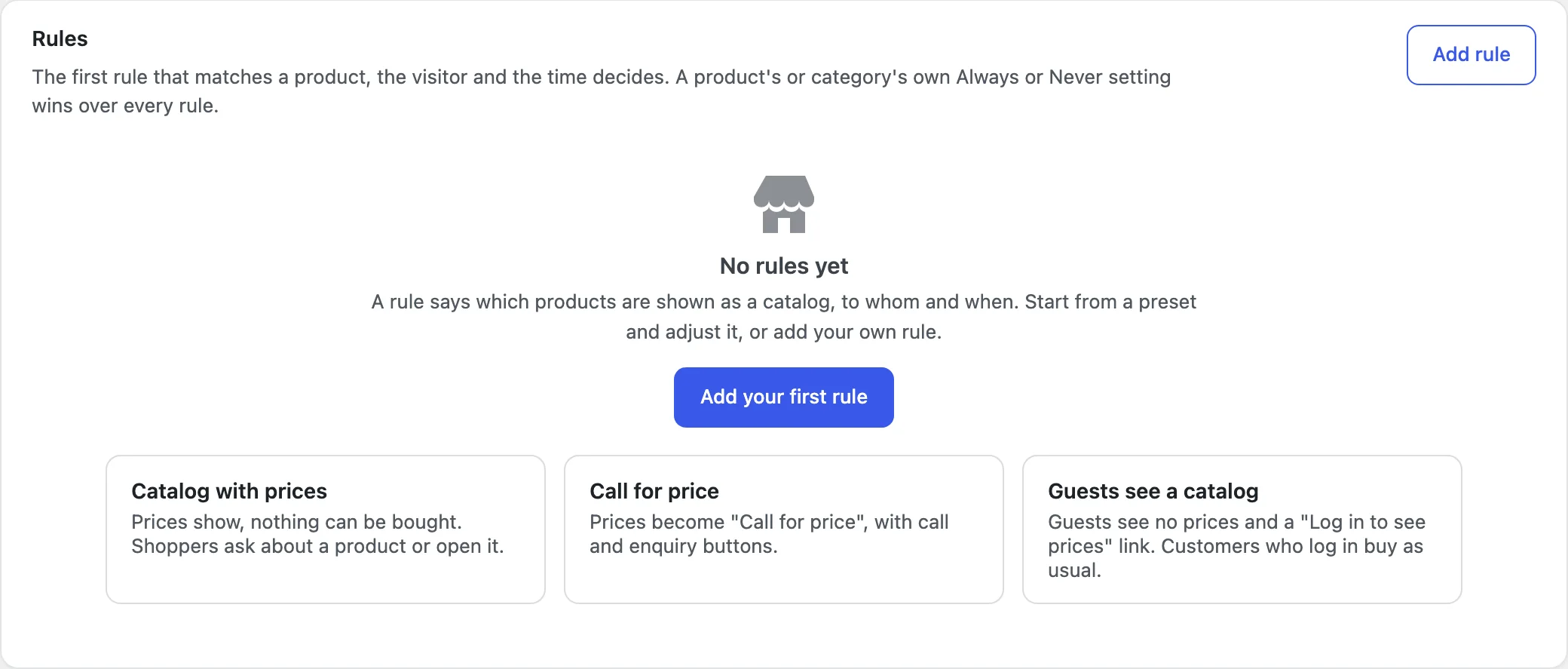
- Under No rules yet, click a preset: Catalog with prices, Call for price or Guests see a catalog. Or click Add your first rule and choose the products, visitors, price and buttons yourself, then click Save rule.
- Go to Buttons & texts and fill in the Phone number of the Call button, the Email address and the WhatsApp number you want to use. Check the Preview and click Save changes.
- Back on Rules, tick Turn on catalog mode and click Save changes.
- Open the store in a private window, as store staff see the normal store, and send a test enquiry. It shows in Catalog Mode > Enquiries and is emailed to the site admin email until you set other addresses on the Enquiry form tab.
Rules and the catalog mode switch
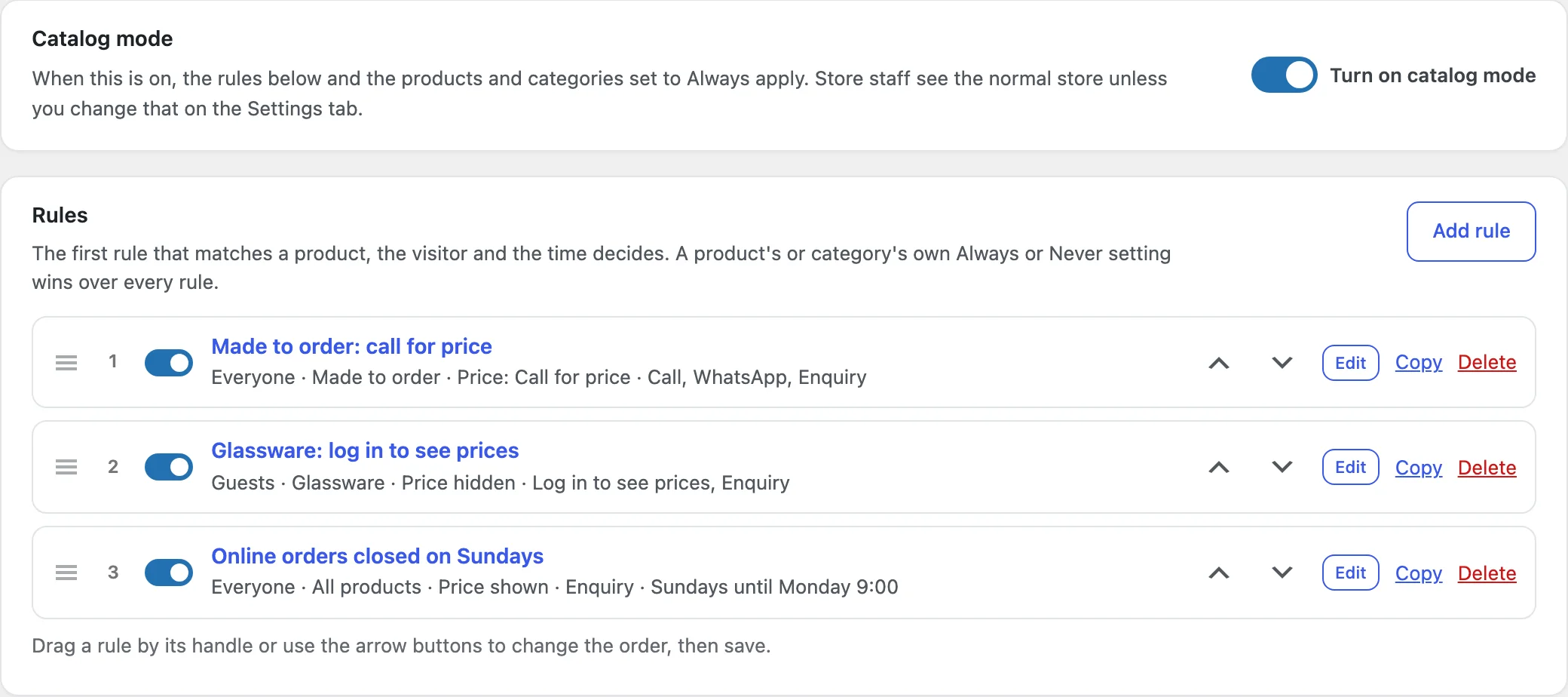
The Rules tab starts with Turn on catalog mode. While it’s off, every product can be bought, whatever the rules say. Tick it and click Save changes to apply the rules and the products and categories set to Always.
Under it, the rules are listed in order, each with a plain summary of who it covers, which products, the price and the buttons, such as Everyone · All products · Price: Call for price · Call, Enquiry. The first rule that matches a product, the visitor and the time decides, so drag a rule by its handle or use the arrow buttons to change the order, then click Save changes. Each rule can be switched on or off in the list, copied (the copy starts off) or deleted. A store can have up to 50 rules.
With no rules yet, the tab offers three presets. Catalog with prices keeps the prices and shows enquiry and View product buttons. Call for price shows that text with call and enquiry buttons. Guests see a catalog hides prices from guests and shows a Log in to see prices link, so customers who log in buy as usual. A preset adds a rule you can edit; catalog mode itself stays switched as it was.
Editing a rule
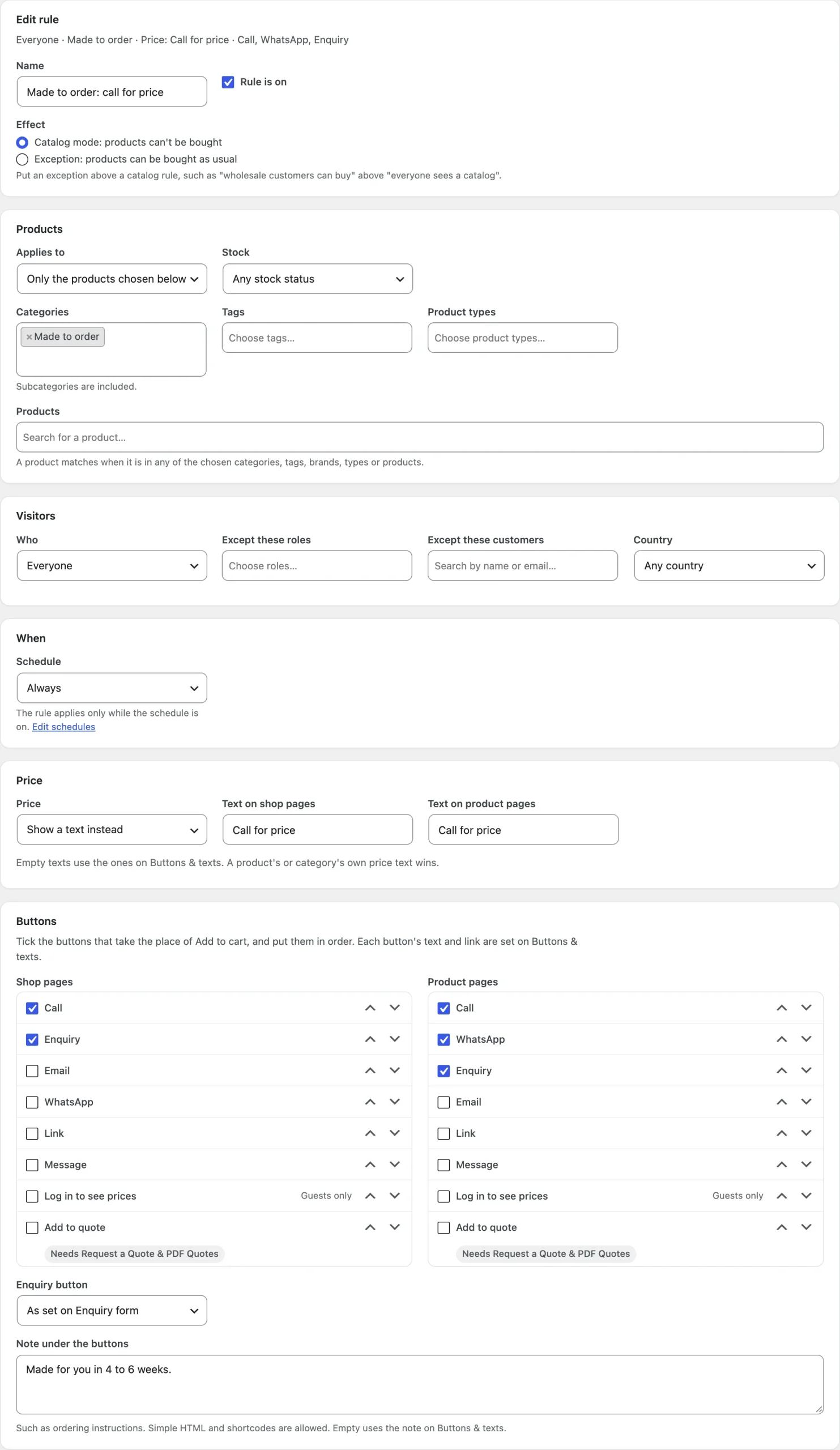
Add rule or Edit opens the rule editor. Give the rule a Name, such as Guests or Winter lighting, and choose its Effect: Catalog mode (products can’t be bought) or Exception (products can be bought as usual). Put an exception above a catalog rule, such as “wholesale customers can buy” above “everyone sees a catalog”.
Products: Applies to is all products, only the products chosen below, or all products except them. Choose Categories (subcategories are included), Tags, Brands, Product types and single products; a product matches when it’s in any of them. Stock can limit the rule to out-of-stock or backorder products.
Visitors: Who is everyone, guests (not logged in), logged-in customers or chosen user roles, with Except these roles and Except these customers. Country limits the rule to visitors from chosen countries, or from all countries except them (see Country rules below).
When is Always or one of your schedules; the rule then applies only while the schedule is on. Price sets the price mode and the texts on shop and product pages, Buttons ticks and orders the buttons for Shop pages and Product pages, Enquiry button follows the Enquiry form tab or is shown or hidden, and Note under the buttons adds a text such as ordering instructions (simple HTML and shortcodes are allowed). Empty texts use the ones on Buttons & texts.
Country rules
A country rule matches a logged-in customer by their billing country, and guests and customers without one by WooCommerce’s geolocation. WooCommerce reads the country that Cloudflare or your host passes with each visit, or looks up the IP address in MaxMind’s database once you add a MaxMind license key in WooCommerce > Settings > Integration.
Page caches: on cached pages, set WooCommerce’s Default customer location to Geolocate (with page caching support), or use a page cache that varies by country. The rule editor and the Settings tab remind you until then.
Country rules are a guide, not a lock: a visitor on a VPN appears to be in another country, and on stores that aren’t behind Cloudflare a visitor can send a made-up country with the request.
Product and category settings
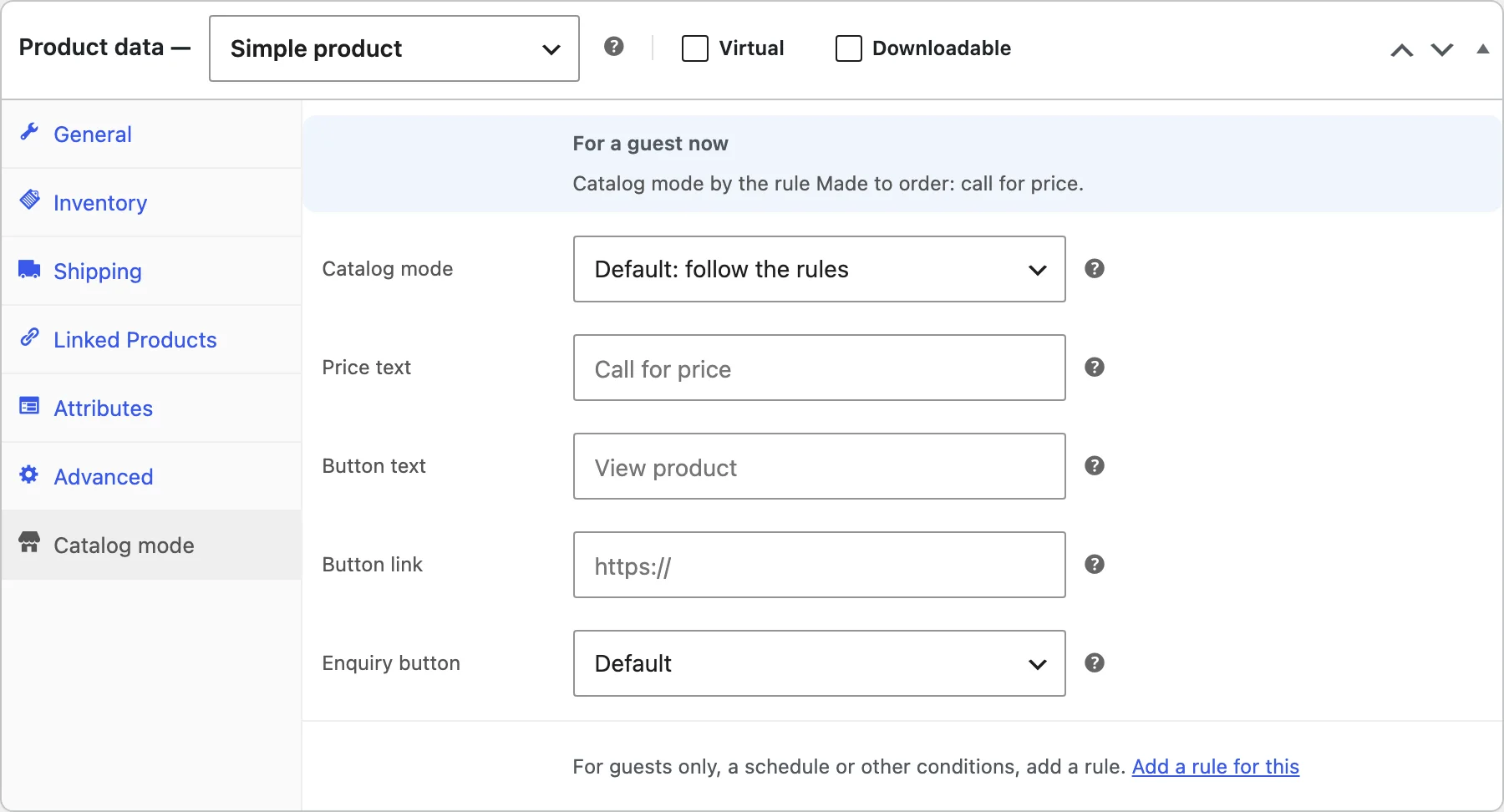
Each product has a Catalog mode tab in Product data. Catalog mode is Default: follow the rules, Always catalog mode or Never catalog mode. Always and Never apply to every visitor at all times and win over the rules; for guests only or a schedule, add a rule. The tab also has the product’s own Price text, Button text and Button link (the Link button’s text and address) and Enquiry button (Default, Show or Hide), and a line that says what a guest sees right now, such as Catalog mode by the rule Guests.
Product categories have the same fields on their add and edit screens, and their subcategories and products follow them. A product’s own setting comes first, then its categories and their parents (when they disagree, Always wins over Never), then the rules in order. Products and categories set to Always use the texts and buttons of the first catalog rule that matches them, or the defaults on Buttons & texts. A variable product’s variations follow the product.
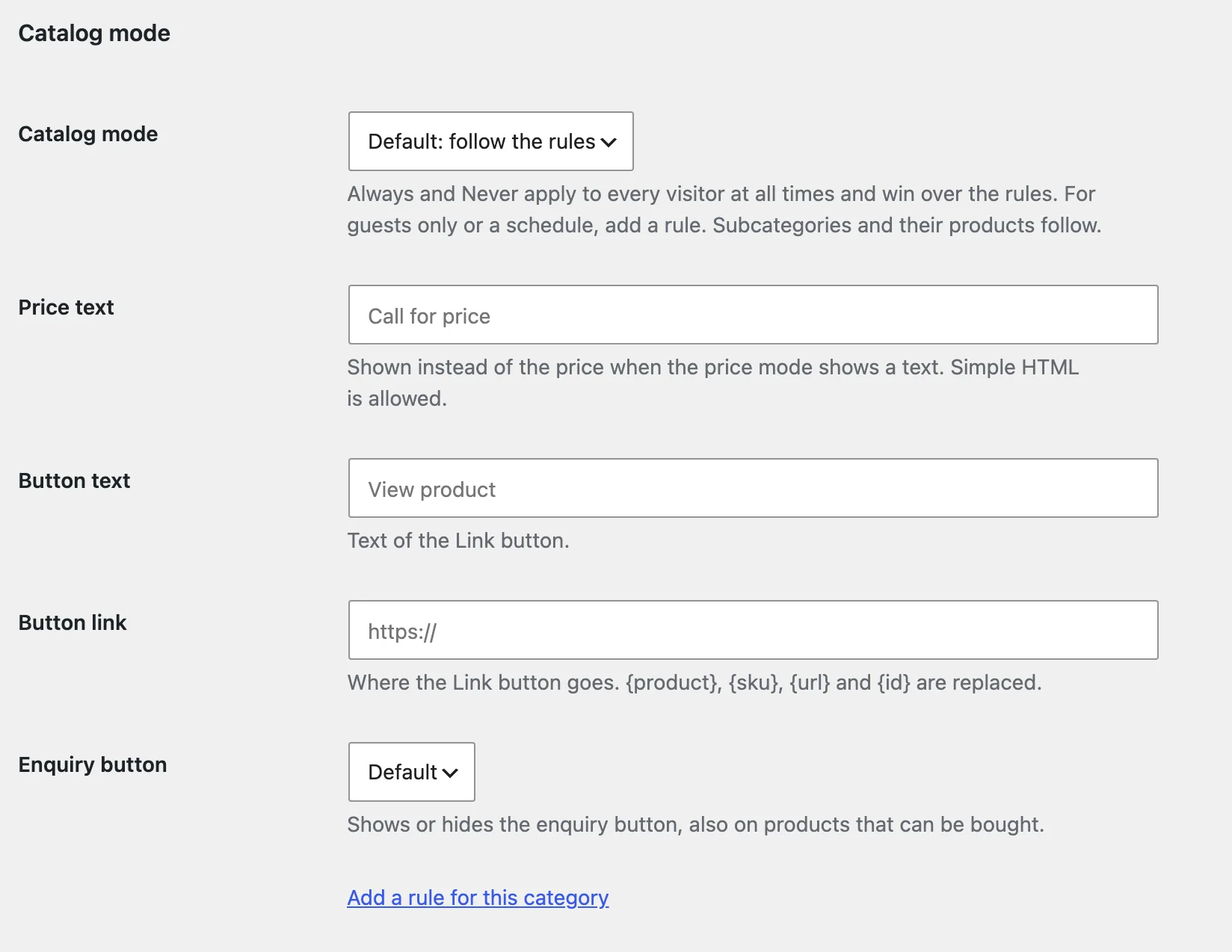
Always and Never work only while Turn on catalog mode is ticked on the Rules tab.
Prices
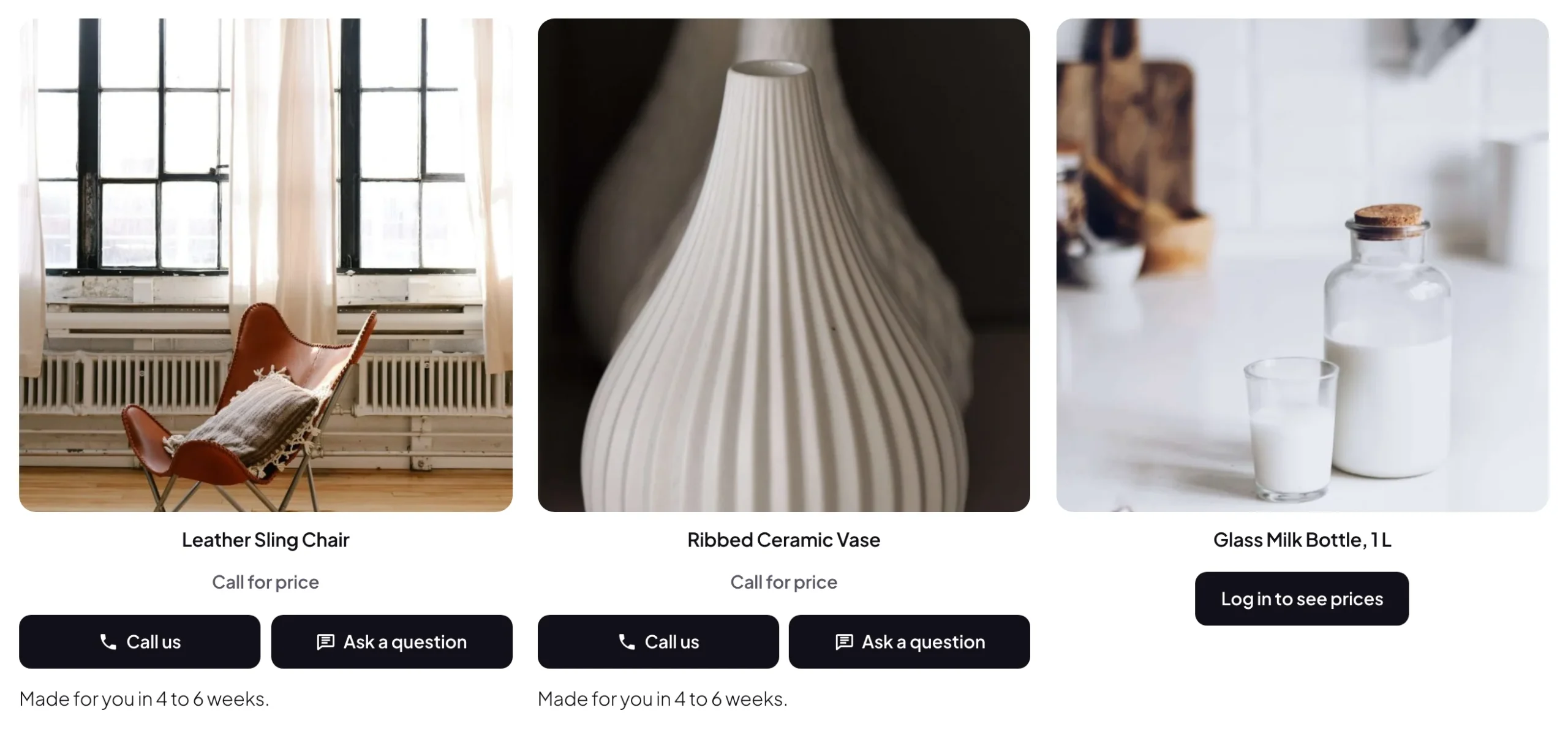
Price has four modes: Show the price, Show only the current price (a sale product shows its sale price without the crossed-out regular price), Show a text instead (Call for price by default) and Hide the price. The defaults are on Buttons & texts, and each rule has its own. A product’s or category’s own price text comes first, then the rule’s, then the default; shop pages and product pages can have different texts, and simple HTML is allowed.
Where the price is changed, the sale badge goes too. With a text or a hidden price, the price is also left out of the variation data the product form reads, WooCommerce’s structured data for search engines, the Store API and the page data blocks read, cart cross-sells and the feeds of our Product Feed Manager. Orders, order emails and wp-admin keep the real prices.
When a rule hides prices on every product for the visitor, the shop drops Sort by price and the price filters. When only some prices are hidden, those products are left out of the price filter results of the shop and the Store API and out of the price filter’s range, and come after the others when sorting by price. On large catalogs, such price-sorted and price-filtered pages take a little longer, as each product’s setting is checked. Settings > Products without a price shows a text, Call for price by default, instead of an empty price.
If an SEO plugin adds its own product schema in place of WooCommerce’s, check its output: Catalog Mode changes WooCommerce’s structured data, not other plugins’ schema.
Buttons and texts
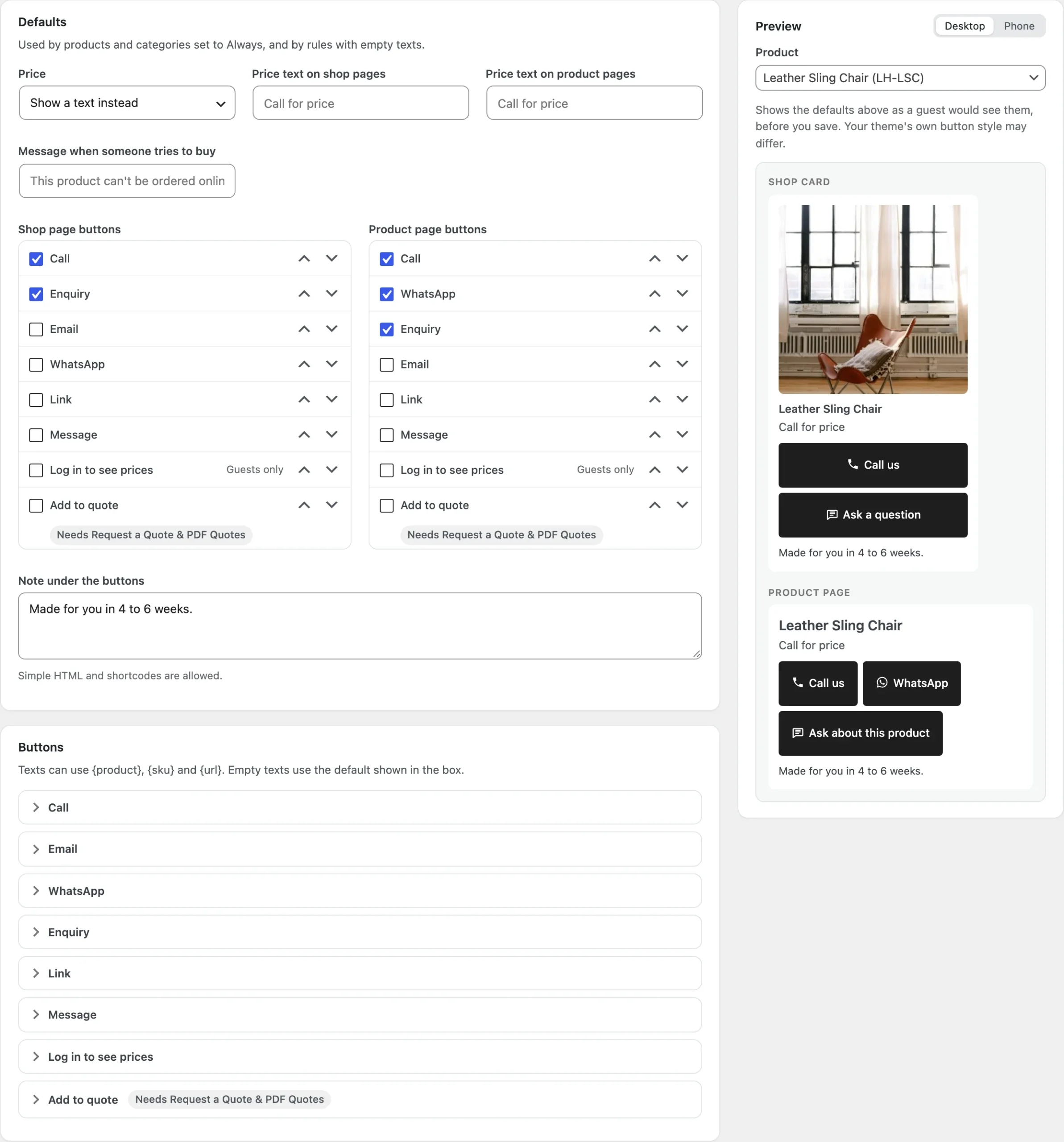
Buttons & texts holds the defaults: the price mode and texts, the Message when someone tries to buy (by default, This product can’t be ordered online.), the Shop page buttons and Product page buttons (Enquiry and Link by default) and the Note under the buttons. They’re used by products and categories set to Always and by rules with empty texts.
Under Buttons, each type has Can be used, its text and an icon (phone, email, WhatsApp, chat, info or none). Texts can use {product}, {sku} and {url}, and empty texts use the default shown in the box.
- Call dials your Phone number through a
tel:link, and Show the number on the button adds the number to its text. - Email opens the shopper’s email program with your Email address (the site admin email when it’s empty) and a Subject with the product name and the chosen options.
- WhatsApp opens a chat with your WhatsApp number (with the country code, digits only) and a message such as Hi, I have a question about {product}{variation}: {url};
{variation}becomes the chosen options on product pages. - Enquiry opens the enquiry form. On shop pages it goes to the product page, or opens the form on the shop page.
- Link goes to the product page, a link of your choice (with
{product},{sku},{url}and{id}) or nowhere, as a label, in the same or a new tab. - Message shows a short text in place of a button (by default, Contact us to order.).
- Log in to see prices shows to guests only. It opens My account and brings the customer back to the product after logging in.
- Add to quote adds the product to the quote of our Request a Quote & PDF Quotes, while that plugin is active.
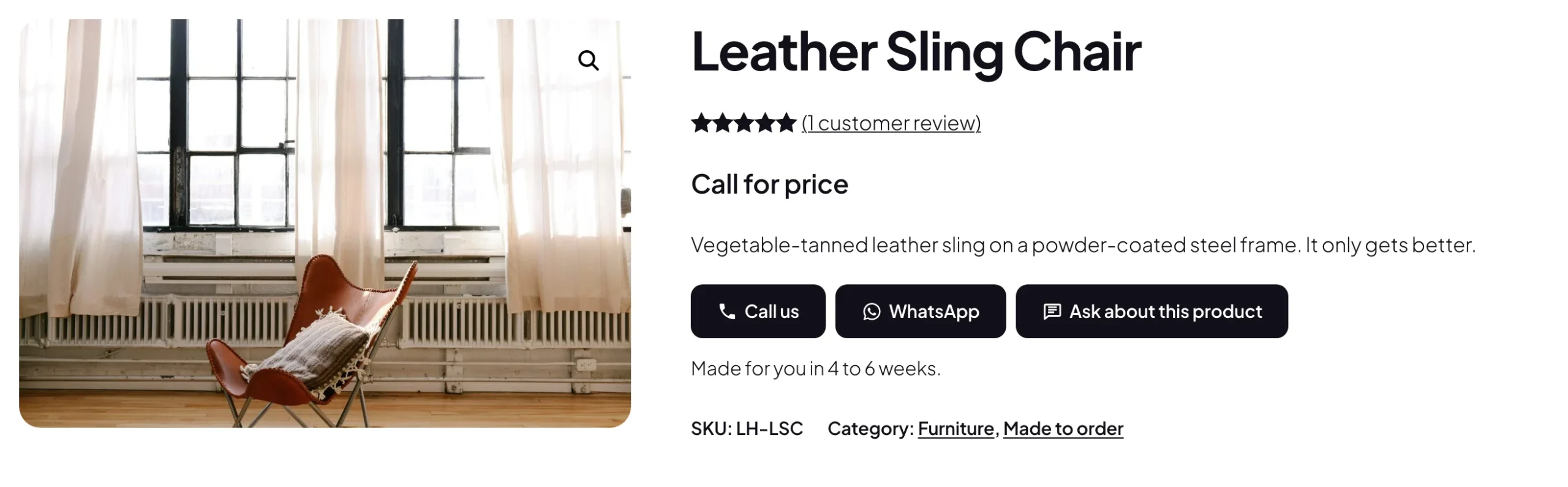
The Call and WhatsApp buttons show only when a number is set, so the Call for price preset needs a phone number here.
Button look and preview
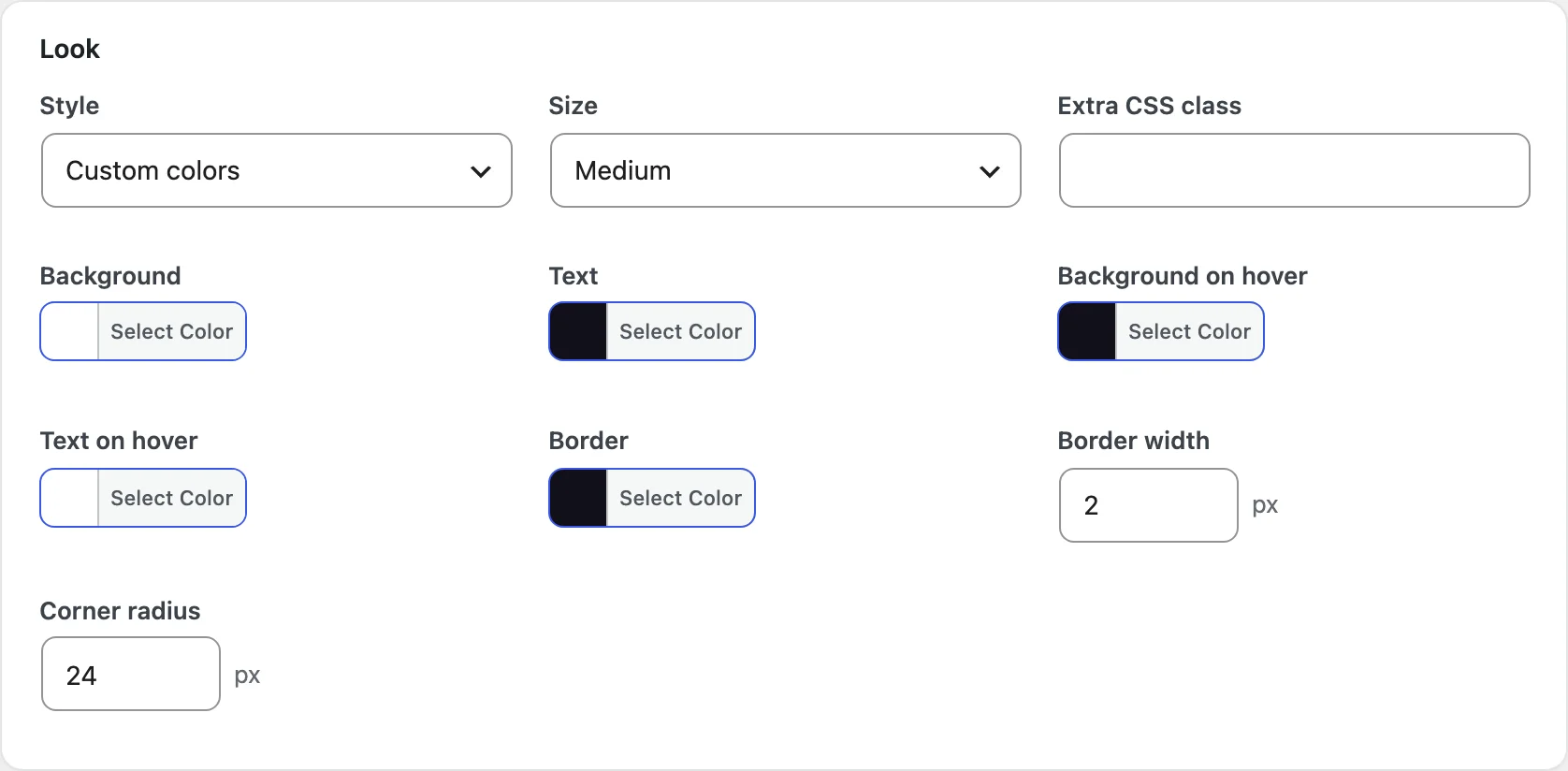
Under Look, Style keeps the theme’s button style (the default) or uses Custom colors: Background, Text, Background on hover, Text on hover, Border, Border width and Corner radius. Size is Small, Medium or Large, and Extra CSS class adds your own class.
The Preview next to the settings shows a shop card and the product page with the settings as a guest would see them, before you save. Switch Screen size between Desktop and Phone, and pick the Product it shows. Your theme’s own button style may differ slightly.
Enquiry form
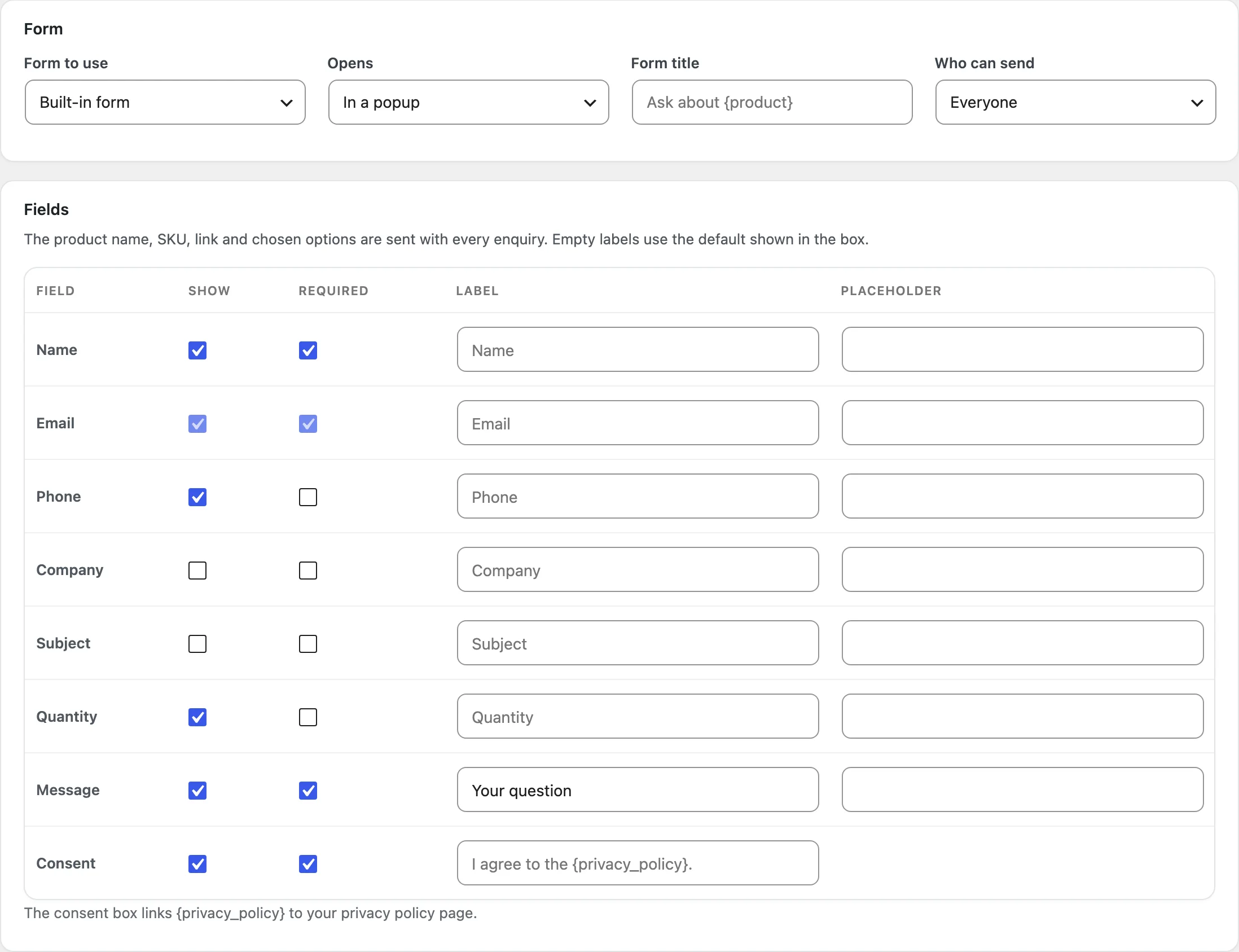
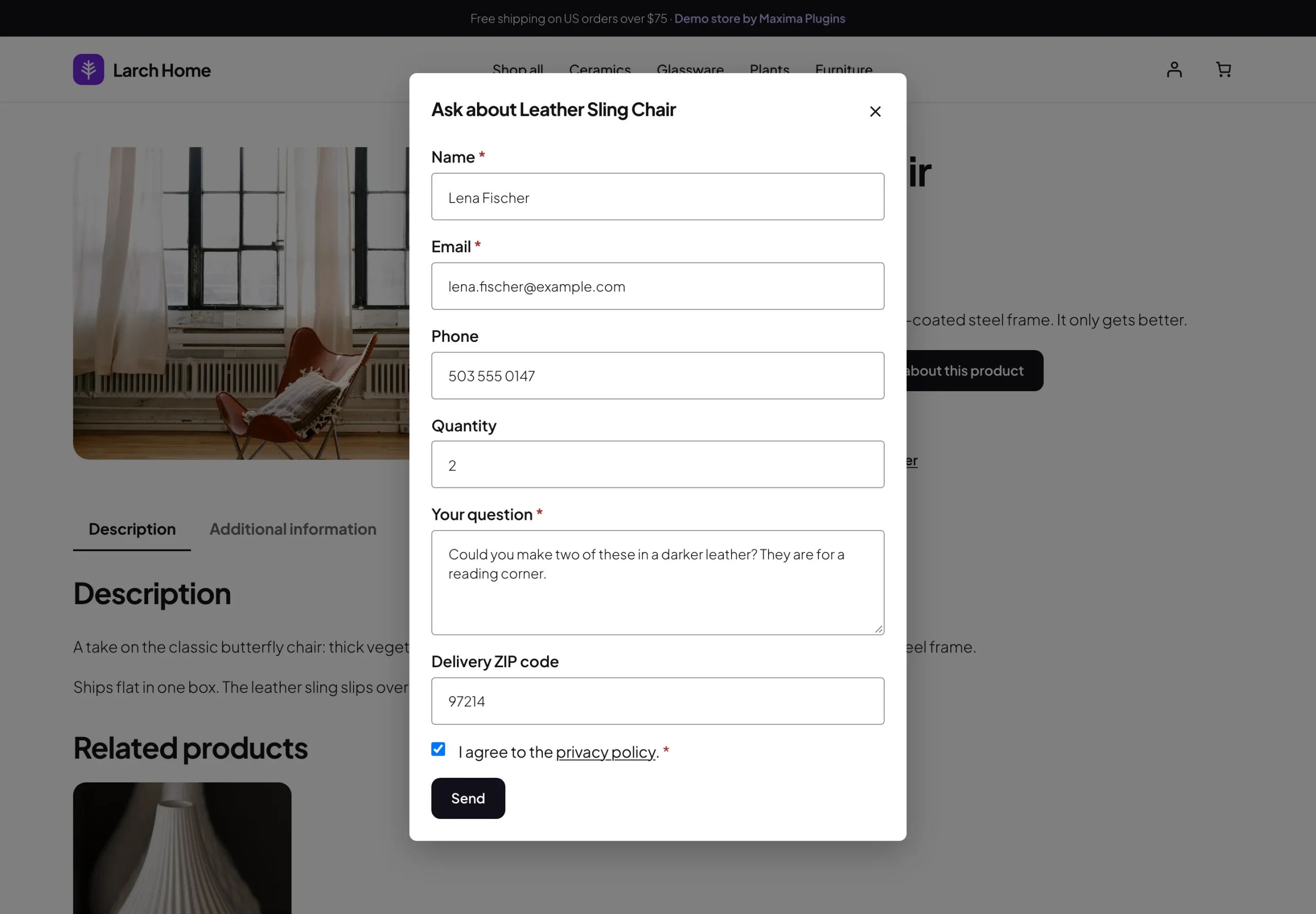
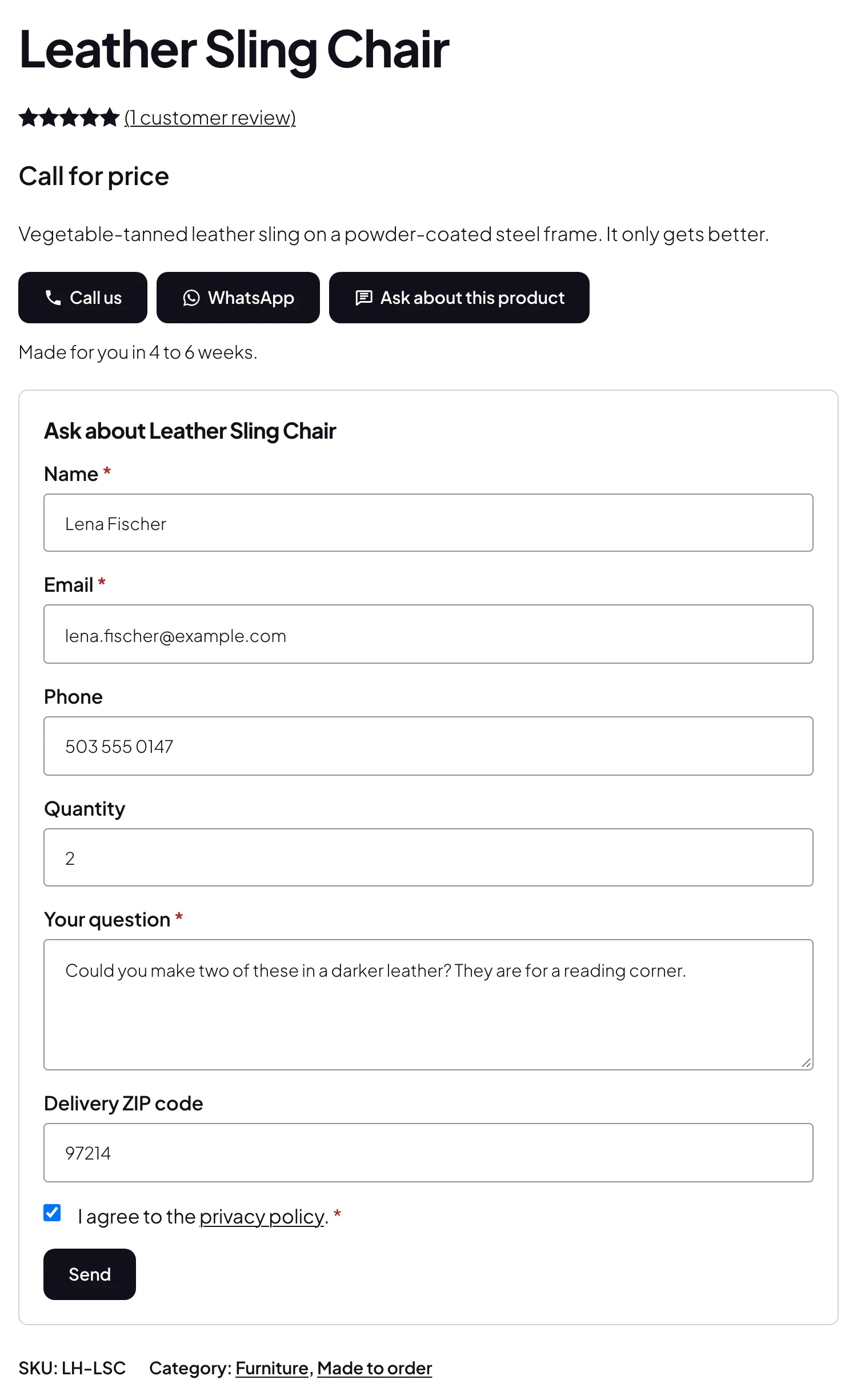
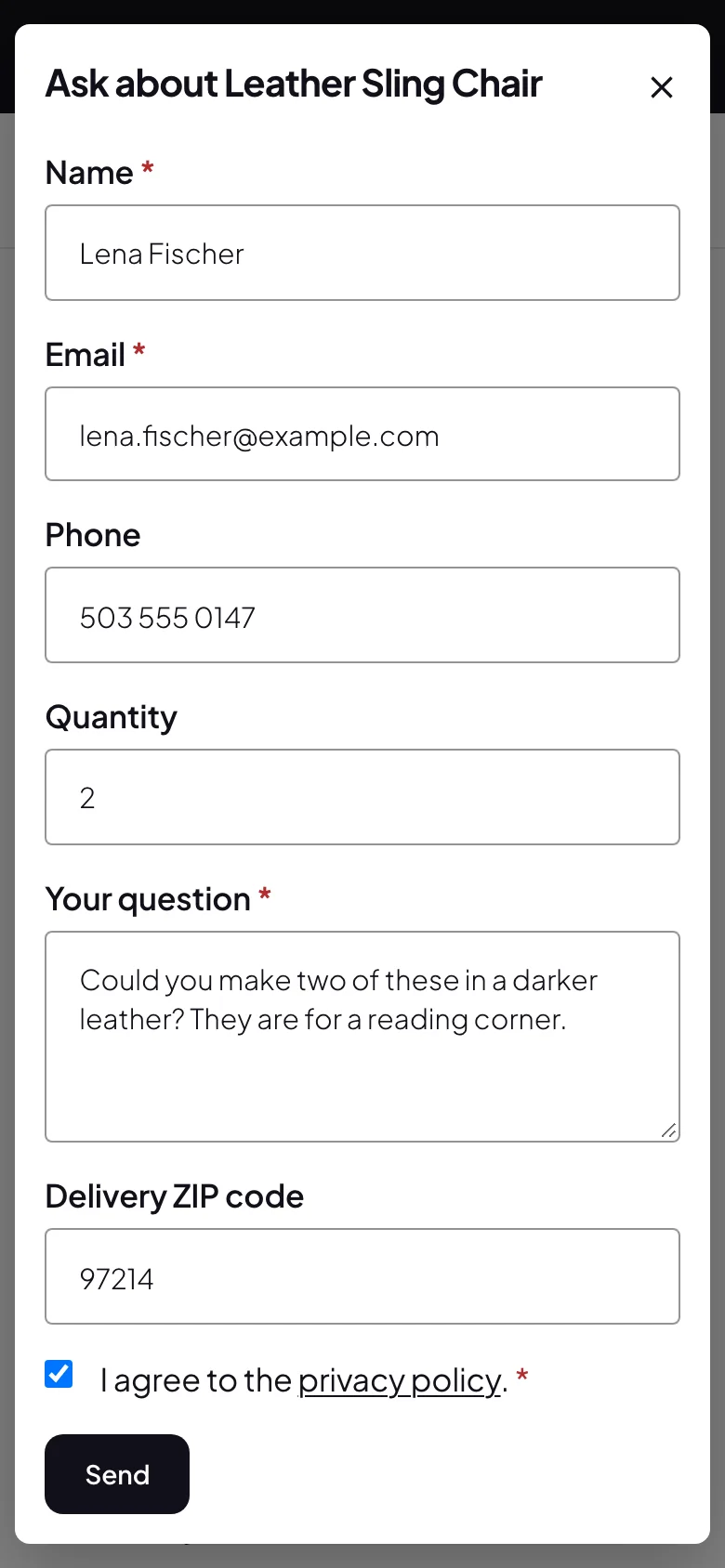
The Enquiry form tab sets up the form. Opens chooses In a popup (the default), Under the buttons, when clicked, Under the buttons, open from the start or In a product tab, named Ask a question. Who can send is everyone or logged-in customers only, and the Form title is Ask about {product} by default.
Fields lists the built-in fields, Name, Email, Phone, Company, Subject, Quantity, Message and Consent, each with Show, Required, a Label and a Placeholder. Email is always shown and required, as the reply goes there. The consent box links {privacy_policy} to the privacy policy page published under Settings > Privacy; until one is published, the box still shows, with “privacy policy” as plain text. Your own fields adds up to 10 more: text, long text, number, dropdown, dropdown with several choices, radio buttons, checkbox or date.
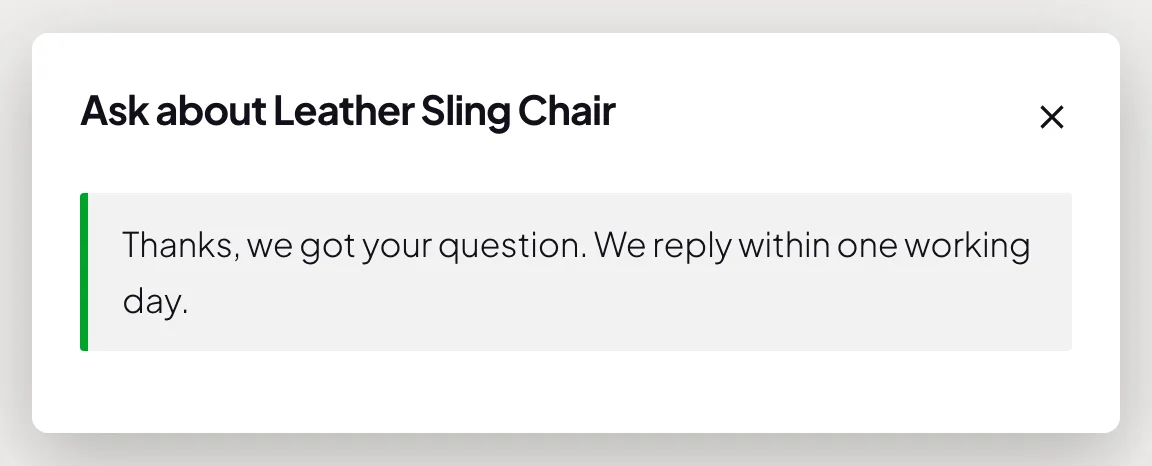
The product name, SKU, link and chosen options are sent with every enquiry. When a variable product’s options aren’t on the page, the form has an Option dropdown. After sending shows a message (by default, Thanks. We got your question and will reply soon.) or goes to a page you choose.
Form to use can also be A form plugin’s shortcode. Enter the input names of the fields that should get the product name, SKU, link and chosen options, and they’re filled in when the form opens. The form plugin then sends and stores those messages, so they don’t appear in Enquiries.
Where the enquiry button shows
On catalog products shows the enquiry button on All catalog products (the default), Only products and categories set to Show, or None. A product’s or category’s own Enquiry button comes first, then the rule’s, then this setting; None turns the button off everywhere.
Also next to Add to cart on products that can be bought adds the enquiry button to products that can still be bought, and Also on out-of-stock and backorder products adds it to them only while they’re out of stock or on backorder. Both are off by default; a product or category set to Show gets the button either way.
Enquiries inbox
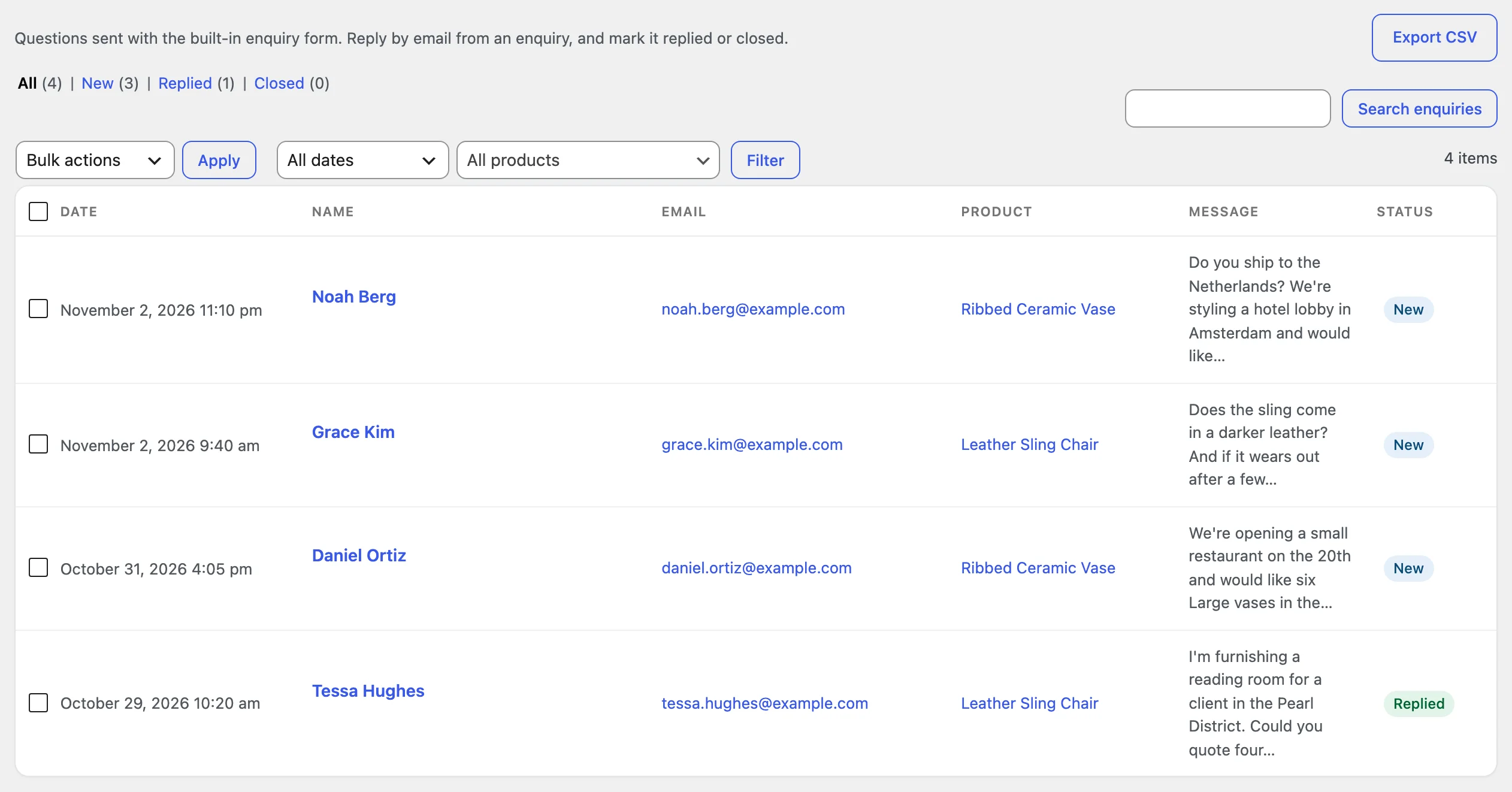
Catalog Mode > Enquiries lists the enquiries sent with the built-in form, newest first, with the date, name, email, product, message and status, and the menu shows how many are new. Filter by status (New, Replied, Closed or Trash), product or month, search, and change several at once with the bulk actions. Export CSV downloads the enquiries of the current view.
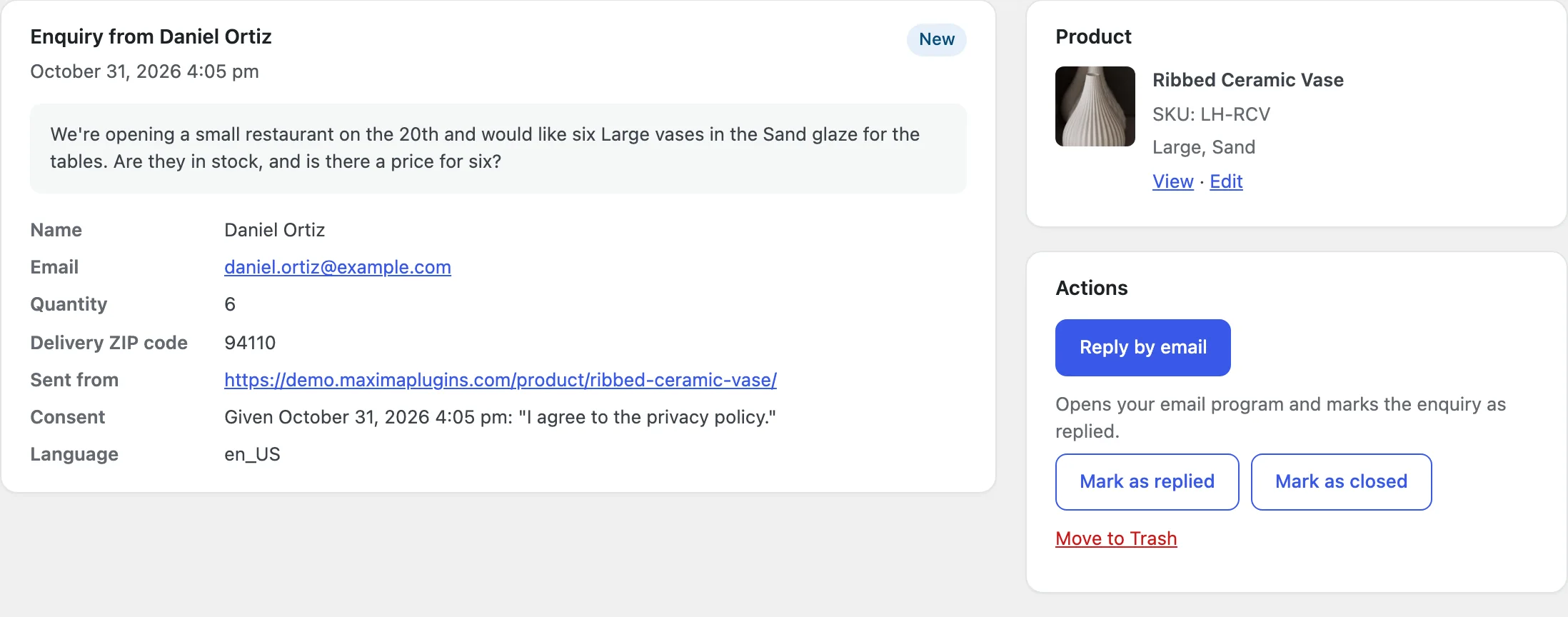
Open an enquiry to see the shopper’s details, the product with its SKU and chosen option, the page it was sent from, the consent and when it was given, and the customer account. Reply by email opens your email program and marks the enquiry as replied; Mark as replied, Mark as closed and Mark as new change the status by hand. If the store’s email couldn’t be sent, the enquiry says so, and it’s kept either way.
Enquiry emails
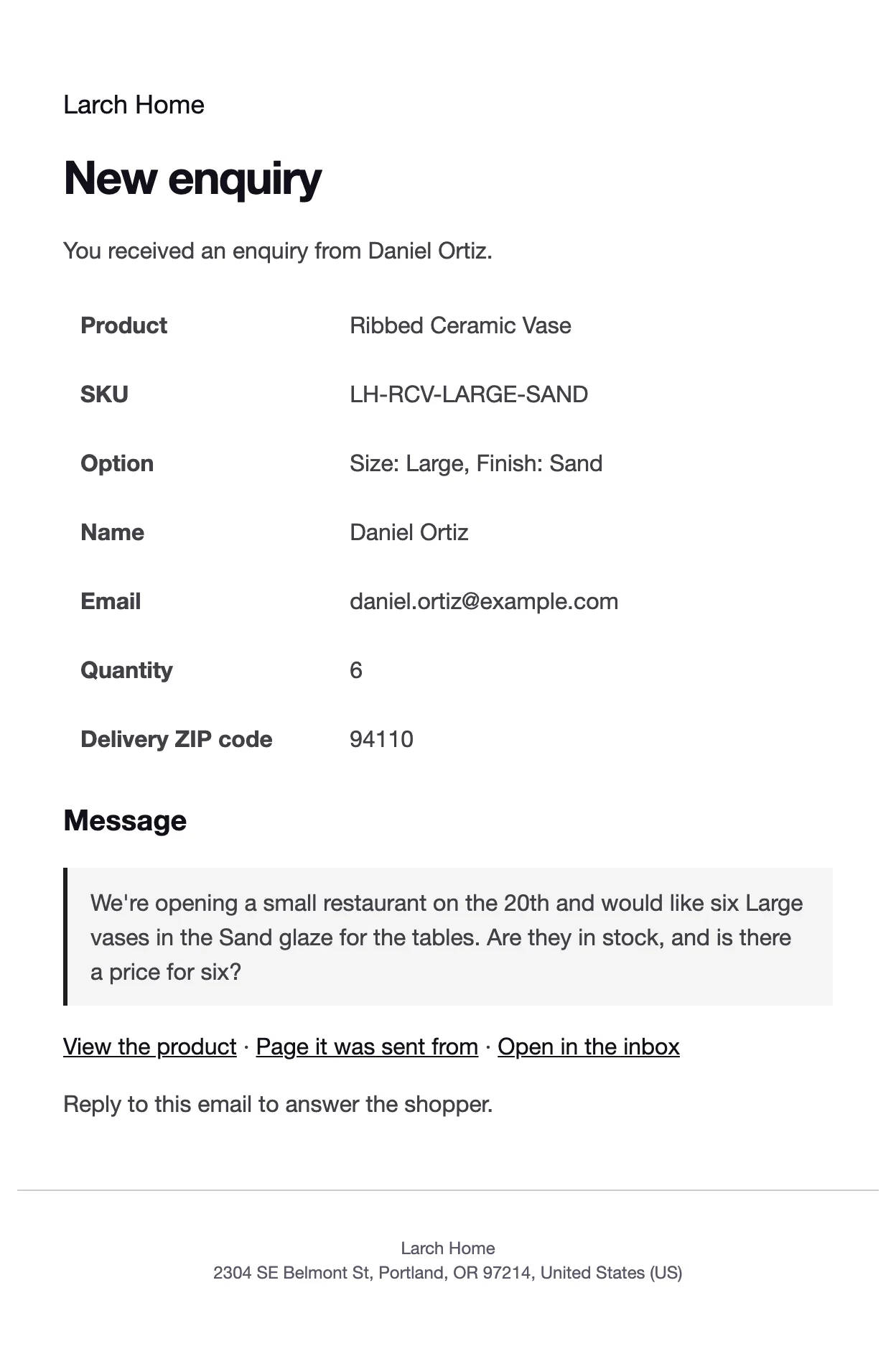
Each enquiry sends the New enquiry email to the addresses in Send enquiries to on the Enquiry form tab, or to the site admin email when it’s empty. Its reply address is the shopper, so you can answer from your email program. With Send the customer a copy on, the shopper gets the Enquiry copy email too.
Both are WooCommerce emails: change their subjects, headings and texts, or turn the New enquiry email off, in WooCommerce > Settings > Emails, where WooCommerce’s email preview shows them with sample details. The Enquiry copy is sent while Send the customer a copy is on, or while it’s enabled there. The links under Sending on the Enquiry form tab open them.
Spam protection and privacy
The form always has a hidden trap field that bots fill in, a time check that turns away forms sent within 3 seconds of opening, and a limit of 5 enquiries per visitor and 100 for the whole store, each counted until an hour passes without an enquiry. Captcha adds Cloudflare Turnstile, hCaptcha or Google reCAPTCHA v3, with the Site key and Secret key from your provider’s dashboard; its script loads only on pages that show the form.
Enquiries hold personal details, so they’re included in WordPress’s Export Personal Data and Erase Personal Data tools, and the plugin suggests text for your privacy policy. The IP address isn’t stored with an enquiry. Remove enquiries after a number of months deletes older enquiries once a day; 0 keeps them.
Schedules
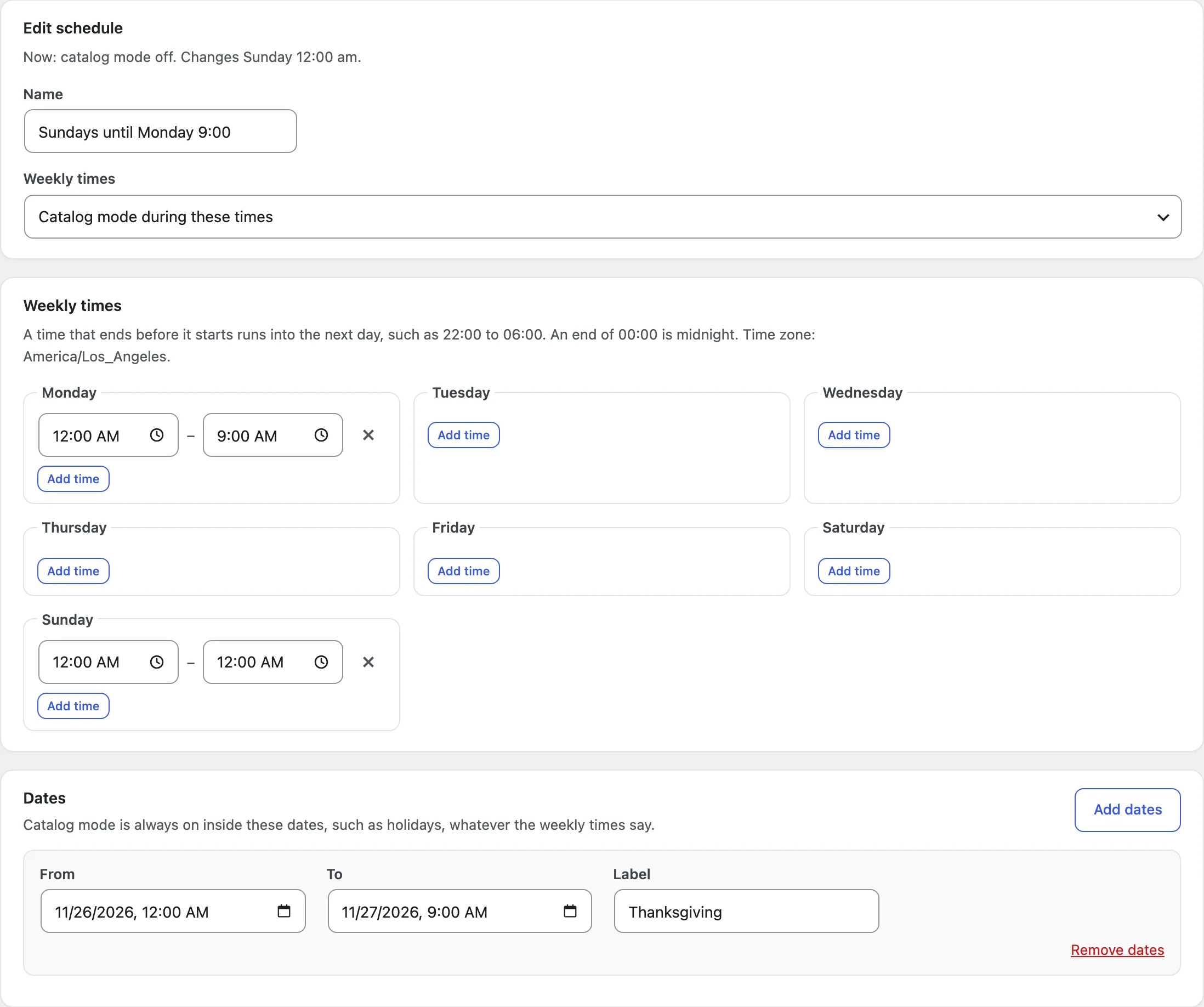
A schedule makes a rule apply only at chosen times. On the Schedule tab, click Add schedule, give it a Name, such as Opening hours, and choose the Weekly times: These are opening hours: catalog mode outside them (the default), Catalog mode during these times, or No weekly times, dates only. Add time adds up to 6 times a day. A time that ends before it starts runs into the next day, such as 10:00 pm to 6:00 am, and an end of 12:00 am is midnight.
Add dates adds date ranges with a label, such as Summer holiday; inside them catalog mode is always on, whatever the weekly times say. Times use the site’s time zone from WordPress’s Settings > General. Each schedule’s card shows the next 7 days and the rules that use it; pick the schedule in a rule’s When. A store can have up to 20 schedules.
When a schedule starts or ends, catalog mode changes from the next page view, and WP Rocket, LiteSpeed Cache, W3 Total Cache, WP Super Cache and SiteGround Optimizer are asked to clear their page caches, so visitors don’t get the old state. Clear caches now in Settings does the same by hand.
When nothing can be bought
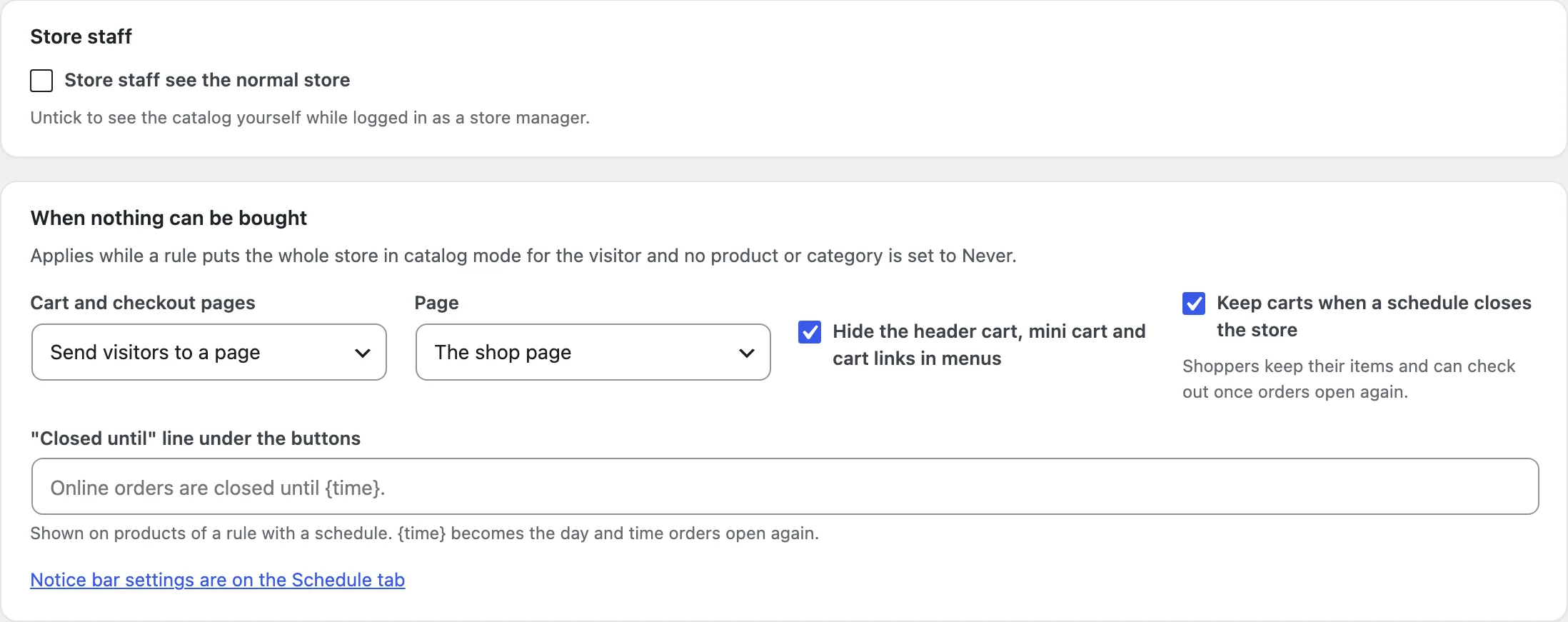
Nothing can be bought when a rule puts the whole store in catalog mode for the visitor (all products, any stock), no exception rule matches them, and no product or category is set to Never. Then Cart and checkout pages sends visitors to a page you choose (the shop page by default) or shows a notice instead, and Hide the header cart, mini cart and cart links in menus (on by default) removes the header cart, the cart widget, the Mini-Cart block and cart and checkout links in menus. Order received, order pay, My account and the quote page of Request a Quote & PDF Quotes stay open.
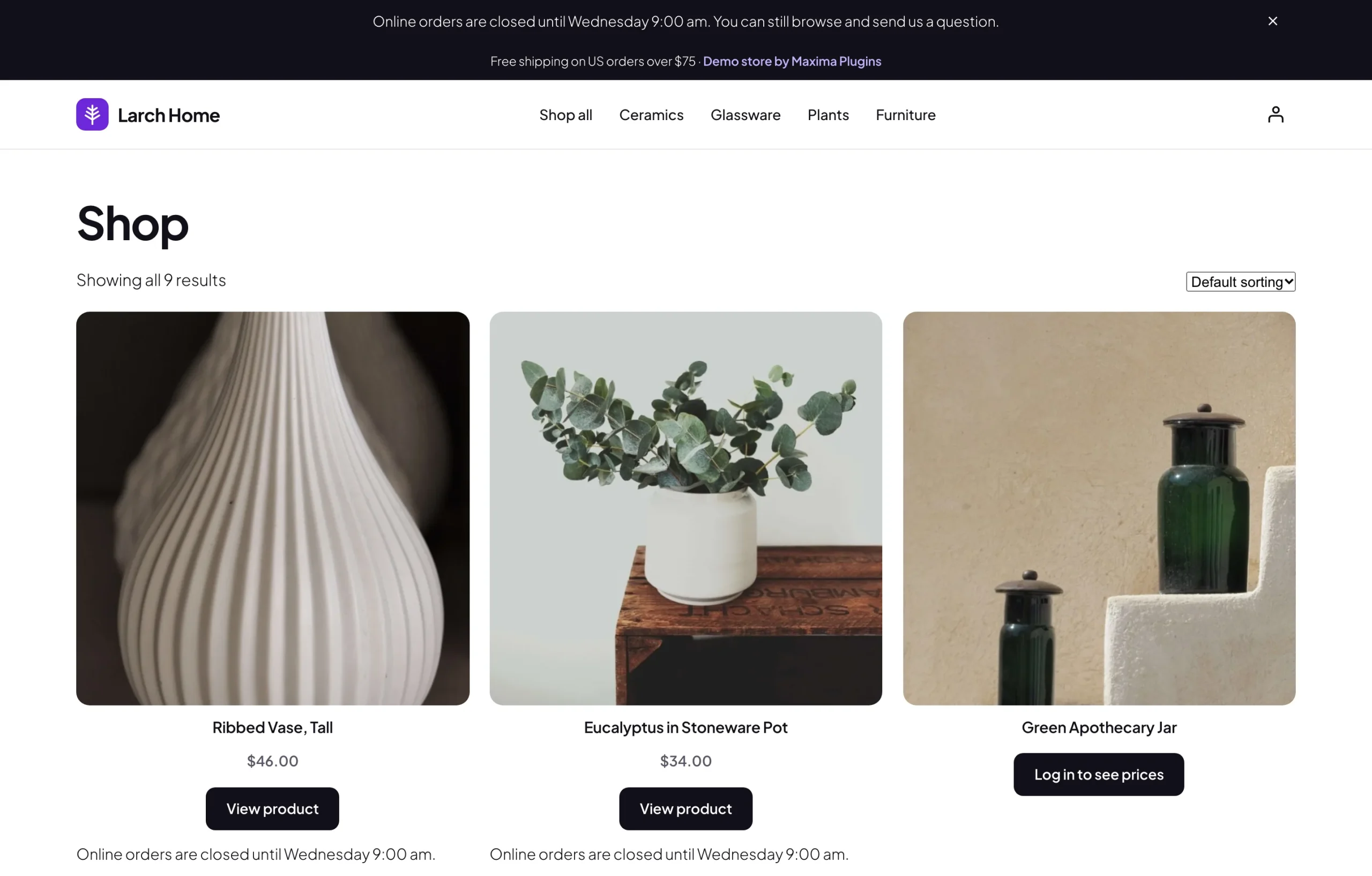
With Keep carts when a schedule closes the store on (the default), shoppers keep their items and can check out once orders open again; checkout is refused until then. On products of a rule with a schedule, the “Closed until” line under the buttons says when, such as Online orders are closed until Monday 9:00 am.
Notice bar
The notice bar is set up at the bottom of the Schedule tab. While nothing can be bought, it shows on every page with the Text (by default, Our store is in catalog mode. Contact us to order.), or, while a schedule closes the store, the Text while a schedule closes the store (Online orders are closed until {time}.). {time} becomes the day and time orders open again in your site’s time format, such as Monday 9:00 am, or the date and time when that’s more than six days away.
Choose the Position (the top of the page or the bottom of the screen), the Background and the Text color, and whether Shoppers can close it for their visit. Untick Show the notice bar to turn it off, and click Save notice bar.
Guests and store staff
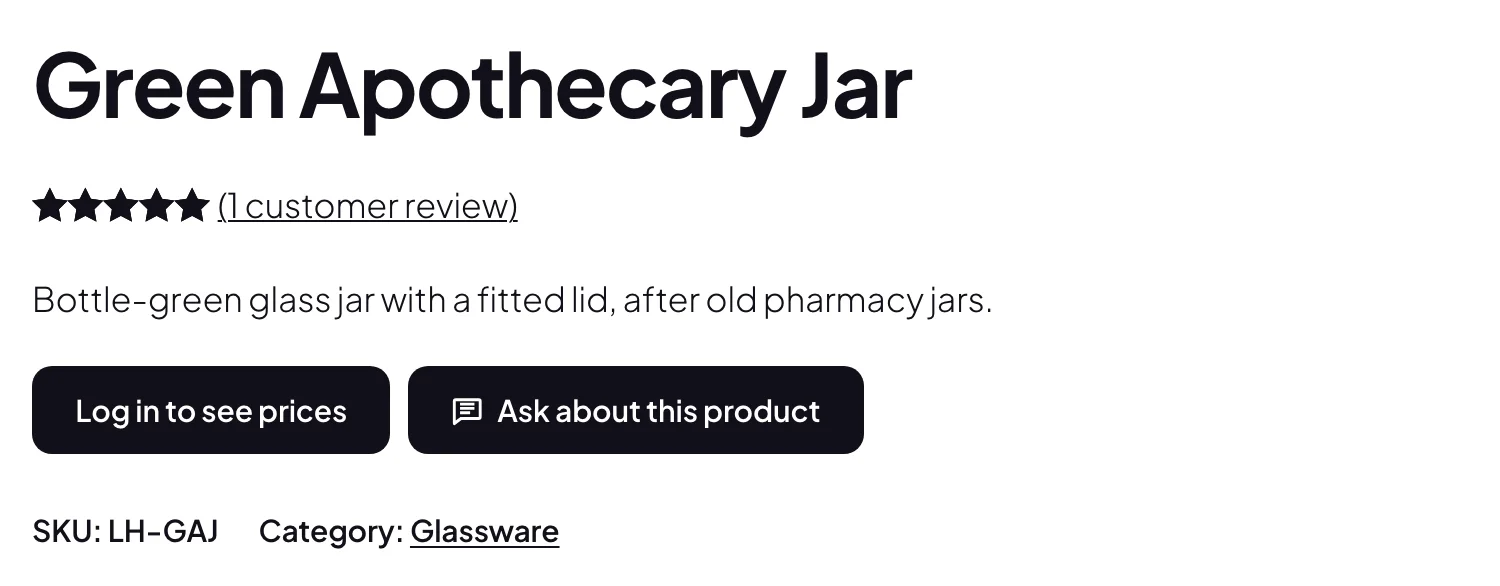
The Log in to see prices button shows to guests only. It opens My account, with the notice Log in to see prices and order. above the login form, and brings the customer back to the product after logging in. A rule for guests only, such as the Guests see a catalog preset, lets customers who log in buy as usual. Hide the Reviews tab from guests on catalog products in Settings (off by default) hides reviews from guests too.
Store staff, the users who can manage WooCommerce such as administrators and shop managers, see the normal store while Store staff see the normal store is ticked in Settings. Untick it to see the catalog while logged in, or check the store in a private window.
Variable products
A variable product and its variations follow the product’s own setting and the rules together. With Keep variation choices, so shoppers can ask about one on (the default, in Settings), shoppers can still pick the options: the buttons take the place of Add to cart, the WhatsApp message and the email subject name the chosen options, and the enquiry is sent with that variation and its SKU. Hidden prices are left out of the variation data too.
With it off, the options aren’t shown, and the enquiry form has an Option dropdown instead.
How buying is stopped
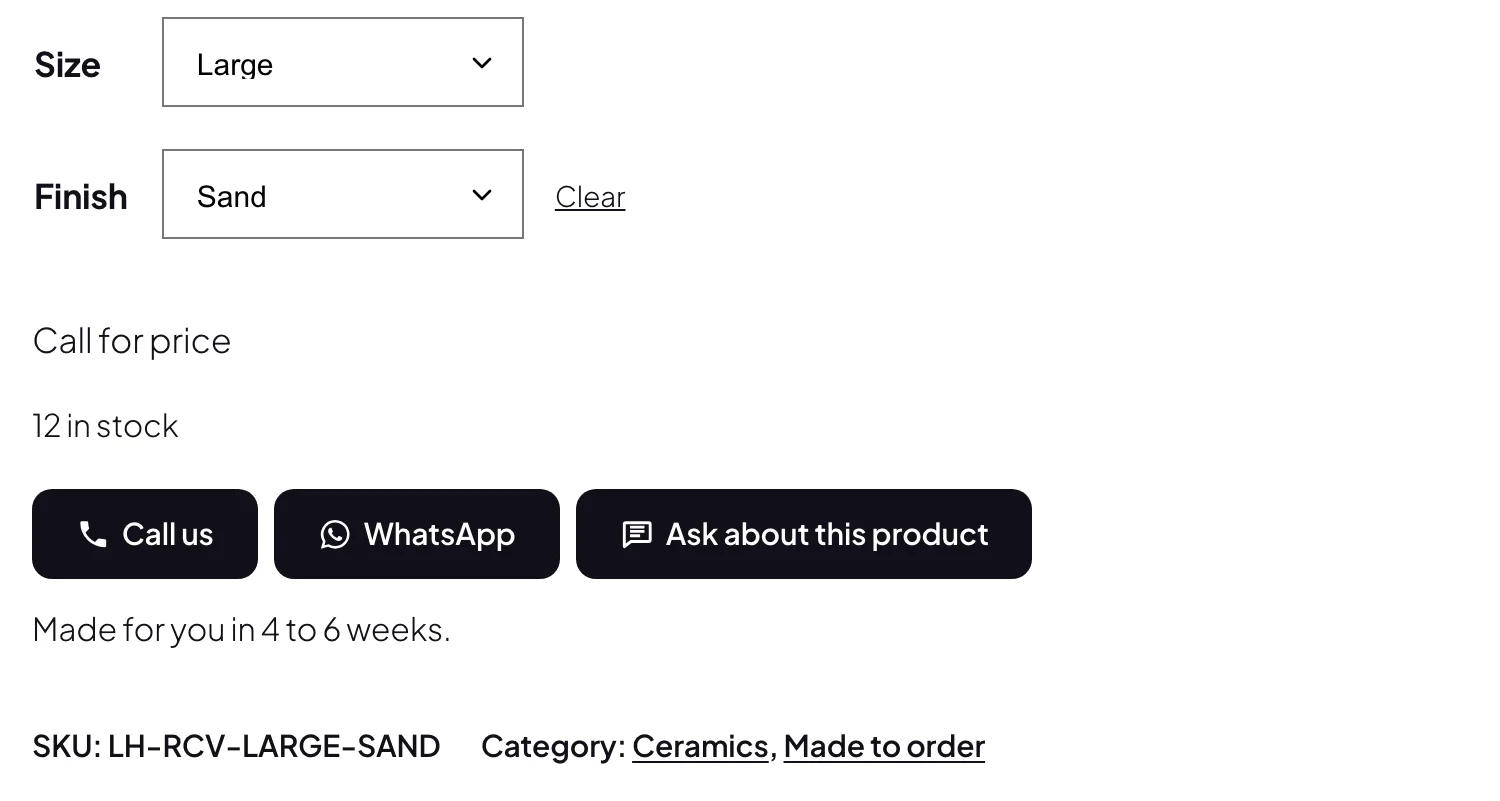
Catalog products are refused on the server, not only hidden on screen. WooCommerce treats them as not for sale, so buy buttons, ?add-to-cart= links, AJAX requests, the Store API that the Cart and Checkout blocks use, and every product block turn them away. Forms, links and AJAX requests show the Message when someone tries to buy; the Store API answers with WooCommerce’s own “not available for purchase” error. The quantity box goes with the button. A catalog product already in a cart is removed, unless its rule follows a schedule and Keep carts when a schedule closes the store is on: then it stays, and the cart can’t be checked out until the schedule ends.
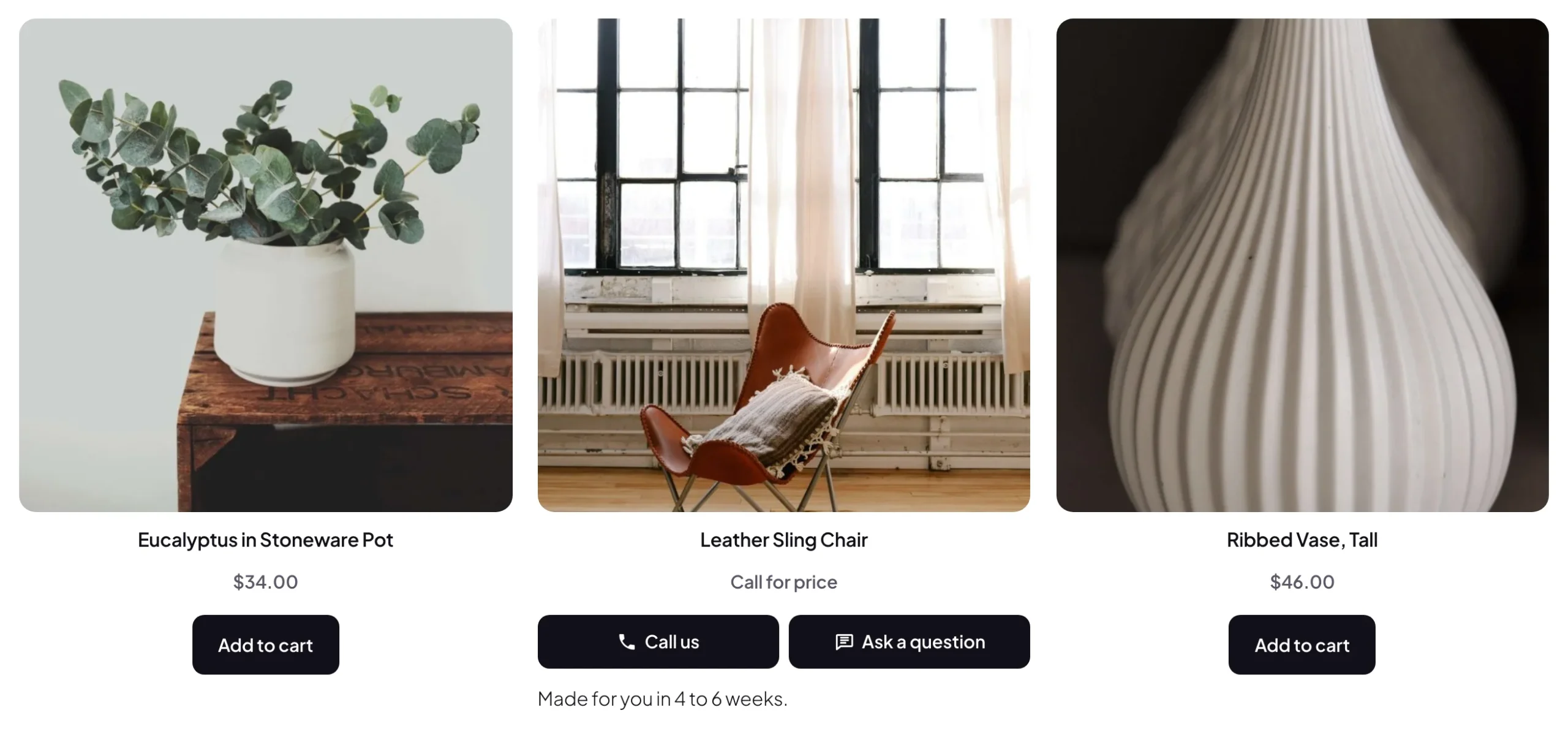
Shop cards and product pages show your buttons where Add to cart was, in classic templates and in the Product Button, Add to Cart form and Add to Cart with Options blocks; the All Products block links catalog products to their page. In classic themes, Buttons position in Settings can put the product page buttons after the price or after the short description instead. If a theme prints its own Add to cart buttons, prices or header cart, such as in a quick view or a sticky bar, tick Hide stray Add to cart buttons, prices and header carts that the theme prints itself; buying stays blocked either way.
Blocks and shortcodes
The Catalog Buttons block and its shortcode show a product’s catalog buttons anywhere, such as in a page builder template. They show nothing for products that can be bought, unless the enquiry button is on for them. The Enquiry Form block and its shortcode show the form for a product, or a general enquiry form on other pages, while catalog mode is on.
[catalog_mode_buttons]shows the current product’s buttons;id="123"picks a product by ID or SKU, andplace="shop"shows its shop card buttons.[catalog_mode_enquiry_form]shows the enquiry form, open on the page, for the current product or forid="123"; elsewhere it’s a general enquiry form.[catalog_mode_buyable_products]lists the products the visitor can still buy, as WooCommerce’s[products]shortcode does, withlimit,columns,paginate,orderby,orderandcategory.
Phones
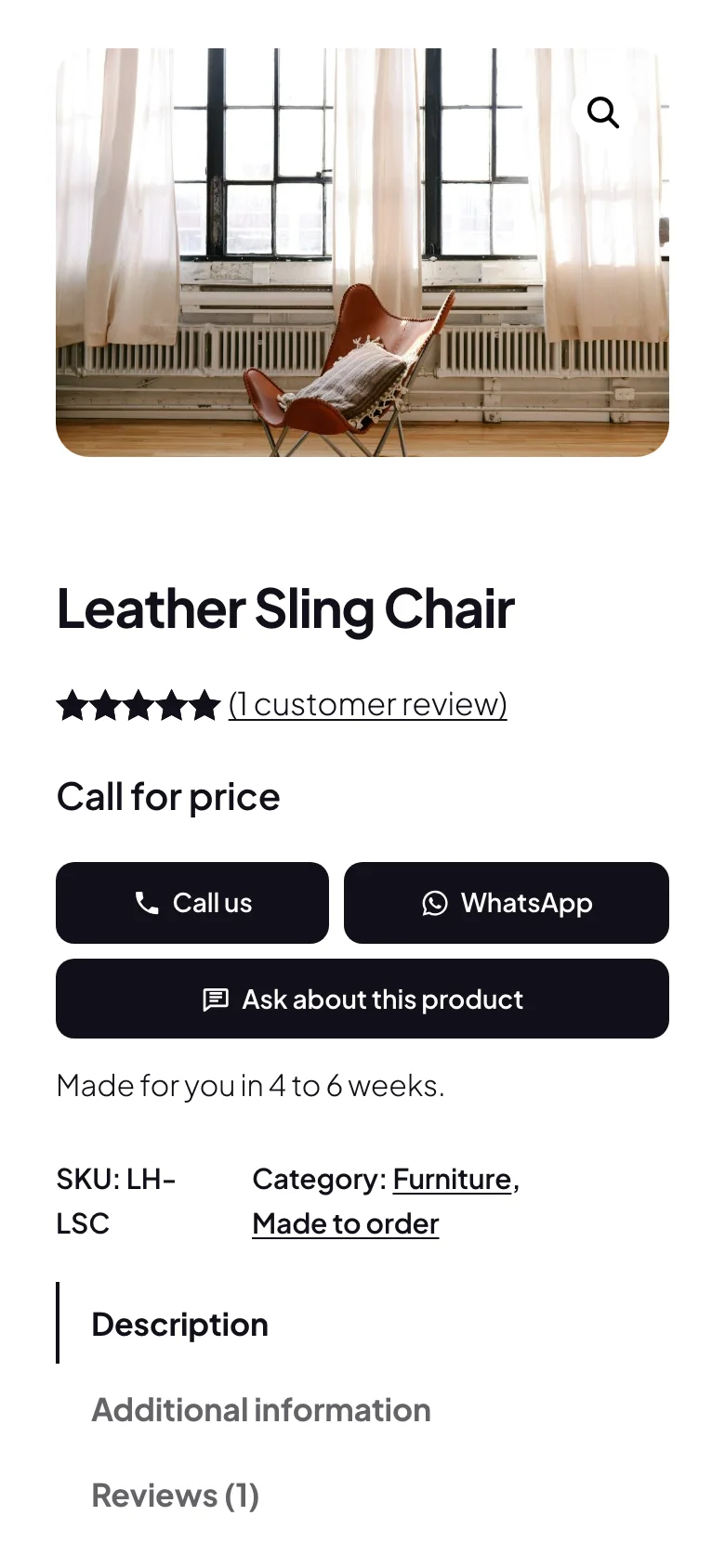
On phones, the product page buttons share the width of the page, the Call button opens the phone’s dialer, the WhatsApp button opens a WhatsApp chat, and the popup form takes almost the whole screen. The Phone screen size of the Buttons & texts preview shows the buttons at phone width.
With other Maxima plugins
Catalog Mode works alongside these plugins of ours:
- Hide Products & Prices by User Role: where it hides a product’s price or Add to cart button from the visitor, its message keeps that spot, and on product pages Catalog Mode’s buttons show under its message.
- Custom Add to Cart Button: catalog products show Catalog Mode’s buttons, and products that can still be bought keep the button it gives them.
- Request a Quote & PDF Quotes: the Add to quote button can be ticked like the others, and it’s added on its own where that plugin has a quote rule for a catalog product. The quote page stays open while nothing can be bought.
- Product Feed Manager: products whose price is hidden from guests get empty price fields in your feeds.
Settings
| Setting | What it does |
|---|---|
| Rules | The catalog mode switch, and the rules in order: products, visitors, countries, schedule, price, buttons, the enquiry button and a note. |
| Buttons & texts | The default price mode and texts, the buttons on shop and product pages, the note, each button’s text, icon and link, the look and the preview. |
| Enquiry form | The built-in form or a form plugin’s shortcode, where it opens, who can send, the fields, where the enquiry button shows, the recipients, the copy to the customer, removing old enquiries and the captcha. |
| Enquiries | The inbox, with statuses, search, filters, bulk actions and CSV export. |
| Schedule | Weekly times and dates for rules, and the notice bar. |
| Settings | Store staff, the cart and checkout while nothing can be bought, the header cart, kept carts, the closed-until line, the buttons position, variation choices, reviews, products without a price, the theme fallback and caches. |
| Product data > Catalog mode | A product’s catalog mode, price text, button text and link, and enquiry button. |
| Product categories | The same fields for a category, its subcategories and their products. |
For developers
| Hook | Use |
|---|---|
cmca_decision | Change whether a product is in catalog mode for a visitor and what shows in its place; return null to let it be bought. |
cmca_rules | Change the rules before they are applied or shown. |
cmca_viewer_bypasses | Decide whether a visitor sees the normal store, as store staff do by default. |
cmca_box_buttons | Change the button types shown for a product, in order. |
cmca_button | Change one prepared button: its text, link and attributes. |
cmca_form_fields | Change the enquiry form fields, as drawn and as checked when the form is sent. |
cmca_enquiry_rate_limit | Change how many enquiries one visitor can send (default 5; the count starts again an hour after their last enquiry). |
cmca_enquiry_store_rate_limit | Change how many enquiries the whole store accepts (default 100, 0 for no limit; the count starts again an hour after the last enquiry). |
cmca_enquiry_ip_address | Change the IP address the rate limit counts by, for stores behind a trusted proxy or CDN. |
cmca_recaptcha_min_score | Change the lowest reCAPTCHA v3 score an enquiry needs (default 0.5). |
cmca_purge_page_caches | Return false to stop clearing page caches when a schedule changes or the settings are saved. |
cmca_admin_capability | Let other roles manage catalog mode (default manage_woocommerce, which shop managers have). |
cmca_enquiry_created | Runs after an enquiry is saved; the emails are sent from it. |
cmca_schedule_changed | Runs when a schedule starts or ends. |
cmca_before_actions | Runs before the button box; cmca_after_actions runs after it. |
To change the markup, copy files from public/templates/ to yourtheme/catalog-mode/, such as actions.php for the button box, enquiry-form.php for the form or notice-bar.php for the notice bar. The email templates in includes/emails/templates/ go to yourtheme/catalog-mode/emails/. The buttons and the form fire the events cmca:open, cmca:close, cmca:sent, cmca:error and cmca:variation, which bubble up from the box.
Frequently asked questions
Why can I still buy a catalog product?
Store staff see the normal store, so check in a private window, or untick Store staff see the normal store in Settings. Then check that Turn on catalog mode is ticked and saved on the Rules tab, that the rule is on, and that no exception rule above it, and no Never setting on the product or its categories, matches. The product’s Catalog mode tab says what applies to a guest right now.
Why doesn’t a button show?
The Call and WhatsApp buttons need a number on Buttons & texts. Every button also needs Can be used ticked there, and must be ticked in the rule’s button list, or in the defaults for products and categories set to Always. The enquiry button also follows On catalog products on the Enquiry form tab and the product’s and category’s own choice, and Log in to see prices shows to guests only.
Why does the cart still show?
The header cart, the mini cart and cart links are hidden only while nothing at all can be bought: a rule must cover all products and any stock for the visitor, no exception rule may match them, and no product or category may be set to Never. While some products can still be bought, the cart stays for them.
Why doesn’t a country rule match?
Logged-in customers are matched by their billing country, and guests by WooCommerce’s geolocation. Check that geolocation works on your store, with a MaxMind license key in WooCommerce > Settings > Integration or a host such as Cloudflare that passes the country, and on cached pages set Default customer location to Geolocate (with page caching support).
How do I remove all data when deleting the plugin?
Add define( 'CMCA_REMOVE_ALL_DATA', true ); to wp-config.php before deleting the plugin. The settings, rules, schedules, enquiries and the plugin’s product and category fields are then removed; WooCommerce’s own data stays.
Changelog
1.0.0 · November 3, 2026
- Catalog mode for the whole store, categories, tags, brands, product types or products, with rules for visitors, roles and countries, exception rules and product and category settings.
- Buying refused on the server, for buttons, links, AJAX, the Store API and blocks, with the cart and checkout closed while nothing can be bought.
- Four price modes with texts, and hidden prices left out of variation data, structured data, the Store API, the blocks’ page data and Product Feed Manager feeds.
- Call, email, WhatsApp, enquiry, link, message, log-in and quote buttons, with a custom look and a live preview.
- An enquiry form with an inbox, emails, CSV export and spam checks; schedules with a notice bar; blocks and shortcodes.