Advanced Coupons adds Buy X get Y, shipping discount and fixed price coupons, free gifts, bulk codes, coupons sent by email and next-order coupons to WooCommerce’s own coupon screen.
Requirements
- WordPress 6.8 or newer
- WooCommerce 10.0 or newer
- PHP 7.4 or newer
- Works with classic and block themes, the Cart and Checkout blocks, and High-Performance Order Storage.
Installation
- Download
advanced-coupons.zipfrom My account > Downloads. - In WordPress, go to Plugins > Add New Plugin > Upload Plugin, choose the zip file and click Install Now.
- Click Activate. Everything is on the coupon screen under Marketing > Coupons, in new tabs of the Coupon data box. Coupon categories are under Marketing > Coupon categories.
Quick start
- Go to Marketing > Coupons and add a coupon with a code, such as GLASS3.
- On the General tab, choose Buy X get Y as the discount type.
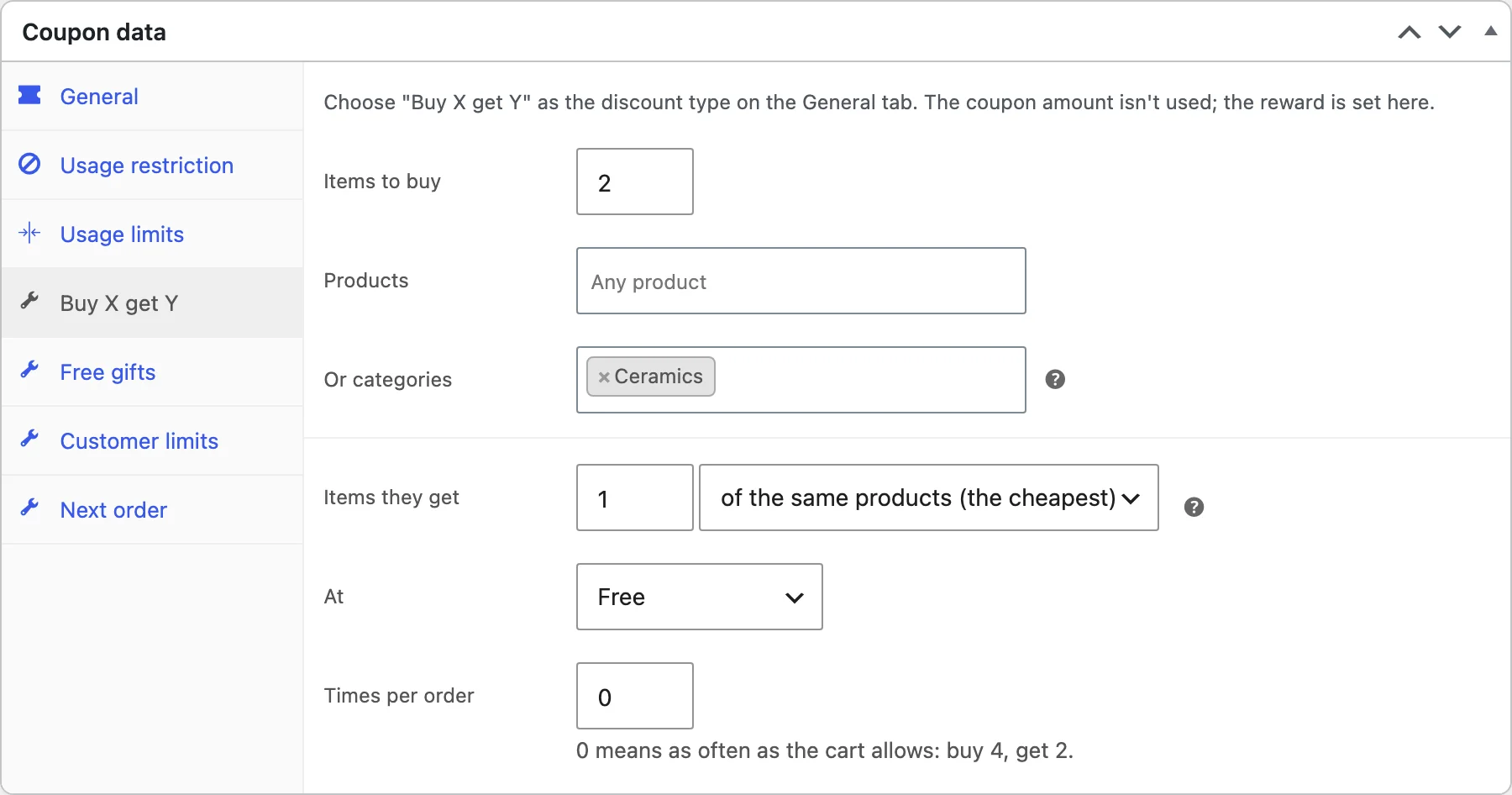
- On the Buy X get Y tab, set Items to buy to 2 with the products or categories, and Items they get to 1 of the same products (the cheapest) at Free.
- Publish the coupon, then add three of those products to the cart and apply the code.
Buy X get Y
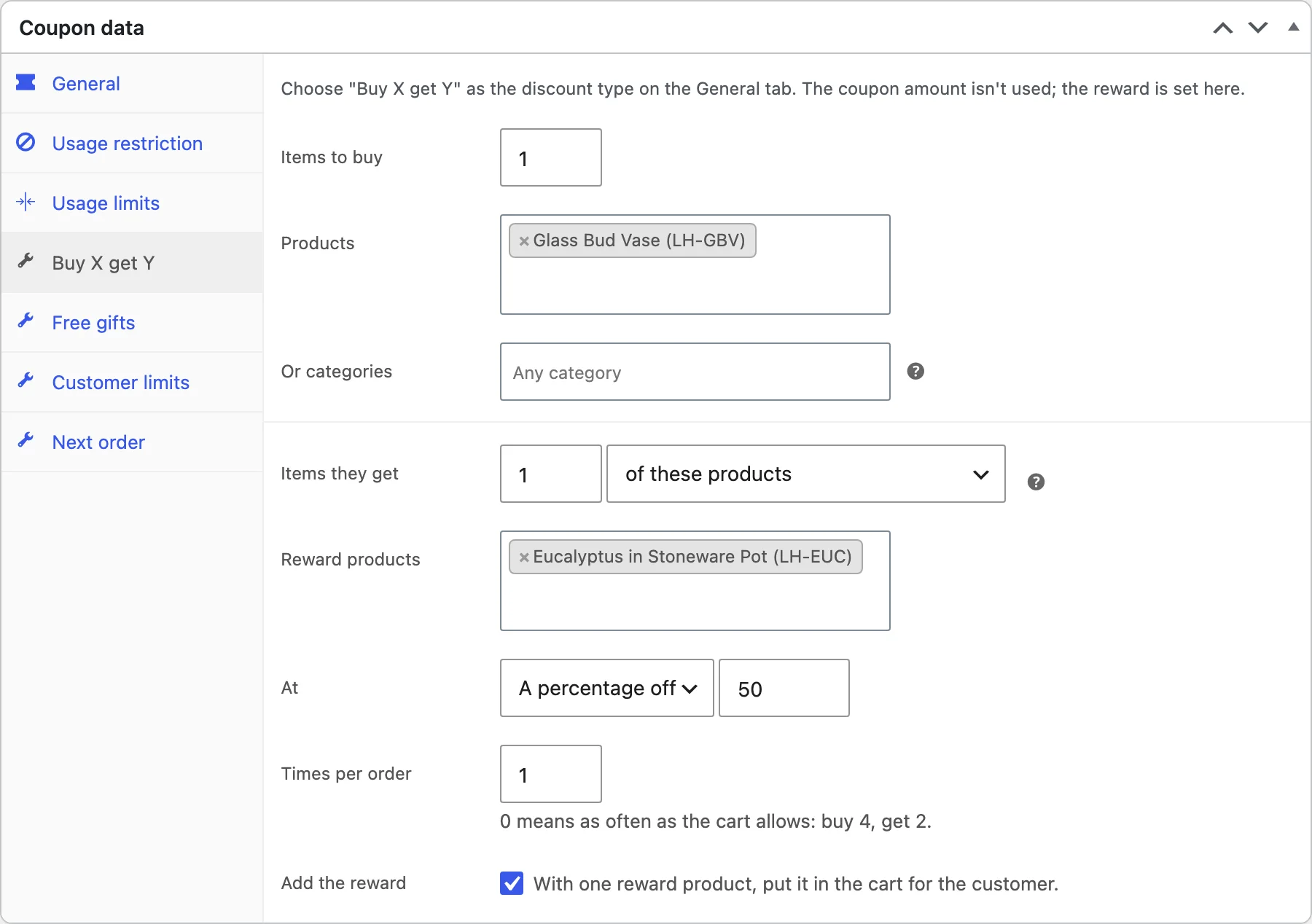
Choose Buy X get Y as the discount type. On its tab, set how many items the customer buys and from which products or categories, then what they get: the same products (the cheapest), other products or a category, free, a percentage off or at a set price.
Times per order limits how often the reward applies; 0 means as often as the cart allows, so buy 4 gets 2. With one reward product, tick Add the reward to put it in the cart for the customer.
Shipping discounts
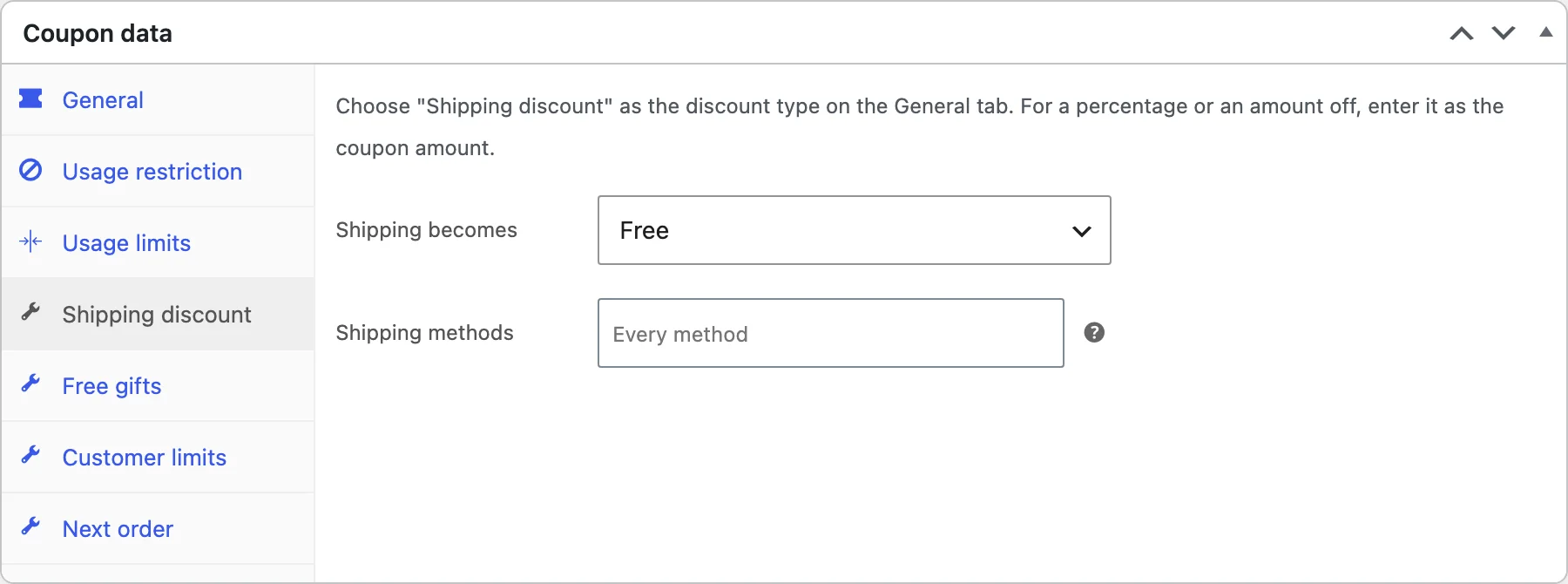
Choose Shipping discount as the discount type. On its tab, choose what shipping becomes (free, a percentage off or an amount off) and the methods it applies to. Other methods keep their price.
Fixed price per product
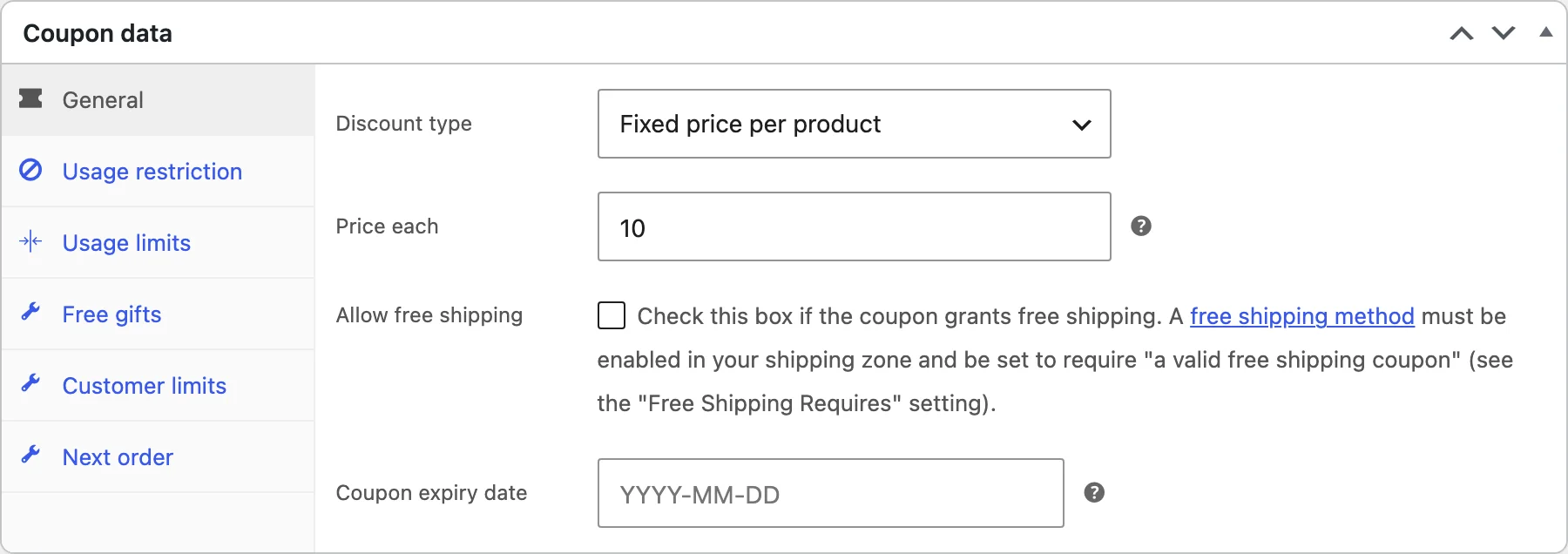
Choose Fixed price per product and enter the price each. Products and categories chosen on the Usage restriction tab are sold at that price, such as any vase for $10.
Free gifts
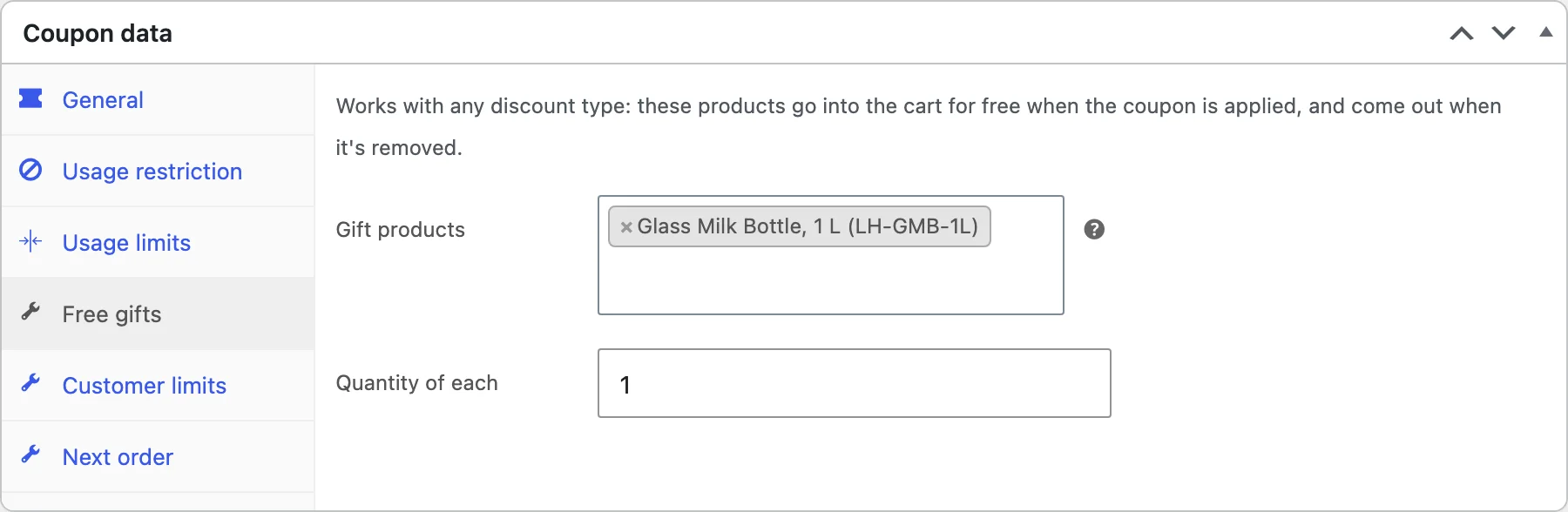
On the Free gifts tab of any coupon, choose gift products and the quantity of each. They are added to the cart for free when the coupon is applied, can’t be changed in quantity, and are removed with the coupon.
Customer limits
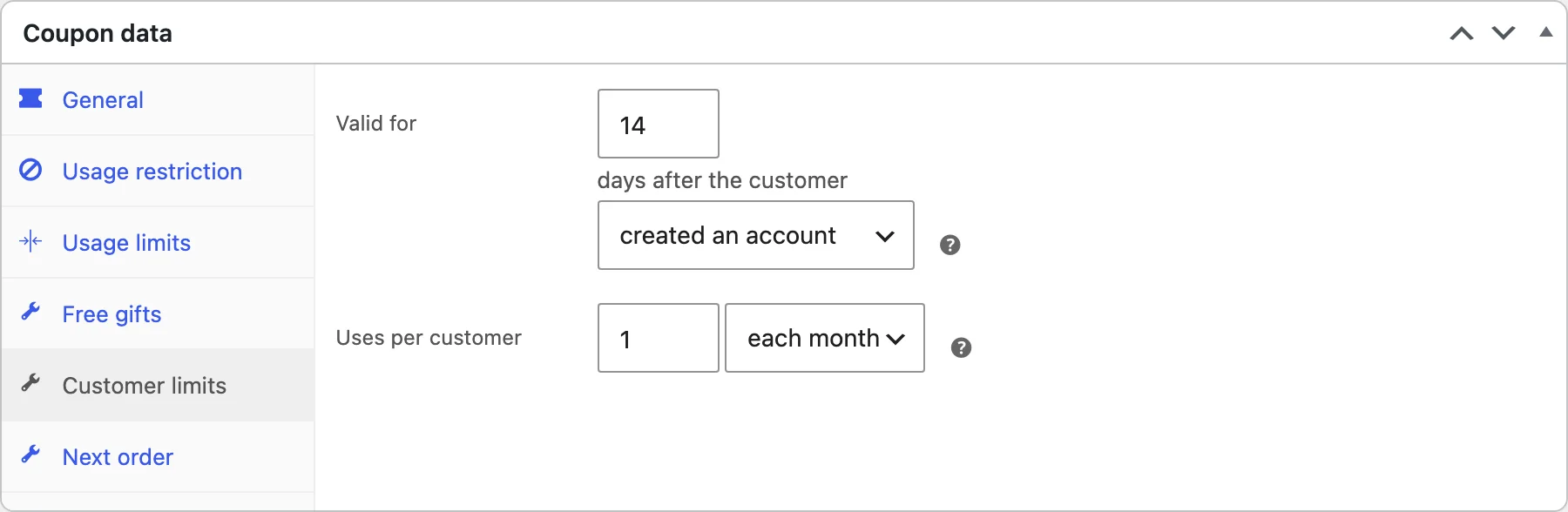
On the Customer limits tab, make a coupon valid only for a number of days after the customer created an account or placed their first order, and limit uses per customer each day, week or month. Uses are counted by account or billing email.
Generating codes
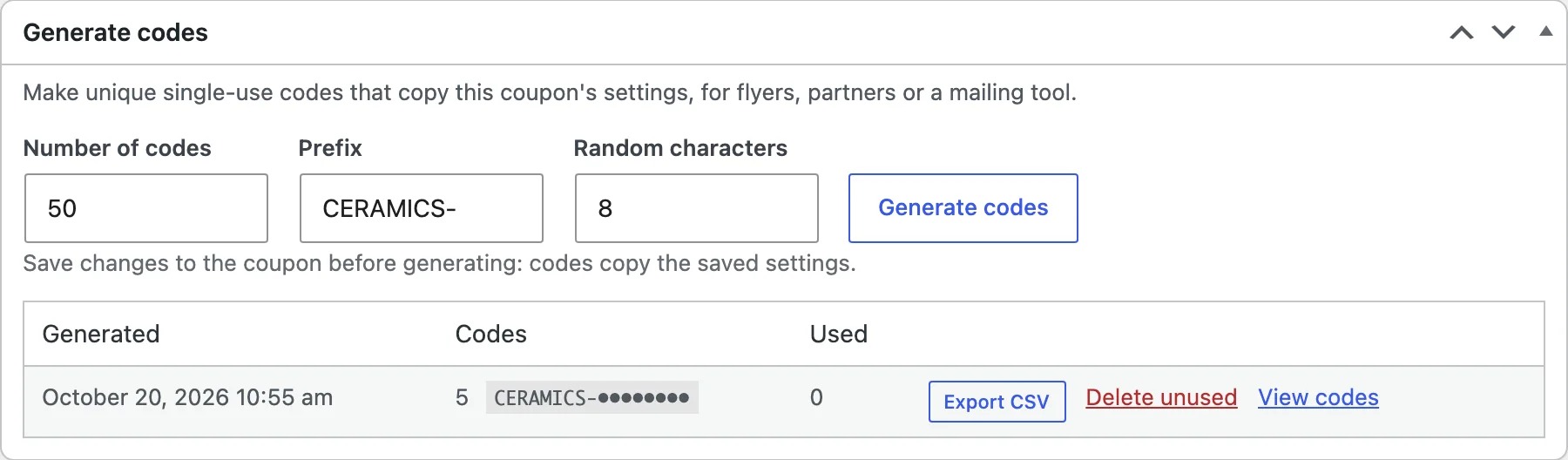
Save the coupon first, then use the Generate codes box: enter the number of codes (up to 5,000), a prefix and the number of random characters. Each code is a single-use copy of the coupon.
Each batch can be exported to CSV, and its unused codes deleted when the campaign ends. The coupons list can hide generated codes, so a big batch doesn’t fill it.
Codes copy the coupon’s settings when they are made. Changing the coupon afterwards doesn’t change codes already made.
Sending coupons
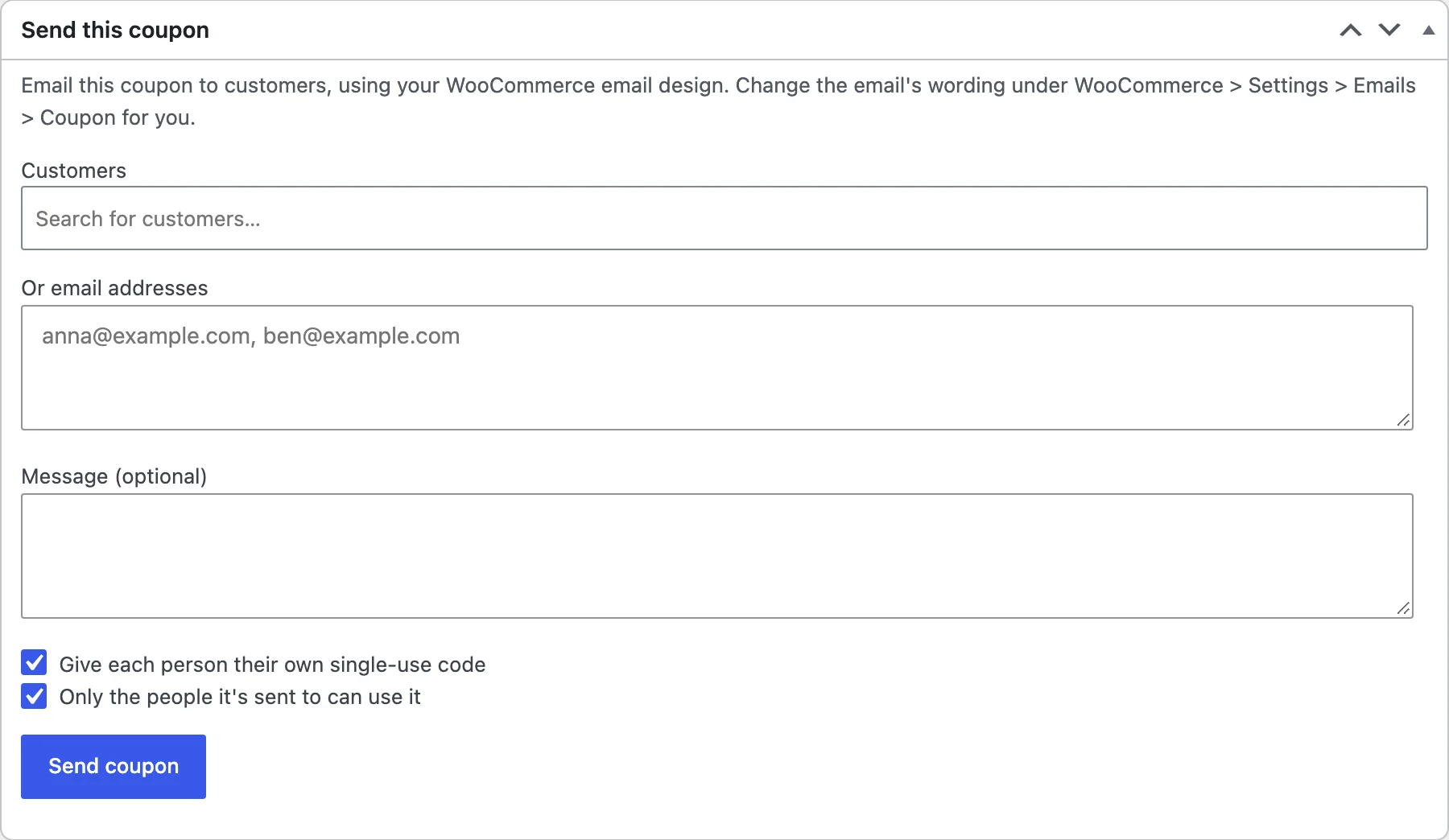
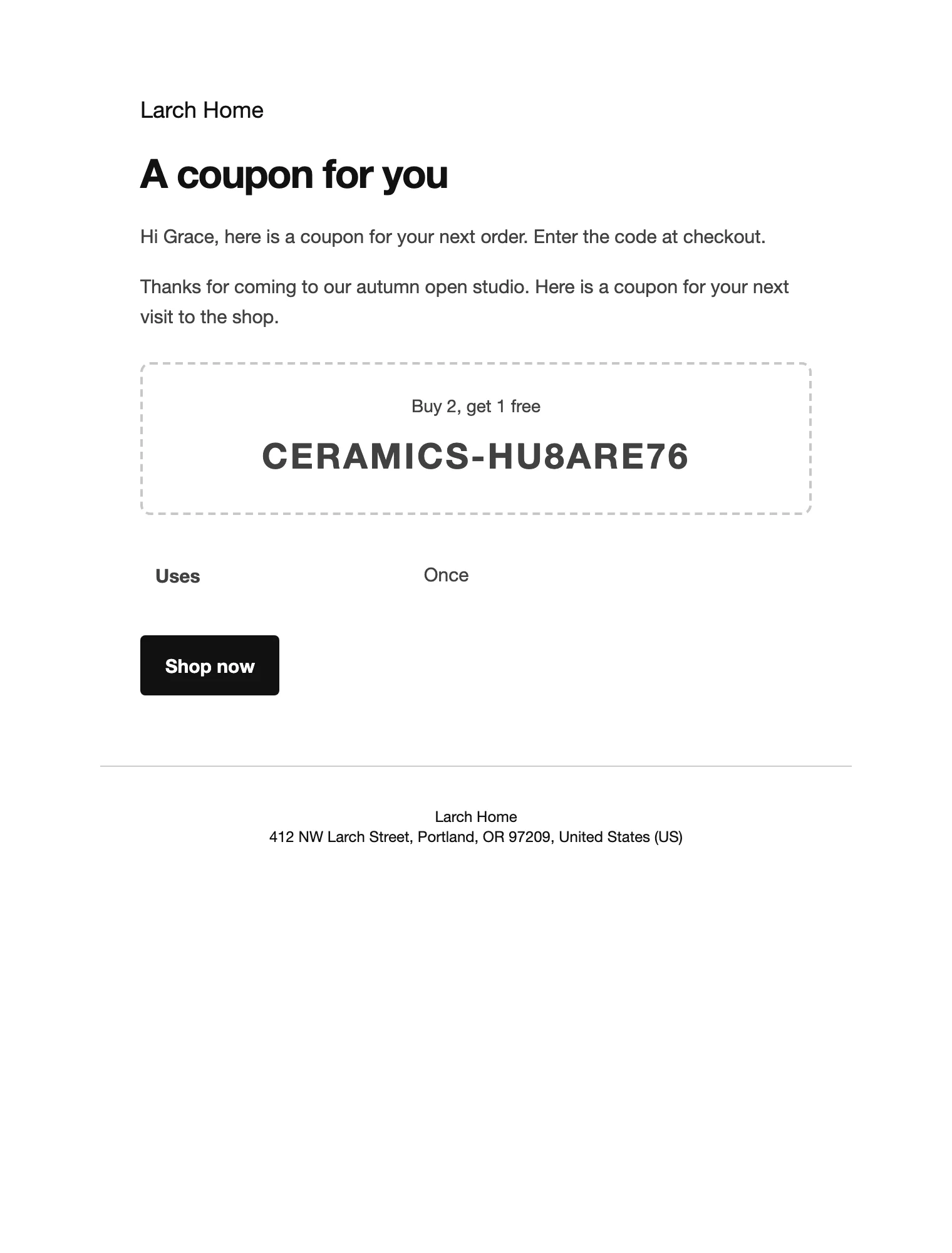
In the Send this coupon box, choose customers or type email addresses, add a message and click Send coupon. Tick Give each person their own single-use code and Only the people it’s sent to can use it for personal codes.
Change the email’s wording under WooCommerce > Settings > Emails > Coupon for you.
Next-order coupons
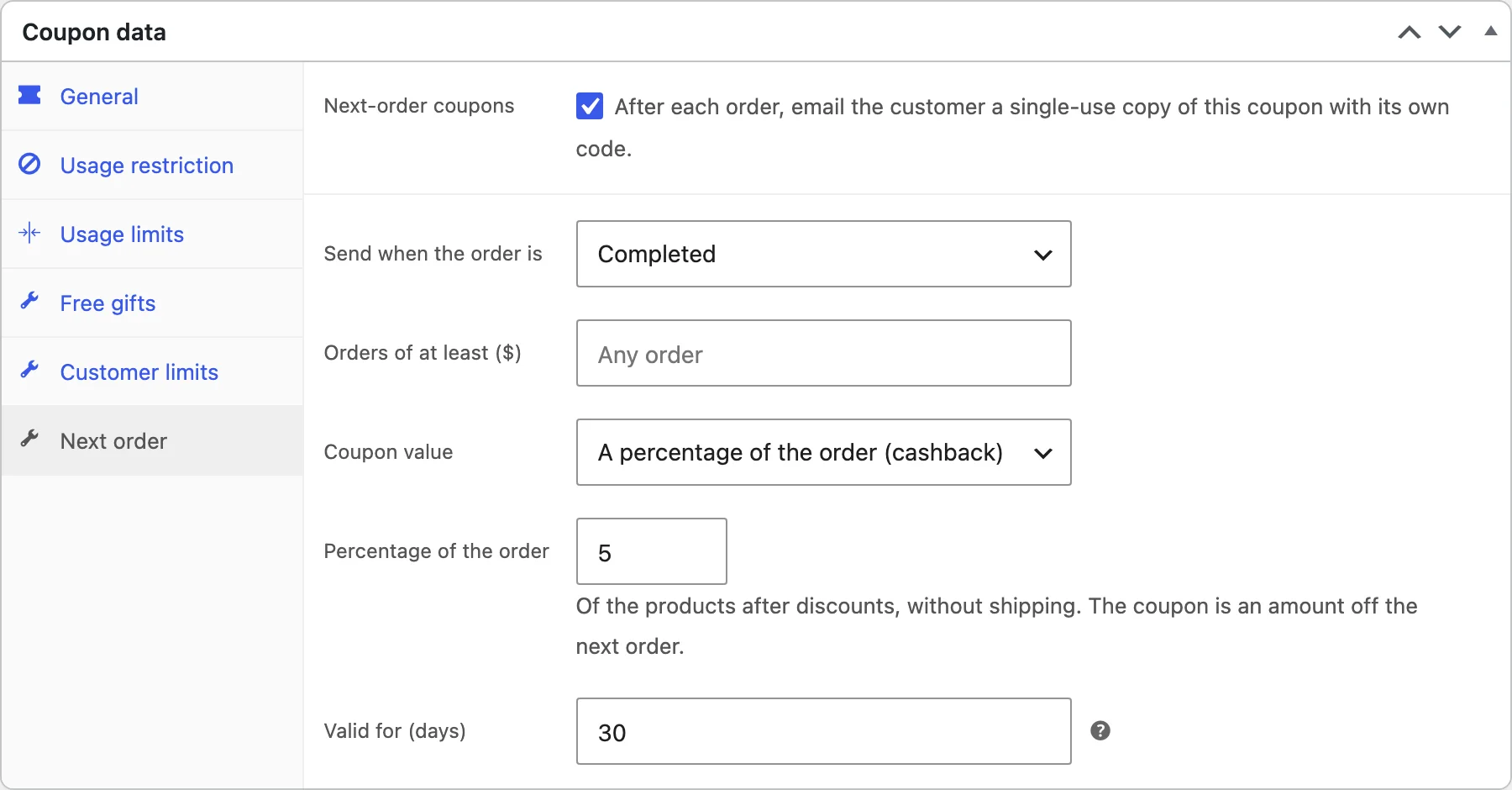
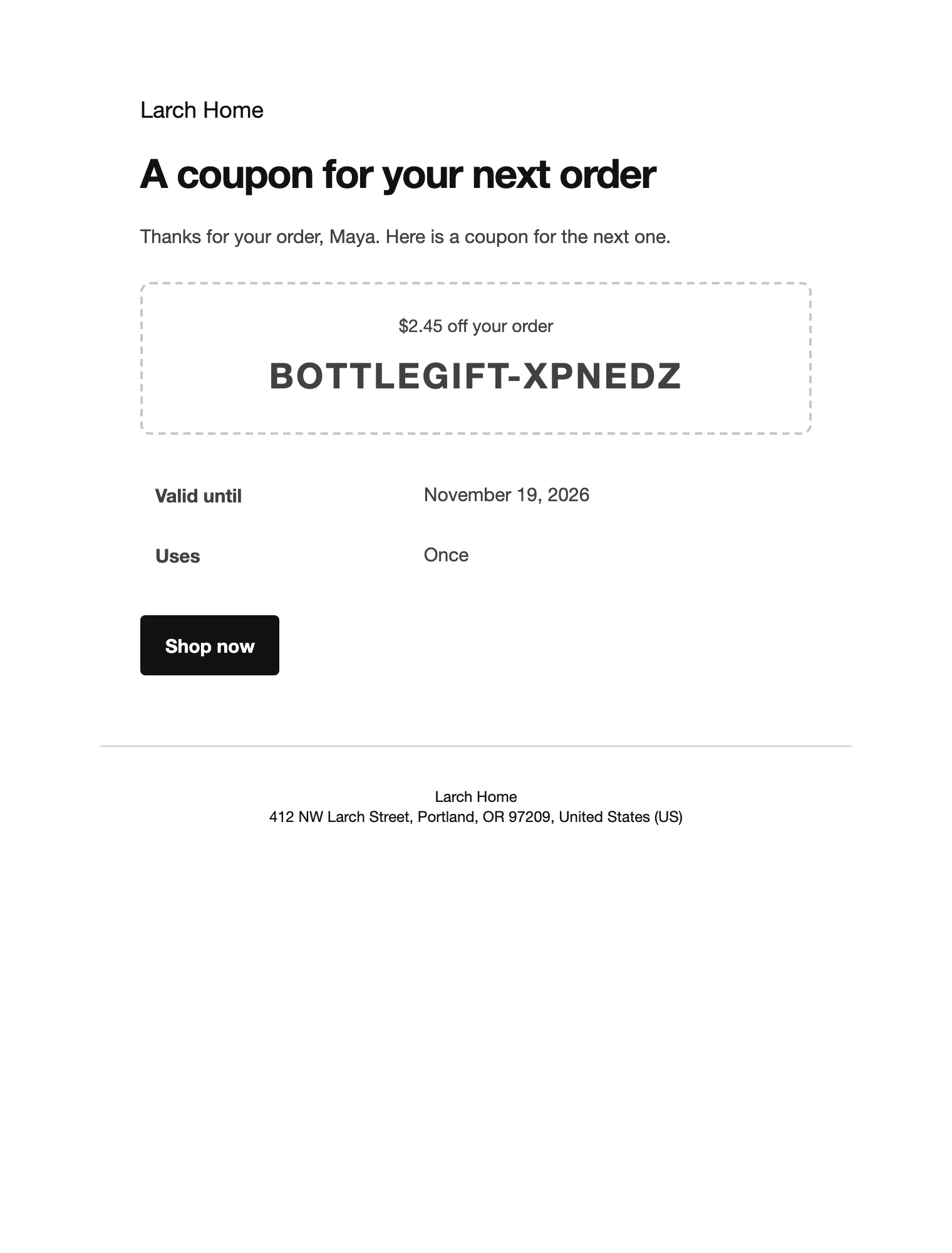
On the Next order tab, tick Next-order coupons. After each order with the status you choose, the customer gets a single-use code for their next order: a copy of this coupon, or a percentage of the order (after discounts, without shipping) as an amount off. Set the minimum order and how many days it is valid.
Coupon categories
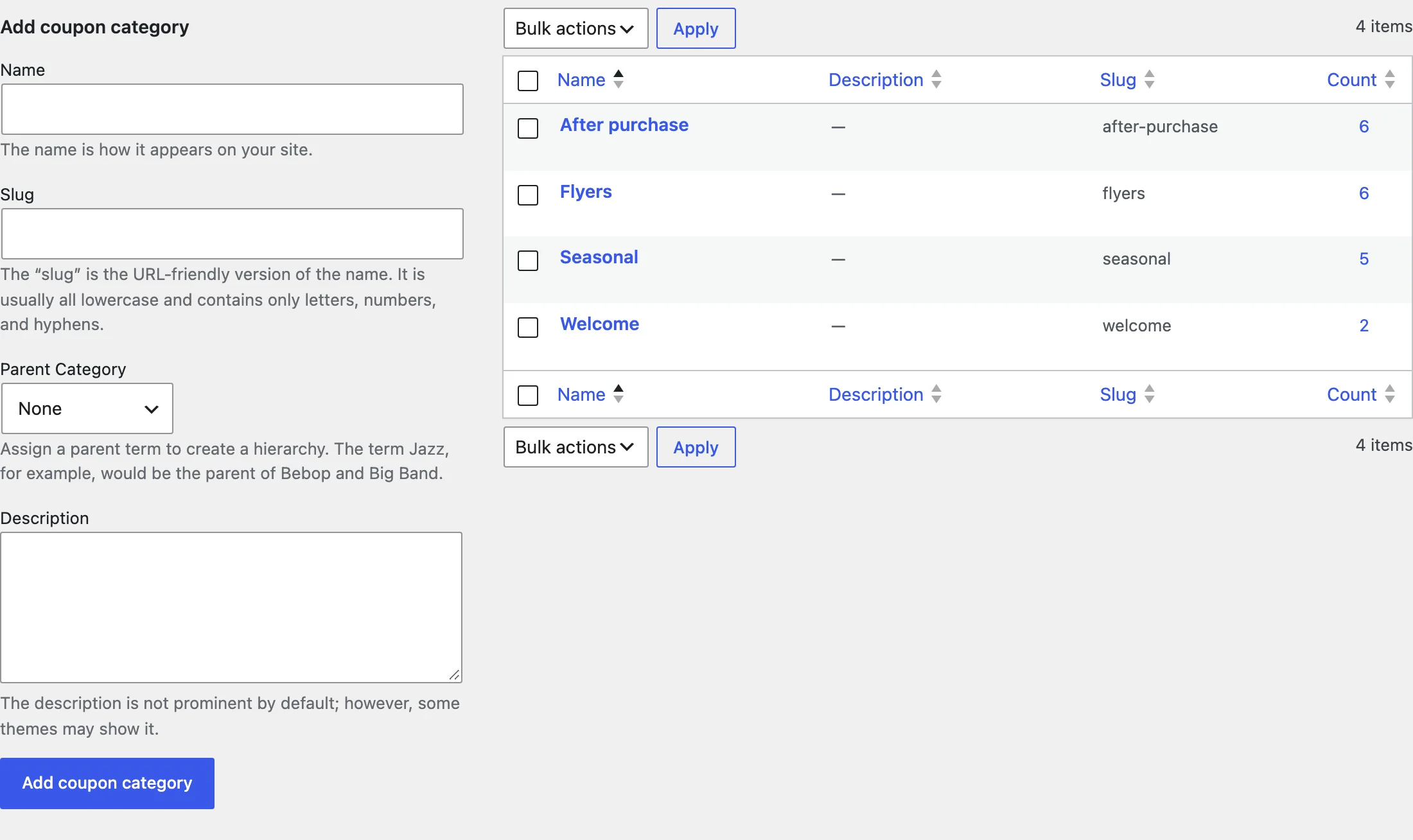
Sort coupons into categories under Marketing > Coupon categories, then filter the coupons list by category.
Settings
| Setting | What it does |
|---|---|
| Buy X get Y tab | Items to buy, products or categories, items they get, the reward price and times per order. |
| Shipping discount tab | What shipping becomes and the methods it applies to. |
| Free gifts tab | Gift products and the quantity of each. |
| Customer limits tab | Valid for days after sign-up or first order, uses per customer per day, week or month. |
| Next order tab | When the coupon is sent, the minimum order, its value and how long it is valid. |
| Generate codes box | Number of codes, prefix and random characters. |
| Send this coupon box | Customers, email addresses, message, personal codes. |
For developers
| Hook | Use |
|---|---|
acad_coupon_copied | Runs when a generated, sent or next-order code is made from a coupon. |
acad_coupon_description | The description of what a coupon gives, such as “Buy 2, get 1 free”, shown in coupon emails. |
acad_admin_capability | The capability needed to generate and send codes. |
Frequently asked questions
How do I create a coupon code in WooCommerce for buy 2 get 1 free?
Add a coupon under Marketing > Coupons, choose Buy X get Y as the discount type, and on its tab set 2 items to buy and 1 item they get of the same products (the cheapest) at Free.
Why isn’t the reward discounted?
The cart must hold the items to buy plus the reward items. For the same products, buy 2 get 1 needs three items in the cart.
Can I see which generated codes were used?
Yes. Each batch in the Generate codes box shows how many were used, and View codes lists them.
How do I remove all data when deleting the plugin?
Add define( 'ACAD_REMOVE_ALL_DATA', true ); to wp-config.php before deleting the plugin. Coupons themselves, including generated codes, are kept.
Changelog
1.0.0 · October 20, 2026
- Buy X get Y, shipping discount and fixed price per product coupons.
- Free gifts on any coupon.
- Bulk single-use codes with CSV export.
- Coupons sent by email and next-order coupons.
- Customer limits and coupon categories.