Buy Now Button and Direct Checkout adds a Buy Now button that goes straight to checkout, rules that skip the cart, a checkout popup and quantity changes at checkout.
Requirements
- WordPress 6.8 or newer
- WooCommerce 10.0 or newer
- PHP 7.4 or newer
- Works with classic and block themes, the Cart and Checkout blocks, and High-Performance Order Storage.
Installation
- Download
buy-now-button-direct-checkout.zipfrom My account > Downloads. - In WordPress, go to Plugins > Add New Plugin > Upload Plugin, choose the zip file and click Install Now.
- Click Activate. Settings are under WooCommerce > Settings > Buy Now. The Buy Now button shows straight away.
Quick start
- Activate the plugin: a Buy Now button shows on product pages and shop cards.
- Go to WooCommerce > Settings > Buy Now.
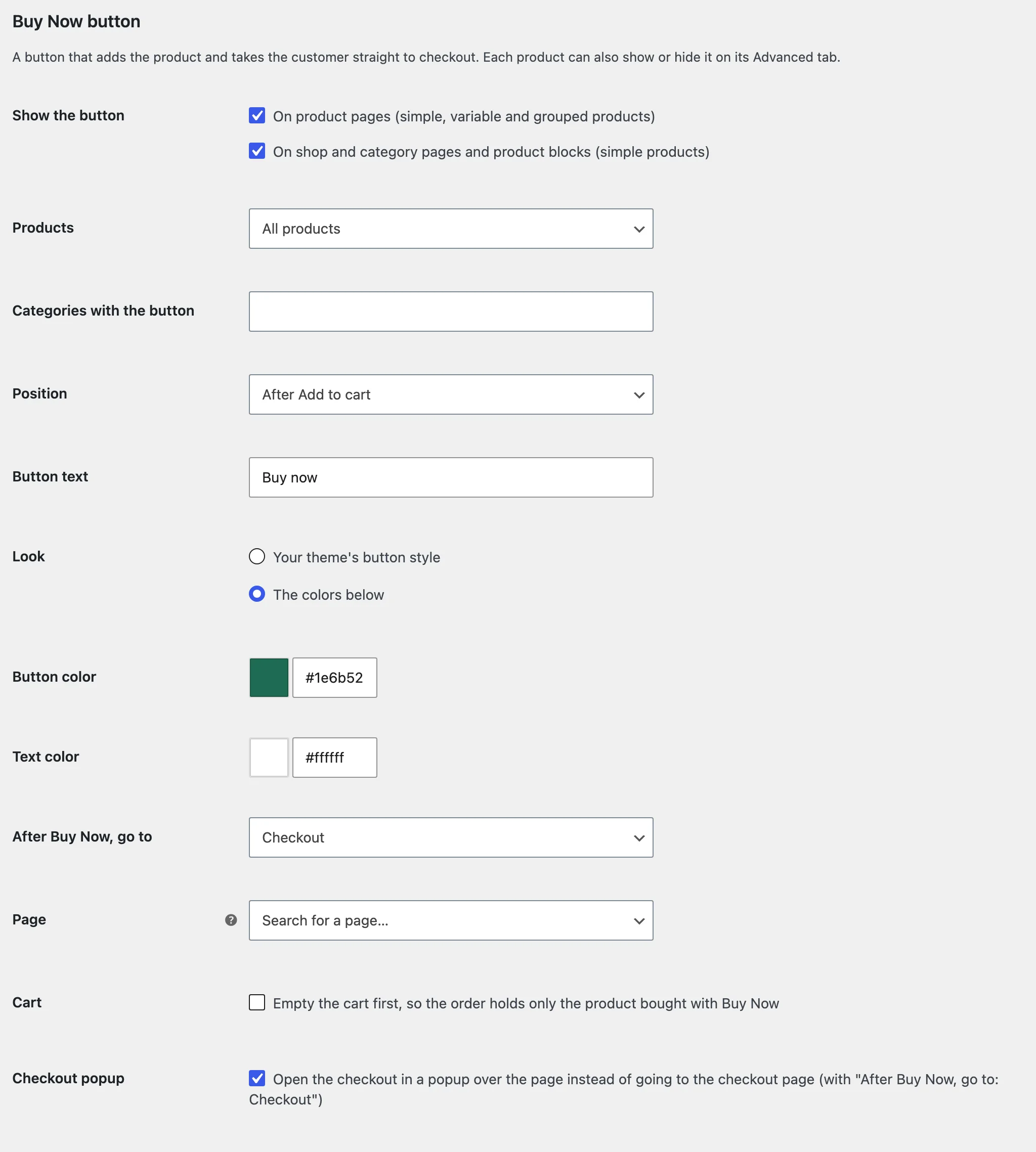
- Under Buy Now button, choose where it shows, its position and text, and where it goes.
- Under Skip the cart, choose whether Add to cart goes to checkout for all products, some categories or single products.
- Open a product page and click Buy now.
The Buy Now button
Choose product pages, shop cards or both, all products or categories, after or before Add to cart or instead of it, the text, and the theme’s style or your colours. After Buy Now, customers go to checkout, the cart or a page you choose.
The checkout popup
With Checkout popup on, Buy Now opens the checkout over the product page. When the order is placed, the order received page opens in the whole window.
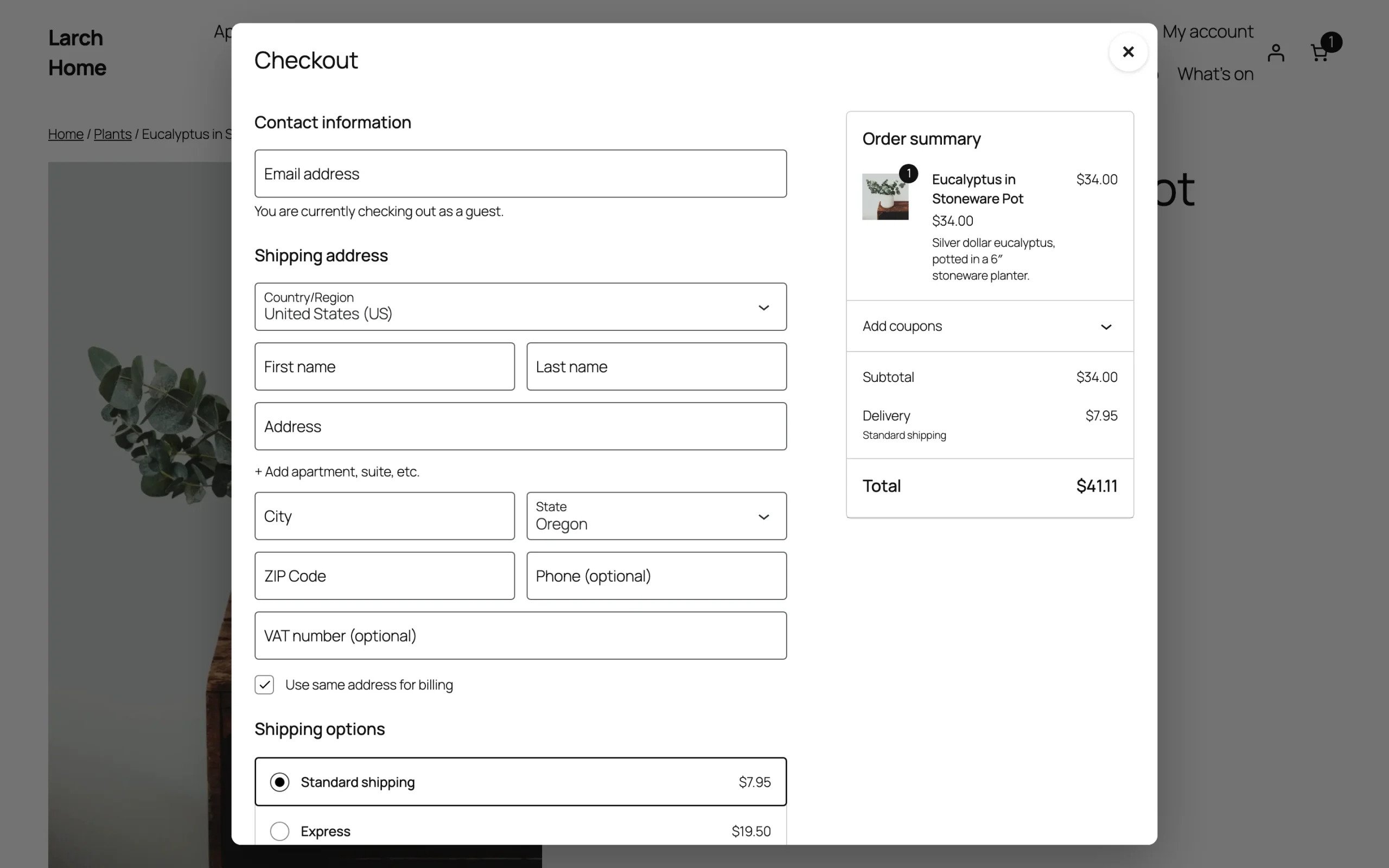
Payment methods that send customers to another site open in the whole window.
Skip the cart
Make Add to cart go to checkout for all products, categories you pick, or products set to skip the cart on their Advanced tab. After adding on shop pages, show a Checkout link instead of View cart, and send the cart page on to checkout.
Quantities at checkout
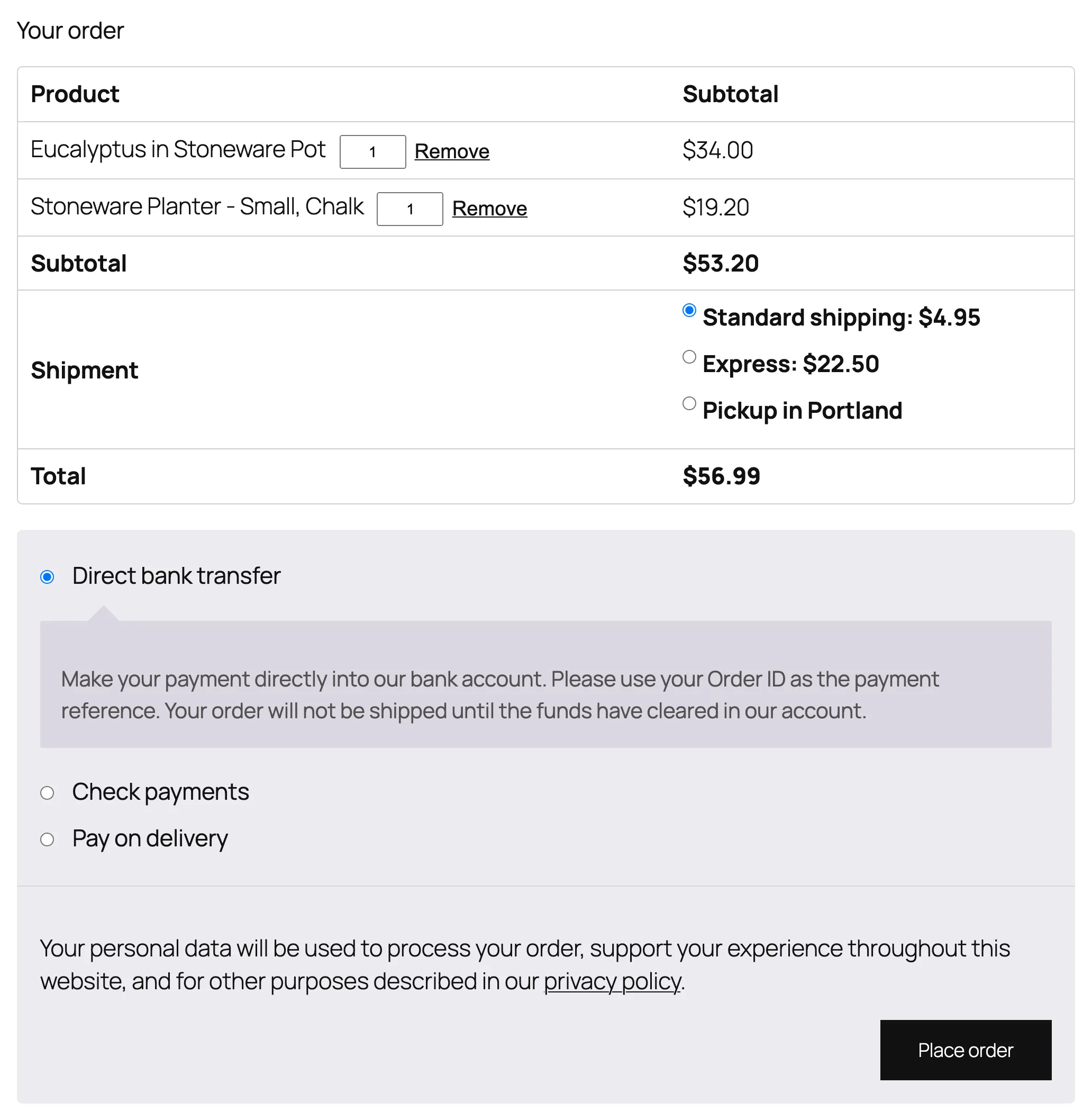
Turn on Checkout quantities to add quantity boxes and Remove links to the classic checkout’s order table.
Per product
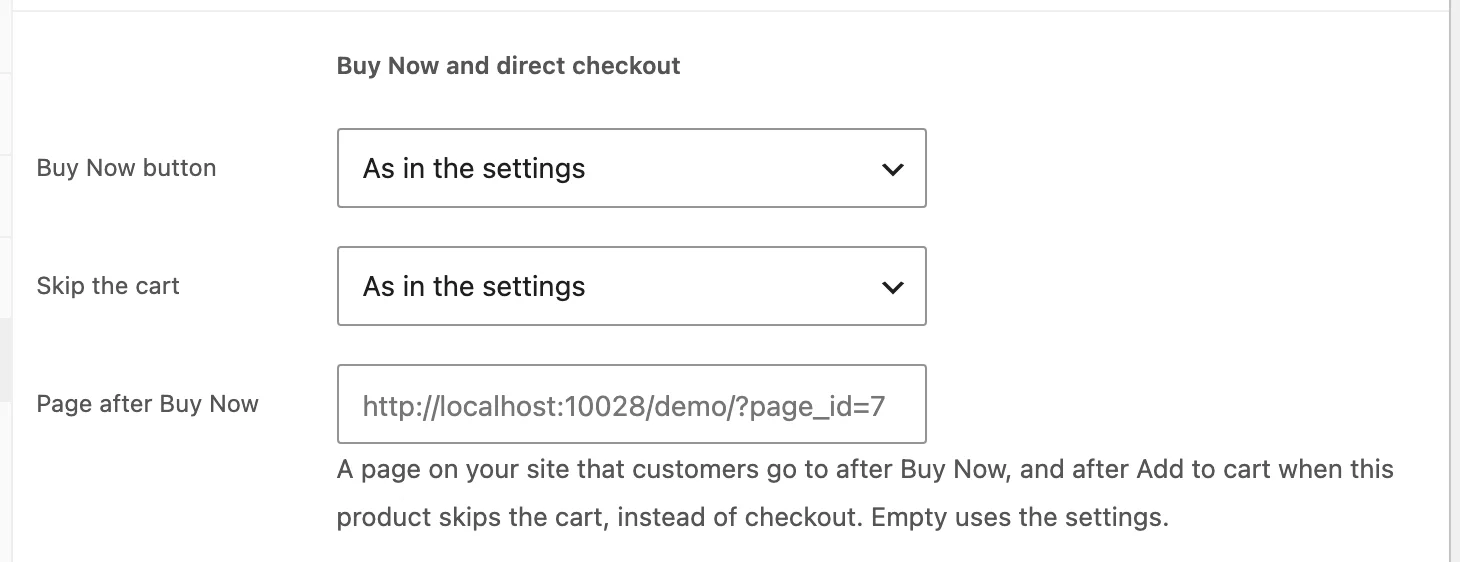
Each product’s Advanced tab has Buy Now button (as in the settings, show or hide), Skip the cart and Page after Buy Now.
Block and shortcode
Add the Buy Now button block, or [bnbd_buy_now id="123"], to any page for a landing page or a post. Without a product, it uses the product of the page it’s on.
Settings
| Setting | What it does |
|---|---|
| Skip the cart | Add to cart goes to checkout for all, some categories or products set to skip the cart. |
| After adding on shop pages | A Checkout link instead of View cart. |
| Cart page | Send the cart page to checkout. |
| Checkout quantities | Quantity boxes and Remove links in the classic checkout. |
| Button texts | Add to cart texts on shop and product pages. |
| Buy Now button | Where it shows, products, position, text, look and colours. |
| After Buy Now, go to | Checkout, the cart or a page, and whether to empty the cart first. |
| Checkout popup | Open the checkout over the product page. |
For developers
| Hook | Use |
|---|---|
bnbd_has_buy_now | Show or hide the button for a product. |
bnbd_buy_now_url | Change where Buy Now goes. |
bnbd_skips_cart | Decide whether a product skips the cart. |
bnbd_product_types | Product types that get the button. |
bnbd_checkout_quantity_editable | Allow or stop quantity changes for a checkout line. |
Copy buy-now-button.php or checkout-popup.php from public/templates/ to yourtheme/buy-now-button-direct-checkout/ to change the markup.
Frequently asked questions
Why does Buy Now add to the cart I already had?
That’s WooCommerce’s cart. Turn on “Empty the cart first” for orders with only the Buy Now product.
Why don’t I see the button on a product?
Check Products under the Buy Now settings and the product’s Advanced tab, and that the product is in stock.
How do I remove all data when deleting the plugin?
Add define( 'BNBD_REMOVE_ALL_DATA', true ); to wp-config.php before deleting the plugin.
Changelog
1.0.0 · October 21, 2026
- Buy Now button on product pages and shop cards, after, before or instead of Add to cart.
- Skip the cart for all products, categories or single products.
- Checkout popup and quantity changes at checkout.
- Own Add to cart texts, a Buy Now block and shortcode.