Custom Add to Cart Button changes the text, look, link and action of the Add to cart button on product pages and shop pages, for the products and customers you choose.
Requirements
- WordPress 6.8 or newer
- WooCommerce 10.0 or newer
- PHP 7.4 or newer
- Works with classic and block themes, the Product Button, Add to Cart Form and Add to Cart + Options blocks, the Cart and Checkout blocks, and High-Performance Order Storage.
Installation
- Download
custom-add-to-cart-button.zipfrom My account > Downloads. - In WordPress, go to Plugins > Add New Plugin > Upload Plugin, choose the zip file and click Install Now.
- Click Activate. Everything is in WooCommerce > Settings > Add to cart button: Buttons for the texts and redirect, Rules and Look. Each product also has an Add to cart button tab in Product data.
Quick start
- Activate the plugin. Buttons look and work as before until you change them.
- Go to WooCommerce > Settings > Add to cart button and write the texts you want for each product type.
- In Rules, click Add rule, choose the products and customers, and what the button does.
- In Look, pick an icon and colours, and check the preview.
- Save and open your shop as a guest and as a customer to see the buttons.
Button texts
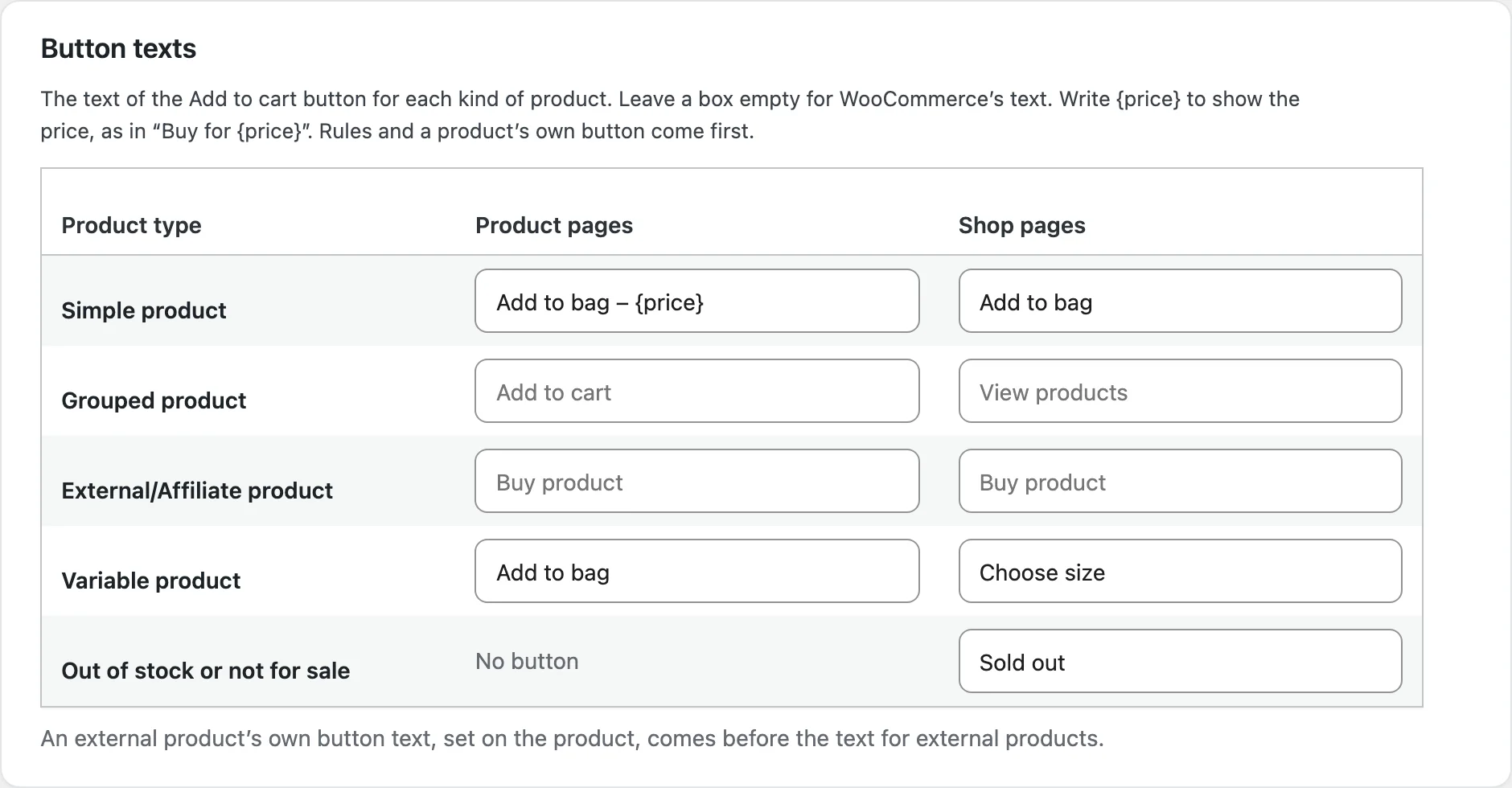
The Buttons section sets the text of the button for each product type, on product pages and shop pages, and for products that are out of stock or not for sale on shop pages. Leave a box empty for WooCommerce’s text. Write {price} for the price; for variable and grouped products it is the lowest price. An external product’s own button text comes first.
Rules
A rule covers all products, chosen categories (with their subcategories), tags or products, and can be limited to product types and a stock status. It applies to everyone, guests, logged-in customers or chosen roles, on product pages, shop pages or both. Shop pages include categories, search and product lists such as related products. Each product gets the first rule that matches it, so put specific rules first; drag the handles or use the arrows to change the order.
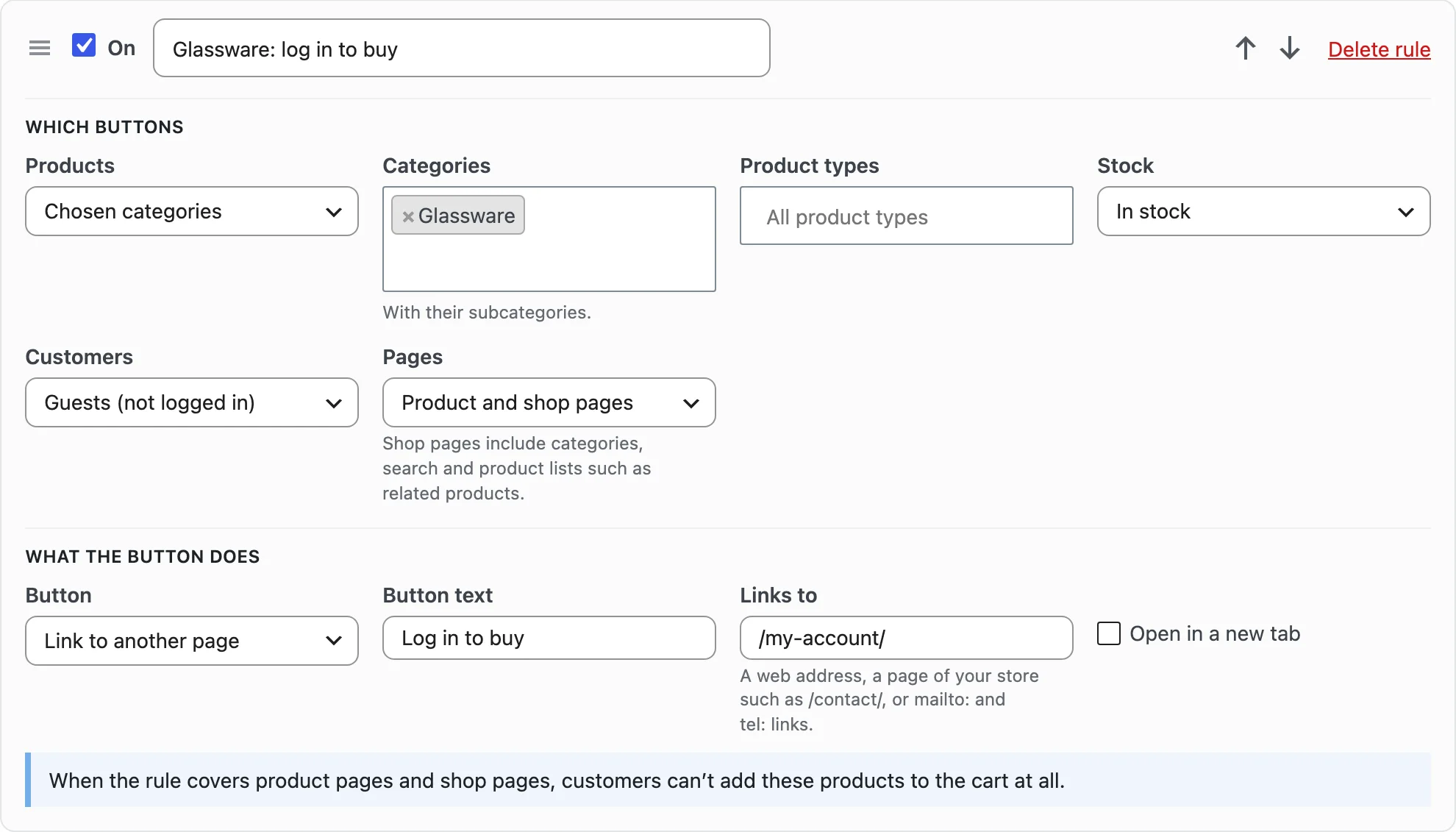
What the button does
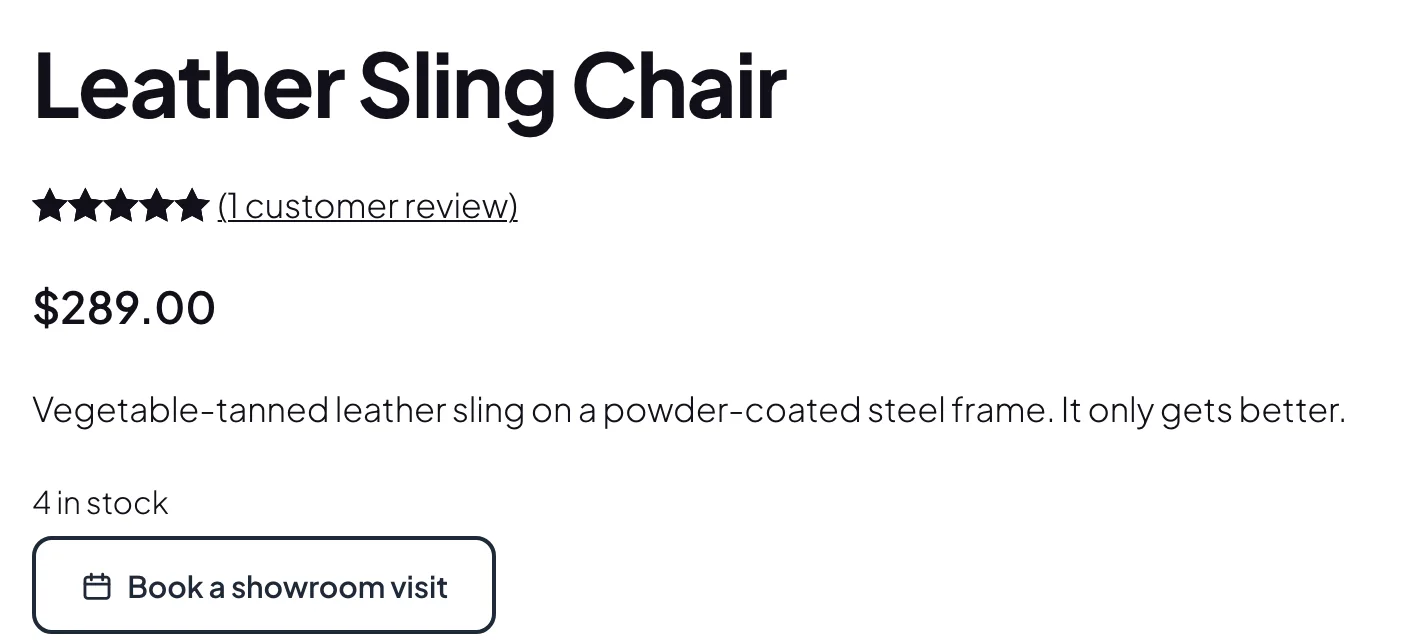
Change the text keeps the button and gives it texts and a redirect of its own. Link to another page turns it into a link to a web address, a page of your store such as /contact/, or a mailto: or tel: link. Show a message instead shows text with links and shortcodes. Hide the button shows nothing. When a link, message or hidden button covers product pages and shop pages, customers can’t add the product to the cart in any other way, and it is taken out of carts it is already in.
Look
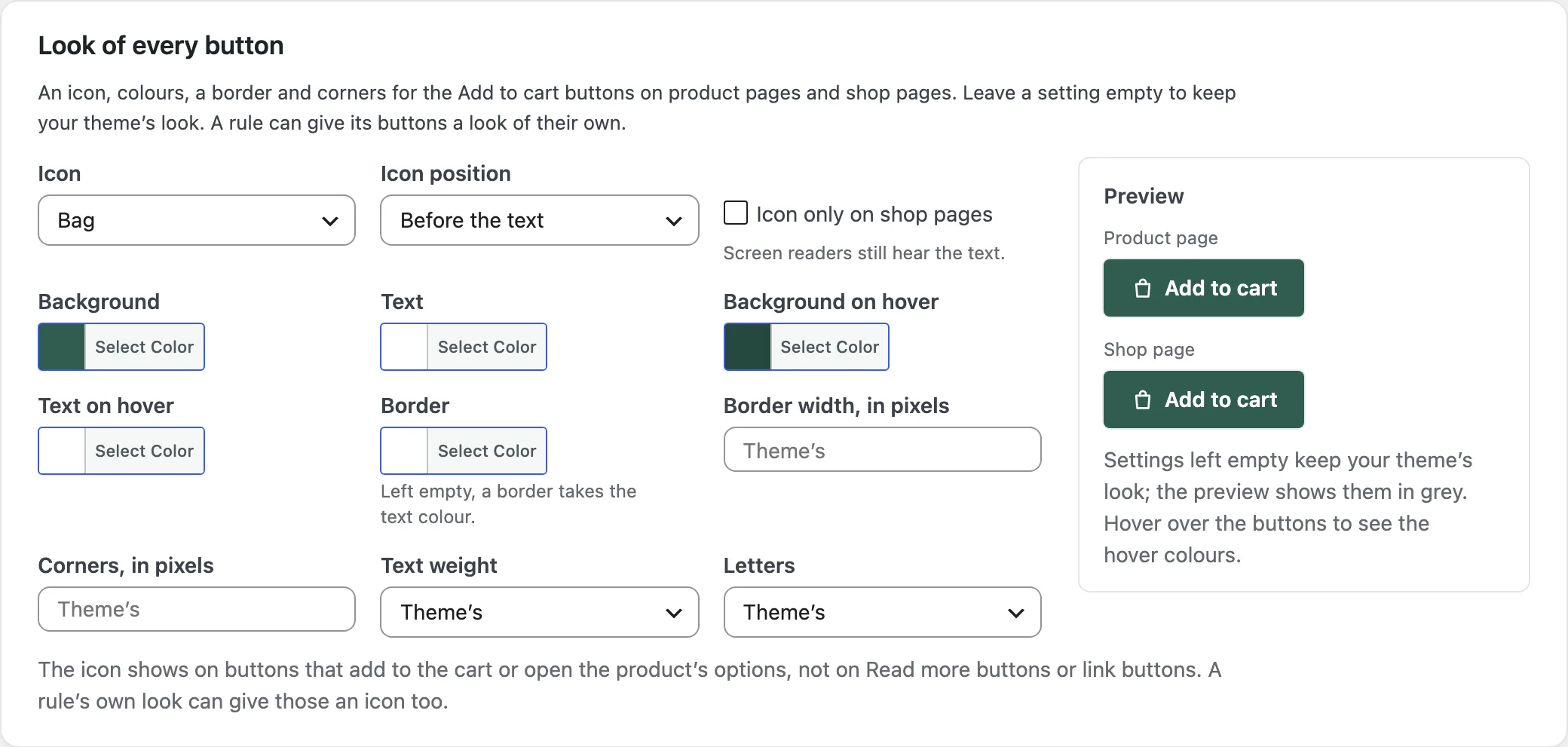
The Look section sets an icon, colours, hover colours, a border, corners, text weight and letters for every button, with a preview. Its icon shows on buttons that add to the cart or open the product’s options. A rule can have a look of its own, which also puts its icon on link buttons. Settings left empty keep your theme’s look.
After adding to the cart
Choose where customers go after adding a product: WooCommerce’s setting, the cart, the checkout, a page or an address. A rule or a product can choose its own, or stay on the page. Shop buttons of products with a redirect load the next page instead of adding in the background.

A product’s own button
Open a product and go to Product data > Add to cart button to give that product a button of its own, for every customer. It comes before the rules and the button texts. The tab also lists the rules that can apply to the product.
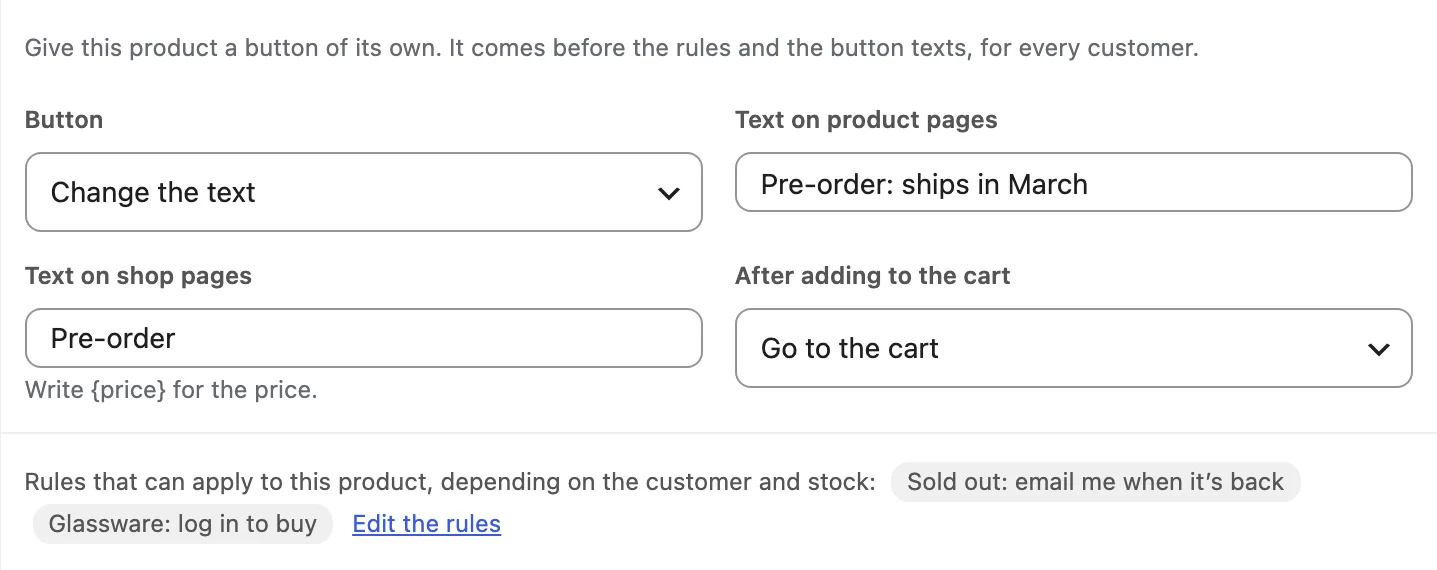
Settings
| Setting | What it does |
|---|---|
| Button texts | Texts per product type, on product pages and shop pages. |
| After adding to the cart | WooCommerce’s setting, the cart, the checkout, a page or an address. |
| Rules | Products, customers, pages, what the button does and its look. |
| Look | Icon, colours, border, corners and letters for every button. |
For developers
| Hook | Use |
|---|---|
cacb_product_button | Change the button a product gets for the current customer. |
cacb_refused_message | Change the message when a product can’t be added to the cart. |
cacb_before_single_button | Add something before a link or message on product pages. |
cacb_after_single_button | Add something after a link or message on product pages. |
Frequently asked questions
Why doesn’t a rule change a product’s button?
Check that the rule is on and covers the product, the customer and the page, and that no rule above it matches first. A product’s own button in Product data comes before every rule.
Why is there no icon on some buttons?
The look for every button puts its icon on buttons that add to the cart or open the options, not on Read more or link buttons. Give a rule a look of its own to show an icon there.
Can themes change the link and message?
Yes. Copy the templates from the plugin’s public/templates folder to yourtheme/custom-add-to-cart-button/.
How do I remove all data when deleting the plugin?
Add define( 'CACB_REMOVE_ALL_DATA', true ); to wp-config.php before deleting the plugin.
Changelog
1.0.1 · November 2, 2026
Hotfix
- Fixed the Add to cart button tab in Product data listing rules for other product types.
- Fixed a product’s own message on shop pages, and links on product pages, losing their spacing when no look or message rule was in use.
- Fixed the All Products block and the Cart block’s suggestions offering Add to cart for products whose shop button is a link, a message or hidden. They now link to the product page.
1.0.0 · November 2, 2026
Initial release
- Button texts per product type, on product pages and shop pages, with {price}.
- Rules for products, categories, tags, product types, stock, customers and roles: a new text, a link, a message or no button.
- Icons, colours, border, corners and letters for every button, or a look of its own per rule, with a preview.
- After adding to the cart, go to the cart, the checkout, a page or an address: store-wide, per rule or per product.
- A product’s own button in Product data.