Multi Currency Switcher shows prices in the visitor’s currency, lets them pay in it, and keeps rates current from the European Central Bank or by hand.
Requirements
- WordPress 6.8 or newer
- WooCommerce 10.0 or newer
- PHP 7.4 or newer
- Works with classic and block themes, the Cart and Checkout blocks, and High-Performance Order Storage.
Installation
- Download
multi-currency-switcher.zipfrom My account > Downloads. - In WordPress, go to Plugins > Add New Plugin > Upload Plugin, choose the zip file and click Install Now.
- Click Activate. Settings are under WooCommerce > Settings > Currencies.
Quick start
- Go to WooCommerce > Settings > Currencies.
- Choose a currency under Currency to add and click Add currency.
- Tick Automatic rates, or enter a rate, and save.
- Add the Currency switcher block, or turn on the floating switcher.
Currencies
Each currency has a rate for one unit of your store currency, an exchange fee, a rounding, its symbol and position, decimals, and whether customers pay in it. Tick Auto to take the rate from the European Central Bank.
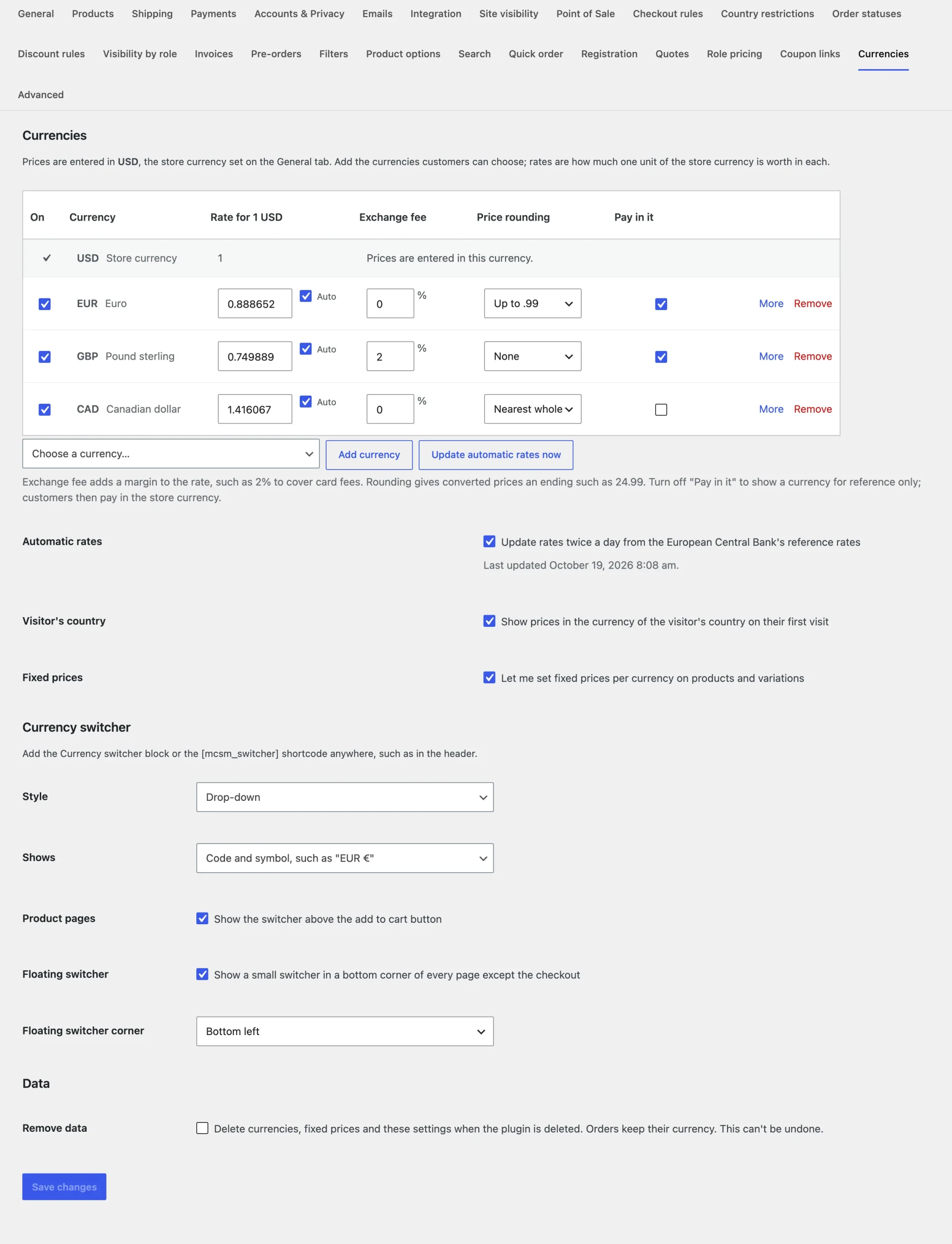
Rounding applies to your own prices. Role prices, quantity prices and discounts are converted exactly, so they keep their saving.
Fixed prices
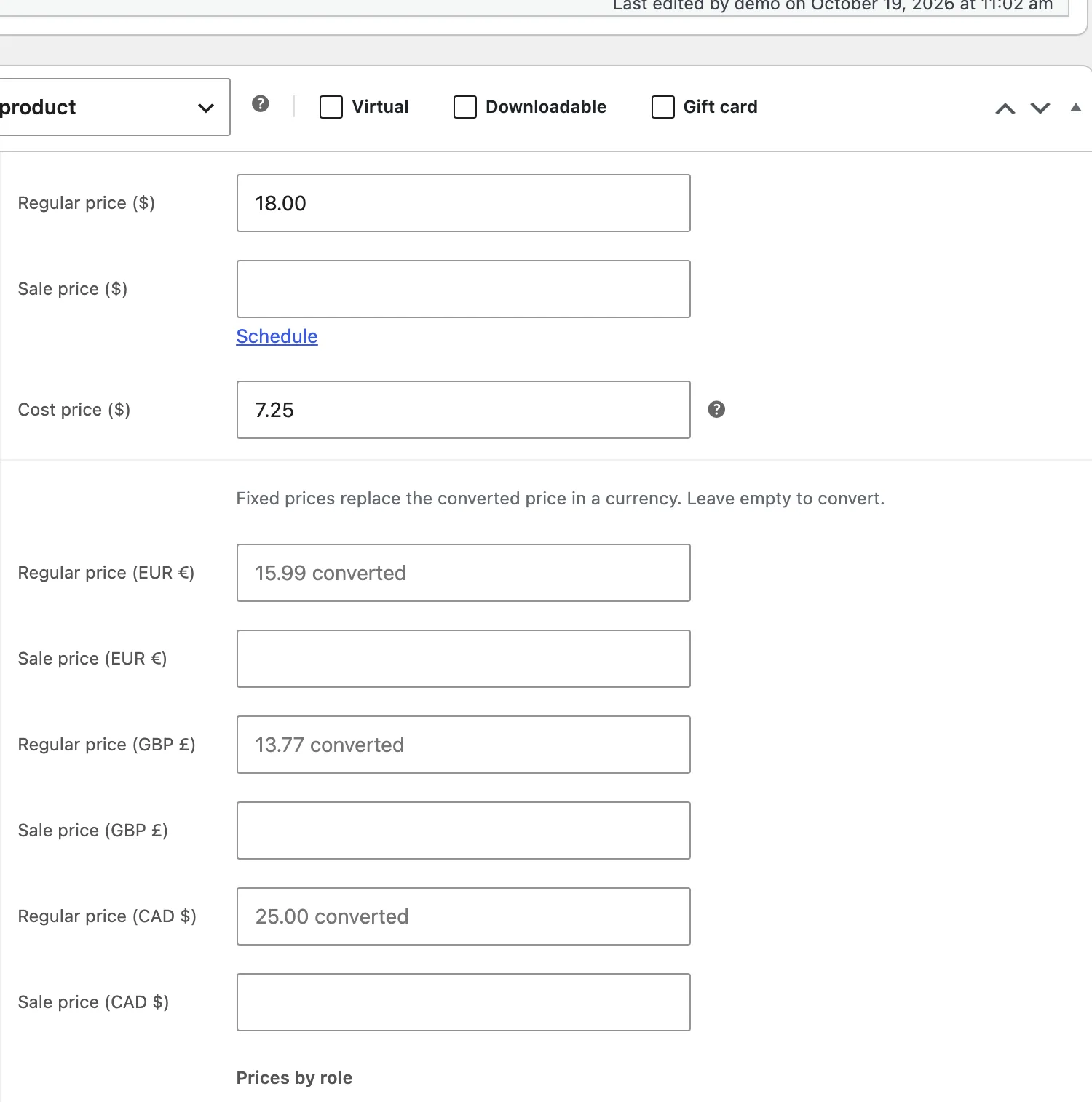
Tick Fixed prices to add a regular and sale price per currency on the General tab of products and in each variation. Empty fields use the converted price, shown as a placeholder.
Switchers
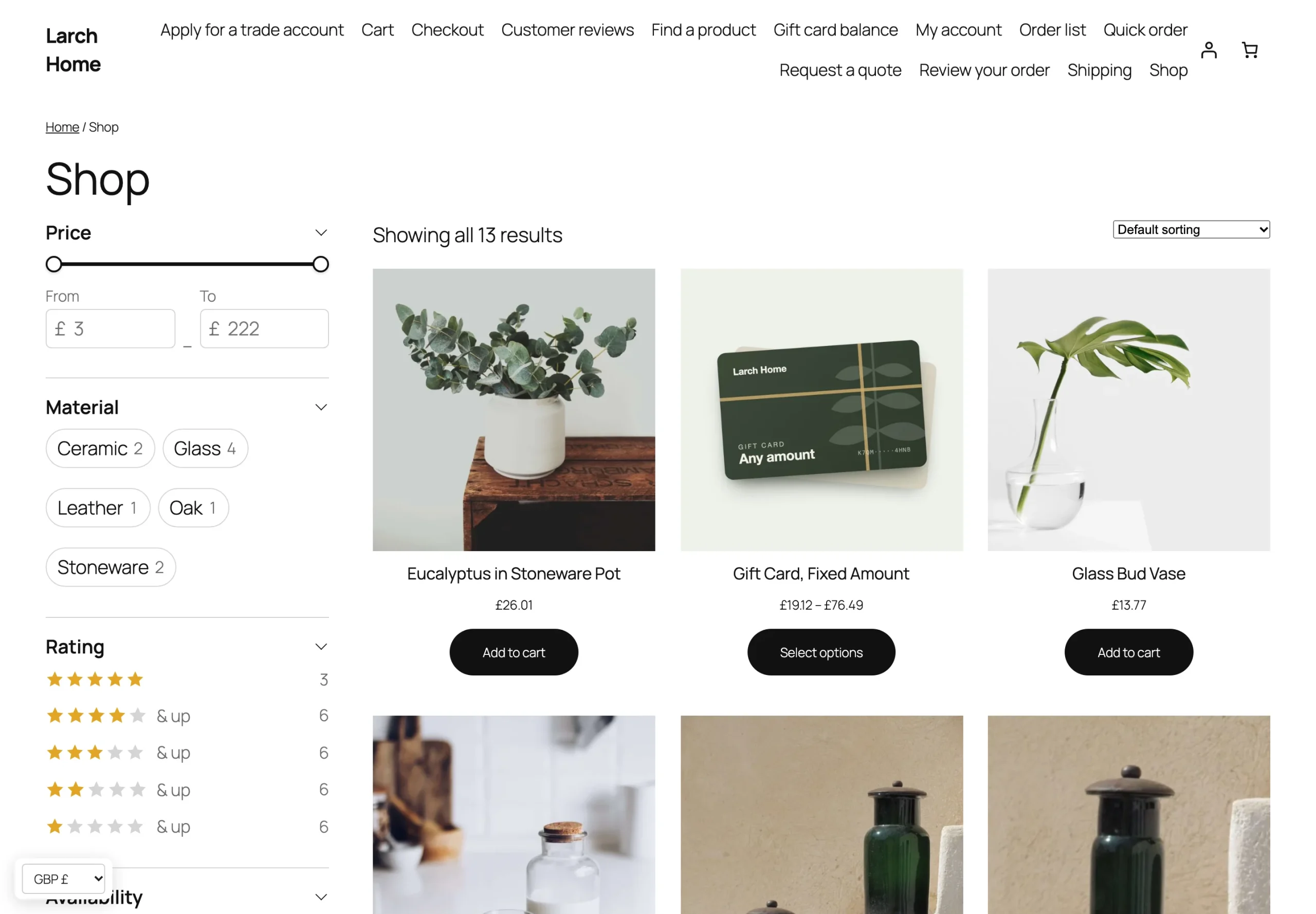
Add the Currency switcher block or the shortcode [mcsm_switcher] anywhere, tick Product pages to show it above the add to cart button, or turn on the floating switcher in a corner.
First-visit currency
With Visitor’s country on, visitors see the currency of their country on their first visit. Add extra countries to a currency under Also the first-visit currency in.
Checkout and orders
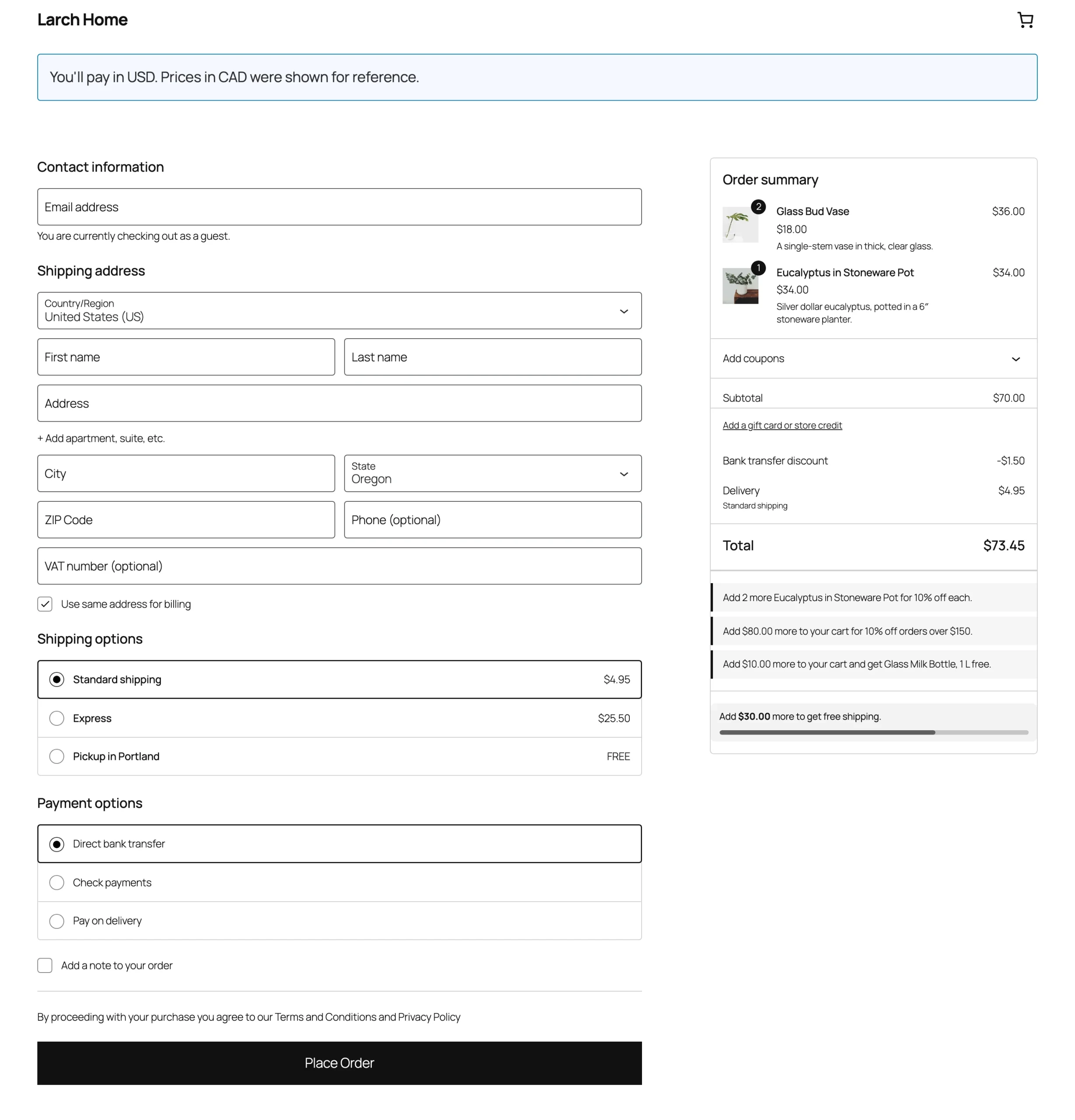
Customers pay in the currency they chose, and the order is saved in it with the rate used. Untick Pay in it to make a currency reference-only. Choose payment methods per currency for gateways that only take some currencies.
Settings
| Setting | What it does |
|---|---|
| Automatic rates | Update rates twice a day from the European Central Bank. |
| Rate, Exchange fee | The rate for one unit of your store currency, and a margin on top. |
| Price rounding | None, up to .99, up to .95, nearest whole, up to whole or nearest 10. |
| Symbol, Position, Decimals | How prices in the currency look. |
| Pay in it, Payment methods | Whether customers pay in the currency, and with which payment methods. |
| Visitor’s country | Show the currency of the visitor’s country on the first visit. |
| Fixed prices | Fixed prices per currency on products and variations. |
| Style, Shows | Drop-down or row of links, with code and symbol, code or name. |
| Product pages, Floating switcher | Where the switcher shows. |
| Remove data | Delete the settings and fixed prices when the plugin is deleted. |
For developers
| Hook | Use |
|---|---|
mcsm_current_currency | The currency of the current visitor. |
mcsm_is_storefront | Whether prices should be converted on the current request. |
mcsm_admin_capability | The capability needed to change the settings. |
Frequently asked questions
How do I change the currency in WooCommerce?
Your store currency stays in WooCommerce > Settings > General. Add more currencies under WooCommerce > Settings > Currencies, and customers switch between them.
Why are prices not converted in the WooCommerce REST API?
The REST API used by apps and integrations stays in your store currency on purpose, so your stock and accounting tools see one currency.
Can I update rates by hand?
Yes. Untick Auto for a currency and enter its rate, or click Update automatic rates now.
Changelog
1.0.0 · October 19, 2026
- Currencies with automatic ECB rates or rates by hand, fees and rounding.
- Fixed prices per currency on products and variations.
- Checkout in the chosen currency, payment methods per currency and reference-only currencies.
- Switcher block, shortcode, product page and floating switcher.