Order Approval Workflows holds chosen orders for your approval, before the customer pays or before you process them.
Requirements
- WordPress 6.8 or newer
- WooCommerce 10.0 or newer
- PHP 7.4 or newer
- Works with classic and block themes, the Cart and Checkout blocks, and High-Performance Order Storage.
Installation
- Download
order-approval-workflows.zipfrom My account > Downloads. - In WordPress, go to Plugins > Add New Plugin > Upload Plugin, choose the zip file and click Install Now.
- Click Activate. Approve and reject orders in WooCommerce > Order approvals. The rules and settings are in WooCommerce > Settings > Order approval, and the emails in WooCommerce > Settings > Emails.
Quick start
- Go to WooCommerce > Settings > Order approval and click Add rule, or start from a ready-made rule.
- Choose whether the customer pays before or after you approve, and which orders the rule covers.
- Save. Orders that match now wait in WooCommerce > Order approvals.
- Approve or reject an order, with a message to the customer if you like.
- Under Payment and deadlines, choose how many days customers have to pay after approval.
Rules
A rule matches an order when all its conditions match. Rules are checked in order, and the first that matches decides the payment timing. Products (Product data > General) and customers (their profile) can also always need approval, or never.
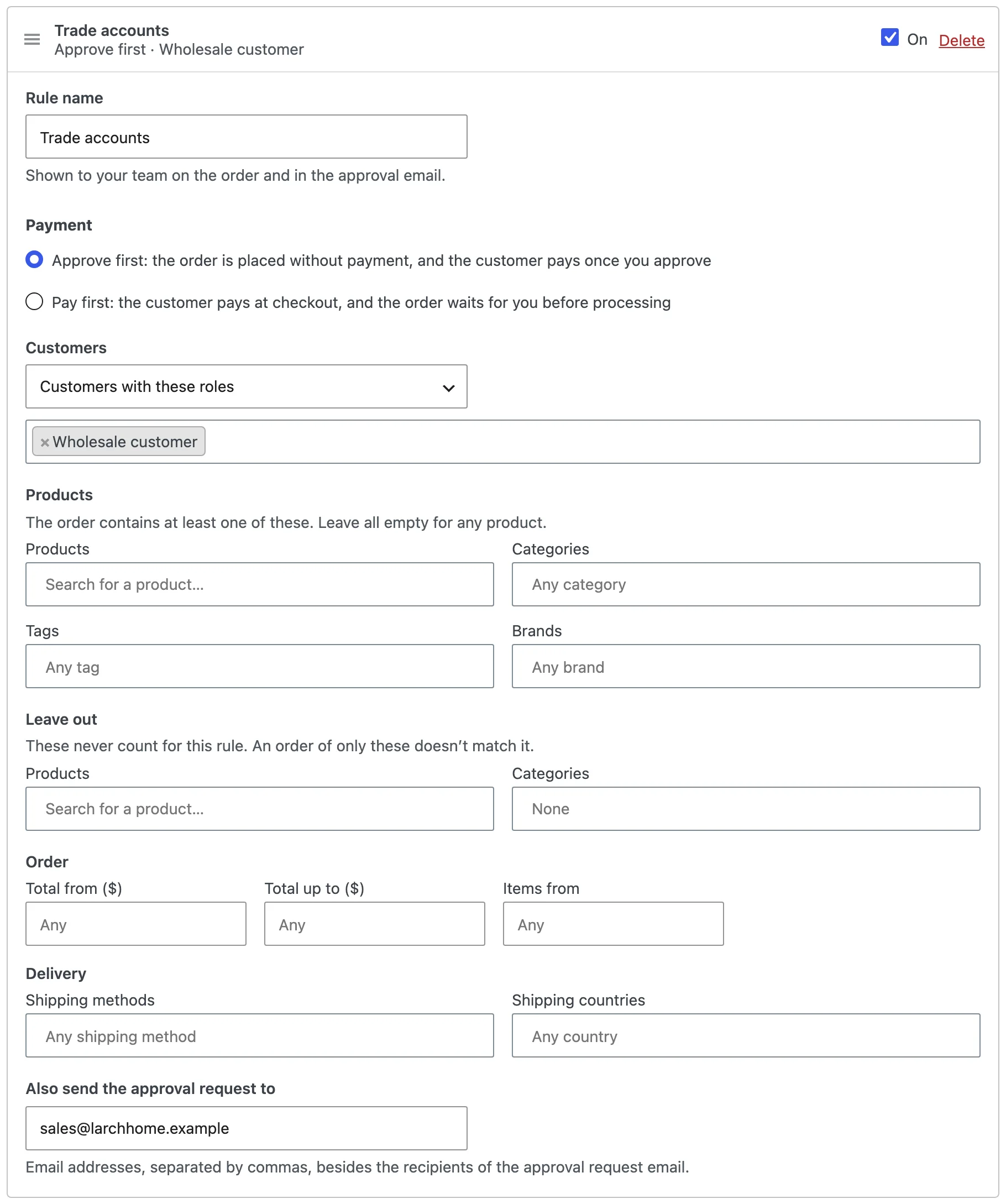
Approve first, or pay first
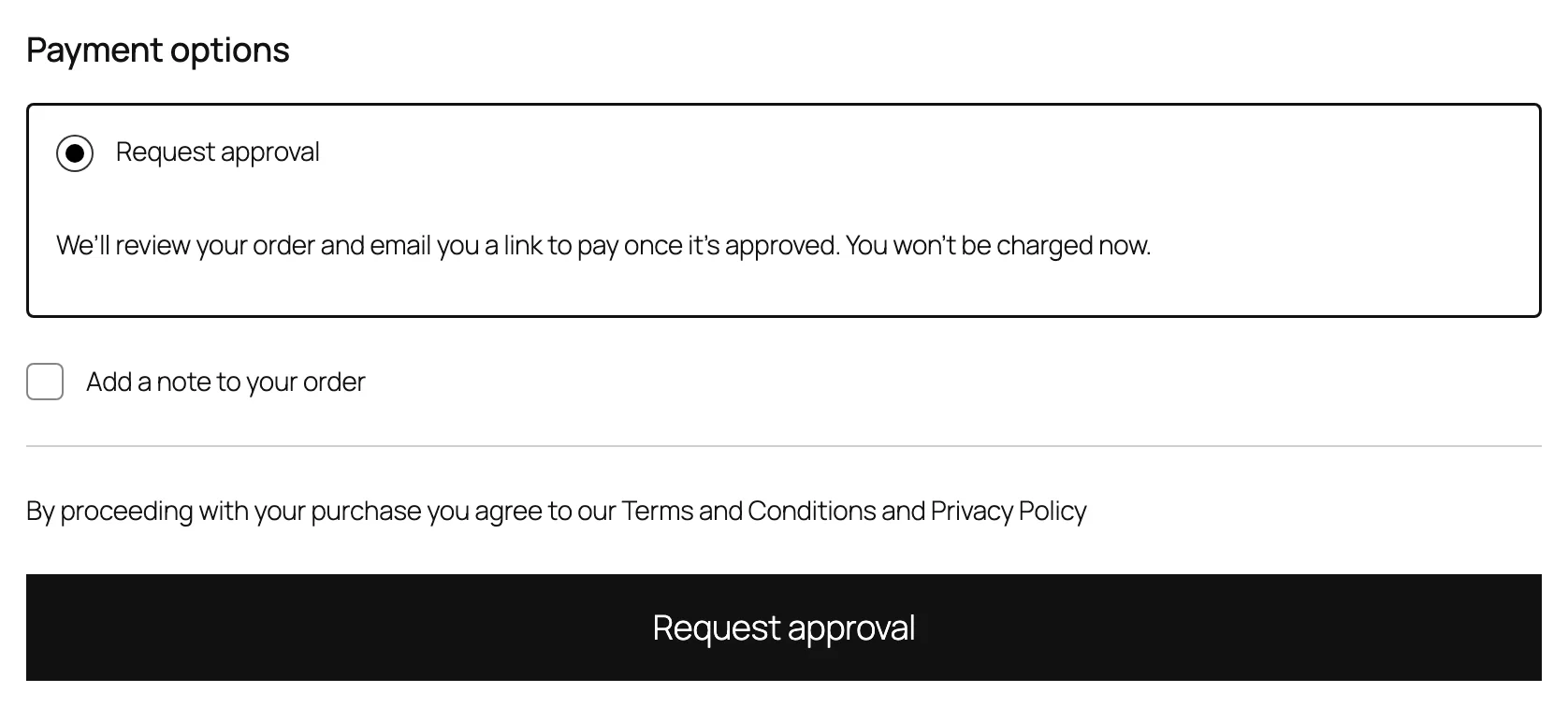
Approve first: checkout offers Request approval as the only payment method, and the customer pays from the approval email or My account. Pay first: the customer pays as usual, and the order waits for you before it’s processed. Bank transfer and cheque orders go for approval once you mark them paid.
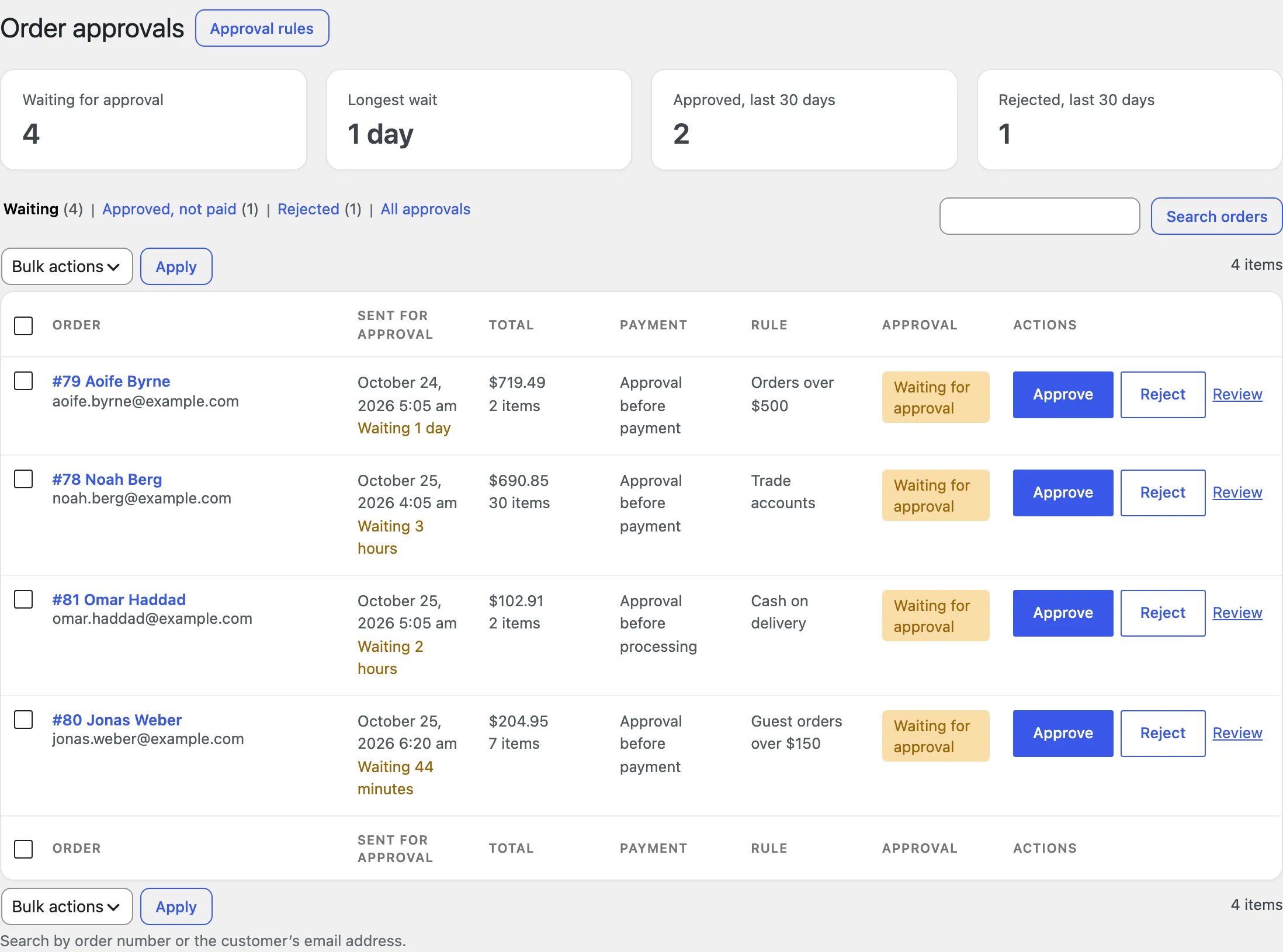
Order approvals
The orders waiting for you, those approved and not paid yet, and rejected orders. Approve with one click, open an order to add a message, or approve and reject in bulk, here or in the orders list.
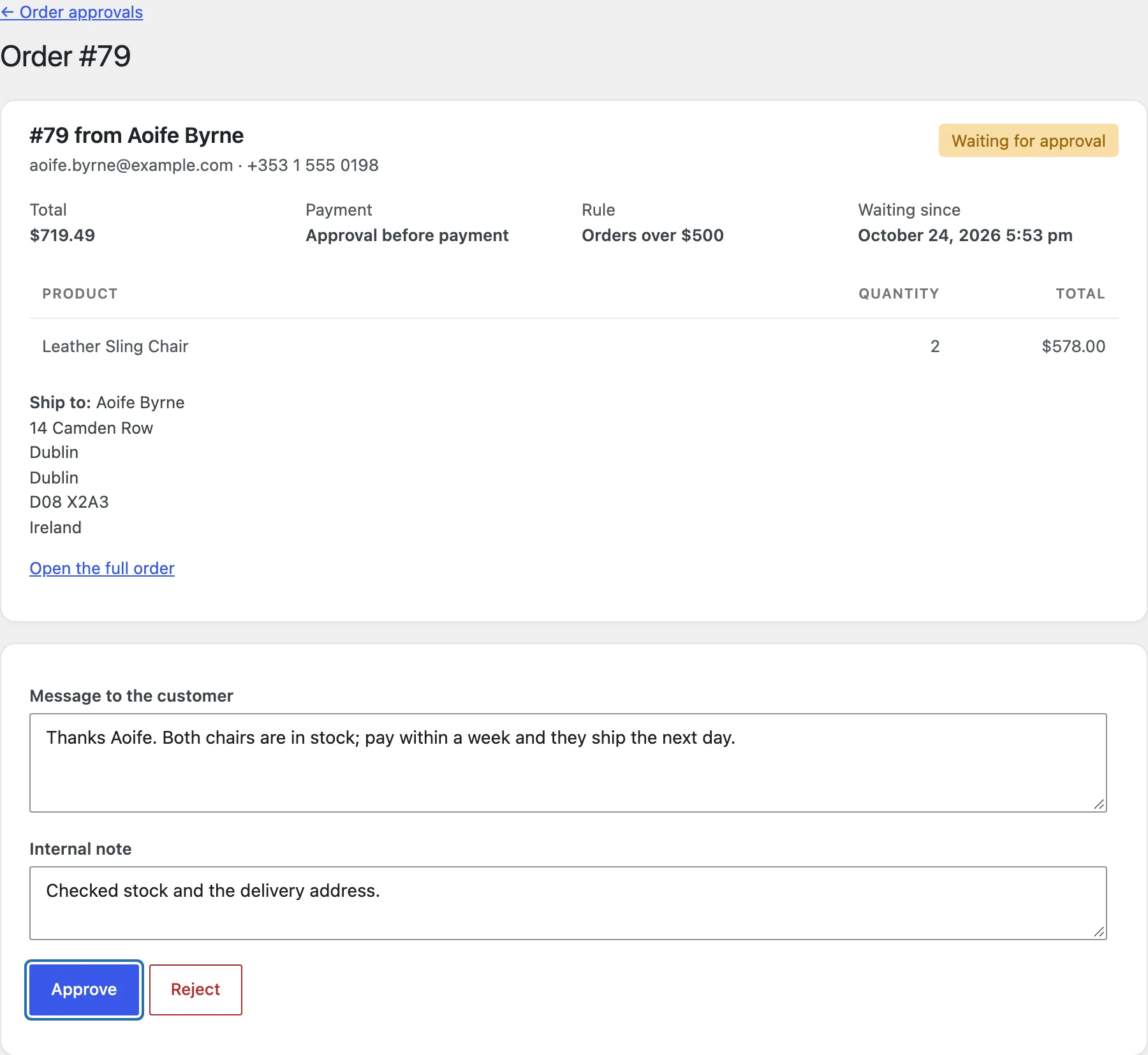
Approving and rejecting
Add a message to the customer, which goes into their email, and an internal note for the order notes. Rejected orders get their stock and coupon back, and paid ones are refunded when the payment method can.
Payment deadlines
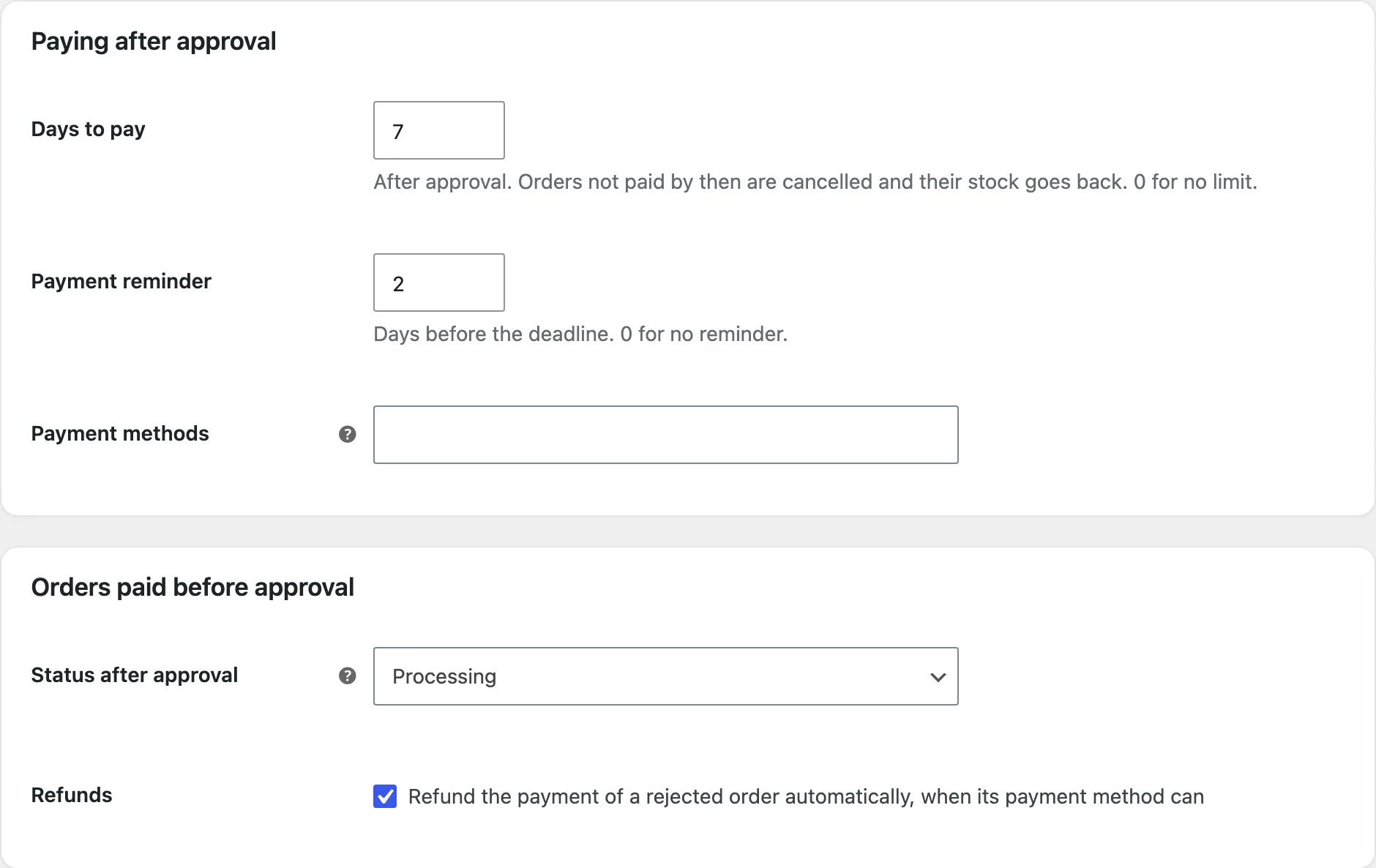
Approved orders not paid within the days you choose are cancelled, with a reminder before. You can also limit the payment methods for paying after approval.
What customers see
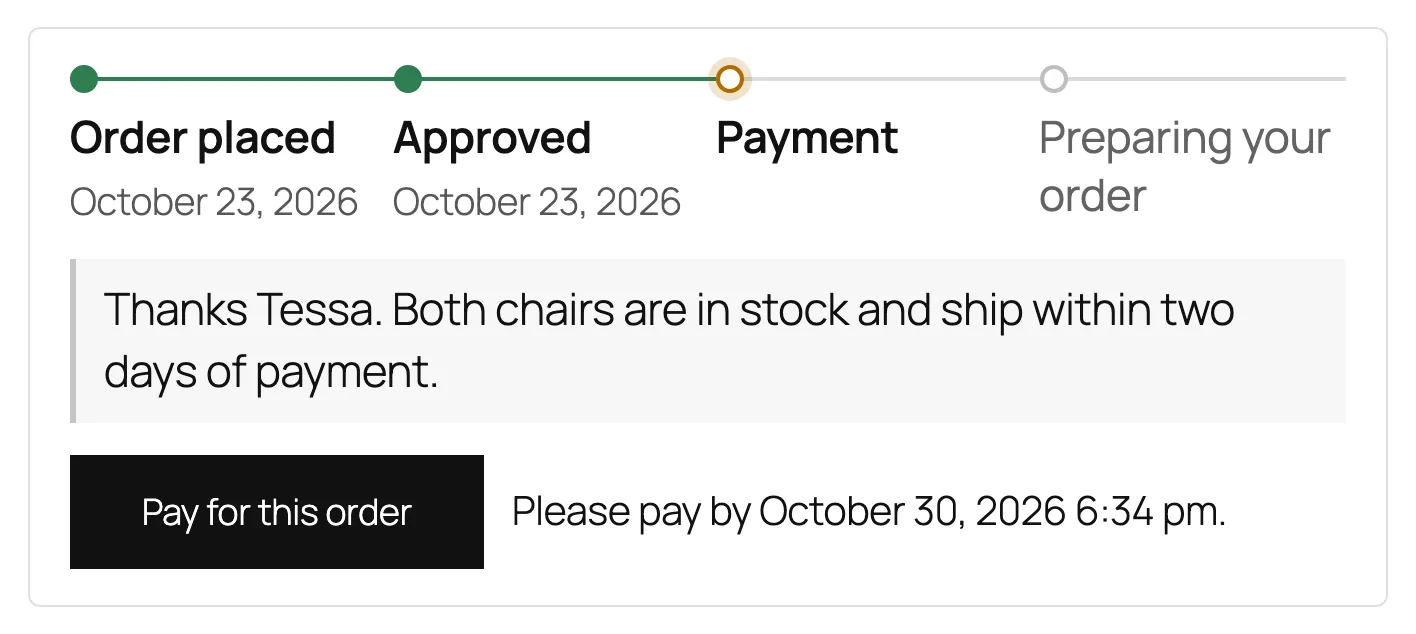
The payment method’s text and button, notices on product pages and at checkout, and the approval steps on the order received page and in My account.
Settings
| Setting | What it does |
|---|---|
| Approval rules | Which orders need approval, and whether they’re paid before or after. |
| Payment for “always” orders | For products and customers that always need approval. |
| Payment method name and text | What customers see at checkout. |
| Place order button | Its text for orders approved first. |
| Checkout notice for paid orders | Shown when an order is approved after payment. |
| Order received messages | For orders approved before payment and before processing. |
| Customers | The approval steps, and cancelling while an order waits. |
| Product pages | The notice on products that need approval. |
| Days to pay and reminder | After approval. |
| Payment methods | For paying an approved order. |
| Status after approval | For orders paid before approval. |
| Refunds | Refund rejected orders automatically. |
For developers
| Hook | Use |
|---|---|
oawo_match | Change whether a cart or order needs approval. |
oawo_capability | Change who can approve and reject orders. |
oawo_order_approved | Runs when an order is approved. |
oawo_order_rejected | Runs when an order is rejected. |
Frequently asked questions
Why don’t I see Request approval at checkout?
It shows only for carts that an approve-first rule matches, or with a product or customer that always needs approval.
Why wasn’t a rejected order refunded?
Bank transfer, cheque and cash on delivery can’t refund automatically. The order note reminds you to refund it yourself.
What happens to waiting orders if I turn the plugin off?
They move to On hold, and rejected orders to Cancelled, so they stay in your orders list. They move back when you turn the plugin on again.
How do I remove all data when deleting the plugin?
Add define( 'OAWO_REMOVE_ALL_DATA', true ); to wp-config.php before deleting the plugin. Orders waiting for approval move to On hold and rejected orders to Cancelled either way.
Changelog
1.2.0 · October 22, 2026
Feature update
- Added payment deadlines and reminders.
- Added refunds when an order is rejected.
1.1.0 · September 16, 2026
Feature update
- Added approve first and pay after, or pay first and approve before processing.
- Added approval emails with the customer’s approval steps.
1.0.0 · August 3, 2026
Initial release
- Approval rules by customer, product, total, payment, shipping and country.
- WooCommerce > Order approvals, the approval box on orders and bulk approve and reject.