Product Bundles adds a “Product bundle” product type that sells several products together at a bundle price, with choices, optional items and quantities, while each item keeps its own stock.
Requirements
- WordPress 6.8 or newer
- WooCommerce 10.0 or newer
- PHP 7.4 or newer
- Works with classic and block themes, the Cart and Checkout blocks, and High-Performance Order Storage.
Installation
- Download
product-bundles.zipfrom My account > Downloads. - In WordPress, go to Plugins > Add New Plugin > Upload Plugin, choose the zip file and click Install Now.
- Click Activate. Bundles are made on the product screen. Store-wide settings are under WooCommerce > Settings > Products > Bundles.
Quick start
- Go to Products > Add New and choose Product bundle as the product type.
- On the Bundled items tab, add the products and set their quantities.
- Choose Add up the item prices with a bundle discount, or a fixed price, and publish.
Adding items
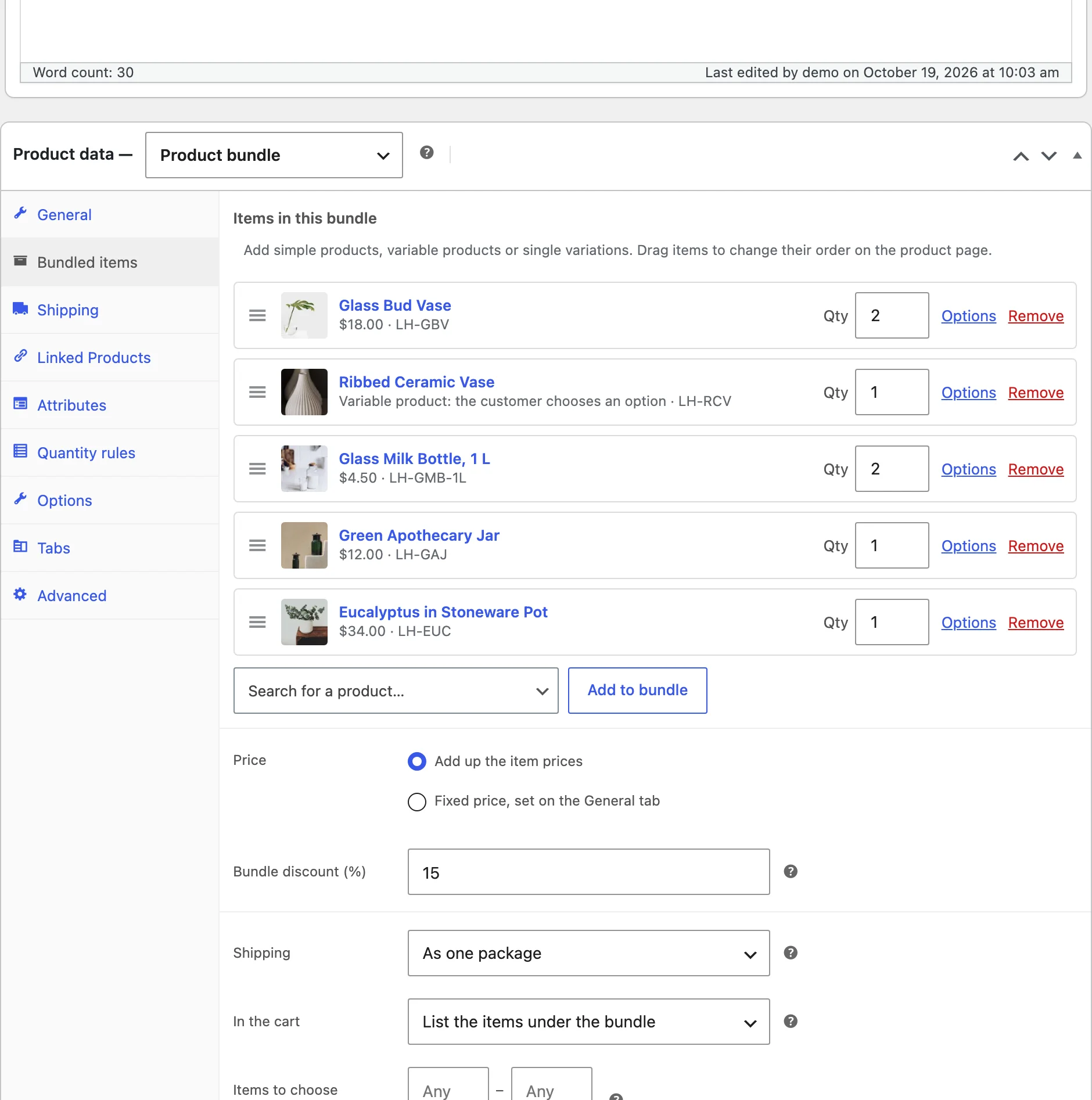
Search for a product and click Add to bundle. Simple products, variable products and single variations can be added. For each item, set the quantity, whether customers can change it, and a name in the bundle if it should differ from the product name.
Options of variable items
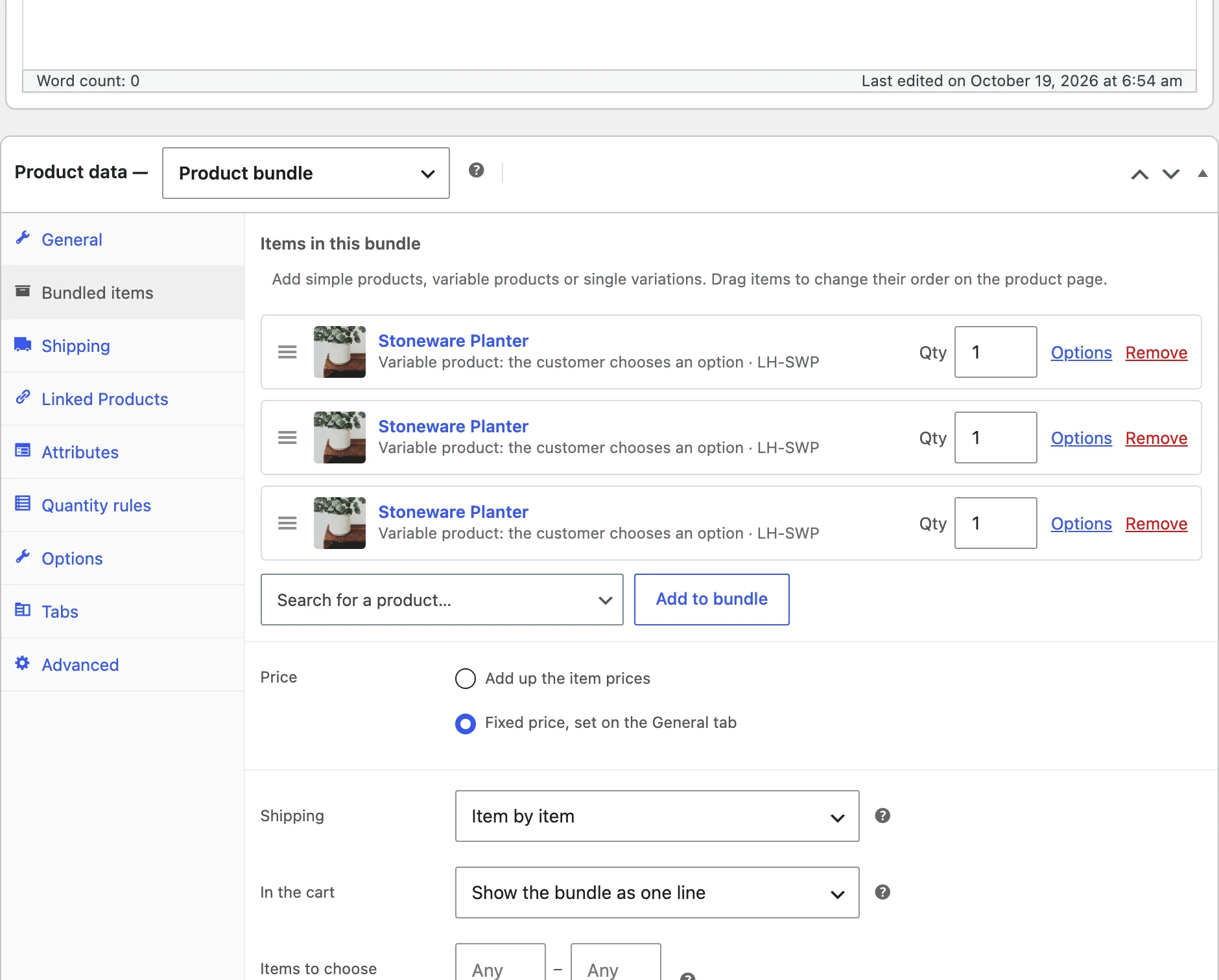
For a variable product, tick the options customers can choose and pick the one chosen to start with. Choose None: the customer chooses to make them pick.
Optional items
Tick Optional on an item so customers tick it to add it. Choose whether it starts ticked. Give an item its own discount with Item discount (%).
Price
Add up the item prices takes the bundle discount off the total of the items. Fixed price uses the price on the General tab. Either way, the shop shows the bundle’s regular and sale price.
Shipping and the cart
As one package ships the bundle with its own weight and size. Item by item ships each item with its own weight, size and shipping class. In the cart, list the items under the bundle or show it as one line.
On the product page
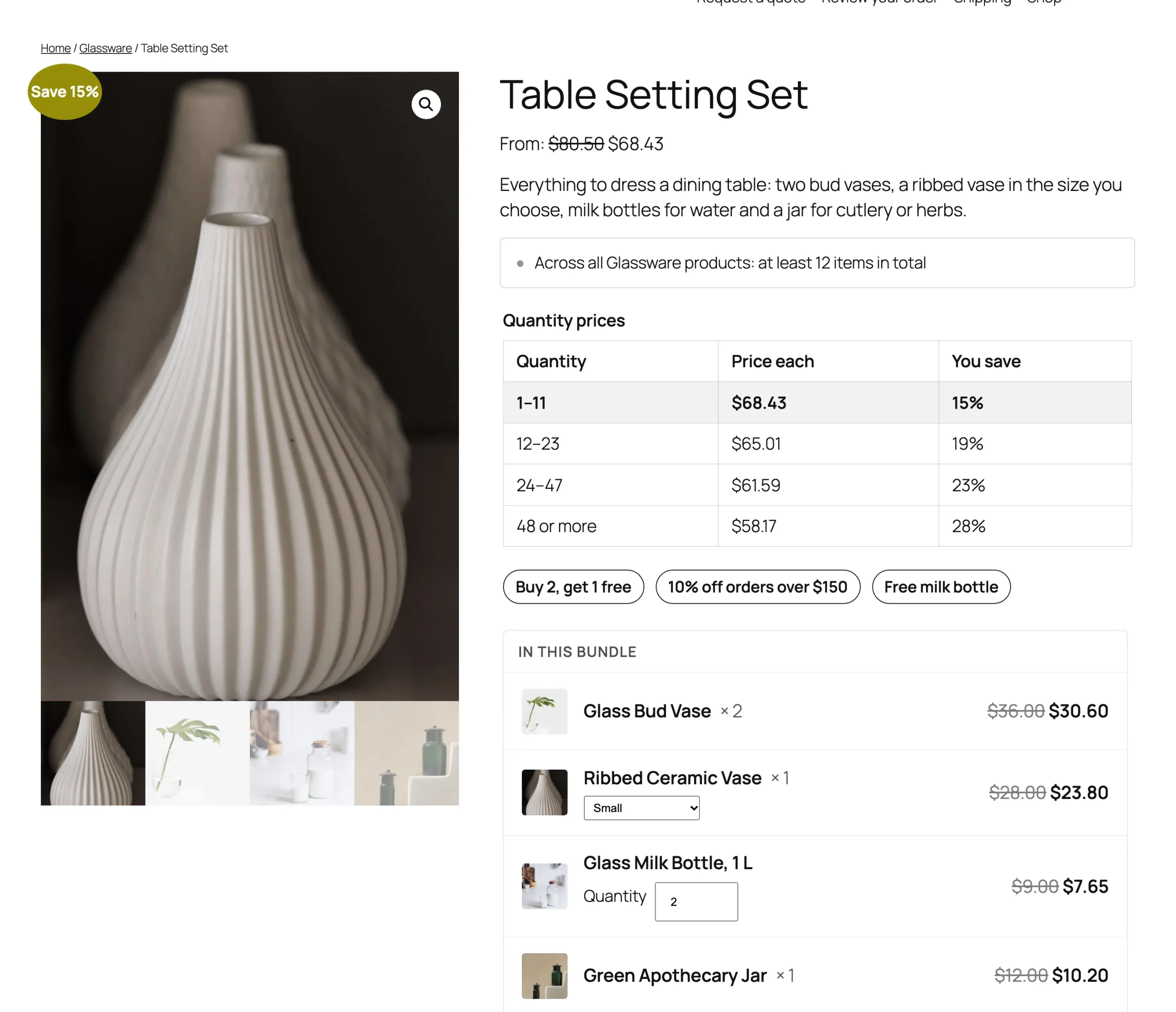
The bundle page lists every item with its picture, options and price, and the bundle price with the saving.
Settings
| Setting | What it does |
|---|---|
| Layout | List, one item per row, or a grid with two items per row. |
| Item images, Item links | Show a thumbnail of each item, and link item names to their product pages. |
| Sale badge | Show “Save 15%” instead of “Sale!” on discounted bundles. |
| Saving line | Show what the customer saves on the product page and in the cart. |
| Cart count | Count a bundle as one item next to the cart icon, or count every item. |
| Remove data | Delete the settings when the plugin is deleted. Bundles stay as products. |
For developers
| Hook | Use |
|---|---|
pbpr_before_item_price | Runs before an item’s price on the product page. |
pbpr_admin_capability | The capability needed to change the settings. |
Copy files from public/templates/single-product/ to yourtheme/product-bundles/single-product/ to change the bundle form.
Frequently asked questions
How do I create product bundles in WooCommerce?
Add a product, choose Product bundle as the type, add the items on the Bundled items tab and set the price.
Can an item appear twice in a bundle?
Yes. Add a variable product twice to offer, for example, two sizes of the same planter.
What happens to a bundle when an item sells out?
If the item is required, the bundle shows as out of stock until it is restocked. Optional items just can’t be ticked.
Changelog
1.0.0 · October 19, 2026
- Product bundle product type with simple, variable and variation items.
- Bundle discount or fixed price, optional items and quantity ranges.
- Stock from the bundled products and shipping as one package or item by item.
- Cart, emails and orders that show each bundle’s items.