Product Designer lets customers design products with text, pictures, clipart, shapes and QR codes on the product picture, and gives you print files for each order.
Requirements
- WordPress 6.8 or newer
- WooCommerce 10.0 or newer
- PHP 7.4 or newer
- Works with classic and block themes, the Cart and Checkout blocks, and High-Performance Order Storage.
Installation
- Download
maxima-product-designer.zipfrom My account > Downloads. - In WordPress, go to Plugins > Add New Plugin > Upload Plugin, choose the zip file and click Install Now.
- Click Activate. Set a product up on its Designer tab. Fonts, clipart and settings are under WooCommerce > Product Designer.
Quick start
- Edit a product and open its Designer tab.
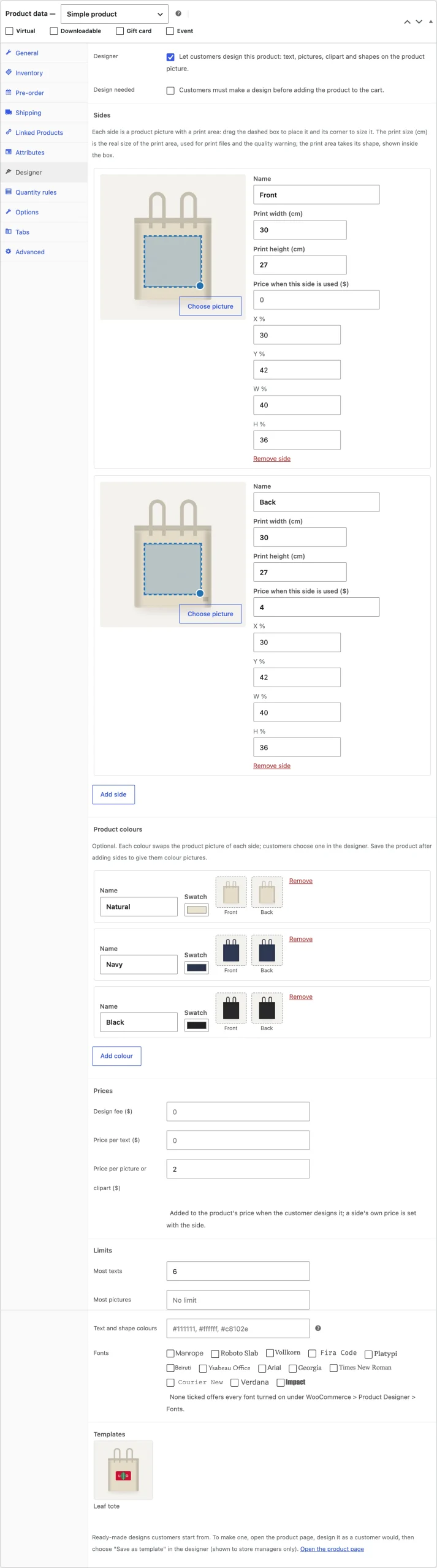
- Tick Designer, click Add side, choose the product picture and drag the dashed print area onto it.
- Set the print width and height, and add a back side or colours if you like.
- Open the product page, click Design it, add some text and click Done.
- Order it, then download the print files from the order screen.
Sides and print areas
Each side has a picture and a print area: drag the dashed box to place it and its corner to size it, or type the numbers. The print width and height are the real size of the print area, used for print files and the quality warning. A side can add a price when it’s used.
Product colours
Add colours with a swatch and a picture for each side. Customers pick a colour in the designer and the picture changes; the order shows the colour.
The designer
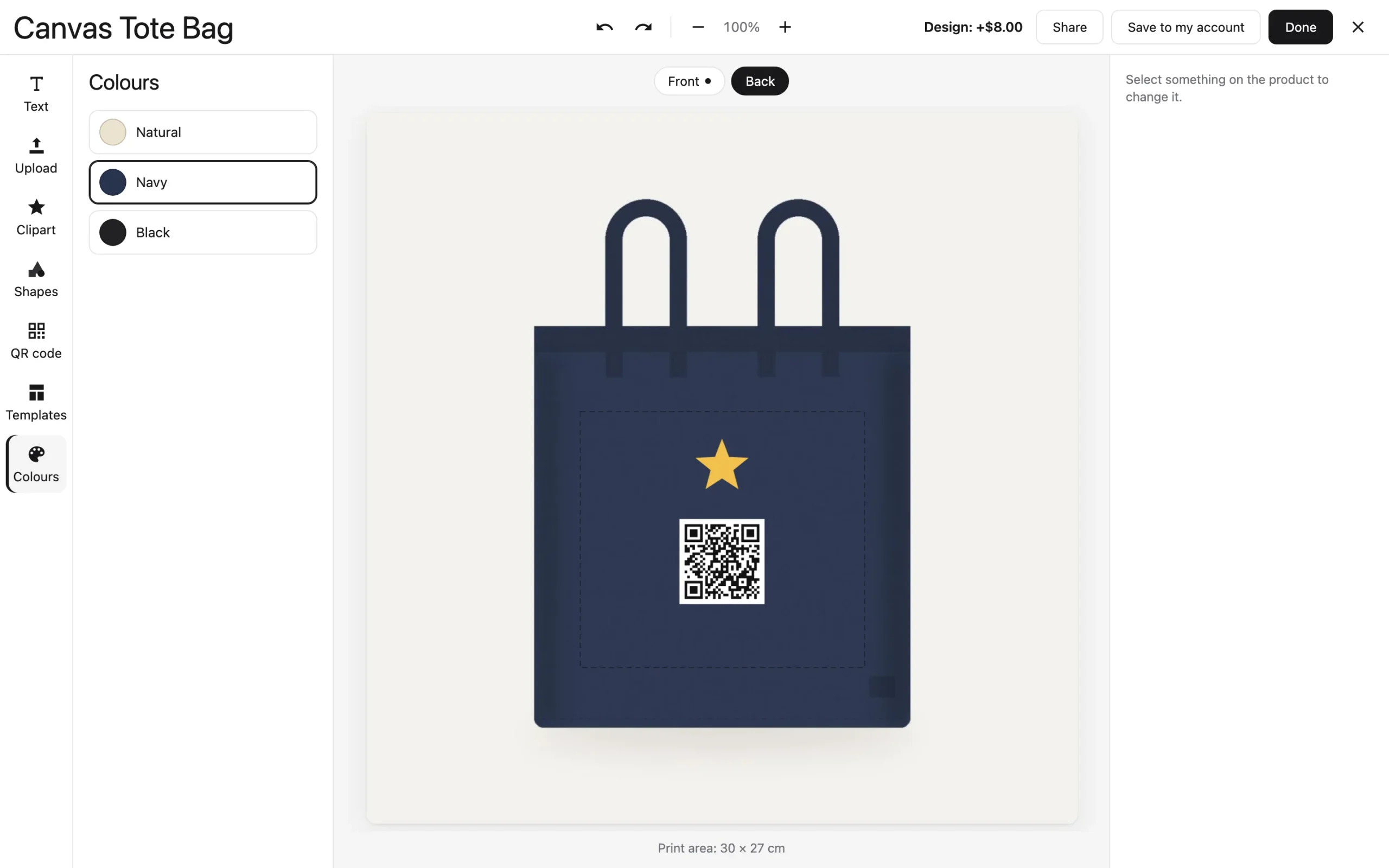
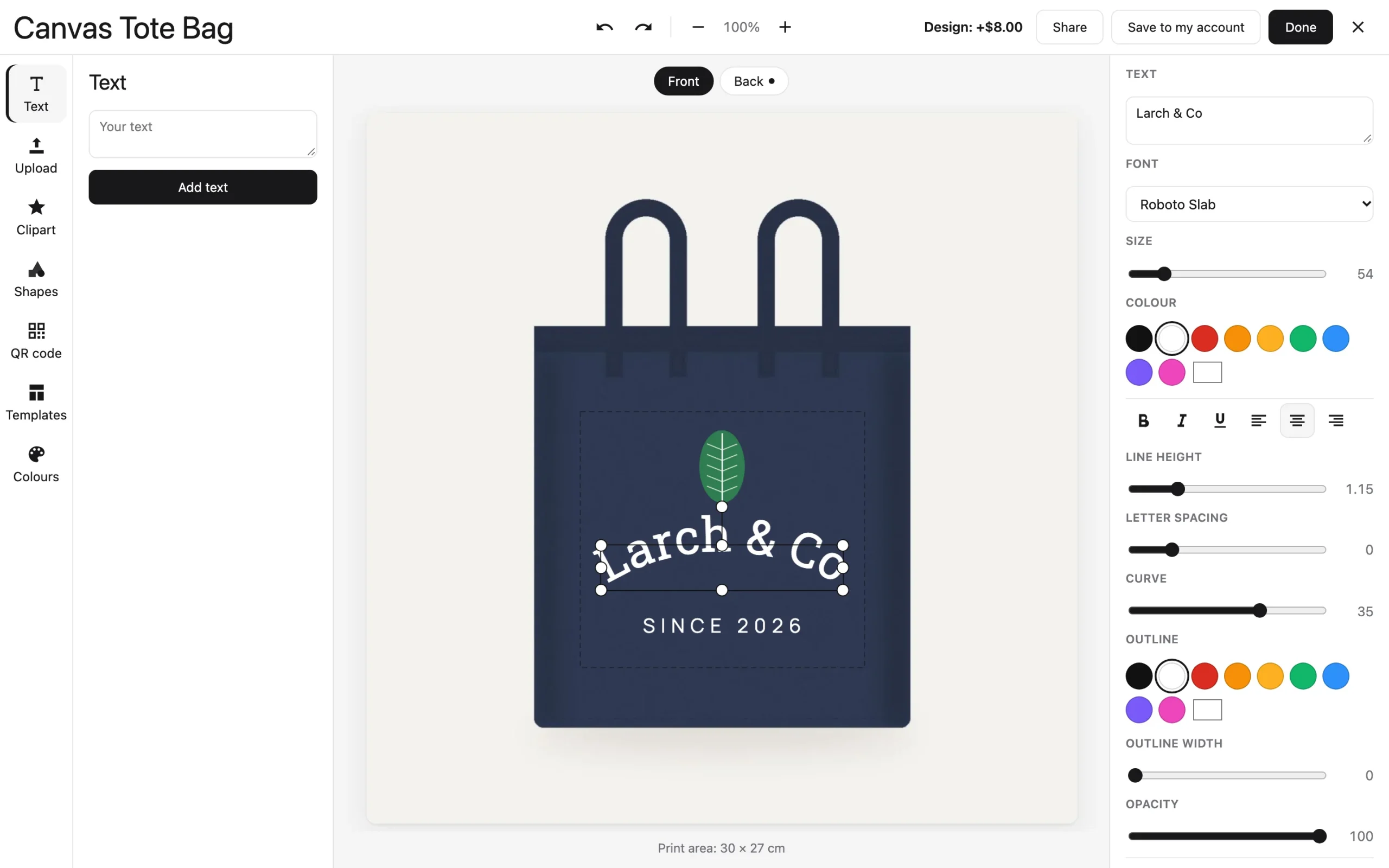
The tool rail adds text, pictures, clipart, shapes, QR codes, templates and colours. Select an item to change it on the right: fonts and colours for text, filters for pictures, and layer, flip, centre, duplicate, lock and delete for everything.
Prices and limits
Add a design fee, a price per text and per picture, and a price per side used. Limit the texts and pictures per design, the fonts offered and the colours for texts and shapes.
Orders and print files
The design shows in the cart, checkout, emails and the order screen. On the order screen, Designs and print files has PNG, SVG and PDF downloads for each side, and links to the customer’s pictures.
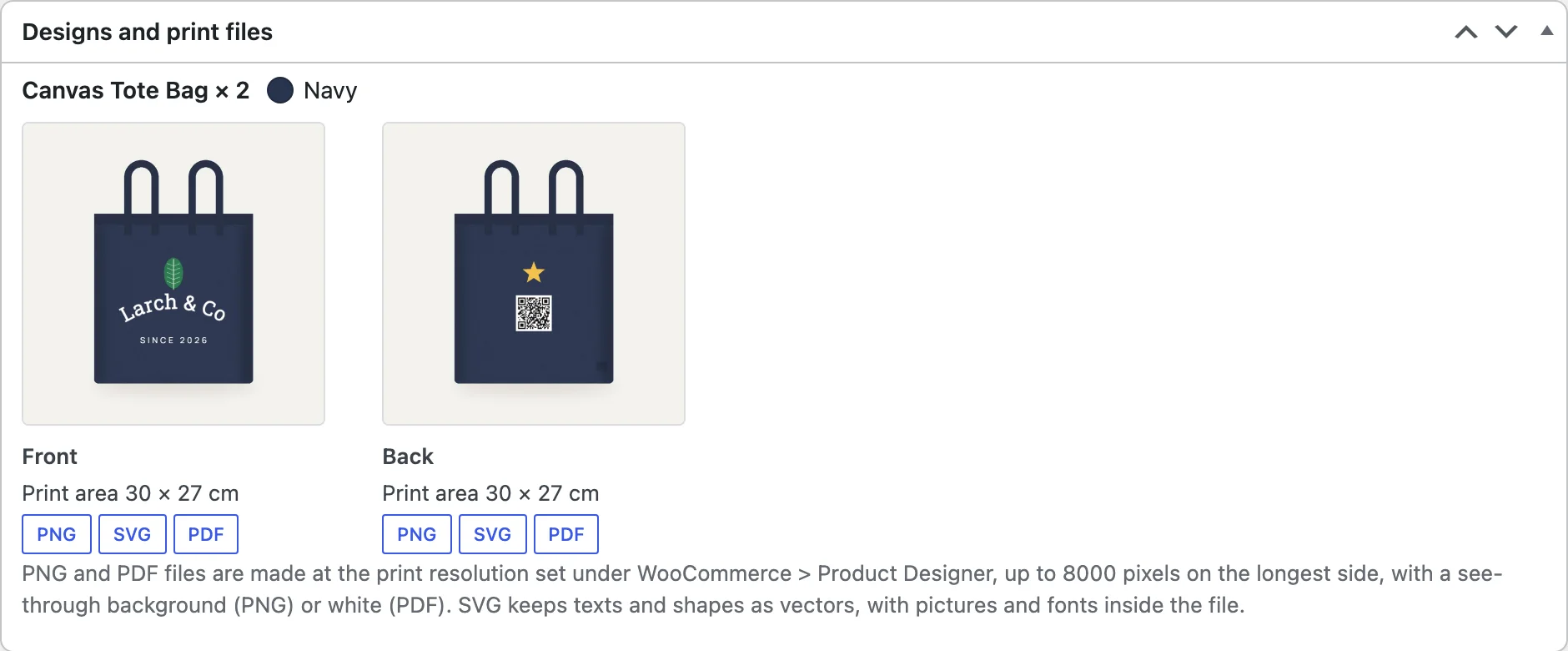
PNG files have a see-through background, PDFs a white one.
Fonts and clipart
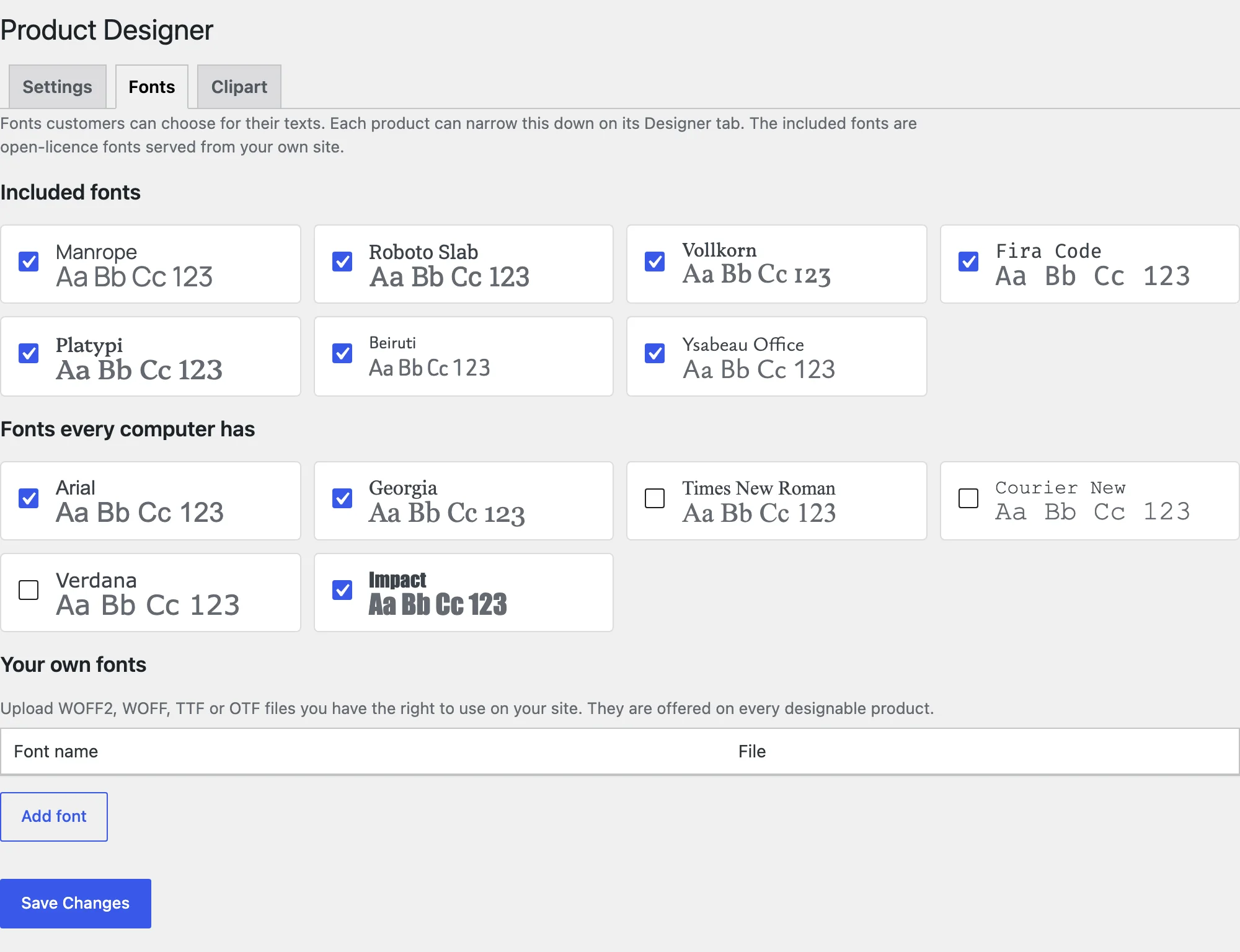
Under WooCommerce > Product Designer, turn fonts on or off, upload your own font files, and add clipart from the media library with categories.
Settings
| Setting | What it does |
|---|---|
| Button text | The Design button’s text. |
| Print size unit | Centimetres or inches. |
| Print file resolution | The DPI of PNG and PDF print files. |
| Quality warning below | The DPI under which customers see a warning. |
| Uploads | Let customers upload their own pictures, and the largest size. |
| Clean up after | Days after which designs never ordered or saved are removed. |
| My Account | Customers save designs to their account. |
| Share links | Customers share a link to a copy of their design. |
For developers
| Hook | Use |
|---|---|
pdpr_design_price | Change what a design adds to the price. |
Frequently asked questions
Why does my picture show a quality warning?
It has too few pixels for the size it’s printed at. Use a larger picture, or make it smaller on the product.
Can I change the fonts?
Yes, under WooCommerce > Product Designer > Fonts, and per product on the Designer tab.
How do I remove all data when deleting the plugin?
Add define( 'PDPR_REMOVE_ALL_DATA', true ); to wp-config.php before deleting the plugin.
Changelog
1.0.0 · October 21, 2026
- Full-screen designer with text, pictures, clipart, shapes and QR codes.
- Sides with print areas, colours, templates, fees and limits.
- Design previews in the cart, checkout, emails and orders.
- PNG, SVG and PDF print files, saved designs and share links.