Product Import & Export exports products to Excel, CSV or XML and imports products from files with your own column matching, price markups and schedules.
Requirements
- WordPress 6.8 or newer
- WooCommerce 10.0 or newer
- PHP 7.4 or newer
- Works with classic and block themes, the Cart and Checkout blocks, and High-Performance Order Storage.
Installation
- Download
product-import-export.zipfrom My account > Downloads. - In WordPress, go to Plugins > Add New Plugin > Upload Plugin, choose the zip file and click Install Now.
- Click Activate. Everything is under Products > Import and export.
Quick start
- Go to Products > Import and export.
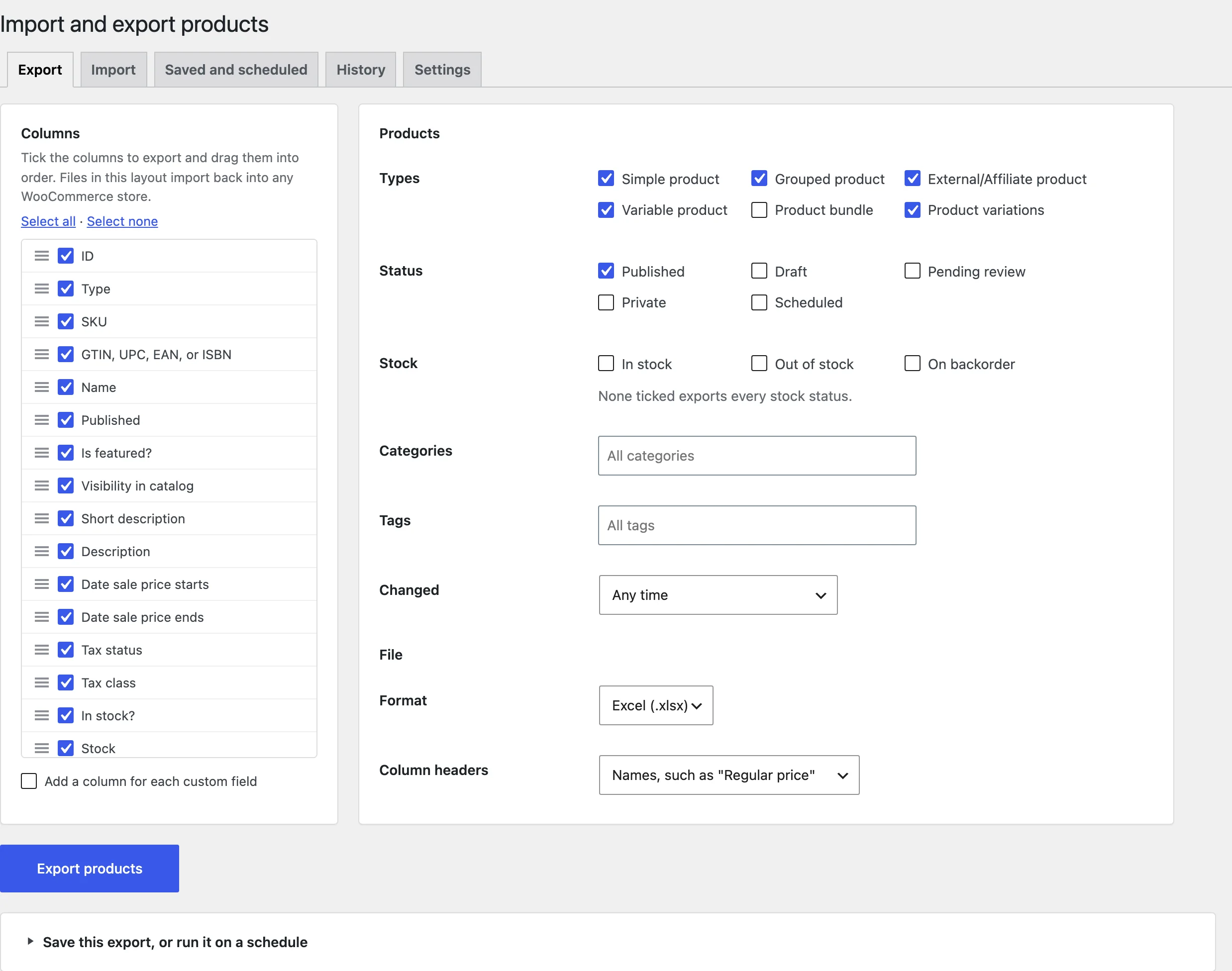
- On the Export tab, choose the columns and products, then click Export to download the file.
- On the Import tab, upload a file, match its columns to product fields and click Import.
Exporting products
Choose the format (Excel, CSV or XML), the columns and their order, and which products to include. Click Export to download the file, or Save to keep the export for later or put it on a schedule.
Importing products
Upload a file, give an address, or choose an FTP, FTPS or SFTP server. The plugin reads the first rows and lists the columns. Match each one to a product field, or leave it out.
Choose what to do with the rows: create new products, update existing ones (found by ID or SKU), or both.
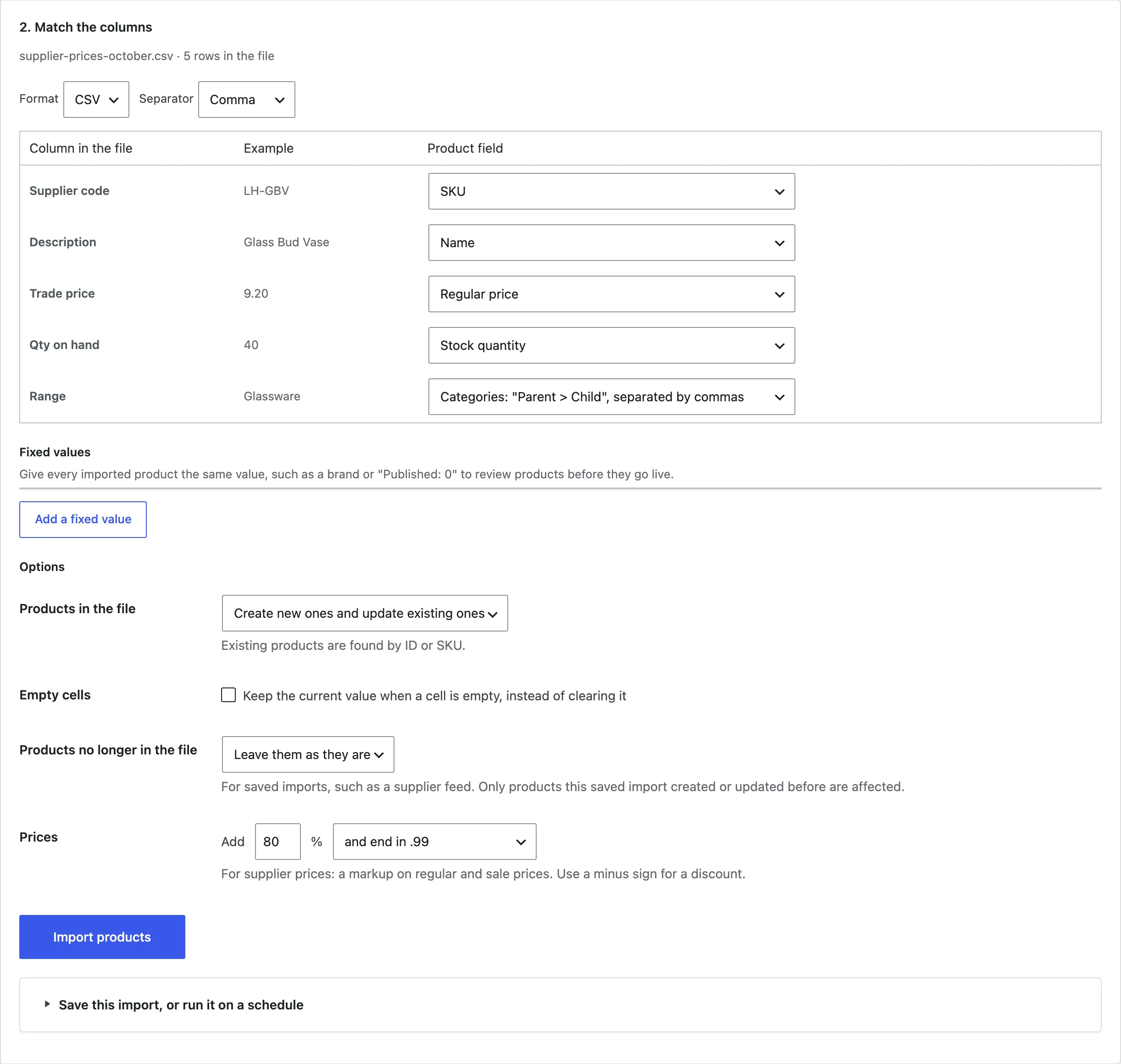
Match at least one column to ID, SKU or Name, so products can be found or created.
Markups and rounding
Under Prices, enter a markup in percent to add to every imported price, and choose a rounding: whole amounts, .99 or .95.
Saved and scheduled jobs
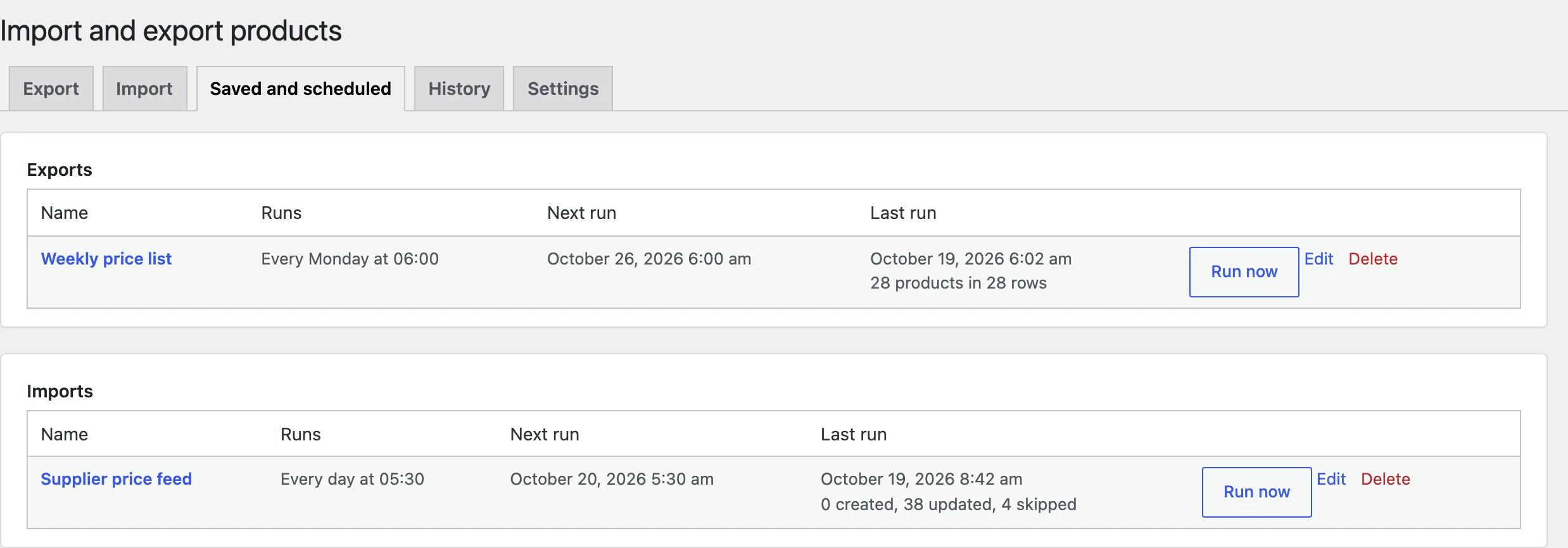
Saved jobs are listed on the Saved and scheduled tab with their next and last run. A scheduled import needs a file address or a server, so it can fetch the file by itself. Exports can be emailed, sent to a server, or posted to an address.
History and logs
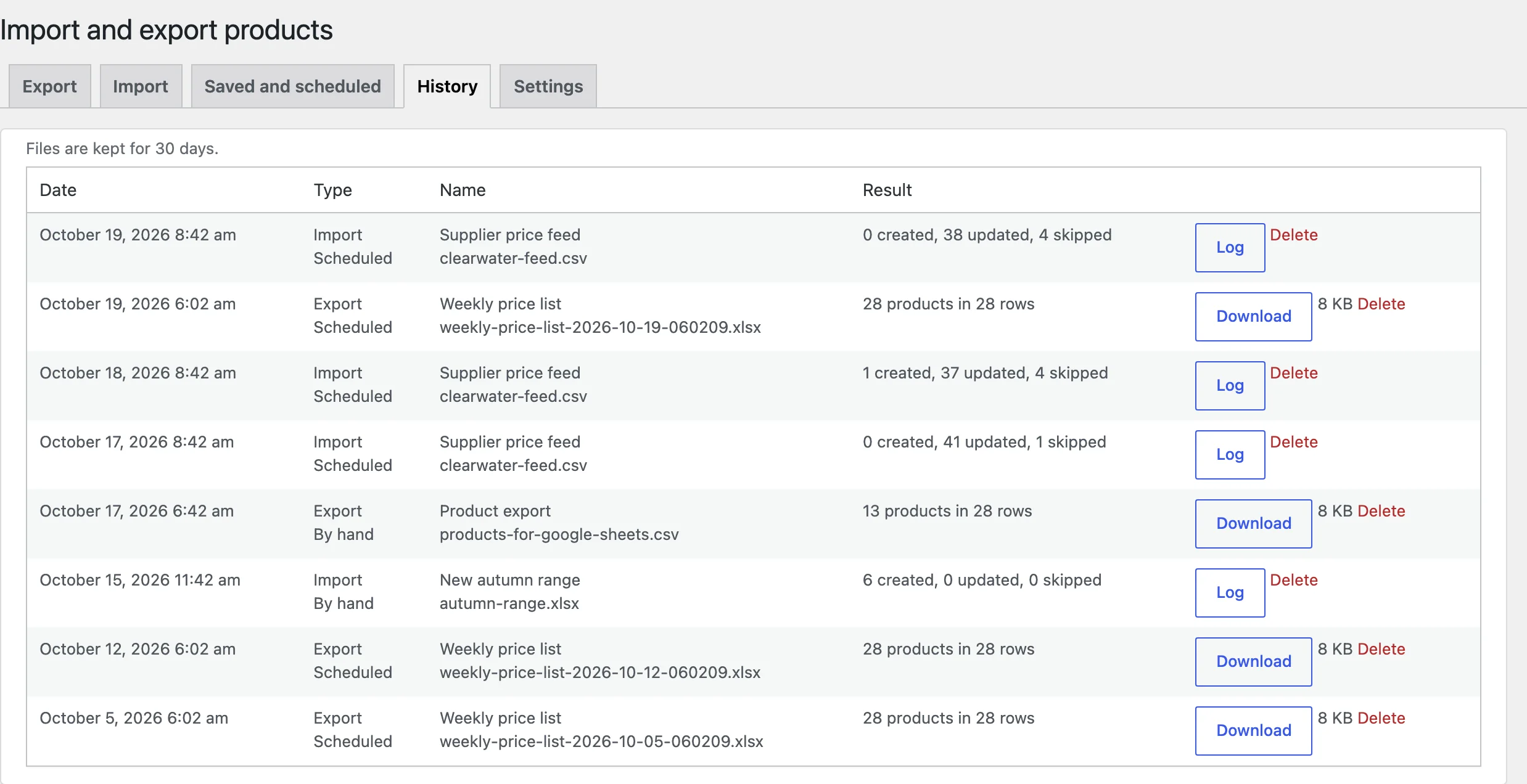
The History tab lists every finished import and export with its result, its file and its log.
Settings
| Setting | What it does |
|---|---|
| CSV separator | Comma, semicolon, tab or pipe for new CSV exports. |
| Excel | Start CSV files with a byte order mark, so Excel shows accents correctly. |
| Column headers | Column names or field keys in the first row. |
| Products per step | Lower it if imports with many images stop on a slow server. |
| Keep files for | Days to keep export and import files. |
| Remove data | Delete saved jobs, the history and its files when the plugin is deleted. |
For developers
| Hook | Use |
|---|---|
piep_export_columns | The columns available for export. |
piep_export_query_args | The product query of an export. |
piep_import_row | One row before it is imported. |
piep_target_groups | The product fields columns can be matched to. |
piep_export_finished | Runs when an export is finished. |
piep_import_finished | Runs when an import is finished. |
piep_admin_capability | The capability needed to import and export. |
Frequently asked questions
How do I export WooCommerce products?
Go to Products > Import and export, choose the columns and products on the Export tab and click Export.
How do I export products from WooCommerce to Excel?
Choose Excel (.xlsx) as the format. Numbers are saved as numbers, and the header row is bold and frozen.
How do I import products into WooCommerce?
Upload the file on the Import tab, match its columns to product fields and choose whether to create, update or both.
How do I upload products in bulk with images?
Put the image addresses in a column and match it to Images. Several images go in one cell, separated by commas.
Changelog
1.0.0 · October 19, 2026
- Exports to Excel, CSV and XML with your columns and filters.
- Imports from uploads, addresses and FTP, with column matching and fixed values.
- Price markups and rounding.
- Saved and scheduled jobs, history and logs.