Shopify & Magento Store Migration moves products, customers, orders and reviews from a Shopify or Magento store to WooCommerce, keeps order numbers and redirects the old addresses.
Requirements
- WordPress 6.8 or newer
- WooCommerce 10.0 or newer
- PHP 7.4 or newer
- Works with classic and block themes, the Cart and Checkout blocks, and High-Performance Order Storage.
- The old store must be reachable from your server for API connections and images.
Installation
- Download
shopify-magento-store-migration.zipfrom My account > Downloads. - In WordPress, go to Plugins > Add New Plugin > Upload Plugin, choose the zip file and click Install Now.
- Click Activate. The migration screen is under WooCommerce > Store migration.
Quick start
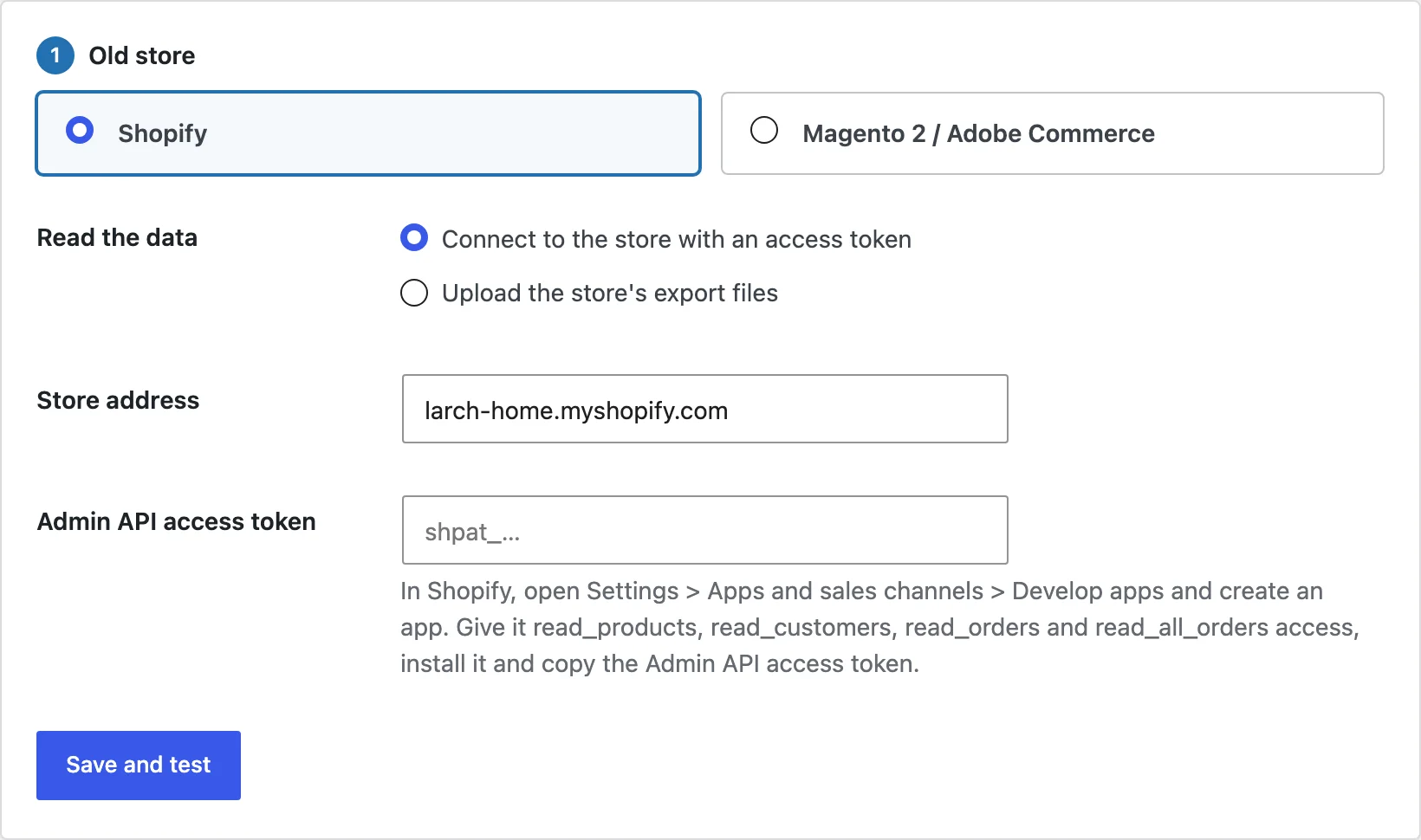
- Go to WooCommerce > Store migration and choose Shopify or Magento.
- Enter the store address and access token, or upload the export files, and click Save and test.
- Tick what to bring over and click Start migration.
Connecting to Shopify
In Shopify, go to Settings > Apps and sales channels > Develop apps, create an app, give it read access to products, customers, orders and inventory, and install it. Copy the Admin API access token into the migration screen with your store address, such as your-store.myshopify.com.
Connecting to Magento
In Magento, go to System > Extensions > Integrations, add an integration with access to the catalog, customers and sales, and activate it. Copy the access token into the migration screen with the store address.
Using export files
Choose Upload the store’s export files and upload the products, customers and orders CSV files the old store exports. Magento customer addresses come as a separate file. Reviews come from your reviews app’s export.
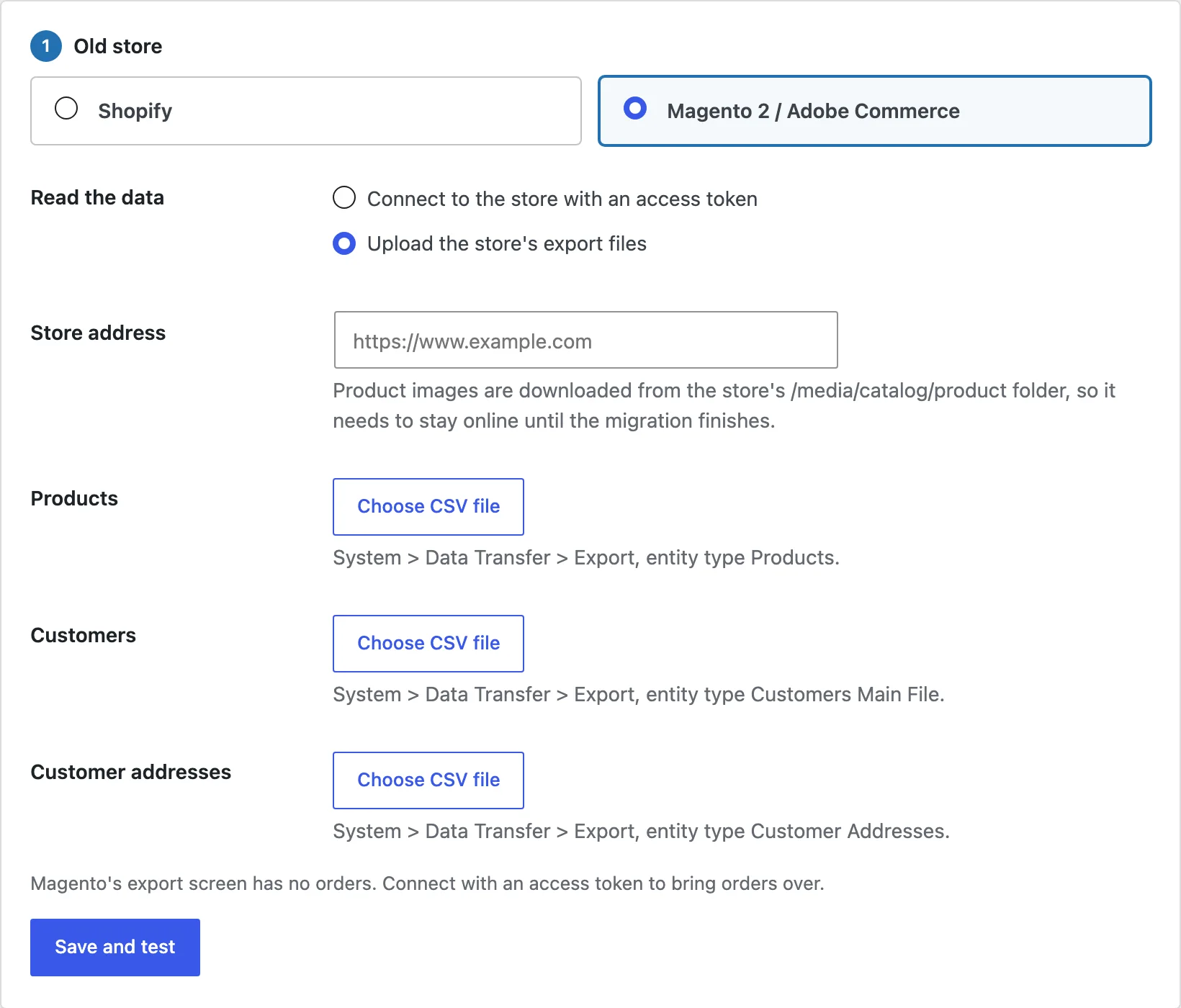
Export files don’t include customer passwords. With an API connection, Magento customers keep their passwords.
Running the migration
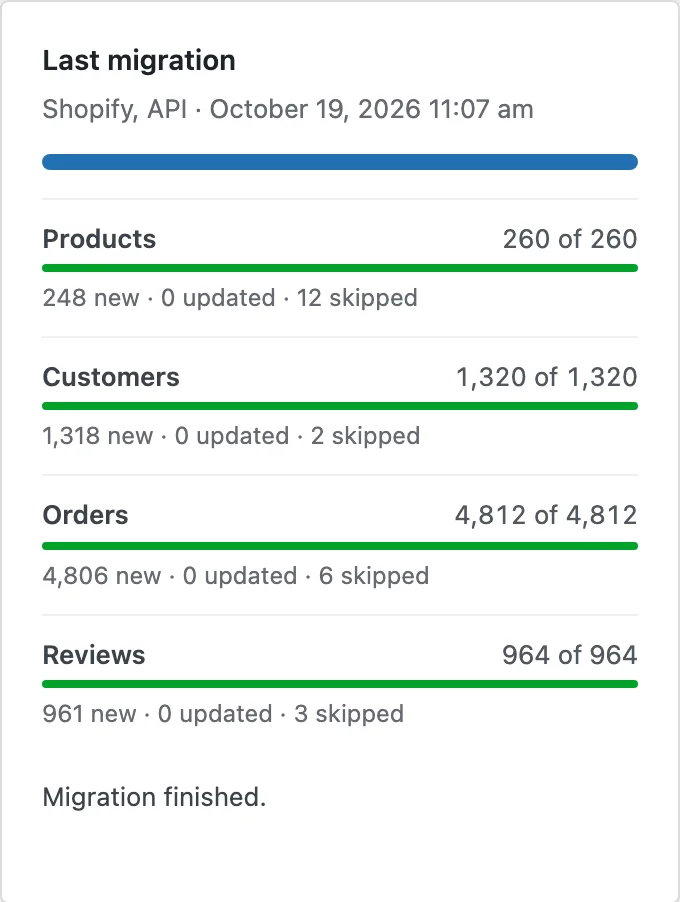
Tick what to bring over, choose whether draft and archived products are saved as drafts or private products, and click Start migration. Progress shows for each kind of data. You can close the screen; the migration carries on in the background.
Old URLs
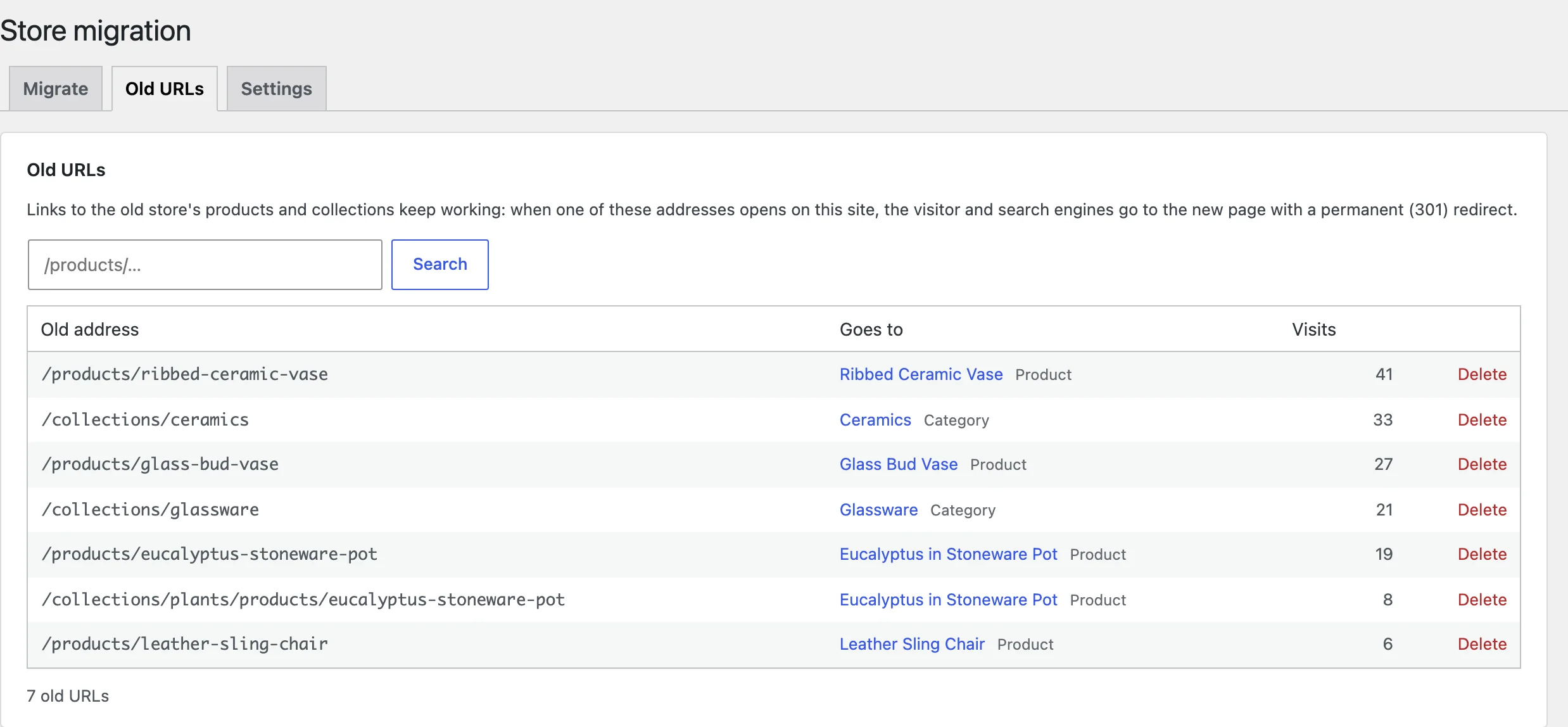
The Old URLs tab lists every old product and collection address, the page it now goes to and its visits. Delete an address to stop redirecting it.
On switch-over day
Run the migration again just before you point your domain at WooCommerce. It updates what changed and adds new orders and customers. After the switch, old links reach the new pages.
Settings
| Setting | What it does |
|---|---|
| Old URLs | Redirect old product and collection addresses to the new pages. |
| Order numbers | Show migrated orders with their old order number. |
| Remove data | Delete the plugin’s settings and records when it is deleted. |
| Start over | Delete the products, customers, orders and reviews the migration created, and the old URLs. |
For developers
| Hook | Use |
|---|---|
smsm_admin_capability | The capability needed to run migrations. |
Frequently asked questions
How do I migrate from Shopify to WooCommerce?
Install WooCommerce and this plugin, connect your Shopify store with an access token, choose what to bring over and start the migration. Run it again on switch-over day.
How long does a migration take?
Most stores finish within an hour. Large stores with many images take longer; the migration carries on in the background.
Can I test it first?
Yes. Run it on a staging site, check the result, and use Start over to remove everything it created.
Changelog
1.0.0 · October 19, 2026
- Shopify Admin API and Magento REST API connections, and export files.
- Products, variants, images, collections, customers, orders and reviews.
- Old order numbers and Magento passwords.
- Old URL redirects with visit counts.