Upsells & Cross-Sells Manager shows offers of matching products on product pages, in the cart, in a popup after add to cart and in your theme’s upsells sections, chosen by rules, with optional discounts and a report.
Requirements
- WordPress 6.8 or newer
- WooCommerce 10.0 or newer
- PHP 7.4 or newer
- Works with classic and block themes, the Cart and Checkout blocks, and High-Performance Order Storage.
Installation
- Download
upsells-cross-sells-manager.zipfrom My account > Downloads. - In WordPress, go to Plugins > Add New Plugin > Upload Plugin, choose the zip file and click Install Now.
- Click Activate. Offers, the report and settings are under Marketing > Upsells.
Quick start
- Go to Marketing > Upsells and click Add your first offer.
- Choose where it shows, when it shows and what it offers.
- Add a heading and a discount if you like, and click Activate.
Where it shows
Each offer has one place: the product page box, the cart box, the popup after add to cart, or your theme’s upsells or cross-sells. Create one offer per place.
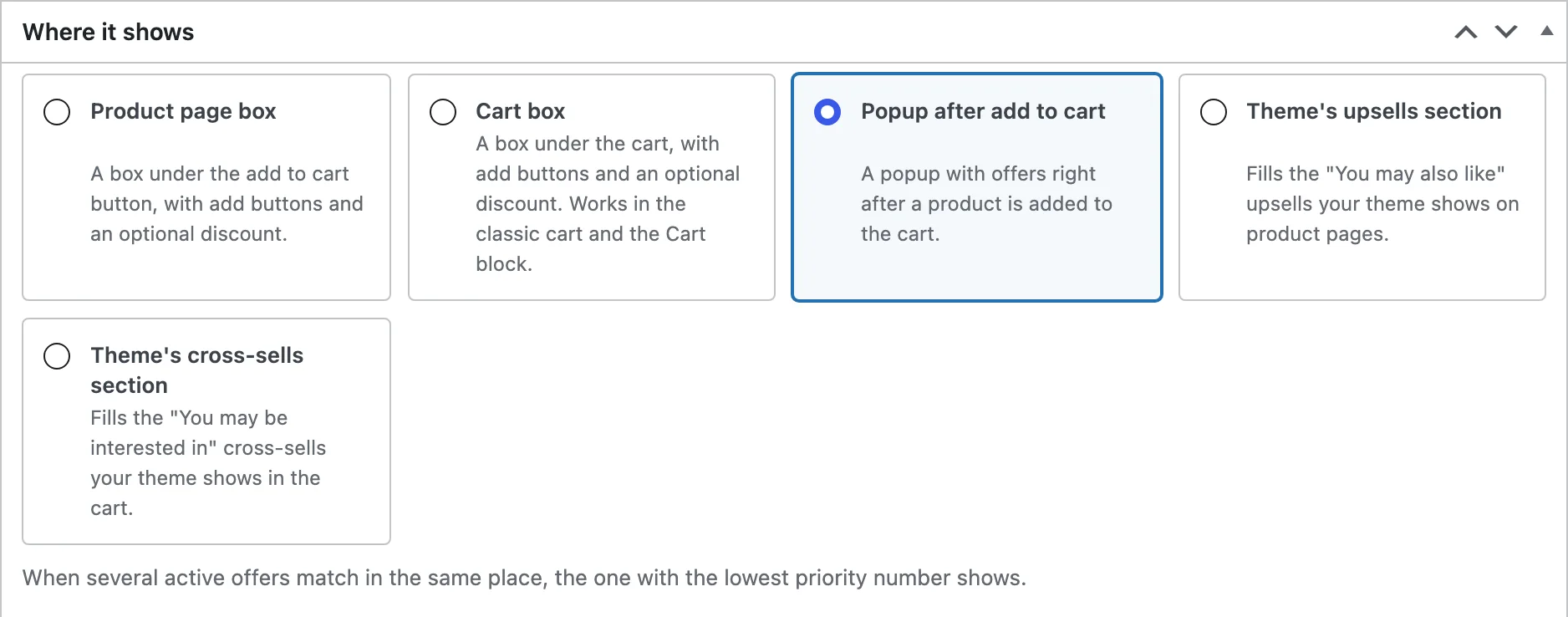
In the cart, “the product” is the most expensive item in it.
When it shows
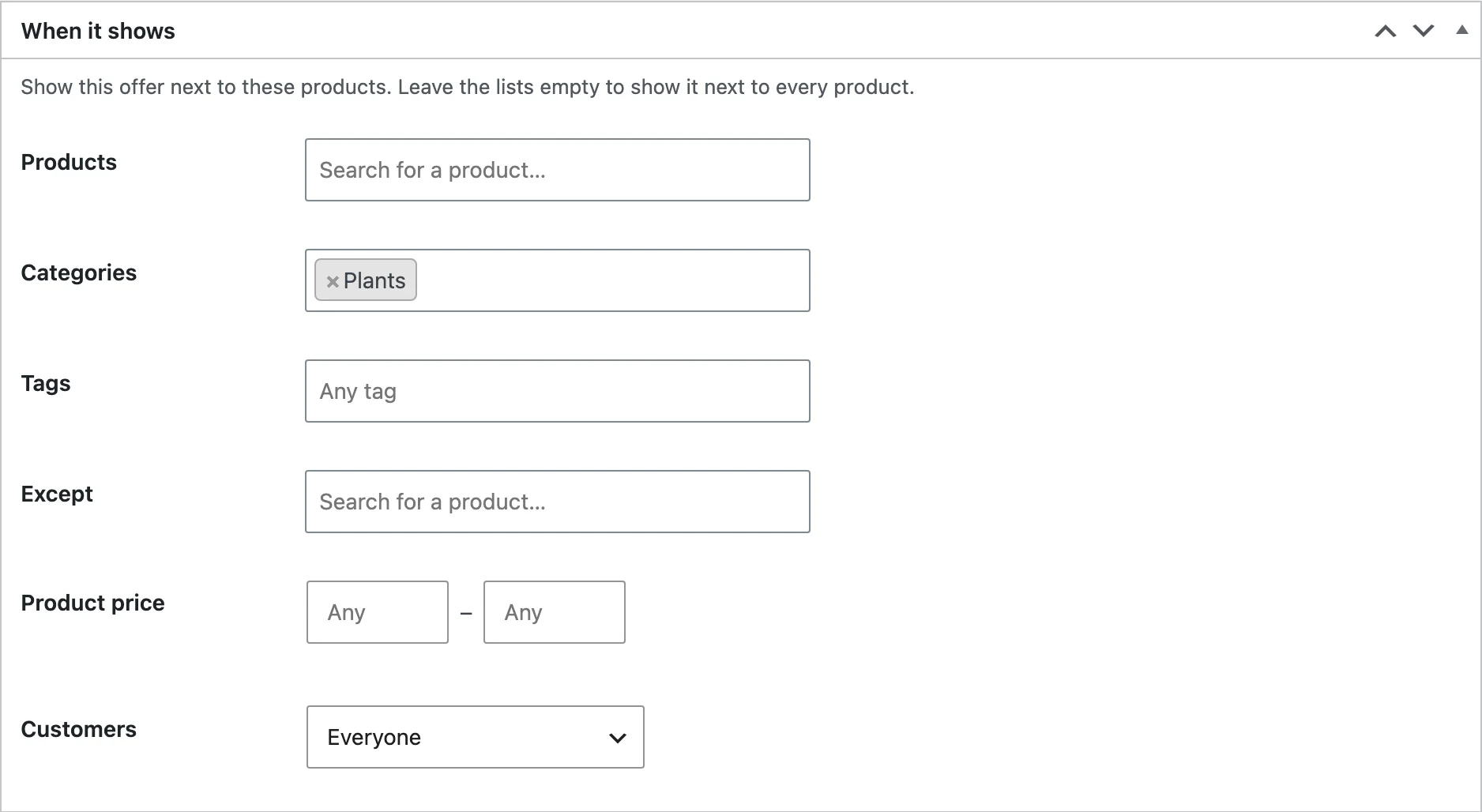
Choose the products the offer shows for: every product, chosen products, categories or tags, with exceptions. Limit it to a product price range, a cart subtotal, a group of customers and a date range.
What it offers
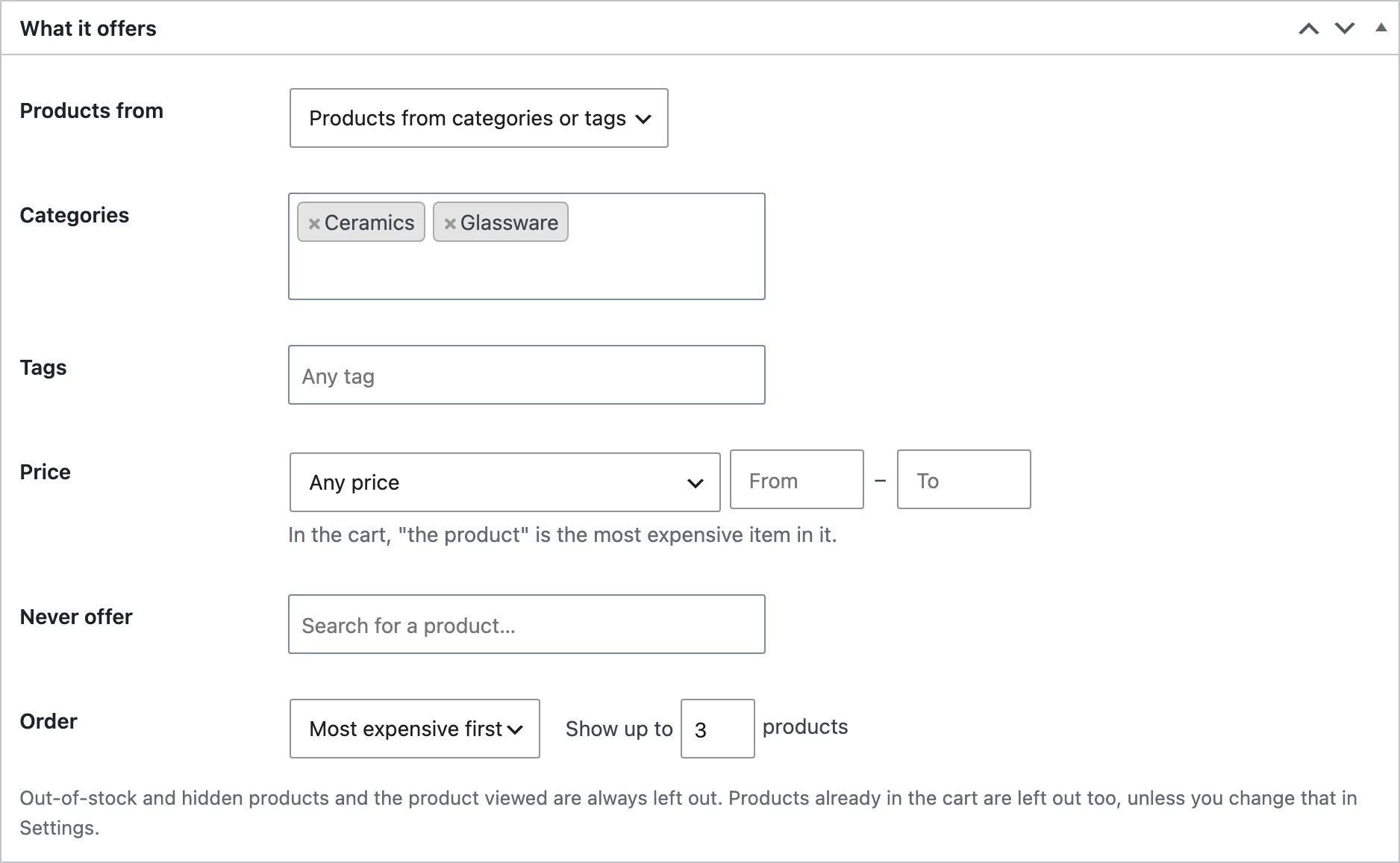
Choose where the offered products come from, whether they must be pricier or cheaper than the product, any price limits, the order and how many to show.
Display and discount
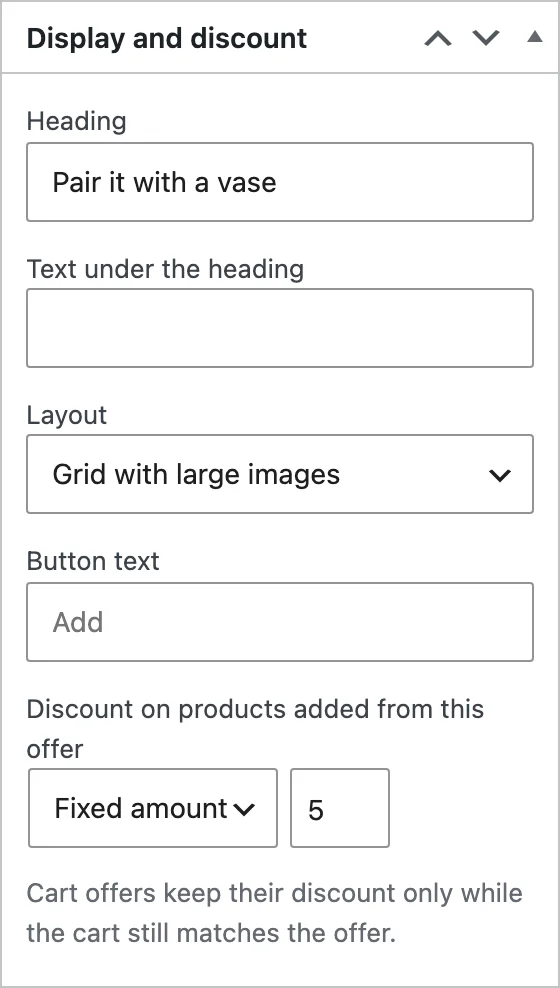
Write a heading and a line of text, choose a grid or a compact list, and give products added from the offer a percentage or fixed discount.
Several offers in one place
When more than one offer matches the same place, the one with the highest priority shows. Pause an offer to stop it without deleting it.
Report
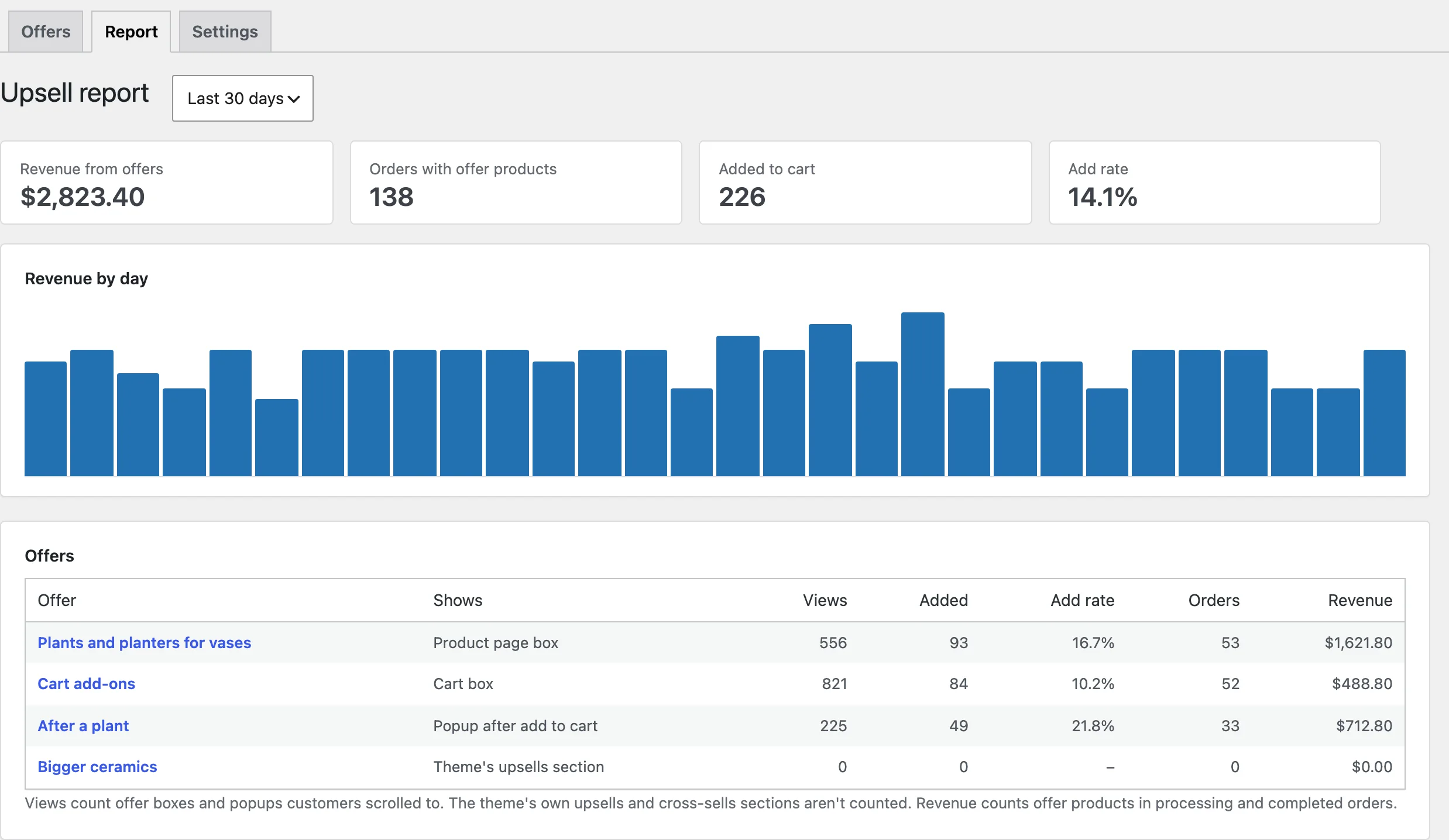
The report lists views, adds, add rate, orders and revenue per offer over 7, 30 or 90 days, with revenue by day.
Settings
| Setting | What it does |
|---|---|
| Products in the cart | Don’t offer products the customer already has in the cart. |
| Popup | Also open the popup after add to cart on shop and category pages. |
| Report | Count how often offers are seen. |
| Remove data | Delete offers, the report and settings when the plugin is deleted. |
For developers
| Hook | Use |
|---|---|
ucsm_can_offer_product | Whether a product can be offered. |
ucsm_fixed_discount_amount | The amount of a fixed discount, for example in another currency. |
ucsm_order_revenue | The revenue an order adds to the report. |
ucsm_admin_capability | The capability needed to manage offers. |
Copy public/templates/offer-box.php, offer-card.php or popup.php to yourtheme/upsells-cross-sells-manager/ to change them.
Frequently asked questions
How do I create upsells in WooCommerce?
Add an offer under Marketing > Upsells, choose the product page box or the theme’s upsells, and the products to offer.
How do I show cross-sell products in WooCommerce?
Add an offer for the cart box, the popup or the theme’s cross-sells, and choose which products it offers.
Why doesn’t an offer show?
Check that it is active, that the product matches When it shows, and that it has products to offer that are in stock and not already in the cart.
Changelog
1.0.0 · October 19, 2026
- Offers for the product page, the cart, a popup and the theme’s upsells and cross-sells.
- Rules by product, category, tag, price, subtotal, customer and date.
- Percentage and fixed discounts that follow the cart.
- Report of views, adds, orders and revenue.