Wishlist and Save for Later adds a wishlist with several lists, save for later in the cart, price drop and back-in-stock emails, and a report of the most wished products.
Requirements
- WordPress 6.8 or newer
- WooCommerce 10.0 or newer
- PHP 7.4 or newer
- Works with classic and block themes, the Cart and Checkout blocks, and High-Performance Order Storage.
Installation
- Download
wishlist-save-for-later.zipfrom My account > Downloads. - In WordPress, go to Plugins > Add New Plugin > Upload Plugin, choose the zip file and click Install Now.
- Click Activate. Settings are under WooCommerce > Settings > Wishlist. The report is under WooCommerce > Wishlists.
Quick start
- Activate the plugin: hearts show on shop cards and product pages, and a Wishlist page is made.
- Go to WooCommerce > Settings > Wishlist.
- On General, choose whether guests can save and whether customers can have several lists.
- On Buttons, choose the icon, texts and where the button goes.
- On Alerts, turn on price drop and back-in-stock emails.
Buttons
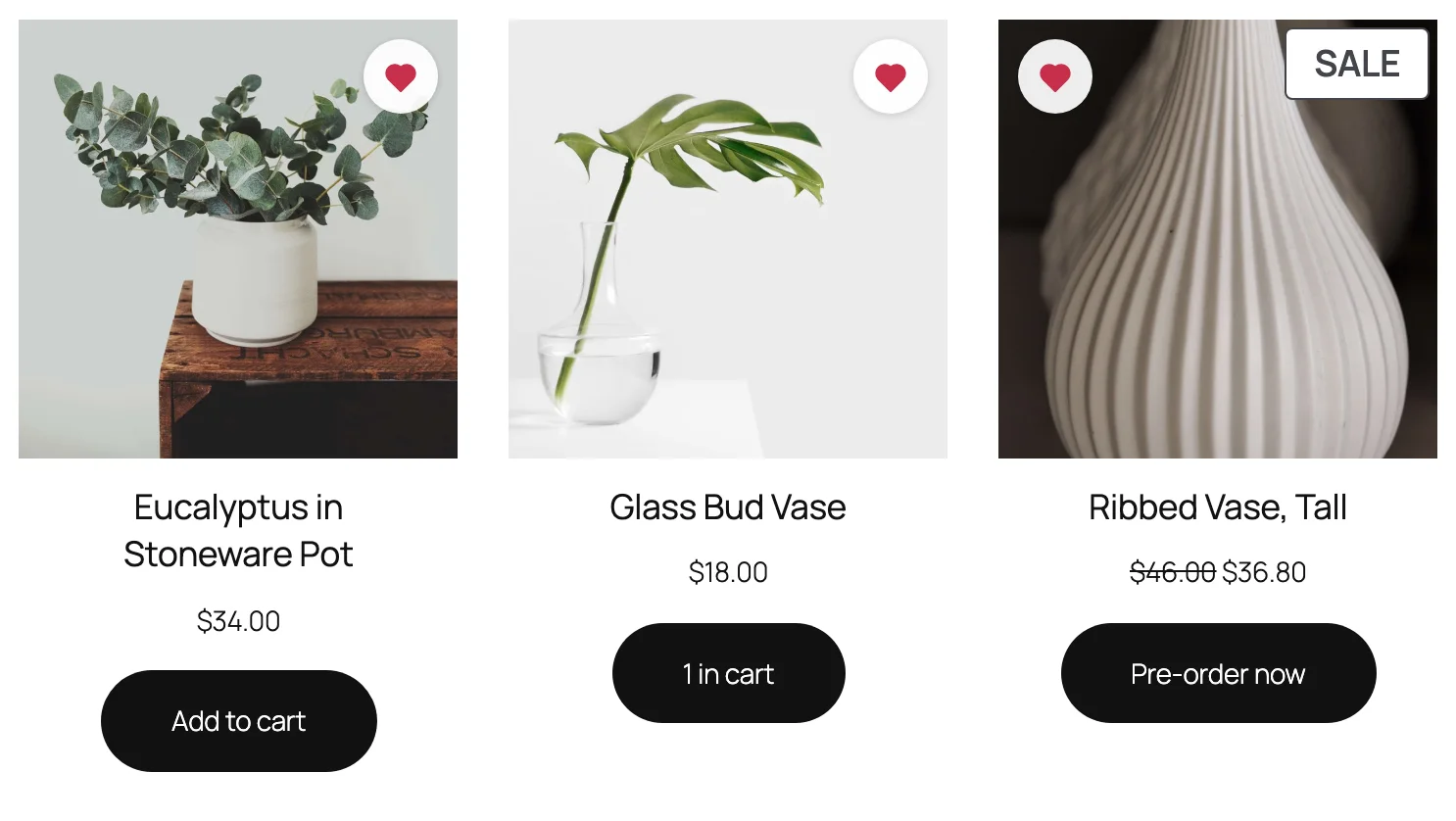
The button shows over the picture on shop cards and before or after Add to cart on product pages. Choose the icon, the texts and what happens after saving.
The wishlist page
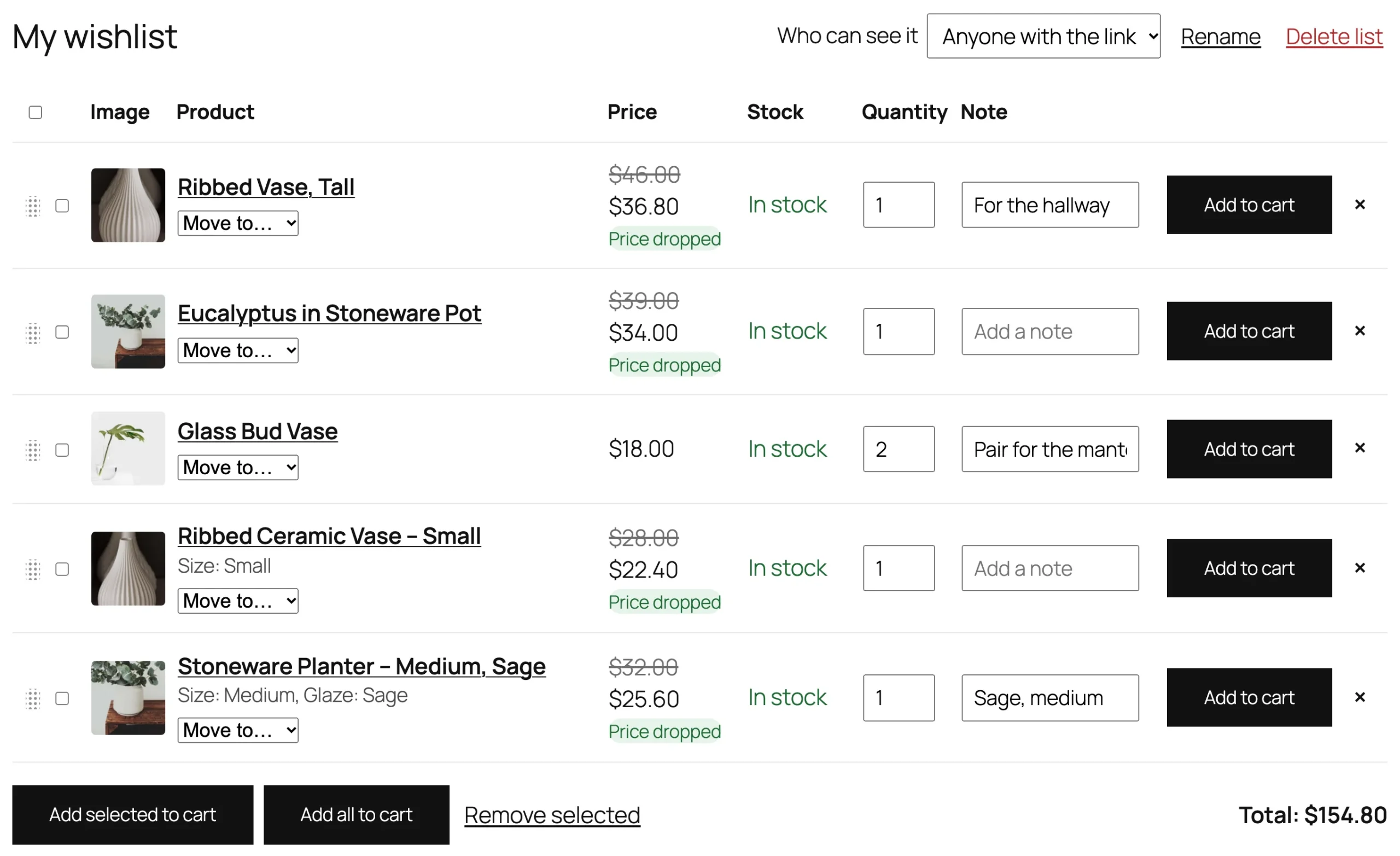
The page shows each list with the columns you choose, Add to cart buttons and the list’s total. Customers rename, share and delete lists, and move products between them.
Save for later
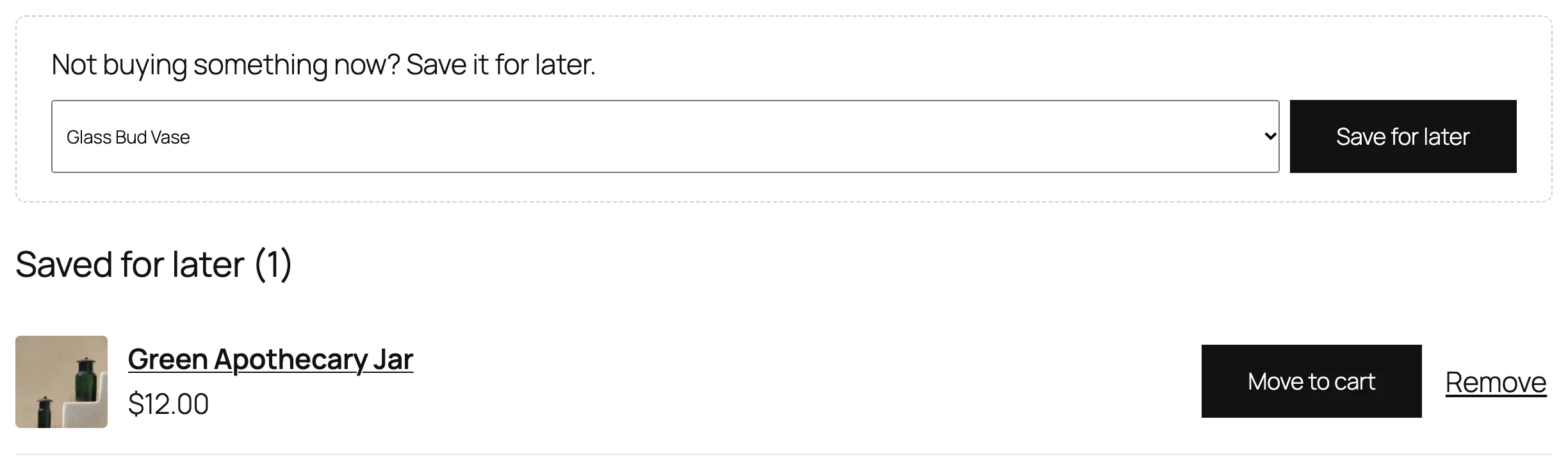
Turn on Save for later to let customers move cart items to a list under the cart, and back.
Alerts
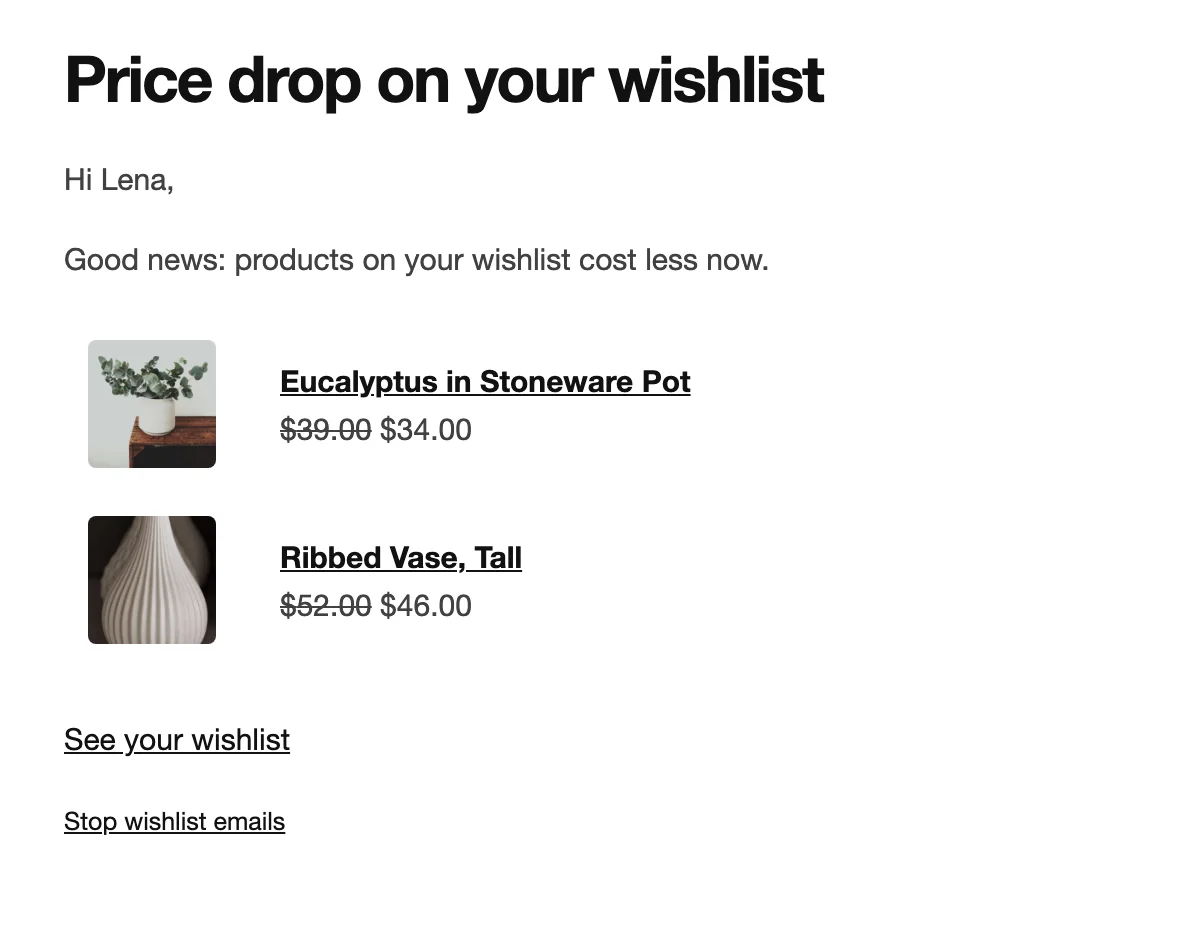
Price drop emails go out when a saved product gets cheaper by at least the percentage you set. Back-in-stock emails go out when a sold-out product is back. Each customer gets one email for everything that changed.
Report and promotion
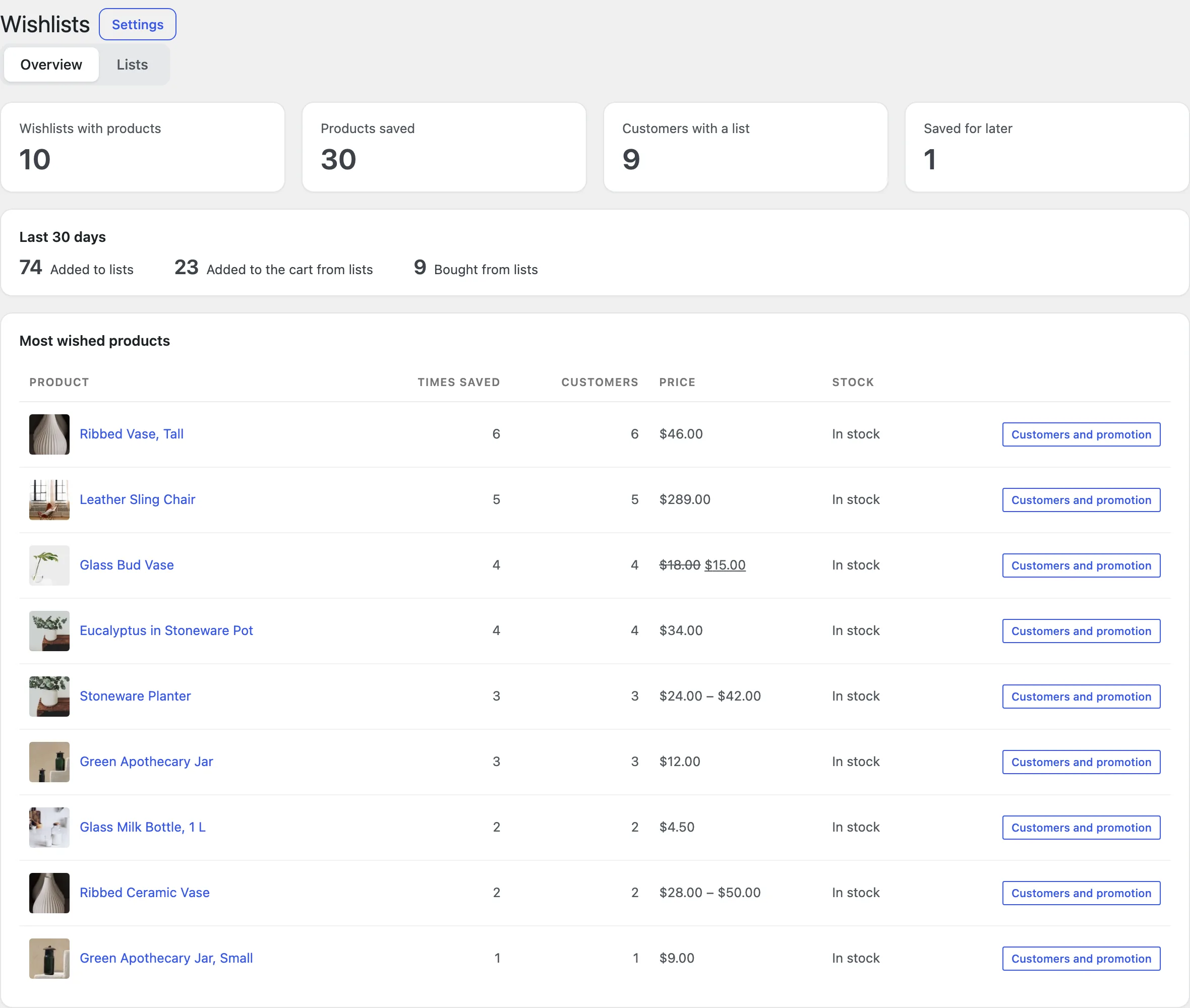
WooCommerce > Wishlists shows lists, saved products and the most wished products. Open a product to see who saved it and email them, with a personal coupon if you like.
Settings
| Setting | What it does |
|---|---|
| Guests | Let visitors without an account save, and for how many days. |
| Several lists | Let customers make more than one list. |
| Only these categories | Show the button only for some categories. |
| After saving a product | A message, a small window, the wishlist page or nothing. |
| Tidy up lists | Take products off lists when added to the cart or bought. |
| Save for later | A Saved for later list under the cart. |
| Buttons | Icon, texts and positions. |
| Alerts | Price drop percentage and back-in-stock emails. |
For developers
| Hook | Use |
|---|---|
wslw_has_button | Decide whether a product shows the button. |
wslw_button_args | Change the button’s template arguments. |
wslw_item_added | Run code after a product is saved to a list. |
wslw_before_wishlist | Add content before the wishlist page. |
wslw_admin_capability | Change who can see the report. |
Frequently asked questions
How do I add the wishlist to a menu?
Choose a menu in Settings > Wishlist page, or add the Wishlist counter block to a block theme’s header.
Can I use a shortcode?
Yes: [wslw_wishlist] for the wishlist, [wslw_button] for a button and [wslw_count] for the counter.
How do I remove all data when deleting the plugin?
Add define( 'WSLW_REMOVE_ALL_DATA', true ); to wp-config.php before deleting the plugin.
Changelog
1.1.0 · October 9, 2026
Feature update
- Added list sharing and price drop and back-in-stock emails.
- Added the wishlist report and promotion emails.
1.0.0 · August 12, 2026
Initial release
- Wishlist buttons on shop cards and product pages, for guests too.
- Several lists with notes, quantities and add all to the cart.
- Save for later in the classic cart and the Cart block.