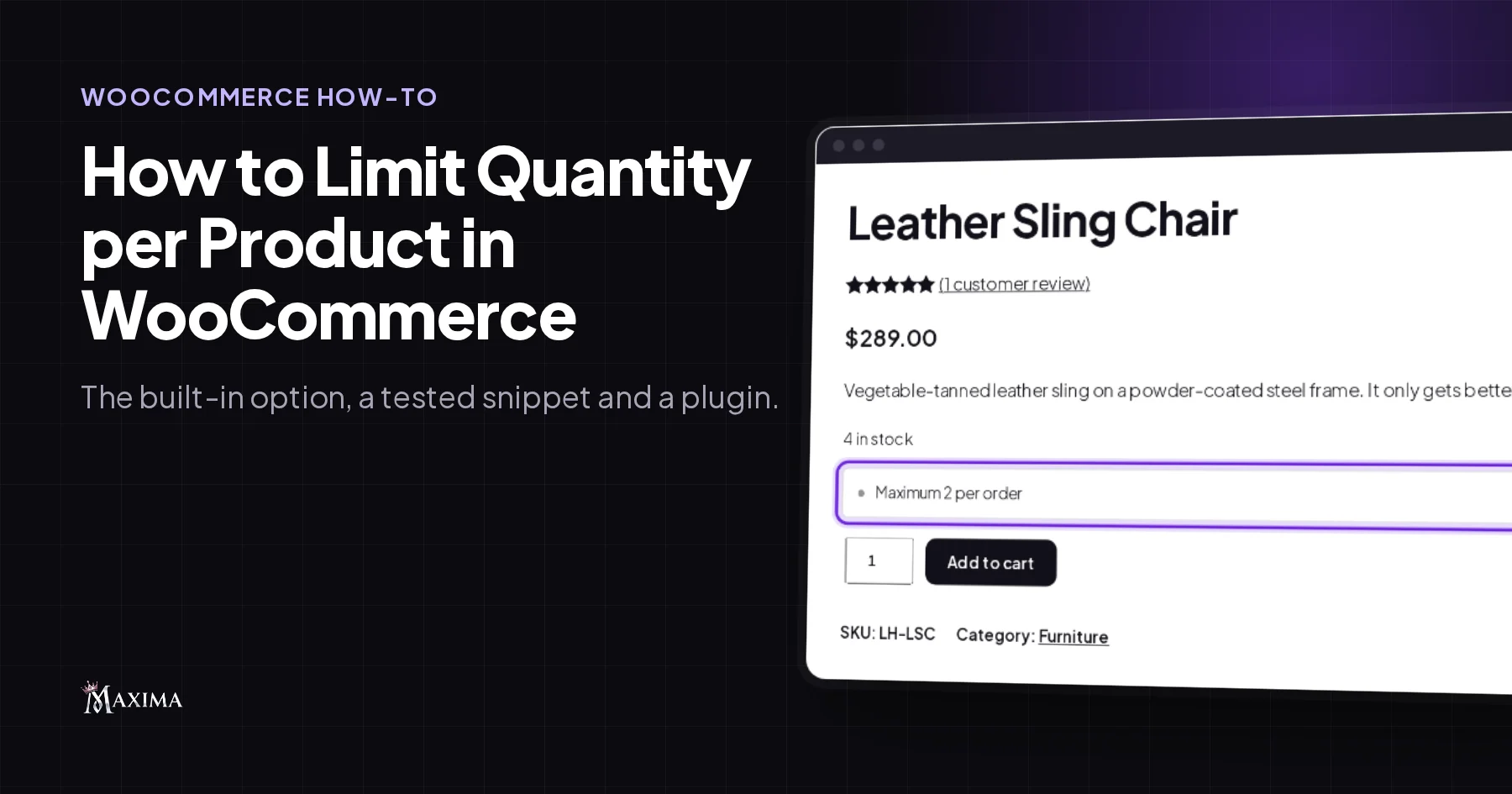
WooCommerce has one built-in way to limit purchase quantity per product: the Sold individually checkbox, which limits a product to 1 per order. For any other maximum (2 chairs per order, 10 jars per order) you need a short code snippet or a plugin. Both work, but they behave differently once variations, the Cart block and the cart messages come into play.
We tested all three in a WooCommerce 11.2 test store, Larch Home, with the Cart and Checkout blocks, and checked the snippet in a classic theme too. This post shows each one step by step, what we saw in the cart, and what each option misses, so you can pick the right one before a customer finds the gap.
You will learn how to:
- limit a product to 1 per order with WooCommerce’s own setting,
- set any maximum per product with a tested 2-part snippet,
- set maximums and minimums per product, category and order with clear cart messages,
- tell a per-order limit from a per-customer limit, which is a different job.
Does WooCommerce have a maximum quantity setting?
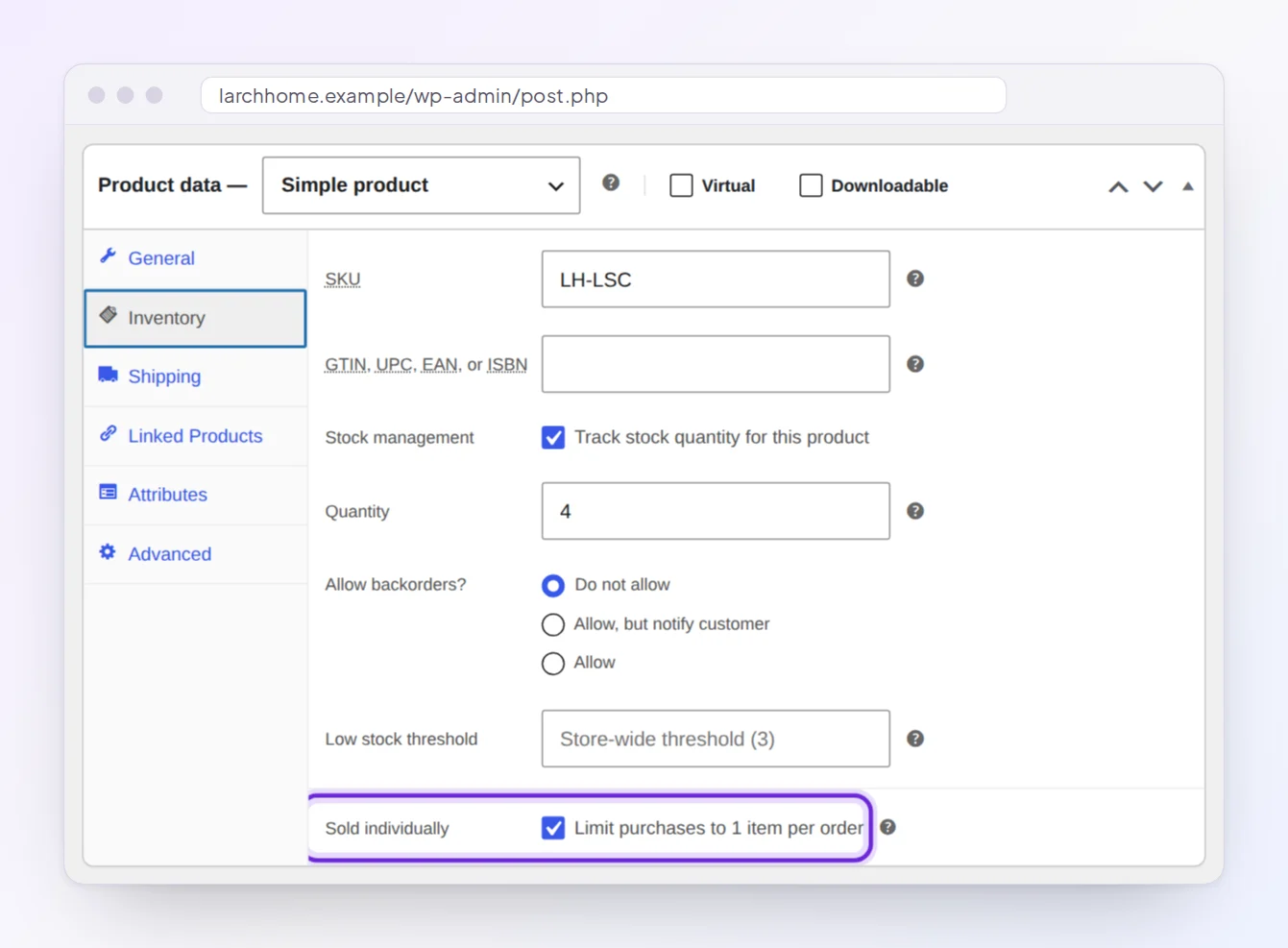
Only for a maximum of 1. In the product editor, the Inventory tab has SKU, stock, backorder and low stock fields, and one checkbox for quantity: Sold individually, described as “Limit purchases to 1 item per order”. There is no “Maximum quantity” field, whatever some guides say. We checked the Inventory tab in WooCommerce 11.2.1, both on screen and in its source.
Without that checkbox, WooCommerce lets customers buy as many as you have in stock. If you don’t track stock, or you allow backorders, there is no practical limit.
Limit a product to 1 per order with Sold individually
Use this for one-off items: an original print, a handmade piece, a limited release, a booking you only take once per order.
- Go to Products > All Products and edit the product.
- In the Product data box, open the Inventory tab.
- Tick Sold individually (“Limit purchases to 1 item per order”).
- Click Update.
What Sold individually does in the cart
We ticked it on a simple product (a $289 chair) and a variable product (a planter in 3 sizes) and tried to break it:
- The product page hides the quantity box, so customers add 1 at a time. The Cart block hides it too.
- Adding the chair again was refused. From the product page: “You cannot add another “Leather Sling Chair” to your cart.” From the shop page’s Add to cart button: “The quantity of “Leather Sling Chair” cannot be changed”.
- Asking for 3 at once, with an add-to-cart link that sets quantity=3, put 1 chair in the cart.
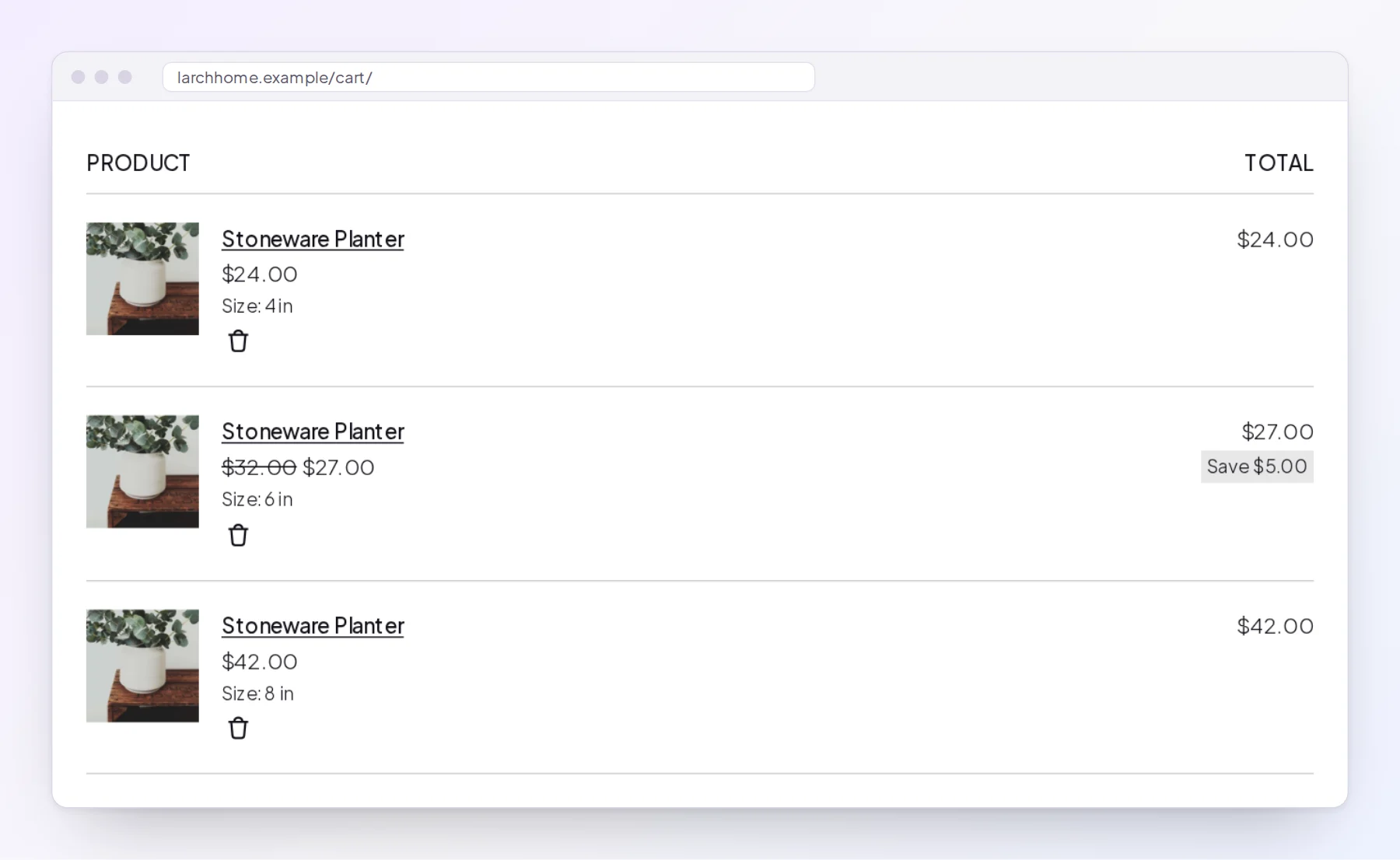
- Variations count on their own. We added the planter in 4 in, 6 in and 8 in, and all 3 went into the cart. WooCommerce checks “1 per order” per cart line, and each variation is its own line.
So Sold individually is a good fit for simple products that must never be bought twice in one order. It can’t give you a maximum of 2 or more, it doesn’t tell customers about the limit before they hit it, and it doesn’t stop a customer from placing a second order.
Set a maximum quantity per product with a code snippet
If you need a different maximum for a few products and you are comfortable adding code, a snippet is enough. Most snippets online do one of two things: cap the quantity box, or check the quantity when a product is added to the cart. We tested both halves, and you need both.
Part 1 sets the maximum. WooCommerce’s Cart block, Checkout block and Mini-Cart block read their limit from the same woocommerce_quantity_input_max filter as the quantity box on the product page, so this one filter caps all of them. List your products as product ID => maximum (you’ll find the ID when you hover over a product in Products > All Products):
// Maximum per order, by product ID: product ID => maximum.
function my_max_quantities() {
	return array( 123 => 2, 456 => 5 );
}

// Part 1: caps the quantity box and the Cart, Checkout and Mini-Cart blocks.
add_filter( 'woocommerce_quantity_input_max', function ( $max, $product ) {
	if ( ! $product instanceof WC_Product ) {
		return $max;
	}
	$limits = my_max_quantities();
	$id     = $product->get_parent_id() ? $product->get_parent_id() : $product->get_id();
	if ( isset( $limits[ $id ] ) ) {
		$max = $max > 0 ? min( $max, $limits[ $id ] ) : $limits[ $id ];
	}
	return $max;
}, 10, 2 );
With part 1 alone, everything that adds through the blocks stops at the maximum. In Larch Home, a third click on the vase’s Add to cart button on the shop page was refused with “The maximum quantity of “Glass Bud Vase” allowed in the cart is 2″, and the Cart block wouldn’t go above 2 either.
The gap is WooCommerce’s classic add-to-cart route, which never checks the maximum. The product page’s Add to cart form uses it, and so do classic themes’ shop buttons and many side-cart, quick-view and wishlist plugins. In our tests with part 1 alone:
- Classic theme (Storefront, with the classic cart and checkout): 3 clicks on the vase’s shop button put 3 in the cart, with no message, and the order went through with 3 vases.
- Block theme (Larch Home): we submitted the product page form twice with 2. Both times the store said “2 × “Glass Bud Vase” have been added to your cart.”, but the cart held 2. WooCommerce quietly cut the line back as soon as the next page loaded the Mini-Cart block, so the customer was told about 2 vases that weren’t added.
Part 2 closes that gap: it refuses an add to cart that would go over the maximum and tells the customer why. It looks up the parent product first, because WooCommerce’s AJAX add-to-cart route passes a variation’s own ID instead of the product’s.
// Part 2: refuses an "Add to cart" that would go over the maximum.
add_filter( 'woocommerce_add_to_cart_validation', function ( $passed, $product_id, $quantity, $variation_id = 0 ) {
	$product = wc_get_product( $variation_id ? $variation_id : $product_id );
	$limits  = my_max_quantities();
	$id      = $product && $product->get_parent_id() ? $product->get_parent_id() : $product_id;
	if ( ! $passed || ! $product || ! isset( $limits[ $id ] ) ) {
		return $passed;
	}
	$in_cart = 0;
	foreach ( WC()->cart->get_cart() as $item ) {
		if ( $item['data']->get_id() === $product->get_id() ) {
			$in_cart += $item['quantity'];
		}
	}
	if ( $in_cart + $quantity > $limits[ $id ] ) {
		wc_add_notice( sprintf( 'You can buy up to %d of this product per order.', $limits[ $id ] ), 'error' );
		return false;
	}
	return $passed;
}, 10, 4 );
Paste both code blocks together as one snippet, in a snippets plugin such as Code Snippets or in your child theme’s functions.php, then change the IDs and numbers in my_max_quantities(). Part 2 reads its limits from that list in Part 1. Pasted on its own (for example, next to a max-quantity snippet from another guide), Part 2 causes a fatal error on every add to cart. With both parts, the extra vases were refused with “You can buy up to 2 of this product per order.” on every route we tried: the product page form, the shop buttons in both themes, and a variation added through the AJAX route that side carts use.
What the snippet doesn’t do:
- Variations get the limit each. With a maximum of 2 on the planter, we could buy 2 of the 4 in and 2 of the 6 in, so 4 planters in total.
- Customers don’t see the limit until they try to go over it. Nothing on the product page says “Maximum 2 per order”.
- The classic cart page isn’t checked on the server. There, only the quantity box’s maximum from Part 1 stops a customer from typing 5. The browser blocks the update, but the snippet doesn’t check it again.
- Every change is a code edit: new products, new numbers, a sale week with a different cap.
- No minimums, pack sizes, category totals or order totals. Each of those is more code, and more cases to test.
Limit quantity per product, category and order with a WooCommerce plugin
When you need more than a couple of fixed maximums, or you want customers to see the rules before checkout, a plugin saves the code and the testing. We use our own Min Max Order Quantity & Amount plugin in the examples below, in the same Larch Home test store. It sets minimum and maximum quantities for products, variations, categories, brands and whole orders, pack sizes for products, variations, categories and brands, plus spend limits for products, categories, brands and orders, and it works with classic carts and the Cart, Checkout and Mini-Cart blocks.
Set a maximum quantity for one product
- Edit the product and open the Quantity rules tab in the Product data box.
- Enter the limit in Maximum quantity, for example 2. Add a Minimum quantity or Pack size if you need one.
- Check the Effective rules box at the top of the tab: it shows the result and the exact text customers will see.
- Click Update.
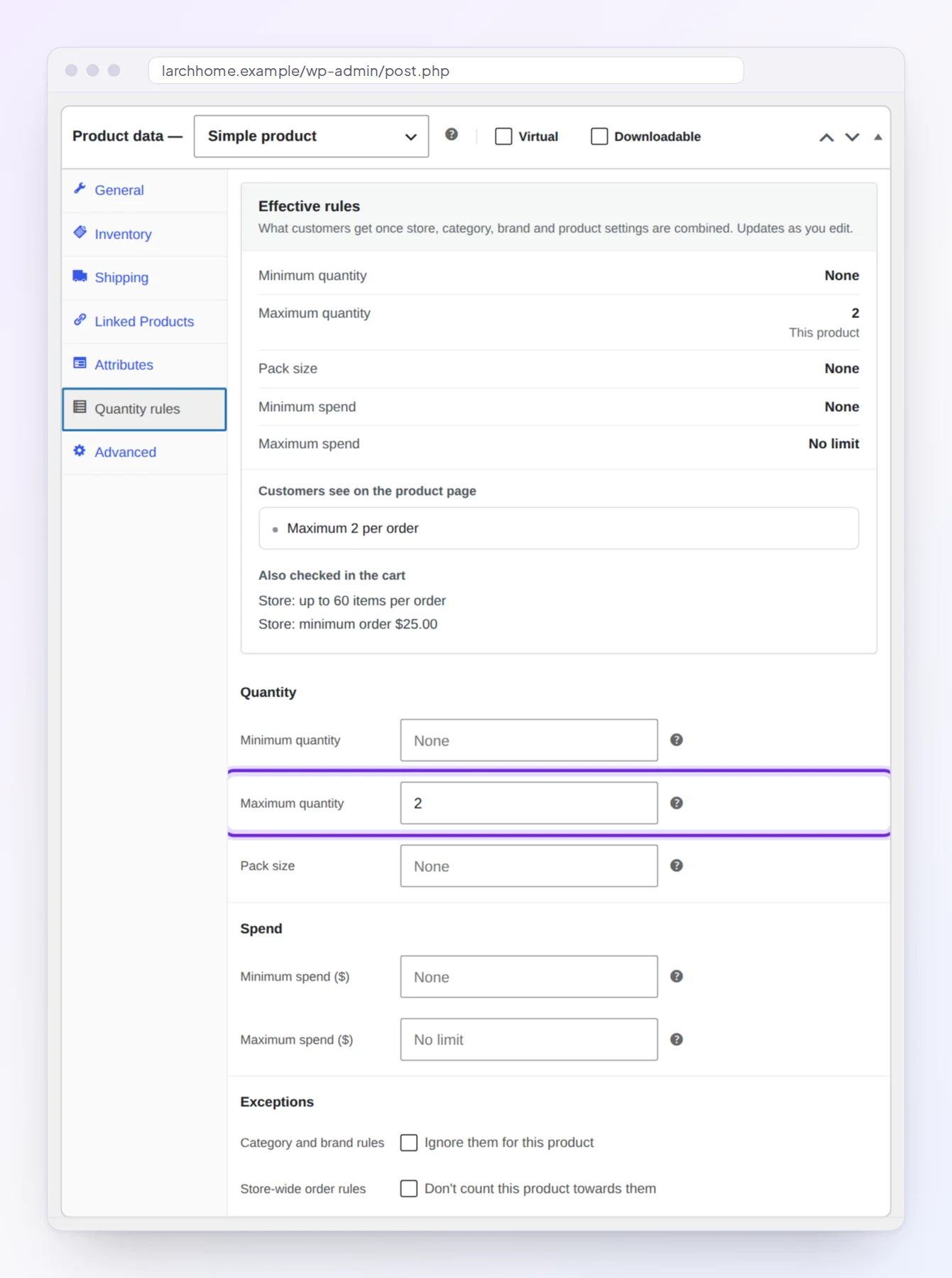
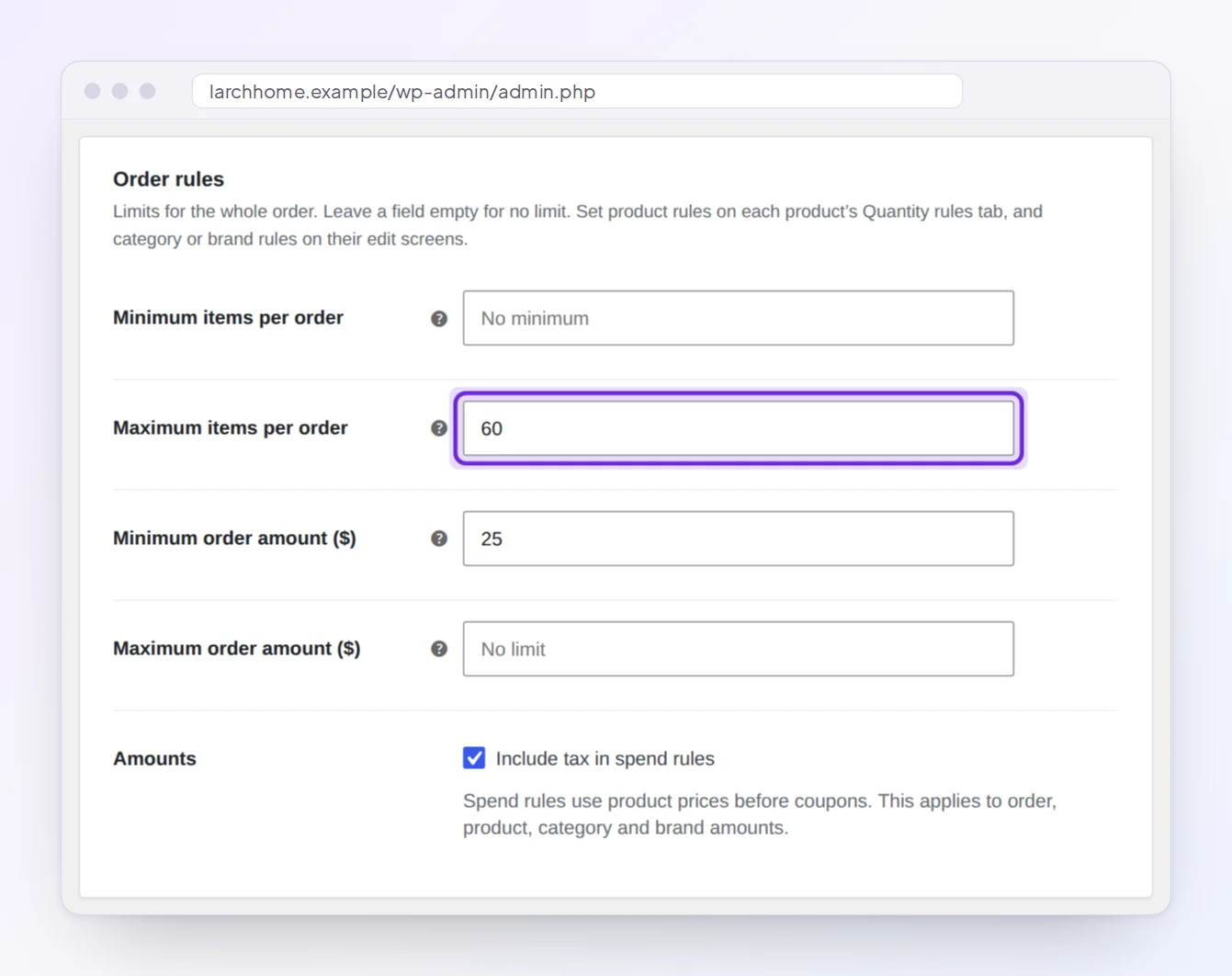
The Effective rules box also lists what else is checked in the cart, here the store’s “up to 60 items per order” and “minimum order $25.00”, so you can see how the product rule combines with category and store rules before you save.
On the product page, customers see the rule above the quantity box, and the box stops at 2:
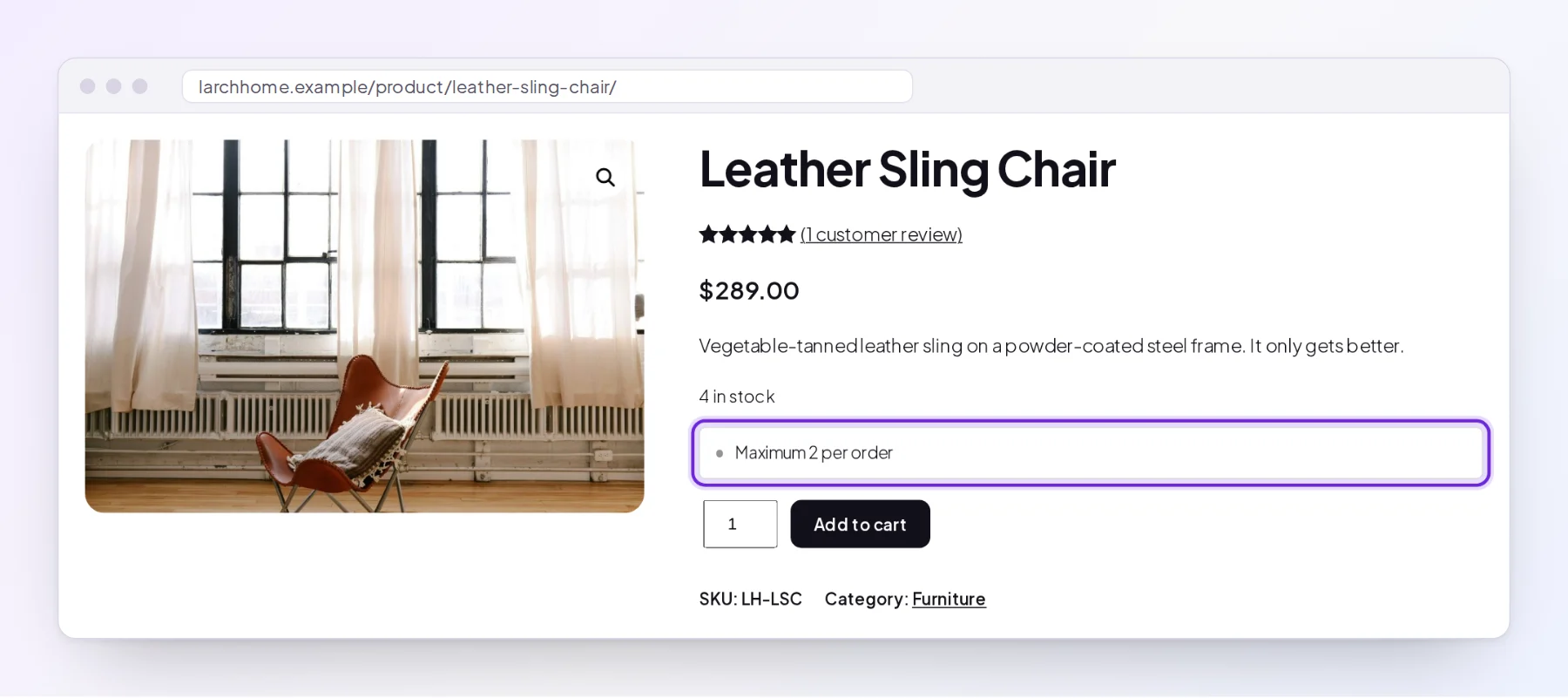
If a customer adds a quantity that breaks the rule from somewhere else, such as a shop page, a side cart or a wishlist, the plugin can correct it to the nearest allowed quantity. On classic pages it also says so (“The quantity of “Leather Sling Chair” in your cart is now 2, to match how it is sold.”), and the Cart block shows the new quantity. That’s the Wrong quantities setting under WooCommerce > Settings > Products > Quantity rules.
Variable products: each variation or all together
This is where Sold individually and the snippet fall short. On a variable product, the Quantity rules tab has a Count the rules for choice:
- Each variation on its own: a maximum of 2 means up to 2 of each size or color.
- All variations together: a maximum of 2 means 2 in total, in any mix of sizes.
A single variation can also have its own minimum, maximum and pack size.
Limit the total for a whole category
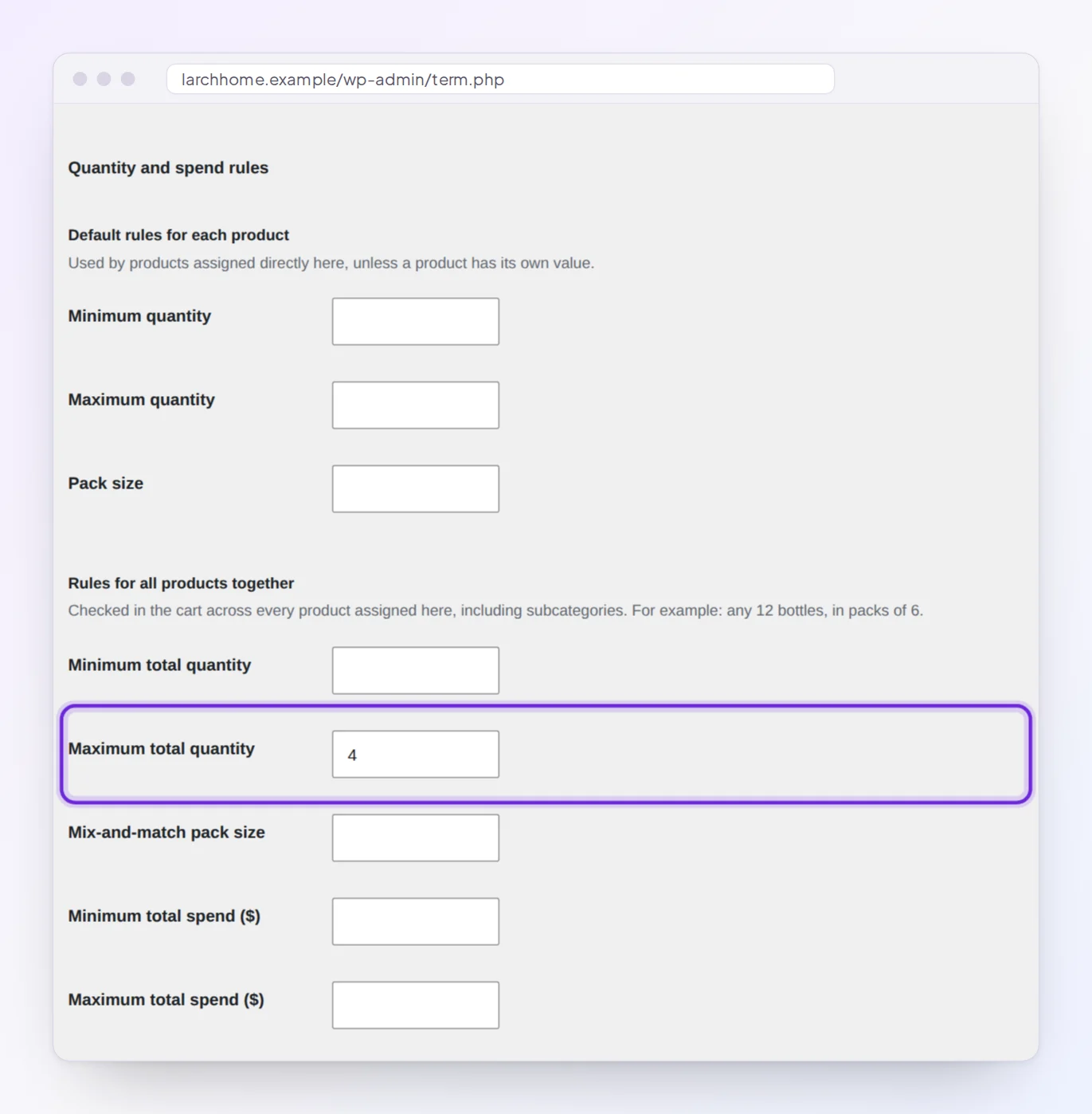
Sometimes the limit isn’t per product but per group: “up to 4 plants per order, any mix”, because that’s what fits in one box. Edit the category under Products > Categories and fill in Maximum total quantity under Rules for all products together. The fields above it, under Default rules for each product, set a maximum for every product in the category instead.
We then put 3 planters and 2 potted eucalyptus in the cart, 5 plants in total. The Cart block showed a message that says exactly what to change, and lines with a rule show it under the product name:
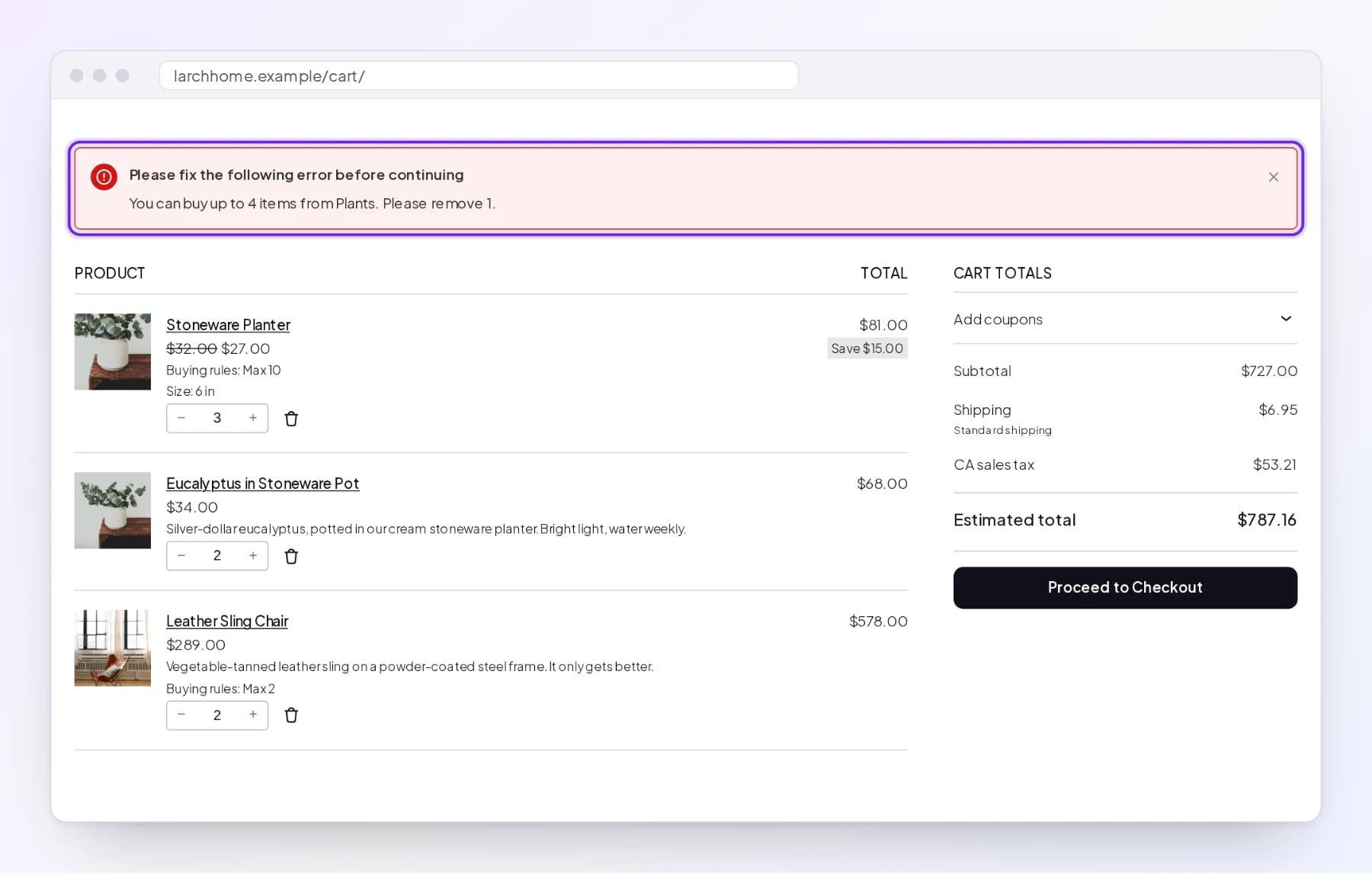
Checkout was refused with the same message until the cart was fixed. We tried to place the order anyway, and the checkout request came back with “You can buy up to 4 items from Plants. Please remove 1.”
Limit quantity per order (maximum items per order)
To cap the whole order rather than one product, go to WooCommerce > Settings > Products > Quantity rules. Under Order rules, set Maximum items per order (and, if you need them, a minimum, or a minimum or maximum order amount). Leave a field empty for no limit.
A product that shouldn’t count towards these totals, like a gift card or a sample, can be left out with Don’t count this product towards them on its Quantity rules tab. The plugin documentation covers every field, which rule wins when a product is in several categories, and how stock affects minimums.
Which option should you use?
Here is how the three options compared in our tests:
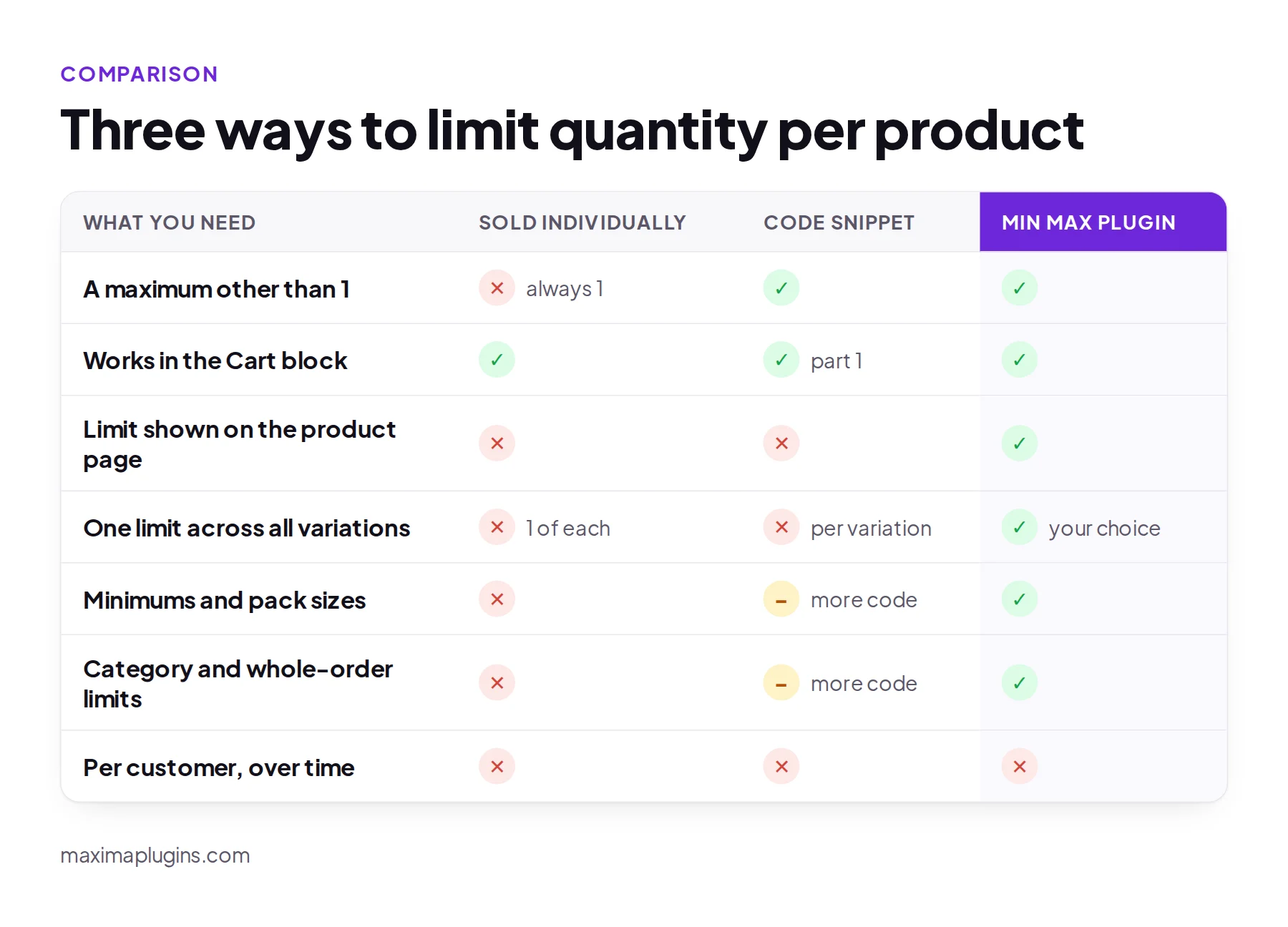
- Sold individually if the limit is 1 and the product is a simple product. It’s free and built in.
- The 2-part snippet if you have a few products with a fixed maximum, you’re fine without a notice on the product page, and someone on your team maintains code.
- A plugin if you need limits across variations, categories or the whole order, minimums or pack sizes too, or you want customers to see the rule before they reach checkout.
Free plugins on WordPress.org cover the simpler cases. Limit Quantity for WooCommerce sets a maximum per product, but its FAQ says it doesn’t support variable products. Maximum, Minimum and Multiple Quantity for WooCommerce Shops sets a store-wide or per-product maximum, minimum and multiple for simple and variable products, and lists Cart and Checkout block support. Before you pick any plugin, free or paid, check three things: how it counts variations, whether it works with your cart (classic or block), and what customers see when they hit the limit.
What about limiting quantity per customer?
Everything above limits what goes into one order. None of it stops a customer from placing a second order the next day. “2 per customer” or “1 per customer per month” is a different job: the store has to know who the customer is (so they must be logged in, or you match on email) and count their past orders.
WooCommerce has no setting for that, and neither Sold individually nor the snippet above does it. Our Min Max plugin doesn’t either: its rules are per order. If you need per-customer limits over time, look for a plugin built for purchase history limits, and test it with a guest checkout as well as a logged-in customer.
FAQ
Can I limit quantity per variation in WooCommerce?
WooCommerce on its own only goes as far as 1: Sold individually on a variable product allows 1 of each variation, as our test showed. The 2-part snippet above gives each variation the product’s maximum. For one maximum across all variations, you need more code or a plugin with that setting.
How do I limit a product to 1 per order in WooCommerce?
Edit the product, open Product data > Inventory and tick Sold individually. Customers can then have only 1 in the cart, and the product page and the Cart block hide the quantity box for that item. On a variable product, the limit applies to each variation separately.
Why can customers still add more than my maximum?
Usually because the limit only caps the quantity box and the blocks, and the customer used WooCommerce’s classic add-to-cart route: the product page form, a classic theme’s shop button, or a side-cart, quick-view or wishlist plugin. In our test, a snippet that only capped the box let 3 vases through a classic theme’s checkout with a maximum of 2. Check the quantity at add to cart too (both parts of the snippet above), or use a plugin that corrects quantities from every source.
Does a quantity limit work with the Cart and Checkout blocks?
Sold individually does. A snippet works if it uses the woocommerce_quantity_input_max or woocommerce_quantity_input_args filter (or the block-specific woocommerce_store_api_product_quantity_maximum filter), because that’s where the blocks read the limit. We checked the first two in the lab. A snippet that only checks the quantity at add to cart doesn’t cap the Cart block’s quantity box, so customers can raise the quantity there.
Pick your limit and test it like a customer
Start with the smallest tool that fits: Sold individually for a limit of 1, the 2-part snippet for a few fixed maximums. Whichever you choose, test it the way customers buy: add from the shop page, add the product twice, try each variation, and open the cart.
If you need limits per variation, per category or per order, with messages that tell customers what to change, try the live demo of Min Max Order Quantity & Amount. It comes with updates and support included and a 14-day money-back guarantee. You’ll find more cart tools in our Checkout & Cart plugins.