There are good reasons to hide prices in a WooCommerce store. Wholesale shops keep trade prices for approved buyers. B2B stores agree a different price with each customer. Some brands only let resellers show prices to logged-in customers, and made-to-order products often have no fixed price at all.
WooCommerce has no setting for this, so most guides give you a code snippet that swaps the price for a “Log in to see prices” link. It works on the product page. But WooCommerce also writes the price into the page’s structured data, its public Store API and the variation data of variable products, and the snippet doesn’t touch any of them. Anyone who knows where to look can read your trade prices in a couple of minutes, and Google can show them under your search results.
This guide covers the ways to hide prices in WooCommerce, the six places a hidden price still leaks, and a five-minute check you can run on your own store.
Does WooCommerce have a “hide price” setting?
No. WooCommerce can hide a whole product from the shop and search results (Catalog visibility, in the product’s Publish box), but it has no option to hide a price.
There is one built-in workaround: leave the product’s price field empty. WooCommerce treats a product without a price as not purchasable, so it shows no price and no Add to cart button. That’s fine for a single “price on request” item, but it hides the price from everyone, including the customers who should see it, and nobody can order the product online.
Setting the price to 0 doesn’t help. WooCommerce shows it as $0.00.
Hide prices from guests with a code snippet
If every logged-out visitor should see a login link instead of a price, this snippet does it. Add it with a code snippets plugin or to your child theme’s functions.php:
// Show a login link instead of the price to logged-out visitors.
add_filter( 'woocommerce_get_price_html', function ( $price ) {
	if ( is_user_logged_in() ) {
		return $price;
	}
	$login = get_permalink( wc_get_page_id( 'myaccount' ) );
	return '<a href="' . esc_url( $login ) . '">Log in to see prices</a>';
} );

// Stop logged-out visitors from adding products to the cart.
add_filter( 'woocommerce_is_purchasable', function ( $purchasable ) {
	return is_user_logged_in() ? $purchasable : false;
} );
The first filter replaces the price wherever WooCommerce prints it as HTML: shop pages, product pages, related products and widgets. The second makes products impossible to buy for guests. That removes the Add to cart button, and it also blocks add-to-cart links, which matters more than it sounds (see leak 4 below).
Don’t hide prices with CSS (display: none). The price stays in the page for anyone who views the source, and the Add to cart button still works for anyone who knows the link.
Most hide price tutorials stop here. The page looks right, but the price is still in plenty of other places.
Six places a hidden WooCommerce price still leaks
1. Structured data for Google
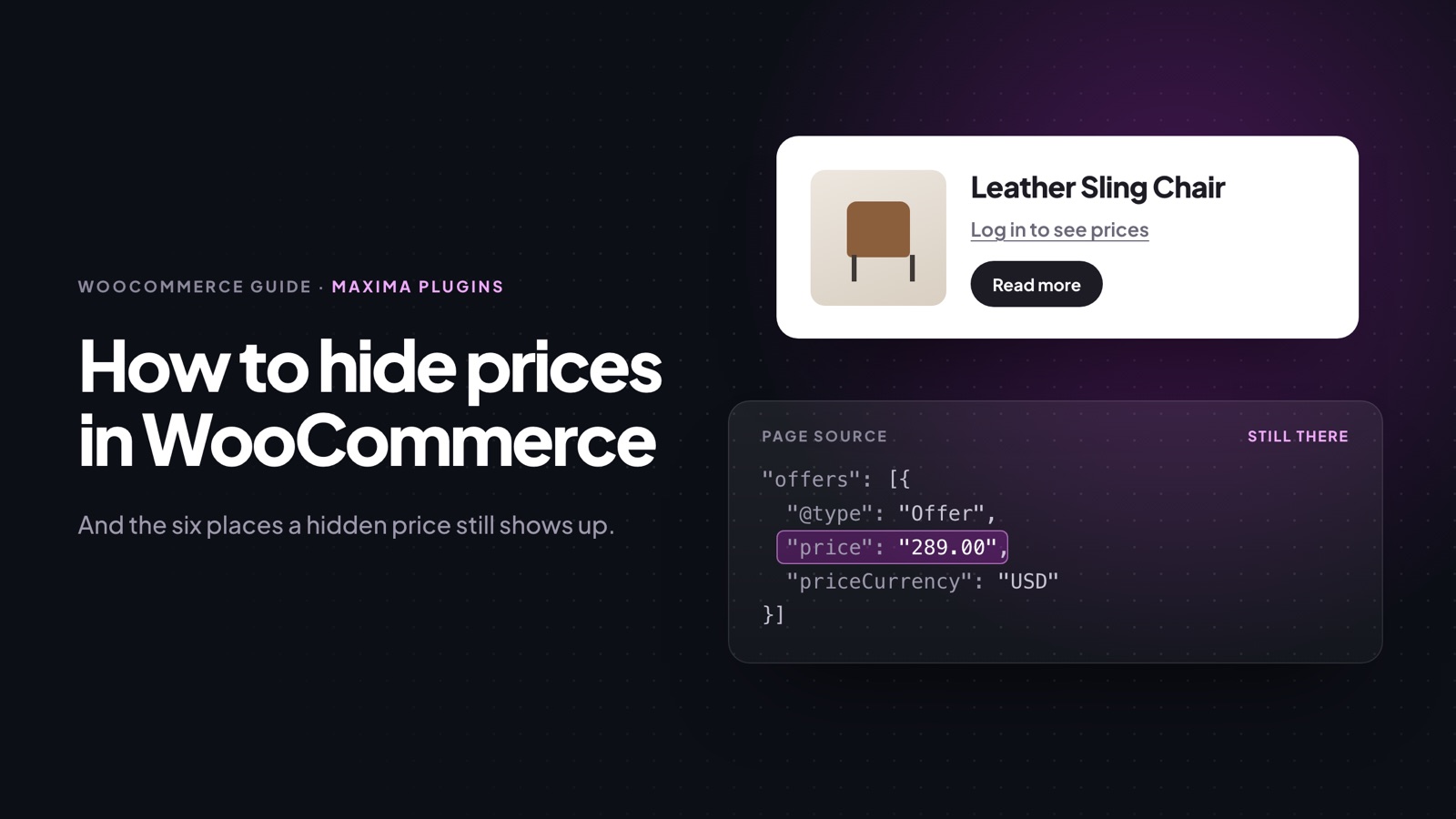
WooCommerce adds Product structured data (JSON-LD) to every product page, so Google can show the price, stock and rating with your result. It reads the price straight from the product, not from the price HTML that the snippet filters. View the source of a product whose price you “hid” and you’ll find something like this:
"offers": [{
  "@type": "Offer",
  "price": "289.00",
  "priceCurrency": "USD",
  "availability": "https://schema.org/InStock"
}]
Google can show that price in search results, so a buyer sees your trade price without visiting your store. SEO plugins that add their own product markup can print it a second time.
2. The Store API
The Cart and Checkout blocks and the product blocks get their data from WooCommerce’s Store API, which is public by design. Anyone can open yourstore.com/wp-json/wc/store/v1/products and get your products as JSON, with prices in cents:
"prices": {
  "price": "28900",
  "regular_price": "28900",
  "sale_price": "28900",
  "currency_code": "USD"
}
The snippet changes the price_html field in that response, but not the prices object. Paging through a whole catalog takes a few requests, and a script can repeat it every night.
3. Variation data on variable products
For a variable product, WooCommerce puts every variation into the page as JSON, in the data-product_variations attribute of the variation form. Each variation has a display_price and a display_regular_price. The visible price is gone, but a search for display_price in the page source shows the price of every size and colour. Products with more than 30 variations load the same data with a request when the customer picks options.
4. Add to cart links
WooCommerce adds a product to the cart from a link like yourstore.com/?add-to-cart=123. If you only hid the button, with CSS or by removing it from the template, the link still works and the cart shows the price. The woocommerce_is_purchasable filter in the snippet closes this, because WooCommerce won’t add a product that can’t be bought.
5. Product feeds
If a plugin sends your catalog to Google Merchant Center, Meta or a price comparison site, the feed includes the price, and Google Shopping will show it. Hiding prices on the site doesn’t change the feed. Exclude trade-only products or categories in the feed plugin’s settings.
6. Cached pages
Page caches normally skip logged-in visitors, so guests get a cached page without prices. The risk is a CDN rule that caches all HTML, such as Cloudflare’s “Cache Everything”, with no exception for logged-in visitors. Then a page built for a logged-in wholesale customer can be stored and served to the next guest, prices included. If you use a rule like that, make it bypass the cache when a cookie starting with wordpress_logged_in is present.
Check your store in five minutes
- Open a private browser window, so you’re logged out, and go to a product whose price should be hidden.
- View the page source and search for
price. A number in the JSON-LD block or next todisplay_priceis a leak. - Open
yourstore.com/wp-json/wc/store/v1/products?per_page=5and look at thepricesof each product. - Take a product ID (the number after
post=in the product’s edit link) and openyourstore.com/?add-to-cart=ID. If the product lands in the cart with a price, guests can buy it. - Paste a product URL into Google’s Rich Results Test and see whether it finds a price.
If Google already shows a price for a page, it keeps showing it until it crawls the page again. After you close the leak, use URL Inspection in Google Search Console to request indexing for your most important products.
Hide prices by user role with a plugin
The snippet treats every visitor the same: logged out sees no prices, logged in sees all of them. Most stores that hide prices need more than that:
- Guests see “Log in to see prices”, retail customers see retail prices, and wholesale customers see trade prices.
- One category is trade-only and hidden from everyone else, products and all.
- Some products show a price but can’t be ordered online.
Hide Products & Prices by User Role handles this with rules. Each rule picks what to hide (products, prices and the Add to cart button, or only the button), who it applies to (guests, user roles or chosen customers, or everyone except them) and which products (all, categories, tags, brands or single products).
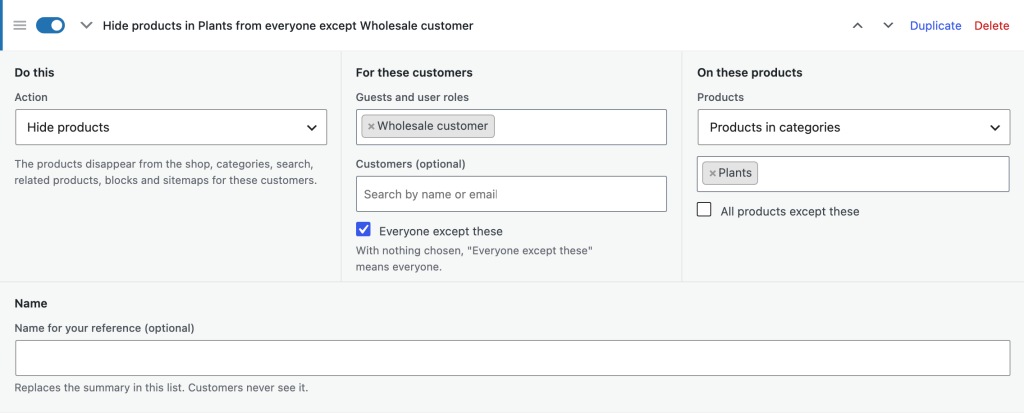
Every rule is summed up in one line, such as “Hide prices of all products from Guests”, and you can switch rules on and off, reorder and duplicate them.
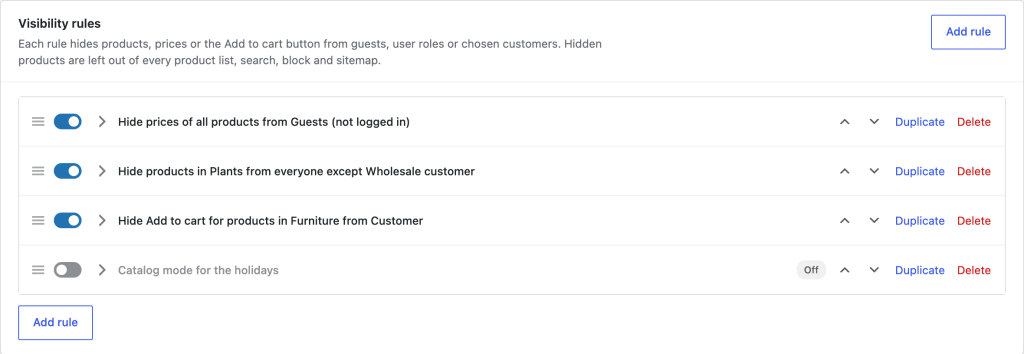
For hidden prices, each rule has its own text, such as “Log in to see prices” or “Trade price on request”. For guests it can link to the login page, and after logging in they go straight back to the product.
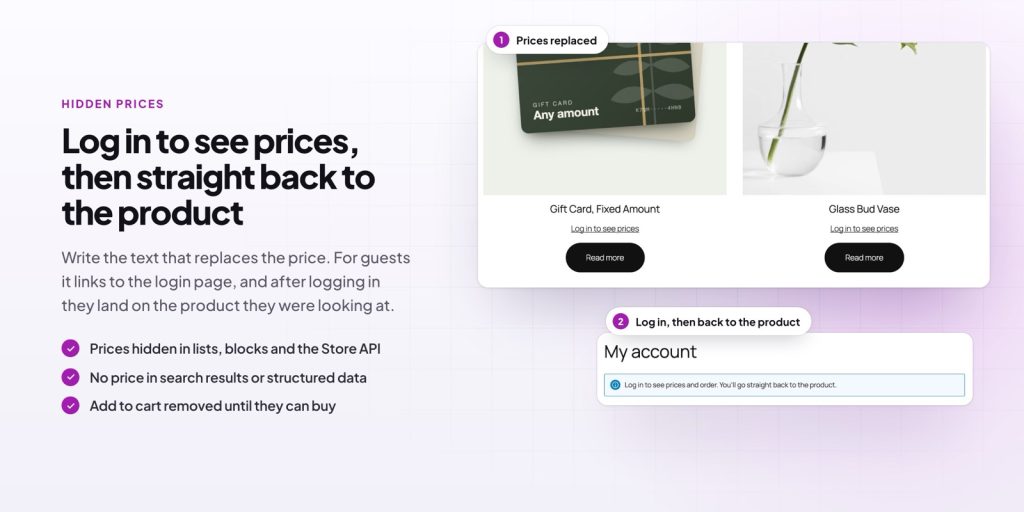
It also closes the leaks above. Hidden prices are removed from the structured data, the Store API and the variation data, and products a visitor can’t buy can’t be added to the cart, not even from a link. Products you hide completely are left out of search, related products, product blocks and sitemaps (including Yoast SEO and Rank Math), and old links to them show “Page not found”, ask guests to log in, or go to a page you choose.
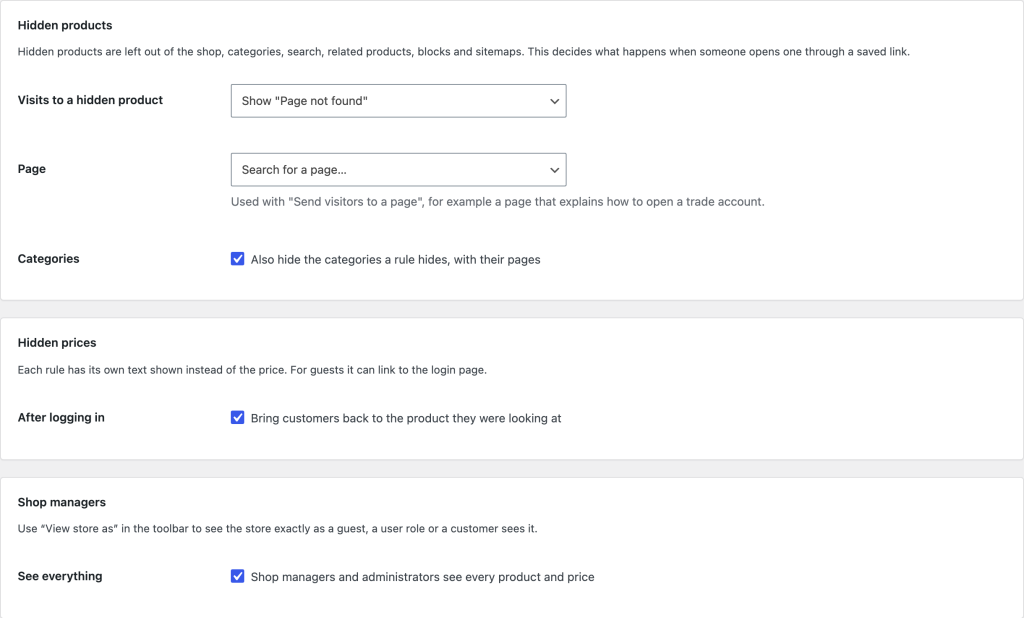
The settings page decides what happens on those visits, whether customers come back to the product after logging in, and whether shop managers see every product and price.
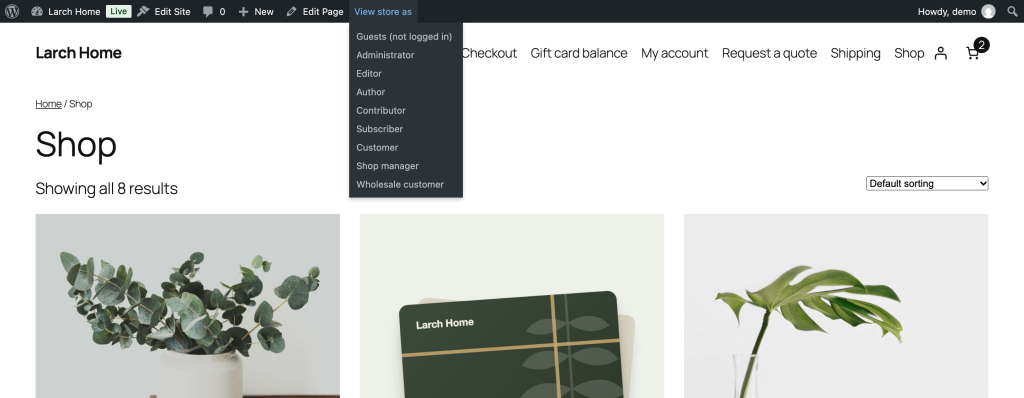
To check the result, pick a guest, a user role or a customer from the “View store as” menu in the admin toolbar, and browse the store exactly as they see it.
The next steps for a wholesale store
Hiding prices is usually the first step of a wholesale or B2B setup. These are the ones that tend to follow:
- Approve accounts before they see prices. If anyone can register, “log in to see prices” only adds a step. Registration Fields & Account Approval adds fields such as company name and VAT number to the registration form, and holds new trade accounts until you approve them.
- Show each buyer their own price. Role Based Pricing & Wholesale Prices sets prices per user role or customer, as a fixed price, a percentage off or lower prices from a quantity.
- Swap the price for a quote. For made-to-order or volume products, Request a Quote & PDF Quotes shows “Price on request” and a quote button instead, and sends the customer a PDF quote they can accept and pay online.
Frequently asked questions
How do I hide the price until login in WooCommerce?
Use the snippet above, or a rule in Hide Products & Prices by User Role that hides prices from guests. With the snippet, check the structured data and the Store API afterwards, because hiding the price on the page doesn’t remove it from either.
How do I hide a price of 0?
WooCommerce shows a price of 0 as $0.00. To show nothing, leave the price field empty (the product then can’t be bought), or remove zero prices with a filter:
add_filter( 'woocommerce_get_price_html', function ( $price, $product ) {
	$amount = $product->get_price();
	return ( is_numeric( $amount ) && 0.0 === (float) $amount ) ? '' : $price;
}, 10, 2 );
Can I hide the Add to cart button but keep the price?
Yes. This is often called catalog mode: customers see prices but order by phone, email or quote. Use only the woocommerce_is_purchasable filter from the snippet, or a “Hide Add to cart” rule in the plugin, which can show your own text where the button was, such as “Call us to order”.
Does hiding prices hurt SEO?
The product pages still get indexed and can rank. Google won’t show a price next to them, and products without a price can’t appear in Google’s free Shopping listings. For trade-only prices, that’s usually the point.