 Maxima Plugins
Description
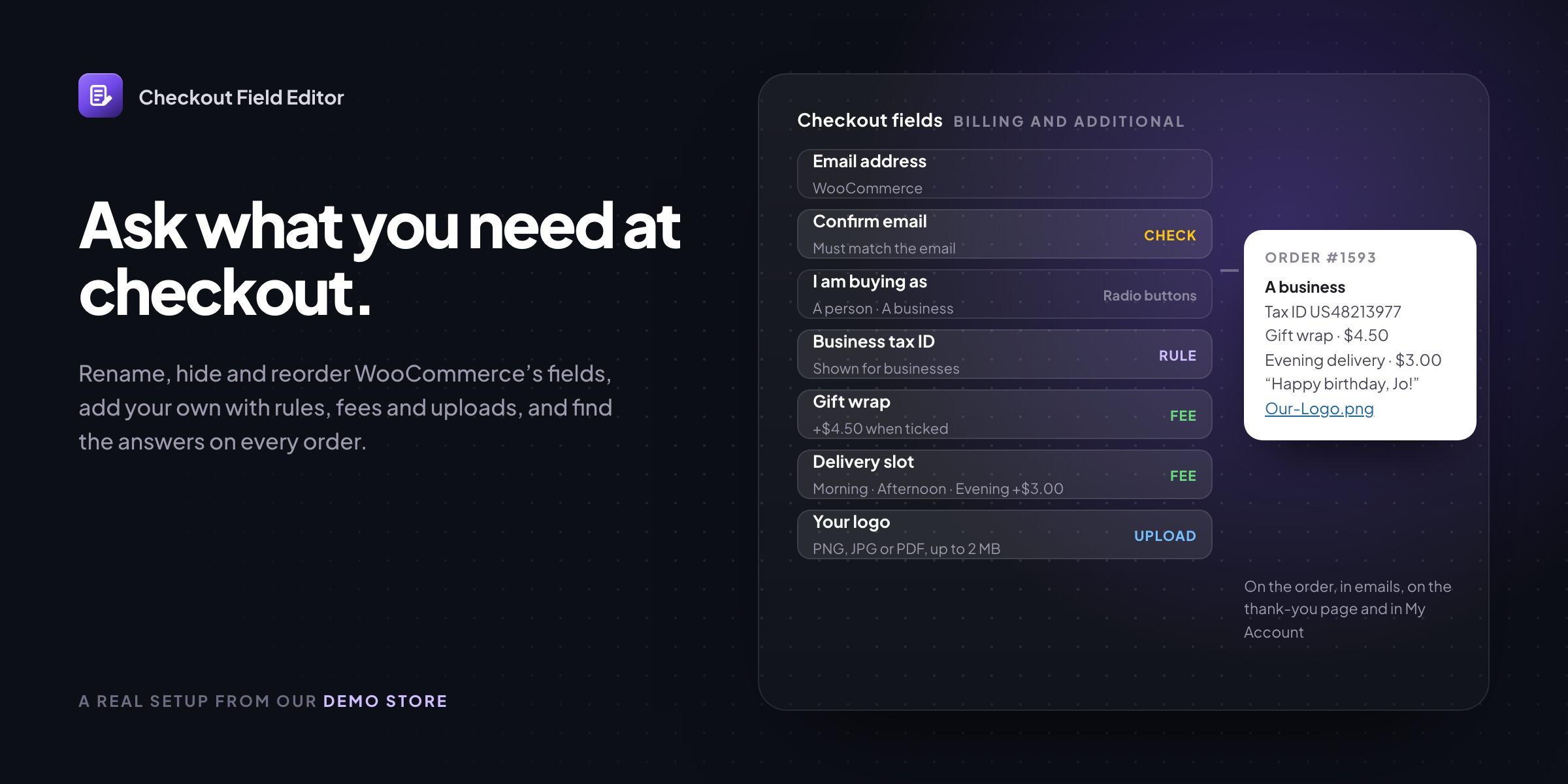
Checkout Field Editor changes the fields customers fill in at WooCommerce checkout. Rename, reorder or turn off WooCommerce’s fields and add your own, with every answer on the order.
↕️ Drag to reorder and set fields required, optional or off.
➕ 20 field types, such as a delivery slot, a gift message, a tax ID or a file upload.
🔀 Conditions on other fields, the cart, the role, the country, shipping or payment.
💲 Fees for extras: fixed, a percentage or per option.
✅ Checks on answers: email, phone, number, postcode or your own pattern.
🧾 Every answer on the order, in emails, on the thank-you page and in My Account.
🧱 Classic and block checkout, with the same fields in both.
📤 Export and import of the whole setup to another store.
Your fields
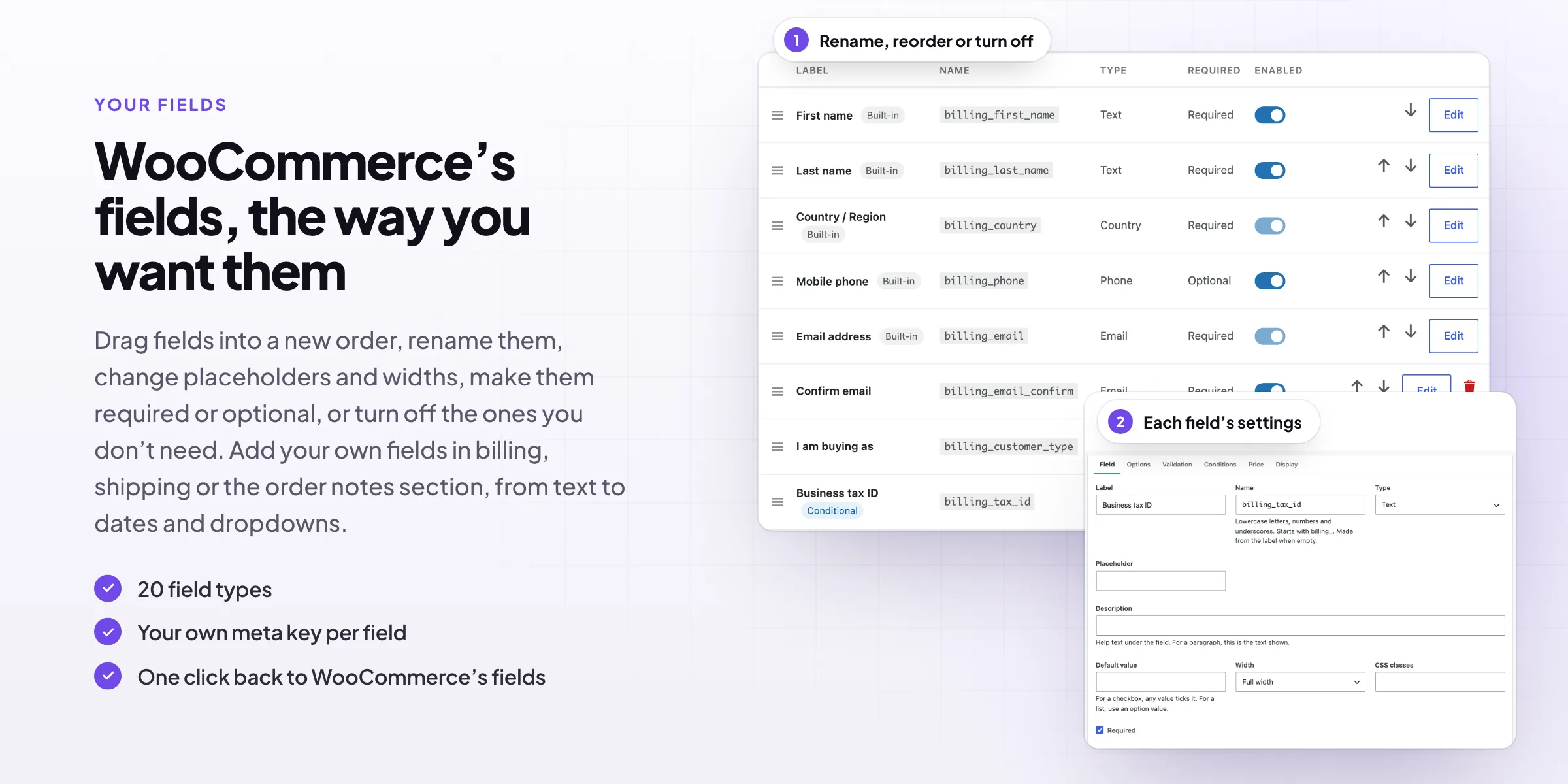
WooCommerce’s fields, the way you want them
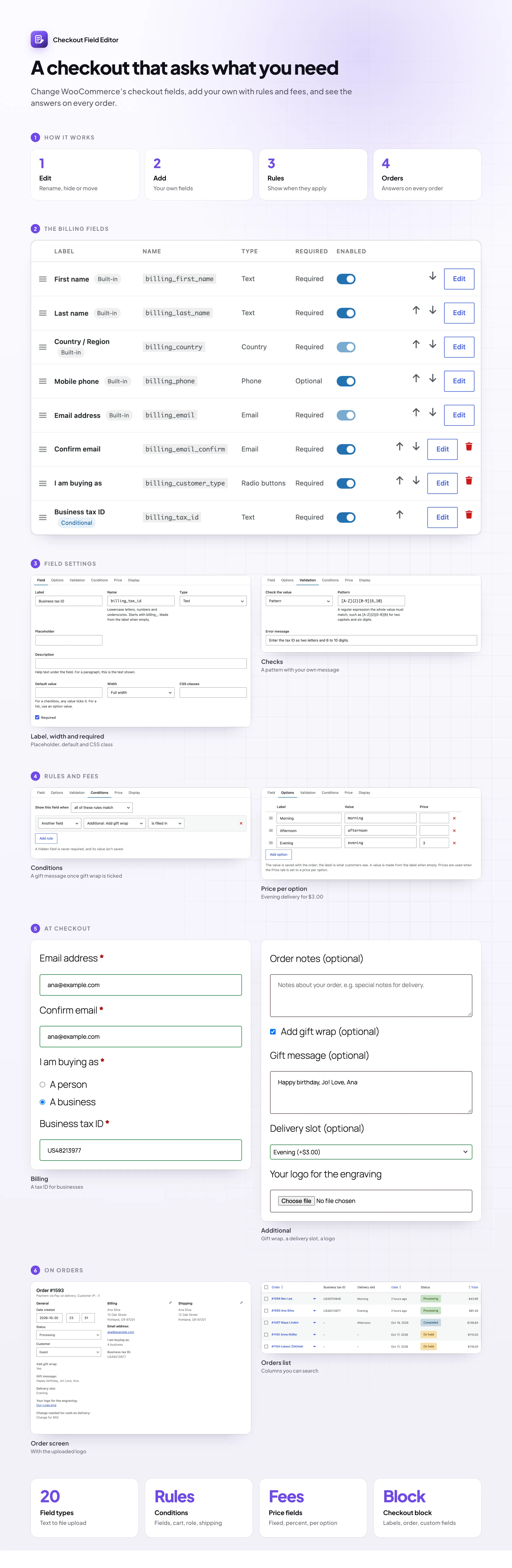
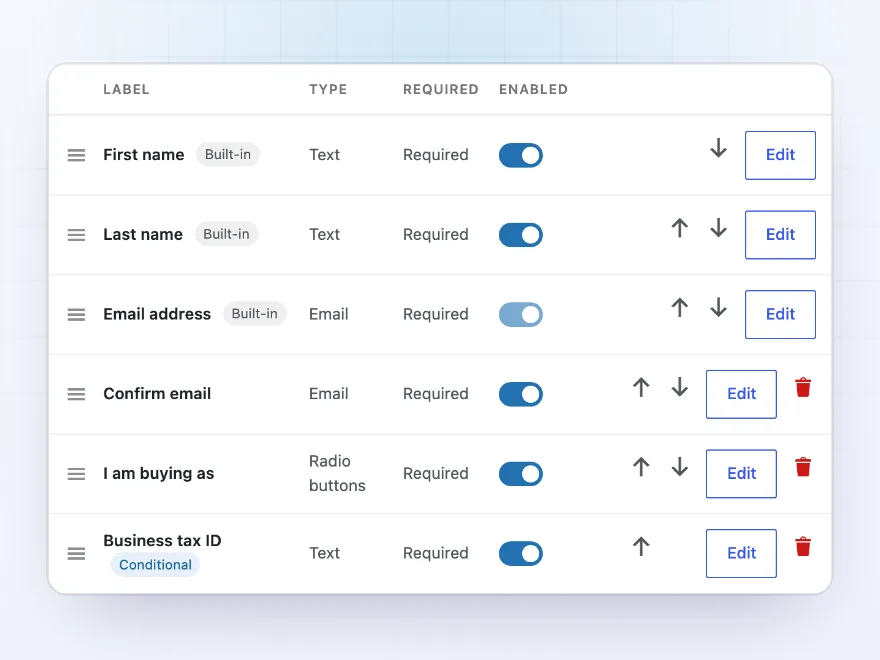
Drag fields into a new order, rename them, change placeholders and widths, make them required or optional, or switch off the ones you don’t need, such as Company or the second address line. Your own fields sit in the same list, marked as conditional when they have rules.
- Drag to reorder
- Required, optional or off
- One click back to WooCommerce’s fields
At checkout
Ask only when it applies
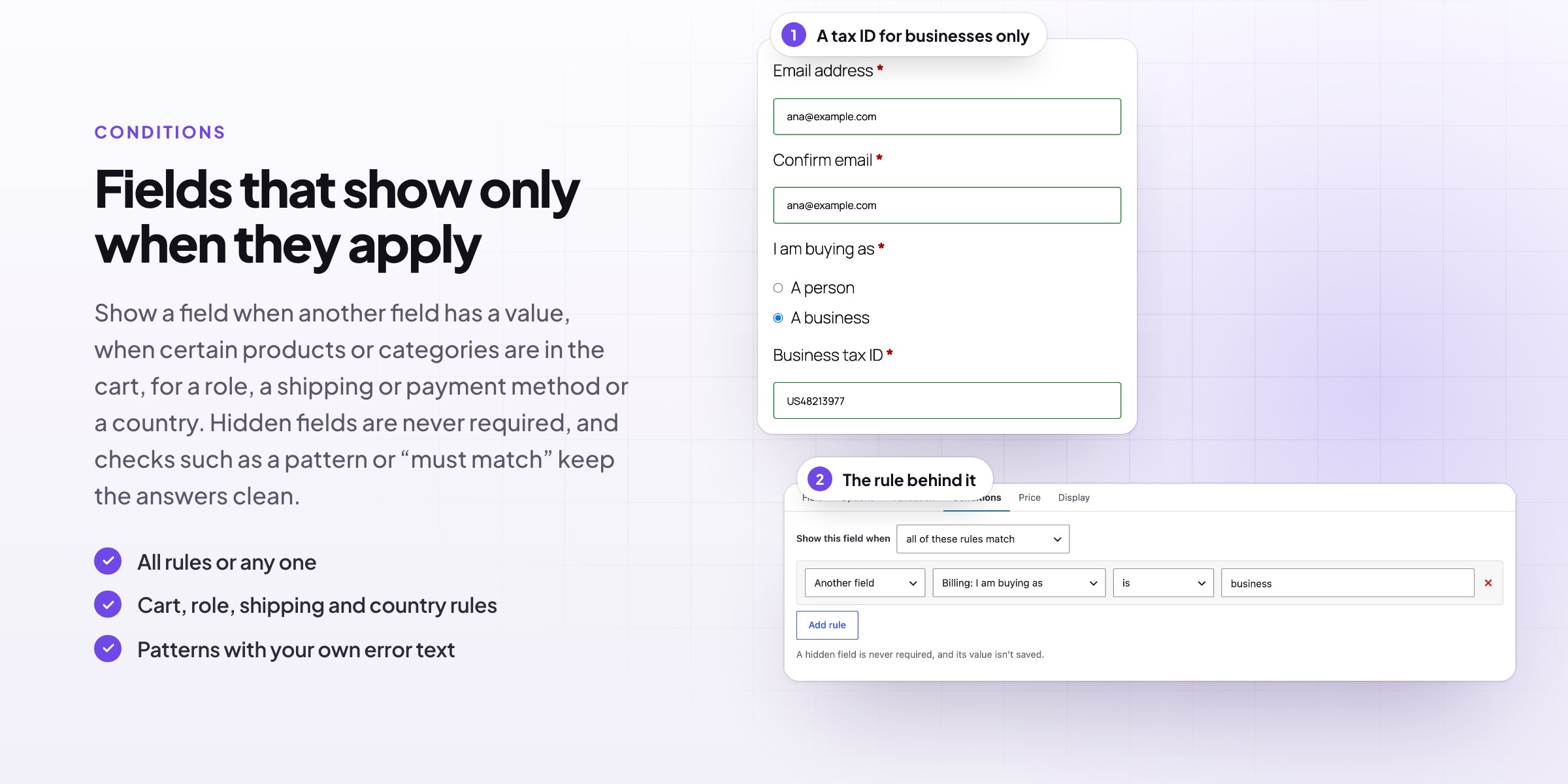
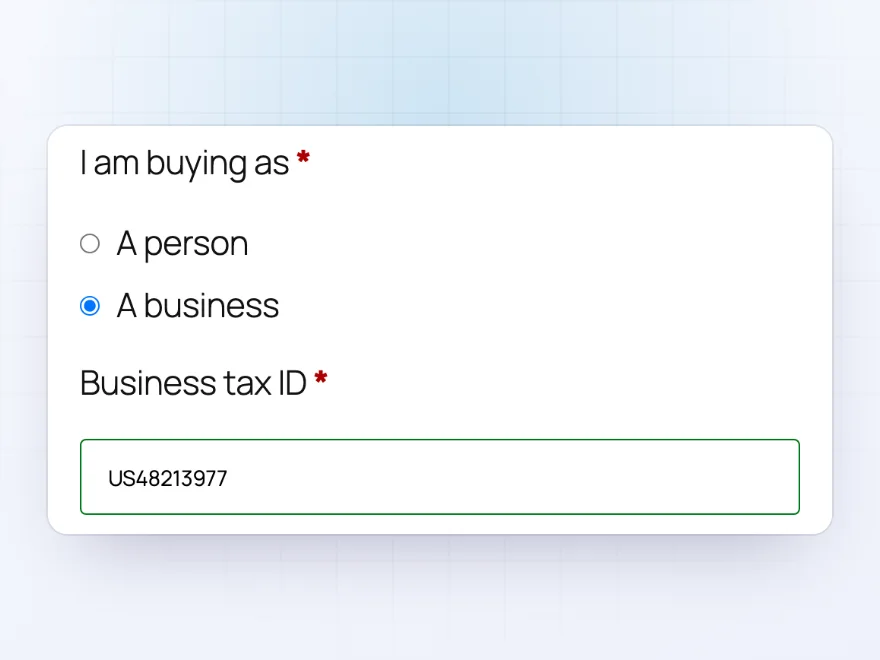
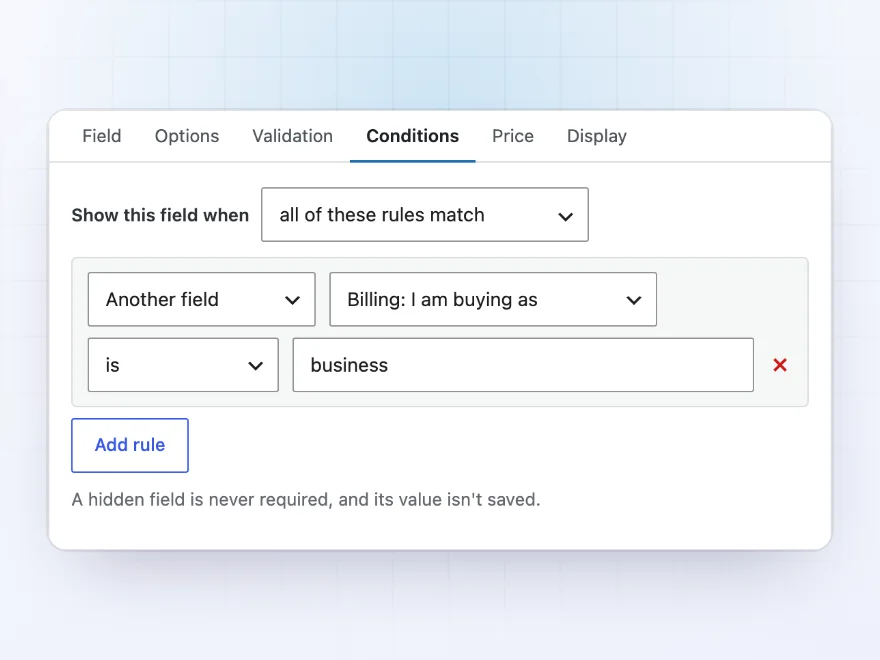
Here a Business tax ID field appears only when the customer picks “A business”. Fields hidden by their rules are never required and their values aren’t saved, so customers only see the questions that are theirs.
- Shown as customers choose
- Never required while hidden
- Classic and block checkout
Conditions
Rules for when a field shows
Show a field when another field has a value, when certain products, variations or categories are in the cart, above a cart subtotal, for a role or guests, or for a shipping method, payment method or country. Match all the rules or any one.
- Another field’s value
- Cart, role and country
- Shipping and payment method
Custom fields
Gift wrap, delivery slots and uploads
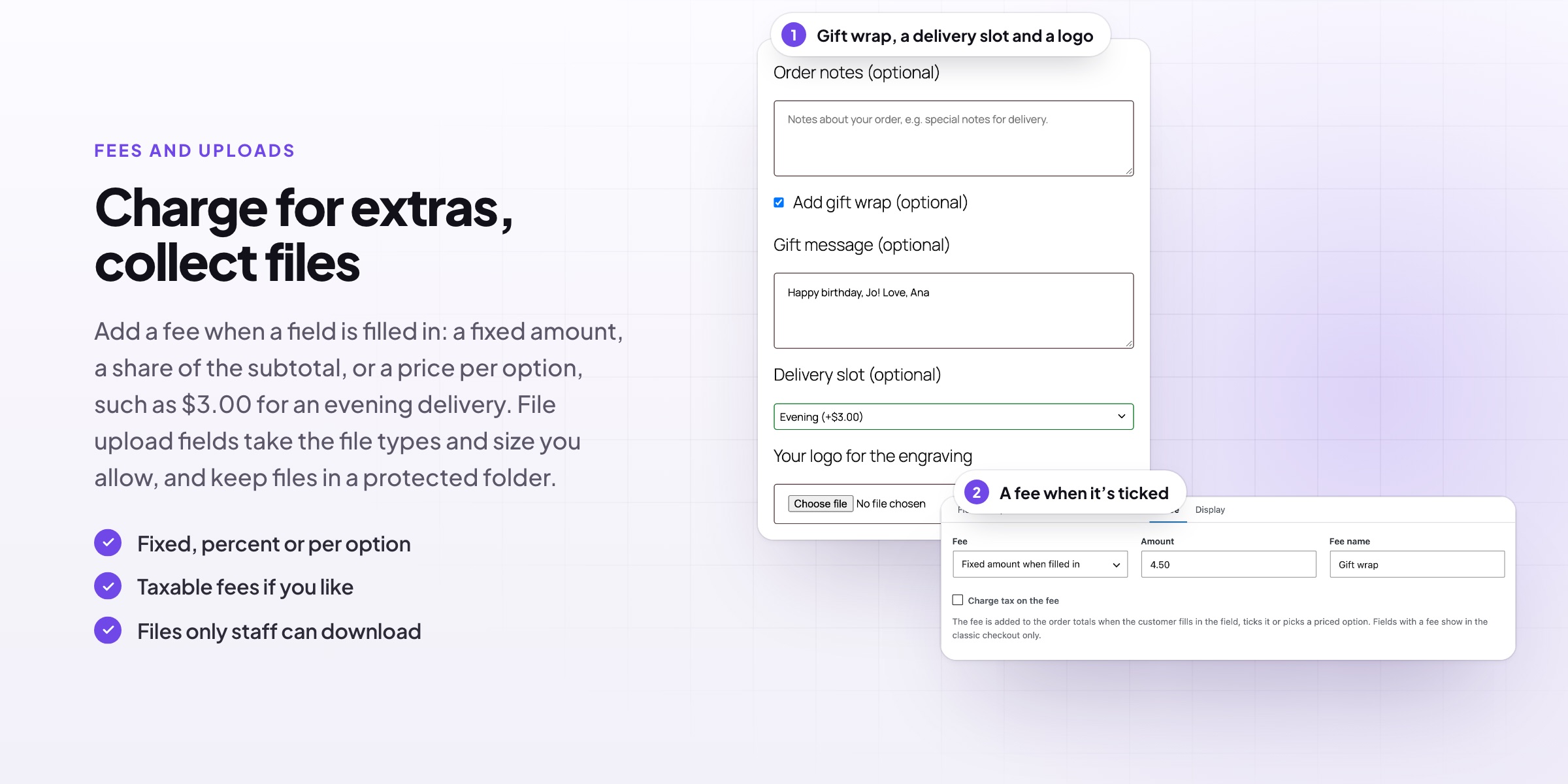
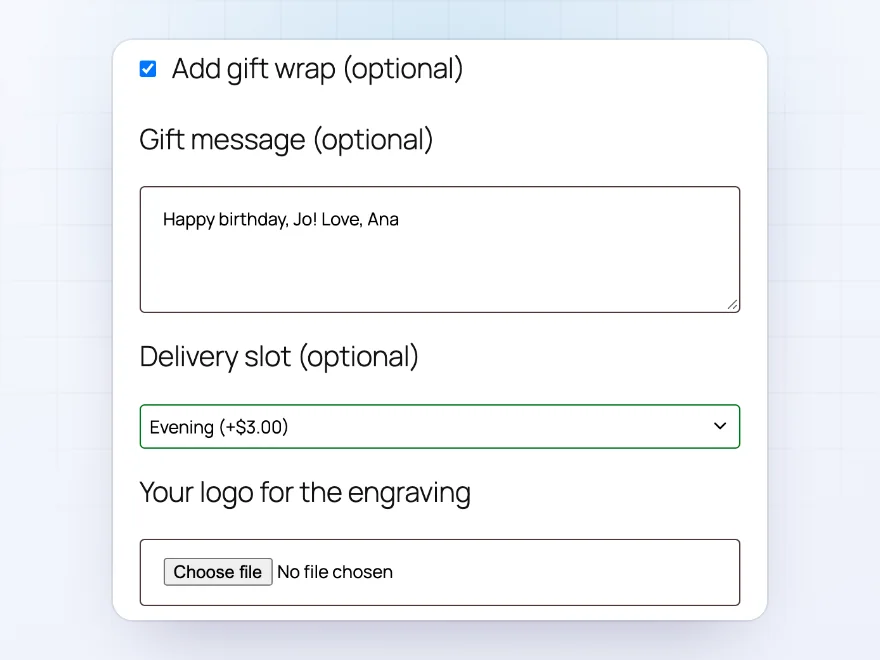
Add text, text areas, dropdowns, radio buttons, checkboxes, dates, times, colours, file uploads, headings and more, in the billing, shipping or additional section. Here a gift wrap checkbox shows a gift message, and customers pick a delivery slot and upload their logo.
- 20 field types
- Billing, shipping or additional
- Your own meta key per field
Fees
Charge for extras
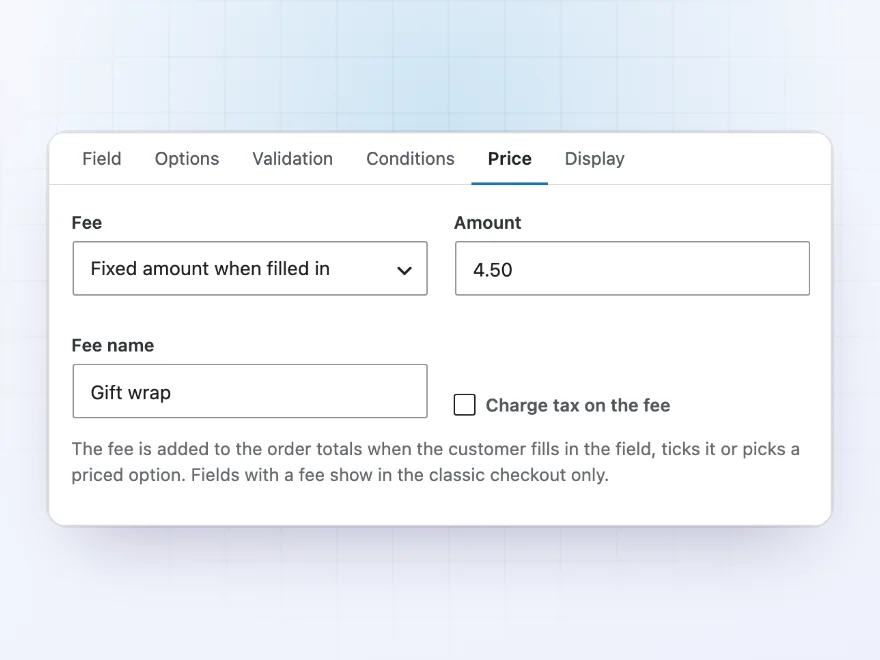
A field can add a fee when it’s filled in or ticked: a fixed amount, a percentage of the subtotal, or a price per option, such as $3.00 for an evening delivery. Fees show in the order totals and can be taxable.
- Fixed, percent or per option
- Taxable if you like
- Named on the order
Orders and emails
Every answer on the order
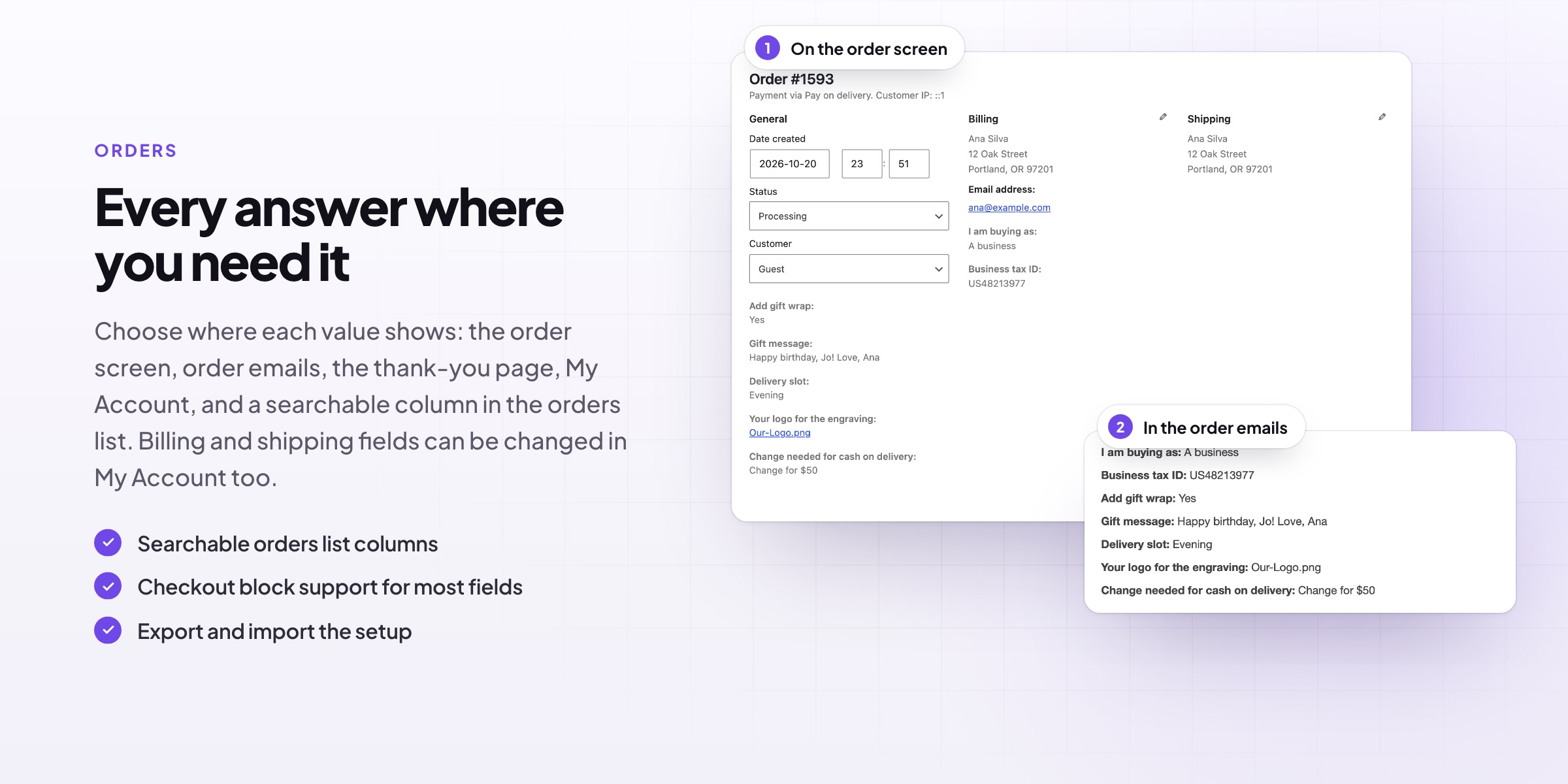
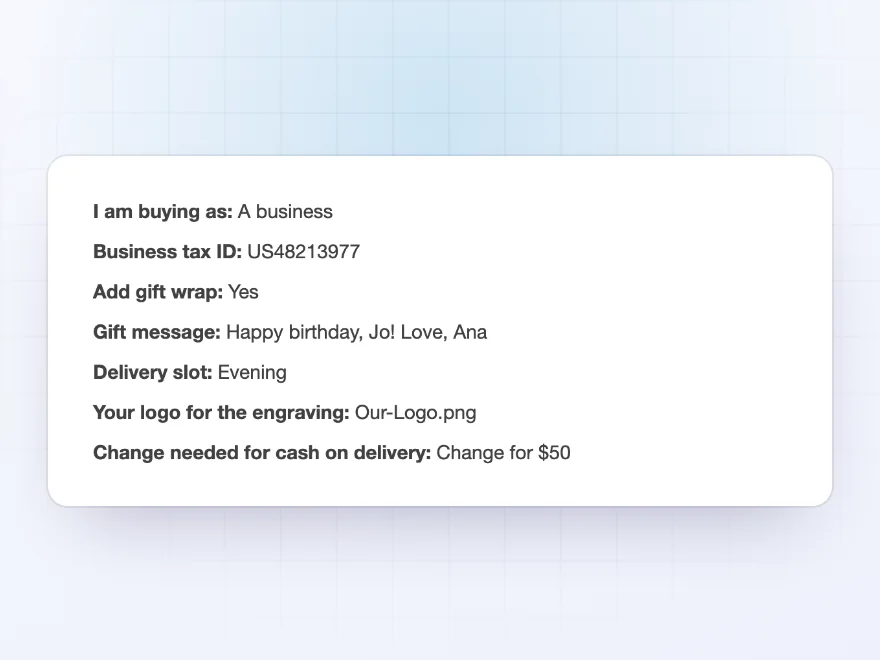
The answers show on the order screen, in order emails, on the thank-you page and in My Account, as you choose per field. Uploaded files are linked on the order for store staff to download.
- Order screen and emails
- Thank-you page and My Account
- Files linked on the order
Checks
Answers in the right shape
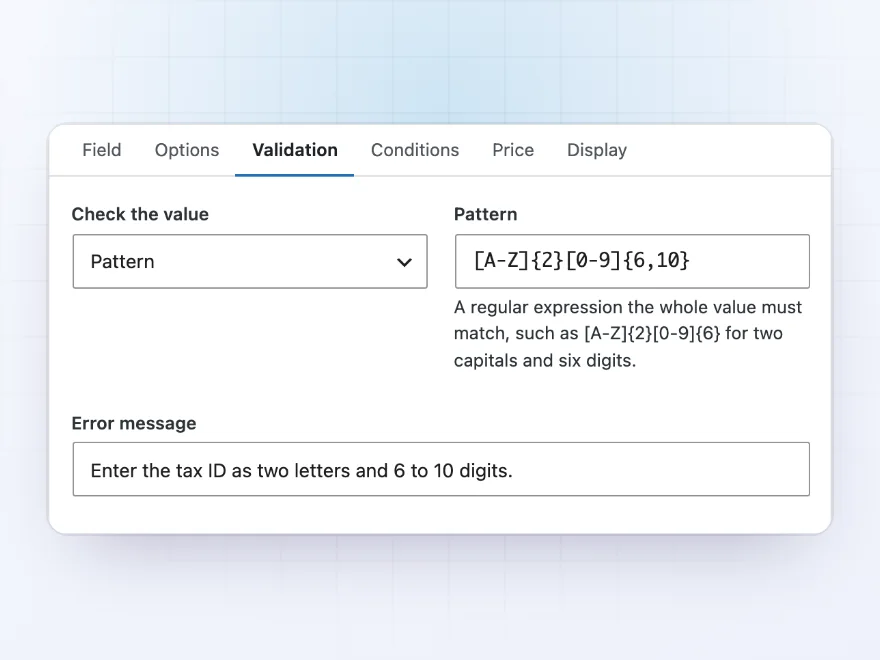
Check that an email, phone number, number or postcode is valid, or that a value matches a pattern you set, such as two letters and six digits, with your own error message. A field can also have to match another, such as a Confirm email field.
- Email, phone, number and postcode checks
- A pattern with your own message
- Fields that must match
Where values show
Choose where every answer appears
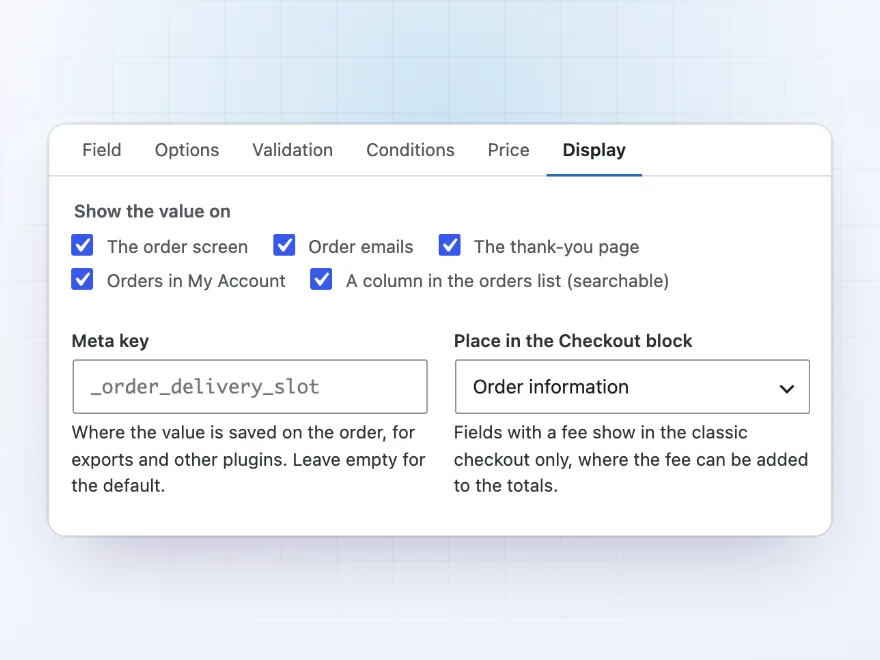
For each field, choose the order screen, order emails, the thank-you page, My Account and a searchable column in the orders list. Set your own meta key so exports and other plugins can read the value, and the step of the Checkout block the field appears in.
- Order screen, emails and My Account
- A searchable orders list column
- Your own meta key
Export and import
Copy the setup to another store
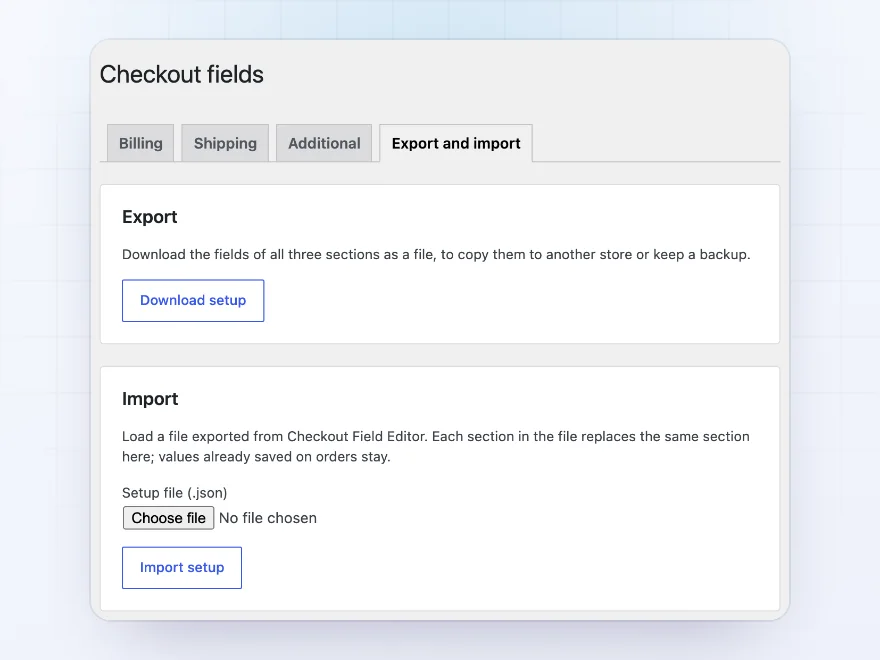
Download the fields of all three sections as one file and import it on another store, such as from a staging site to the live one. Labels and other texts can be translated with WPML or Polylang.
- One file for every section
- Import replaces the sections in it
- WPML and Polylang
Premium quality & support
Support you can count on, year after year
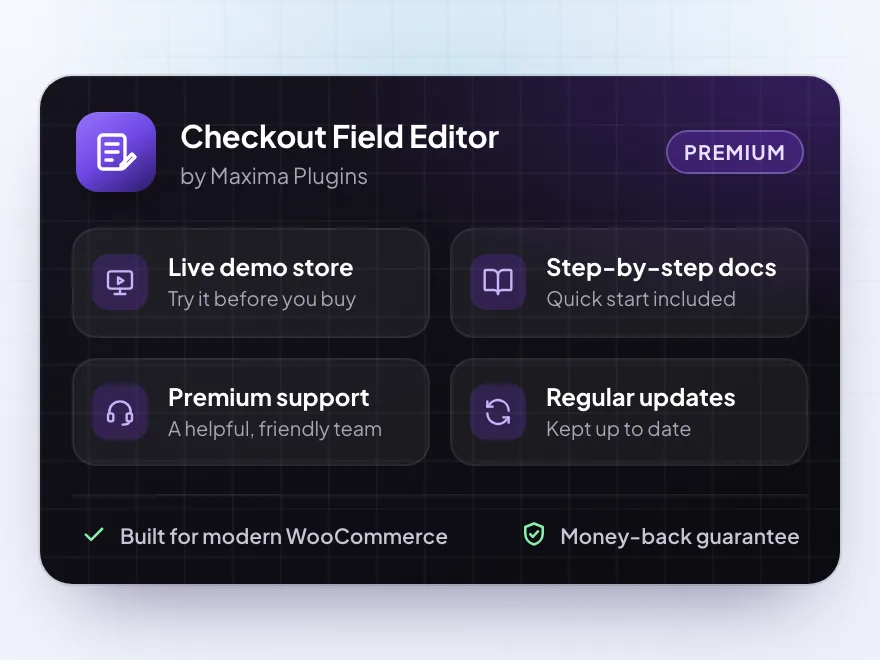
See Checkout Field Editor working in a live demo store before you buy. If you need a hand, our friendly support team will help you get it set up, and regular updates keep it working with each new WooCommerce release.
- A live demo store to try it first
- Step-by-step docs with a quick start
- Premium support from a helpful team
- Regular updates included
A checkout field editor for WooCommerce, without code
Checkout Field Editor is a checkout field editor for WooCommerce that changes the fields customers fill in. Rename WooCommerce’s fields, drag them into a new order, make them optional, or turn off the ones you don’t need, such as Company or the second address line, and put a section back to WooCommerce’s fields with one click.
As a WooCommerce checkout editor it also adds your own fields: a delivery slot, a gift message, a tax ID or a file upload, with checks, a fee when they’re filled in and rules that show them only when they apply. Like a checkout manager for WooCommerce, it shows every answer on the order screen, in emails and in My Account, and copies the setup to another store.
Common setups
Questions before you buy
Does it work with the Checkout block?
Yes. Label, required, hidden and order changes to address fields apply in the block, and text, dropdown, radio, checkbox and date fields show in it through WooCommerce’s additional checkout fields. Fields with a fee, uploads and some other types show in the classic checkout only; the editor says which.
Can I hide a field without deleting it?
Yes. Turn off its Enabled switch. WooCommerce’s fields can only be turned off; Country and Email address stay on.
Where are the values saved?
On the order, under the field’s name or the meta key you set. Billing and shipping fields are also saved to the customer’s account.
Who can download uploaded files?
Users who can edit orders, from the link on the order screen. Files are kept in a protected folder.
Can a field depend on another field?
Yes. A rule can show a field when another field has a value, is empty, or matches a value.
Can I move my setup to another store?
Yes. Export the setup as a file under Export and import, and import it on the other store.
Can the labels be translated?
Yes, with WPML or Polylang.
Requirements
- WordPress
- 6.8 or newer
- WooCommerce
- 10.0 or newer
- PHP
- 7.4 or newer
Works with
- Classic themes
- Block themes
- Cart and Checkout blocks
- High-Performance Order Storage
Willem –
The conditional fields work well and the file upload was easy to add. Setting up the fee rules took me longer than expected though, and I got one combination wrong the first time. Four stars for that.
Hannah B. –
Support was helpful
Does what it says. Thomas helped me hide the company field for retail orders. no complaints
tomdeboer –
added a VAT number field for our trade customers. simple once James pointed me to the right field type
Eva M. –
Checkout Field Editor let us add a delivery date and a gift message. Took me an afternoon to get the conditions right, but it works well now. The file upload wasnt as hard as I expected.