 Maxima Plugins
Description
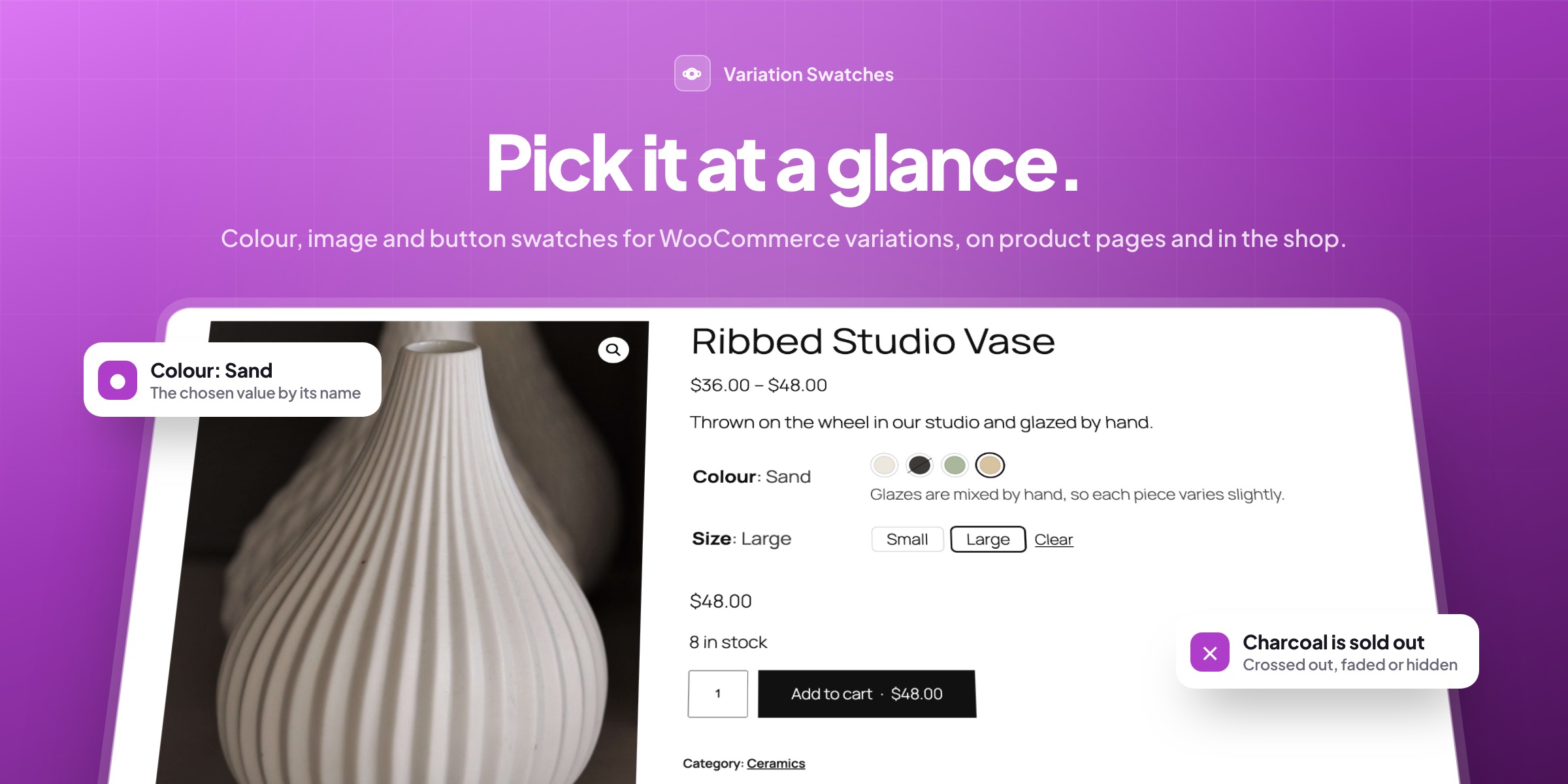
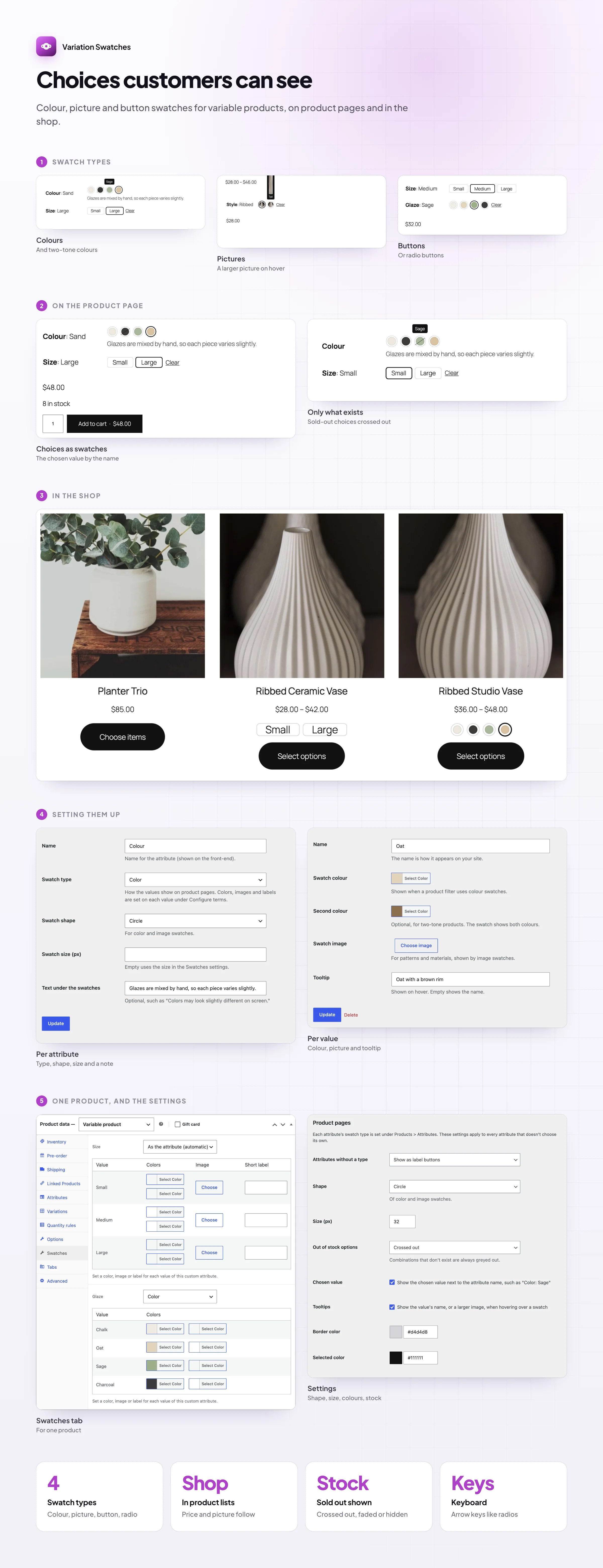
Variation Swatches replaces WooCommerce’s variation dropdowns with colours, pictures and buttons customers can see. Choices that don’t exist are greyed out, sold-out ones are crossed out, and the same swatches can show in the shop.
🎨 Colour swatches, two-tone colours included, with tooltips.
🖼️ Image swatches of a pattern or material, larger on hover.
🔤 Buttons for sizes such as S, M, L and XL, or radio buttons.
🚫 Only what can be bought: greyed out, crossed out, faded or hidden.
🛍️ Swatches in the shop, where the picture and price follow the swatch.
⭕ Circle, square or rounded, in your sizes and colours.
⚙️ Set once per attribute, with changes per product only where you need them.
⌨️ Keyboard friendly and sized for touch screens.
Colour swatches
Colours customers can see
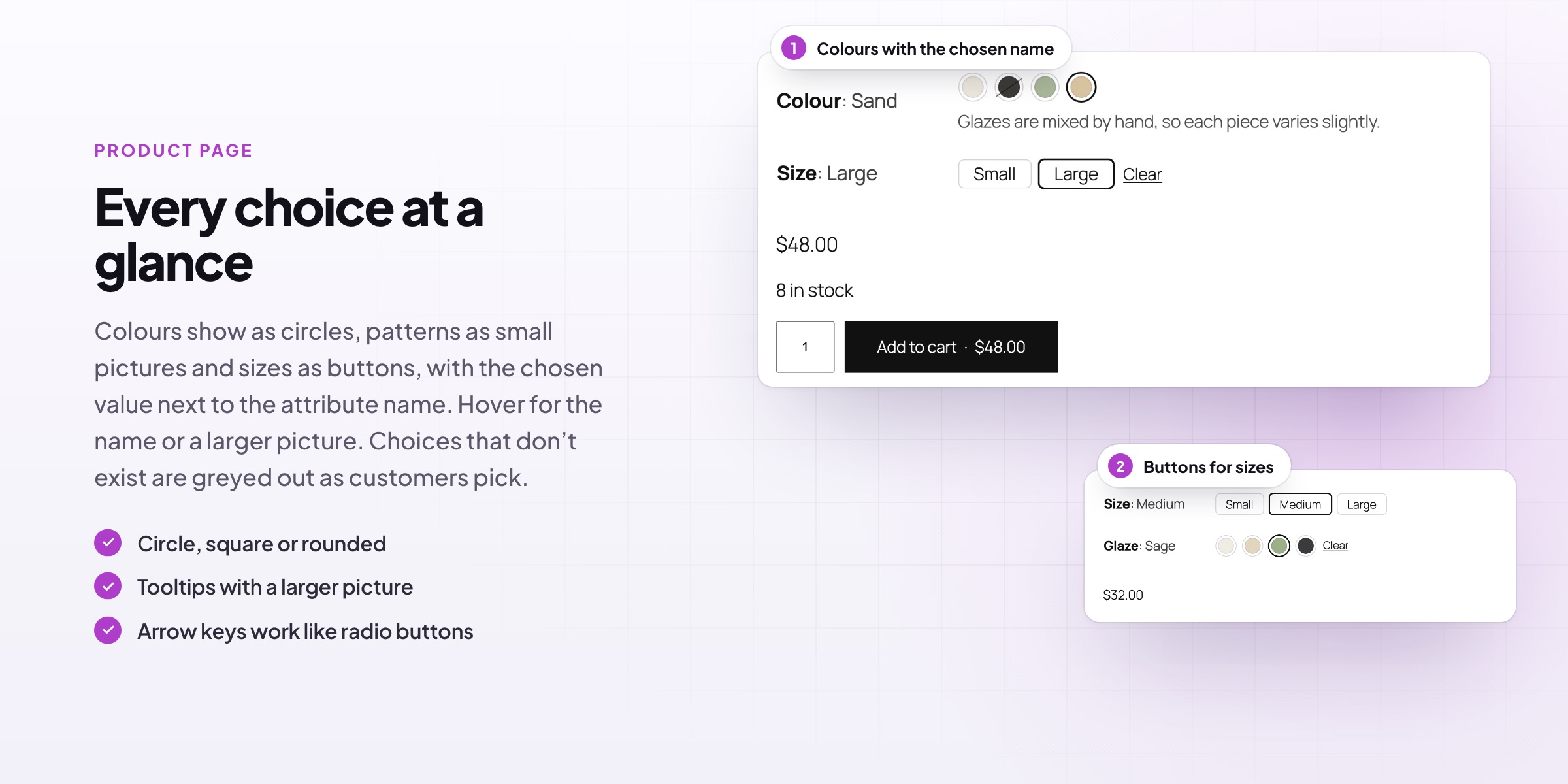
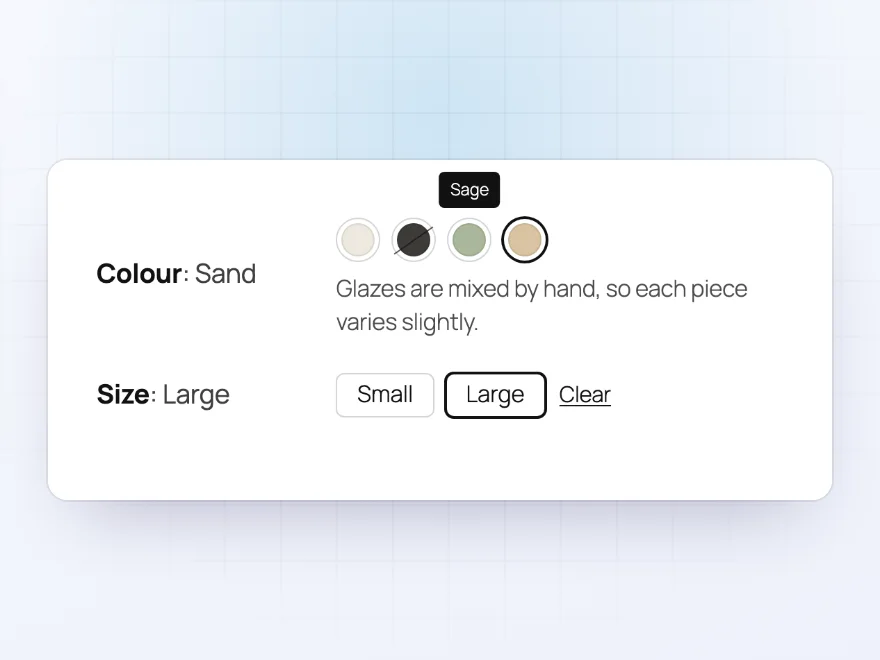
Colours show as circles, squares or rounded swatches, with the chosen value next to the attribute name, such as “Colour: Sand”. Hover for the name, and add a note under the swatches, such as that glazes vary slightly.
- The chosen value by the name
- Tooltips on hover
- A note under the swatches
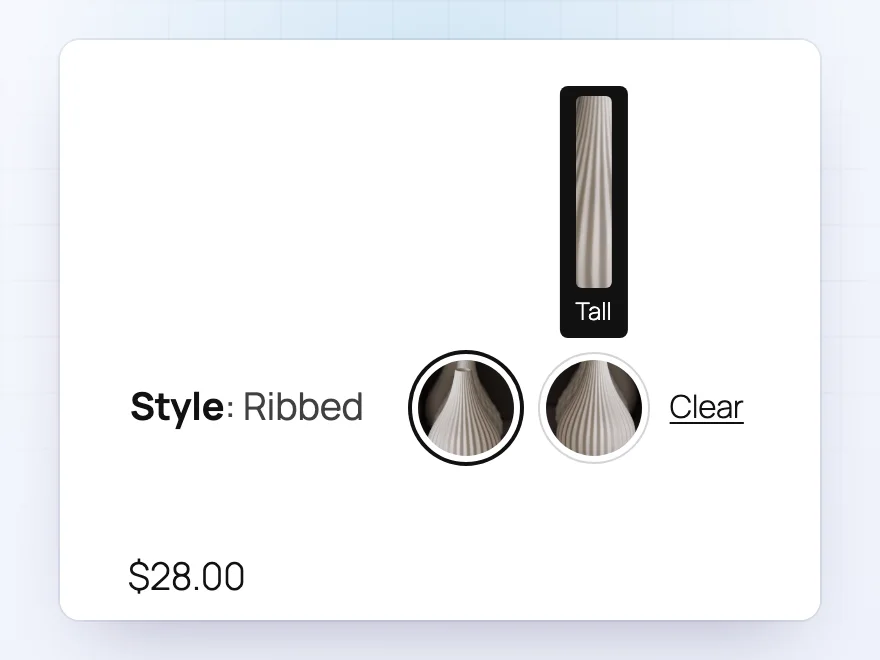
Image swatches
Pictures of the pattern or style
Image swatches show a picture you choose, or the variation’s own picture, so customers can see a pattern, a material or a style. Hover for a larger picture with the name.
- A picture you choose
- Or the variation’s picture
- A larger picture on hover
Buttons
Buttons for sizes and more
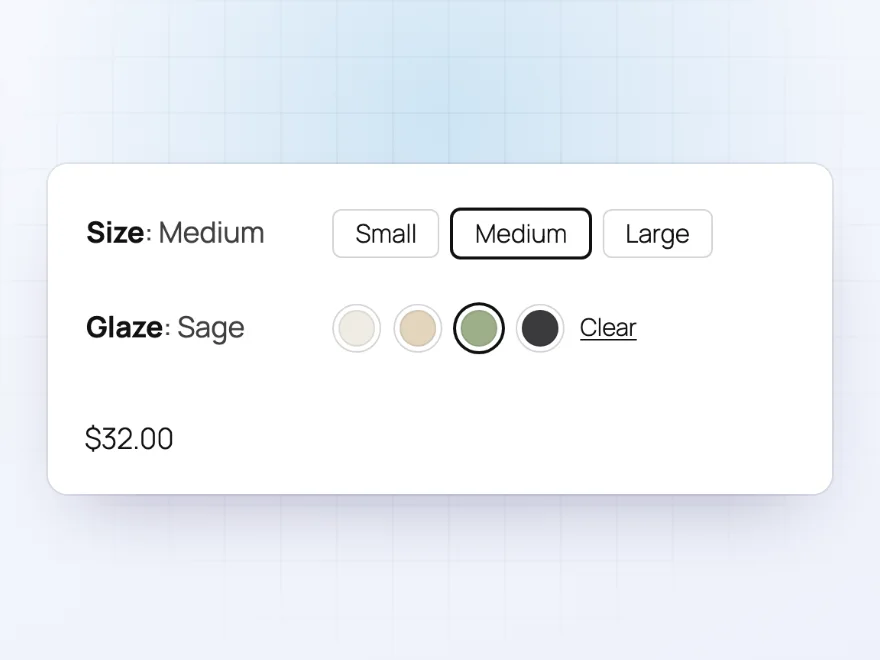
Sizes and other attributes show as buttons, with an optional short label such as “XL”, or as radio buttons. Attributes you haven’t set up show as buttons by default, so every dropdown goes.
- Short labels such as XL
- Radio buttons too
- Buttons by default
Stock
Only what can be bought
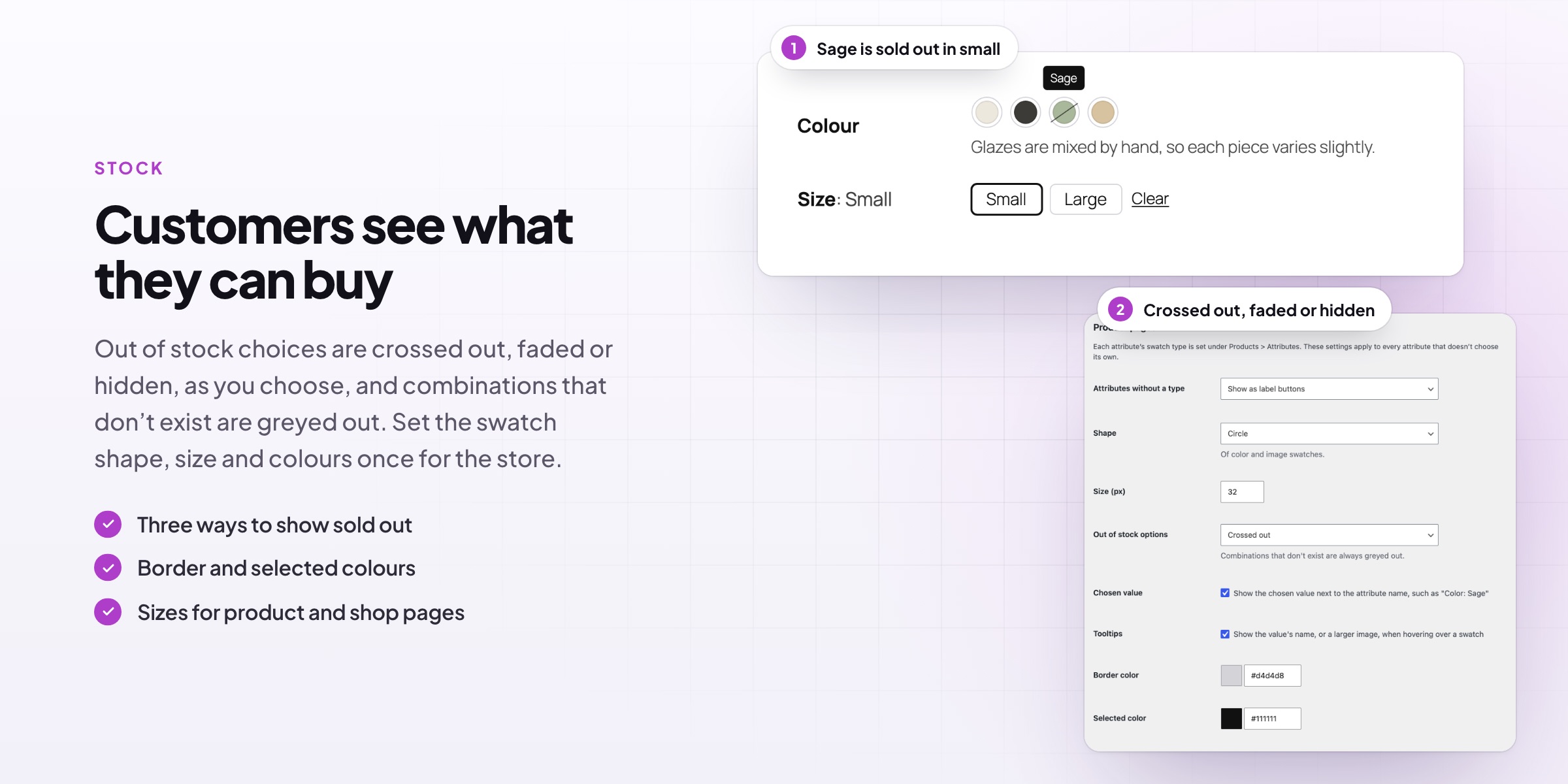
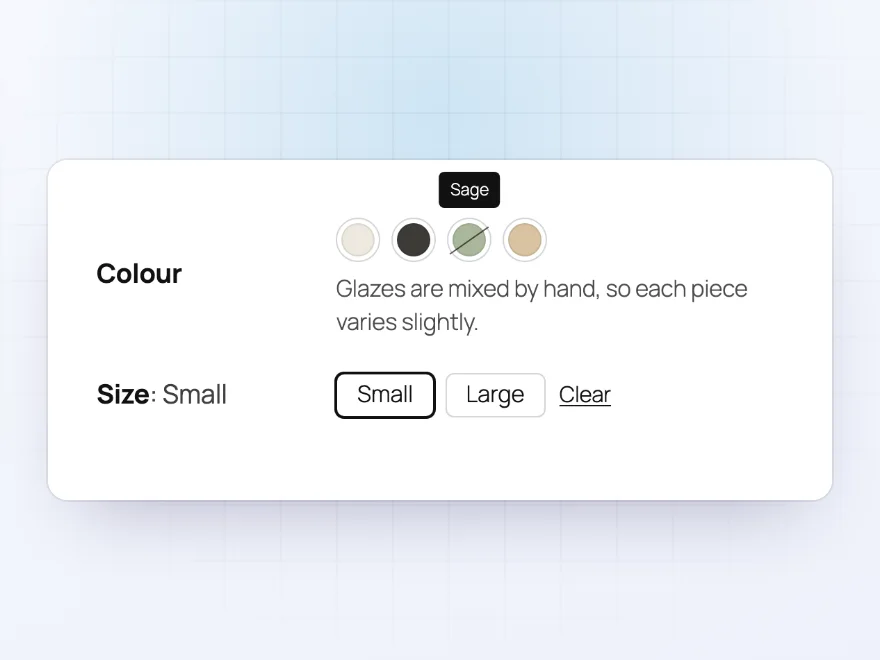
As customers choose, combinations that don’t exist are greyed out, and out-of-stock choices are crossed out, faded or hidden, as you choose. Here Sage is crossed out because the small size has sold out.
- Greyed out when it doesn’t exist
- Crossed out, faded or hidden
- Keyboard friendly
Shop pages
Swatches under products in the shop
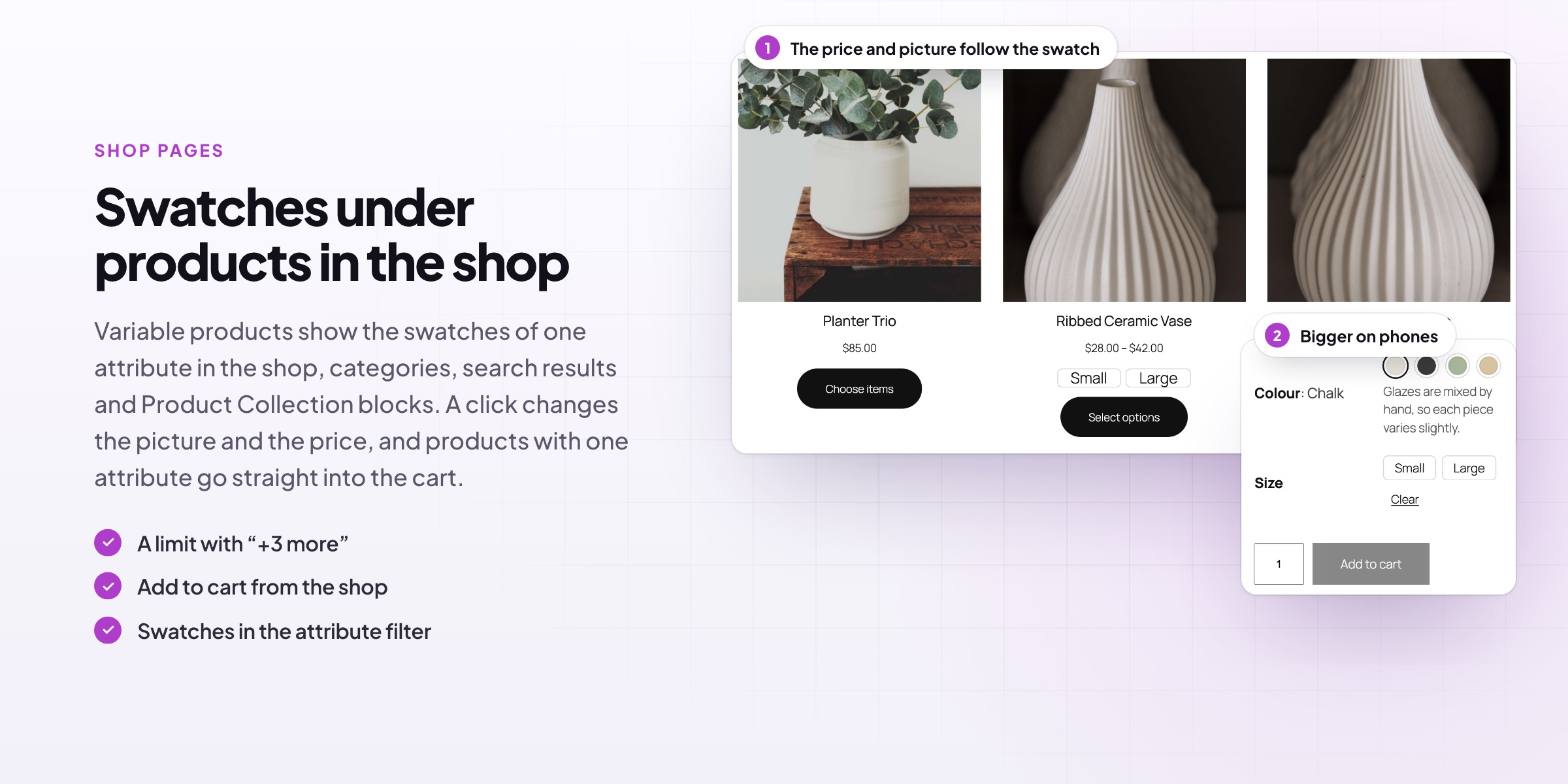
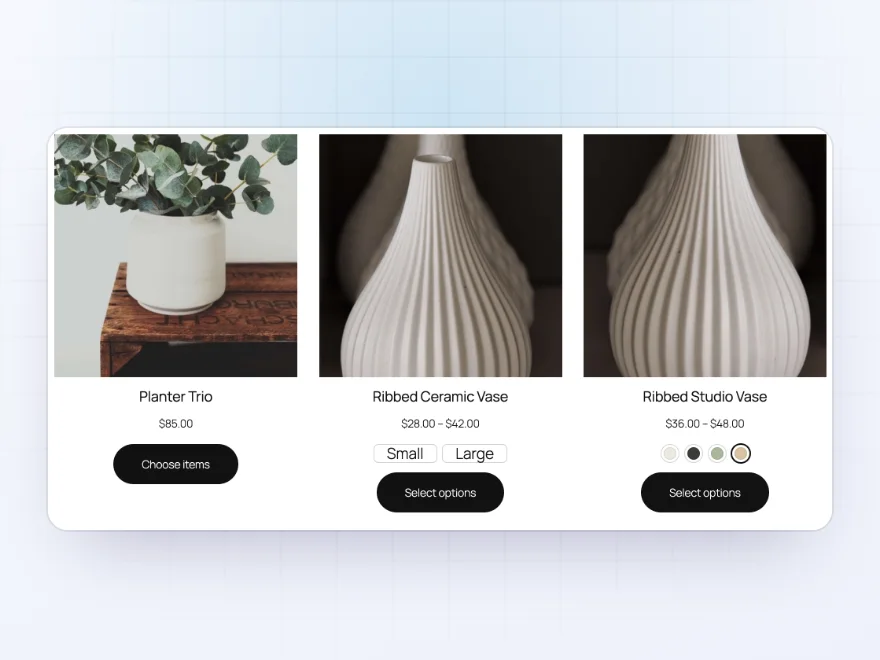
Variable products show swatches of one attribute in the shop, categories, search results and Product Collection blocks. A click changes the picture and the price, and products with one attribute can go straight into the cart.
- Picture and price follow the swatch
- Add to cart from the shop
- A “+3 more” limit
Look
Shape, size and colours
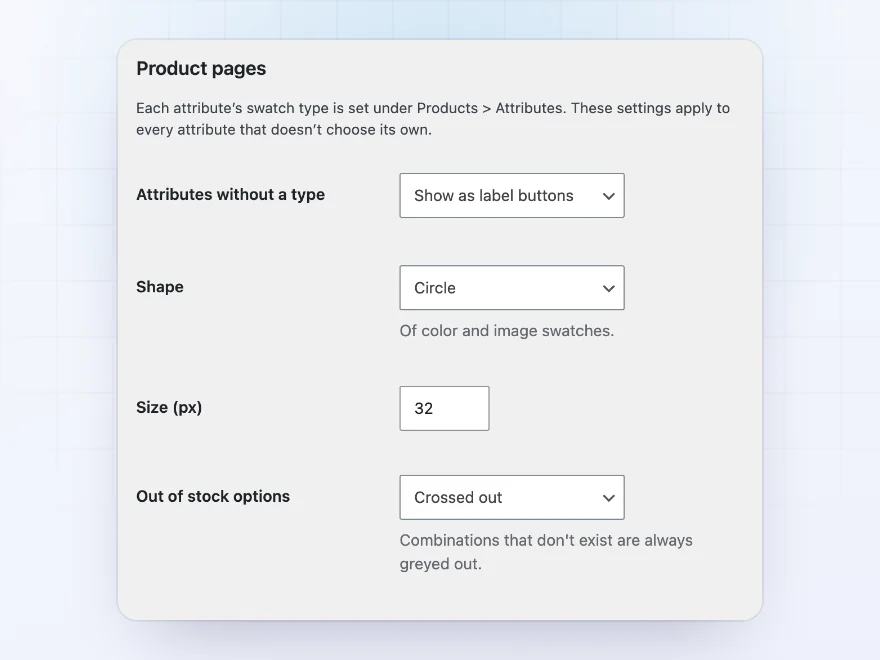
Choose circle, square or rounded swatches, their size on product and shop pages, the border and selected colours, and how out-of-stock choices look, once for the whole store.
- Circle, square or rounded
- Sizes for product and shop pages
- Border and selected colours
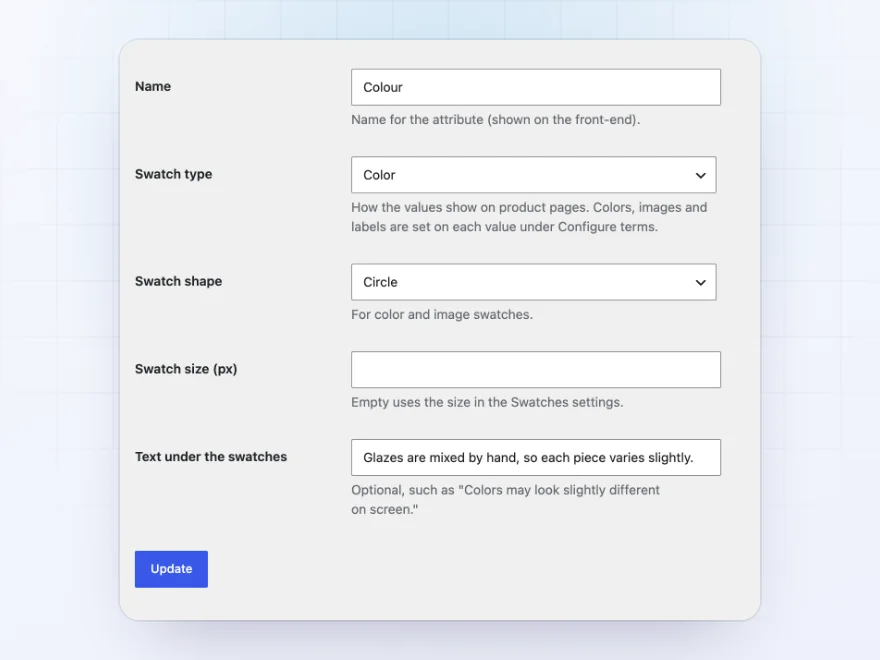
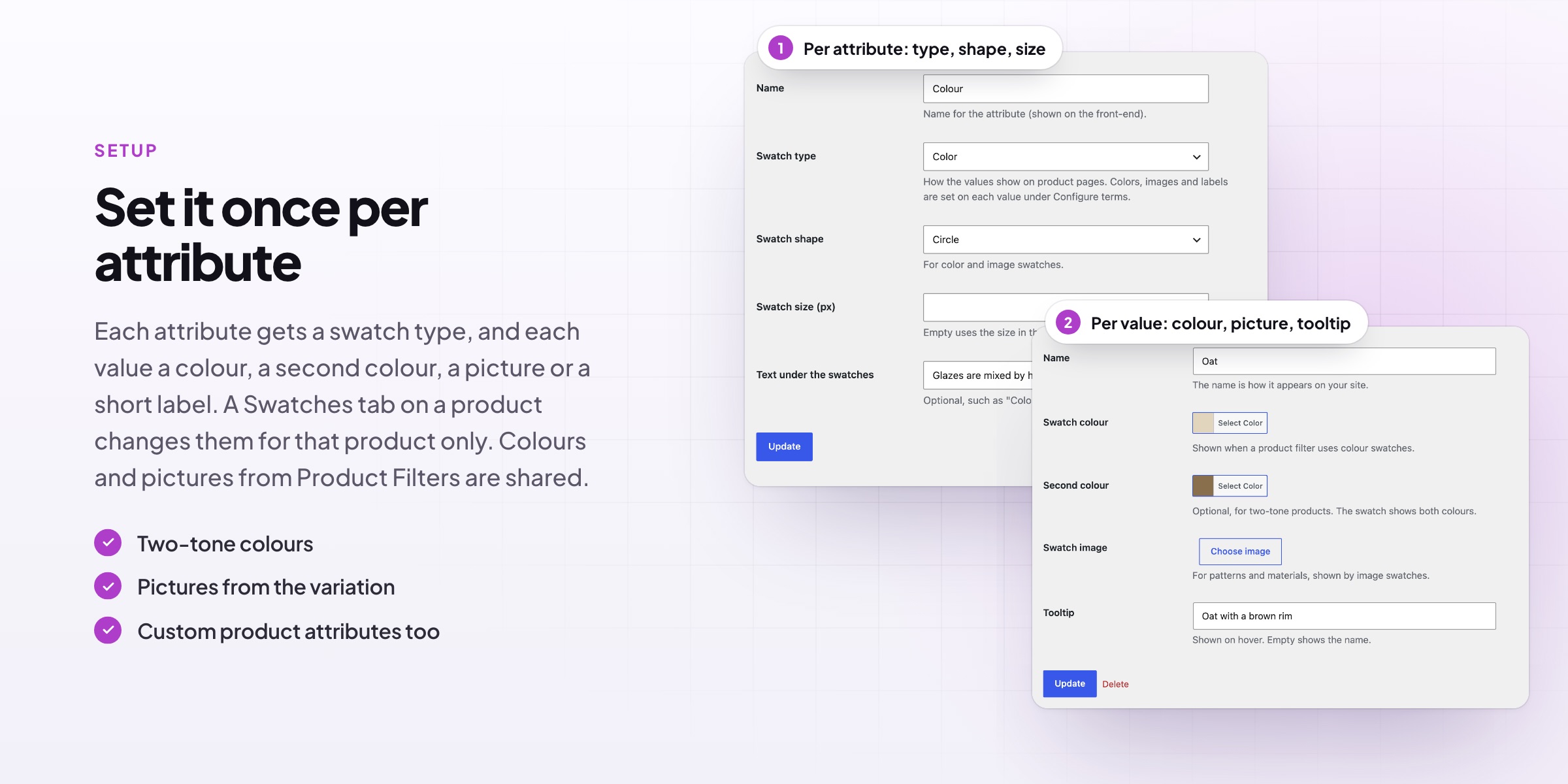
Per attribute
Set the swatch type once
Each attribute under Products > Attributes gets a swatch type, shape and size, and a short note shown under its swatches, such as “Colours may look slightly different on screen”. Attributes without a type show as buttons, or as pictures when their variations have them.
- Colour, picture, button or radio
- Circle, square or rounded
- A note under the swatches
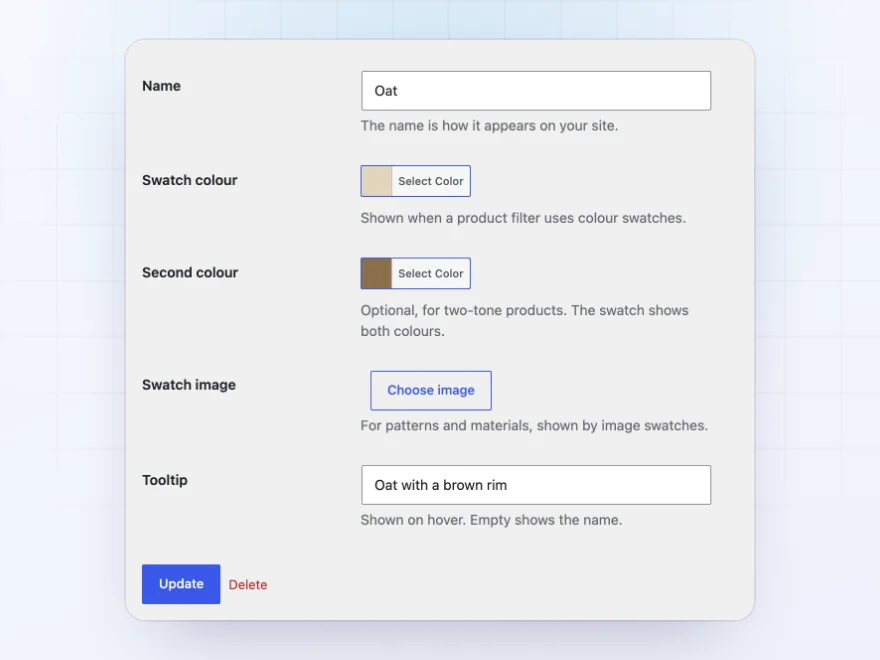
Per value
A colour, picture or label for each value
Each value gets a colour, a second colour for two-tone products, a picture of the pattern or material, a short label such as “XL” and its own tooltip. With Product Filters active, the colours and pictures are set once for both plugins.
- Two-tone colours
- Pictures of the pattern
- Short labels and tooltips
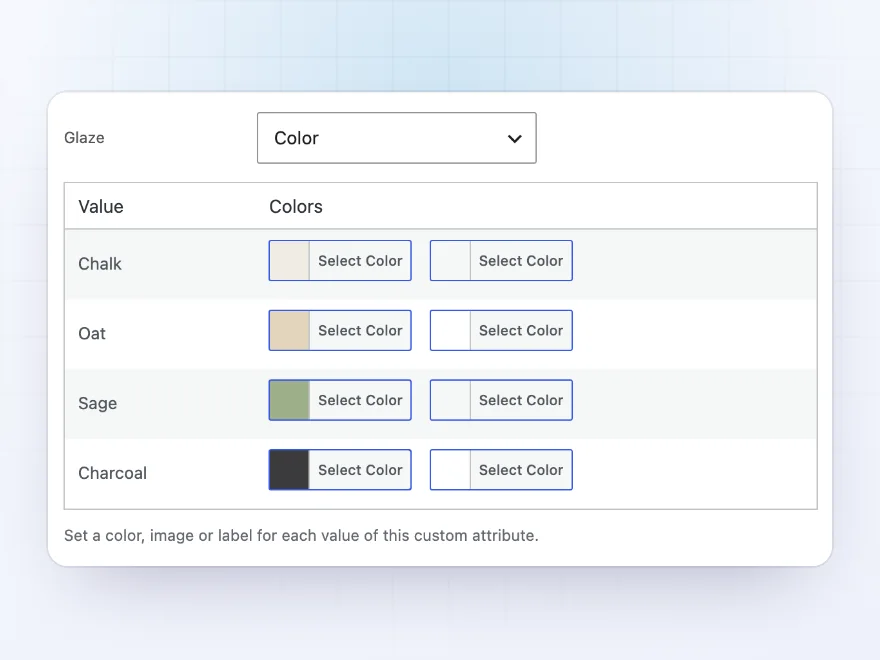
Per product
Different swatches for one product
A Swatches tab on variable products changes the swatch type and the colours, pictures and labels for that product only, including attributes added on the product itself, such as a planter’s own sizes and glazes.
- Custom product attributes too
- Overrides only where you need them
- Pictures from the variation
Premium quality & support
Support you can count on, year after year
See Variation Swatches working in a live demo store before you buy. If you need a hand, our friendly support team will help you get it set up, and regular updates keep it working with each new WooCommerce release.
- A live demo store to try it first
- Step-by-step docs with a quick start
- Premium support from a helpful team
- Regular updates included
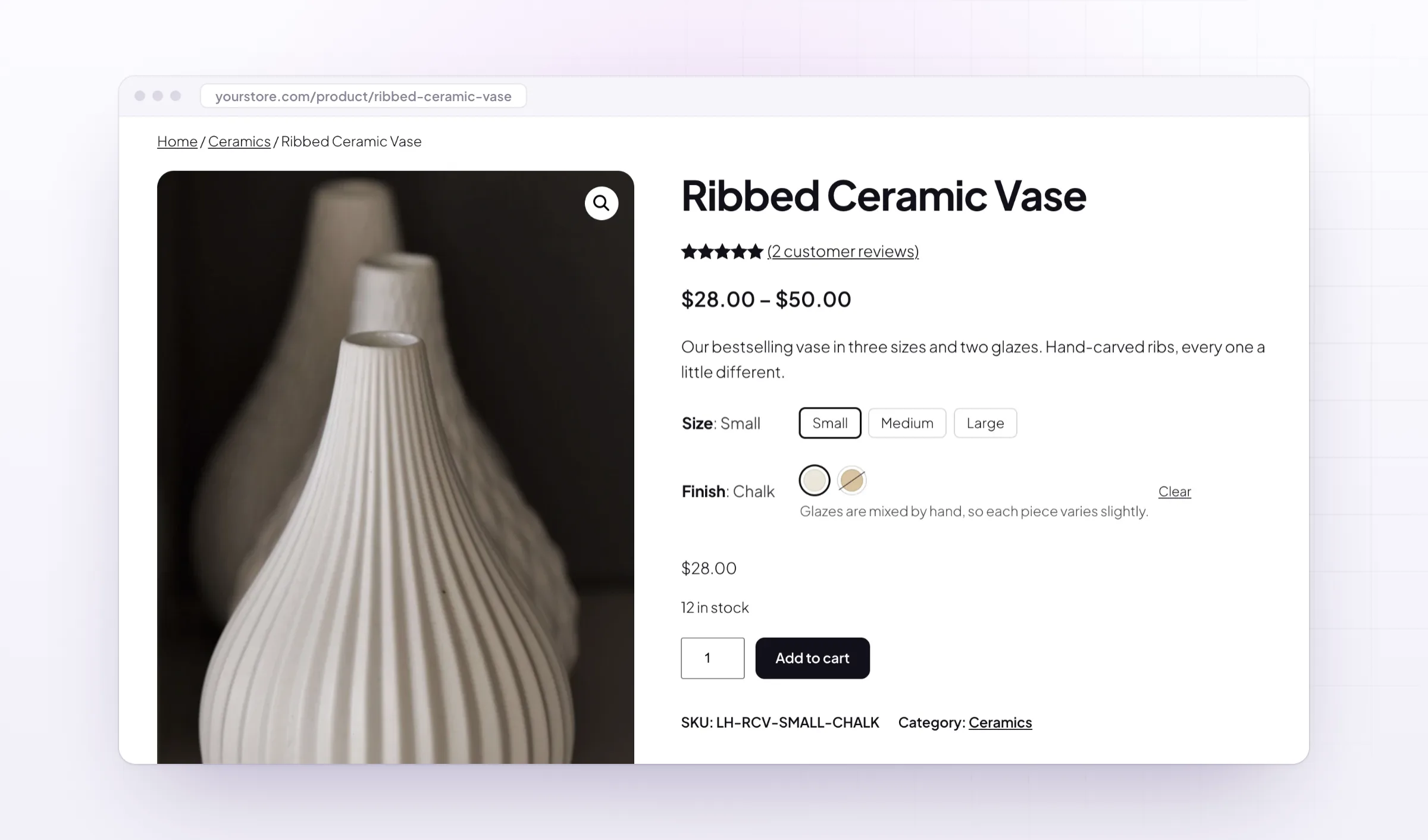
Variation swatches for WooCommerce, on product and shop pages
Variation Swatches replaces WooCommerce’s variation dropdowns with swatches customers can see: colour circles, small pictures of a pattern or material, and buttons for sizes. As variation swatches for WooCommerce, it greys out choices that don’t exist and crosses out the ones that are sold out, so customers only pick what they can buy.
WooCommerce attribute swatches are set once per attribute and value, or changed for one product on its Swatches tab. To show colour variations on the shop page, swatches appear under variable products in the shop, categories and Product Collection blocks, where a click changes the picture and the price of the product.
Common setups
Questions before you buy
Do I have to set up every attribute?
No. Attributes without a type show as buttons, or as pictures when their variations have them. Set a type only where you want colours or pictures.
Can one product use different swatches?
Yes. The Swatches tab on a variable product changes the type and the colours, pictures and labels for that product, including attributes added on the product.
Why aren’t sold-out choices marked on a product?
Products with more variations than the “Variations sent with the page” setting load them as customers choose. Raise the setting for products with many variations.
Does it work with block themes?
Yes, with the Add to Cart form block on product pages and Product Collection blocks in the shop.
Does it work with Product Filters?
Yes. Each value’s colour and picture are set once and used by both.
What happens if I deactivate it?
The dropdowns come back. Swatch settings are kept and WooCommerce’s attributes aren’t changed.
Is it keyboard friendly?
Yes. Swatches work like radio buttons with the arrow keys.
Requirements
- WordPress
- 6.8 or newer
- WooCommerce
- 10.0 or newer
- PHP
- 7.4 or newer
Works with
- Classic themes
- Block themes that use the Add to Cart form block
- Cart and Checkout blocks
- High-Performance Order Storage
Ines B. –
Good, but needed CSS
Good plugin, but I had to adjust our theme CSS a little. Four stars.
Kasia W. –
Thomas helped me get the swatches showing in the shop page. works well
David H. –
We use image swatches for our fabrics and they look great on mobile.
sanne –
Much better than dropdowns
The colour swatches look much better than dropdowns. Sold-out sizes are crossed out properly.