 Maxima Plugins
Description
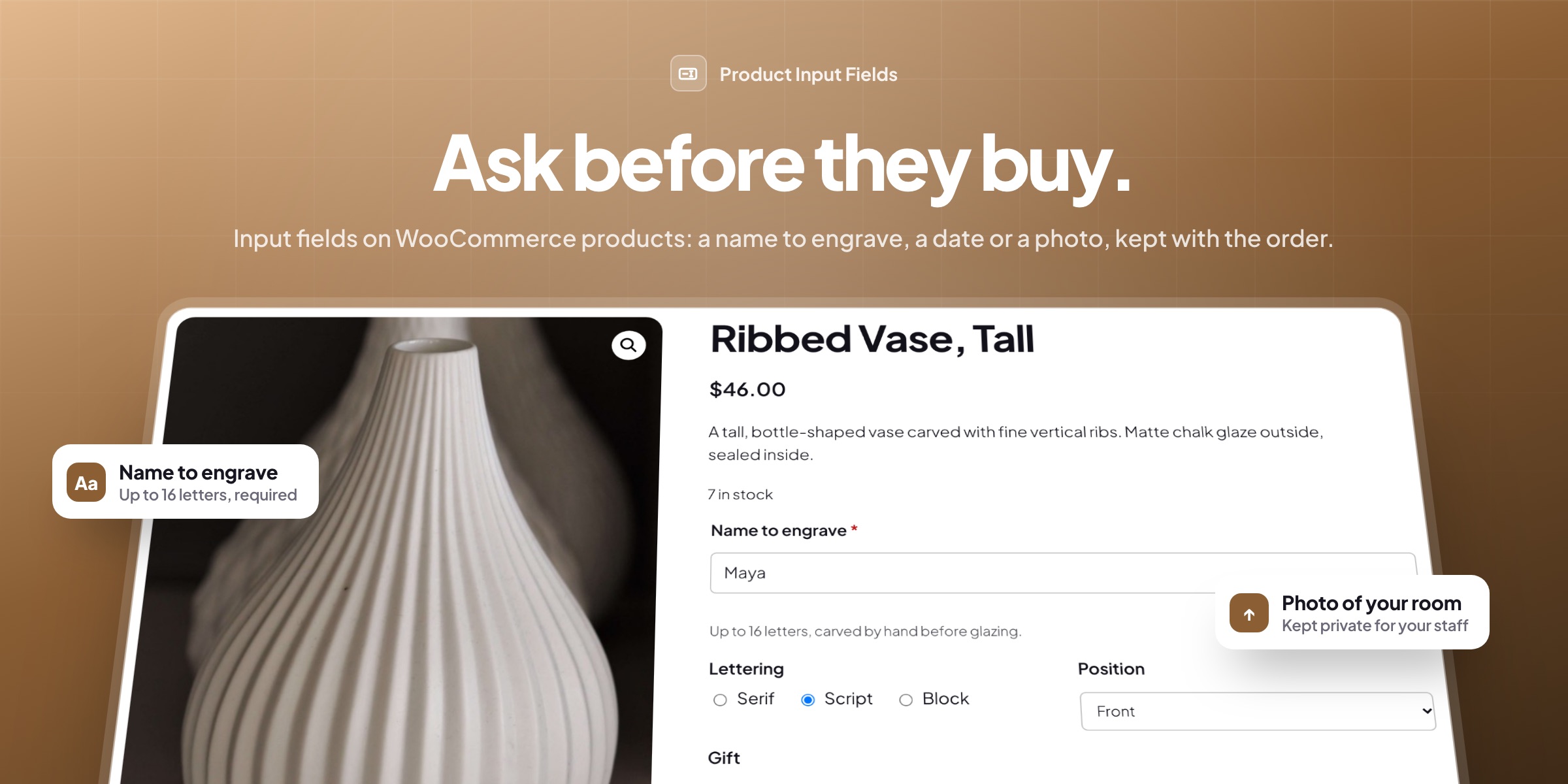
Product Input Fields adds fields to your product pages for customers to fill in before they add a product to the cart: a name to engrave, a gift message, a delivery date or a logo to print. Answers show in the cart, at checkout, on the order, in emails and in My account. Fields don’t change prices, so they stay quick to set up.
🔤 Sixteen kinds of field: text, numbers, dates, times, choices, checkboxes, uploads and hidden values.
🗂️ Set fields up once, in field groups for categories, tags or chosen products.
✅ Only answers you can use: required fields with your own message, limits and patterns.
🔀 Fields that show only when needed, such as a message box when Gift is ticked.
📎 Photo and file uploads, kept in a private folder and downloaded from the order.
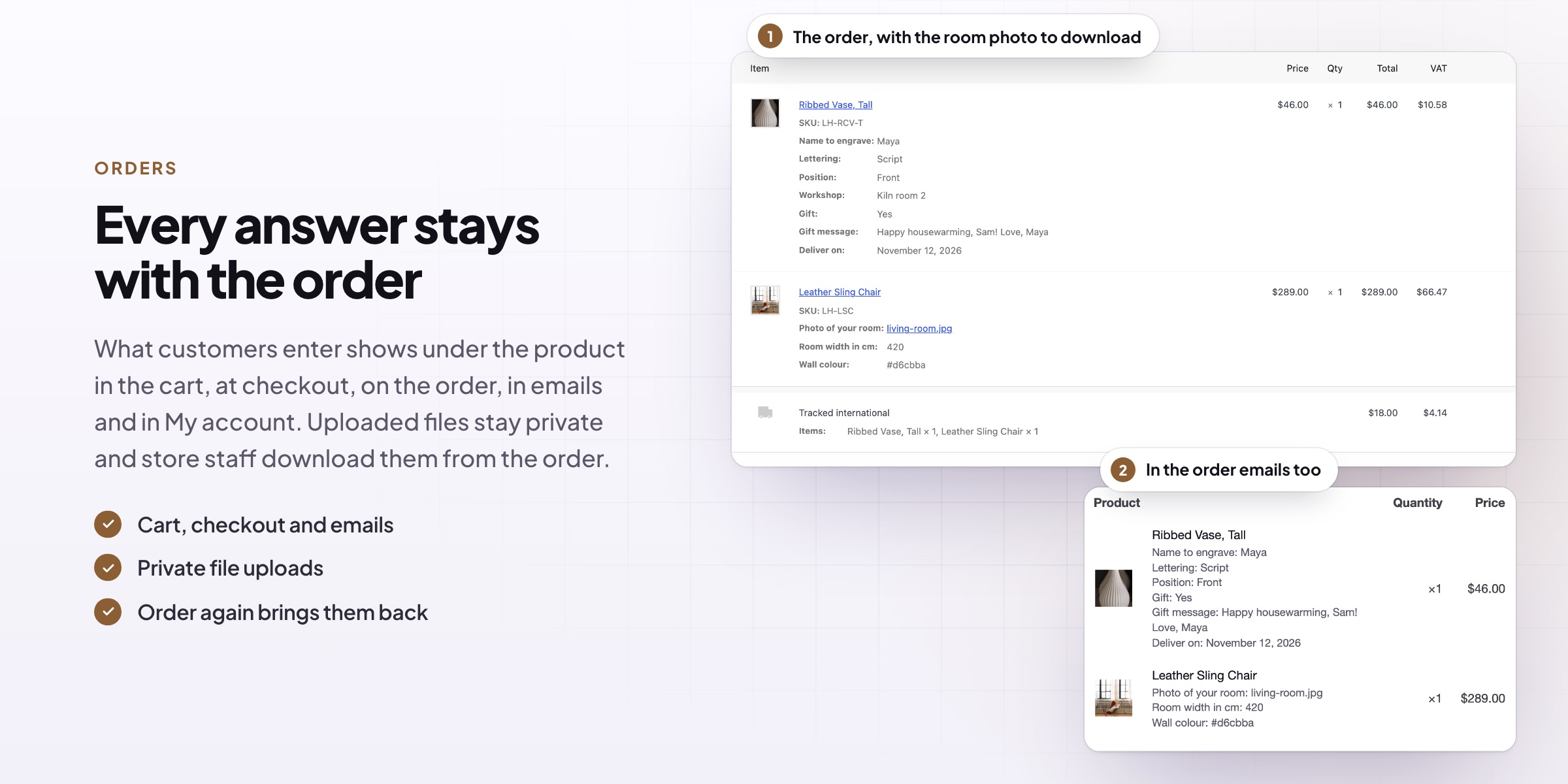
🧾 Every answer stays with the order, in emails, in My account and on Order again.
👥 Fields for some customers only: guests, customers or chosen roles.
🎨 Above or below the button, with a light box and character counters.

Field types
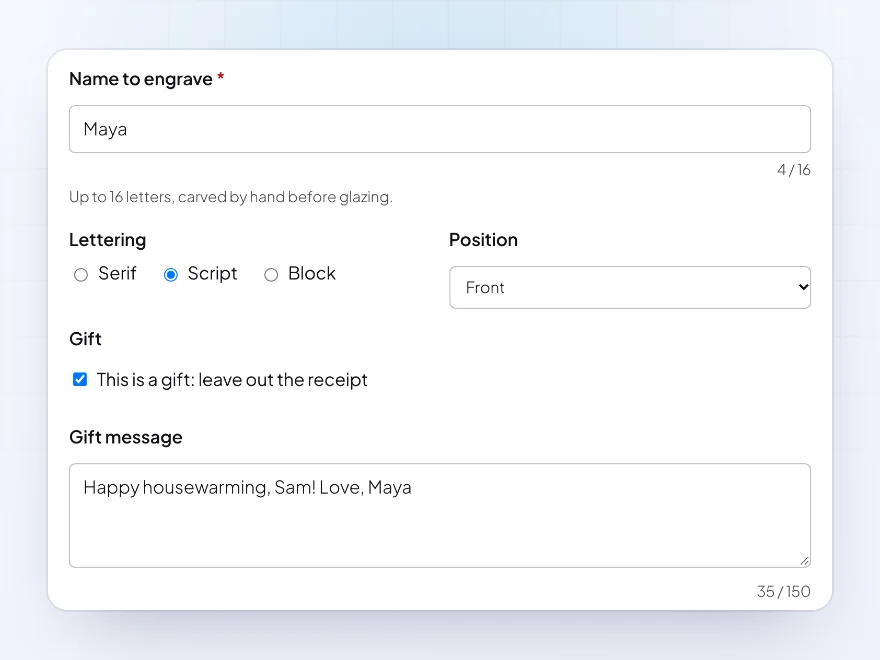
Sixteen kinds of field
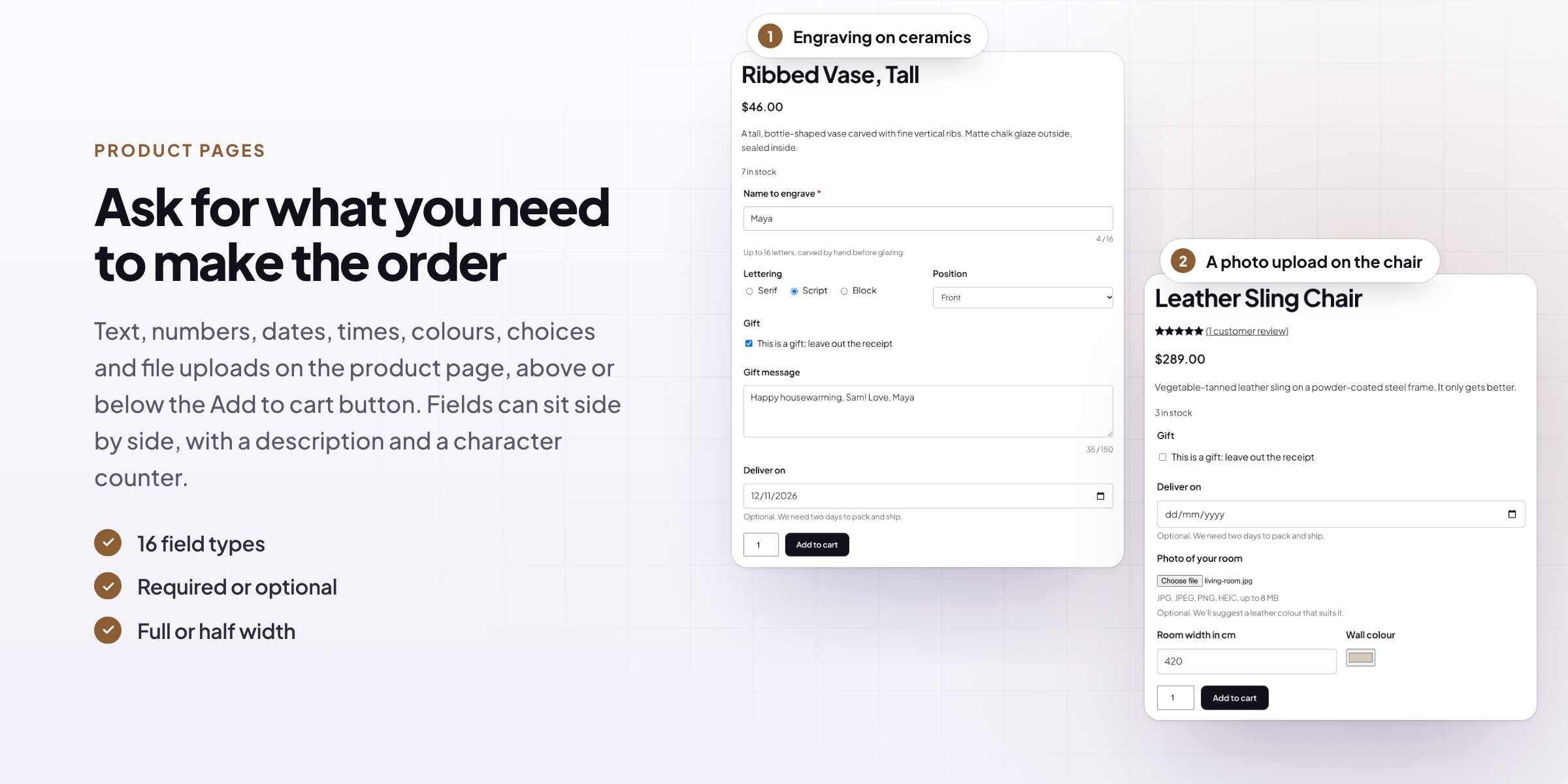
Text, paragraph, number, email, web address, phone, date, time and colour fields, dropdowns, radio buttons, checkboxes, a single yes/no checkbox, file uploads, hidden values for store staff and headings to split long forms. Each field has a label, placeholder, description and default value, and can be full or half width.
- Text, numbers, dates and times
- Choices and yes/no checkboxes
- File uploads and hidden values
Field groups
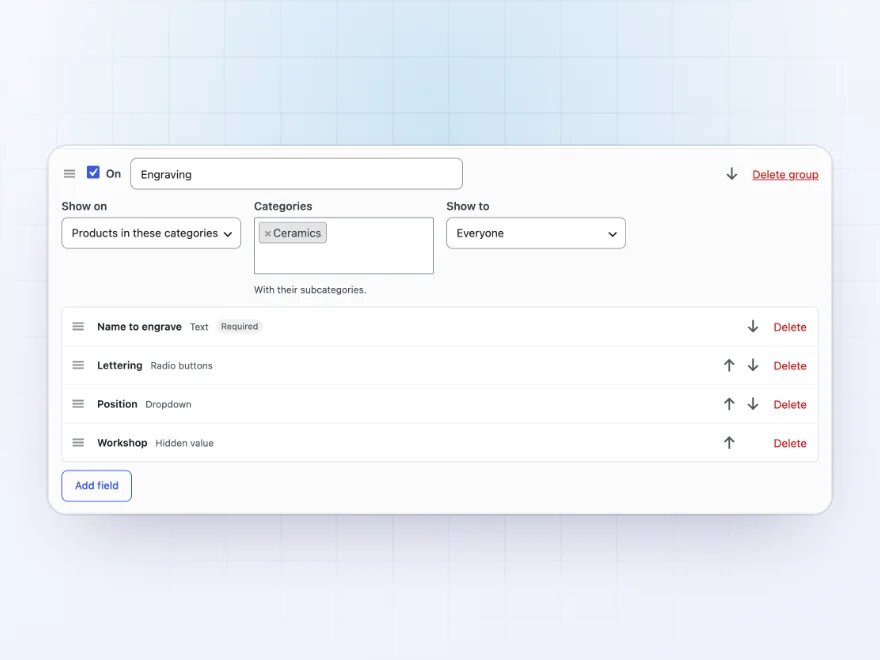
Set fields up once, for many products
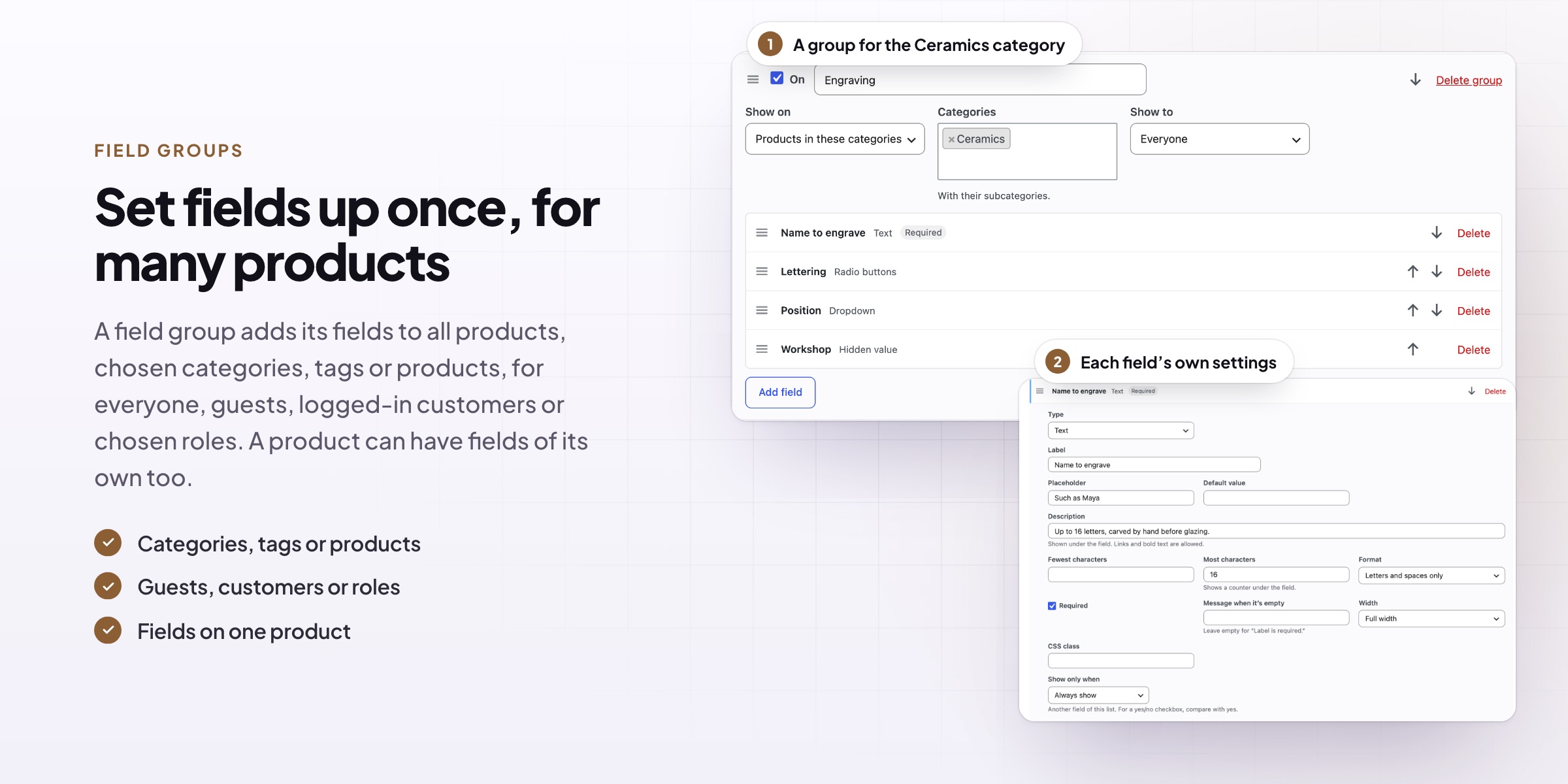
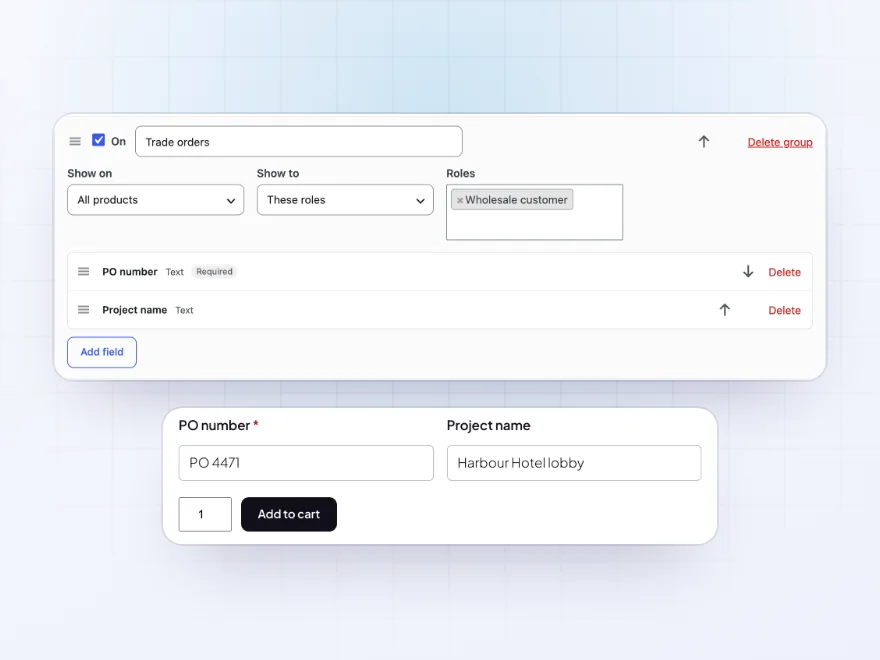
A field group adds its fields to all products, chosen categories (with their subcategories), tags or chosen products. Show it to everyone, guests, logged-in customers or chosen roles, and switch it off without losing it. Fields and groups can be put in any order.
- Categories, tags or products
- Everyone, guests, customers or roles
- An on/off switch
Checks
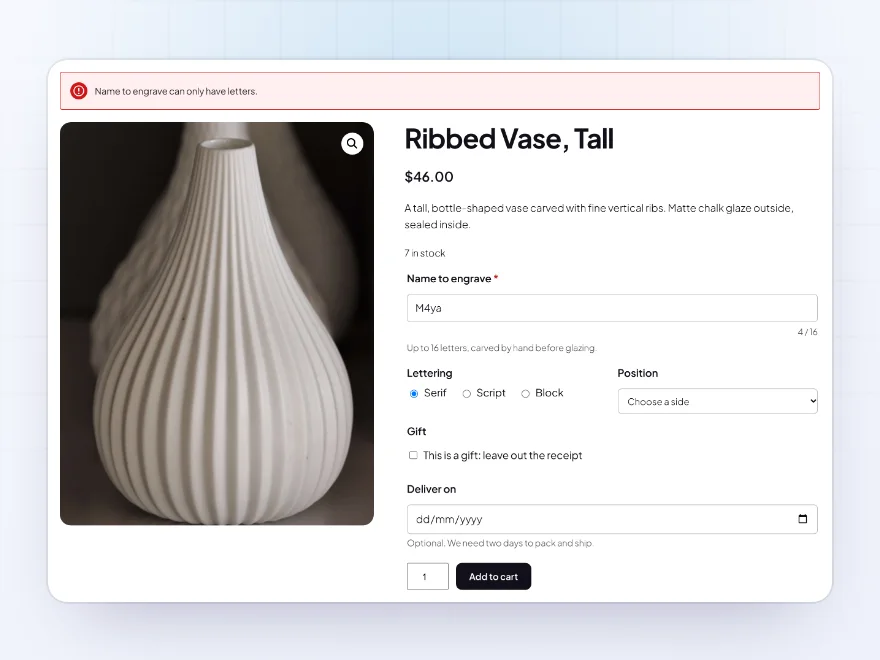
Only answers you can use
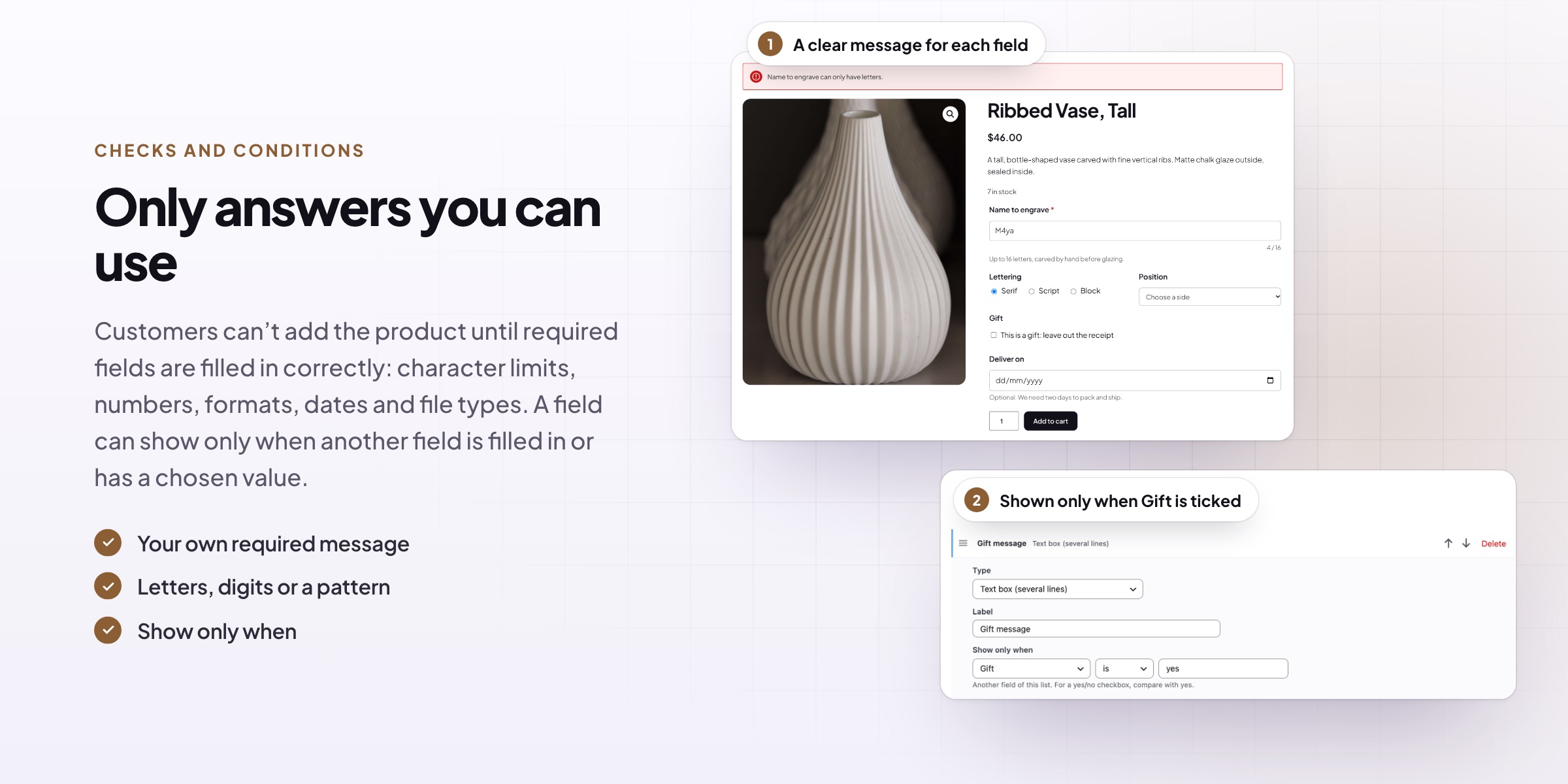
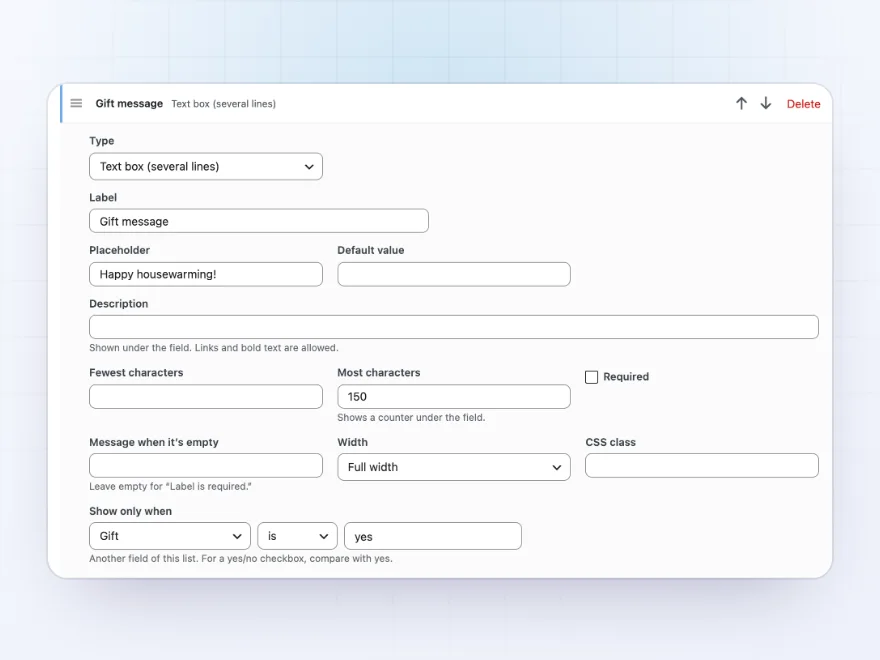
Customers can’t add the product to the cart until required fields are filled in correctly, with a clear message for each field. Limit text to a number of characters, with a counter, numbers to a range and step, and text to letters, digits or a pattern of your own.
- Required, with your own message
- Character and number limits
- Letters, digits or your own pattern
Conditions
Fields that show only when needed
Show a field only when another field is filled in, empty, or has a chosen value, such as the gift message only when Gift is ticked. Answers to fields that aren’t shown are never kept, so the order only lists what applies.
- Filled in or empty
- Is or isn’t a chosen value
- Hidden answers aren’t kept
File uploads
Photos and files, kept private
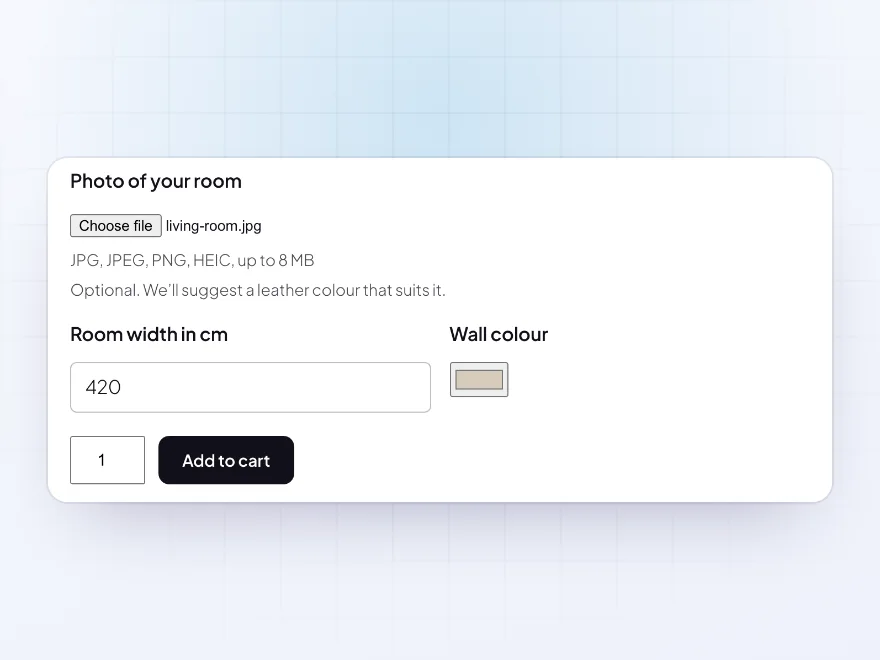
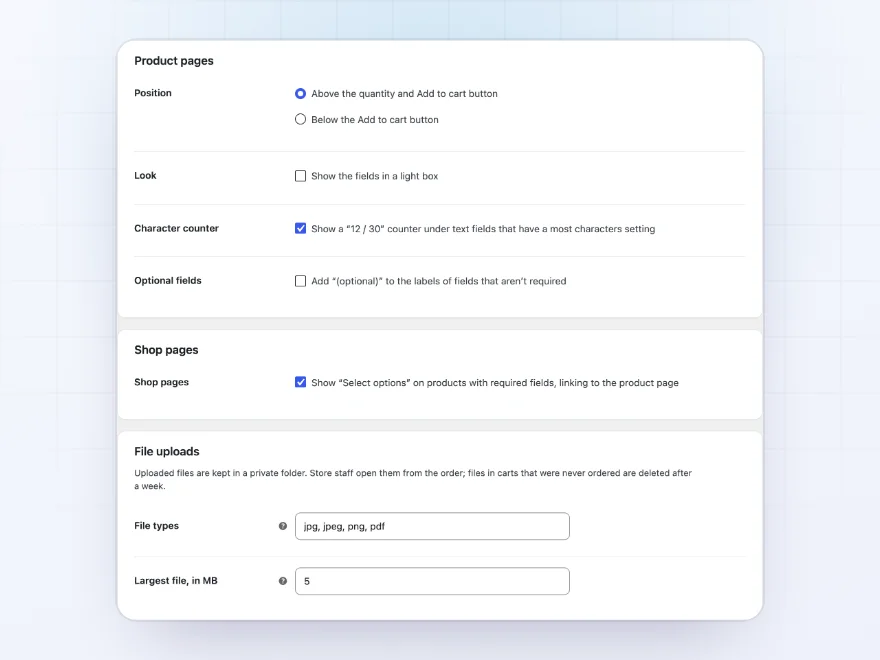
Let customers upload a logo, a photo or a document, with the file types and largest size you choose. Files are kept in a private folder with random names, store staff download them from the order, and files in carts that were never ordered are deleted after a week.
- File types and largest size
- A private folder
- Downloaded from the order
Orders
Every answer stays with the order
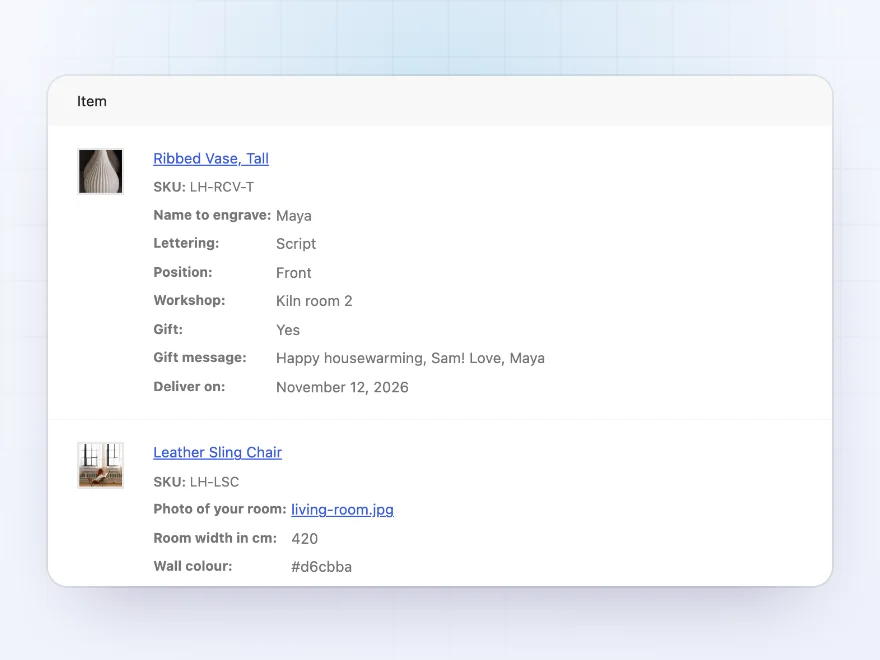
What customers enter shows under the product in the cart, mini-cart and checkout, on the order, in order emails and in My account. The same product with different answers becomes separate cart lines, and Order again brings the answers back.
- Cart, checkout and My account
- Order emails
- Order again
Product fields
Fields for one product
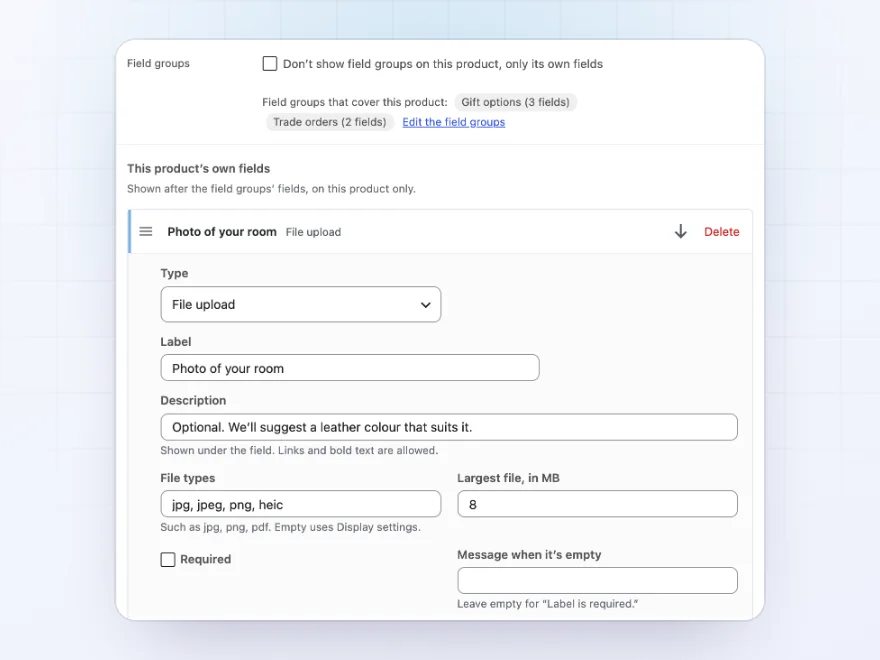
Give a product fields of its own in Product data > Input fields, such as a photo upload on a chair or a size on a made-to-measure item. They show after the field groups’ fields, and one tick leaves the field groups out on that product.
- In Product data > Input fields
- After the field groups’ fields
- Or instead of them
Who sees them
Fields for some customers only
Show a field group to everyone, guests, logged-in customers or chosen roles, such as a PO number and project name for wholesale customers only. Hidden values carry a note to the order that only store staff see, on the order screen and in emails to the store.
- Everyone, guests or customers
- Chosen roles
- Hidden values for staff
Display
Fields that suit your store
Show fields above the quantity and Add to cart button or below it, in a light box or not, with a character counter and an “(optional)” mark. On shop pages, products with required fields show Select options and link to their page, so nobody adds them without their answers.
- Above or below the button
- A light box and counters
- Select options on shop pages
Premium quality & support
Support you can count on, year after year
See Product Input Fields working in a live demo store before you buy. If you need a hand, our friendly support team will help you get it set up, and regular updates keep it working with each new WooCommerce release.
- A live demo store to try it first
- Step-by-step docs with a quick start
- Premium support from a helpful team
- Regular updates included
WooCommerce custom fields for products
Product Input Fields adds WooCommerce custom fields to your product pages, so customers can enter a name to engrave, choose a lettering style, pick a delivery date or upload a logo before adding a product to the cart. These custom product fields go on all products, chosen categories, tags or single products, for everyone or for chosen customer roles, without any coding.
Each product custom field can be required, limited to a number of characters or a range of numbers, checked for a format, or shown only when another field is filled in. What customers enter is saved with the order item and shows in the cart, at checkout, on the order screen, in order emails and in My account, and uploaded files stay private for store staff.
Common setups
Questions before you buy
Can fields add to the price?
No. Product Input Fields collects what customers enter without changing prices. For priced options and add-ons, use Product Options and Add-ons.
Where do I see what a customer entered?
Under each product on the order screen, in the order emails and in the customer’s My account. Uploaded files have a download link on the order.
Can a field show only on one product?
Yes. Open the product and add the field in Product data > Input fields. You can also leave the field groups out on that product.
Can a field show only for wholesale customers?
Yes. Put it in a field group and set Show to Chosen roles.
Does it work with the block cart and checkout?
Yes. Answers show in the Cart and Checkout blocks and the mini-cart, and products with required fields can’t be added without them through the Store API.
Does it work with variable products?
Yes. Fields show above the Add to cart button of simple and variable products.
Requirements
- WordPress
- 6.8 or newer
- WooCommerce
- 10.0 or newer
- PHP
- 7.4 or newer
Works with
- Classic themes
- Block themes
- Cart and Checkout blocks
- High-Performance Order Storage
Reviews
There are no reviews yet.