 Maxima Plugins
Description
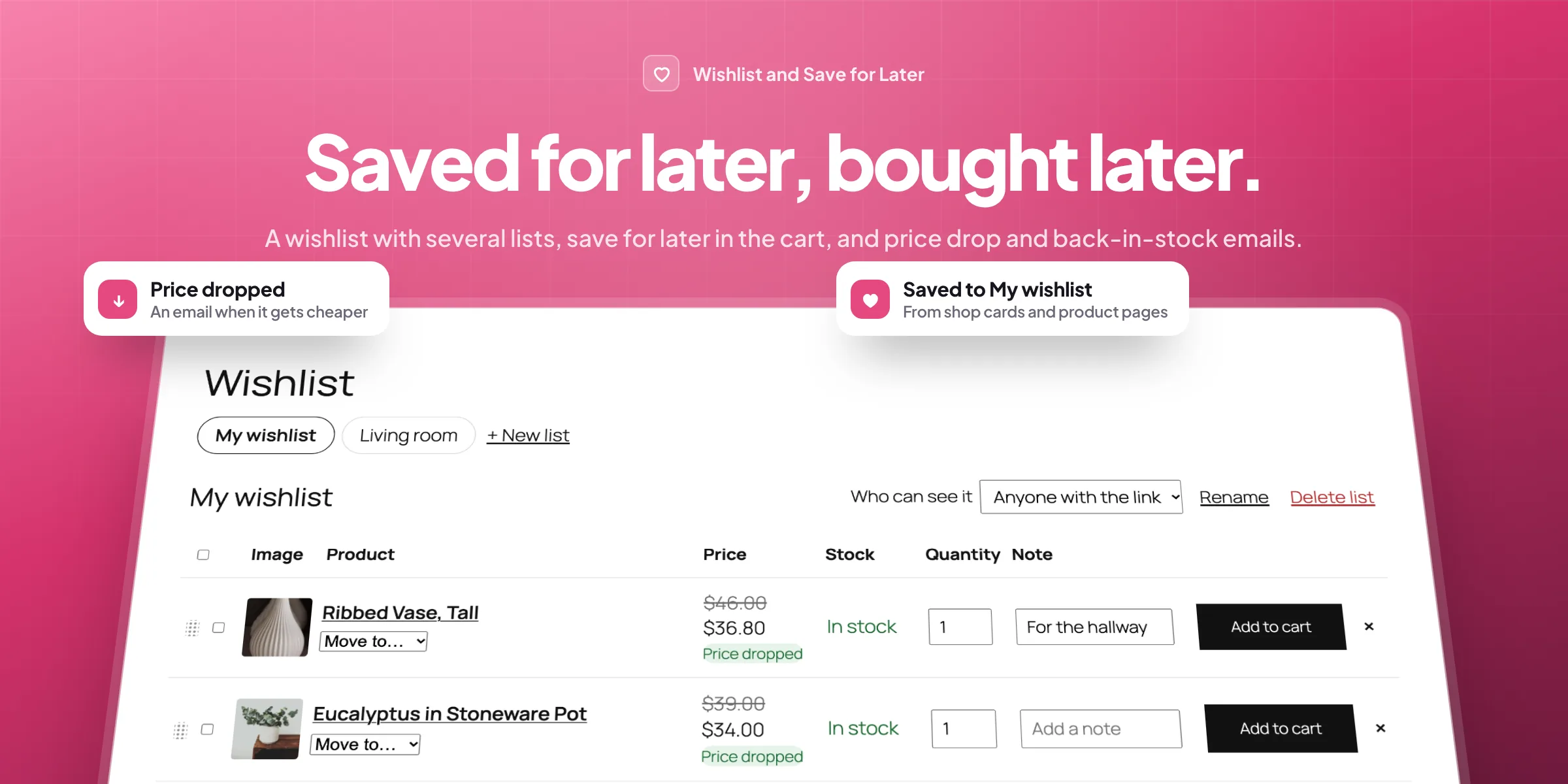
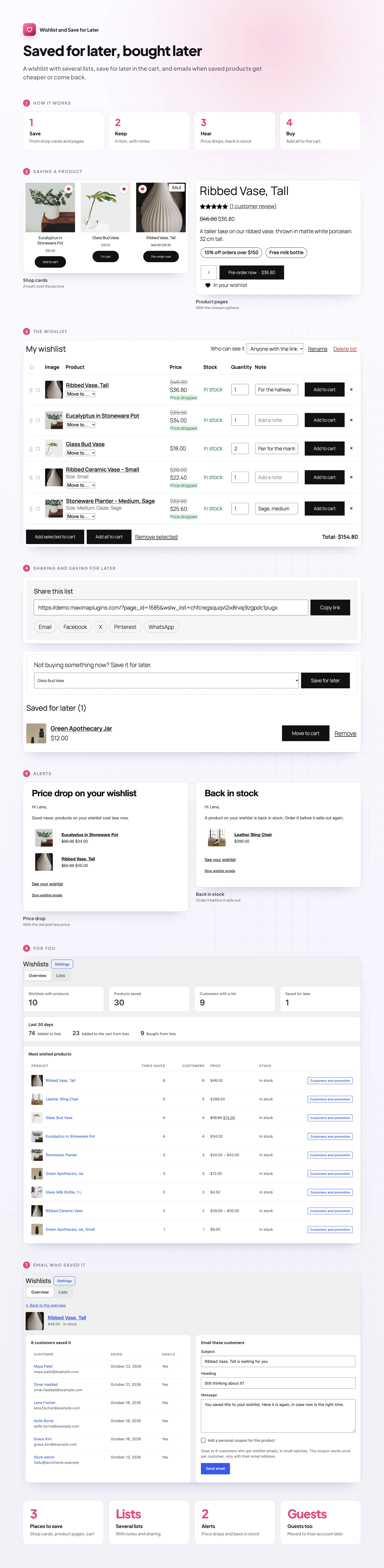
Wishlist and Save for Later lets customers keep the products they like for later, from a heart on shop cards and product pages and from the cart. When a saved product gets cheaper or comes back in stock, they get an email, and you see what people want most.
❤️ A heart on every product card: a heart, a star or a bookmark.
🎨 Saved with the chosen options, such as colour, size and add-ons.
🛒 Lists that are ready to buy: old and new price, quantities, notes and Add all to cart.
🗂️ Several lists per customer, private or shared by link.
📉 Price drop emails when a saved product gets cheaper.
📦 Back in stock emails, one email per customer with everything that changed.
⏳ Save for later under the classic cart and the Cart block.
📊 The most wished products, and an email to the customers who saved one, with a coupon if you like.
Shop pages
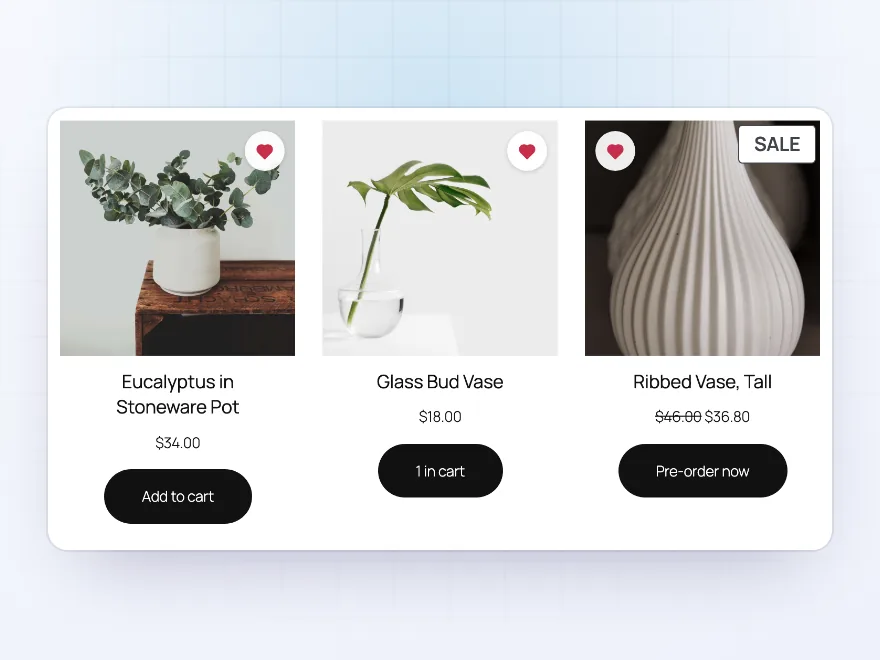
A heart on every product card
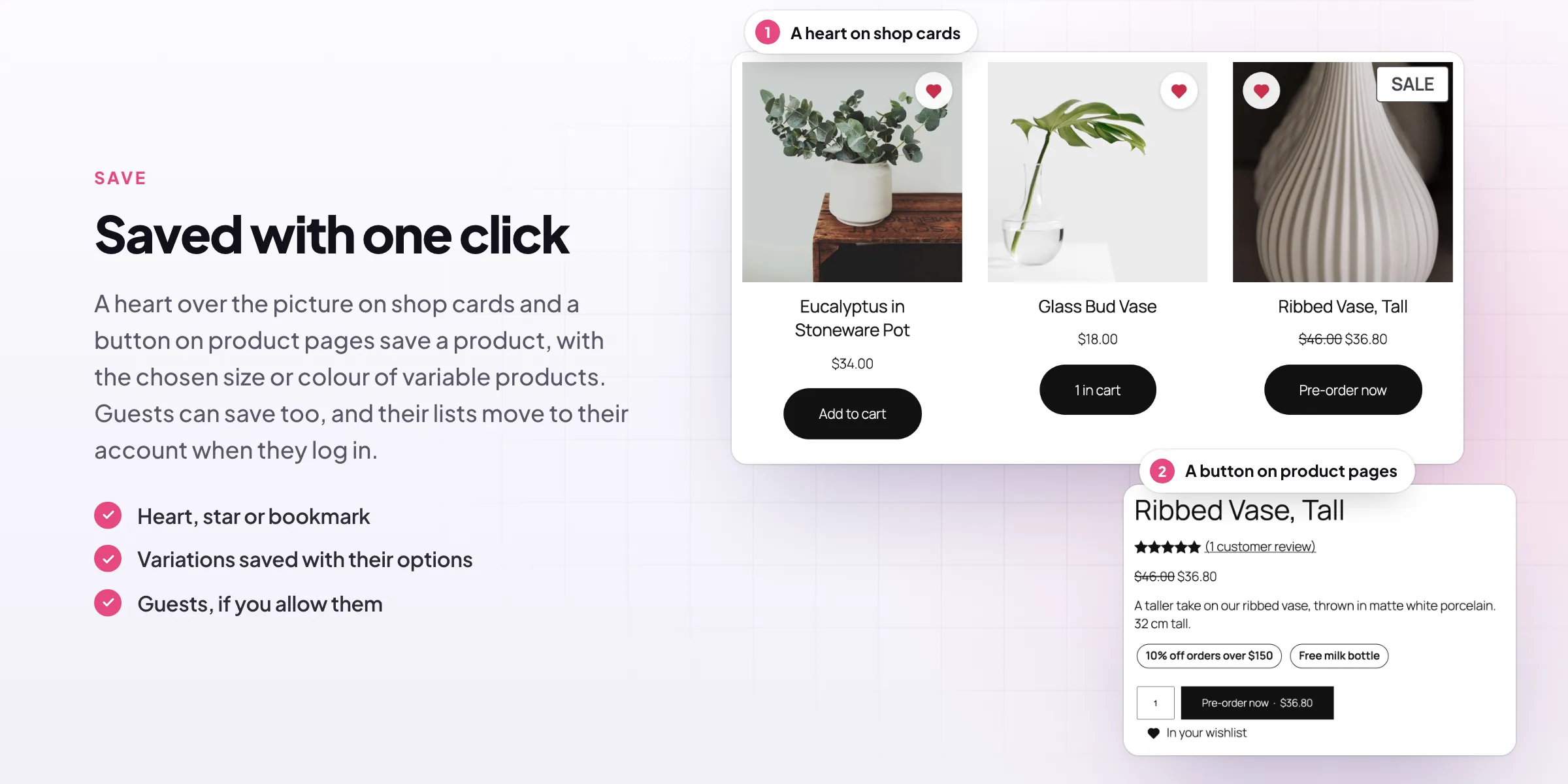
A heart over the picture on shop, category and search pages saves a product in one click and fills in when it’s saved. Choose a heart, star or bookmark, with or without text, for every product or only some categories.
- Heart, star or bookmark
- Classic and block themes
- Only the categories you choose
Product pages
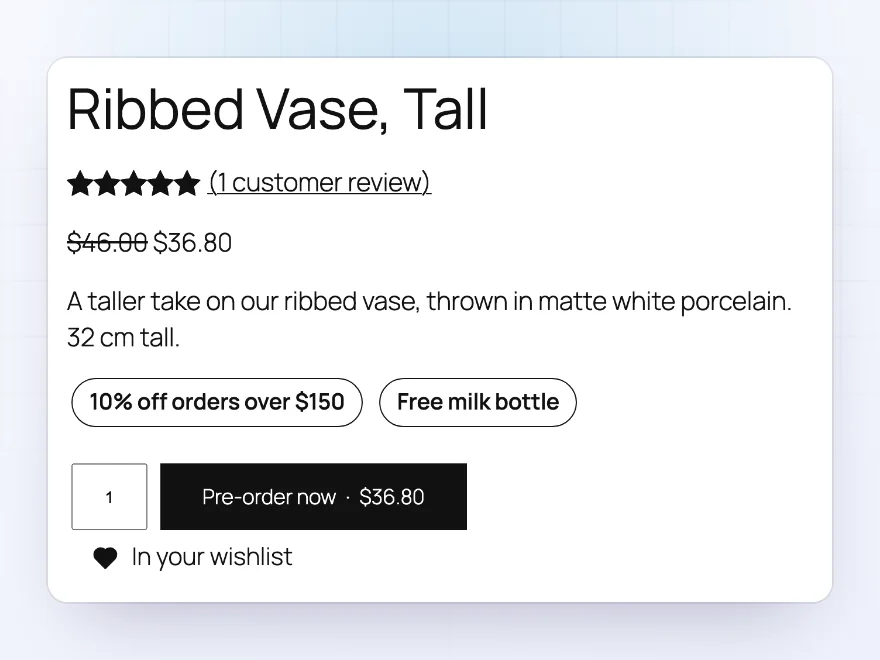
Saved with the chosen options
On product pages the button sits before or after Add to cart, or under the summary. For variable products the chosen size, colour or other options are saved with the product. After saving, show a short message, a small window or the wishlist page.
- Before or after Add to cart
- Variations saved with their options
- Your own texts
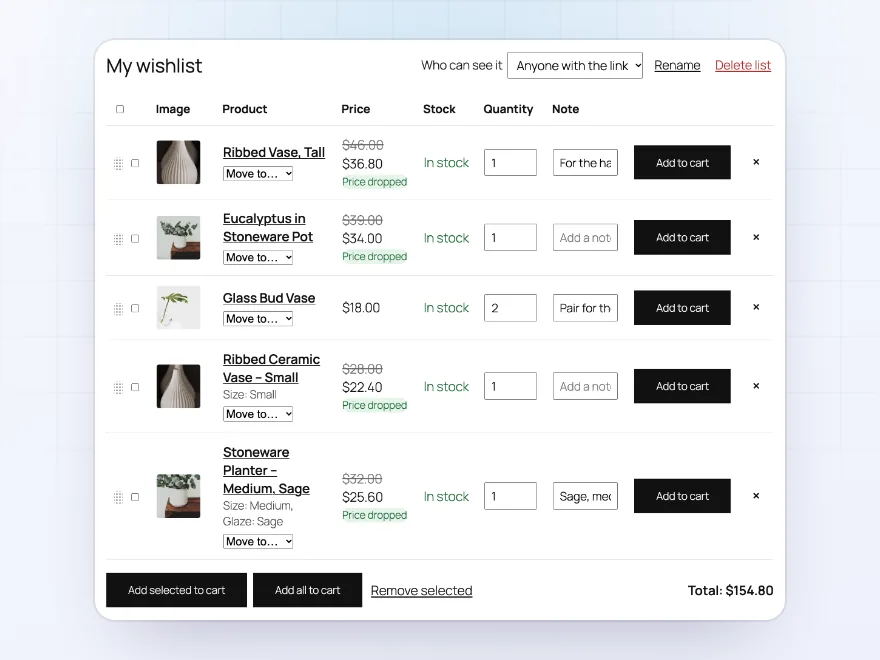
The wishlist
Lists that are ready to buy
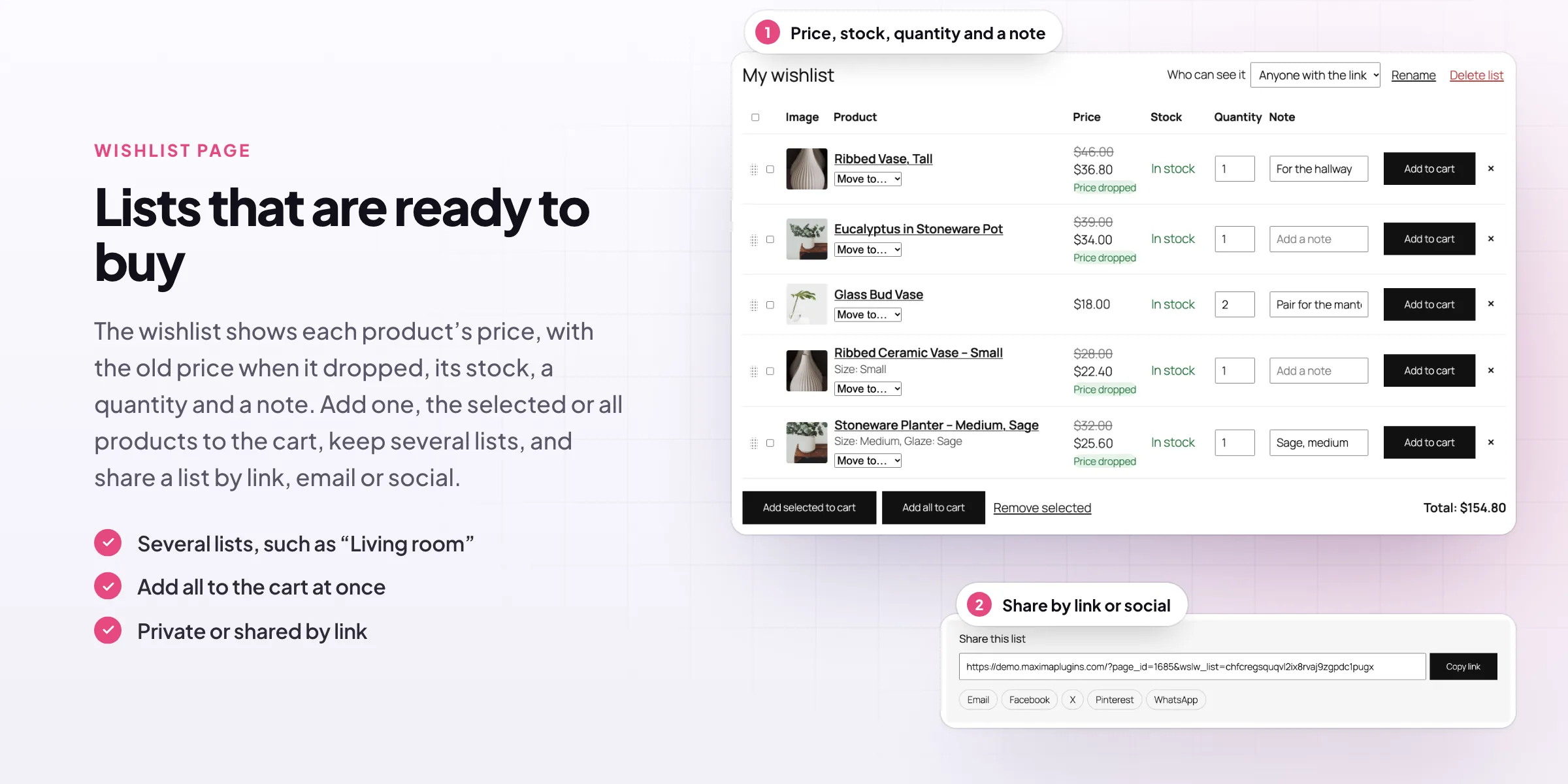
The wishlist page shows each product’s price, with the old price when it dropped, its stock, a quantity and a note. Add one, the selected or all products to the cart, drag them into order, and see the list’s total.
- Old and new price
- Quantities and notes
- Add all to the cart
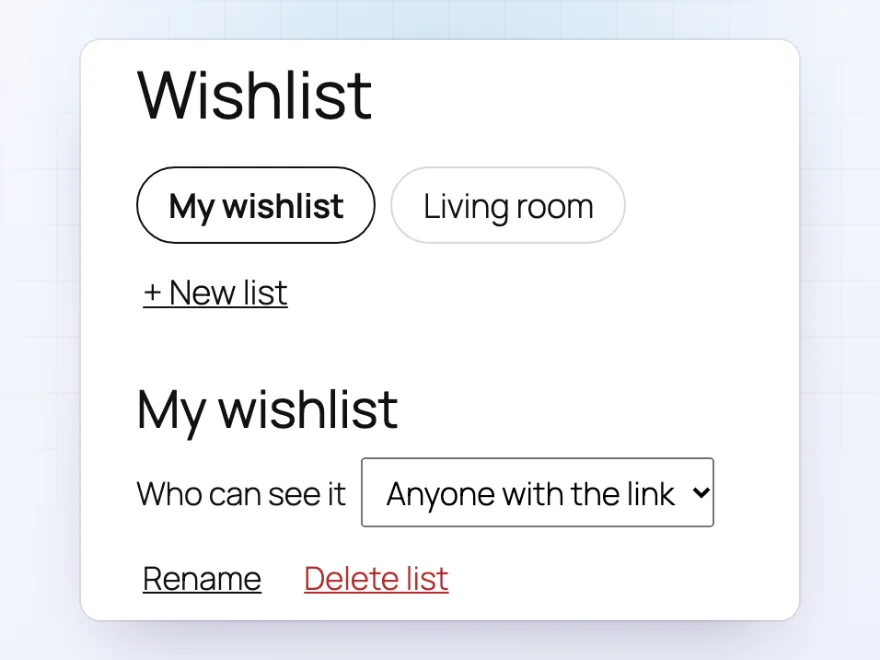
Several lists
A list for each room or occasion
Customers can keep several lists, such as “Birthday” or “Living room”, create, rename and delete them, and move products between them. Each list is private or open to anyone with its link. Guests can save too, and their list moves to their account when they log in.
- Several lists per customer
- Private or shared by link
- Guest lists move to the account
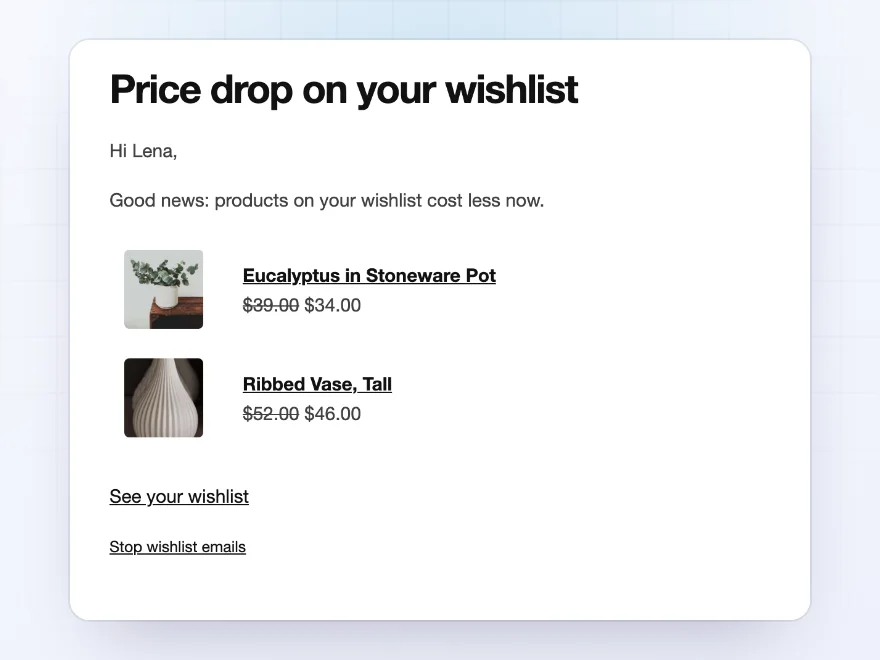
Alerts
An email when it’s time to buy
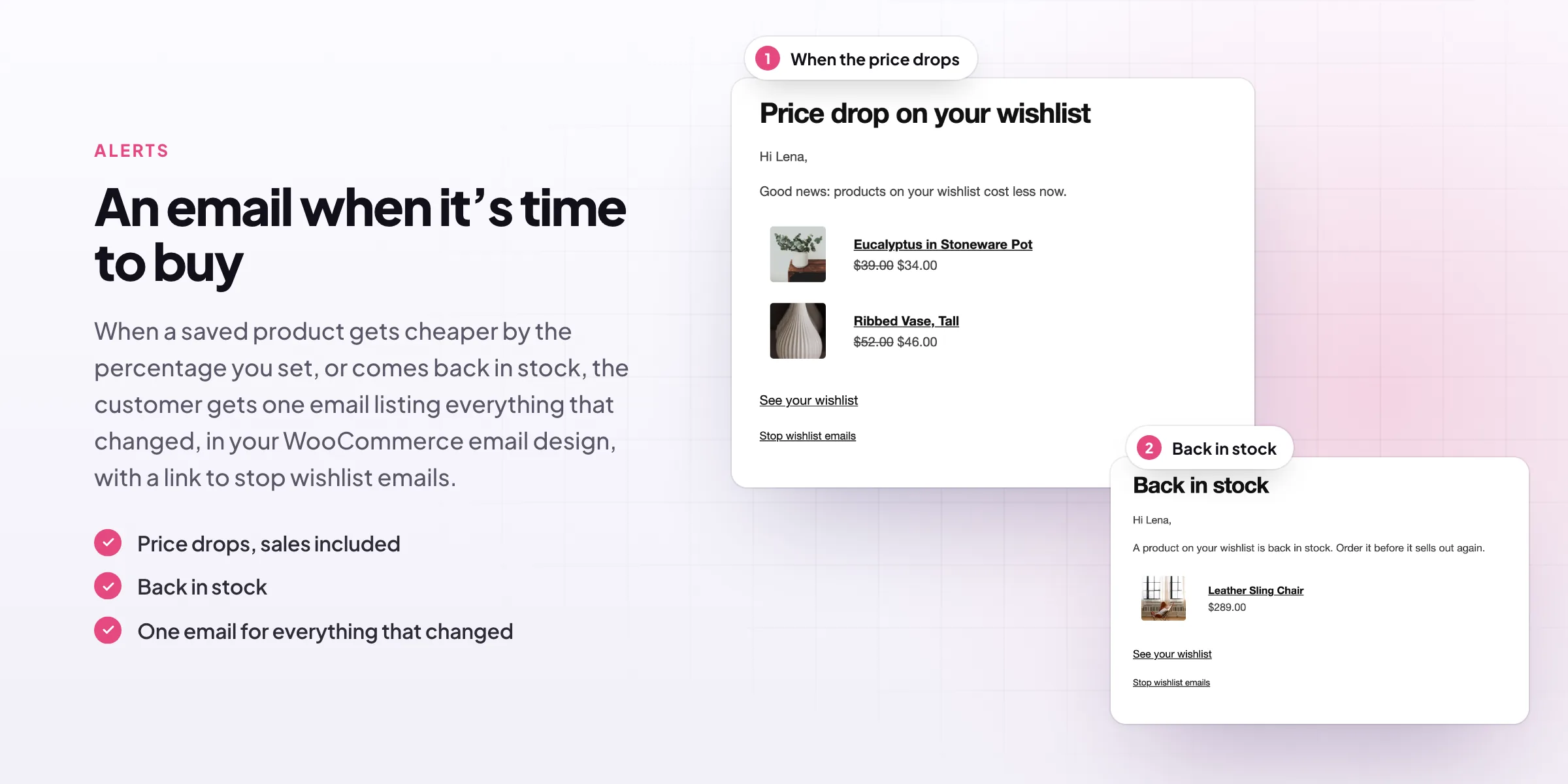
When a saved product gets cheaper by at least the percentage you set, sales included, or comes back in stock, the customer gets one email listing everything that changed, in your WooCommerce email design, with a link to stop wishlist emails.
- Price drops
- Back in stock
- One email per customer
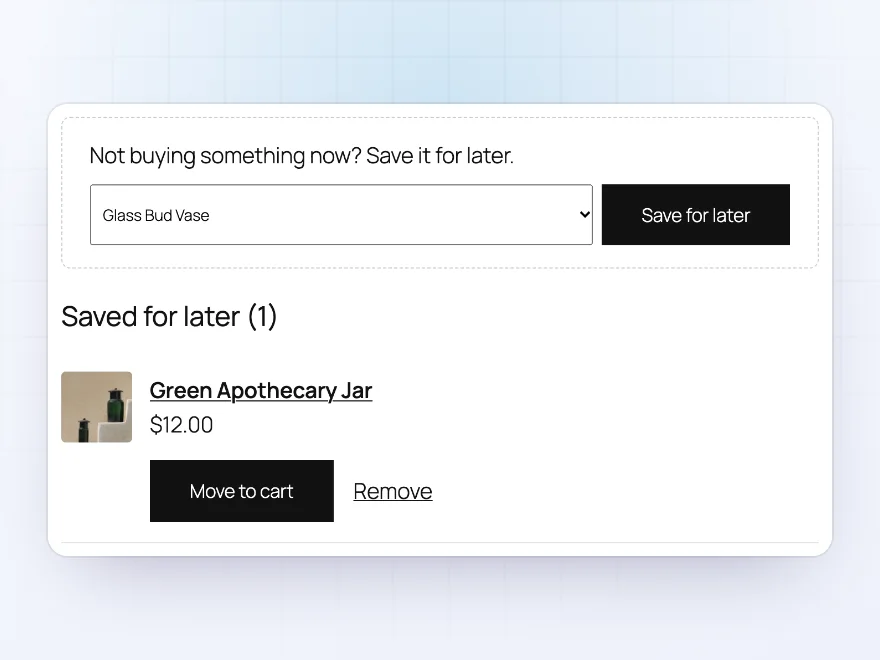
Save for later
Not buying now? Save it for later
Customers move cart items to a Saved for later list under the cart, and back to the cart when they’re ready. It works on the classic cart and the Cart block.
- Under the classic cart and the Cart block
- Move back to the cart
- Kept with their wishlist
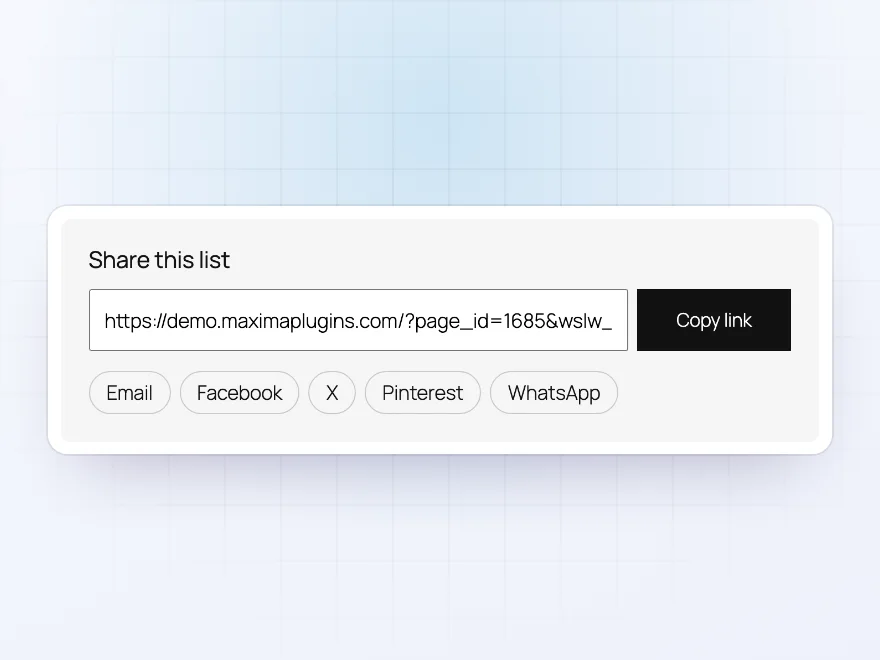
Sharing
Share a list with a link
Each list is private or open to anyone with its link. Copy the link, or share it by email, Facebook, X, Pinterest or WhatsApp, so friends and family can see what to buy.
- Private or open by link
- Email and social buttons
- One link per list
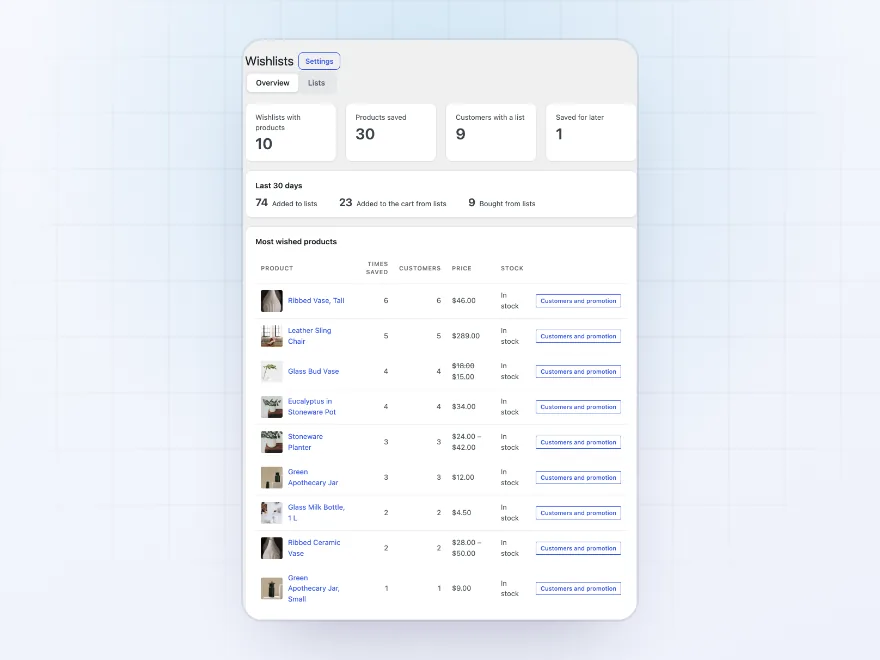
For you
See what customers want most
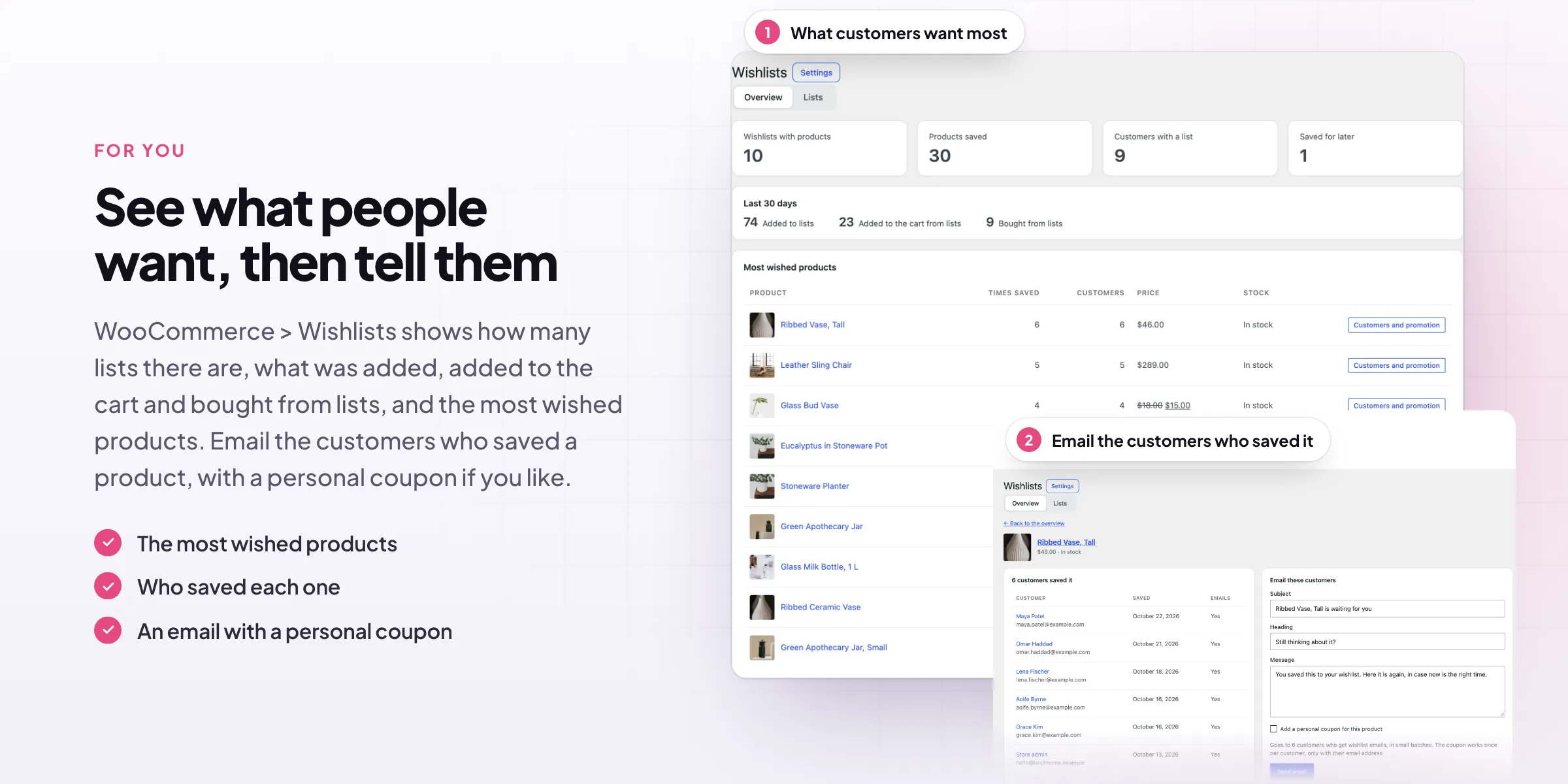
WooCommerce > Wishlists shows how many lists there are, the products saved, customers with a list and saved for later items, what was added, added to the cart and bought from lists in the last 30 days, and the most wished products.
- Lists, products and customers
- Added, moved to the cart and bought
- The most wished products
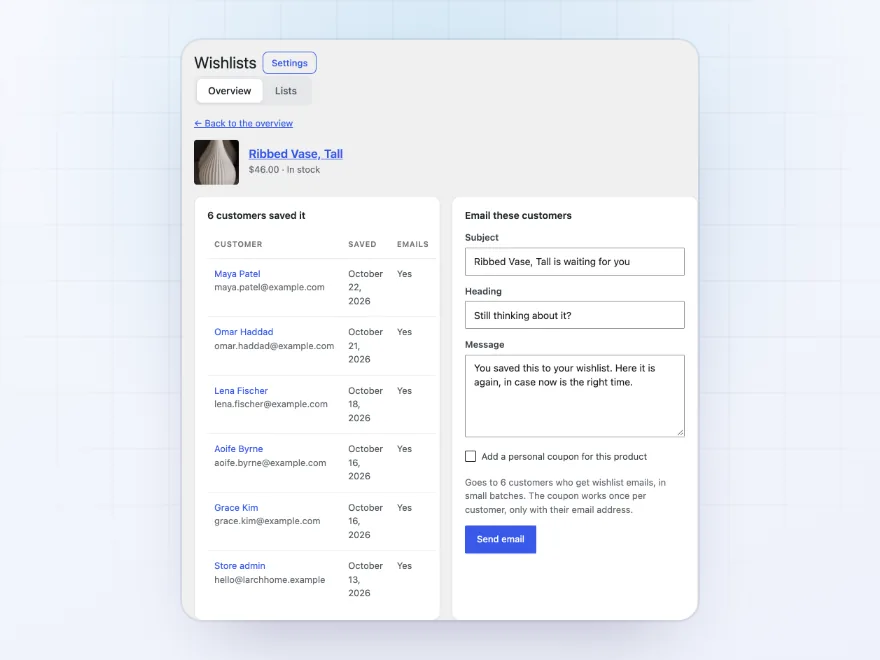
Promote
Email the customers who saved it
Open a most wished product to see who saved it and when, and email them in your WooCommerce email design. Add a personal coupon for that product if you like: each code works once, only with the customer’s own email address.
- Who saved a product, and when
- Your subject, heading and message
- A personal coupon if you like
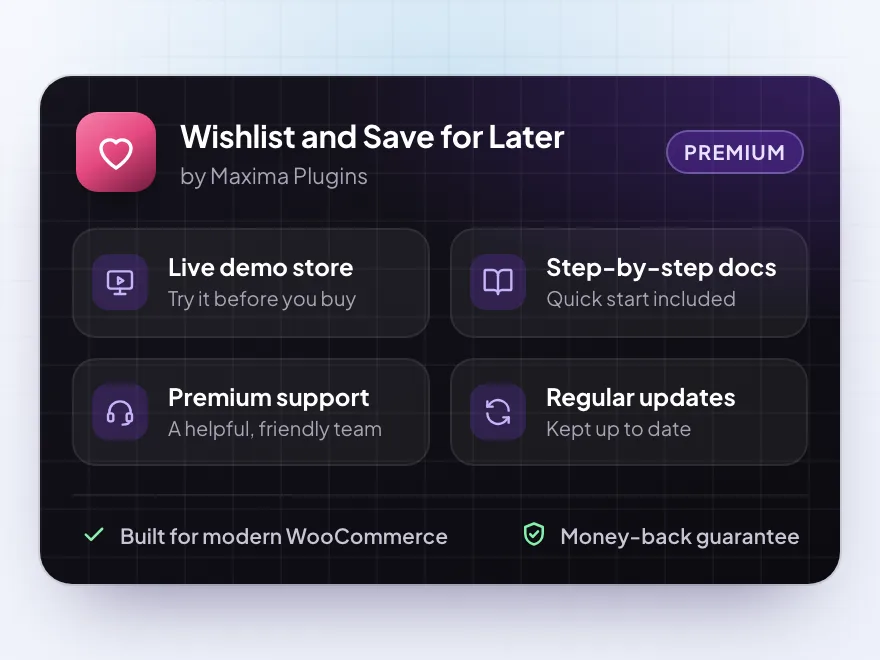
Premium quality & support
Support you can count on, year after year
See Wishlist and Save for Later working in a live demo store before you buy. If you need a hand, our friendly support team will help you get it set up, and regular updates keep it working with each new WooCommerce release.
- A live demo store to try it first
- Step-by-step docs with a quick start
- Premium support from a helpful team
- Regular updates included
A WooCommerce wishlist that brings customers back
Wishlist and Save for Later adds a WooCommerce wishlist with a heart on shop cards and product pages, several lists per customer, notes, quantities and sharing by link. It answers how to add a wishlist button in WooCommerce without a shortcode: the buttons show on classic and block themes as soon as the plugin is active.
A wishlist in WooCommerce is most useful when it brings customers back. Customers get one email when saved products get cheaper or come back in stock, can save cart items for later, and you see the most wished products and can email the customers who saved one, with a personal coupon.
Common setups
Questions before you buy
Can guests use the wishlist?
Yes, if you allow it. Their list is kept on their device for the days you choose and moves to their account when they log in or register.
Who gets the price drop and back-in-stock emails?
Customers with an account who saved the product and haven’t turned wishlist emails off.
Where is the wishlist page?
A Wishlist page is made when you activate the plugin, and customers also find their lists under My Account > Wishlist.
Does it work with page caching?
Yes. Buttons and counters load each visitor’s own state after the page loads, so cached pages show the right hearts.
Can I put a wishlist counter in the header?
Yes, with the Wishlist counter block, a menu item or the [wslw_count] shortcode.
Do bought products stay on the list?
You choose: products can leave the customer’s lists once the order is paid.
Requirements
- WordPress
- 6.8 or newer
- WooCommerce
- 10.0 or newer
- PHP
- 7.4 or newer
Works with
- Classic themes
- Block themes
- Cart and Checkout blocks
- High-Performance Order Storage
studio_noord –
Guests can save without an account
We use the wishlist on three client shops. Guests can save without an account, which was the main thing we needed, and add all to cart works fine in the Cart block. James sorted a question about the sharing link for us the same day.