 Maxima Plugins
Description
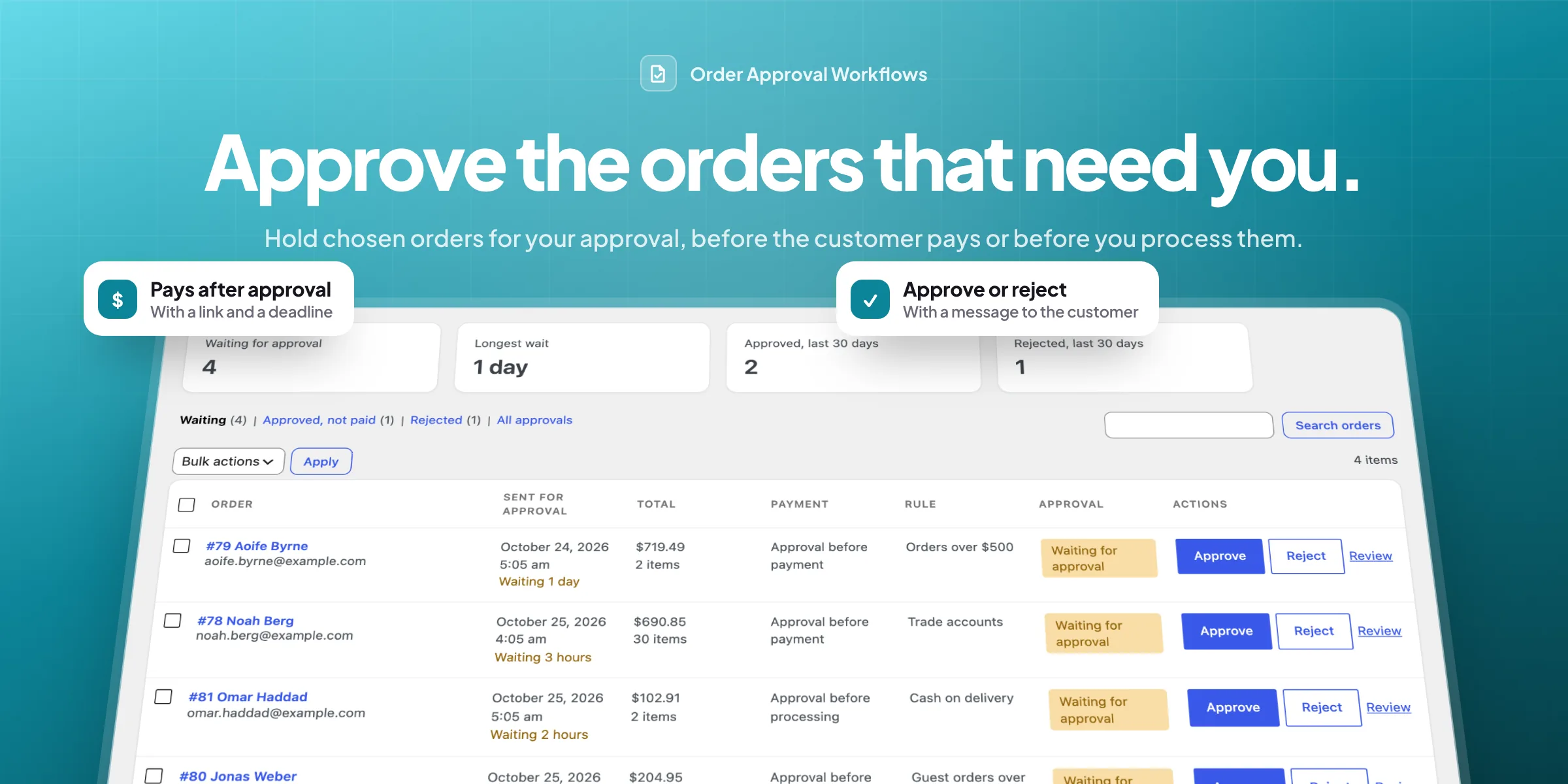
Order Approval Workflows holds the WooCommerce orders you choose until you approve them. The customer pays once you approve, or pays first and the order waits for you before it’s processed, with an email at every step.
📋 One list of orders that need you, with how long each one has waited.
🎯 Rules you choose: twelve kinds of condition, first match wins, and ready-made rules to start from.
💳 Approve before payment, or let customers pay first and hold the order before processing.
✅ Approve or reject in bulk, or one at a time with a message to the customer.
📧 Six emails you can edit, with Approve and Reject buttons in the shop’s email.
⏱️ A pay deadline after approval, with a reminder, and the stock back when it runs out.
👤 Customers see each step on their order page, with a Pay button after approval.
🏷️ Always or never: products and customers that always need approval, or never do.

Order approvals
The orders that need you, in one list
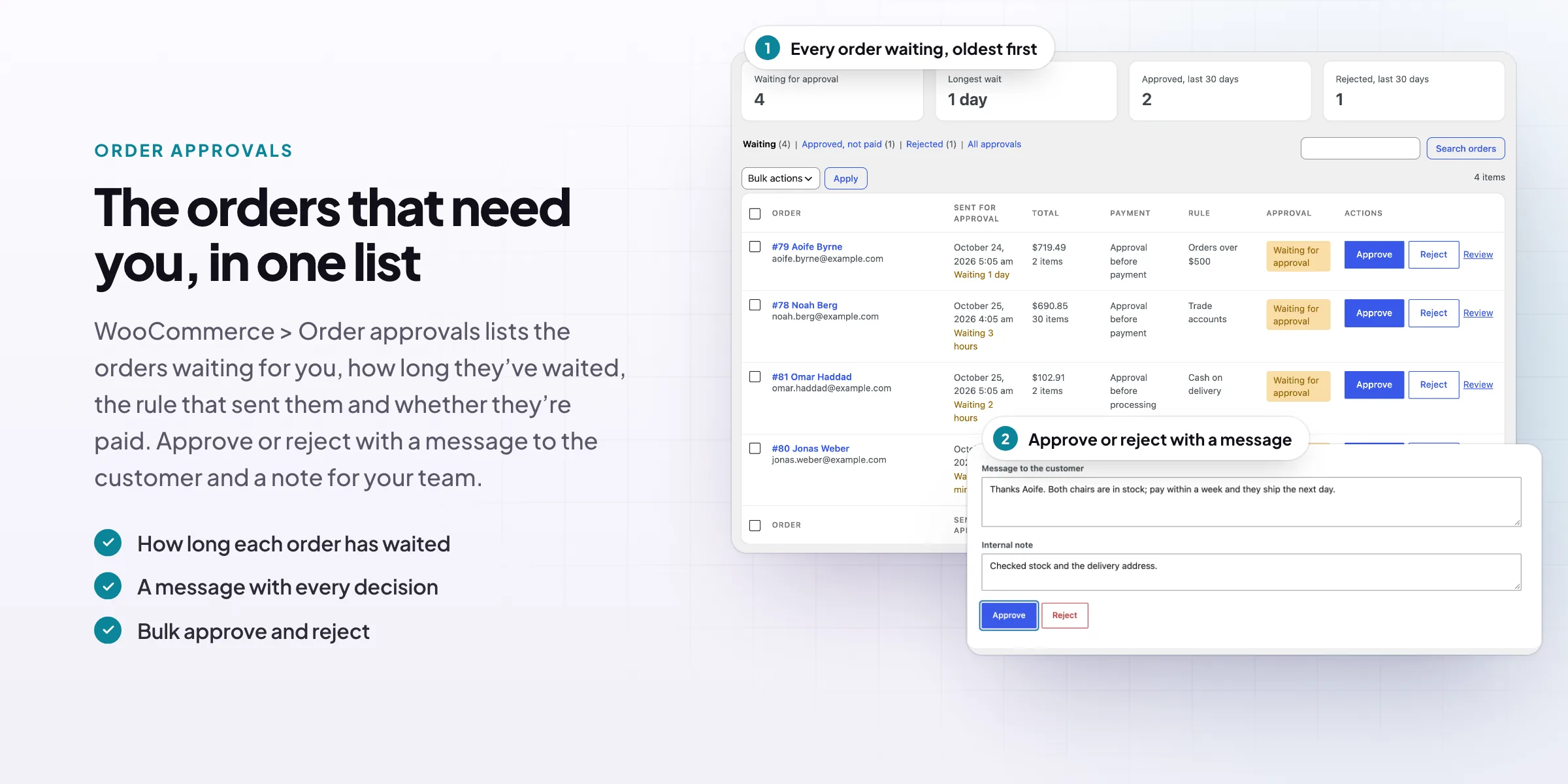
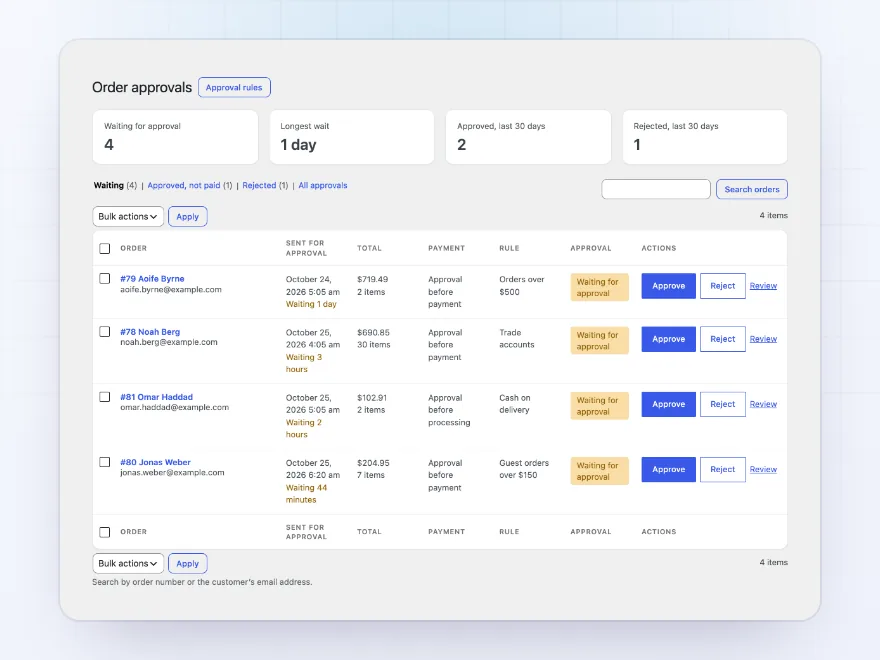
WooCommerce > Order approvals lists the orders waiting for you, how long they’ve waited, the rule that sent them and whether they’re paid. Approve with one click, or open an order to approve or reject it with a message to the customer.
- How long each order has waited
- Approved, unpaid and rejected orders
- Bulk approve and reject
Rules
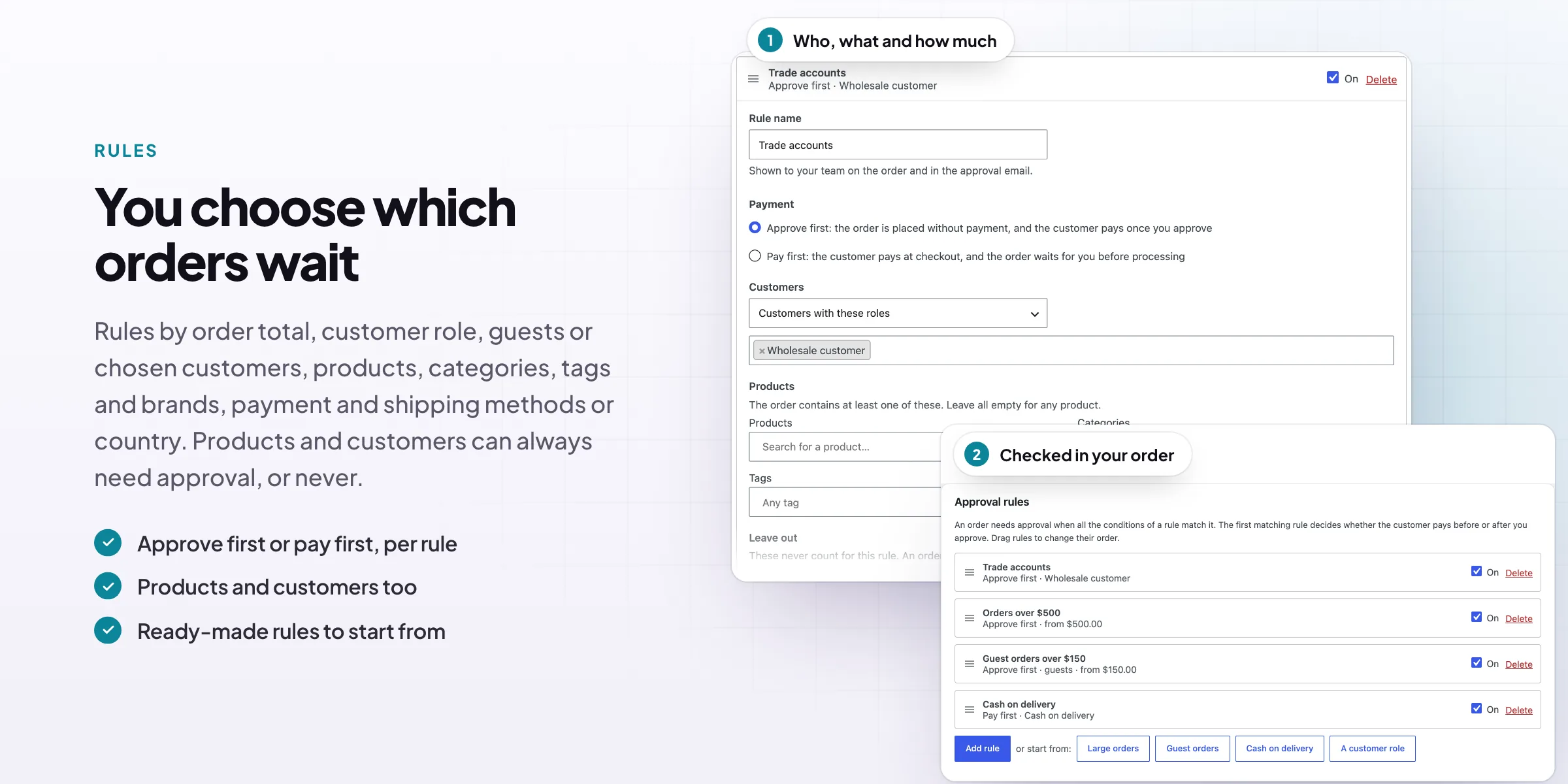
You choose which orders wait
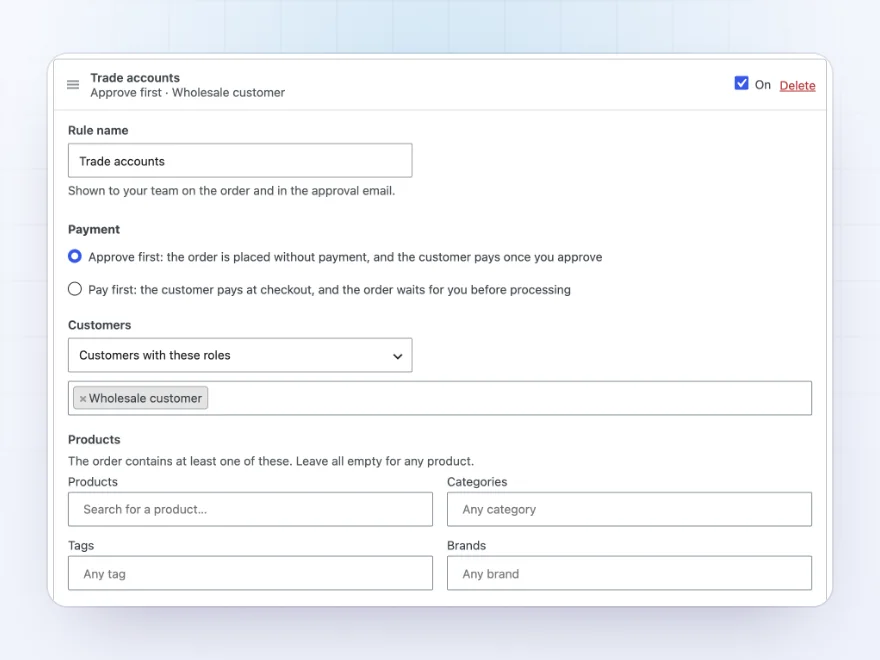
A rule matches when all its conditions do: customers, roles or guests, products, categories, tags and brands, the order total and number of items, payment and shipping methods, and the shipping country. Rules are checked in the order you drag them to.
- Twelve kinds of condition
- Turn a rule off without deleting it
- Ready-made rules to start from
Approve first, or pay first
Before payment or before processing
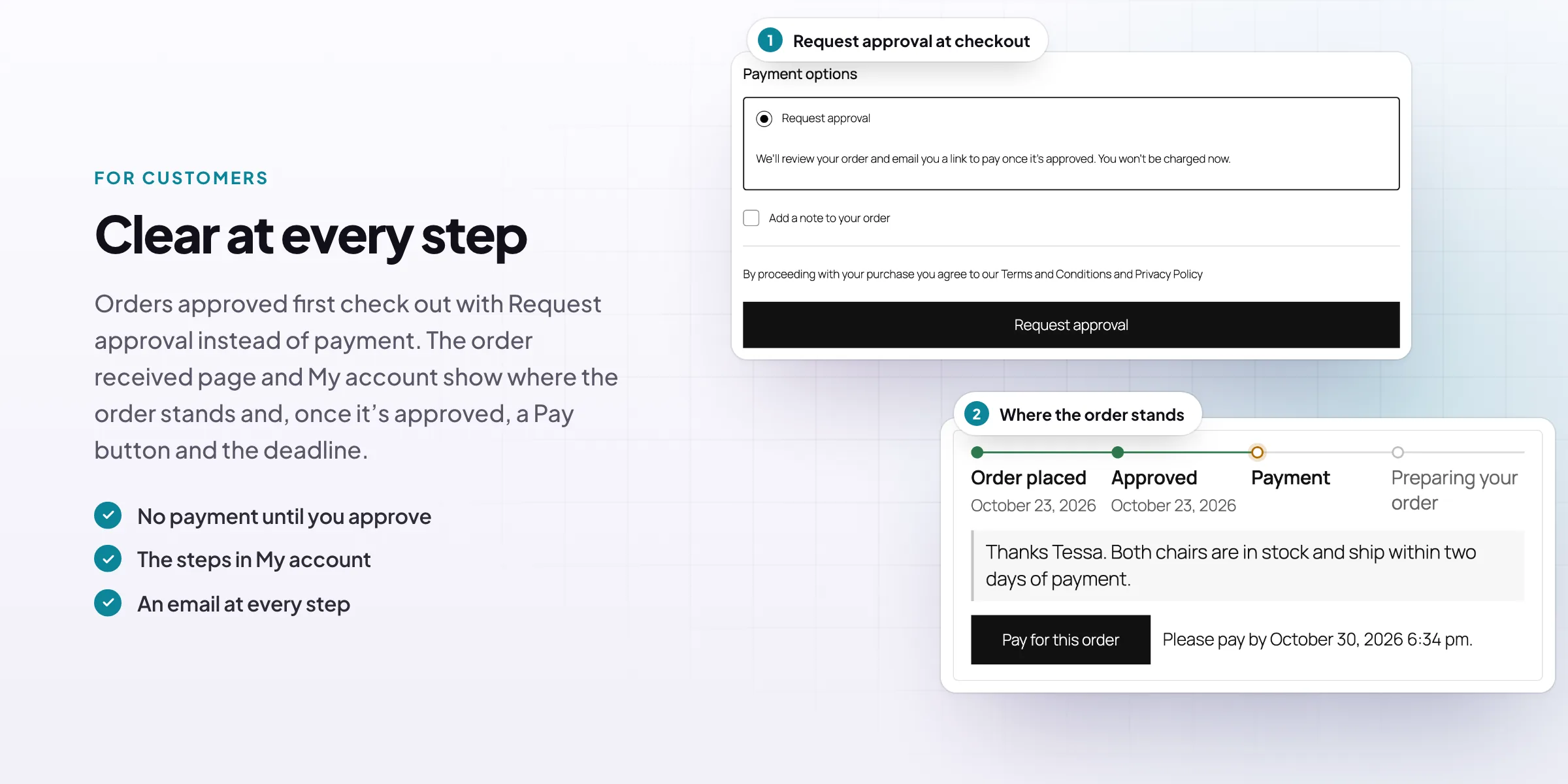
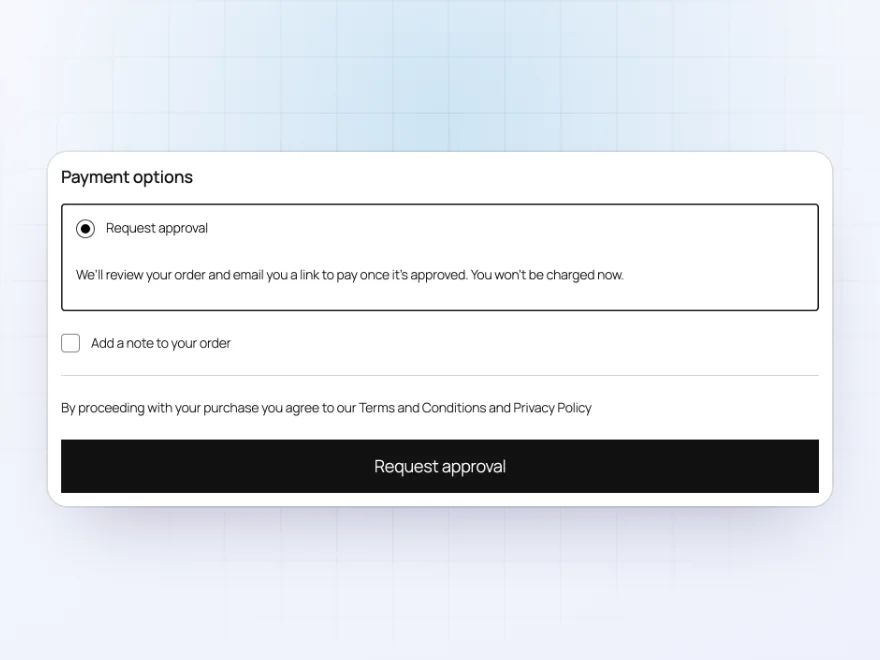
With approve first, checkout offers Request approval instead of payment and the customer pays from a link once you approve. With pay first, the customer pays as usual and the order waits for you before it’s processed. Each rule chooses.
- No payment until you approve
- Or paid, then approved
- Your own text at checkout
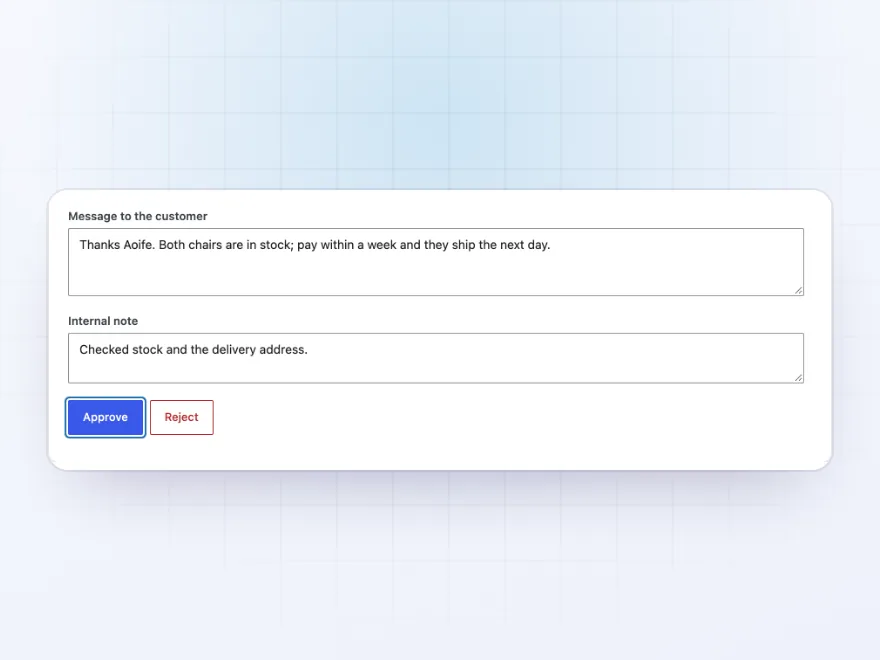
Decide
Approve or reject with a message
Open an order from the list, the order screen or the approval email, add a message to the customer and a note for your team, then approve or reject it. A rejected order gets its stock back, and its payment is refunded when the payment method can.
- A message to the customer
- An internal note
- Stock back when rejected
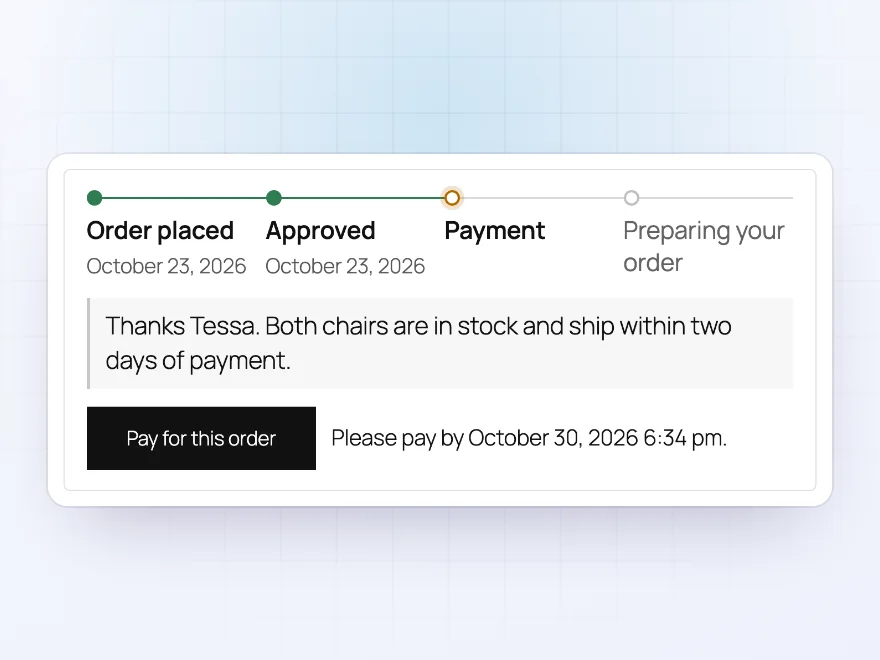
For customers
They see where the order stands
The order received page and the order in My account show each step: placed, waiting, approved, paid. After approval the customer gets a Pay button and the date to pay by, and can cancel while the order waits if you allow it.
- The steps on the order page
- A Pay button after approval
- Cancel while it waits
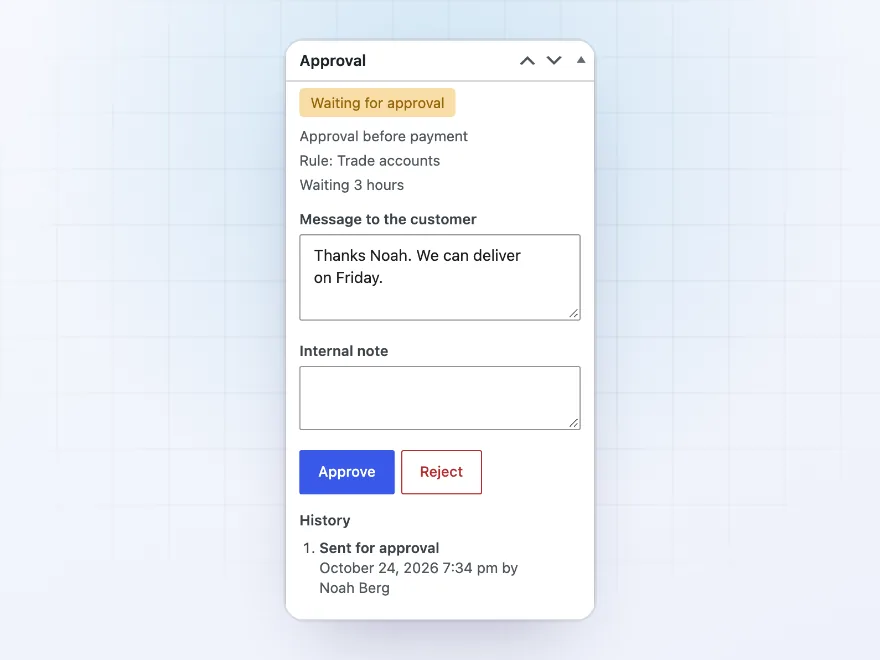
Order screen
Decide from the order itself
Orders that went through approval have an Approval box with their state, rule and how long they’ve waited, the decision buttons and their history: who sent, approved or rejected them and when.
- Approve and reject on the order
- Who decided and when
- Edit the order before you approve
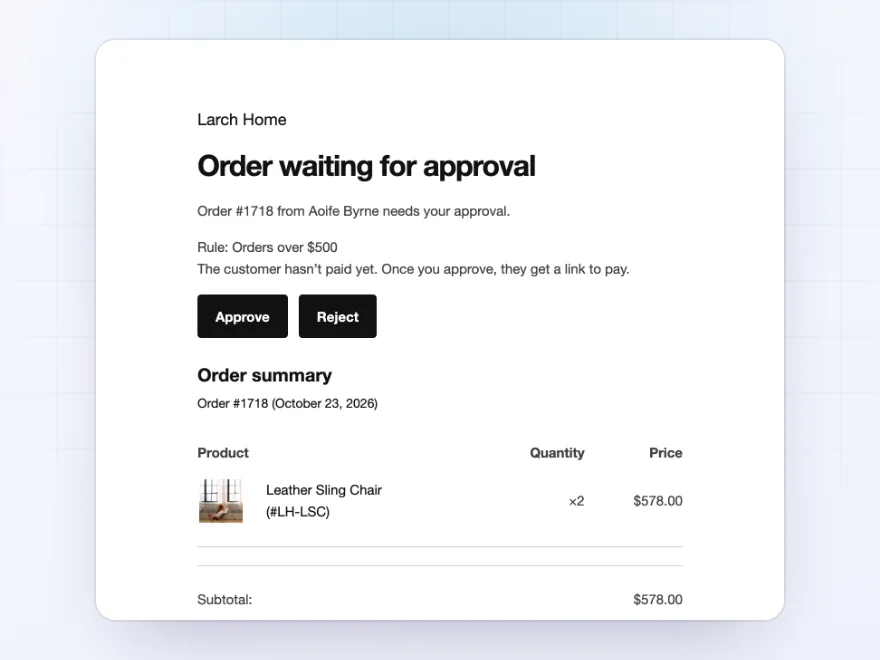
Emails
An email at every step
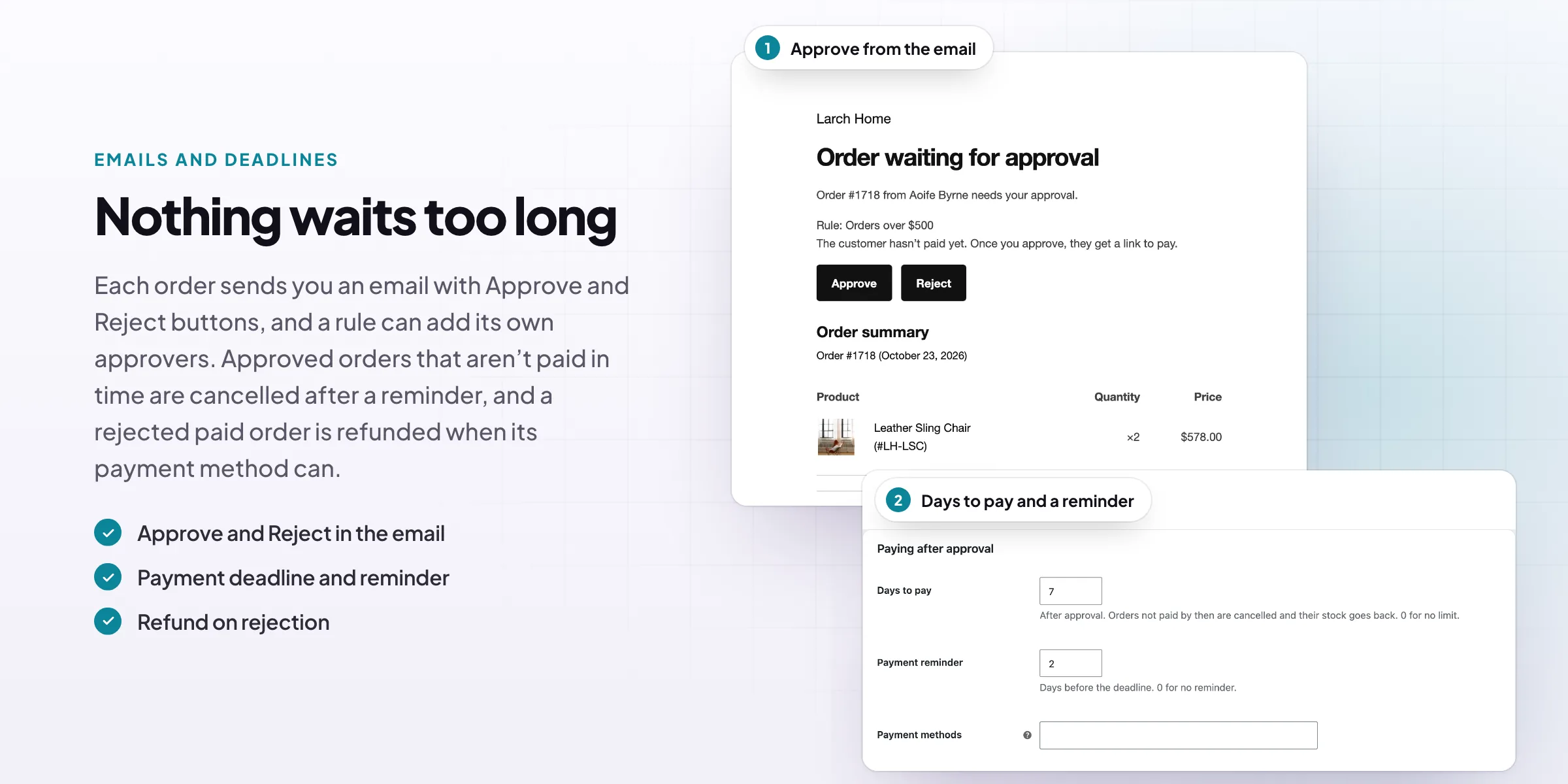
You get the approval request with Approve and Reject buttons, and each rule can send it to its own approvers too. Customers get an email when the order waits, when it’s approved with a link to pay, when it’s rejected, before the payment deadline and if it’s cancelled.
- Approve or reject from the email
- Extra approvers per rule
- Six emails you can edit
Deadlines
Approved orders don’t sit unpaid
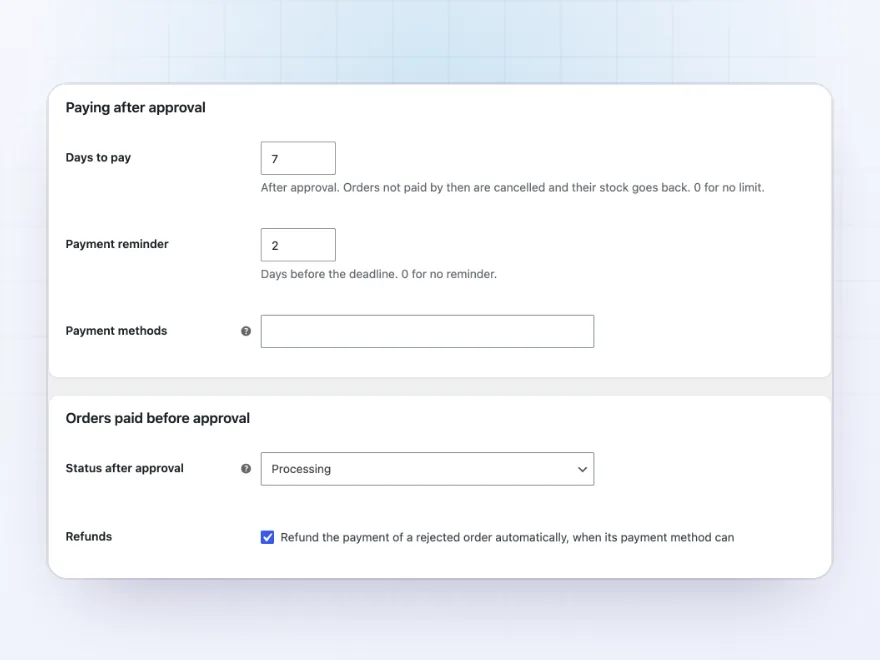
Choose how many days customers have to pay after approval and when they get a reminder. Orders not paid by then are cancelled and their stock goes back. You can also choose the payment methods for paying an approved order.
- Days to pay after approval
- A reminder before the deadline
- Stock back when cancelled
Products and customers
Some always wait, some never do
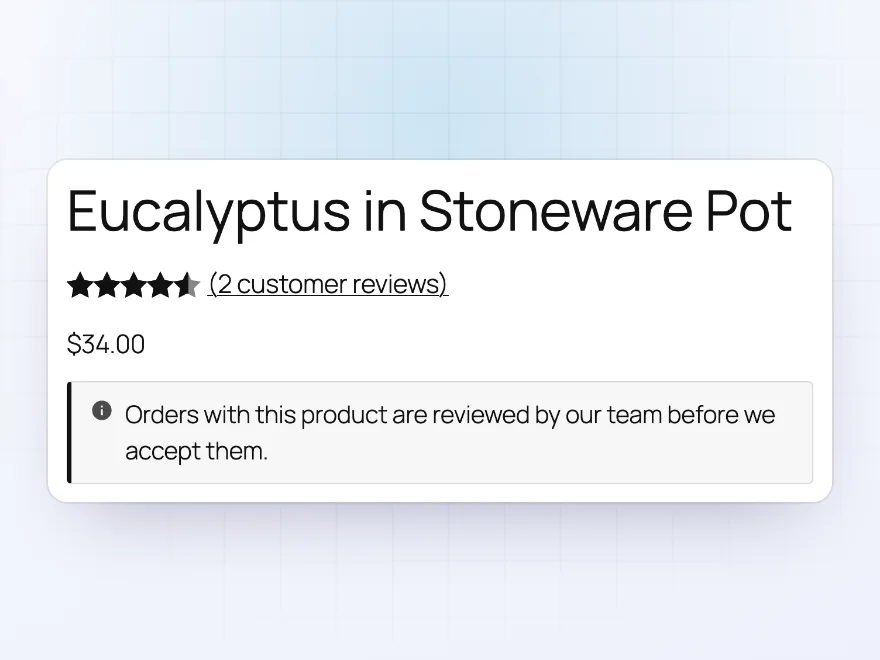
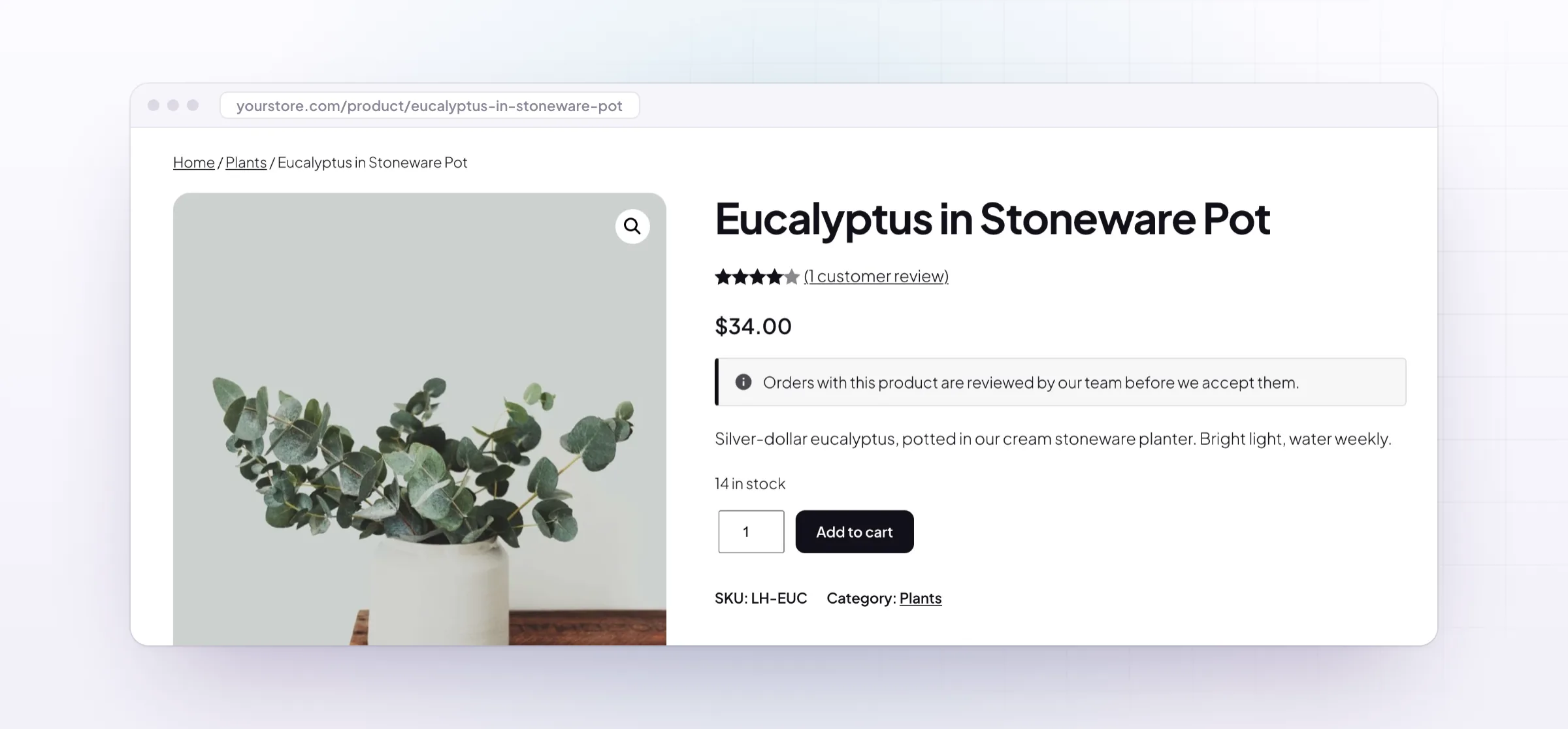
Set a product to always need approval, such as made-to-order furniture, or never, such as gift cards. Set a customer to always need approval, such as a new account, or never, such as a trusted trade customer.
- Per product
- Per customer
- A notice on the product page
Premium quality & support
Support you can count on, year after year
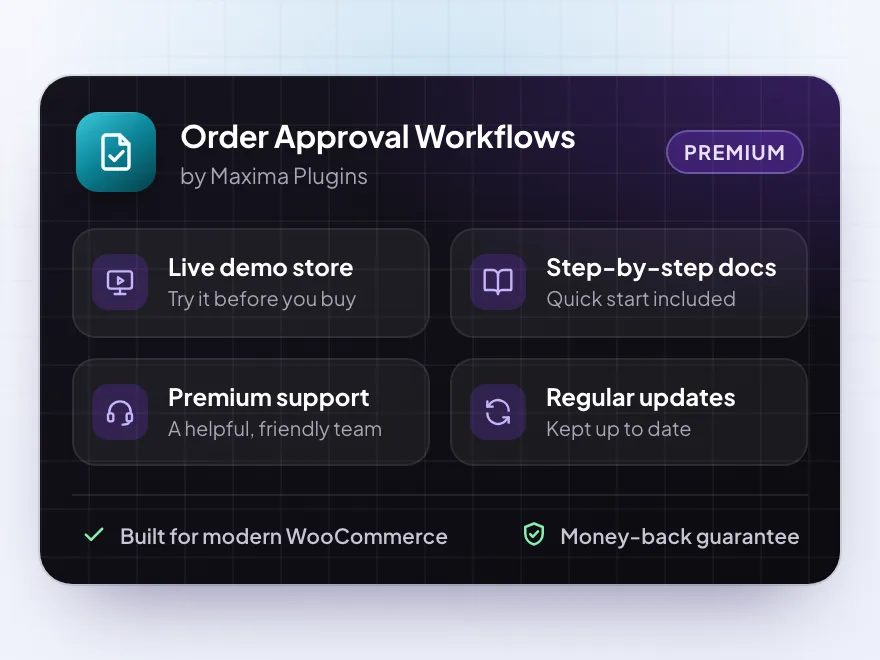
See Order Approval Workflows working in a live demo store before you buy. If you need a hand, our friendly support team will help you get it set up, and regular updates keep it working with each new WooCommerce release.
- A live demo store to try it first
- Step-by-step docs with a quick start
- Premium support from a helpful team
- Regular updates included
Order approval for WooCommerce
Order Approval Workflows is a WooCommerce order approval plugin: orders that match your rules wait for you before the customer pays, or before you process them. Rules cover the order total, customers, roles and guests, products, categories, tags and brands, payment and shipping methods, and the shipping country.
You approve or reject each order with a message, from the approvals list, the order screen or the approval email. Customers pay from a link after approval, see each step in My account and get an email at every step, and approved orders not paid in time are cancelled after a reminder.
Common setups
Questions before you buy
Does the customer pay before or after I approve?
Each rule chooses. With approve first, the order is placed without payment and the customer pays from a link once you approve. With pay first, they pay at checkout and the order waits before it’s processed.
What happens to the stock while an order waits?
It’s held, as for an order on hold, and goes back when you reject the order or an approved order isn’t paid in time.
What happens to the payment when I reject an order?
It’s refunded automatically when the payment method supports refunds. Otherwise the order note reminds you to refund it.
Can some customers skip approval?
Yes. Set a customer to never need approval on their profile, or to always need it.
Does it work with the block checkout?
Yes, with the block and classic checkout, and with High-Performance Order Storage.
Who can approve orders?
Shop managers and administrators.
Requirements
- WordPress
- 6.8 or newer
- WooCommerce
- 10.0 or newer
- PHP
- 7.4 or newer
Works with
- Classic themes
- Block themes
- Cart and Checkout blocks
- High-Performance Order Storage

j.penders –
B2B customers order and we approve before anything ships. The rules do the first check by total and customer, and the rest is one click from the order screen. Does what it says without extra setup.