 Maxima Plugins
Description
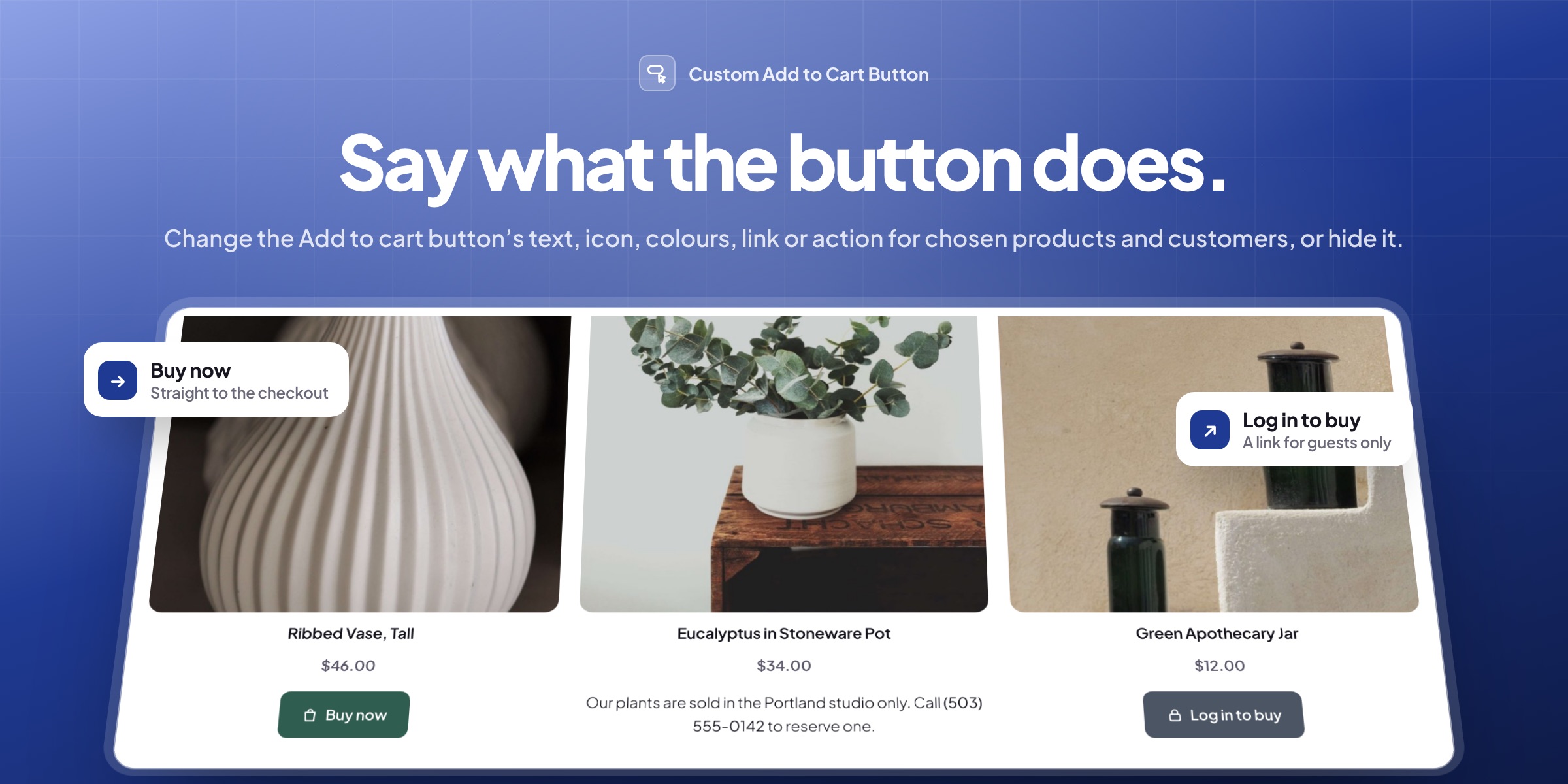
Custom Add to Cart Button changes the Add to cart button on your product pages and shop pages: new words, an icon and your own colours, a link, a message, or no button at all. Rules decide which products and customers get which button, and customers can go straight to the checkout after adding.
✏️ Words that fit each product: Buy now, Pre-order or Choose size for each product type, with the price if you like.
🎯 Rules for products and customers: categories, tags, products, stock, guests, customers or roles.
🔗 Links in place of adding: a booking page, an affiliate site, an email address or a phone number.
💬 A message or no button, with no adding by link when it covers product pages and shop pages.
🎨 Icons and your own colours: 13 icons, hover colours, borders, corners and capitals.
🛒 Straight to the checkout, the cart or a page of your choice after adding.
🏷️ A button for one product, set in Product data, ahead of the rules.
📦 Sold out without a dead end: your own text on shop pages and a link or message on the product.

Button texts
Say what the button does
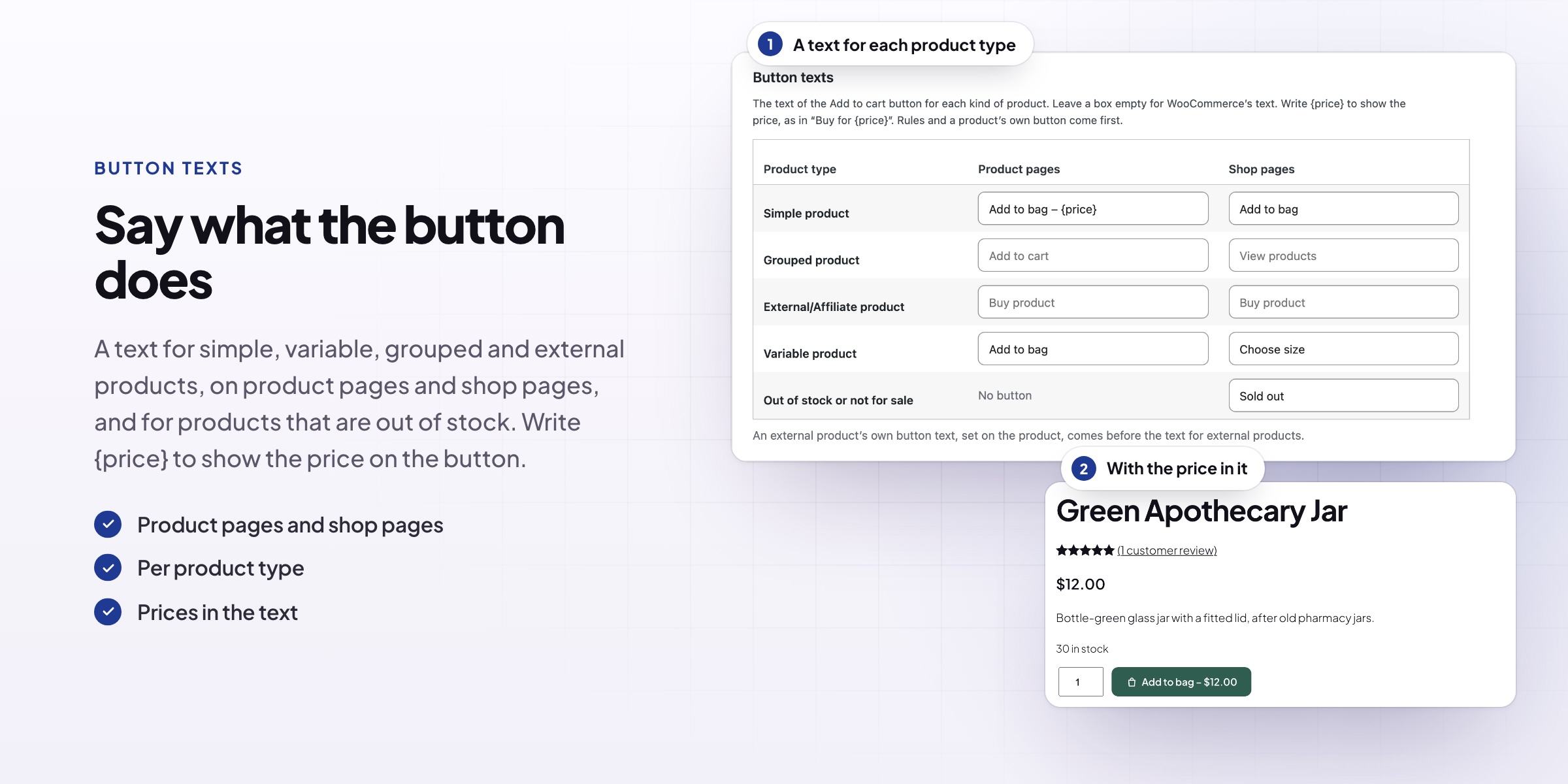
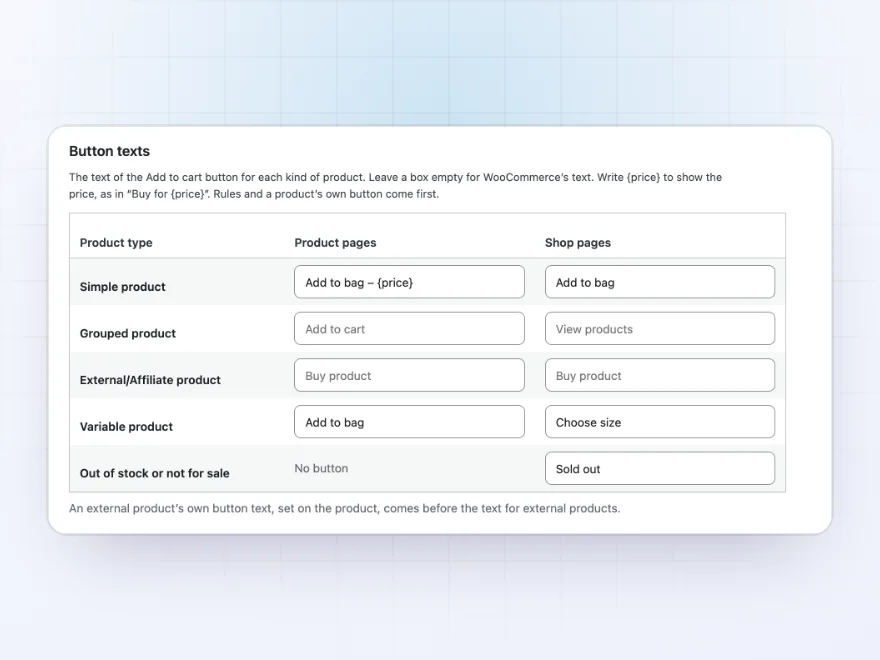
Set the text of the button for simple, variable, grouped and external products, on product pages and shop pages, and for products that are out of stock or not for sale, where WooCommerce says Read more. Write {price} to put the price on the button, as in “Add to bag – $12.00”.
- Per product type
- Product pages and shop pages
- The price in the text
Rules
A button for each product and customer
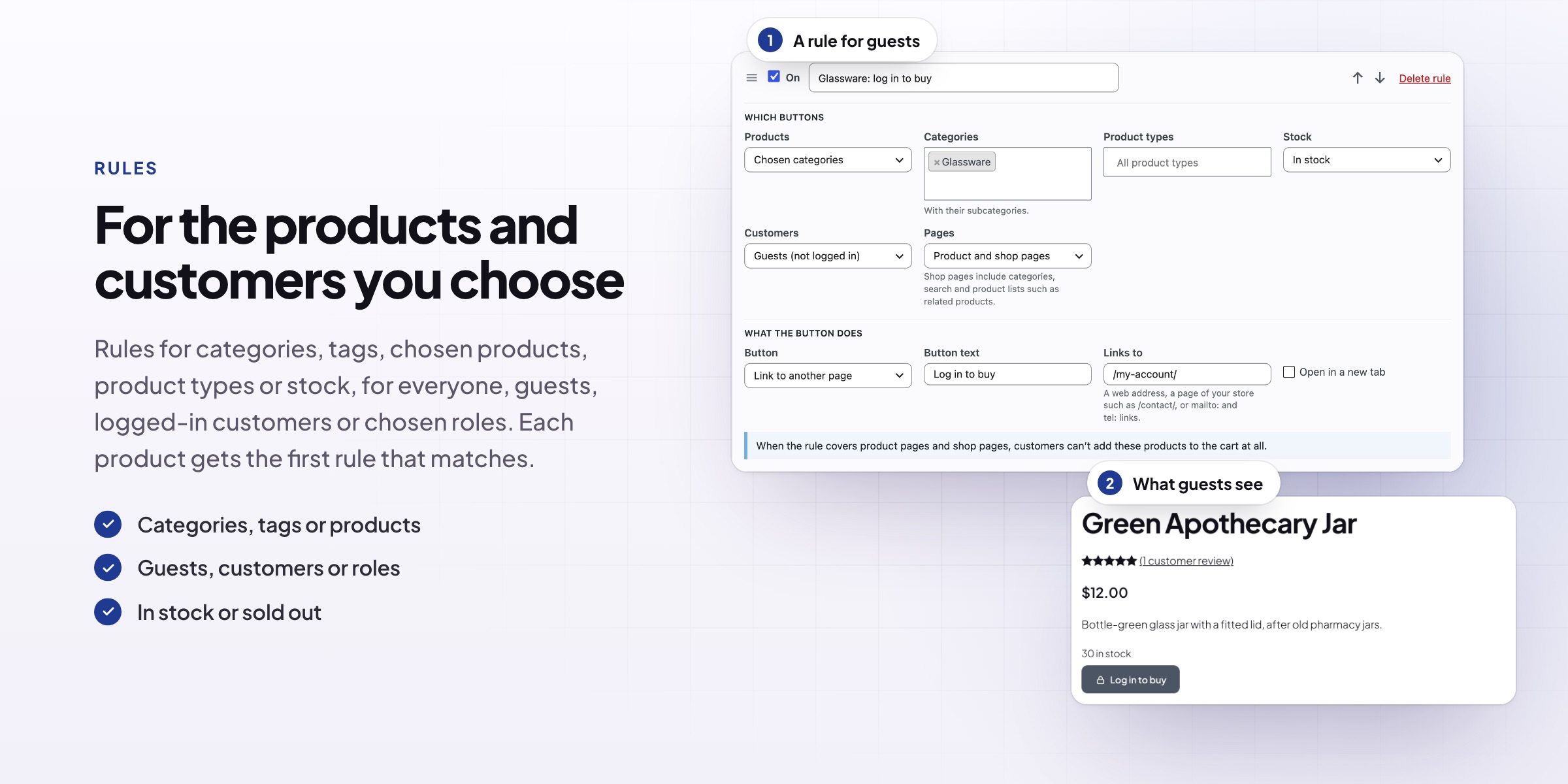
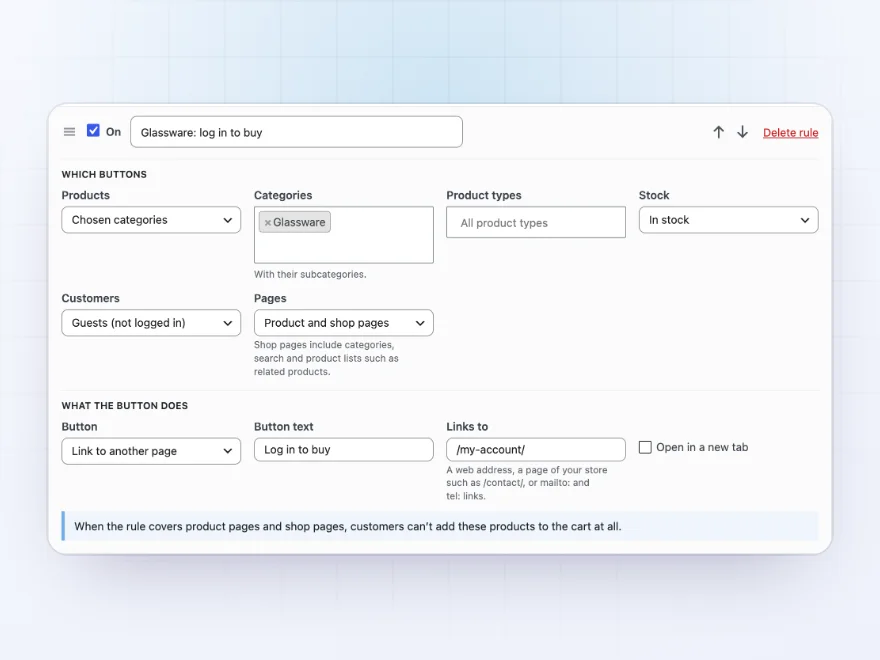
A rule changes the button of chosen categories, tags or products, and can be limited to product types and to products in stock, out of stock or on backorder. It can apply to everyone, guests, logged-in customers or chosen roles, on product pages, shop pages or both. Each product gets the first rule that matches.
- Categories, tags or products
- Guests, customers or roles
- In stock or sold out
Links
Send the button somewhere else
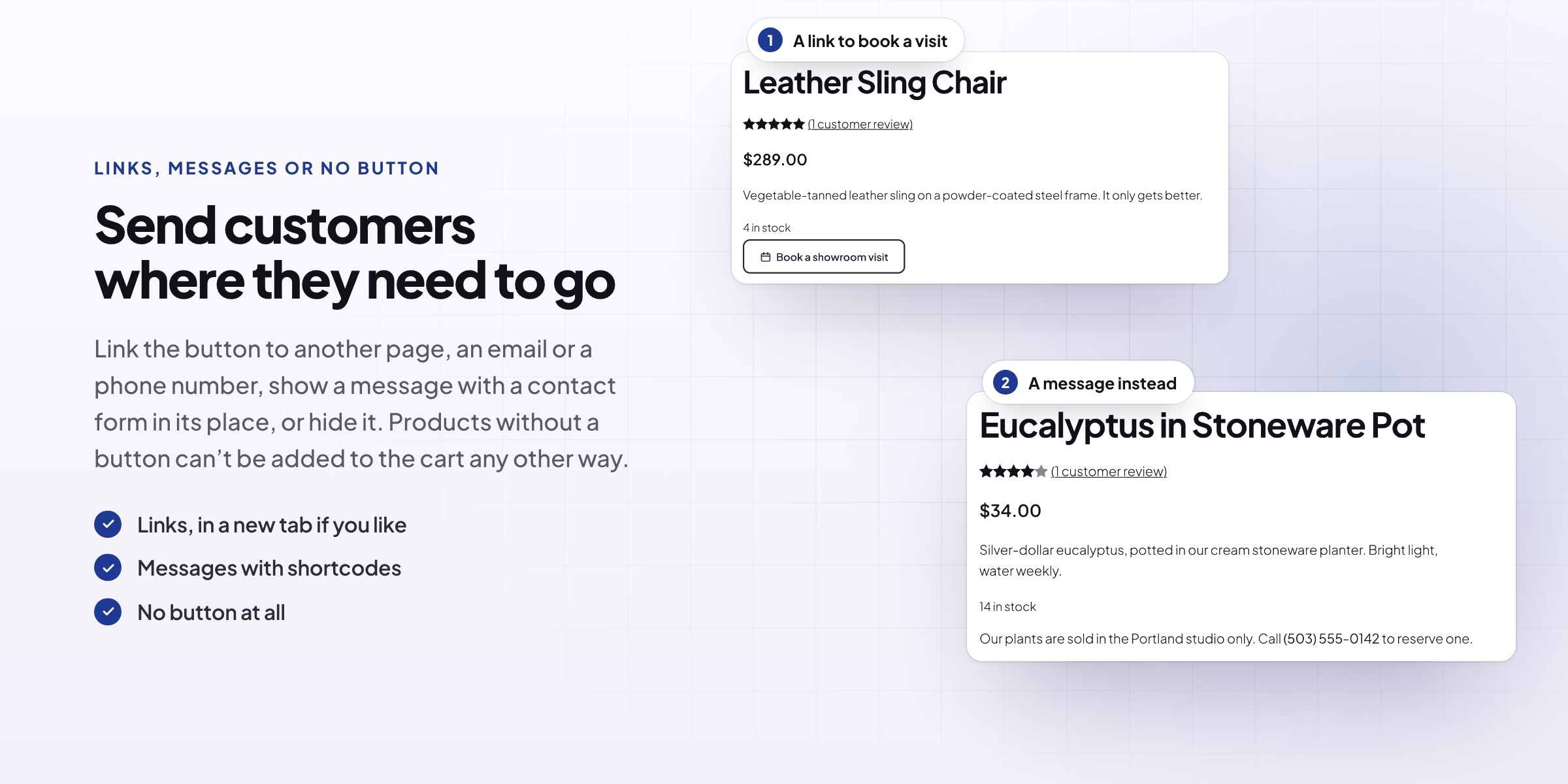
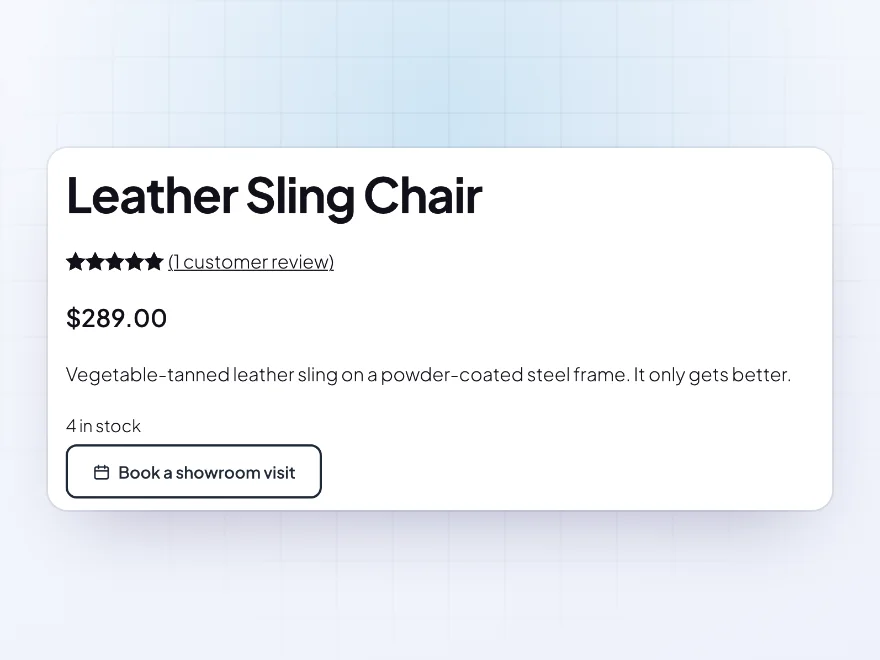
Turn the button into a link to a booking page, an enquiry form, an affiliate site, an email address or a phone number, in a new tab if you like. Screen readers hear the new text with the product’s name.
- Pages, web addresses, email and phone
- A new tab if you like
- Its own text and look
Messages and no button
A message, or no button at all
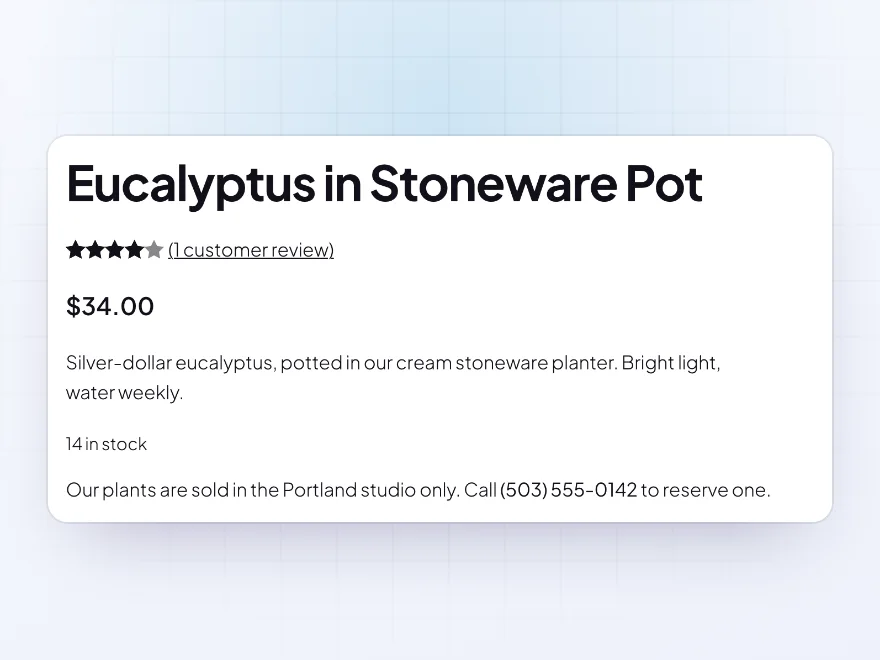
Show a message where the button was, such as a phone number to order by, with links, bold text and shortcodes for a contact form. Or hide the button and the quantity box. Products without a button on product pages and shop pages can’t be added by link or from blocks either, and they’re taken out of carts they’re already in.
- Messages with shortcodes
- Hide the button and quantity
- Blocks adding by link too
Look
Buttons that look like your store
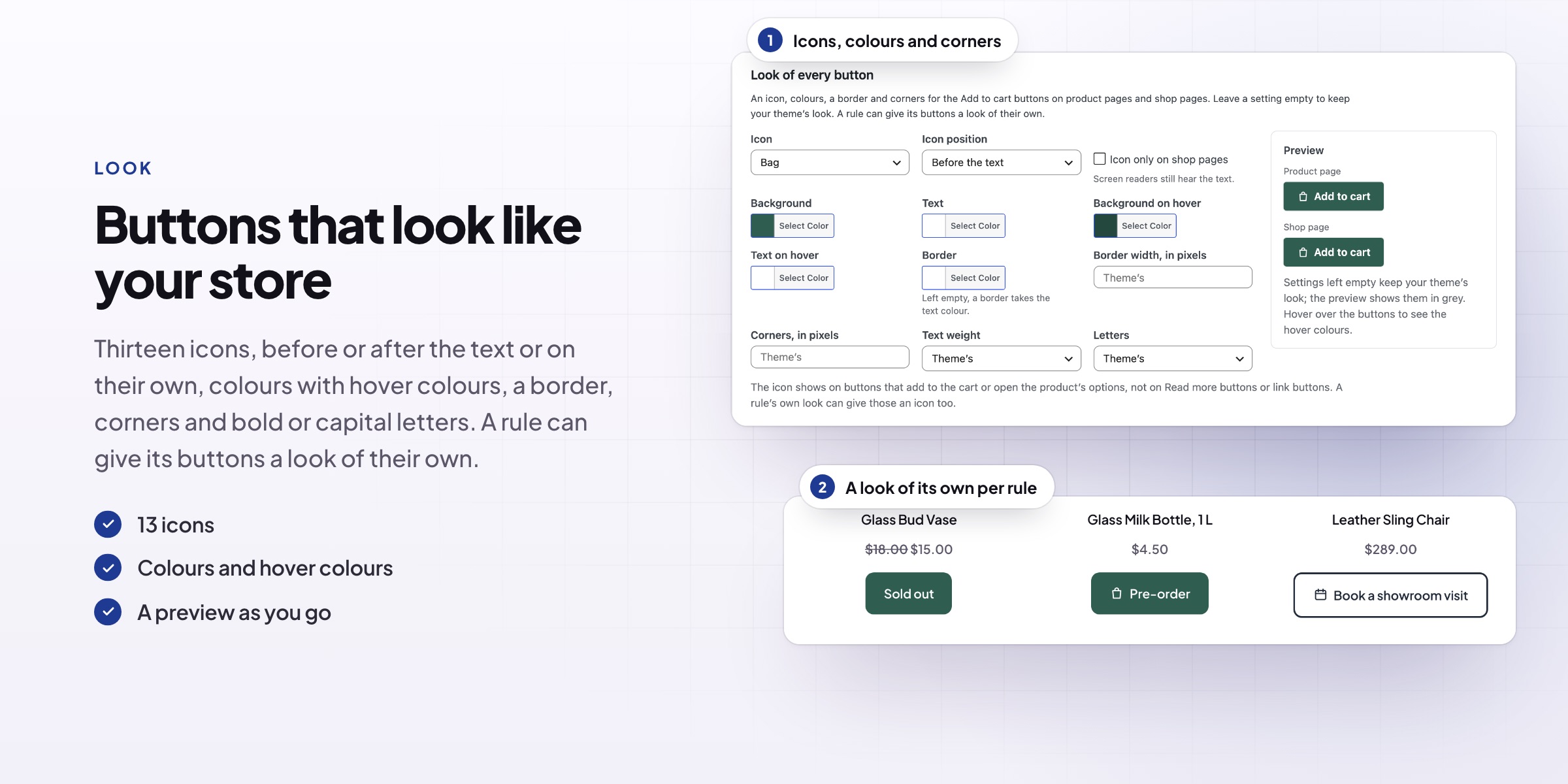
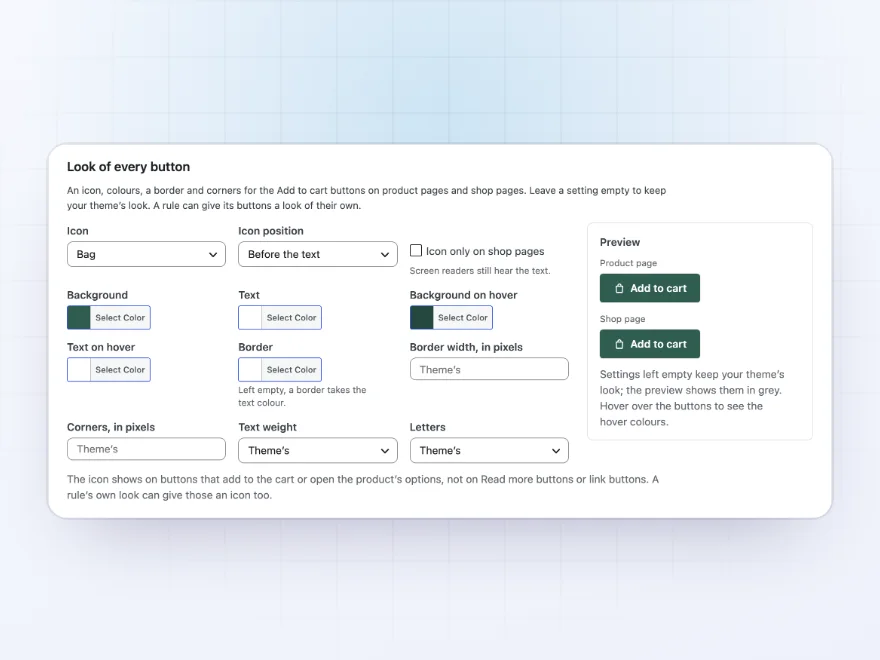
Pick one of 13 icons, before or after the text, or the icon alone on shop pages. Set the background and text colours, hover colours, a border, corners, bold text and capital letters, with a preview as you go. Leave a setting empty to keep your theme’s look.
- 13 icons
- Colours and hover colours
- Border, corners and letters
After adding to the cart
Straight to the checkout
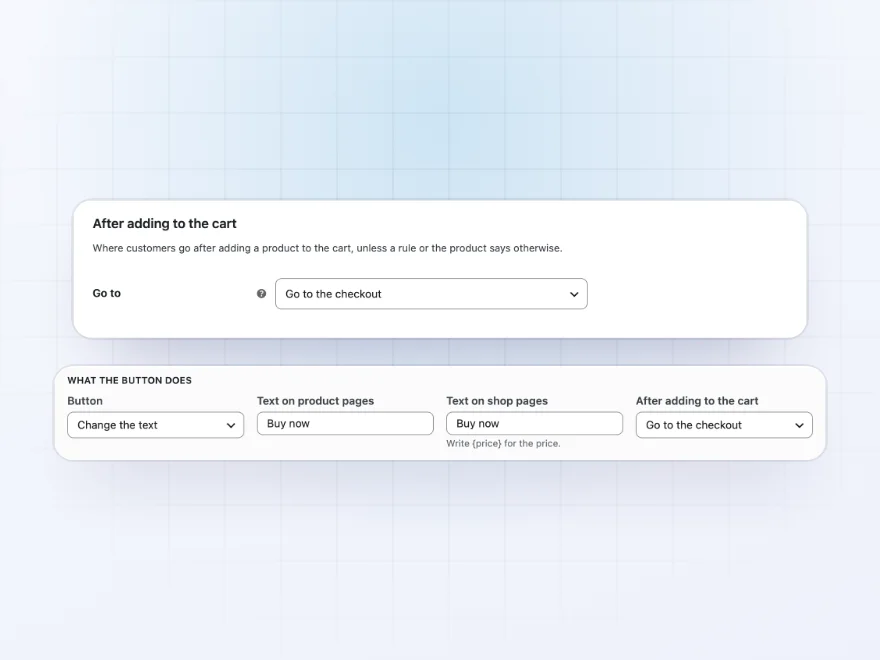
Send customers to the cart, the checkout, a page of your store or any address after they add a product, for every product, a rule’s products or one product. Shop buttons of those products load the next page instead of adding in the background.
- Cart, checkout, a page or an address
- Store-wide, per rule or per product
- Product pages and shop pages
A product’s own button
A button for one product
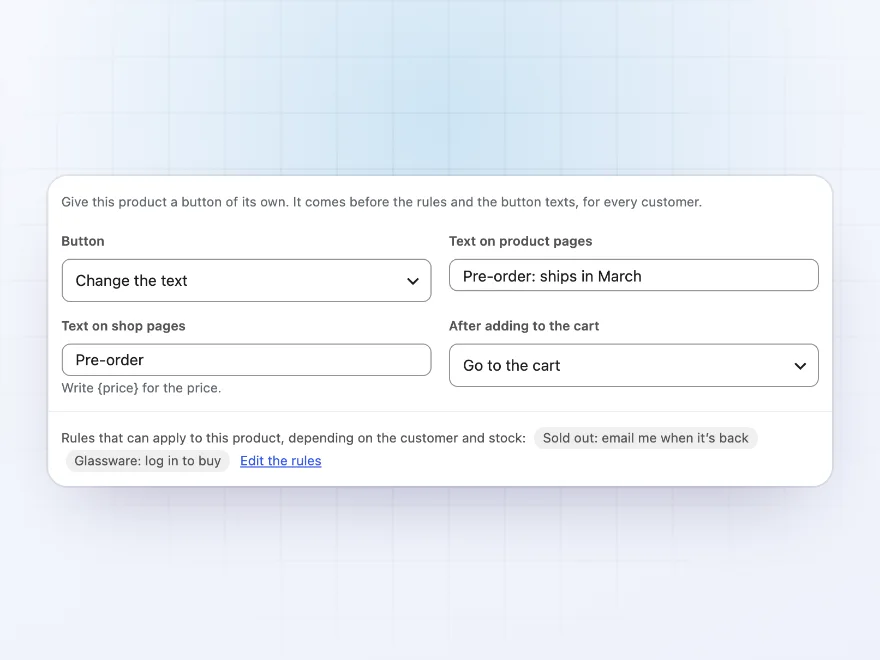
Give one product a button of its own in Product data > Add to cart button, such as a Pre-order text that goes to the cart, a link to its booking page or a message. It comes before the rules for every customer, and the tab lists the rules that can apply to the product.
- In Product data
- Before the rules
- Texts, links, messages or no button
Guests and customers
A different button for each customer
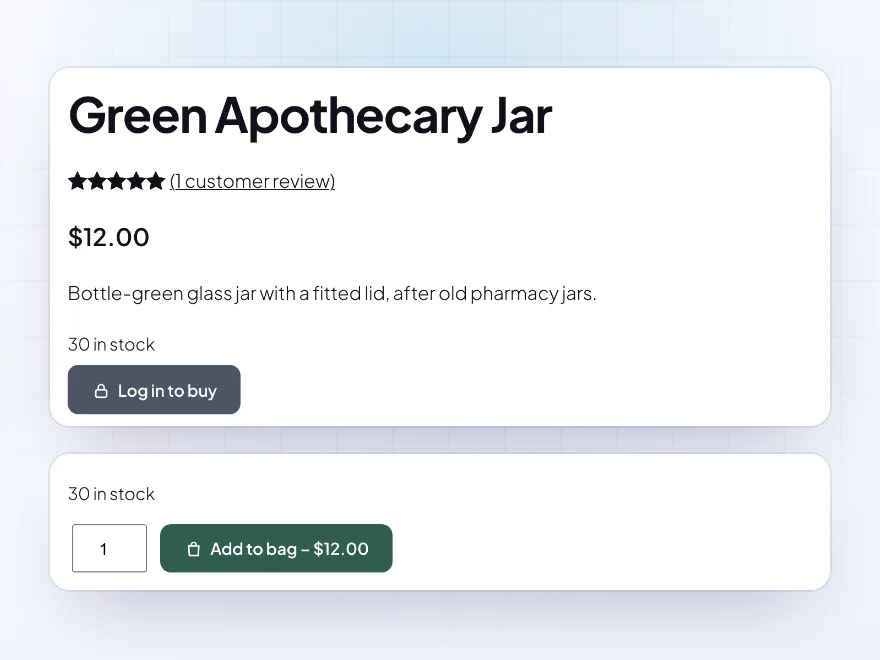
Rules can apply to everyone, guests, logged-in customers or chosen roles. Guests can be asked to log in before they buy glassware while customers add it to their bag, with the price on the button, and trade customers can get a button of their own.
- Guests or logged-in customers
- Chosen roles
- No adding by link for guests
Sold out
Out of stock, without a dead end
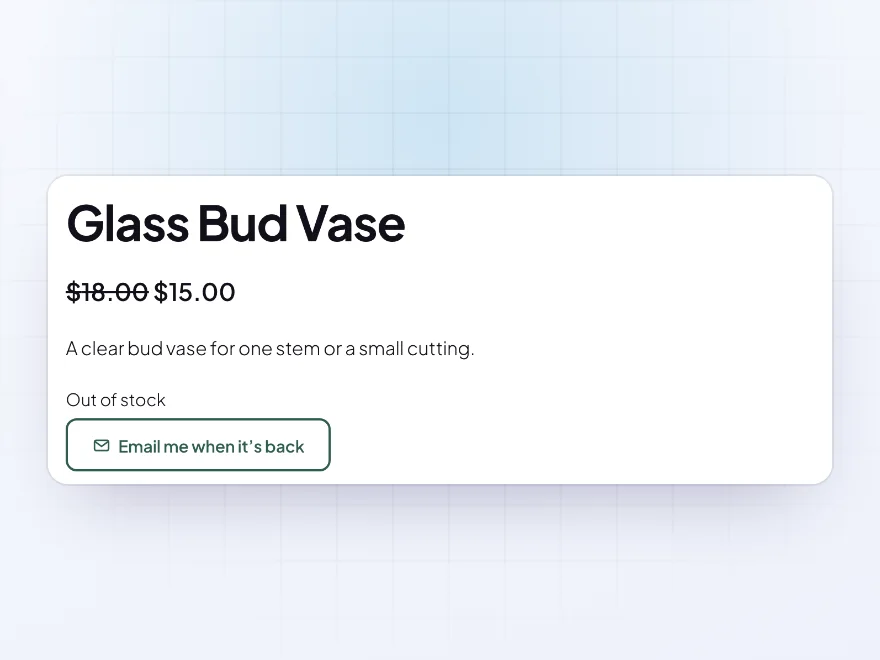
Show Sold out on shop pages where WooCommerce says Read more, and give sold-out products a rule of their own, such as an email link to hear when they’re back. A rule for products in stock leaves sold-out ones alone.
- Sold out on shop pages
- A rule for out-of-stock products
- On backorder too
Premium quality & support
Support you can count on, year after year
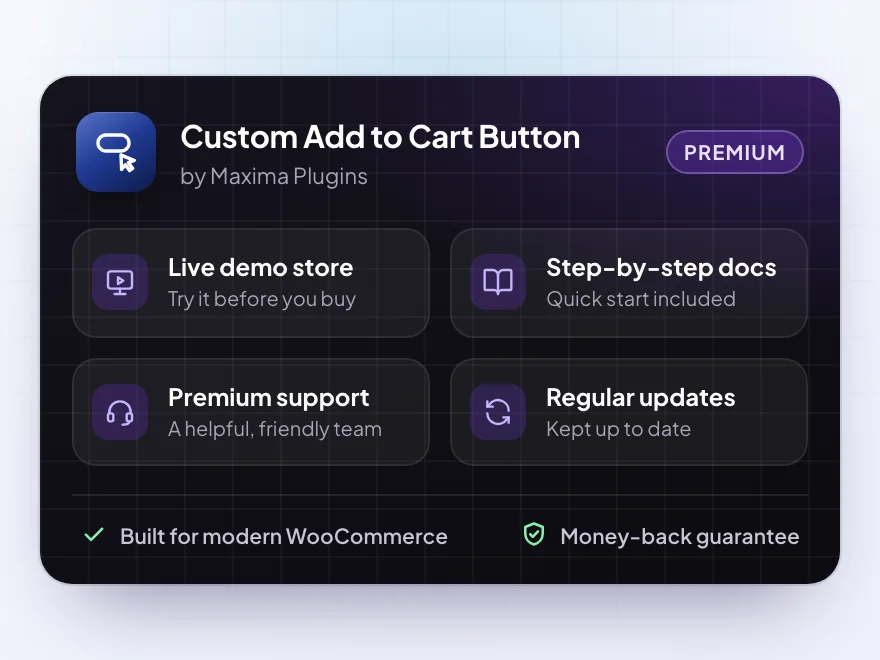
See Custom Add to Cart Button working in a live demo store before you buy. If you need a hand, our friendly support team will help you get it set up, and regular updates keep it working with each new WooCommerce release.
- A live demo store to try it first
- Step-by-step docs with a quick start
- Premium support from a helpful team
- Regular updates included
Change, link or remove the WooCommerce Add to cart button
Custom Add to Cart Button lets you change the WooCommerce Add to cart button without code: a new text for each product type, such as Buy now or Choose size, an icon and your own colours, or a custom add to cart button that links to a booking page, an affiliate site or an email address. Rules decide which categories, tags, products and customers get which button, on product pages, shop pages or both.
To remove the add to cart button in WooCommerce, add a rule that hides it for the products and customers you choose, such as guests, or show a message in its place with a phone number or a contact form. Products without a button on any page can’t be added to the cart by link either, and after adding, customers can go straight to the cart, the checkout or a page of your choice.
Common setups
Questions before you buy
How do I remove the Add to cart button?
Add a rule for the products and customers you choose and set Button to Hide the button. For one product, use Product data > Add to cart button.
Can I hide the button only for guests?
Yes. Set Customers to Guests in the rule. Logged-in customers keep the button, and guests can’t add those products by link either.
Does it hide prices?
No. It changes the button only. To hide prices, use Hide Products & Prices by User Role.
Does it work with block themes?
Yes. It works with the Product Button, Add to Cart Form and Add to Cart + Options blocks and product collections. Classic themes such as Storefront work too.
Can the button link to another site?
Yes. Set Button to Link to another page and add any web address, email or phone number. External products keep their own button text unless a rule changes it.
Will it slow my store down?
No. It changes the button WooCommerce already draws and adds a small stylesheet only when you change a button’s look or use links or messages.
Requirements
- WordPress
- 6.8 or newer
- WooCommerce
- 10.0 or newer
- PHP
- 7.4 or newer
Works with
- Classic themes
- Block themes
- Cart and Checkout blocks
- High-Performance Order Storage
- Product Button block
- Add to Cart Form block
- Add to Cart + Options block
Reviews
There are no reviews yet.