 Maxima Plugins
Description
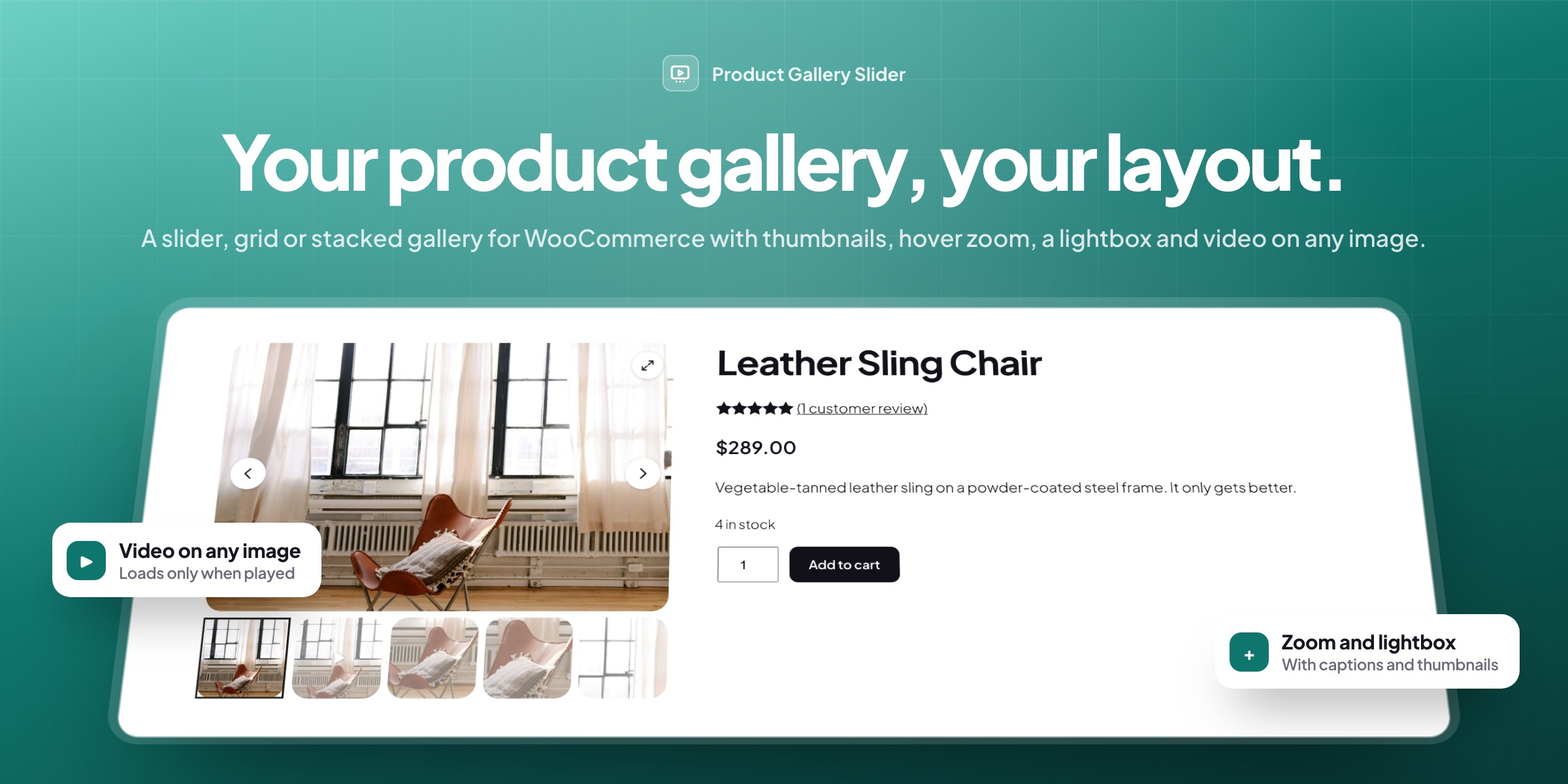
Product Gallery Slider replaces the WooCommerce product gallery with a slider, grid or stacked layout, with video slides, hover zoom and a lightbox. Choose a layout for each category, product type or product, and each variation shows its own images, on classic and block themes.
🖼️ Slider, grid or stacked: thumbnails below, above or on either side, a big-image grid, Show more, fade or vertical slides.
▶️ Video on any gallery image: YouTube, Vimeo, Dailymotion or an MP4 file, loaded only when played.
🎨 Each variation’s own images: from WooCommerce’s variation gallery, shown alone, first, or by sliding to them.
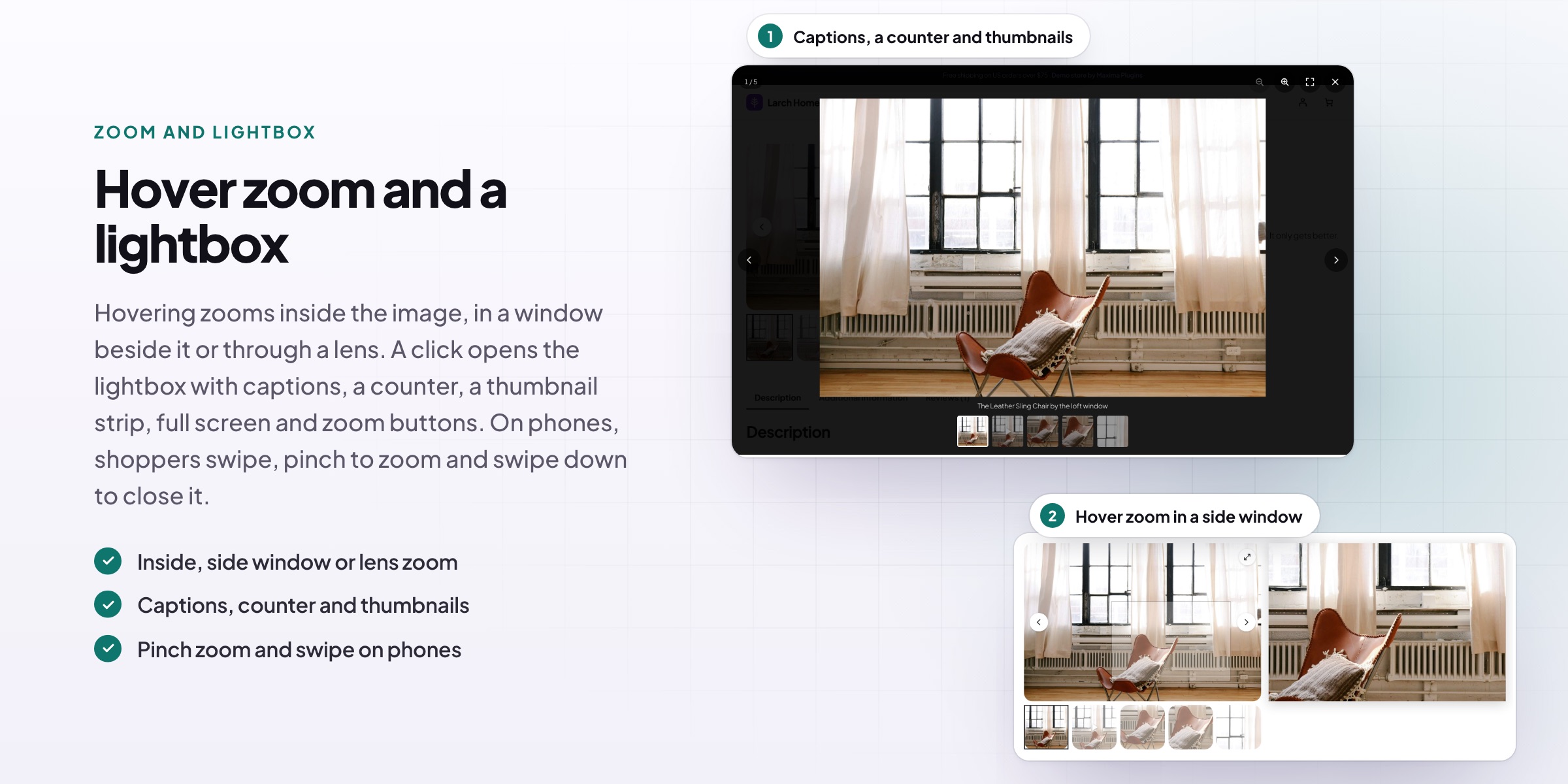
🔍 Hover zoom and a lightbox: inside, lens or side-window zoom, and a full-screen lightbox with captions and thumbnails.
📱 Fast on phones: grids turn into a swipe slider, with one small script, no jQuery and lazy-loaded images.
🗂️ A layout per category or product: display rules by product, category or product type, or a choice in the product’s Gallery tab.
🛍️ Play buttons on shop cards: products with a video show a play button on shop, category and search pages.
🧩 Block, shortcode and Elementor widget: it also replaces Elementor Pro’s Product Images and Divi’s Woo Images.

Layouts
Slider, grid or stacked images
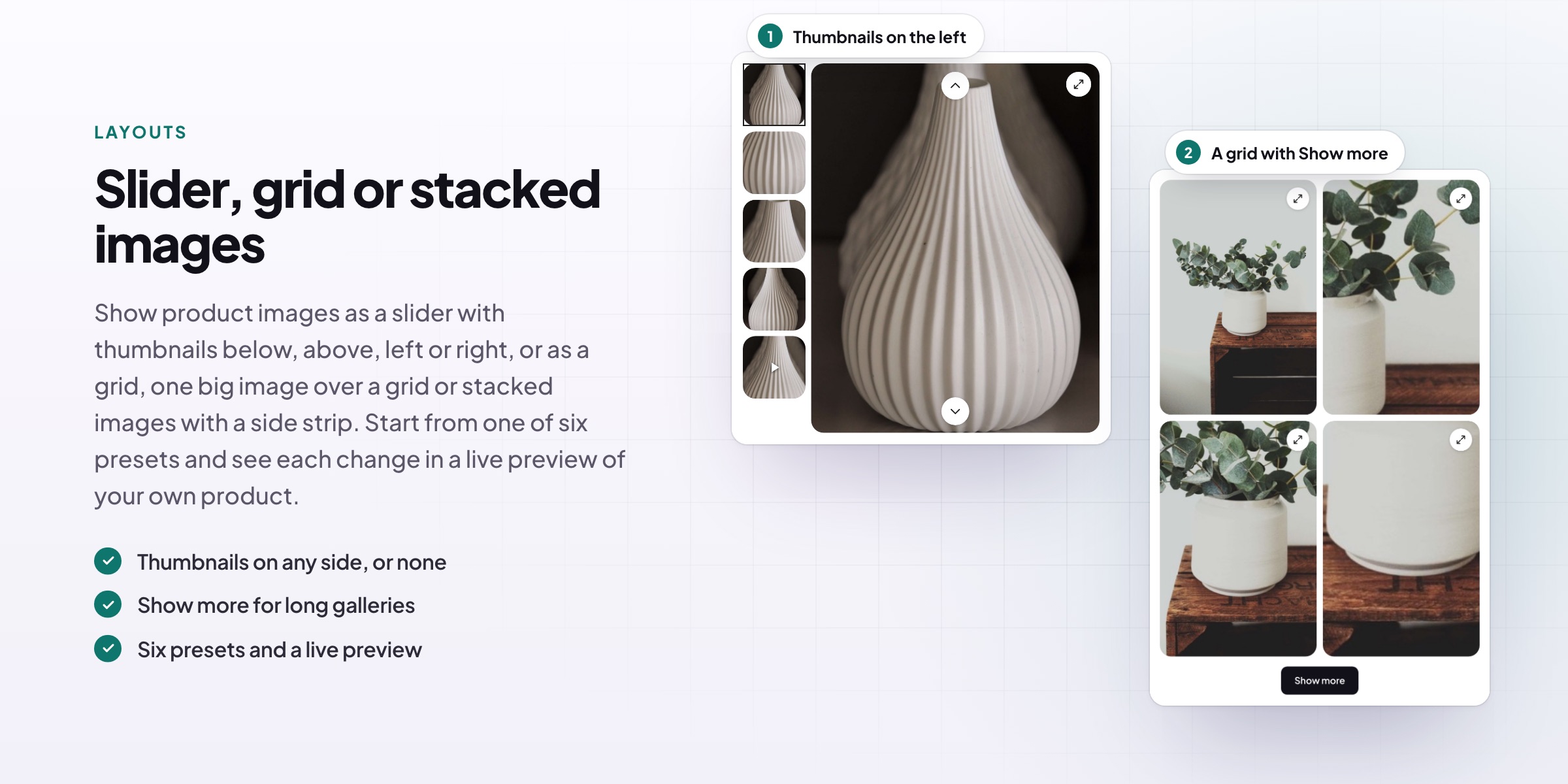
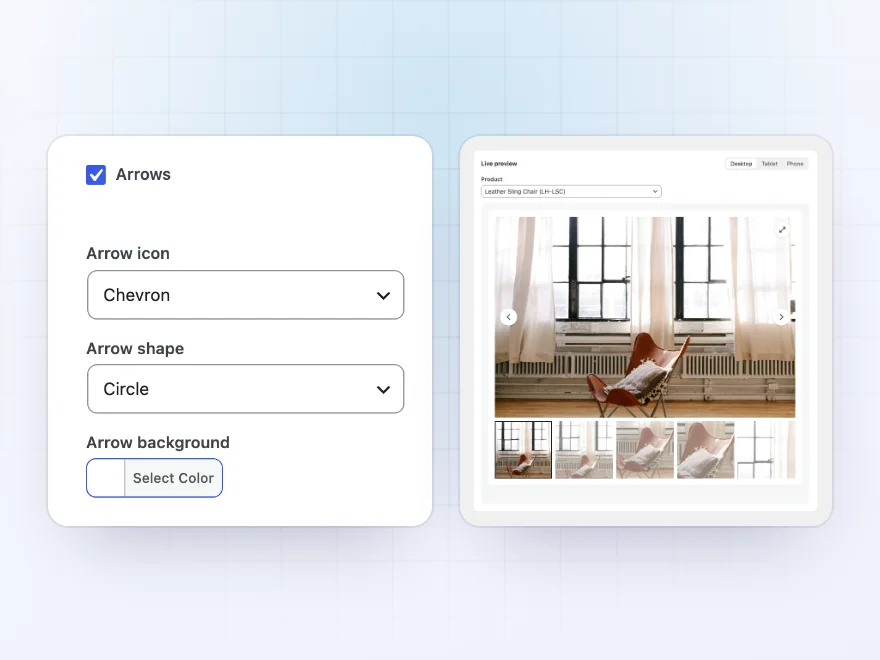
Show product images as a slider with thumbnails below, above, left or right, or with no thumbnails at all. Or use a grid, one big image over a grid, or stacked images with a side strip, with a Show more button for long galleries. Start from one of six presets and check every change in a live preview of your own product.
- Slider, grid and stacked layouts
- Thumbnails on any side, or none
- Six presets and a live preview
Video
Add video to your WooCommerce product gallery
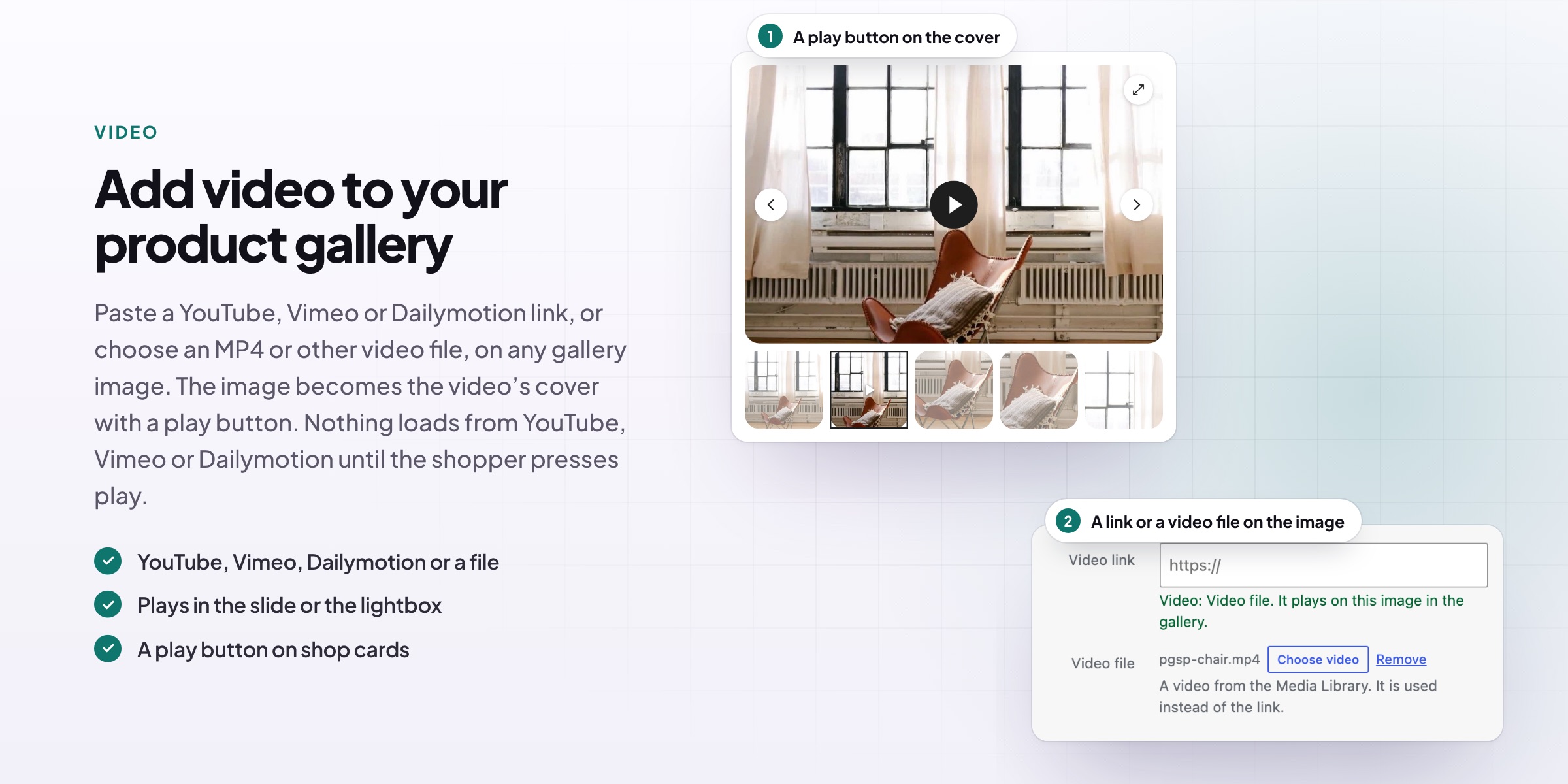
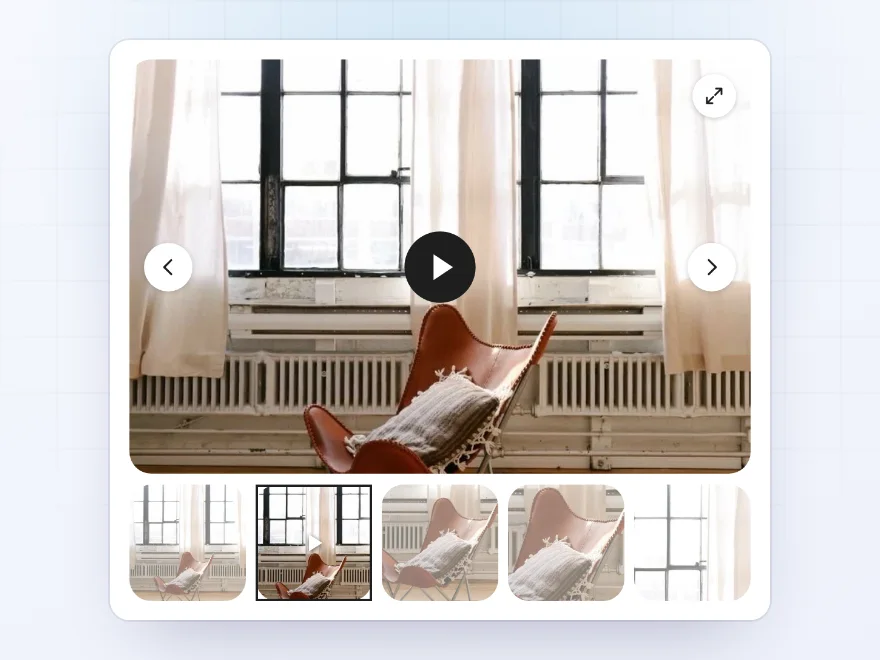
Paste a YouTube, Vimeo or Dailymotion link, or choose an MP4 or other video file, on any image in the product gallery. The image becomes the video’s cover with a play button. Nothing loads from YouTube, Vimeo or Dailymotion until the shopper presses play, and YouTube plays in its privacy-enhanced mode. Videos play in the slide or in the lightbox.
- YouTube, Vimeo, Dailymotion or a file
- Players load only on play
- Play in the slide or the lightbox
Variation images
Each variation shows its own images
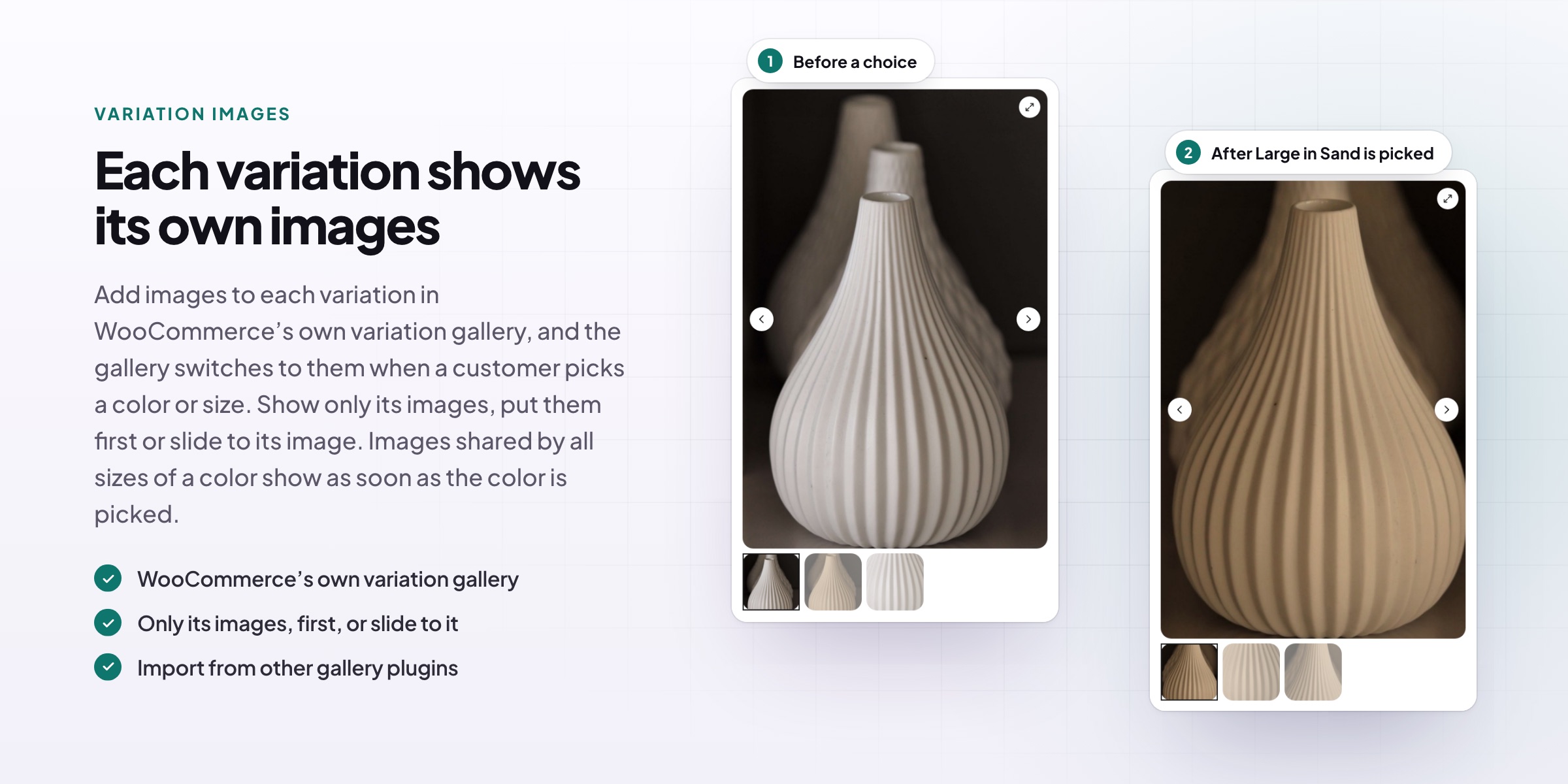
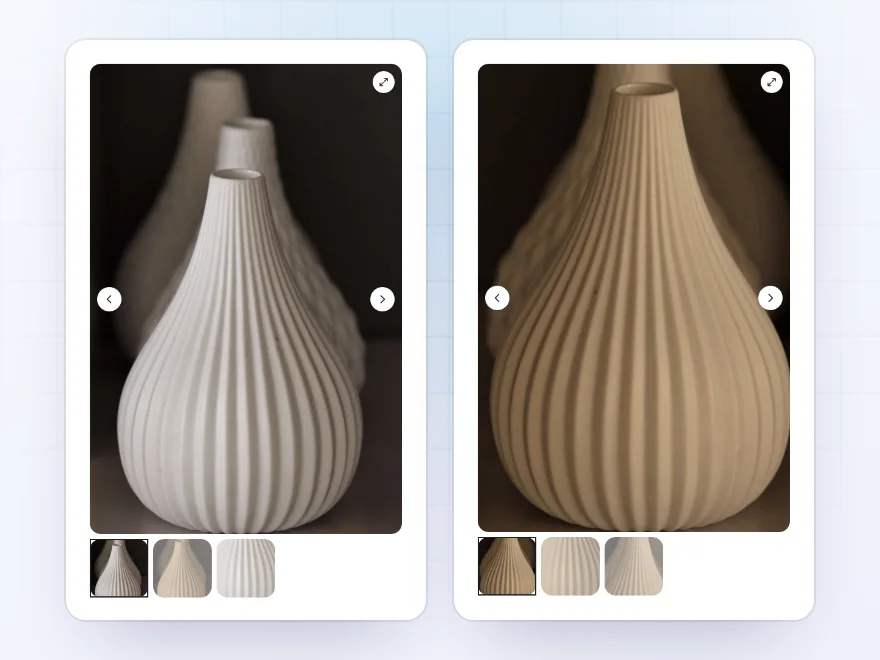
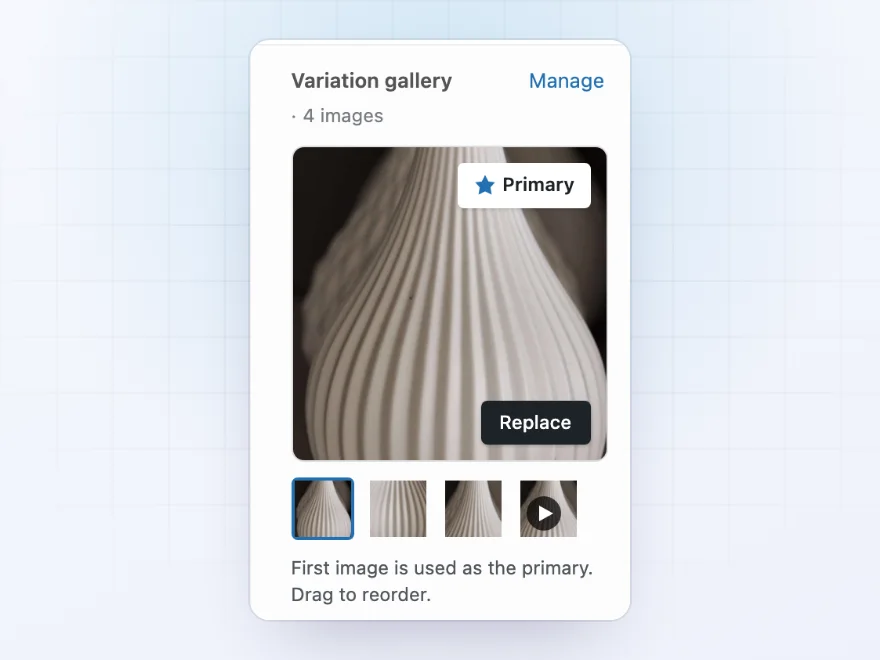
Add images to each variation in WooCommerce’s own variation gallery, and the gallery switches to them when a customer picks a color or size. Show only the variation’s images, put them first, or slide to its image. With the classic variation form, shared images, such as all sizes of Red, show as soon as Red is picked, and images from other variation gallery plugins can be imported.
- WooCommerce’s own variation gallery
- Only its images, first, or slide to it
- Import from other gallery plugins
Zoom and lightbox
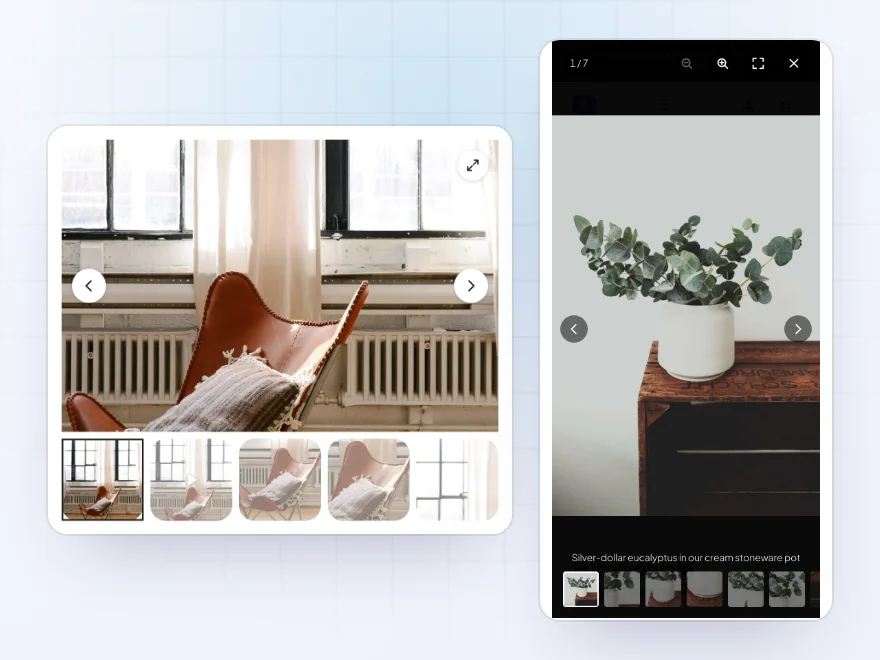
Hover zoom and a full-screen lightbox
On screens with a mouse, hovering zooms inside the image, in a window beside it or through a lens, at a zoom level you choose. A click opens the lightbox with captions, a counter, a thumbnail strip, full screen and pinch zoom. Choose the lightbox icon, its corner, the overlay color and the animation, and turn zoom off for chosen categories or products.
- Inside, side window or lens zoom
- Captions, counter and thumbnails
- Pinch zoom and swipe on phones
Phones and speed
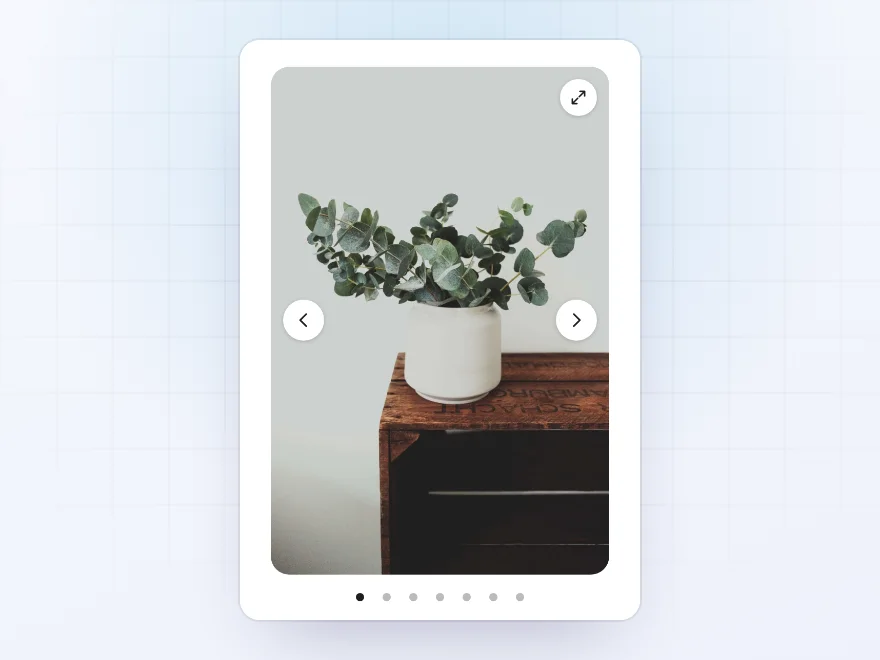
Fast pages and a swipe slider on phones
On phones, grids and stacked layouts turn into a swipe slider, and side thumbnails move below the image or hide. The gallery uses one small script with no jQuery or slider library, and WooCommerce’s own slider, zoom and lightbox don’t load next to it. The first image loads first, the rest as they’re needed, and every image keeps its space, so nothing jumps.
- A swipe slider on phones
- One small script, no jQuery
- Lazy loading, no layout shift
Placement
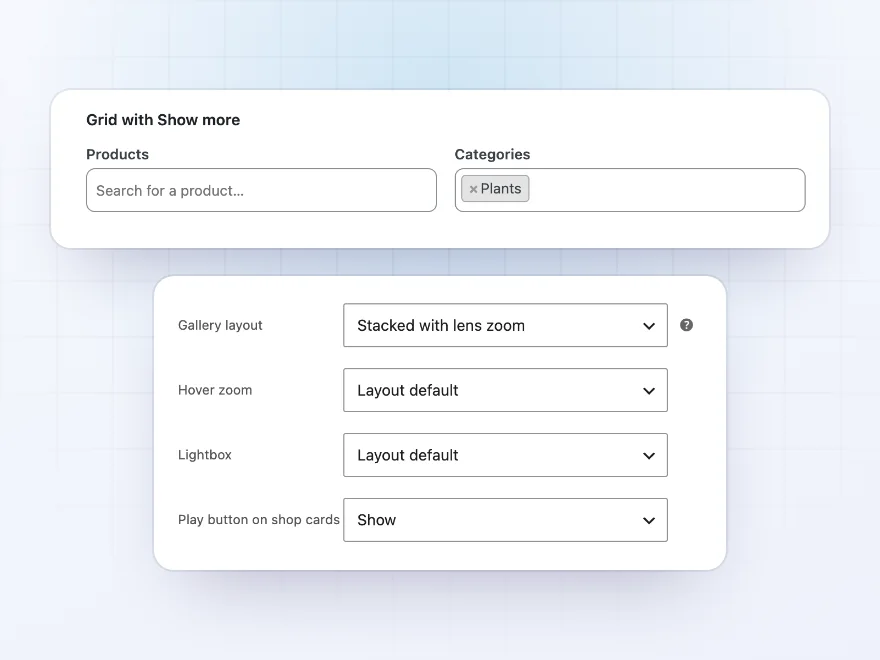
A layout for each category or product
Display rules give a layout to chosen products, categories or product types, and each product’s Gallery tab can pick its own or keep WooCommerce’s gallery. It replaces the gallery on classic and block themes and in Elementor Pro and Divi 4 templates, and the block, shortcode and Elementor widget place it anywhere else; in a Bricks template, use the shortcode.
- Layouts by product, category or type
- Classic and block themes
- Block, shortcode and Elementor widget
Shop pages
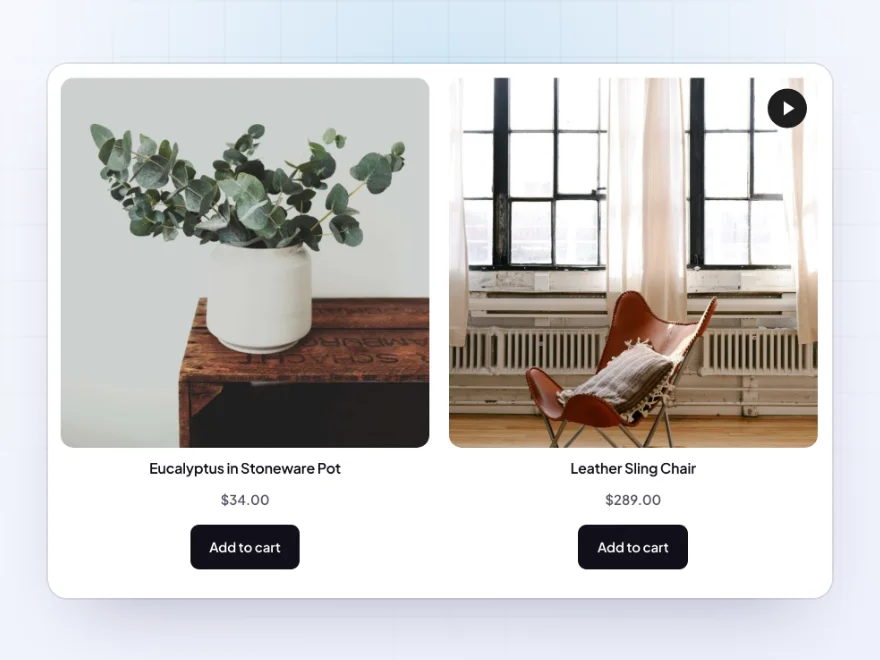
A play button on shop cards
Turn on the shop-card play button, and products with a gallery video get a play button on their picture on shop, category and search pages and in WooCommerce’s product blocks. A click opens the product’s video in the lightbox, so shoppers can watch it without leaving the page. A product’s Gallery tab can hide its button.
- Shop, category and search pages
- Opens the video in the lightbox
- Hide it on any product
Slider
Arrows, dots and autoplay, your way
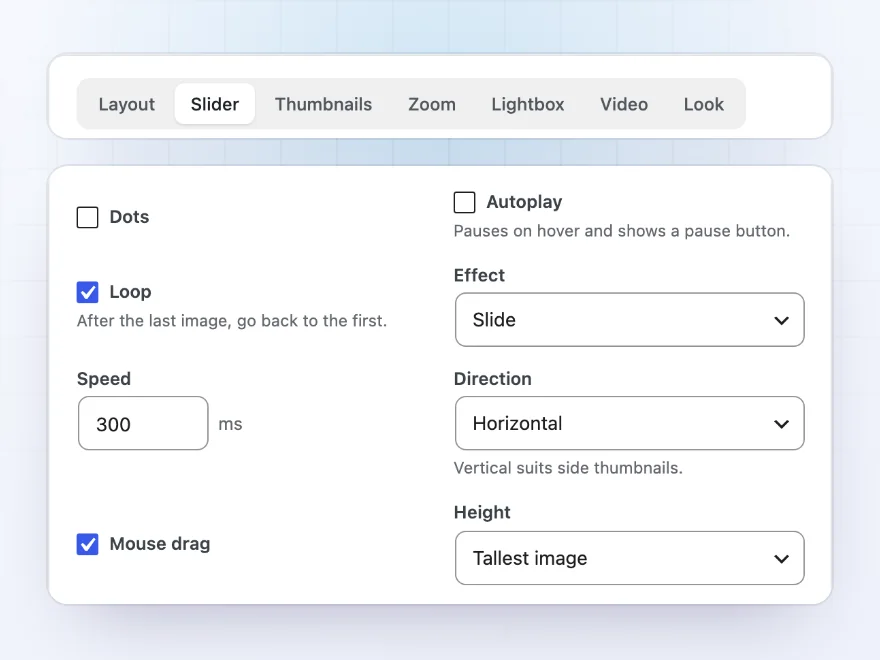
Pick one of four arrow icons and four shapes with your own size and colors, and show dots, lines, numbers, a counter or a progress bar. Autoplay pauses on hover, images can slide or fade, and they can move up and down next to side thumbnails. Shoppers can also use the arrow keys, every button has a label for screen readers, and autoplay starts paused for shoppers who ask for less motion.
- Arrows, dots, a counter or a progress bar
- Autoplay, fade and vertical slides
- Works with a keyboard and screen readers
Switching over
Bring your variation images with you
Product Gallery > Tools copies the variation images saved by Variation Images Gallery for WooCommerce, Codeixer’s Product Gallery Slider or Additional Variation Images, or Reno Product Gallery into WooCommerce’s own variation gallery, in the background. Variations that already have variation gallery images are skipped, and the other plugin’s data is kept. With our Product Video Gallery active, its product and variation videos show as slides in this gallery too.
- Imports from other variation image plugins
- Into WooCommerce’s own variation gallery
- Product Video Gallery videos as slides
Premium quality & support
Support you can count on, year after year
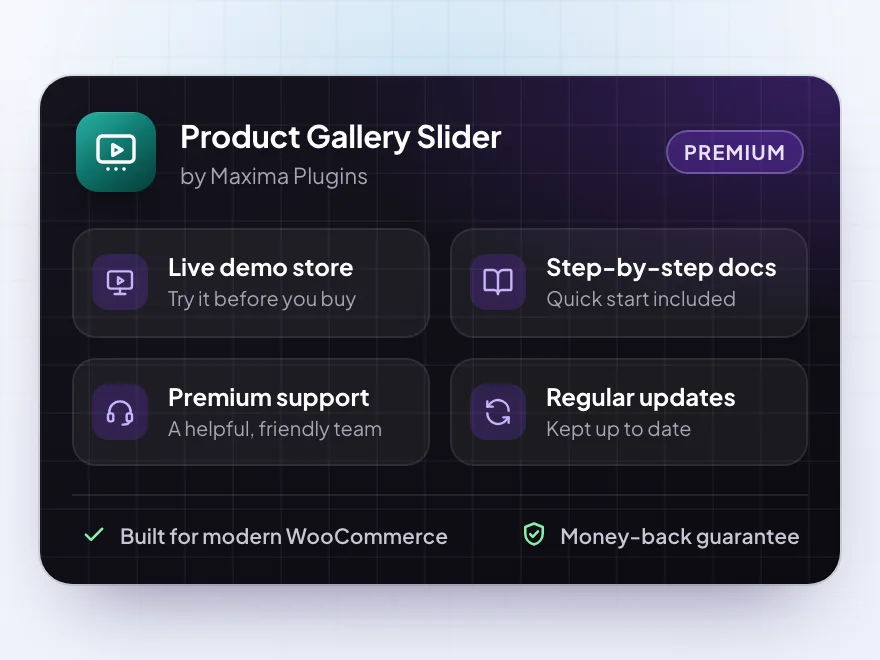
See Product Gallery Slider working in a live demo store before you buy. If you need a hand, our friendly support team will help you get it set up, and regular updates keep it working with each new WooCommerce release.
- A live demo store to try it first
- Step-by-step docs with a quick start
- Premium support from a helpful team
- Regular updates included
A WooCommerce product gallery plugin with video, zoom and a lightbox
Product Gallery Slider is a WooCommerce product gallery plugin that replaces the standard WooCommerce product image gallery on classic and block themes. Show product images in a WooCommerce product gallery slider with thumbnails below, above or at the side and arrows, dots or a counter, or as a grid with a Show more button, or stacked one below the other. Display rules give each category or product its own layout, and a live preview shows every change on your own product.
To add video to WooCommerce product gallery images, paste a YouTube, Vimeo or Dailymotion link, or choose an MP4 or other video file, on any image of the gallery. The image becomes the video’s cover, and the player loads only when the shopper presses play. For WooCommerce image zoom, hovering zooms inside the image, in a side window or through a lens, and a click opens a lightbox with captions, a counter, thumbnails, full screen and pinch zoom. Each variation can show its own images from WooCommerce’s variation gallery.
Common setups
Questions before you buy
Does it replace WooCommerce’s gallery on every product?
By default, yes, on classic and block themes. You can keep WooCommerce’s gallery for chosen products, categories or product types, or turn off the automatic replacement and place the gallery only with its block, shortcode or Elementor widget.
Will it slow down my product pages?
It loads one small script only where a gallery shows, and WooCommerce’s own slider, zoom and lightbox scripts don’t load there. Images load as they’re needed without moving the page, and video players load only when a shopper presses play.
Can I add YouTube videos to the product gallery?
Yes. Select an image of the product gallery and paste a YouTube, Vimeo or Dailymotion link, Shorts included, or choose an MP4, WebM, MOV or OGV file. The image becomes the video’s cover.
Does it work with my theme or page builder?
It works with classic and block themes, including WooCommerce’s gallery blocks, and replaces the gallery in Elementor Pro’s Product Images widget and Divi 4’s Woo Images module. In Bricks templates, use the shortcode, and anywhere else the block, the shortcode or the Elementor widget.
Can each variation have its own images?
Yes. Add them to each variation in WooCommerce’s own variation gallery. Images saved by five other gallery plugins can be copied there from Product Gallery > Tools.
Can I go back to WooCommerce’s gallery?
Yes, for chosen products or categories, or everywhere by deactivating the plugin. Product and variation images stay in WooCommerce’s own fields, so its gallery shows them as before.
Do Product Video Gallery videos show in it?
Yes. With our Product Video Gallery plugin active, its product videos show as slides in this gallery, in the position set in Product Video Gallery, and a variation’s video shows first when that variation is picked.
Is it translation-ready?
Yes. Every text on the store and in the plugin’s admin screens can be translated, and with WPML or Polylang the Show more text can be translated and each product’s gallery choices and image videos are copied to its translations.
Requirements
- WordPress
- 6.8 or newer
- WooCommerce
- 11.1 or newer
- PHP
- 7.4 or newer
Works with
- Classic themes
- Block themes
- Cart and Checkout blocks
- High-Performance Order Storage
- Product Image Gallery block
- Product Gallery block
- Elementor
- Elementor Pro
- Divi 4
- WPML
- Polylang
- Multisite
- Our Product Video Gallery
In Bricks templates, use the shortcode.



Reviews
There are no reviews yet.