 Maxima Plugins
Description
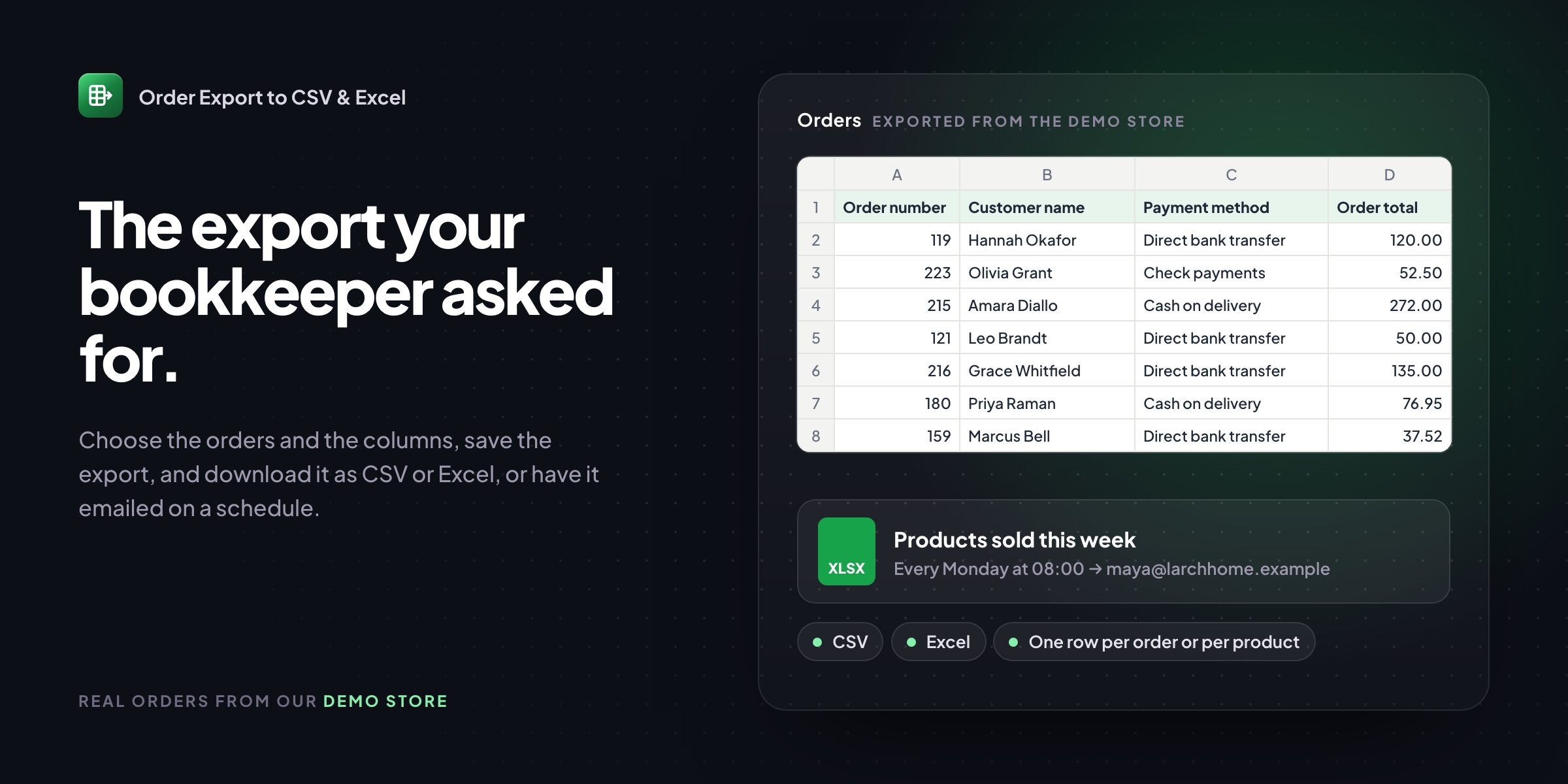
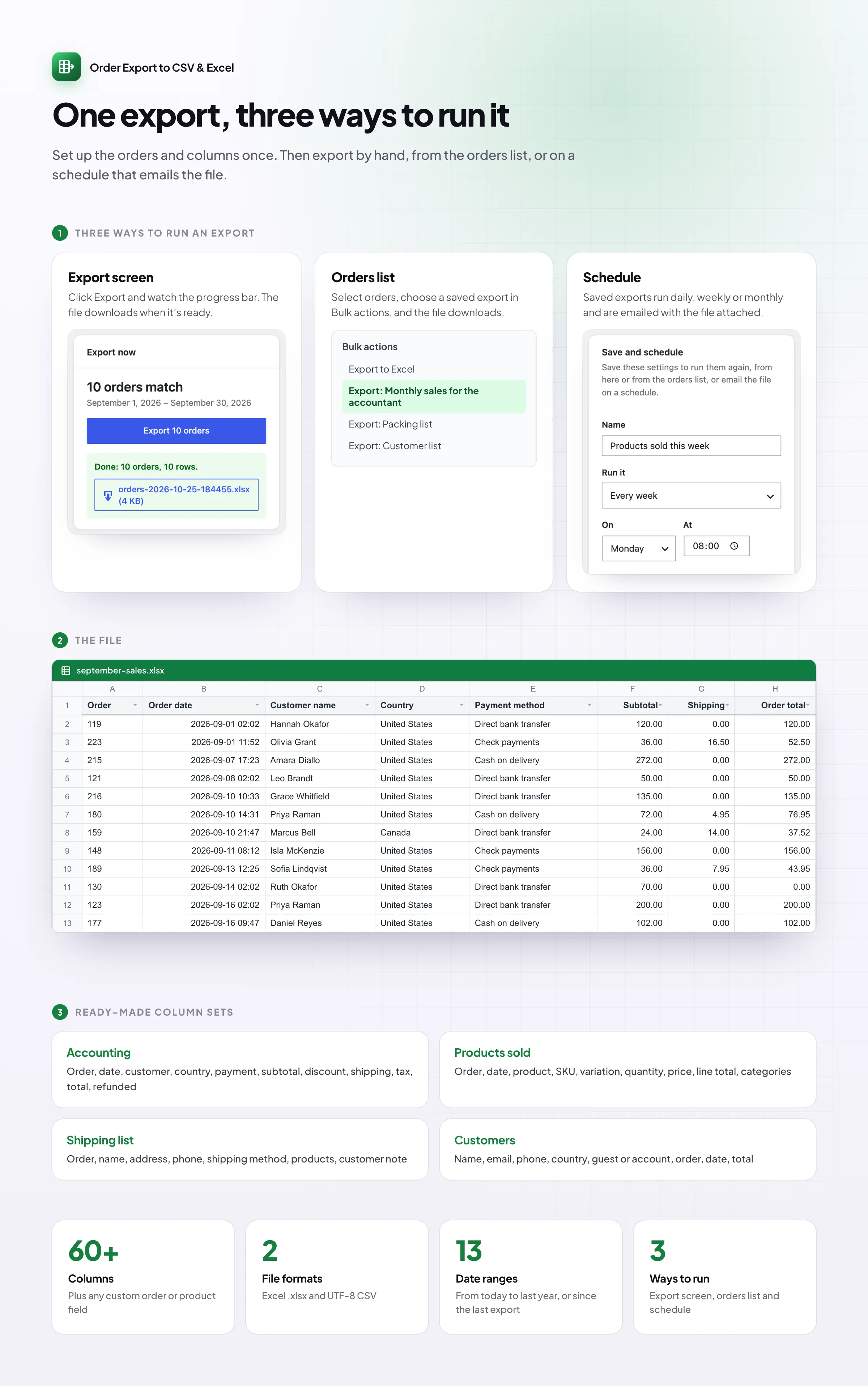
Order Export to CSV & Excel builds the order files your accountant, warehouse and suppliers need in a few clicks. Choose the orders and the columns, save the export, and get it by email every day, week or month.
🗓️ Date ranges such as last week or last month, by order, paid or completed date.
🔁 “Since the last export”, so a scheduled file never misses or repeats an order.
🧱 Any columns: totals, tax, refunds, addresses, products and custom fields.
📦 One row per order or per product, with SKU, variation and quantity.
📊 Real Excel files with numbers, dates and a frozen, filterable header.
🇪🇺 European CSV with semicolons and decimal commas.
📧 Scheduled emails with the file attached and a summary of orders and totals.
📁 A Files tab keeping recent exports private, deleted after the days you choose.
Choose the orders
Export exactly the orders you need
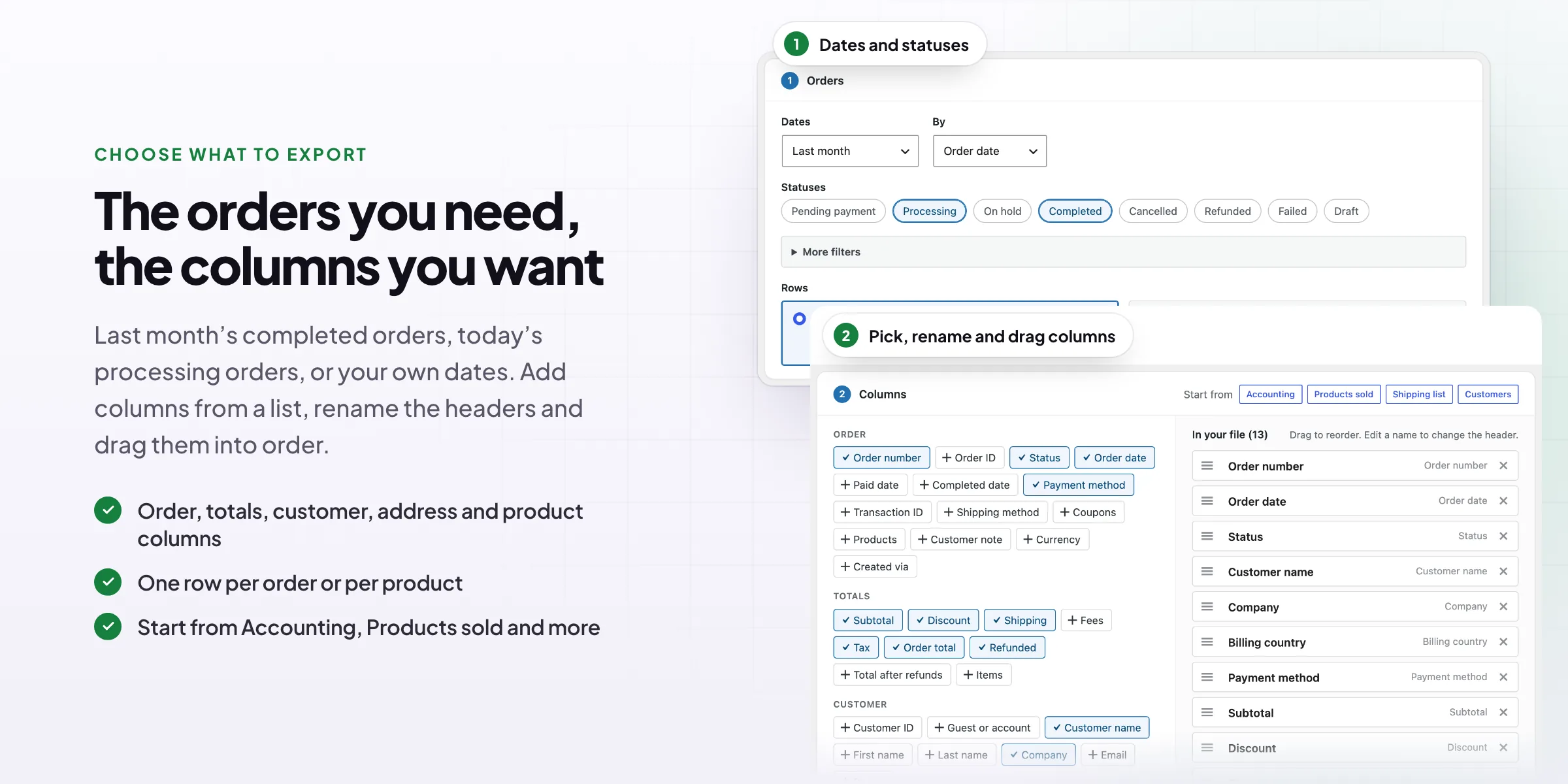
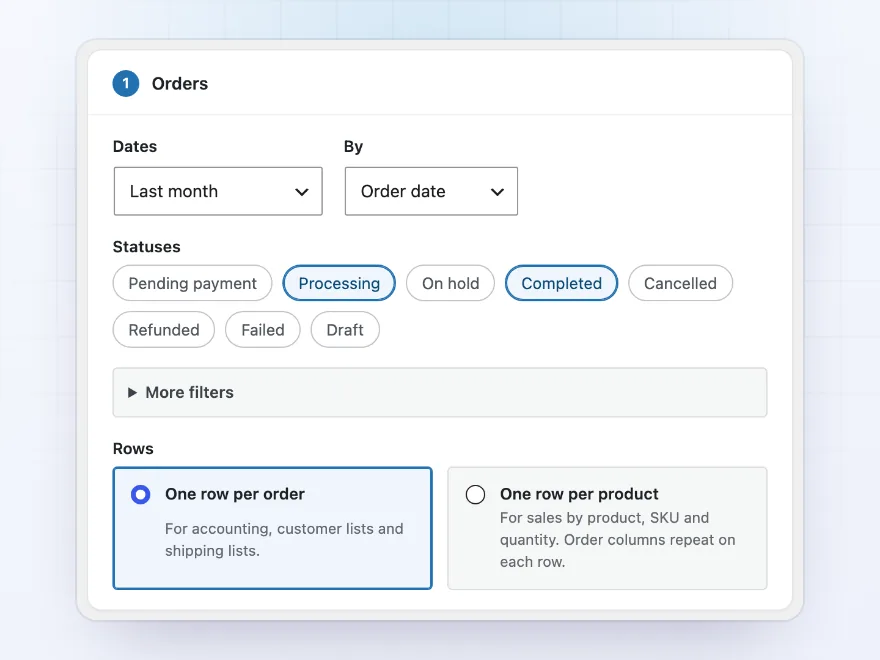
Pick a date range, such as yesterday, last week or last month, and the order statuses to include. Narrow it down to orders with certain products, categories or coupons, or from certain countries, customers, payment methods or shipping methods. The number of matching orders shows before you export, so you know what you’ll get.
- By order date, paid date or completed date
- “Since the last export”, so a scheduled file never misses or repeats an order
- Or export just the orders you tick in the orders list
Choose the columns
The columns you want, in the order you want
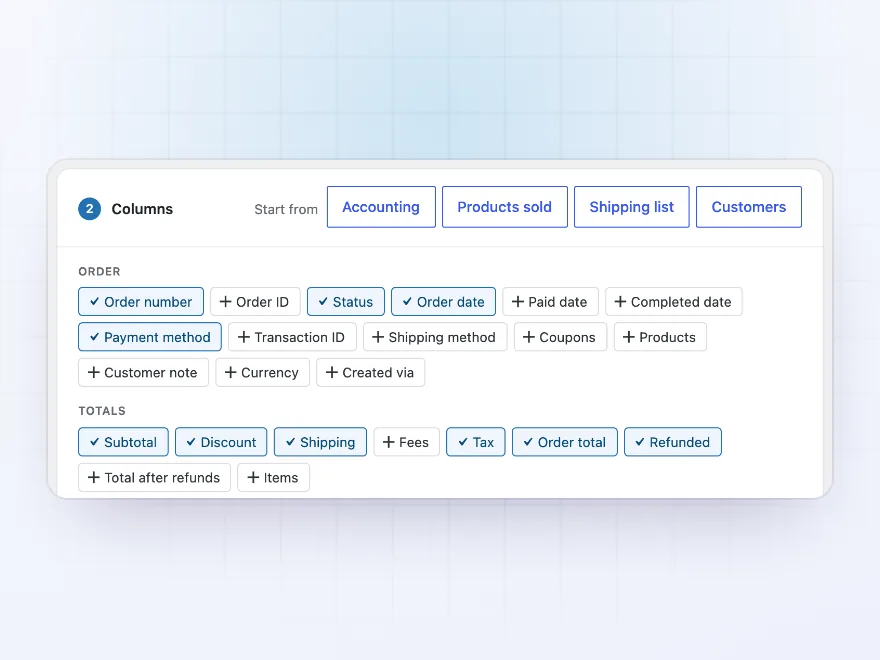
Click to add any of more than 60 columns: order details, totals, tax, refunds, customer details, billing and shipping addresses, and products. Drag them into order and rename the headers to match what your accountant or accounting software expects. Or start from a ready-made set: Accounting, Products sold, Shipping list or Customers.
- Add any custom order or product field
- Rename headers, such as “Total” instead of “Order total”
- Save the layout and use it again
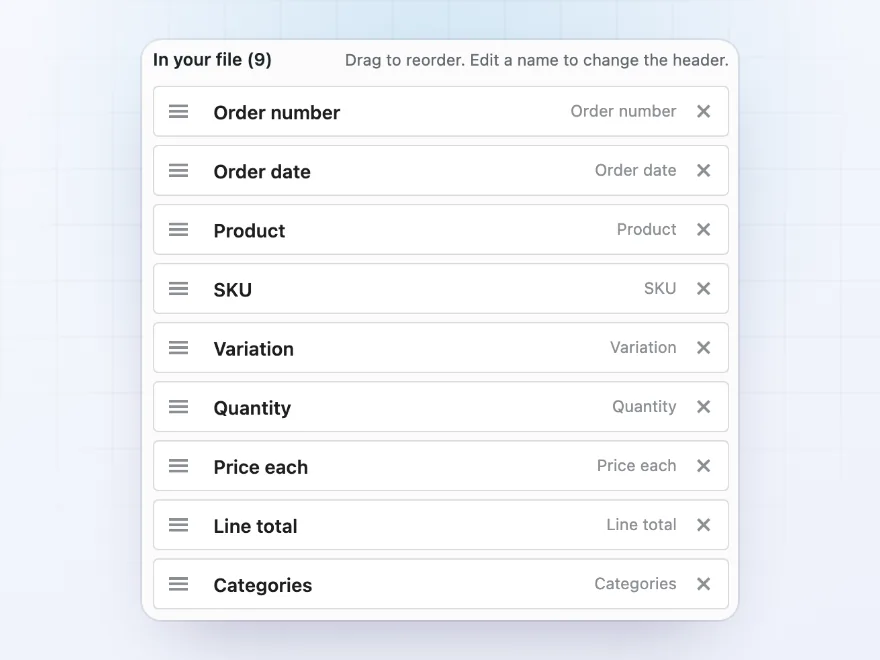
Products sold
One row per product for sales reports
Switch to one row per product to see exactly what sold: product name, SKU, variation, quantity and line totals, with the order details repeated on each row so the file can be filtered and summed. Filter by a brand or category and keep only the matching products, and a supplier gets a file with just their own lines.
- SKU, variation, quantity, price each and line total
- Product categories on each row
- Ready for a pivot table
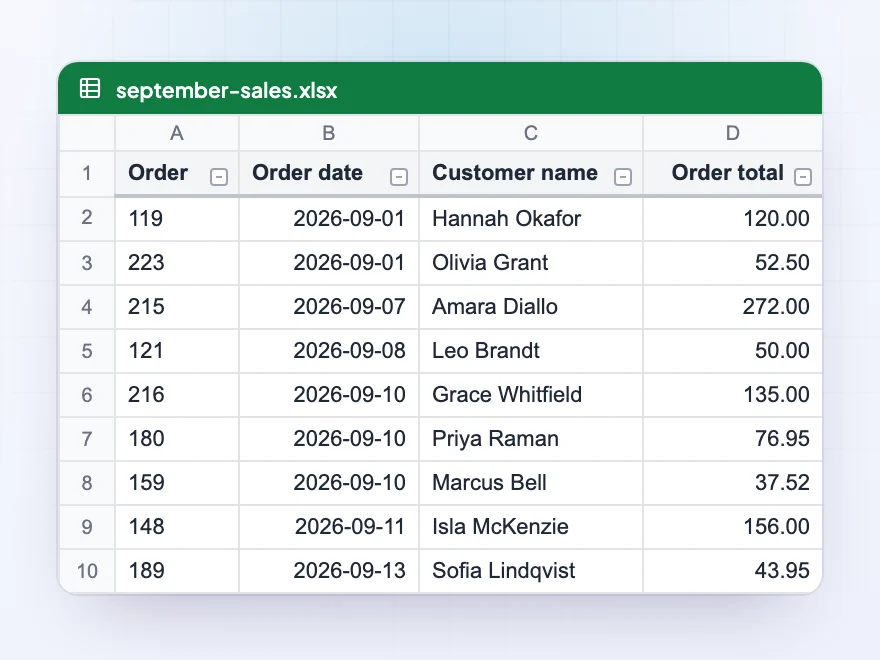
Excel, CSV or XML
Real Excel files, ready to use
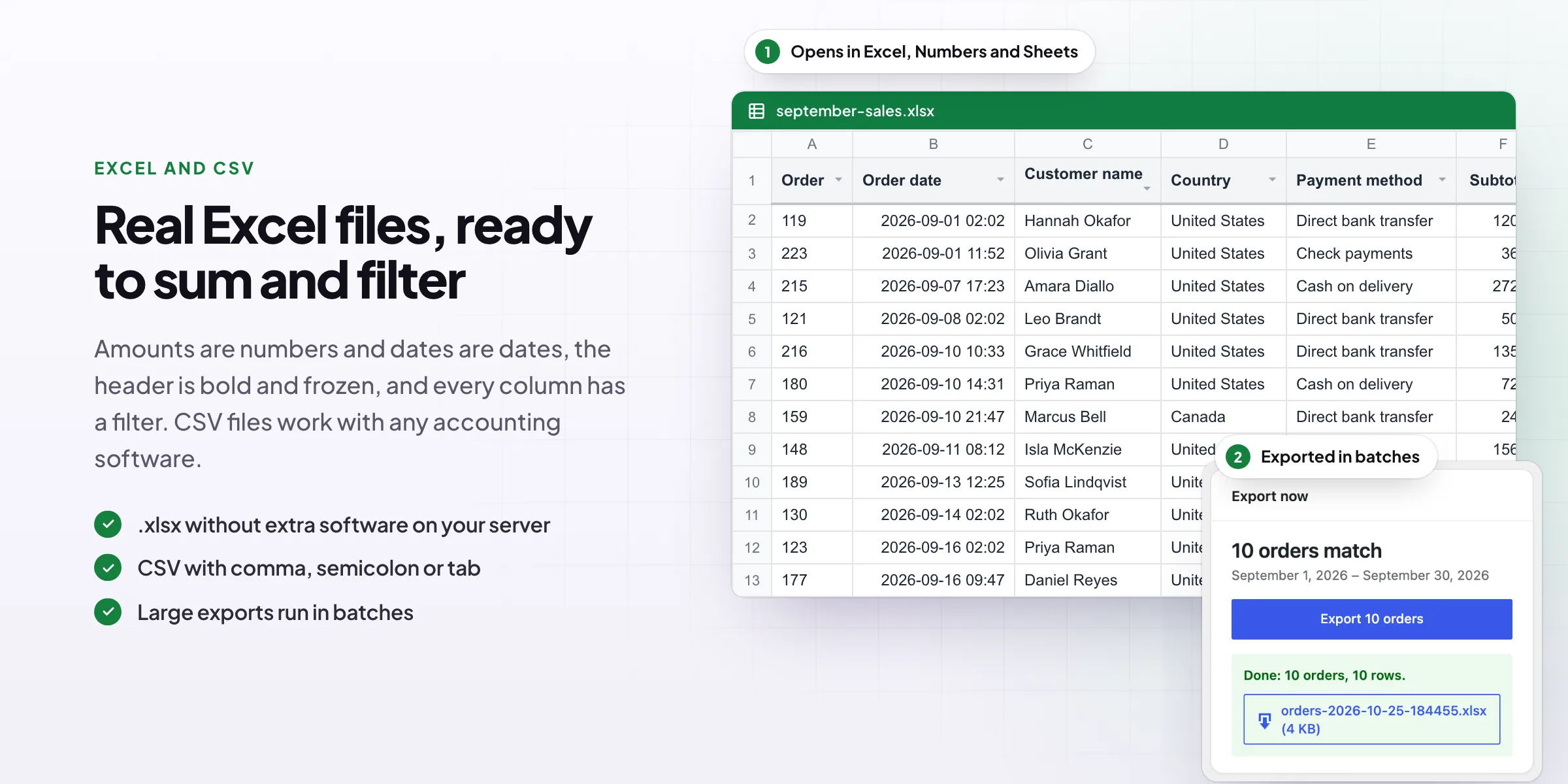
Excel files open with amounts as numbers and dates as dates, so you can sum, sort and filter straight away without fixing formats. The header row is bold, frozen and filterable. Prefer CSV? Choose a comma, semicolon or tab separator; the semicolon option writes decimal commas for European versions of Excel. XML is there for accounting and ERP imports.
- Native .xlsx files, with no extra software on your server
- UTF-8 CSV for Google Sheets and accounting software
- Text that looks like a formula is kept as text, for safety
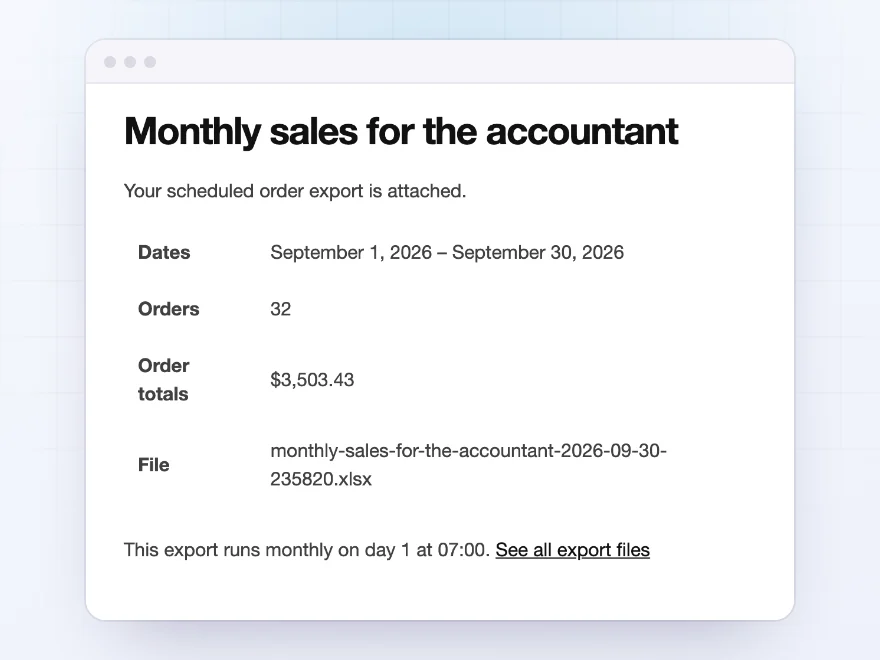
Scheduled exports
Emailed to your accountant every month
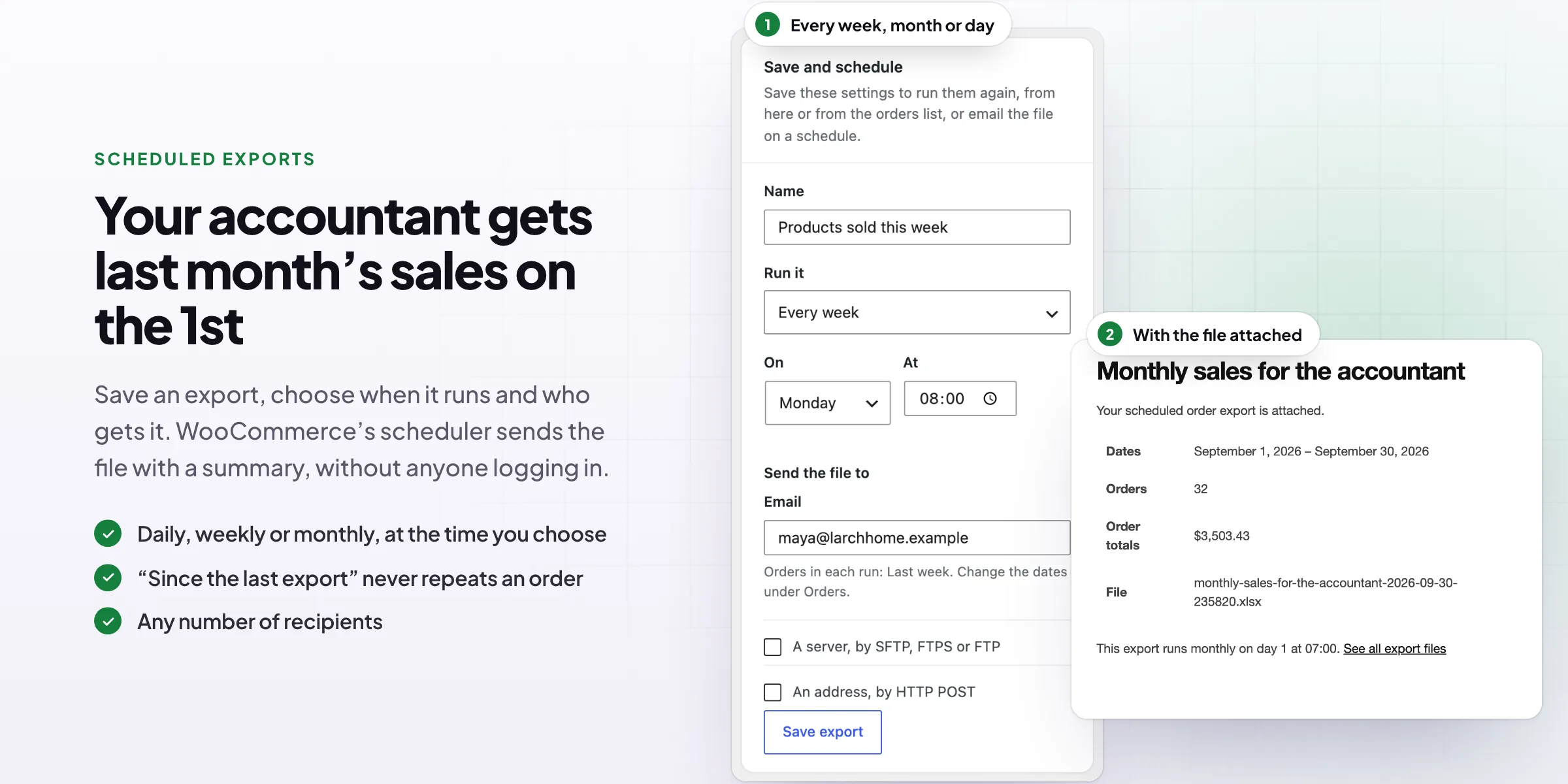
Save an export, choose every day, week or month and the time, and add the email addresses. The file arrives as an attachment with a short summary of the dates, the number of orders and the order totals. A monthly accounts file, a morning packing list or a weekly sales report, sent without anyone logging in.
- Daily, weekly or monthly, at the time you choose
- To as many email addresses as you need
- Each email covers the right period, such as last month
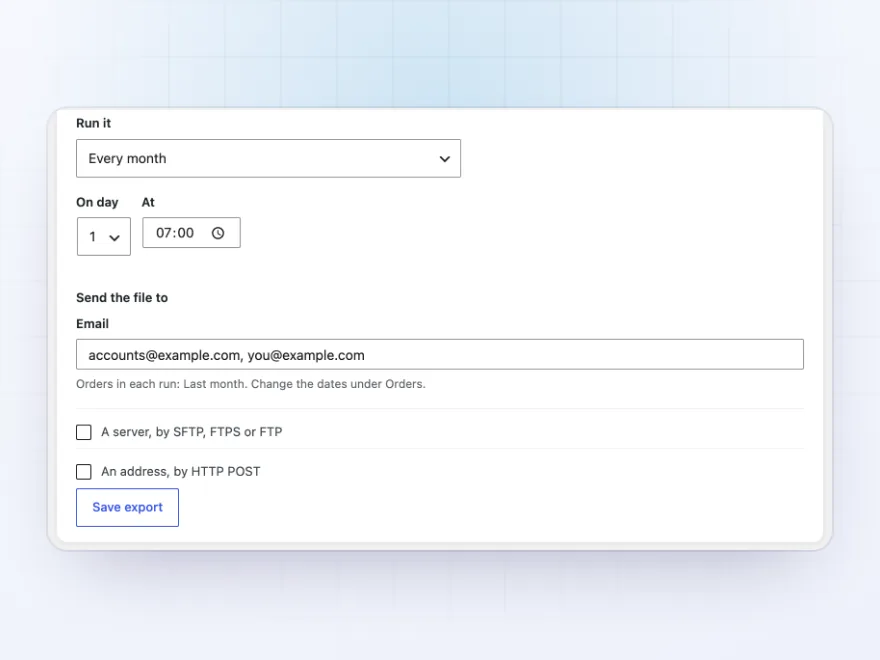
Save and send
Save it once, run it any time
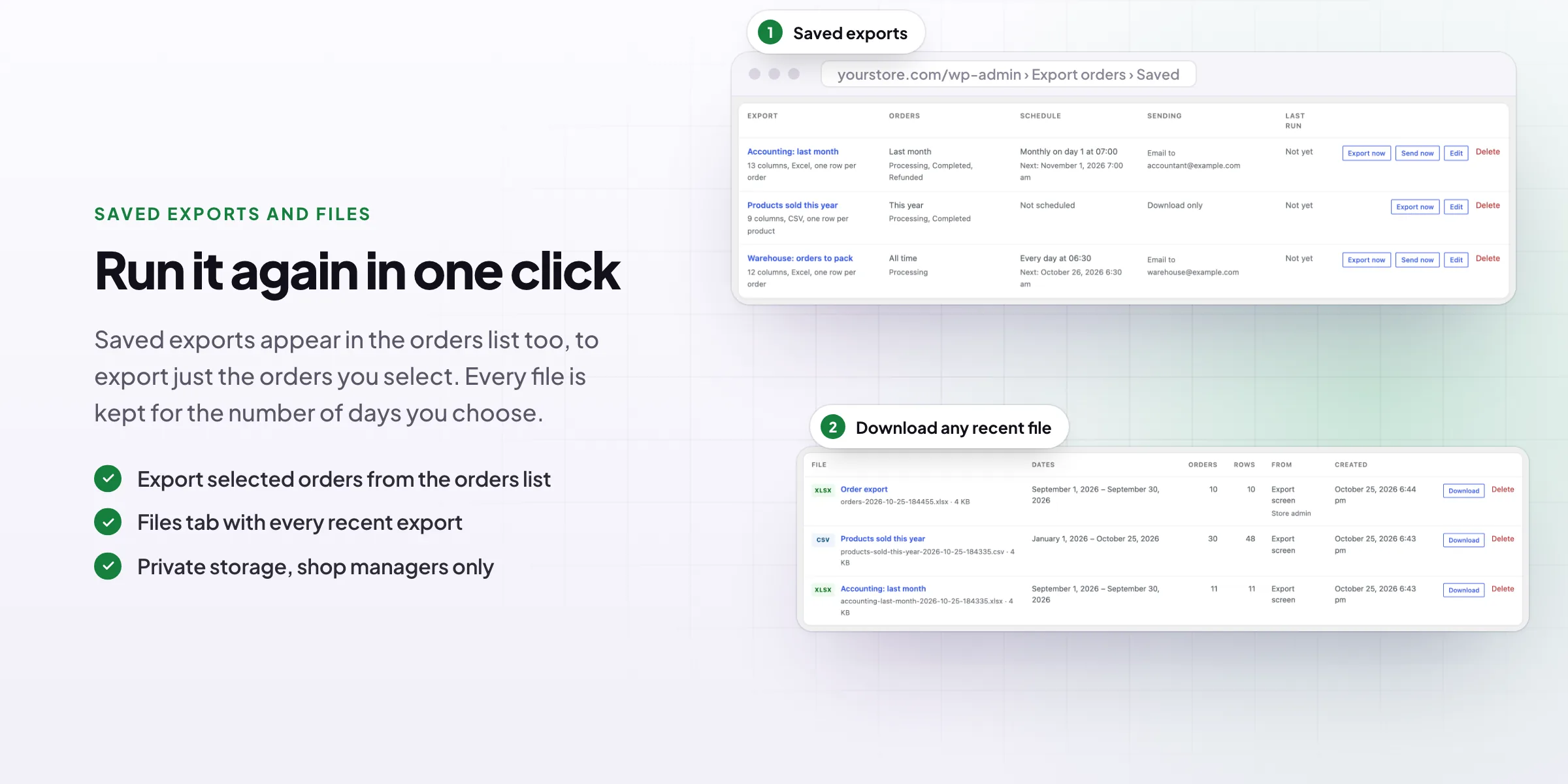
Every saved export is listed with its schedule and when it last ran. Click Export now to download the file, or Send now to send it straight away. Files can also go to your own server by SFTP or FTP, or to a web address such as a Zapier, Make or ERP webhook, and the Files tab keeps recent exports for you to download again.
- Large exports run in batches, so they don’t time out
- Test a server or web address before you save
- Files are stored privately, for shop managers only
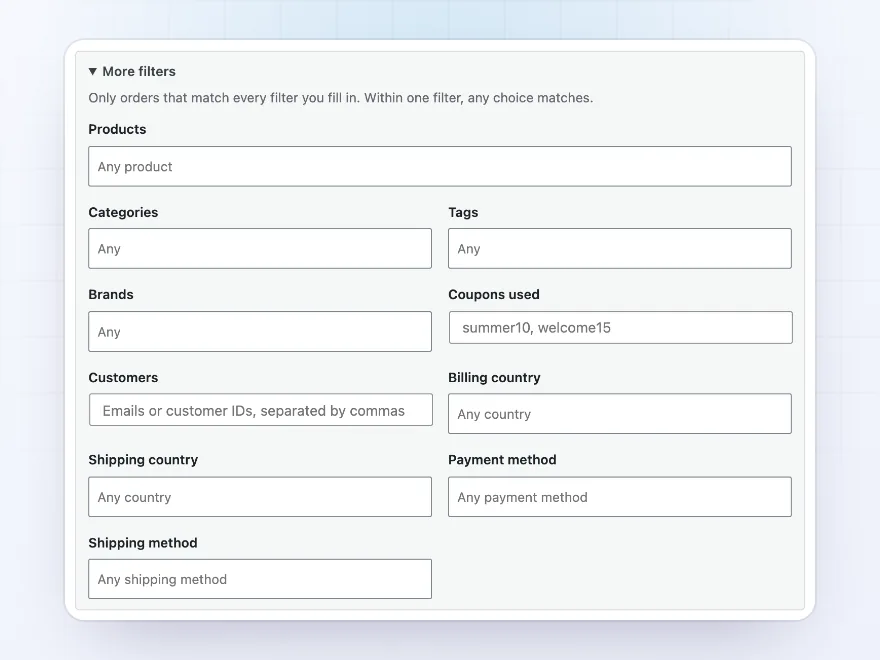
Order filters
Just the orders a supplier or region needs
Export only orders with chosen products, categories, tags, brands or coupons, from chosen customers or countries, or paid or shipped a certain way. In product rows, keep only the products that match, so each supplier gets just their lines.
- Products, categories, brands and coupons
- Customers, countries, payment and shipping
- Only the matching product lines
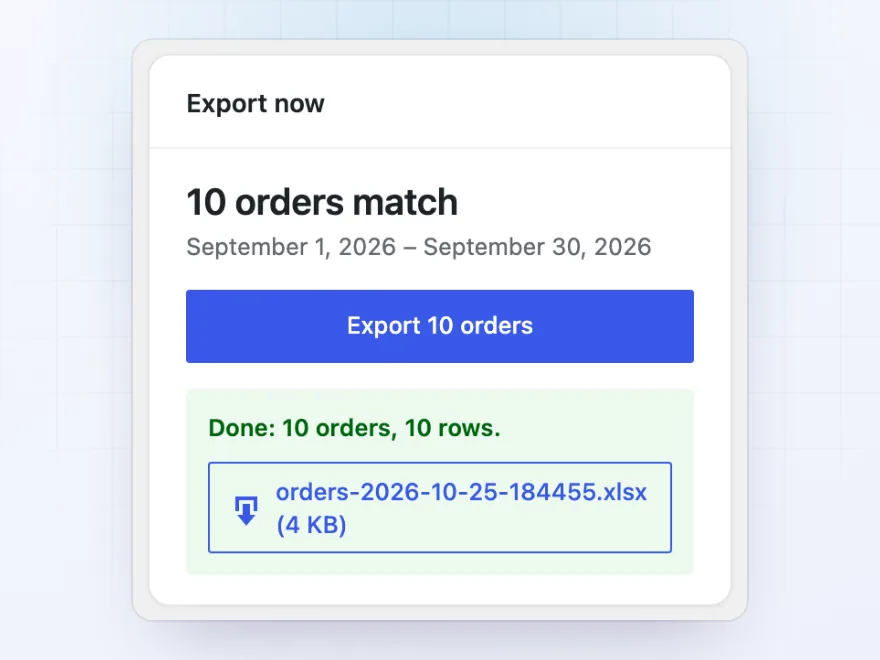
Large exports
Big exports that never time out
Large exports run in batches with a progress bar, so a whole year of orders exports without the page timing out. When it’s done, download the file straight away or find it later on the Files tab.
- Runs in batches
- Shows how many orders match first
- Download as soon as it’s done
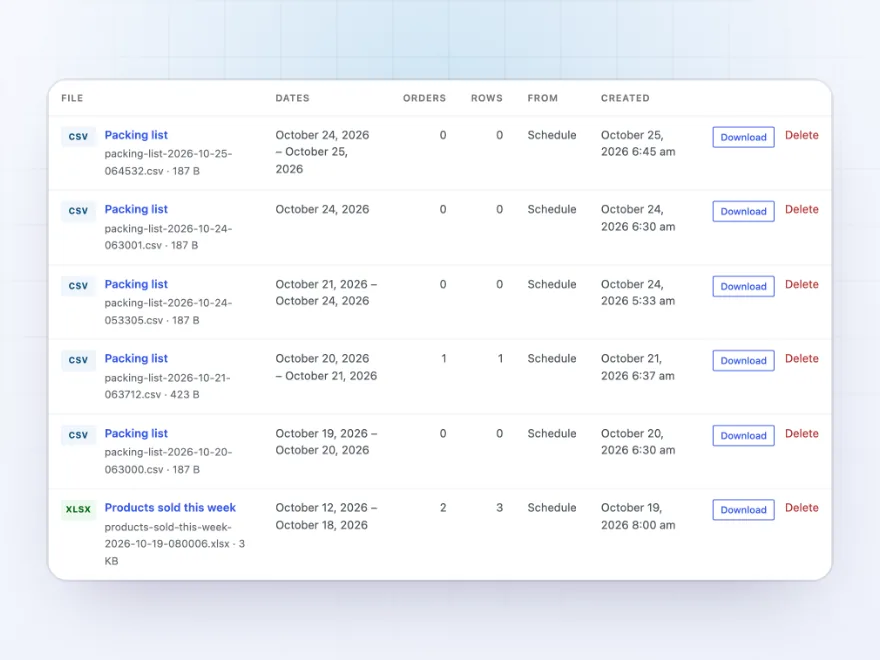
Files
Every file kept, privately
Every export is kept on the Files tab for the number of days you choose, with its date range, the number of orders and how it was sent. Files are stored privately and only shop managers can download them.
- Kept for as many days as you choose
- Private, for shop managers only
- Download any earlier file
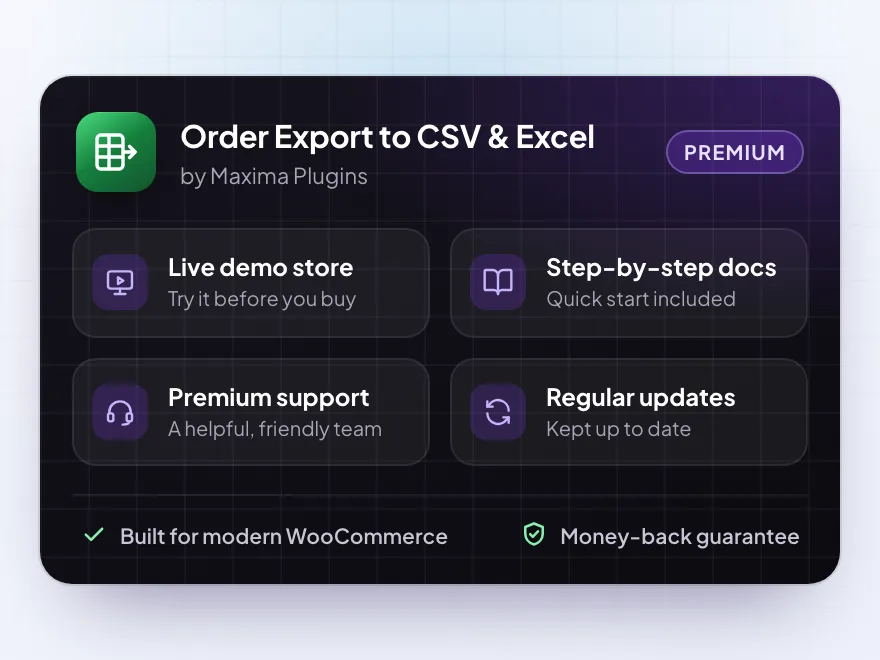
Premium quality & support
Support you can count on, year after year
See Order Export to CSV & Excel working in a live demo store before you buy. If you need a hand, our friendly support team will help you get it set up, and regular updates keep it working with each new WooCommerce release.
- A live demo store to try it first
- Step-by-step docs with a quick start
- Premium support from a helpful team
- Regular updates included
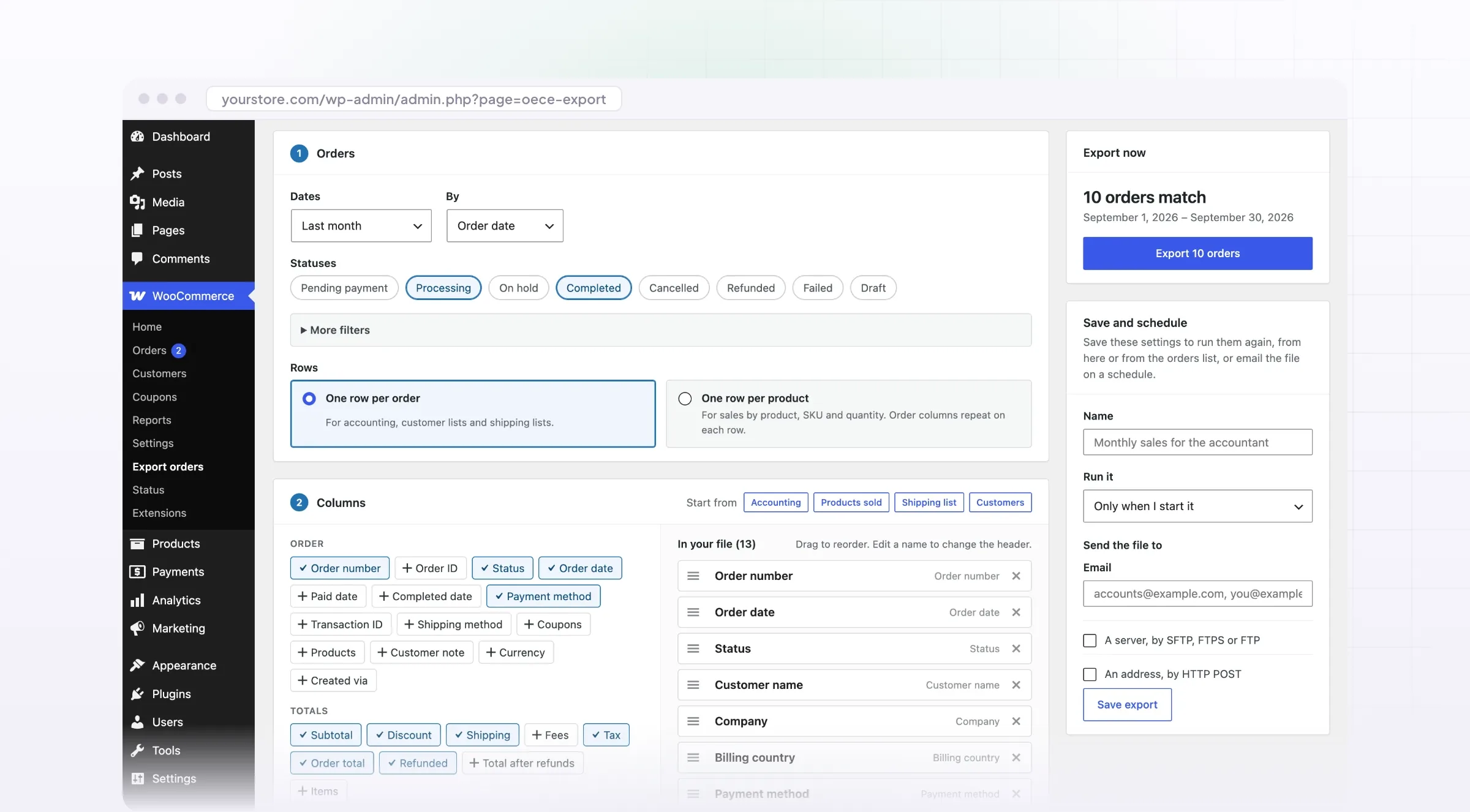
WooCommerce order export to Excel and CSV
Order Export to CSV & Excel is a WooCommerce order export plugin for the files your accountant, warehouse and suppliers ask for. Choose the orders by date, status, product, customer or country, choose and rename the columns, and download a real Excel file or a CSV that opens cleanly in Excel.
If you have wondered how to export orders from WooCommerce every month without doing it by hand, save the export and schedule it: it is emailed or sent to a server or webhook on time, and “since the last export” means no order is missed or sent twice.
Common setups
Questions before you buy
How do I export orders from WooCommerce?
Go to WooCommerce › Export orders, choose the dates and statuses, pick your columns or a ready-made set, and click Export. The file downloads as soon as it’s ready.
Can I export one row per product?
Yes. Choose “One row per product” and add product columns such as SKU, quantity and line total. Order columns repeat on each row, so the file can be filtered and summed.
Can exports run automatically?
Yes. Save an export and choose every day, week or month. The file is emailed, uploaded to your server or sent to a web address.
Will the file open correctly in Excel?
Yes. Excel files keep amounts as numbers and dates as dates. For CSV, choose the semicolon option if your Excel uses decimal commas.
Where are the files kept?
On the Files tab, for the number of days you choose. They’re stored privately and only shop managers can download them.
Requirements
- WordPress
- 6.8 or newer
- WooCommerce
- 10.0 or newer
- PHP
- 7.4 or newer
Works with
- Classic themes
- Block themes
- Cart and Checkout blocks
- High-Performance Order Storage
Excel files need the PHP Zip extension, which almost every host has.


soren_v –
Set up once and forgot about it
Set it up once and forgot about it. emailing it to a second address was a two minute job
Florian –
works well, numbers come out as real numbers in Excel. Minor thing, i would like more control over the filename.
Stefan Visser –
Saved me a lot of time
Our bookkeeper wanted the same spreadsheet every month and I used to do it by hand. Now it emails itself. It took me a bit to find the setting for a variation SKU column, and Thomas showed me where it was. Four stars.
Marieke –
Does exactly what i needed. Pick your columns and done. the scheduling is the handy part