 Maxima Plugins
Description
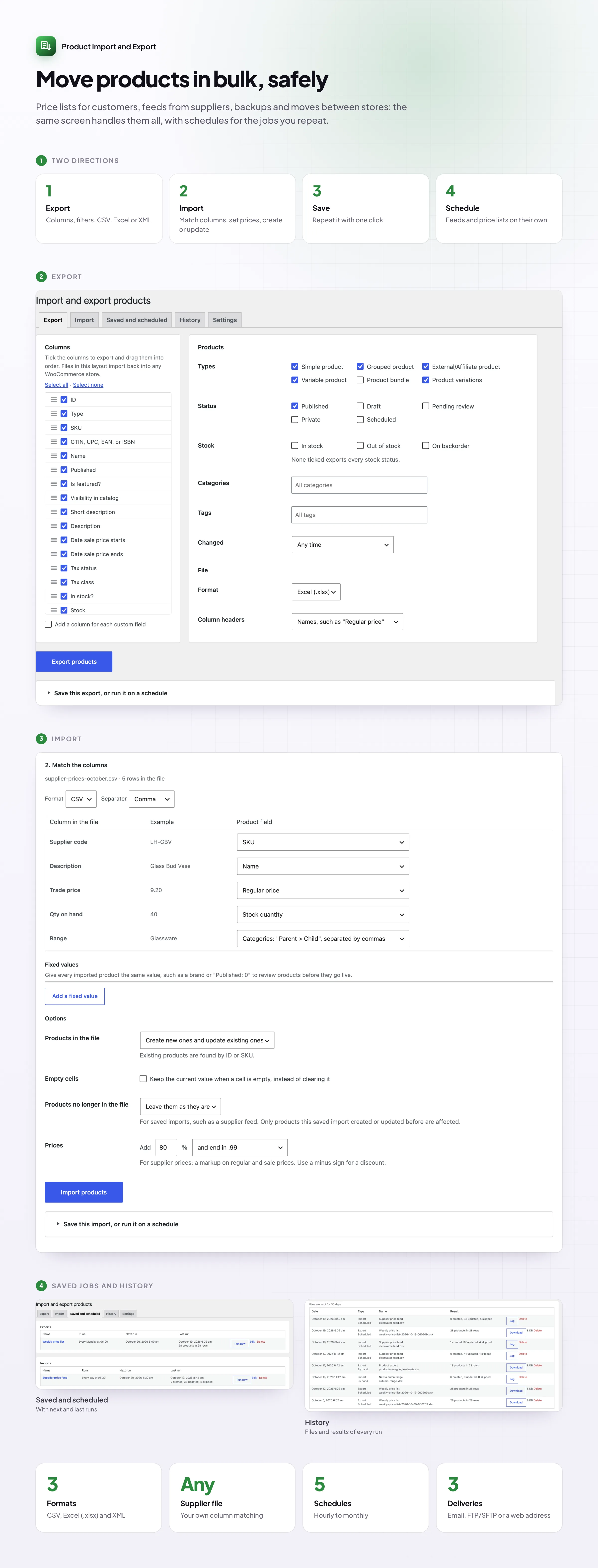
Export WooCommerce products to Excel, CSV or XML with the columns you choose, or bring products in from any spreadsheet or supplier feed. Product Import & Export handles the bulk product upload, the weekly price list and the morning stock update from a supplier, and runs them on a schedule.
Export
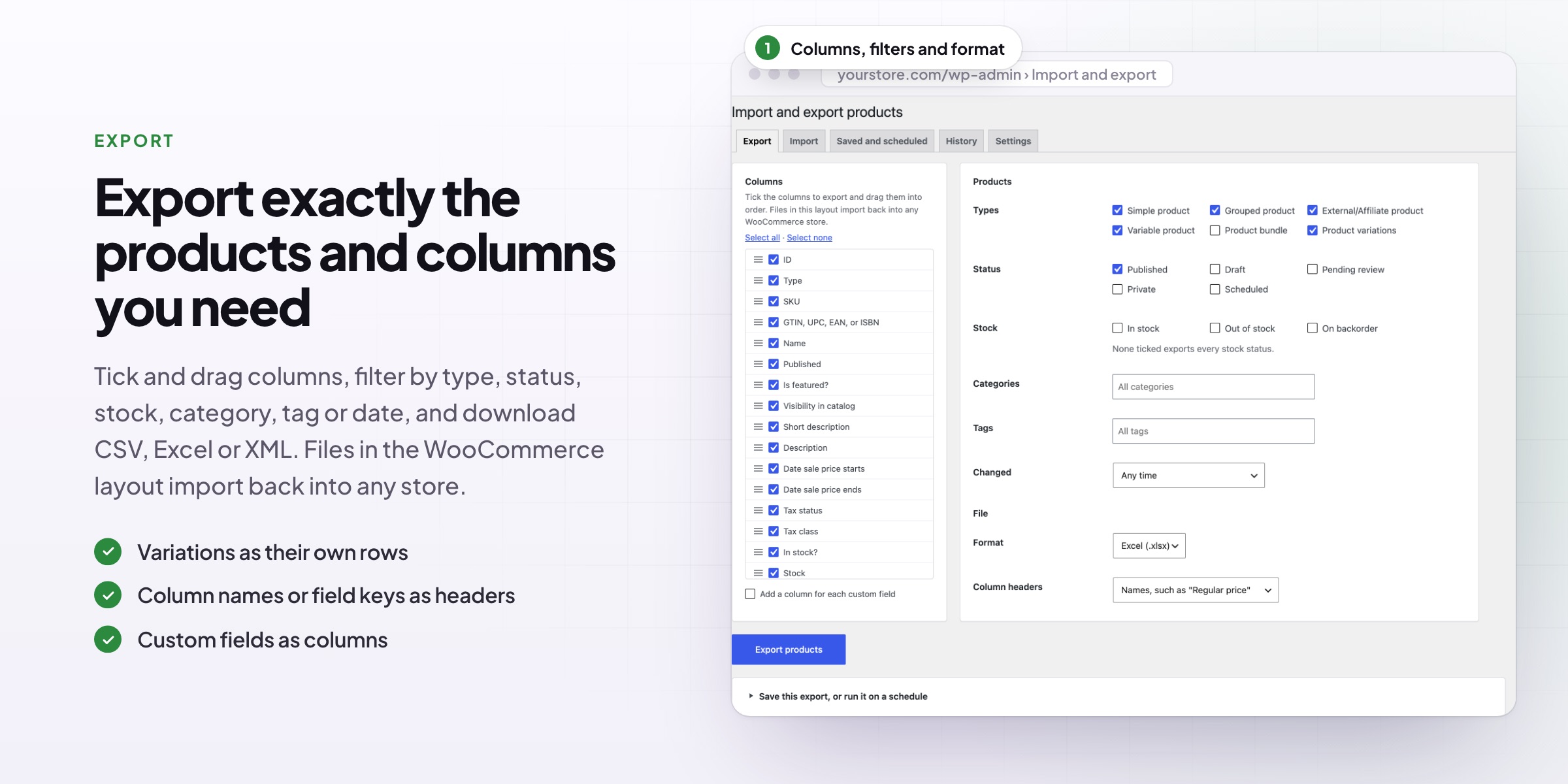
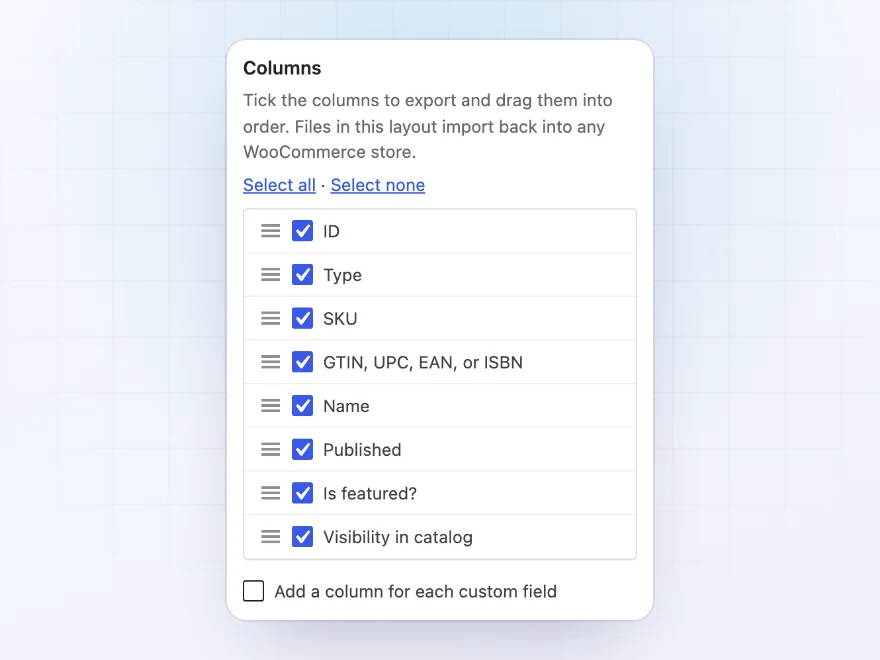
The columns you need, in your order
Choose the columns of the export and drag them into order: names, SKUs, GTINs, prices, sale dates, stock, sizes, categories, tags, brands, images, attributes and custom fields. Files use WooCommerce’s own layout, so they import back into any WooCommerce store.
- Excel with real numbers and a frozen header row
- CSV that opens cleanly in Excel
- XML for feeds and integrations
Which products
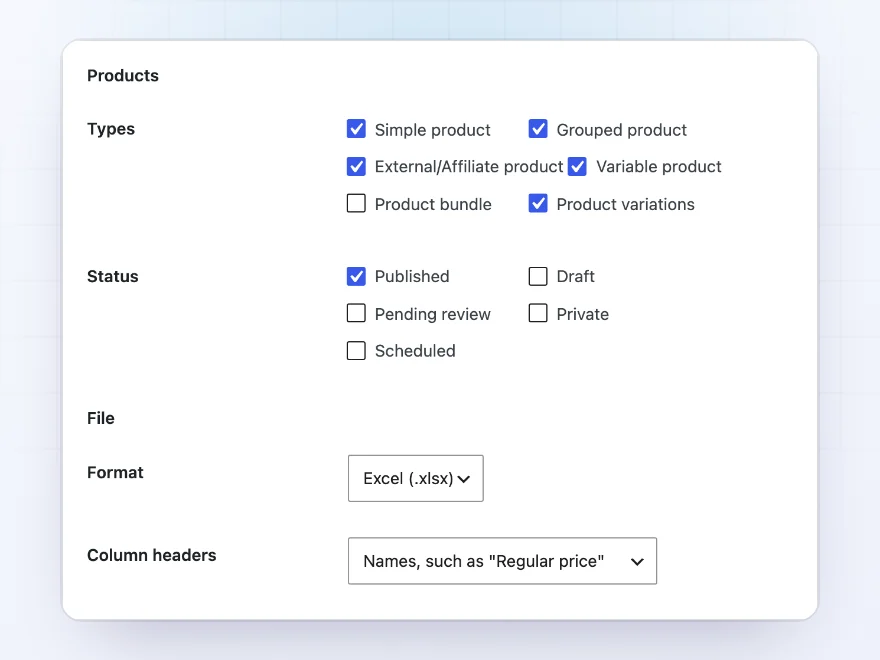
Export exactly the products you mean
Export products, variations or both, and filter them by type, status, stock status, category, tag or recent changes, such as products changed in the last seven days.
- Products, variations or both
- Filters by category, tag, stock and status
- Only products changed recently
Import
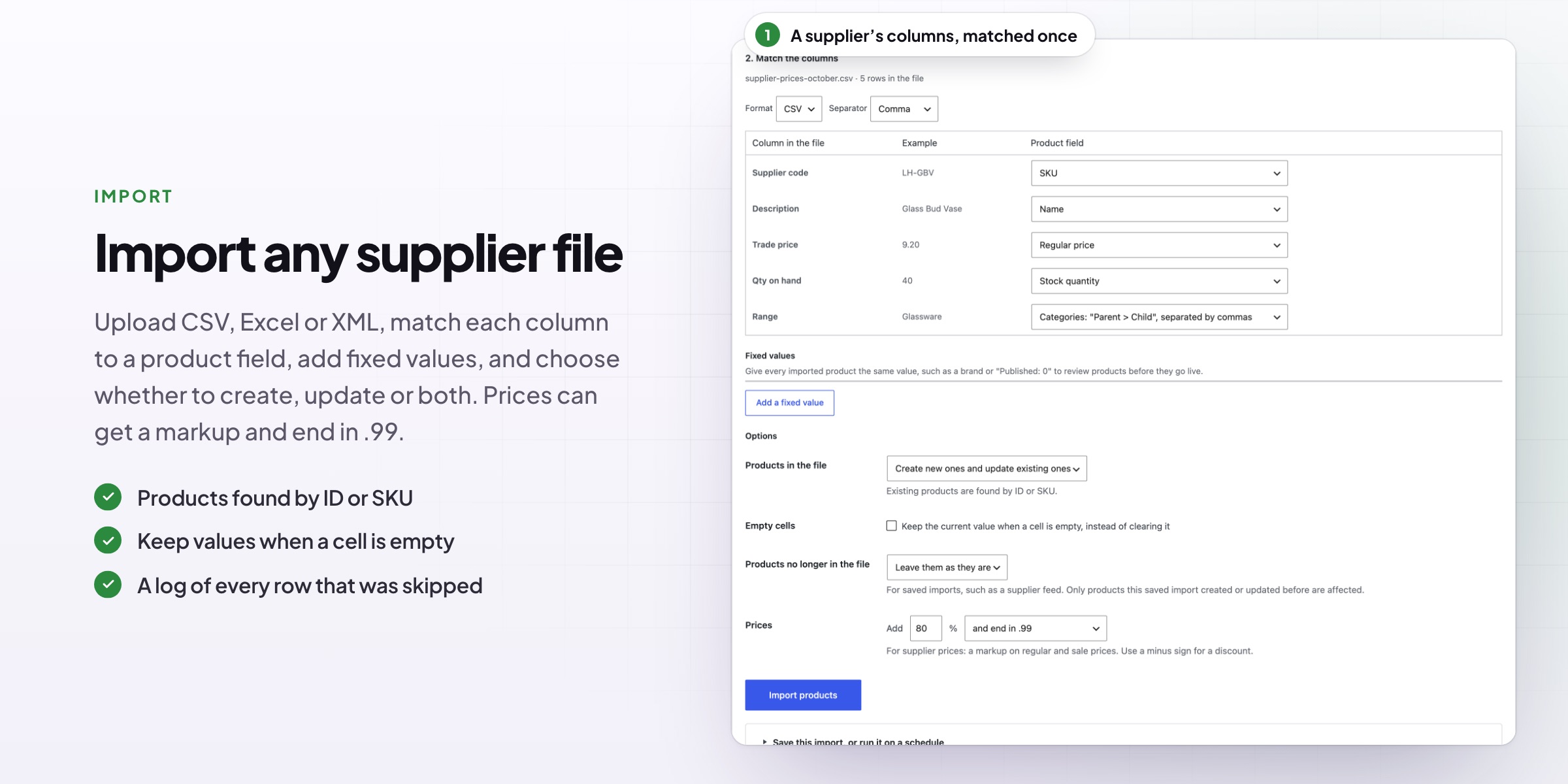
Any supplier file, matched once
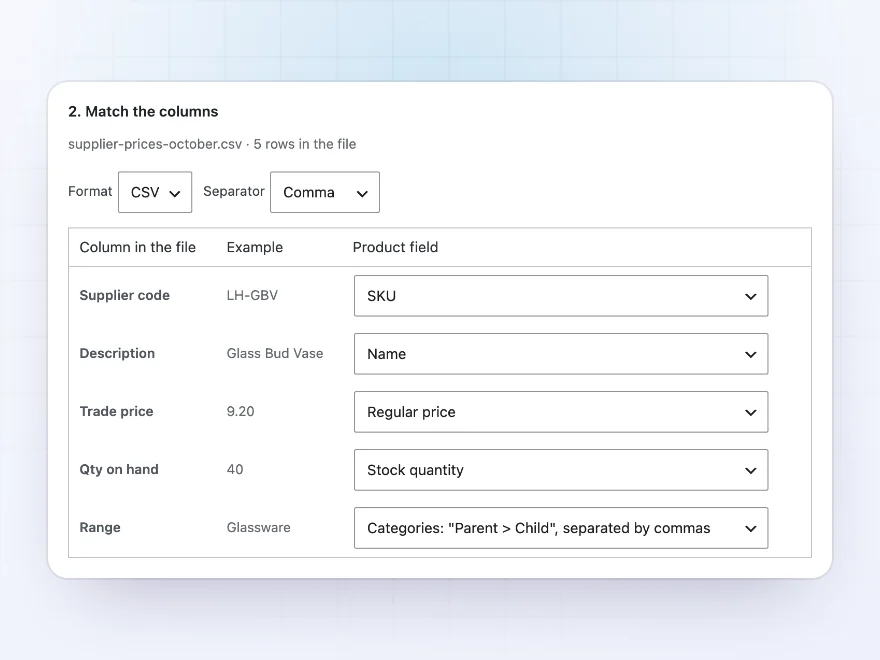
Upload a CSV, Excel or XML file, or fetch it from an address or an FTP server. Match each column to a product field; columns with familiar names, such as “Price” or “Qty”, are matched for you. Give every product a fixed value, such as a brand, or fill custom fields.
- Google Sheets and Dropbox links work
- Create new products, update by SKU or ID, or both
- Variations, images, categories and attributes
Supplier prices
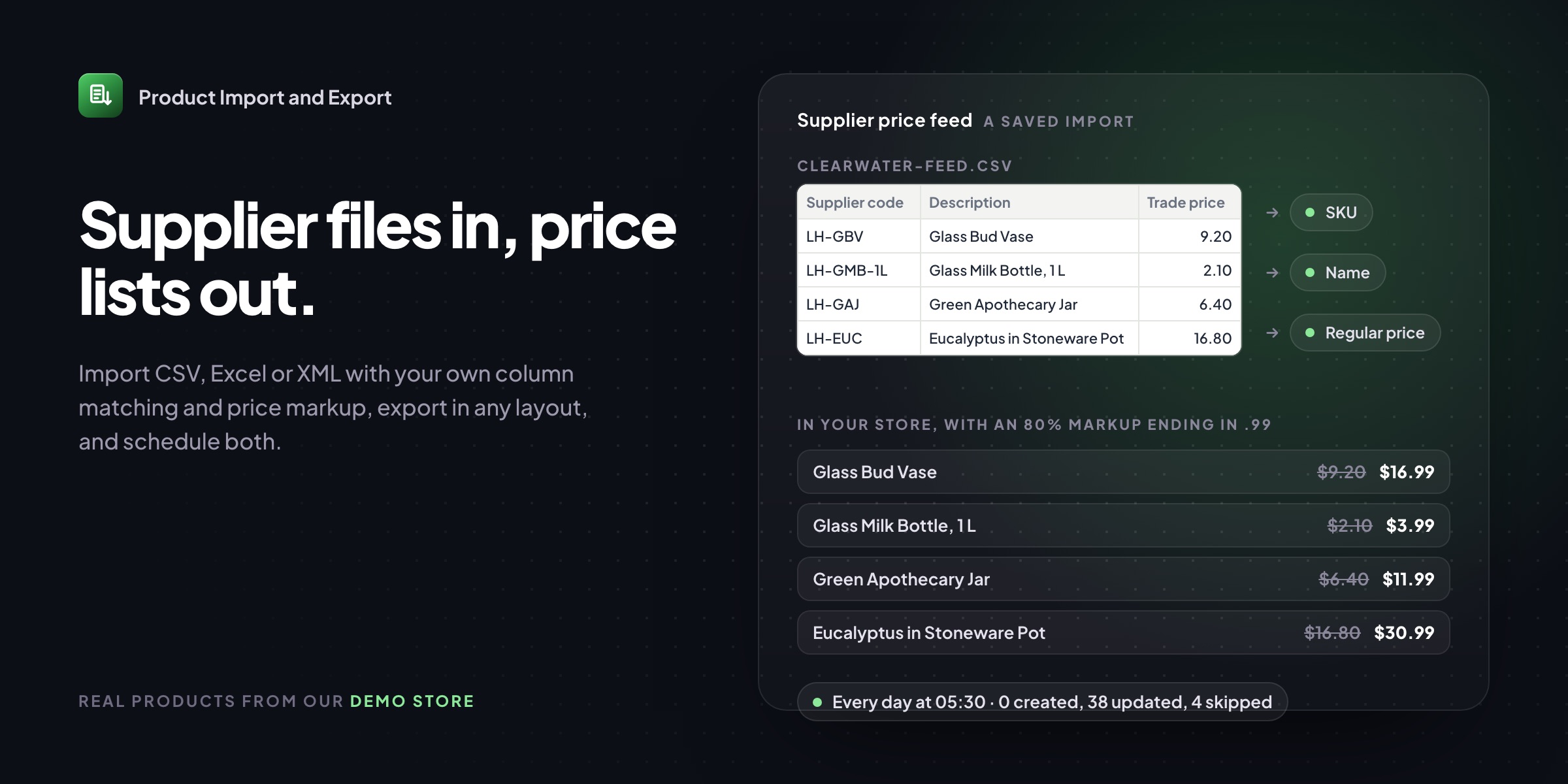
A markup and price endings on import
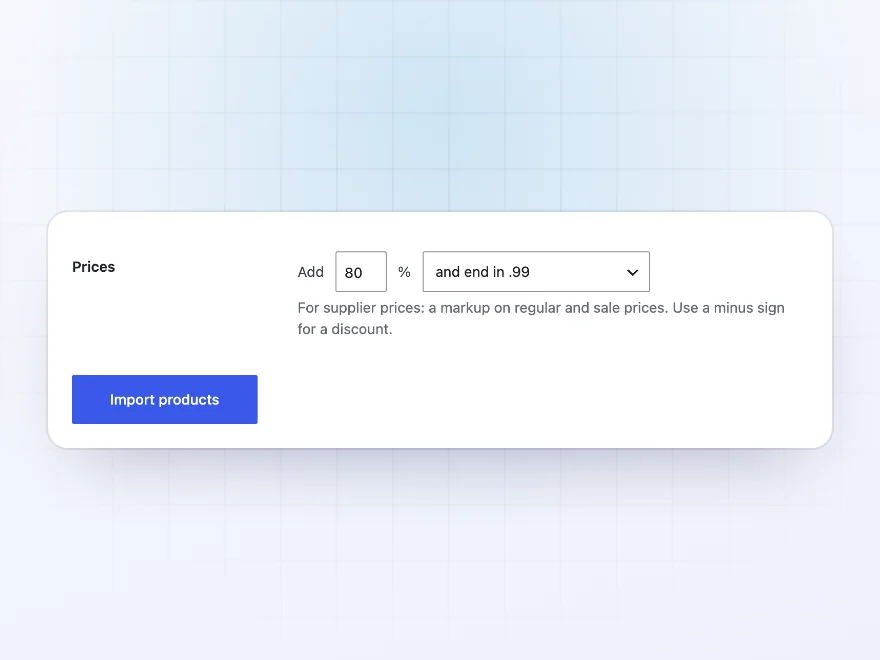
Supplier files list trade prices. Add a percentage markup and round the result to whole amounts, .99 or .95 while importing, so the shop shows retail prices without a spreadsheet in between.
- A percentage markup
- Round to whole, .99 or .95
- Empty cells can leave the current value
Saved and scheduled
Price lists and feeds that run themselves
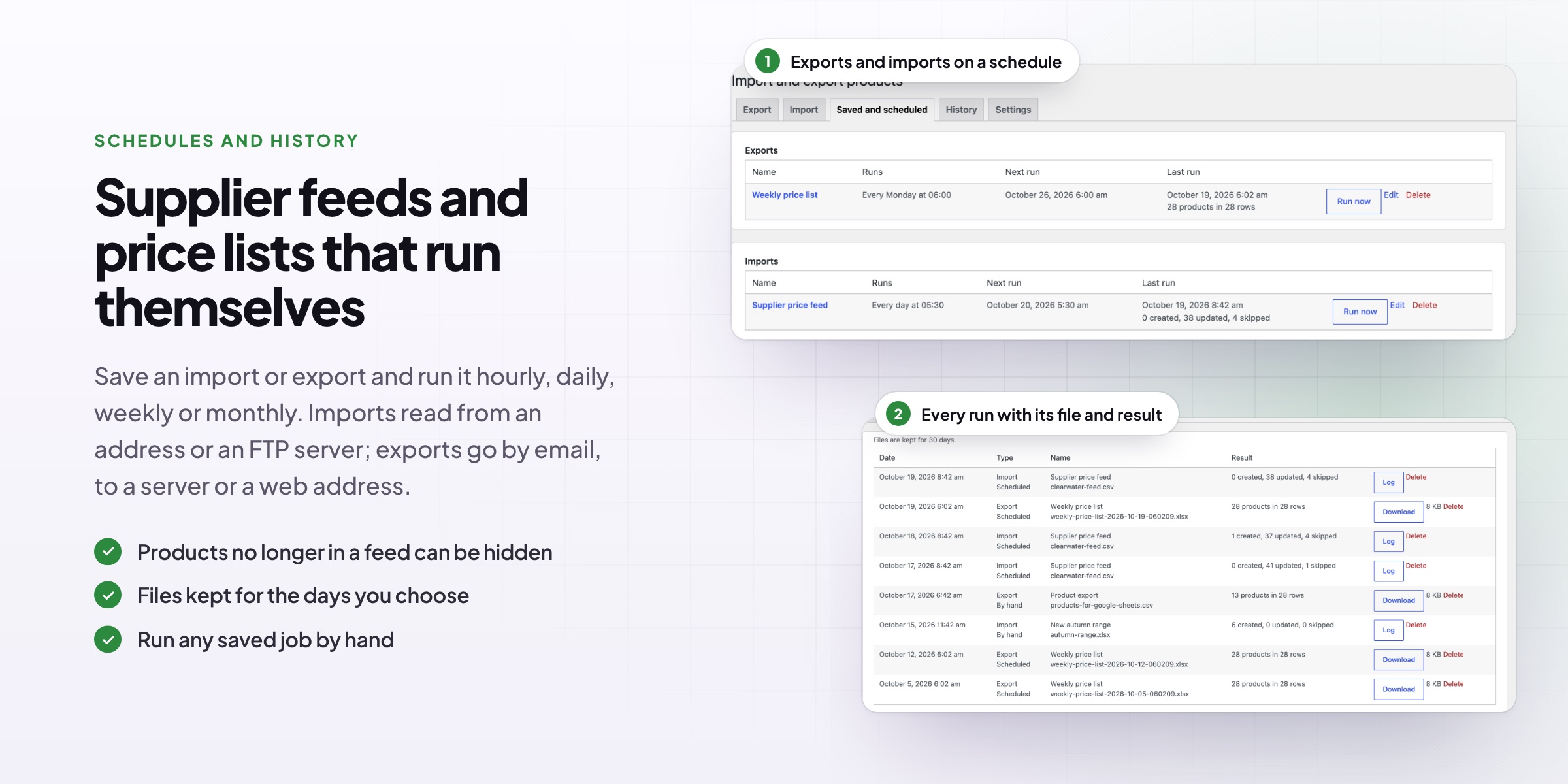
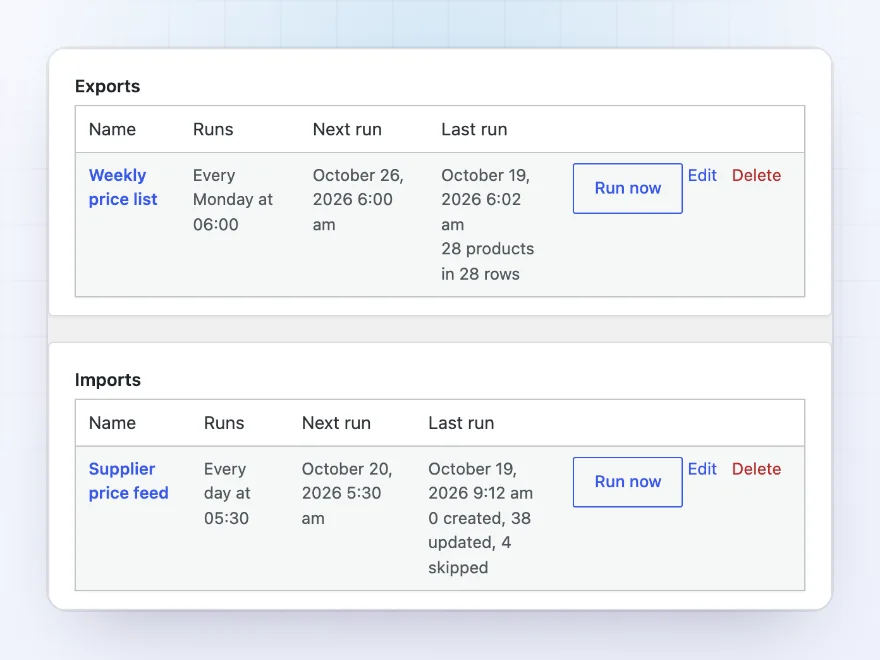
Save an import or export to run it again in one click, or schedule it every hour, day, week or month. Exports are emailed to the people you choose or sent to a server; scheduled imports email a summary with the log.
- Hourly, daily, weekly or monthly
- Exports emailed or sent by FTP, SFTP or HTTP
- Products missing from a supplier file set out of stock
History
Every run, with its file and log
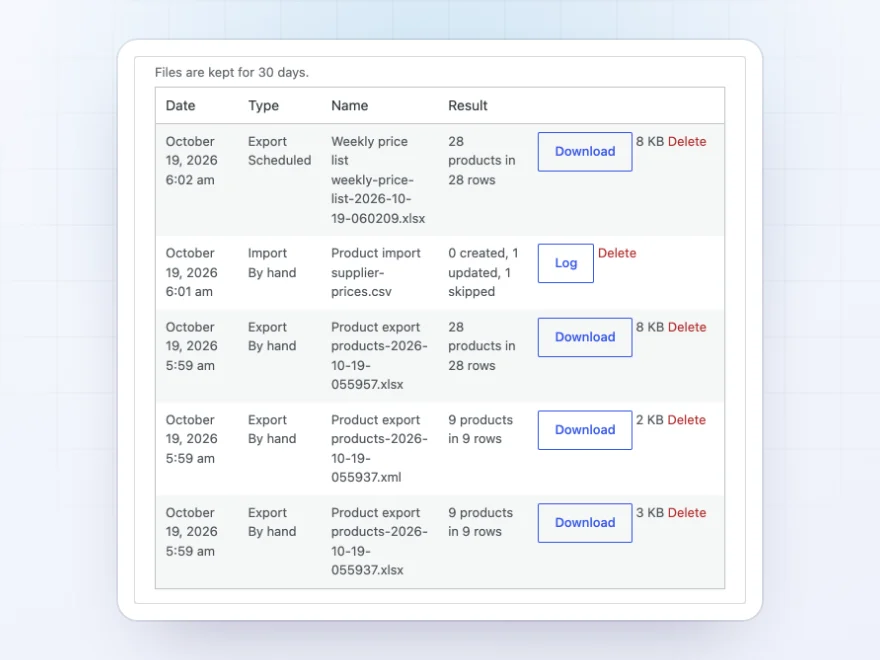
Every finished import and export is listed with its result, its file and its log. Rows that were skipped or failed are listed with the reason, so you know what to fix in the file.
- Download any earlier file
- A log of skipped and failed rows
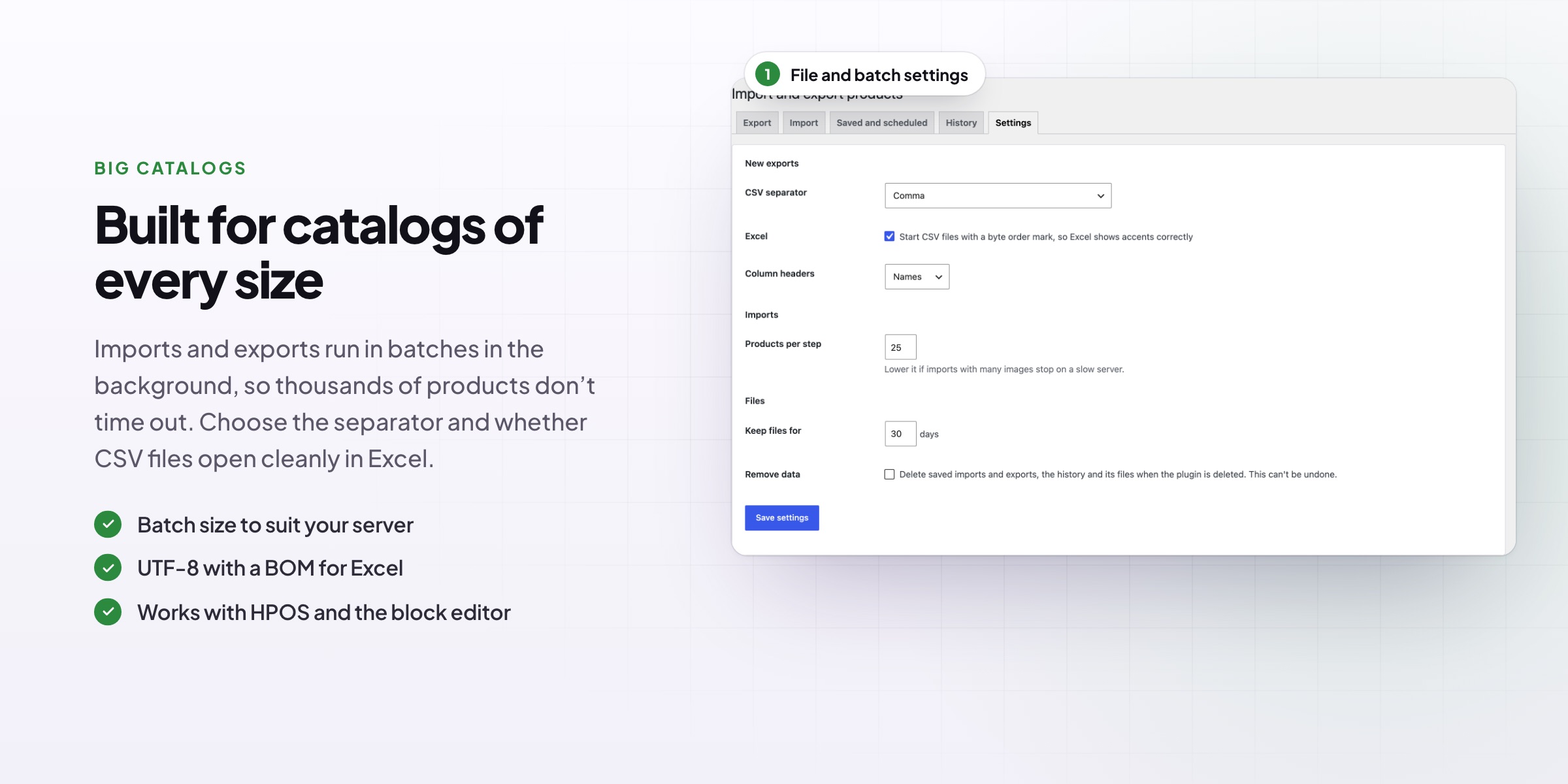
- Files kept for as many days as you choose
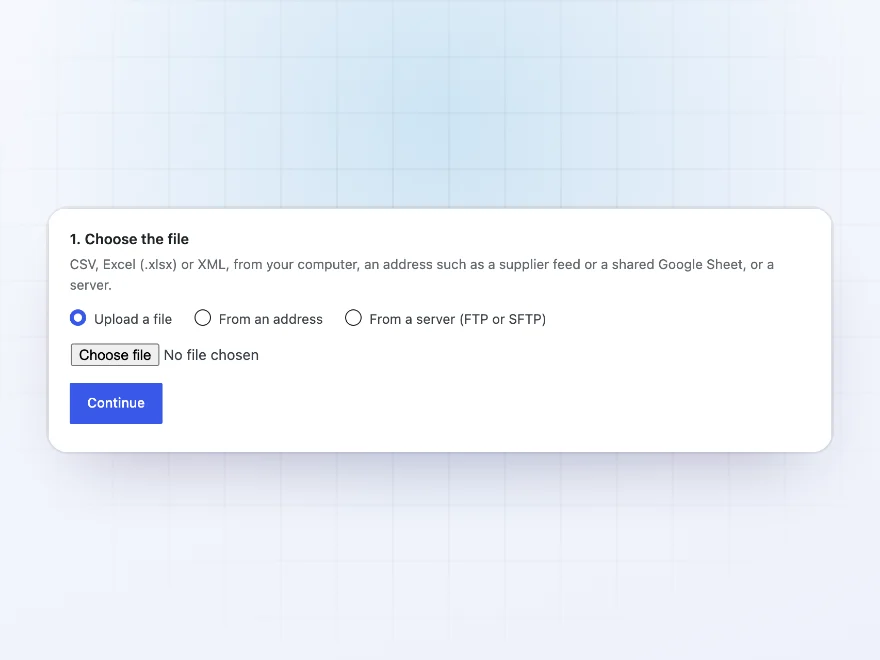
Import from anywhere
From a file, a link or a server
Upload a CSV, Excel or XML file, give the address of one, or fetch it from an FTP, FTPS or SFTP server. Share links of Google Sheets and Dropbox work as addresses.
- Upload, address or server
- Google Sheets and Dropbox links
- CSV, Excel or XML
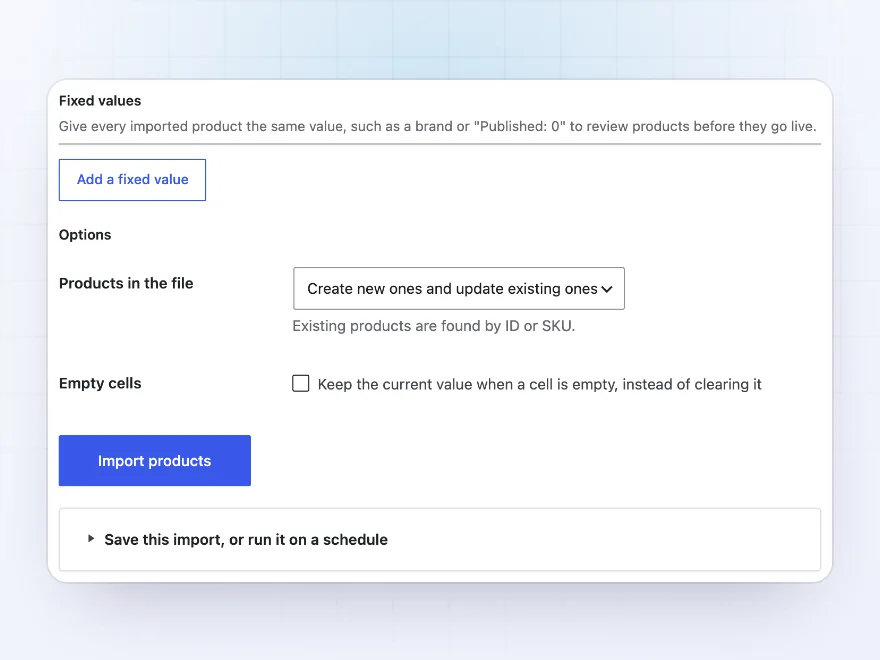
Fixed values
Fill fields the file doesn’t have
Give every imported product the same value, such as a brand, a tag or “Published: 0” to review products before they go live. Fill custom fields from the file’s columns too.
- A brand or tag for every product
- Import as drafts to review first
- Custom fields from the file
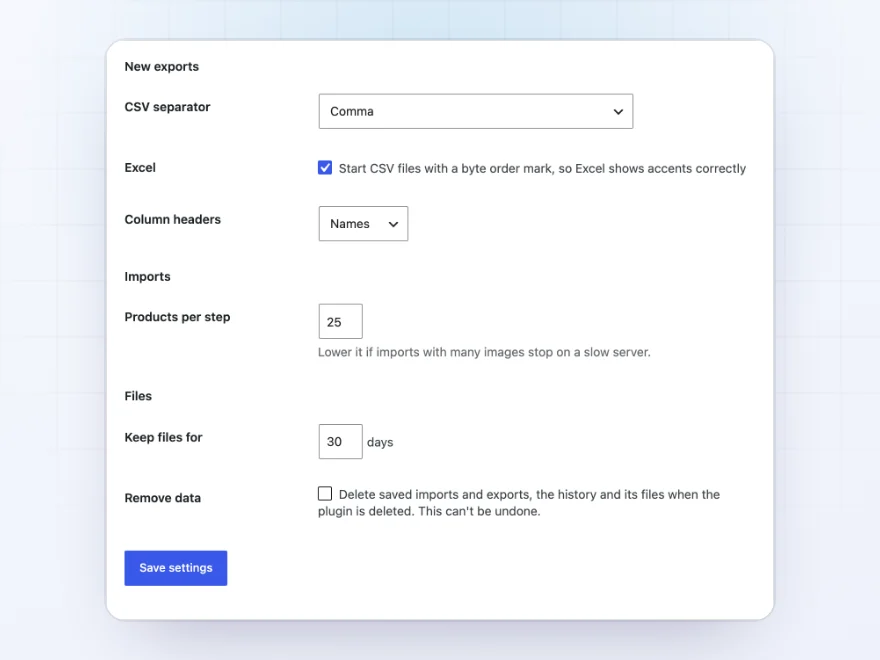
Settings
Who can import, and where files are kept
Choose which roles can import and export, how long finished files are kept, and the addresses scheduled exports and import summaries are emailed to.
- Roles that can import and export
- How long files are kept
- Email addresses for summaries
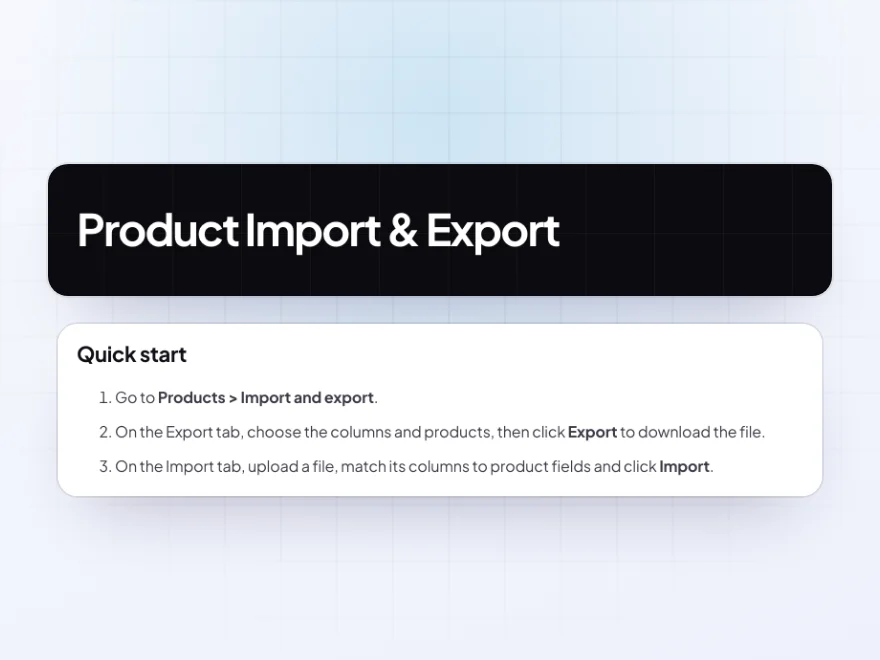
Docs and support
Try it, set it up, ask us anything
Try Product Import & Export in a live demo store before you buy. The docs start with a quick start and cover exporting products, importing products and markups and rounding. Support tickets are answered by the developers who make the plugin, and updates are included.
- A live demo store to try it first
- Step-by-step docs with a quick start
- Most tickets answered within 12–24 hours
Import and export WooCommerce products, and keep them in sync
Product Import & Export handles WooCommerce bulk product upload and export from one screen. Export products from WooCommerce to Excel, CSV or XML with the columns you choose, or import products from a CSV, Excel file, Google Sheet or server, matching the supplier’s column names once.
If you need to know how to export WooCommerce products for a marketplace or update prices from a supplier every morning, save the job and schedule it. Imports can add a markup and price endings, update existing products by SKU, and set products that left the supplier’s file out of stock.
Common setups
- Supplier feeds: stock and prices from a supplier’s file every morning, with your markup.
- Price lists: a weekly Excel price list emailed to wholesale customers.
- Marketplaces: a product export in the columns another platform asks for.
- New ranges: a new season’s products created from a spreadsheet, with images by URL.
- Backups: a full product export kept on your own server.
Questions before you buy
Can it import variable products?
Yes. Variable products and their variations, with attributes, prices, stock and images, from one file.
Does it work with files from other stores?
Yes. Export files use WooCommerce’s own layout, and imports let you match any columns.
Can it update stock without touching other fields?
Yes. Match only the SKU and stock columns, and leave everything else as it is.
What happens to products that left the supplier’s file?
Leave them, set them out of stock, draft them or trash them. You choose per import.
Can large files time out?
No. Imports and exports run in small steps in the background, so long files finish even on modest hosting.
Can I import from Google Sheets?
Yes. Use the sheet’s share link as the file address.
Where are export files kept?
In a protected folder, for the number of days you choose, and listed in the history.
Requirements
WordPress 6.8 or newer, WooCommerce 10.0 or newer and PHP 7.4 or newer. Works with classic and block themes, the Cart and Checkout blocks, and High-Performance Order Storage.
Documentation
Step-by-step setup, every setting explained, and examples: read the documentation. Questions before you buy? Ask us.

Reviews
There are no reviews yet.