Gift Cards & Store Credit lets you sell gift cards, give store credit, and accept both at checkout. Every card has a code and a balance; customers enter the code in the cart or at checkout and the balance pays for the order.
Requirements
- WordPress 6.8 or newer
- WooCommerce 10.0 or newer
- PHP 7.4 or newer
- Works with the Cart and Checkout blocks, the classic pages, and High-Performance Order Storage.
Installation
- Download
gift-cards-store-credit.zipfrom My account > Downloads. - In WordPress, go to Plugins > Add New Plugin > Upload Plugin, choose the zip file and click Install Now.
- Click Activate. Settings are under WooCommerce > Settings > Products > Gift cards, and cards under WooCommerce > Gift cards.
Quick start: sell a gift card
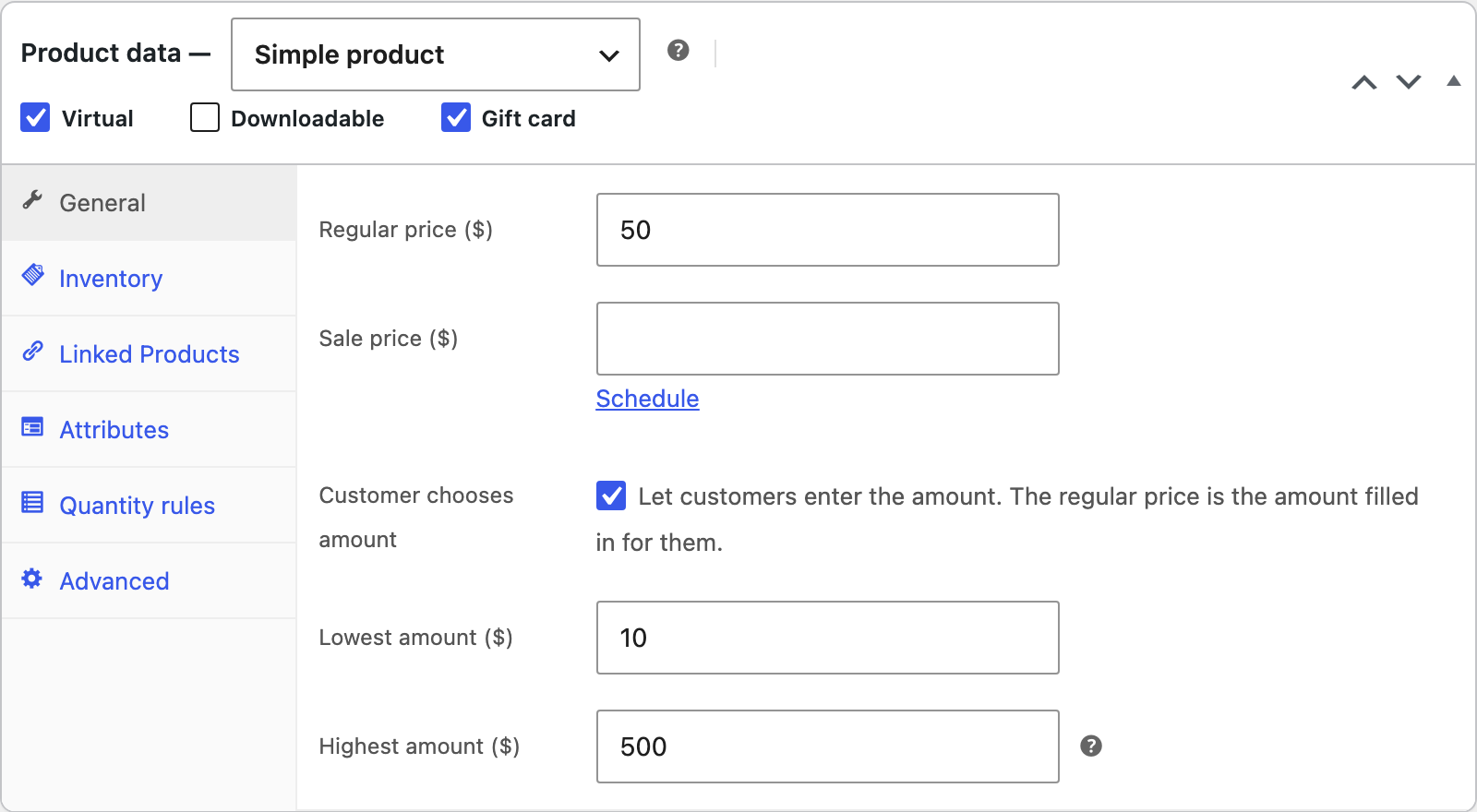
- Add a new product and tick Gift card next to Virtual and Downloadable.
- For any amount: tick Customer chooses amount, then set the Lowest amount and Highest amount. The regular price is the amount filled in for customers.
- For fixed amounts: make it a variable product with an Amount attribute, such as $25, $50 and $100, and give each variation its price.
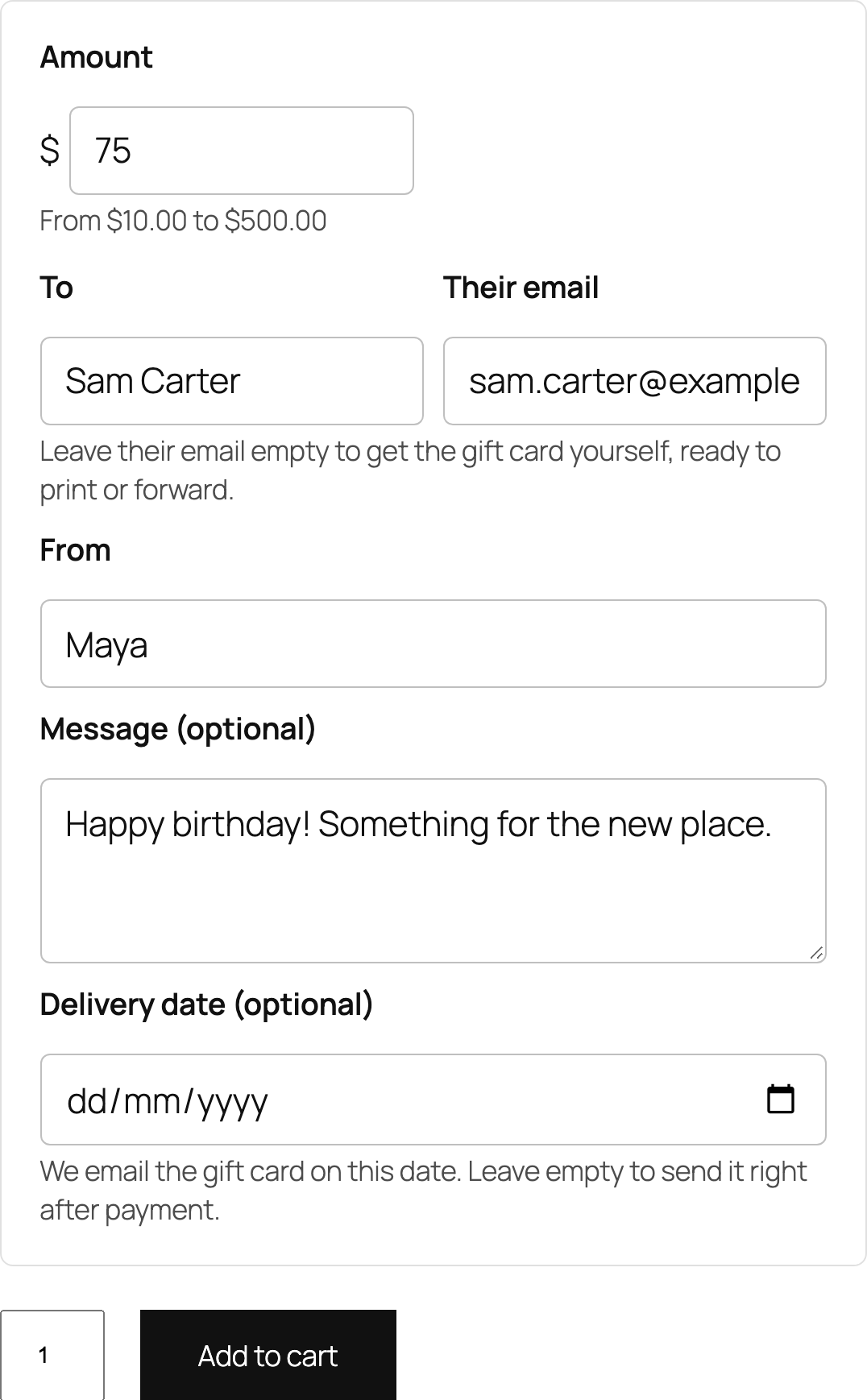
- Publish. The product page now asks for the amount, the recipient, a message and the delivery date.
Delivery
A card is created for each gift card bought when the order is paid (Processing or Completed). It is emailed to the recipient straight away, or at 8:00 in your store’s time zone on the delivery date the customer chose. Without a recipient email, it goes to the buyer, who can print it and hand it over.
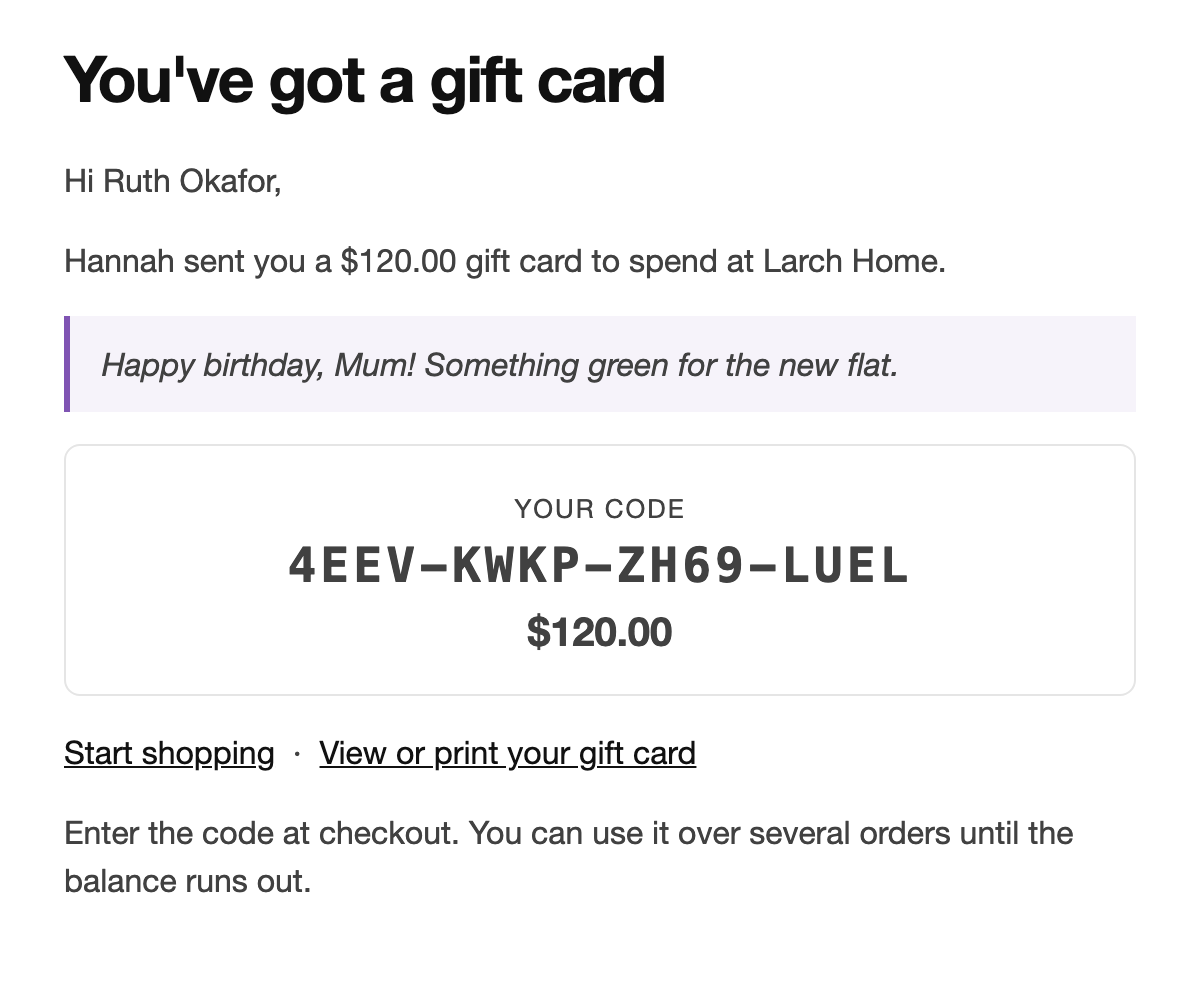
The email links to a printable card with your logo. If an order is cancelled or refunded before the card is used, the card is disabled and a scheduled email isn’t sent.
Paying with a gift card
Customers enter their code under Add a gift card or store credit in the cart or at checkout. The card pays for the order total after tax, like a payment: prices and tax stay the same, and the order shows a line for each card. Customers can use several cards, and spend a card over several orders.
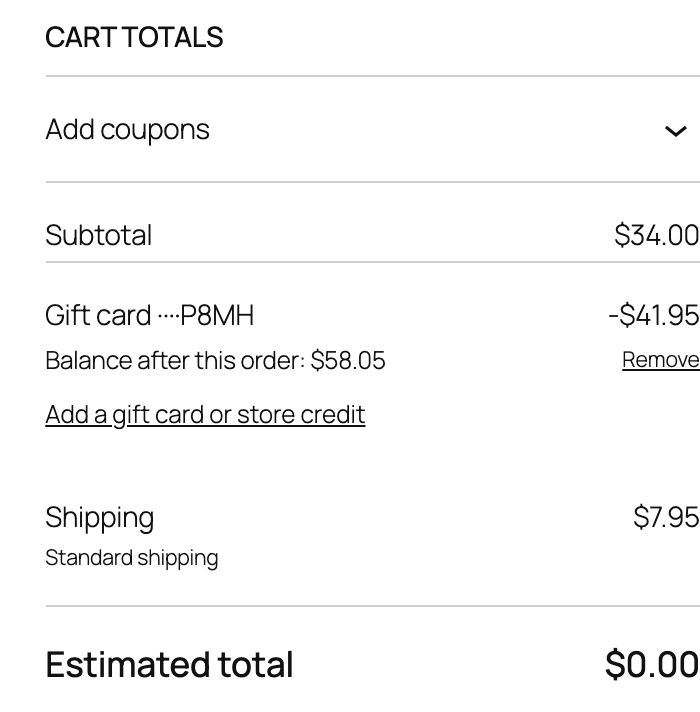
If an order paid partly with a gift card is cancelled, fails or is refunded, the amount goes back on the card.
Store credit
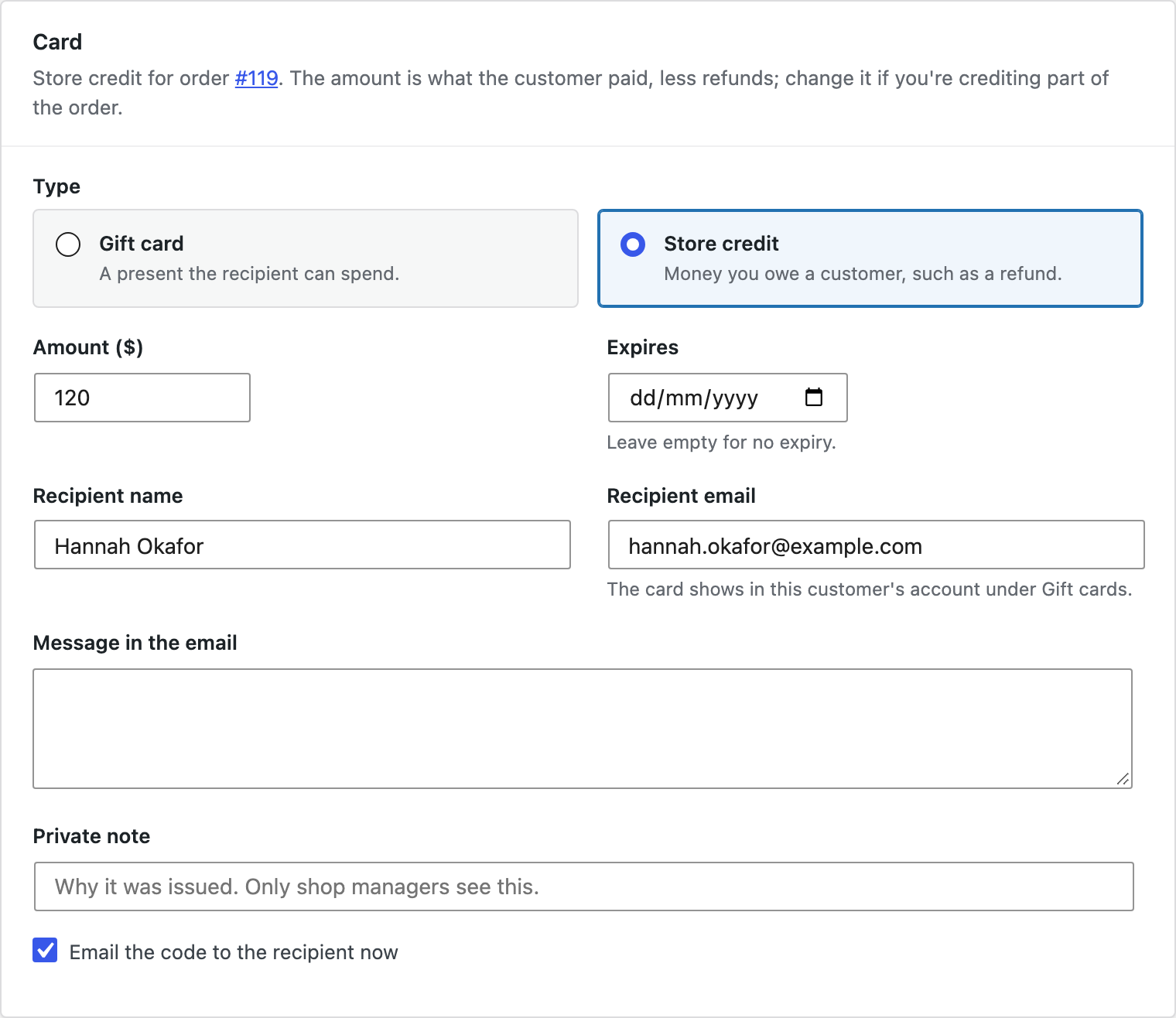
Store credit works like a gift card, without being bought. To give a customer credit for an order, for example instead of a refund, open the order and click Issue store credit in the Gift cards box. The form is filled in with the customer and what they paid; change the amount if needed and click Issue card.
Managing cards
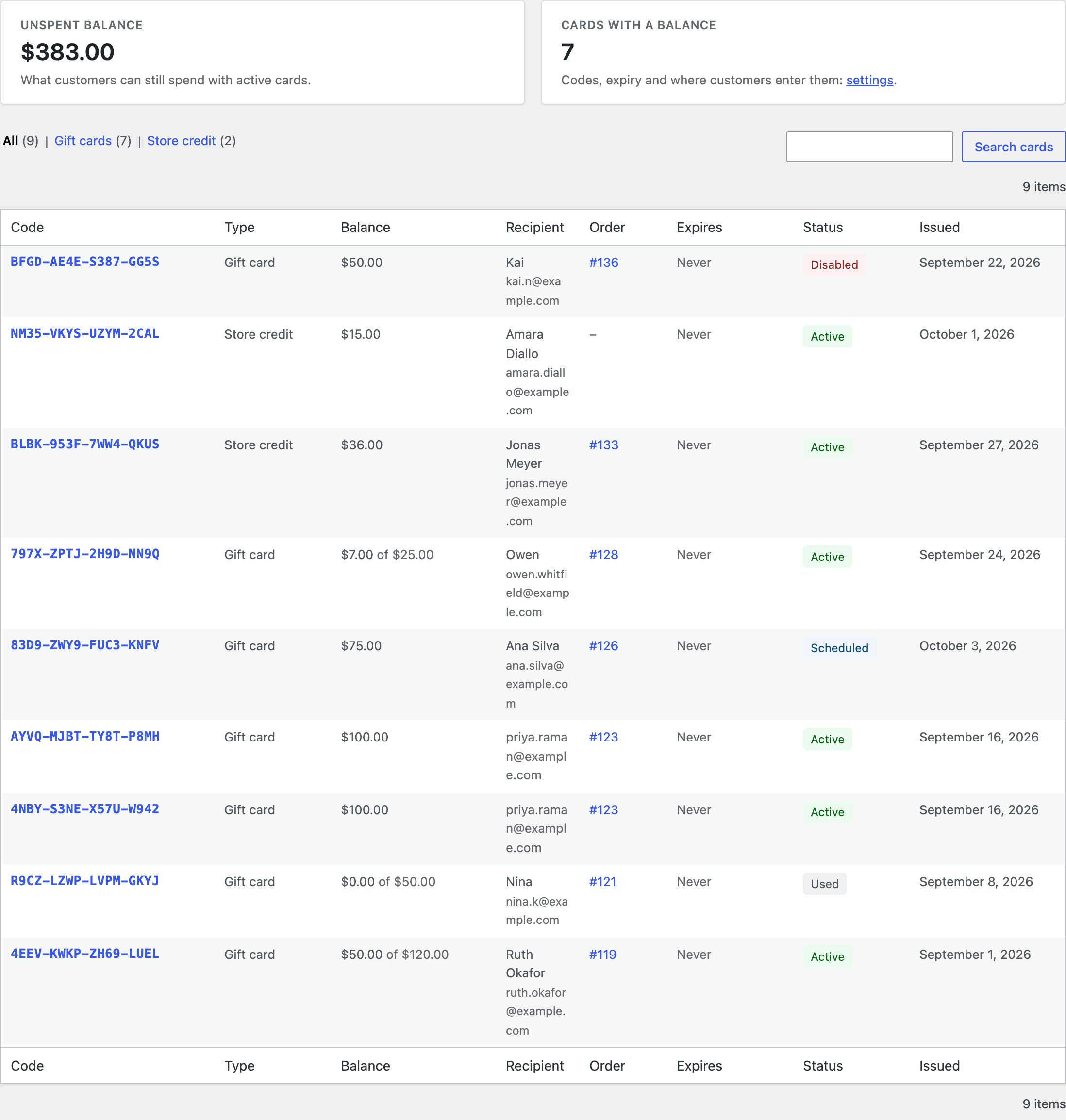
Go to WooCommerce > Gift cards to see the unspent balance of all active cards, and every card with its balance, recipient, order, expiry and status. Search by code or email. Click a code to change the balance or expiry date, disable the card, email it again or print it. Every change is kept in the card’s activity log with your name and note.
Settings
| Setting | What it does |
|---|---|
| Code prefix | Letters before every new code, such as your store’s initials. |
| Valid for | Months until new cards expire. 0 means they never expire. Check the rules where you sell: many places require at least 12 months. |
| Delivery date | Lets customers choose the day the card is emailed. |
| Gift card field | Shows the code field in the cart, at checkout, or both. |
| Buying gift cards with gift cards | Allows paying for gift cards with a gift card or store credit. Off by default. |
Balance check and My Account
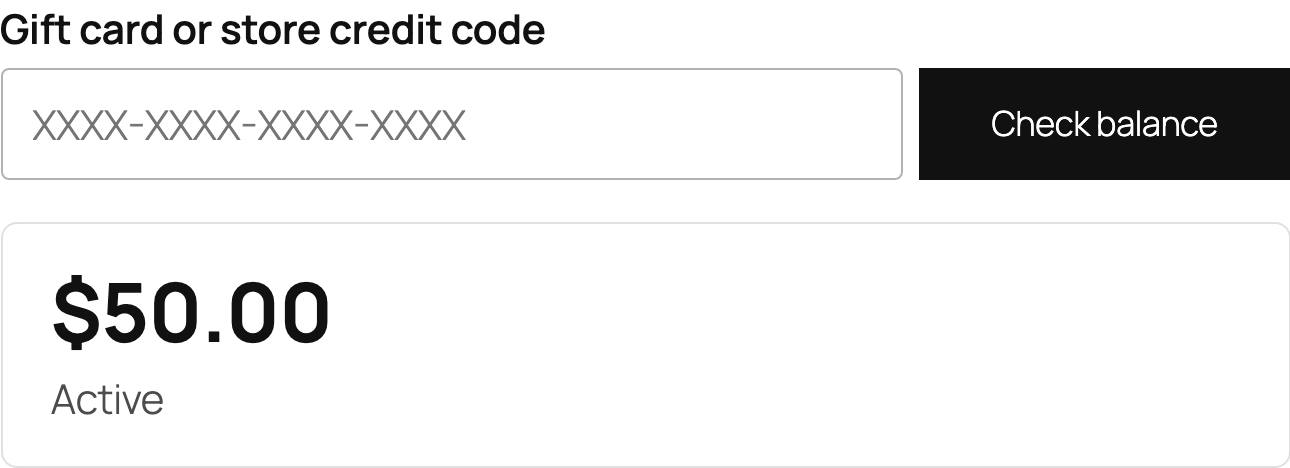
Add the Gift card balance block to any page, or use the shortcode [gcsc_balance], so customers can check a code. Logged-in customers also see their cards under My Account > Gift cards.
For developers
| Hook | Use |
|---|---|
gcsc_card_created | Runs after a card is created. |
gcsc_balance_changed | Runs after a balance changes. |
gcsc_posted_details | Filters the details from the product page before they go in the cart. |
gcsc_admin_capability | The capability needed to manage cards. |
Copy any file from public/templates/ to yourtheme/gift-cards-store-credit/ to change the product fields, the printable card, the balance form or the My Account page.
Frequently asked questions
Do gift cards change the tax on an order?
No. A gift card is a way to pay, so it reduces the amount due after tax.
Can a customer use a scheduled card before its delivery date?
Yes. Whoever has the code can spend it; the date only decides when the email is sent.
Does it work with invoices?
Yes. PDF Invoices & E-Invoicing shows gift cards as payments, not discounts, so the tax on the invoice stays right.
Changelog
1.0.0 · October 5, 2026
- Gift card products with fixed amounts or an amount the customer chooses.
- Recipient, message and delivery date, with scheduled emails and a printable card.
- Store credit issued from an order or from WooCommerce > Gift cards.
- Gift card field in the classic cart and checkout and in the Cart and Checkout blocks.
- Gift cards screen with the unspent balance, search, balance changes and an activity log.
- Balance check block and shortcode, and a Gift cards page in My Account.