PDF Invoices & E-Invoicing creates invoices, packing slips and credit notes as PDF files, attaches them to your emails, and downloads any invoice or credit note as an e-invoice in XML.
Requirements
- WordPress 6.8 or newer
- WooCommerce 10.0 or newer
- PHP 7.4 or newer
- Works with the classic checkout, the Checkout block, and High-Performance Order Storage.
Installation
- Download
pdf-invoices-e-invoicing.zipfrom My account > Downloads. - In WordPress, go to Plugins > Add New Plugin > Upload Plugin, choose the zip file and click Install Now.
- Click Activate. Settings are under WooCommerce > Settings > Invoices.
Quick start
- Go to WooCommerce > Settings > Invoices > Your business and enter your legal name, VAT number and bank account. Your address comes from Settings > General.
- Under Template, choose your logo and accent color, and click Preview invoice.
- Place a test order and mark it Processing. The invoice is created and attached to the Processing order email.
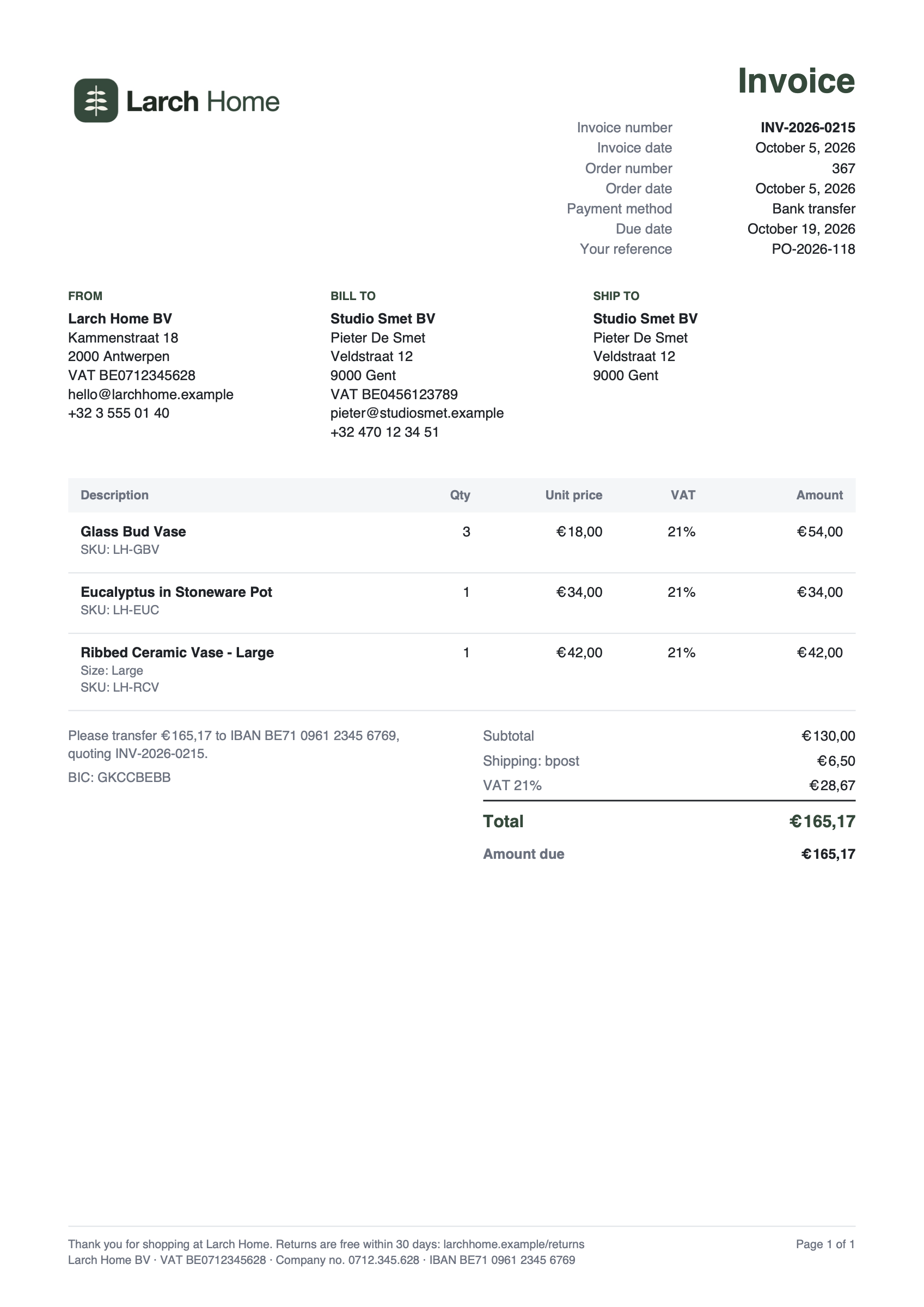
Invoice numbers
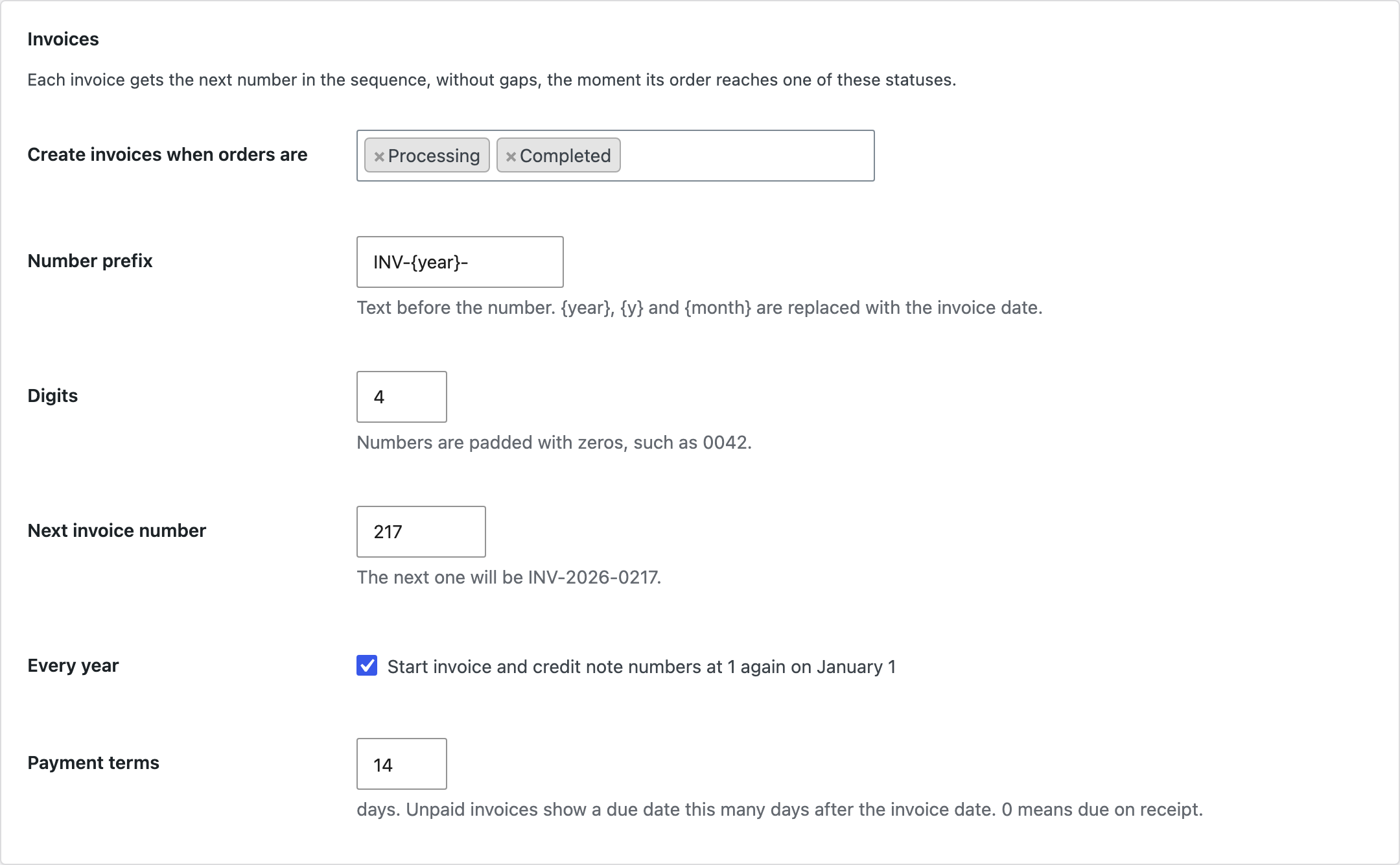
An invoice is created the first time an order reaches one of the statuses under Create invoices when orders are (Processing and Completed by default), or when you click Create invoice now on the order screen. It gets the next number in the sequence, without gaps or duplicates, even when two orders are paid at the same moment.
| Setting | What it does |
|---|---|
| Number prefix | Text before the number. {year}, {y} and {month} are replaced with the invoice date, so INV-{year}- gives INV-2026-0042. |
| Digits | Numbers are padded with zeros to this length. |
| Next invoice number | Set it to continue the numbering of your previous invoicing tool. |
| Every year | Start invoice and credit note numbers at 1 on January 1. |
| Payment terms | Days until unpaid invoices are due. 0 means due on receipt. |
Packing slips and credit notes
- Packing slips show the delivery address, the products with SKUs and quantities, and the customer’s note, without prices.
- Credit notes are created for every refund of an invoiced order, with their own numbers (prefix
CN-{year}-) and a reference to the invoice.
Emails and downloads
- Choose the emails the invoice is attached to under Attach the invoice to. Credit notes go with the Refunded order email, and packing slips can go with the New order email you receive.
- Customers download their invoices and credit notes under My Account > Orders.
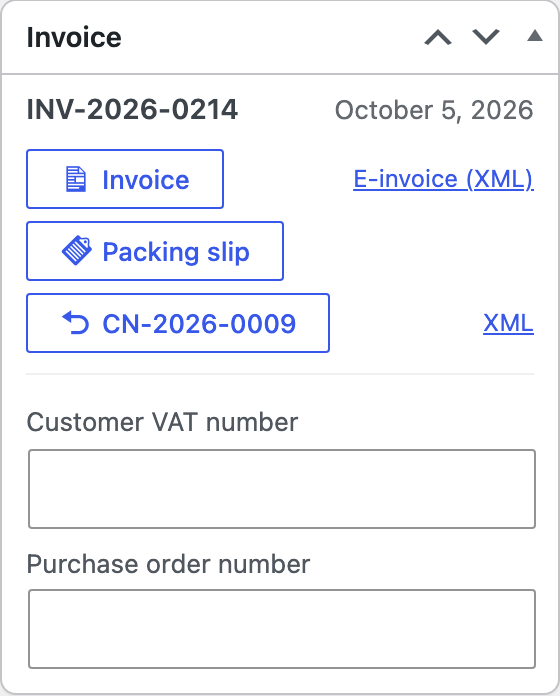
- On the order screen, the Invoice box opens the invoice, packing slip, credit notes and e-invoice.
- On the orders list, the Invoice column shows each number, and the Bulk actions print the invoices or packing slips of the selected orders in one PDF.
E-invoices
Every invoice and credit note can be downloaded as XML from the order screen, or many at once as a ZIP from the orders list. Choose the format under E-invoices:
| Format | Use it for |
|---|---|
| Peppol BIS Billing 3.0 (UBL) | The Peppol network: business invoices in Belgium, the Netherlands, the Nordic countries and more. |
| EN 16931 (CII) | Accounting platforms that read the European standard in UN/CEFACT syntax. |
| XRechnung 3.0 (CII) | German public buyers. Ask the buyer for their Leitweg-ID and enter it as the purchase order number. |
The plugin creates the e-invoice files. To send them over Peppol you need an access point, which most accounting packages include: upload the XML there, or tick Also attach the e-invoice (XML) so it goes with the invoice email.
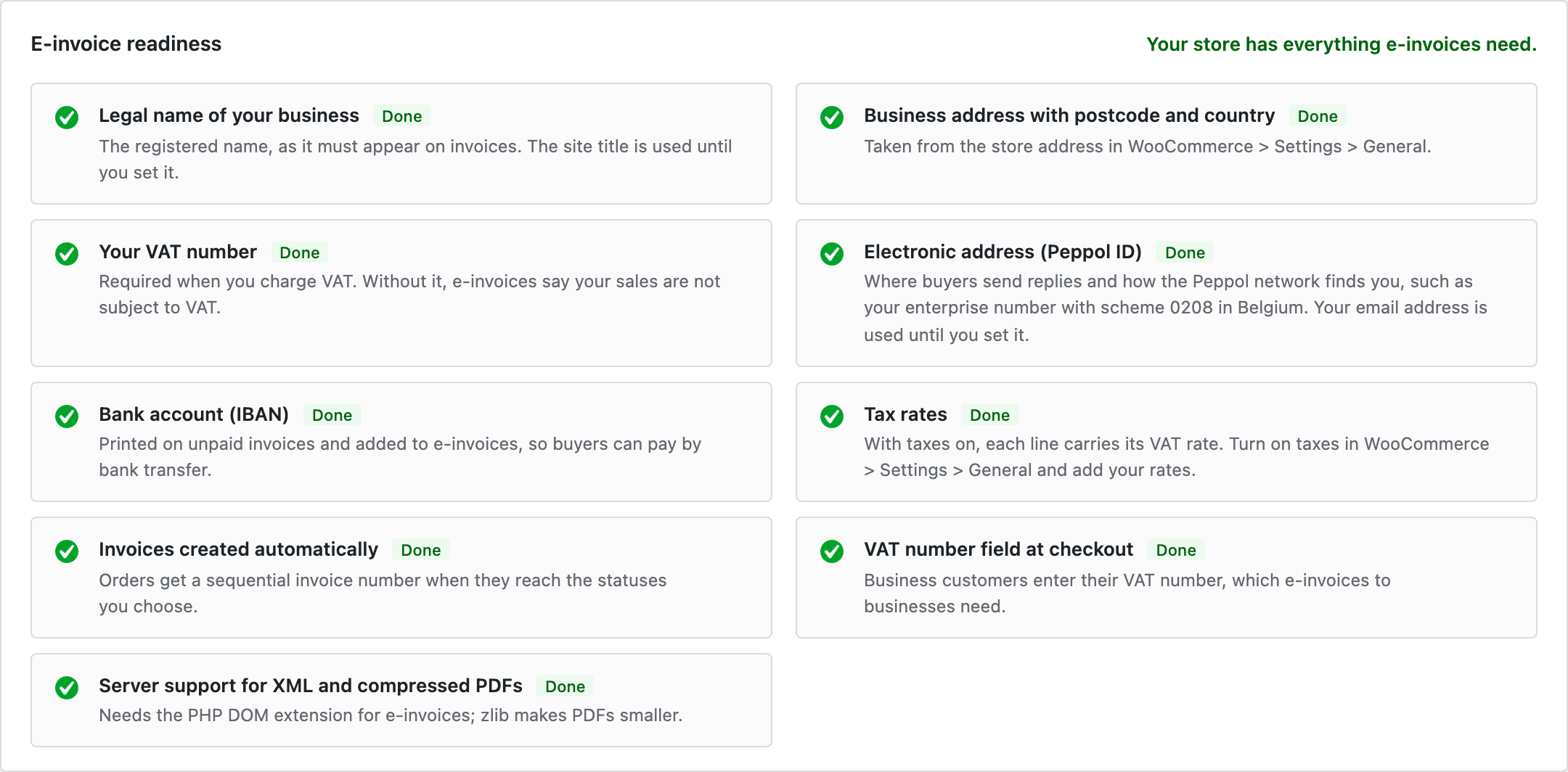
The E-invoice readiness checklist at the top of the E-invoices section shows what your store still needs, with a link to each setting.
VAT numbers and reverse charge
Under Checkout fields, ask business customers for their VAT number and purchase order number, in the classic checkout and the Checkout block. You can also enter both on the order screen. When you sell without VAT to a business with a VAT number in another EU country, the invoice and the e-invoice mark the sale as an intra-community supply; sales outside the EU are marked as exports.
For developers
| Hook | Use |
|---|---|
pdei_document_number | Change a document number. |
pdei_document_details | The details under the document title. |
pdei_seller | The seller details on documents and e-invoices. |
pdei_fee_is_payment | Mark a negative fee as a payment (like a gift card) instead of a discount. |
pdei_email_documents | The documents attached to an email. |
pdei_buyer_endpoint | The buyer’s electronic address in e-invoices. |
pdei_invoice_created | Runs when an order gets its invoice number. |
Frequently asked questions
Which languages do the PDFs support?
The PDFs use the Helvetica font built into every PDF reader, which covers English and Western European languages. Characters outside that set, such as Greek or Polish letters, are replaced.
Can I change an invoice after it’s created?
Invoices are drawn from the order each time you open them, so changes to the order show up. The number and date stay. For refunds, use credit notes.
Is the PDF a PDF/A or Factur-X file?
No. The PDF is a regular PDF. Use the XML download for structured e-invoices.
Changelog
1.0.0 · October 5, 2026
- PDF invoices with sequential numbers, created automatically by order status.
- Credit notes for refunds and packing slips.
- Attachments to WooCommerce emails and downloads in My Account.
- E-invoice XML in Peppol BIS Billing 3.0 (UBL), EN 16931 (CII) and XRechnung 3.0 formats.
- E-invoice readiness checklist.
- VAT number and purchase order number fields in the classic checkout and the Checkout block.
- Invoice box on the order screen, invoice column and bulk printing on the orders list.