Conditional Shipping & Payment Rules changes the checkout when conditions you set are true: it hides shipping or payment methods, adds a fee or discount for a payment method, or stops the order with a message. Each rule can show a short note so customers know why.
Requirements
- WordPress 6.8 or newer
- WooCommerce 10.0 or newer
- PHP 7.4 or newer
- Works with the classic checkout, the Cart and Checkout blocks, and High-Performance Order Storage.
Installation
- Download
conditional-shipping-payment-rules.zipfrom My account > Downloads. - In WordPress, go to Plugins > Add New Plugin > Upload Plugin, choose the zip file and click Install Now.
- Click Activate. The rules are under WooCommerce > Settings > Checkout rules.
Quick start: no cash on delivery for large orders
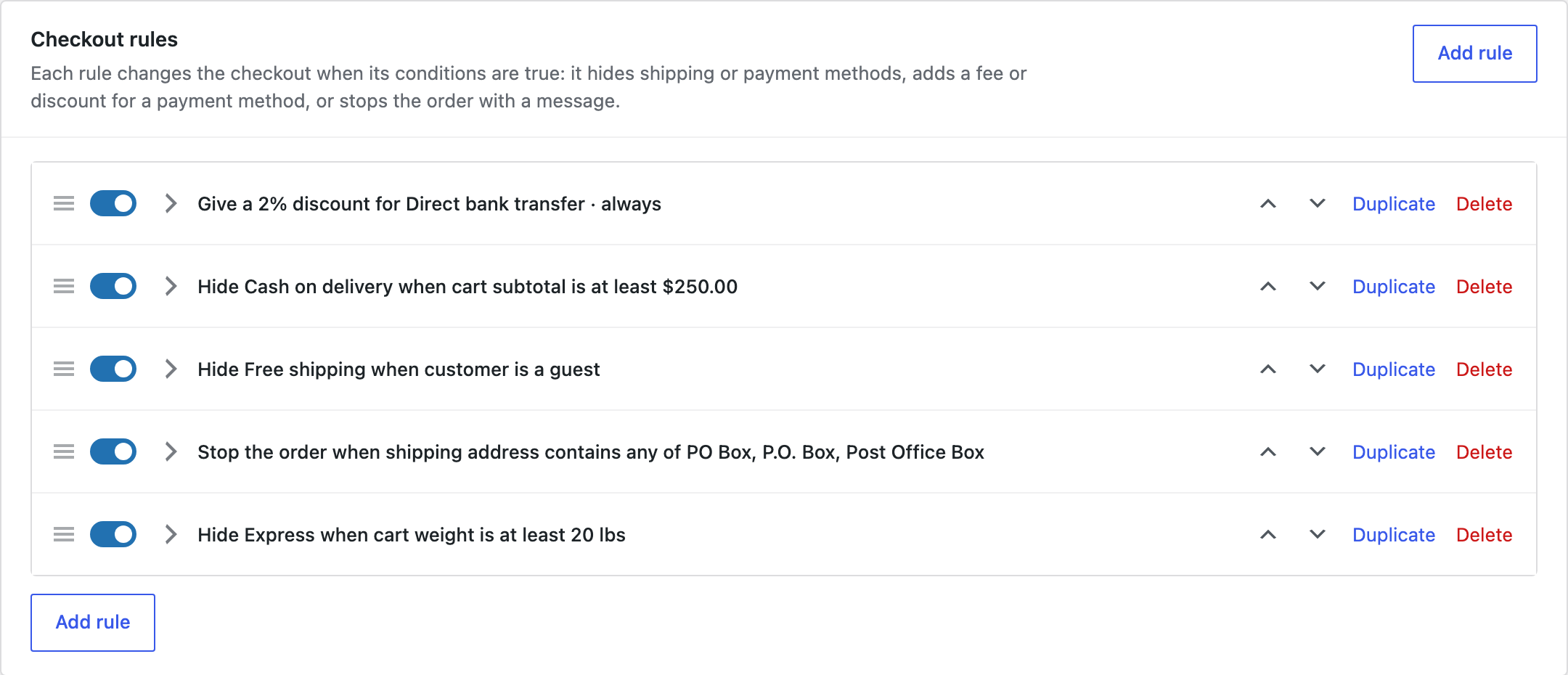
- Go to WooCommerce > Settings > Checkout rules. With no rules yet, you see four examples.
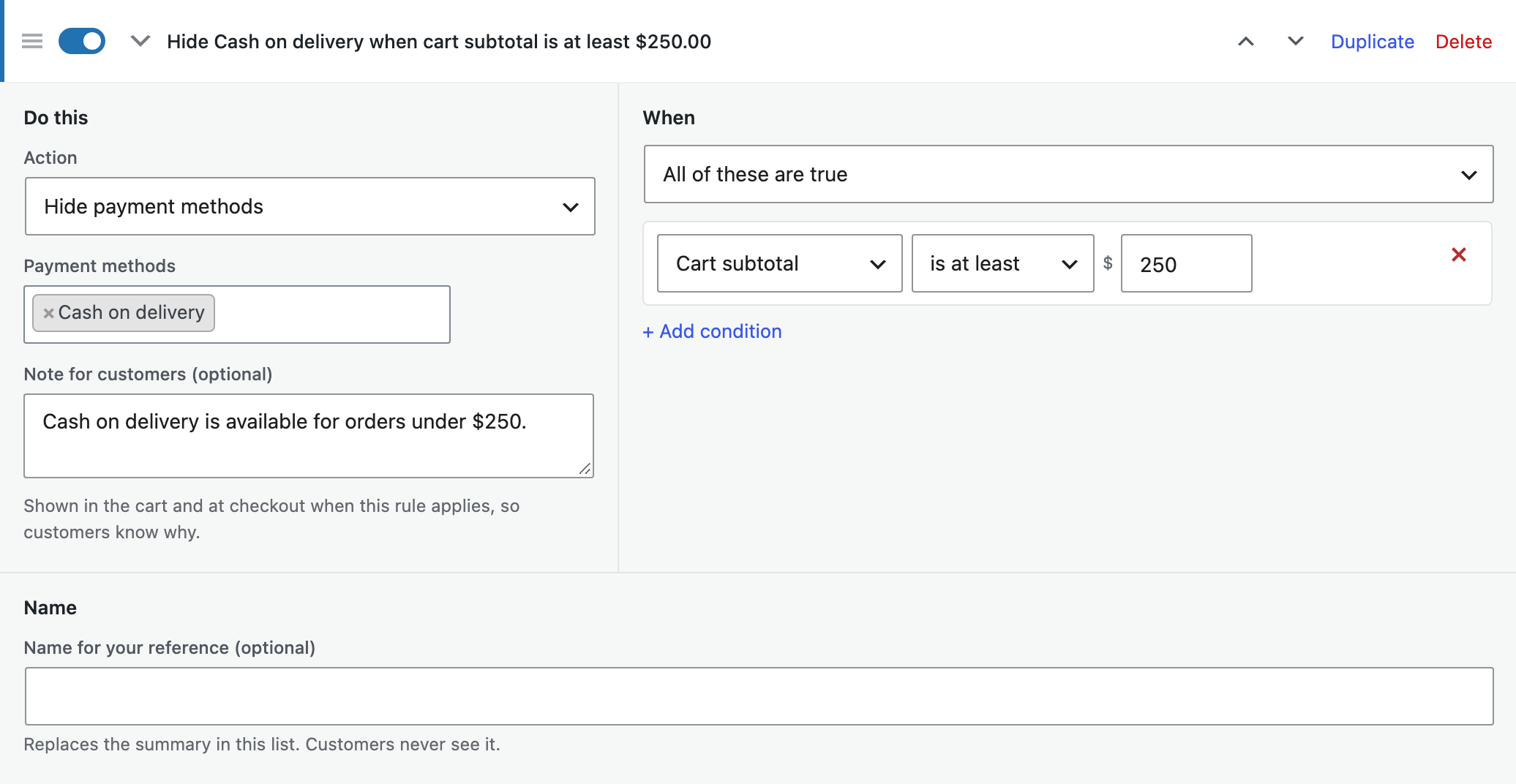
- Click Hide cash on delivery for large orders. The rule opens with the condition Cart subtotal is at least $500.
- Change the amount if you like, and edit the note customers see: “Cash on delivery is available for orders under $500.”
- Click Save changes. Every rule now shows a one-line summary of what it does.
What a rule can do
| Action | What it does |
|---|---|
| Hide shipping methods | Removes the chosen shipping methods from the cart and checkout. Choose single methods in any zone, or every method of a type, such as All Free shipping methods. |
| Hide payment methods | Removes the chosen payment gateways at checkout. |
| Add a fee or discount for a payment method | Adds a fixed amount or a percentage of the order when the customer chooses the payment method. Choose a fee or a discount, your own label, and whether the fee is taxable. |
| Stop the order | Shows your message in the cart and at checkout, and the order can’t be placed until the cart or address changes. |
Conditions
A rule applies when all its conditions are true, or when any of them is true. A rule without conditions always applies.
| Group | Conditions |
|---|---|
| Cart | Subtotal, weight, number of items, products, categories, shipping classes, items on backorder, coupons |
| Address | Shipping country or state, shipping postcode (with * wildcards and ranges such as 90000...96199), words in the address, billing country or state |
| Customer | Logged in, guest or returning customer, customer role |
| Checkout | The chosen shipping method (for payment rules) |
| Date and time | Day of the week and time of day, in your store’s time zone |
Rules that hide shipping methods look at the whole cart and the address of the package being priced. When a fact outside the package changes, such as the customer logging in, shipping rates are worked out again.
Notes for customers
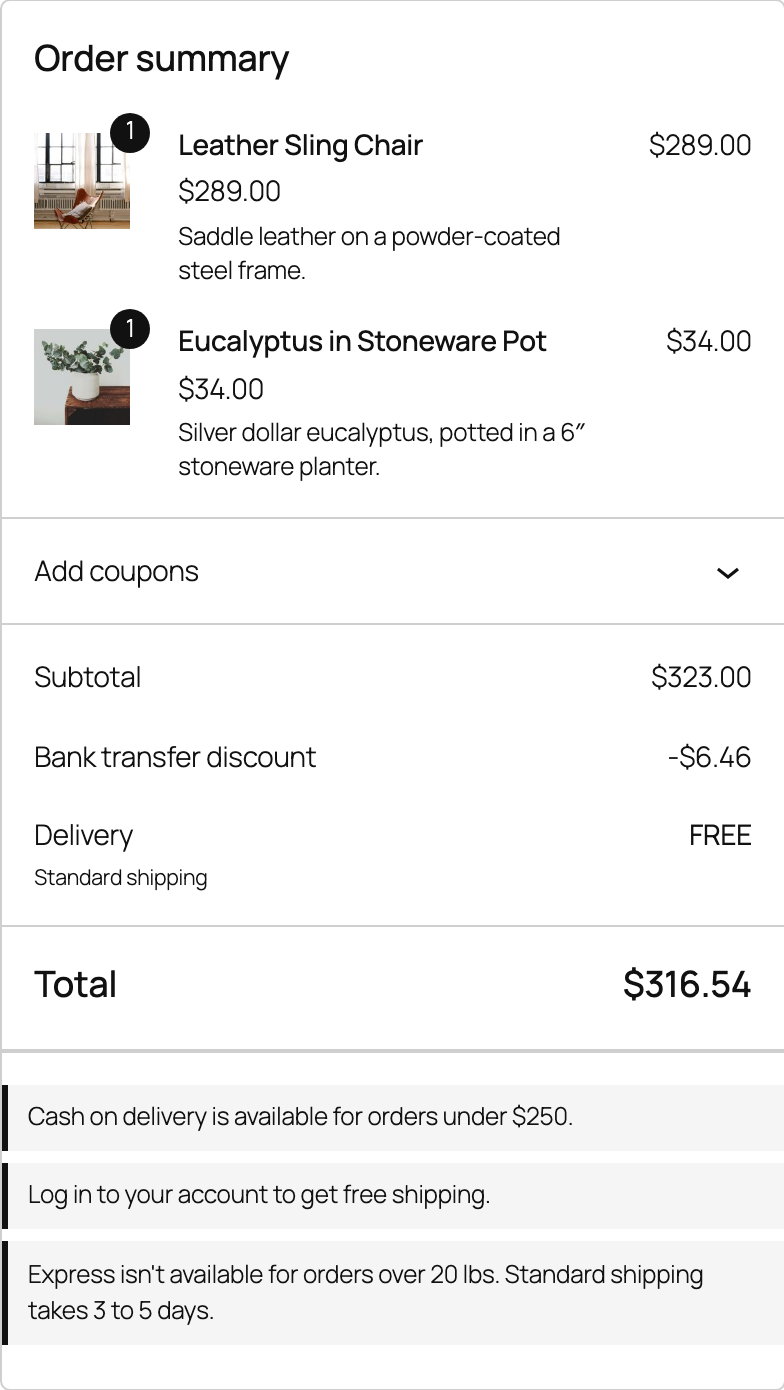
A rule’s note appears in the cart and at checkout while the rule applies, in the classic pages and the Cart and Checkout blocks. Stop rules always show their message. Turn notes off for all rules under Checkout rules > Settings.
Payment fees and discounts
Fees and discounts are worked out from the order value before fees: the items after coupons, plus shipping. In the Checkout block they update as soon as the customer picks a payment method. A discount never makes the order total negative.

Stopping orders
Use stop rules for orders you can’t fulfil, such as deliveries to PO boxes or to regions you don’t serve. The example rule stops addresses that contain PO Box, P.O. Box or Post Office Box.

Preview for shop managers
Switch on Preview for shop managers under Checkout rules > Settings to see which rules applied while you browse the store as a shop manager. Customers don’t see the preview.
For developers
| Filter | Use |
|---|---|
cspr_rules | The rules before they are checked. |
cspr_rule_matches | Whether a rule applies. |
cspr_context | The cart and customer facts conditions are checked against. |
cspr_condition_definitions | Add your own condition types; check them with cspr_custom_condition_matches. |
cspr_fee_amount | The amount of a payment fee or discount. |
cspr_example_rules | The examples offered when there are no rules. |
To change how notes look, copy public/templates/checkout-notes.php to yourtheme/conditional-shipping-payment-rules/checkout-notes.php and edit the copy.
Frequently asked questions
In what order are rules checked?
From top to bottom. Drag a rule by its handle, or use its arrows, to move it. Every rule that applies does its job, so two rules can hide different methods.
Can I hide every method of a type in all zones?
Yes. In the list of shipping methods, choose the type, such as All Free shipping methods, instead of single methods.
Does it work with Table Rate Shipping Rules?
Yes. Each Table rate rules method is listed like any other shipping method.
Changelog
1.0.0 · October 5, 2026
- Rules that hide shipping methods, hide payment methods, add payment fees or discounts, or stop the order with a message.
- Conditions on the cart, the address, the customer, the chosen shipping method, and the day and time.
- Notes for customers in the classic cart and checkout and in the Cart and Checkout blocks.
- Rules editor with one-line summaries, examples, on/off switches, reordering and duplicating.
- Preview of applied rules for shop managers.