
Country and State Restrictions sells products only to some countries or states, limits payment methods by country or state, closes pages or the whole site to some places, and shows content by country. Restricted products are shown as unavailable or hidden for customers elsewhere, and checkout stops orders with items that can’t go to the delivery address.
Requirements
- WordPress 6.5 or newer
- WooCommerce 8.0 or newer
- PHP 7.4 or newer
- Works with classic and block themes, the Cart and Checkout blocks, and High-Performance Order Storage.
Installation
- Download the plugin zip from My account > Downloads.
- In WordPress, go to Plugins > Add New Plugin > Upload Plugin, choose the zip file and click Install Now.
- Click Activate. Product settings are in each product’s Shipping tab. Rules, payment methods and settings are under WooCommerce > Settings > Country restrictions.
Quick start: plants only within the United States
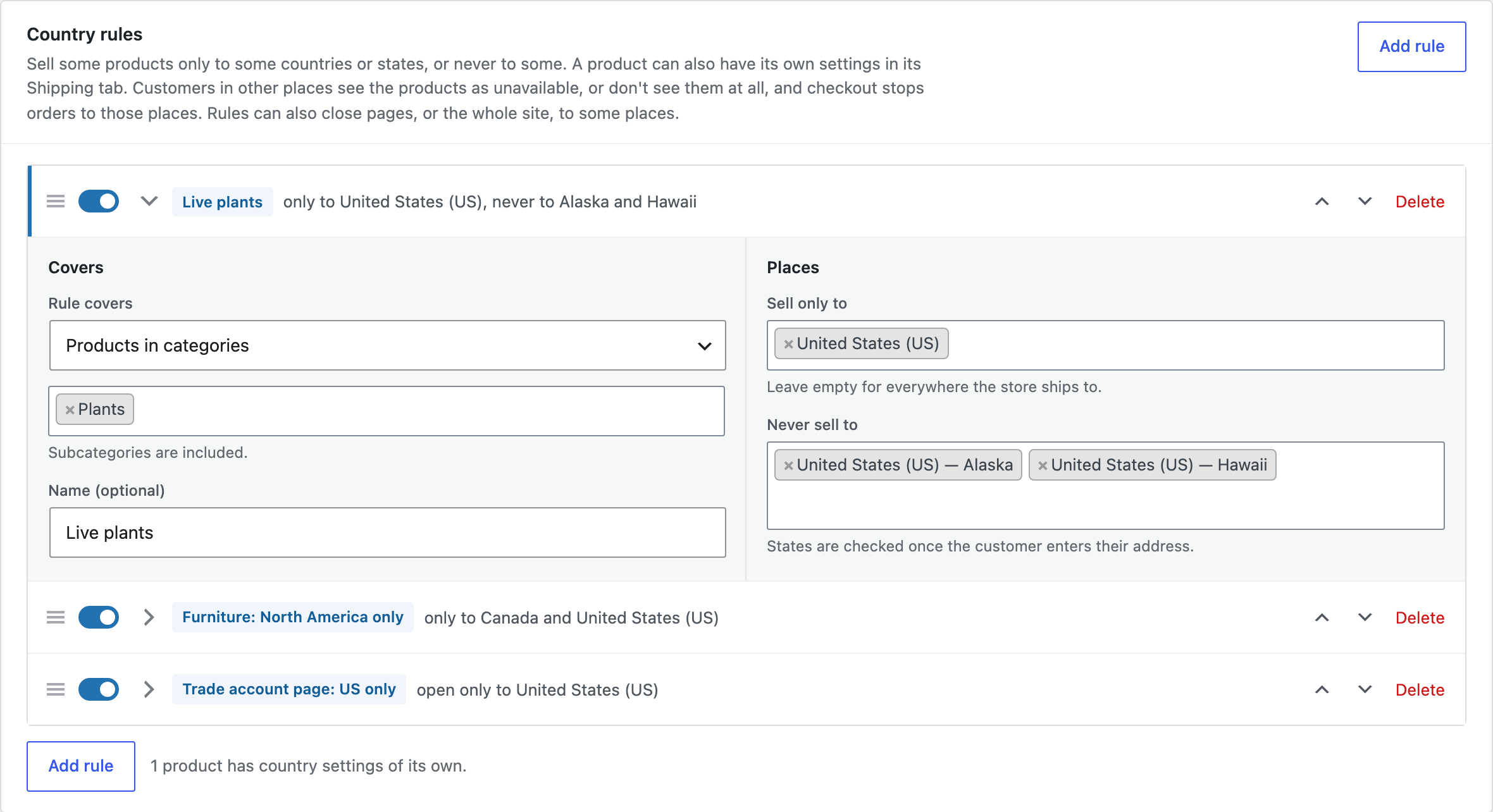
- Go to WooCommerce > Settings > Country restrictions and click Add rule.
- Set Rule covers to Products in categories and choose Plants.
- Under Sell only to, choose United States. Under Never sell to, choose Hawaii and Alaska.
- Save. To see the result as a customer elsewhere, turn on the “Delivering to” bar under Settings and pick another country on the shop.
Store-wide rules
A rule covers all products, products in categories (with their subcategories), products with tags, or chosen products. Sell only to lists the countries and states the products can go to; leave it empty to sell everywhere the store ships to. Never sell to lists places they can’t go to. The countries are those your store sells and ships to, set in WooCommerce > Settings > General.
Rules can also cover chosen pages or the whole site. See Pages and the whole site.
Settings on a product
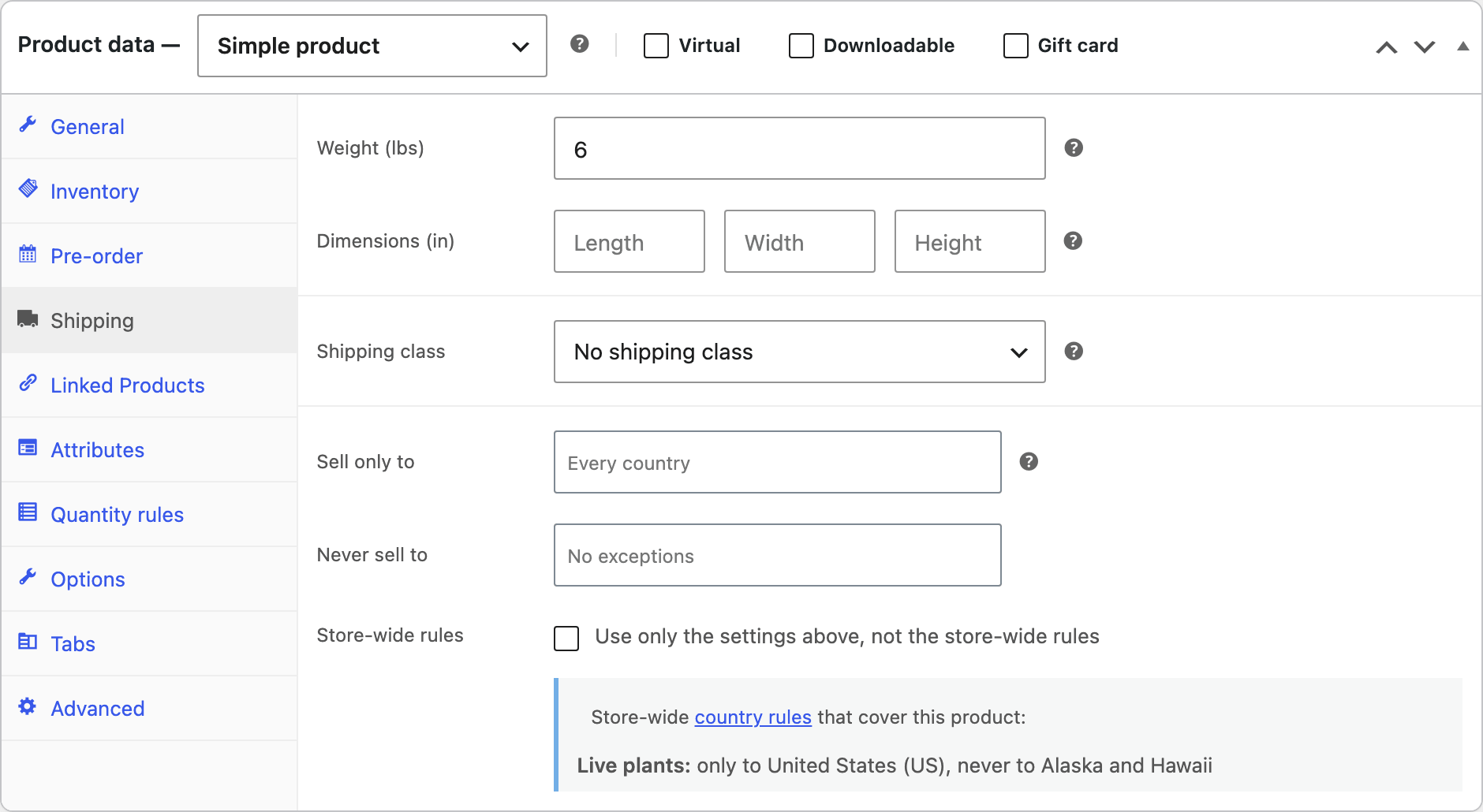
In a product’s Shipping tab, set Sell only to and Never sell to for that product. Tick Store-wide rules to use only the product’s own settings. The rules that cover the product are listed below the fields.
Variations
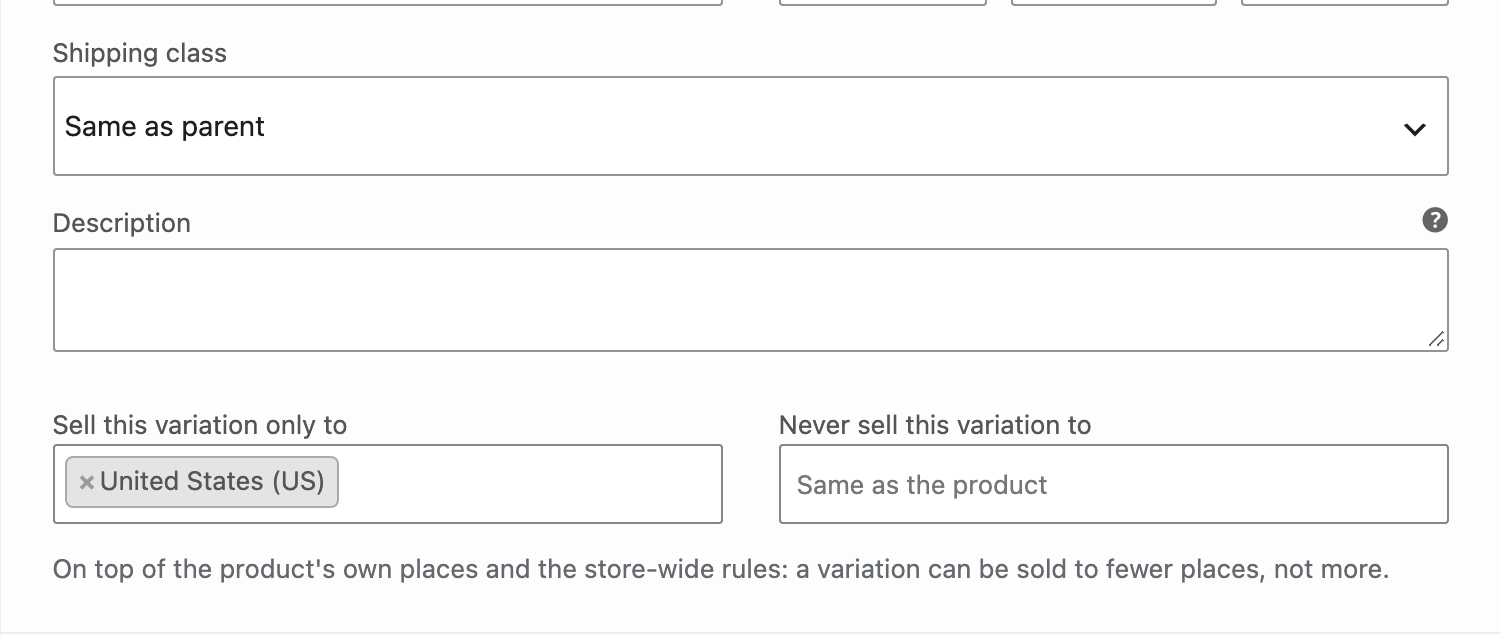
Each variation can be sold to fewer places than its product, such as a large size that can’t be sent abroad. Open the variation in the product’s Variations tab and set Sell this variation only to and Never sell this variation to. They apply on top of the product’s own settings and the store-wide rules, so a variation can be sold to fewer places, not more.
Variations that can’t go to the customer’s place are greyed out in the product’s option lists.
What customers see
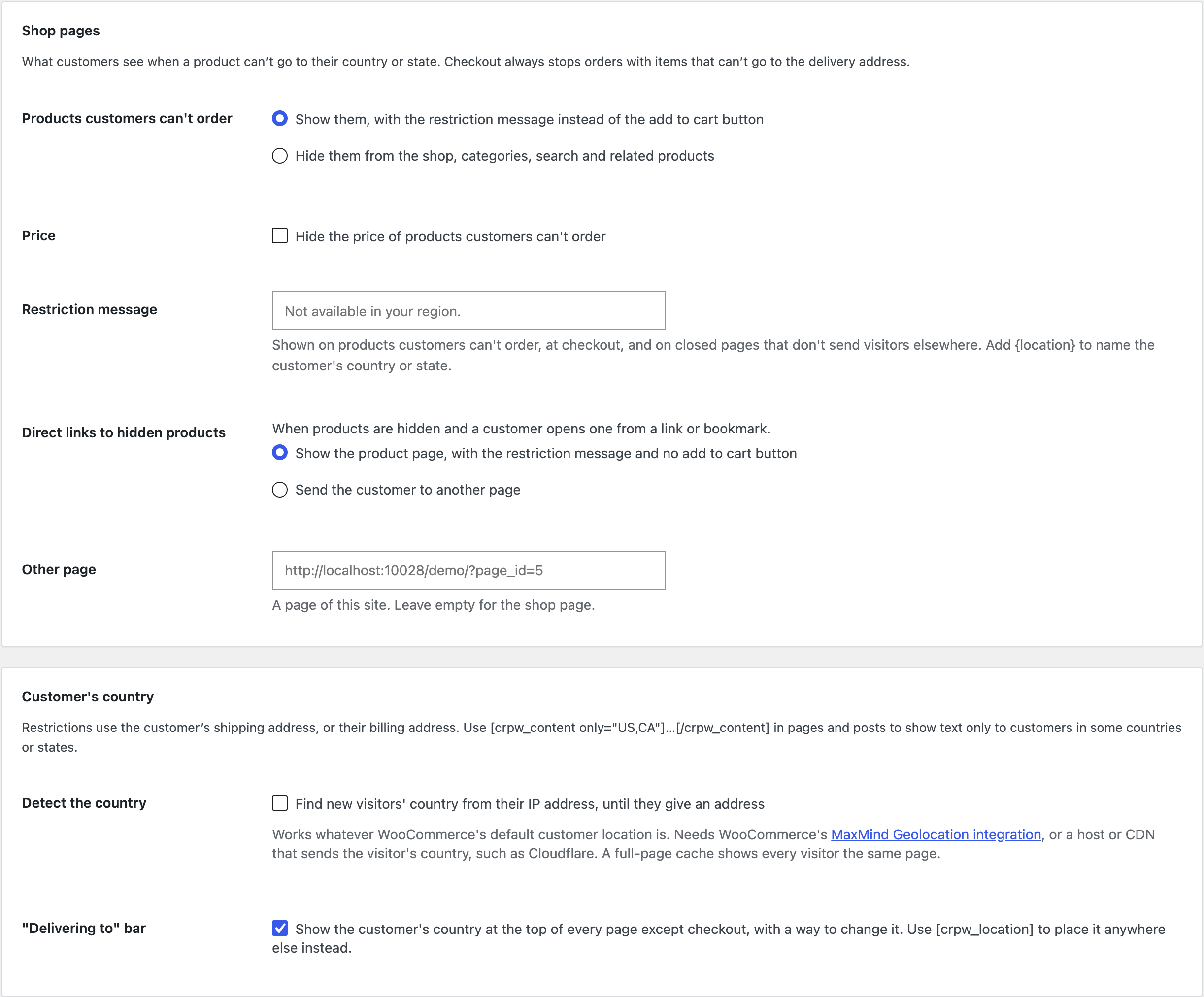
Products that can’t go to the customer’s country or state are shown with the restriction message, “Not available in your region” unless you set your own, and no add to cart button. Tick Price in the settings to hide their price too. Or choose to hide them from the shop, categories, search, product blocks and related products.
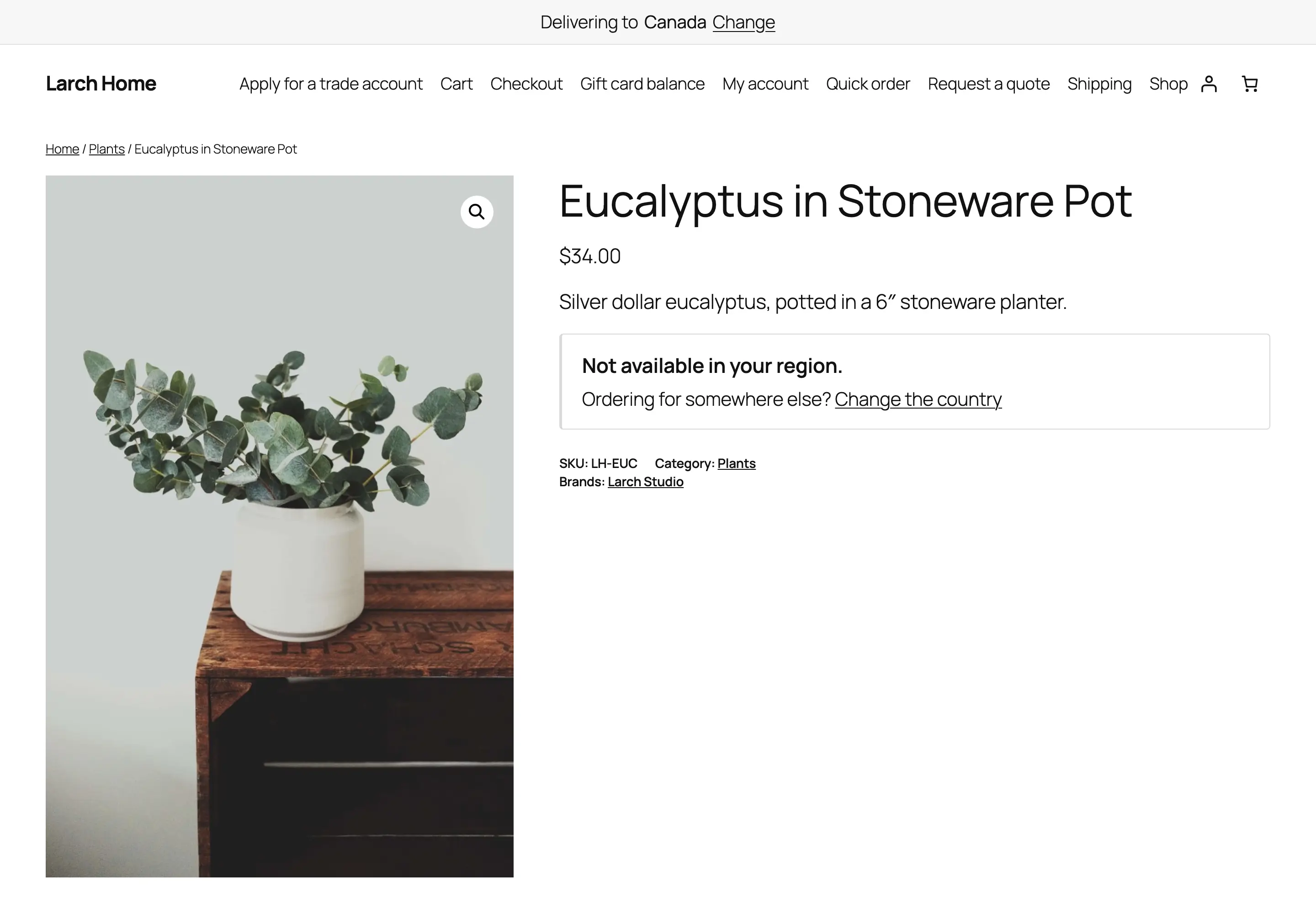
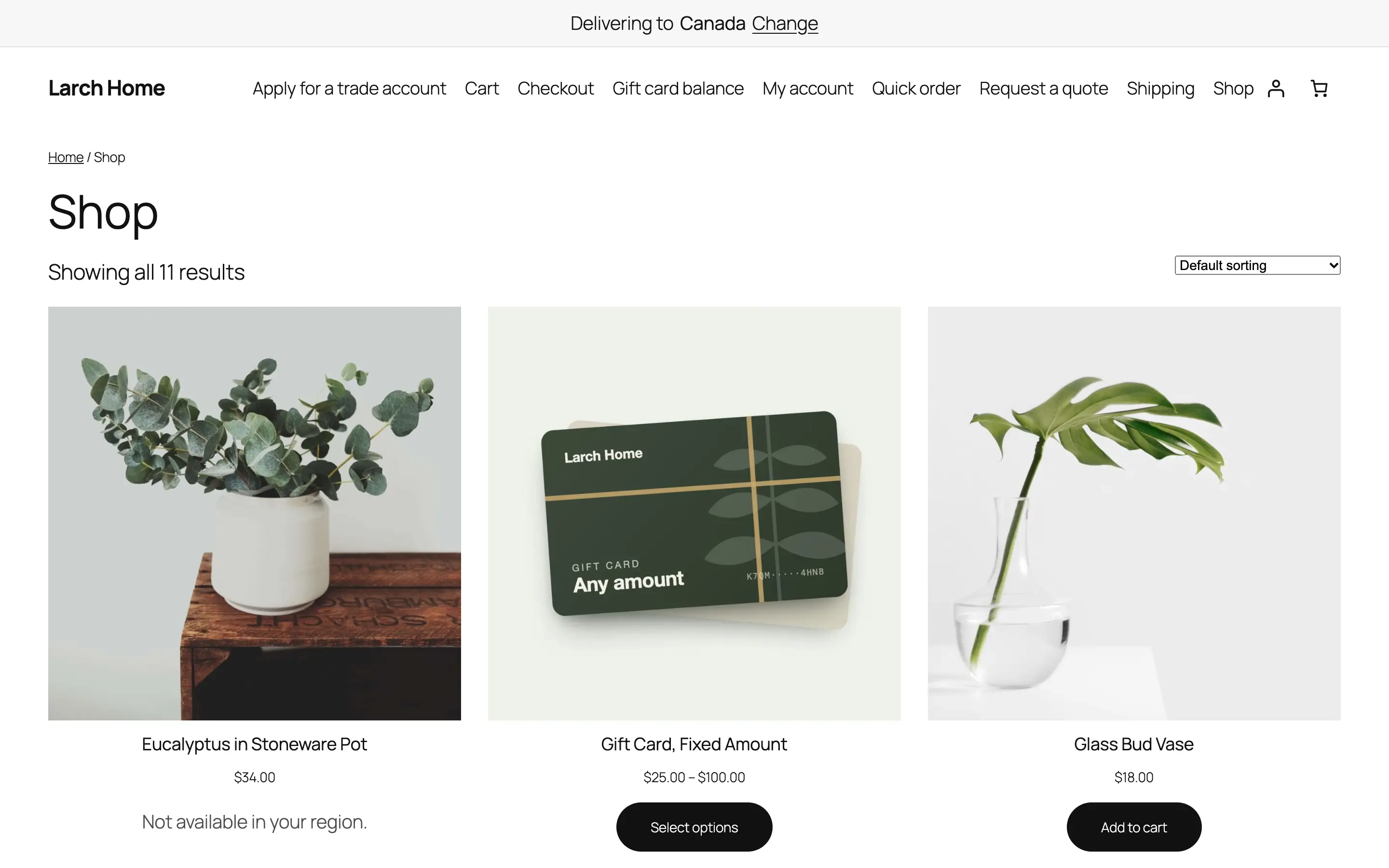
When products are hidden and a customer opens one from a link or bookmark, the product page shows the restriction message. You can send them to another page instead, such as the shop.
The optional “Delivering to” bar at the top of the site lets customers pick their country before they shop. It shows on every page except checkout, where the address is entered. Turn it on in the settings, or place the same picker anywhere with the shortcode [crpw_location].

Country detection
The customer’s country comes from their shipping address, or their billing address. Until they enter one, turn on Detect the country to find it from their IP address. This works whatever WooCommerce’s default customer location is set to.
Detection uses WooCommerce’s MaxMind Geolocation integration (WooCommerce > Settings > Integration, free licence key from MaxMind), or the country sent by Cloudflare or your host. No outside service is contacted. Search engines see your store’s default location. A country the customer picks or enters always comes first.
Payment methods
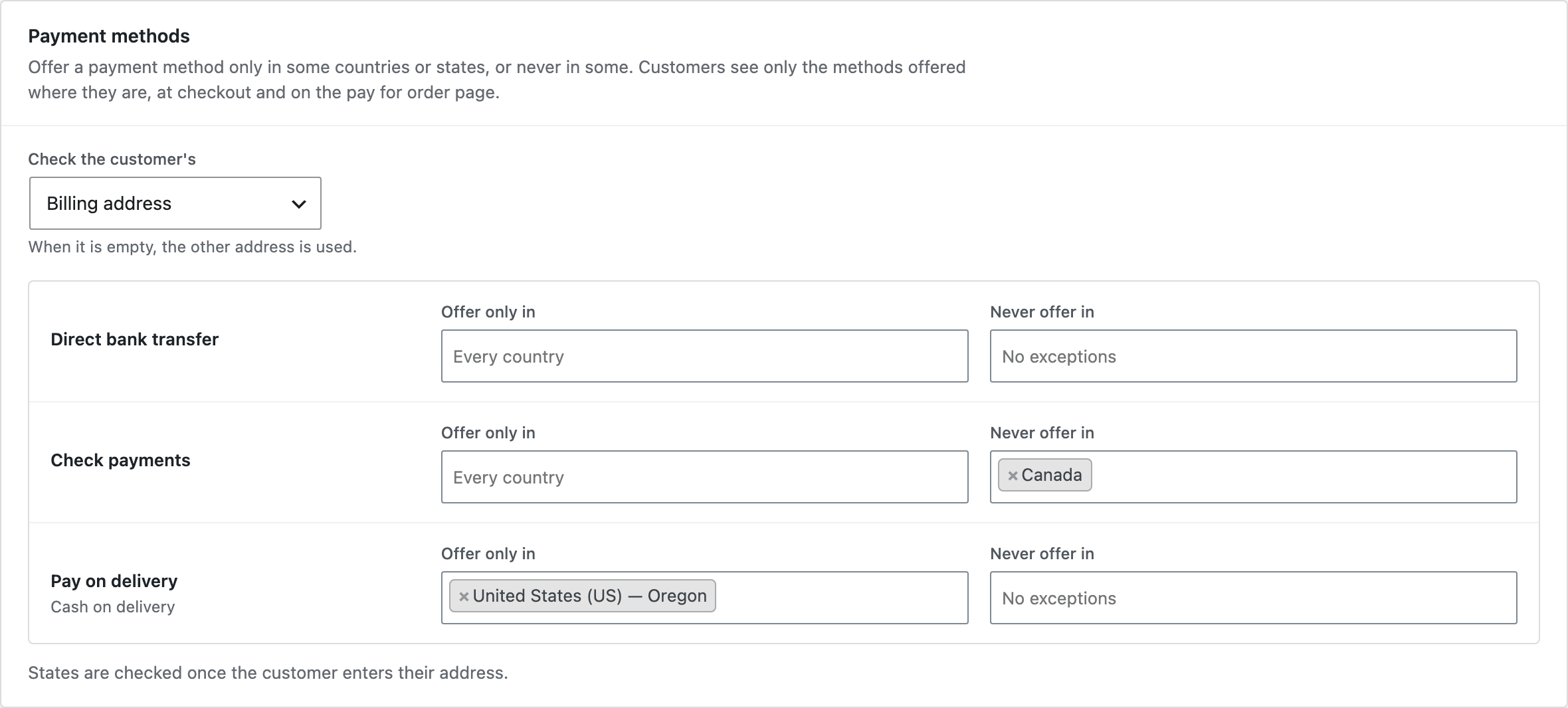
Under Country restrictions > Payment methods, each payment method has Offer only in and Never offer in, with countries and states. For example, offer cash on delivery only in Oregon, or never offer checks to Canada.
Choose whether the customer’s billing or shipping address counts; when it is empty, the other one is used. In the Checkout block the list updates as soon as the customer changes their country or state. Methods that aren’t offered can’t be used to place an order, including on the pay for order page.
Pages and the whole site
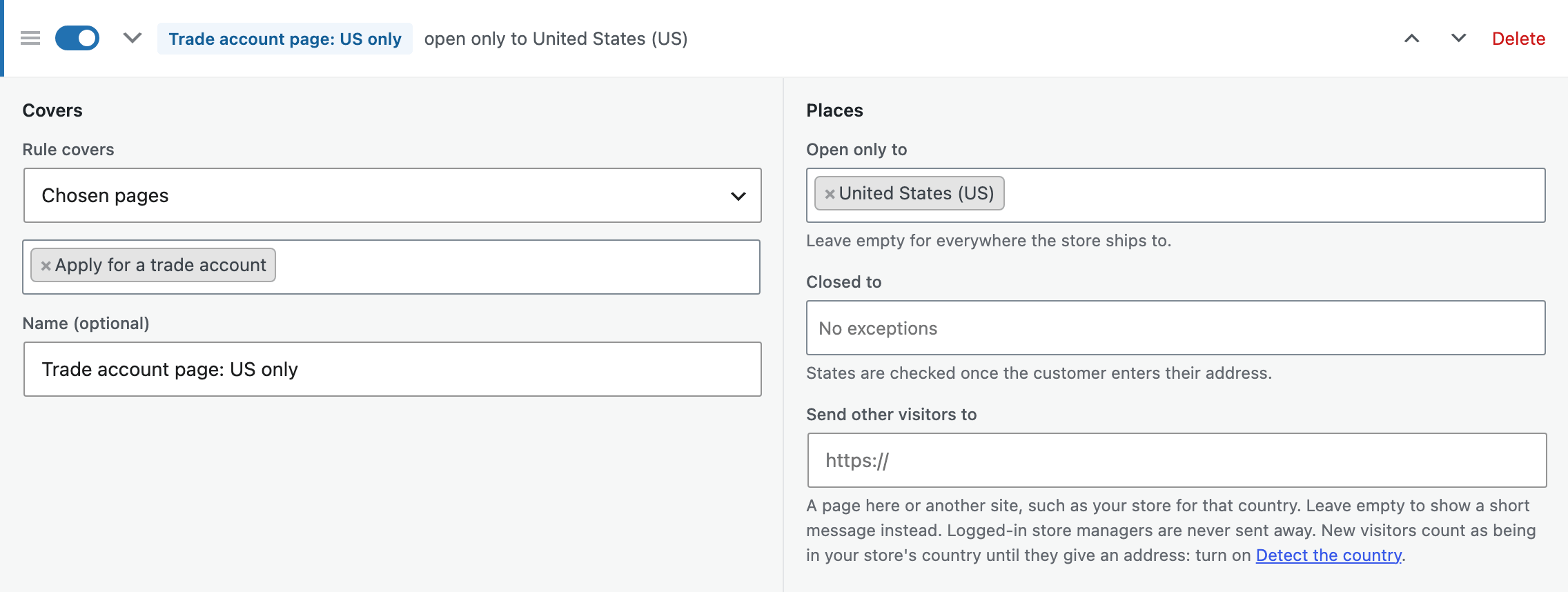
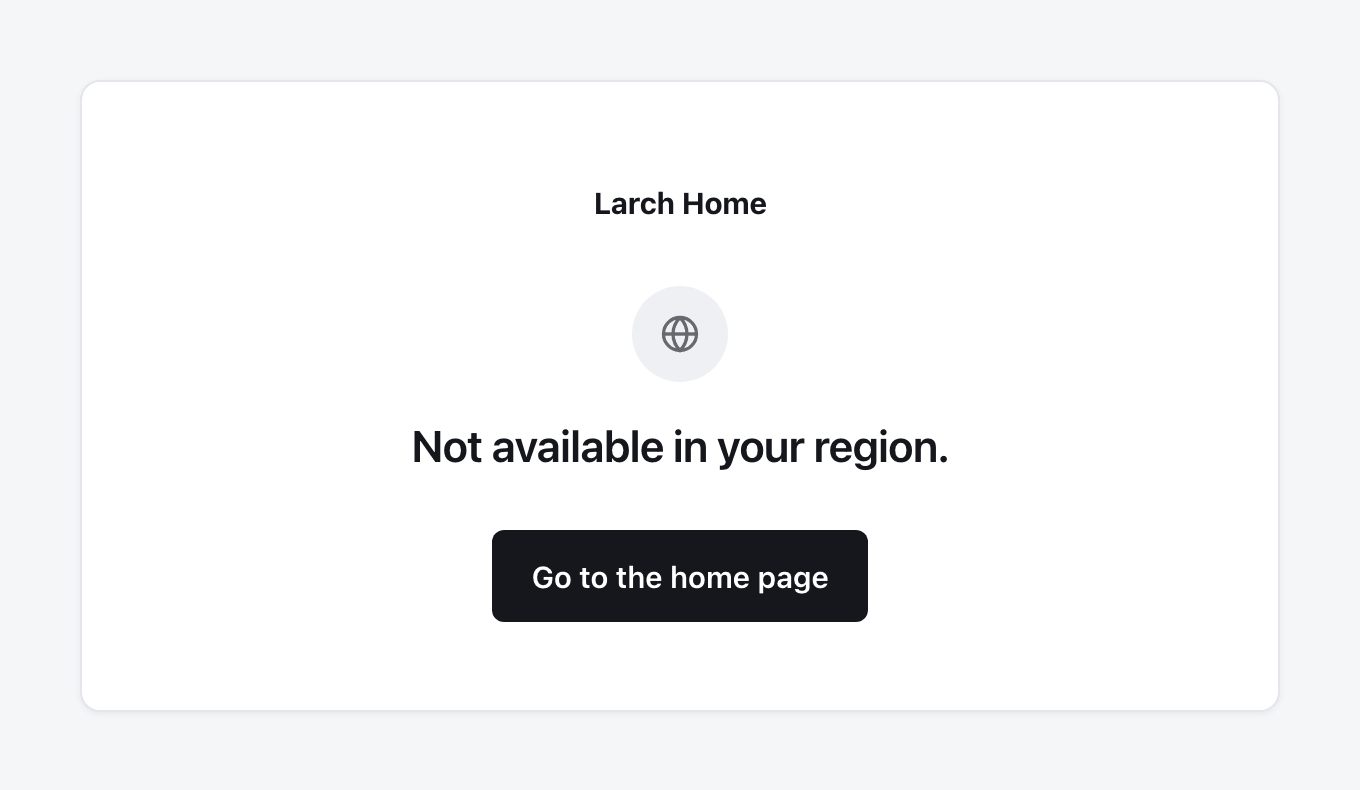
Add a rule and set Rule covers to Chosen pages or Whole site. Open only to and Closed to list the countries and states. Visitors from other places are sent to the address in Send other visitors to, such as your store for their country, or see the restriction message on a simple page with your logo when it is empty.
- A whole-site rule also stops purchases from those places, so nothing can be ordered from there.
- To let customers elsewhere browse but not buy, use a rule for All products instead.
- Logged-in store managers always see the whole site, and wp-admin and the login page are never closed.
Content by country
Show text only to customers in some places, in any page or post. Use country codes, or a country and state code such as US:HI.
[crpw_content only="US,CA"]Free shipping to the US and Canada.[/crpw_content][crpw_content never="US:HI,US:AK"]Ships in 2 days.[/crpw_content]
Text for some states only is shown once the customer’s state is known.
Checkout
Whatever is shown in the shop, checkout stops orders with items that can’t go to the delivery address, with a message naming the item. State rules are checked once the customer enters their address. This works in the classic checkout and the Cart and Checkout blocks.
Settings
| Setting | What it does |
|---|---|
| Products customers can’t order | Show them with the restriction message, or hide them from the shop, categories, search and related products. |
| Price | Hide the price of products customers can’t order. |
| Restriction message | Shown on products customers can’t order, at checkout, and on closed pages that don’t send visitors elsewhere. Leave empty for “Not available in your region.” Add {location} to name the customer’s country or state. |
| Direct links to hidden products | Show the product page with the restriction message, or send the customer to another page. |
| Other page | The page customers are sent to. Leave empty for the shop page. |
| Detect the country | Find new visitors’ country from their IP address, until they give an address. |
| “Delivering to” bar | Show the customer’s country at the top of every page except checkout, with a way to change it. Off by default. |
For developers
| Hook | Use |
|---|---|
crpw_check_product | Whether a product can go to a place. |
crpw_customer_location | The customer’s country and state. |
crpw_rules | The store-wide rules. |
crpw_payment_rules | The countries and states of each payment method. |
crpw_blocked_message | The message shown on closed pages. |
crpw_skip_request | Skip restrictions for a request, such as an export. |
crpw_location_changed | Runs when a customer picks a country. |
crpw_before_notice, crpw_after_notice | Run around the note on the product page. |
Copy public/templates/restriction-notice.php, location-selector.php or closed-page.php to yourtheme/country-state-restrictions/ to change the note, the country picker or the closed page.
Frequently asked questions
Do restrictions apply to orders I create in wp-admin?
No. Restrictions apply to customers in the shop. Orders you create in wp-admin aren’t checked.
Can I restrict payment methods by country too?
Yes, by country or state, under Country restrictions > Payment methods.
Does it work with page caching?
Checkout always does. Detecting the country, page rules and [crpw_content] change pages for each visitor, so pages served from a full-page cache look the same for everyone. Exclude those pages from the cache, or use a cache that varies by country, such as Cloudflare’s.
Is my data removed when I delete the plugin?
No, rules and settings are kept. To remove them, add define( 'CRPW_REMOVE_ALL_DATA', true ); to wp-config.php before deleting the plugin.