
Custom Order Status & Workflows adds order statuses of your own, such as Preparing, Shipped or Ready for pickup, with colours, emails and next-step buttons. Automations move orders on by themselves, right away or after a wait.
Requirements
- WordPress 6.8 or newer
- WooCommerce 10.0 or newer
- PHP 7.4 or newer
- Works with High-Performance Order Storage and orders stored as posts.
Installation
- Download
custom-order-status-workflows.zipfrom My account > Downloads. - In WordPress, go to Plugins > Add New Plugin > Upload Plugin, choose the zip file and click Install Now.
- Click Activate. Statuses, automations and settings are under WooCommerce > Settings > Order statuses.
Quick start: Preparing and Shipped
- Go to WooCommerce > Settings > Order statuses. With no statuses yet, you see examples.
- Click Preparing and Shipped. Shipped emails the customer when an order moves to it.
- Under WooCommerce’s statuses, give Processing the next step Preparing, and save.
- Open the orders list: Processing orders have a Preparing button, Preparing orders a Shipped button.
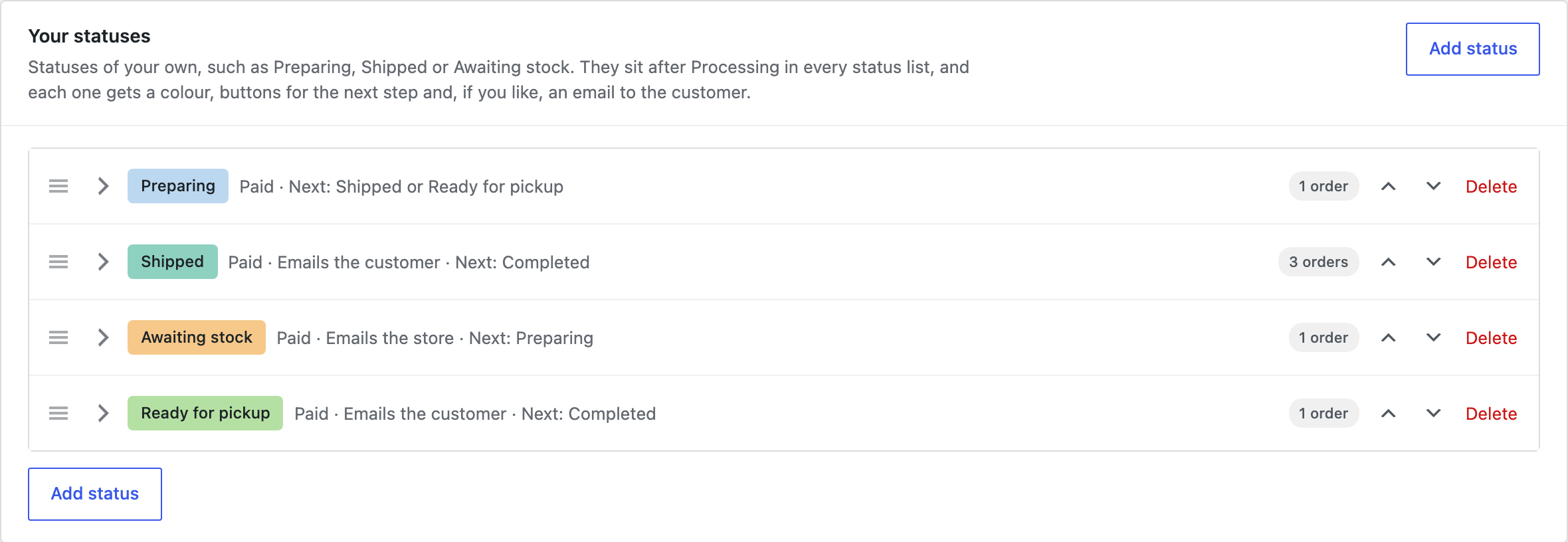
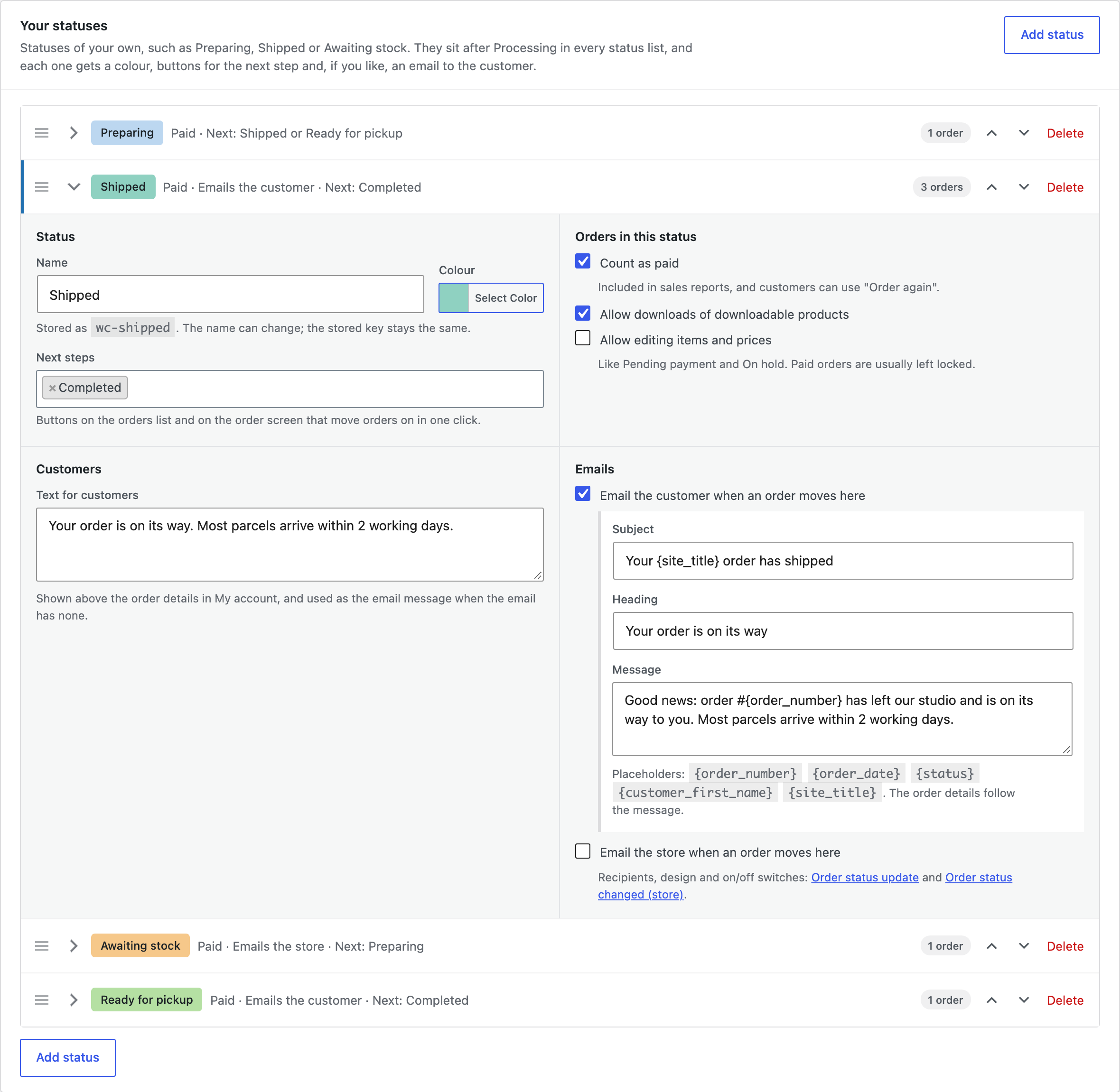
Your statuses
Statuses sit after Processing in every status list, filter and bulk action. Each status has:
| Field | What it does |
|---|---|
| Name, Colour | The name and the colour shown on the orders list. The name can change without changing the stored key. |
| Next steps | Statuses that usually come next. Each one becomes a button on the orders list and in the Workflow box. |
| Orders in this status | Count as paid (sales reports, “Order again”), allow downloads of downloadable products, and allow editing items and prices. |
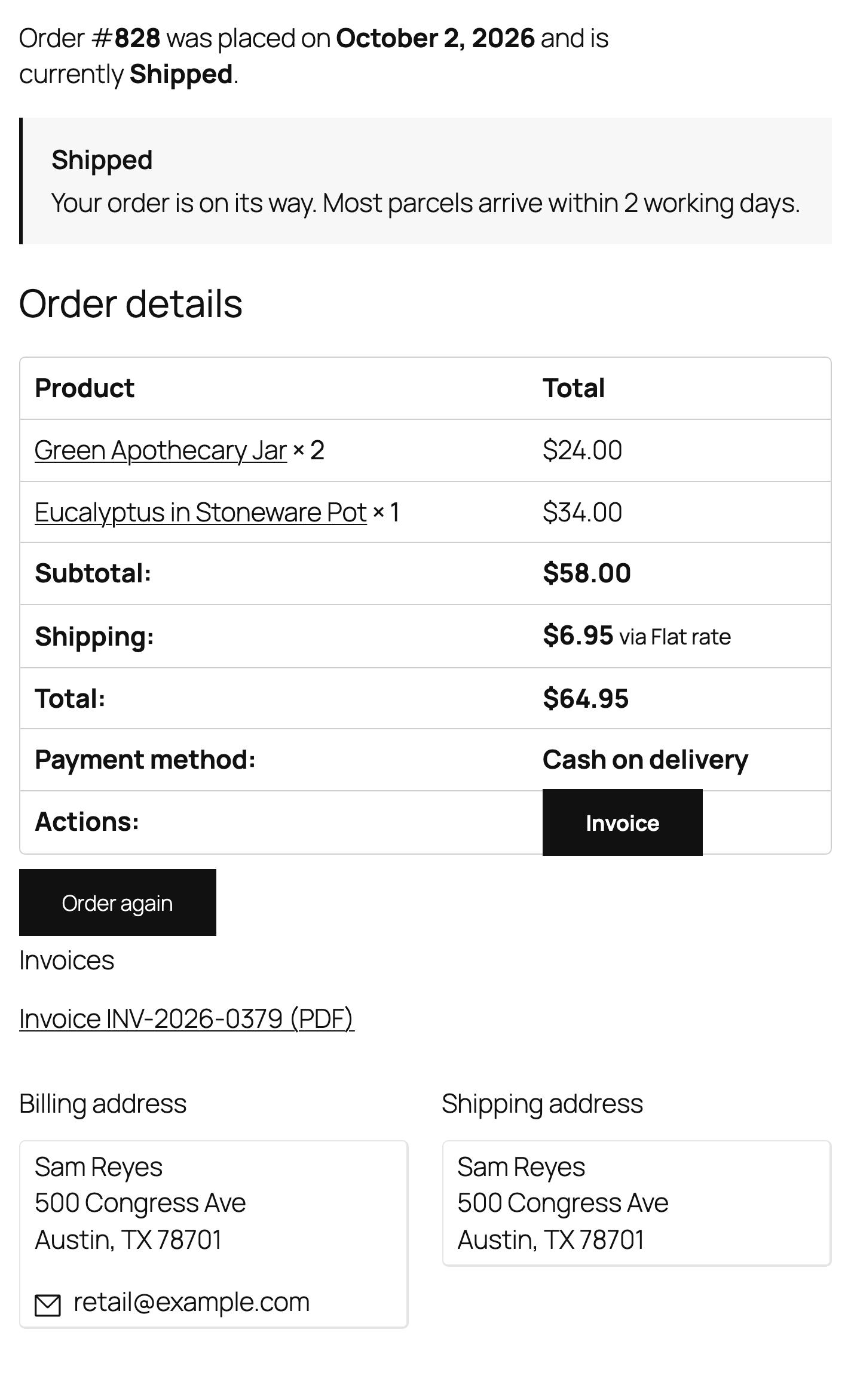
| Text for customers | Shown above the order details in My account, such as “We’re packing your order”. |
| Emails | Email the customer, the store, or both, when an order moves to the status. |
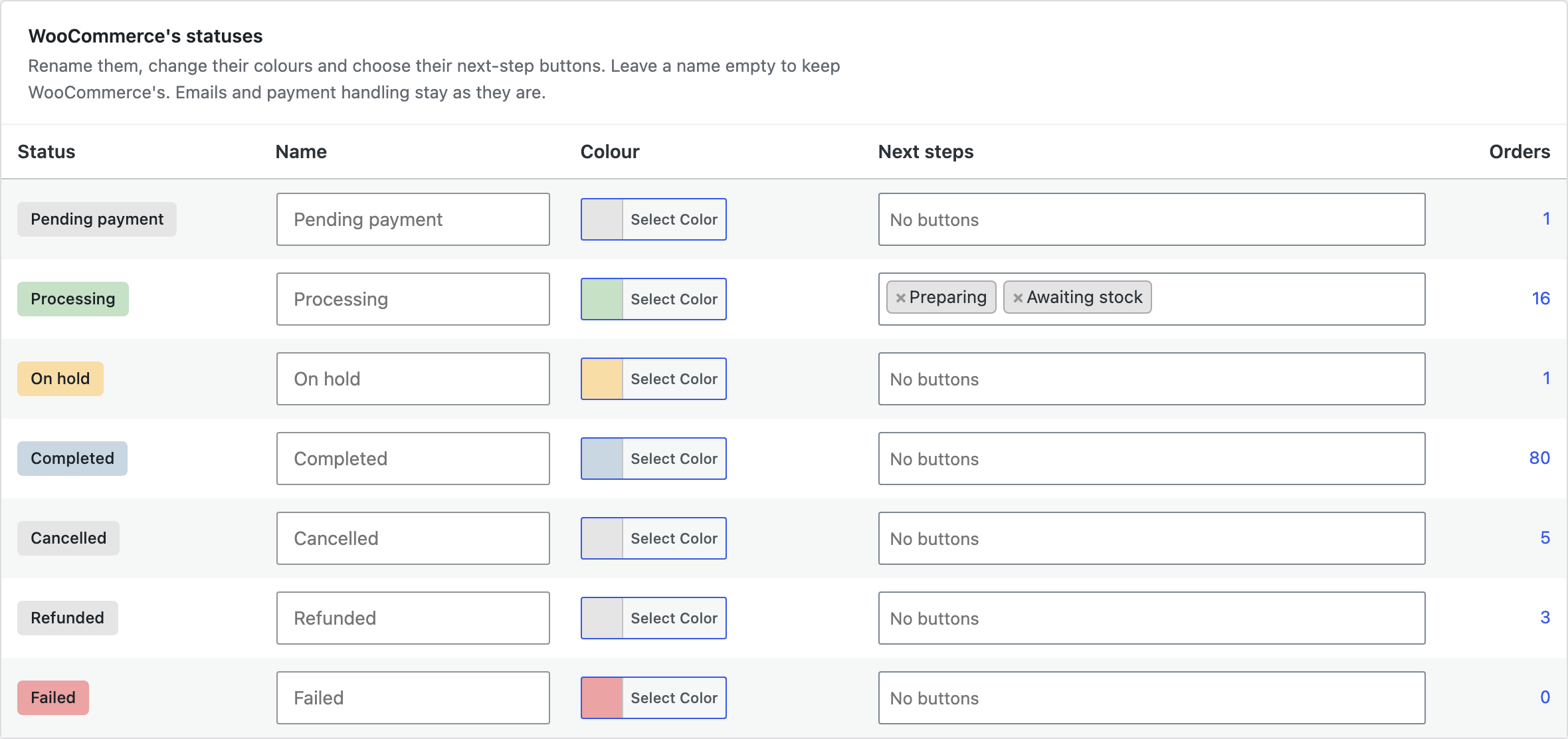
WooCommerce’s own statuses
Rename WooCommerce’s statuses, change their colours and give them next-step buttons. Leave a name empty to keep WooCommerce’s. Emails and payment handling stay as WooCommerce does them.
Next-step buttons
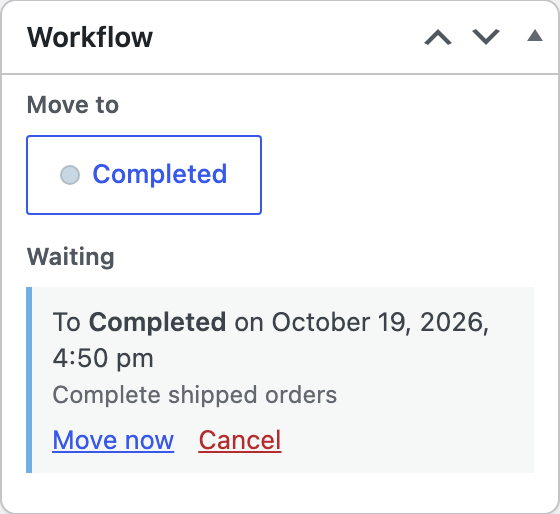
Next steps show as buttons in the Actions column of the orders list, so Processing → Preparing → Shipped → Completed takes one click per step. The same buttons are in the Workflow box on each order, and every status is a bulk action.
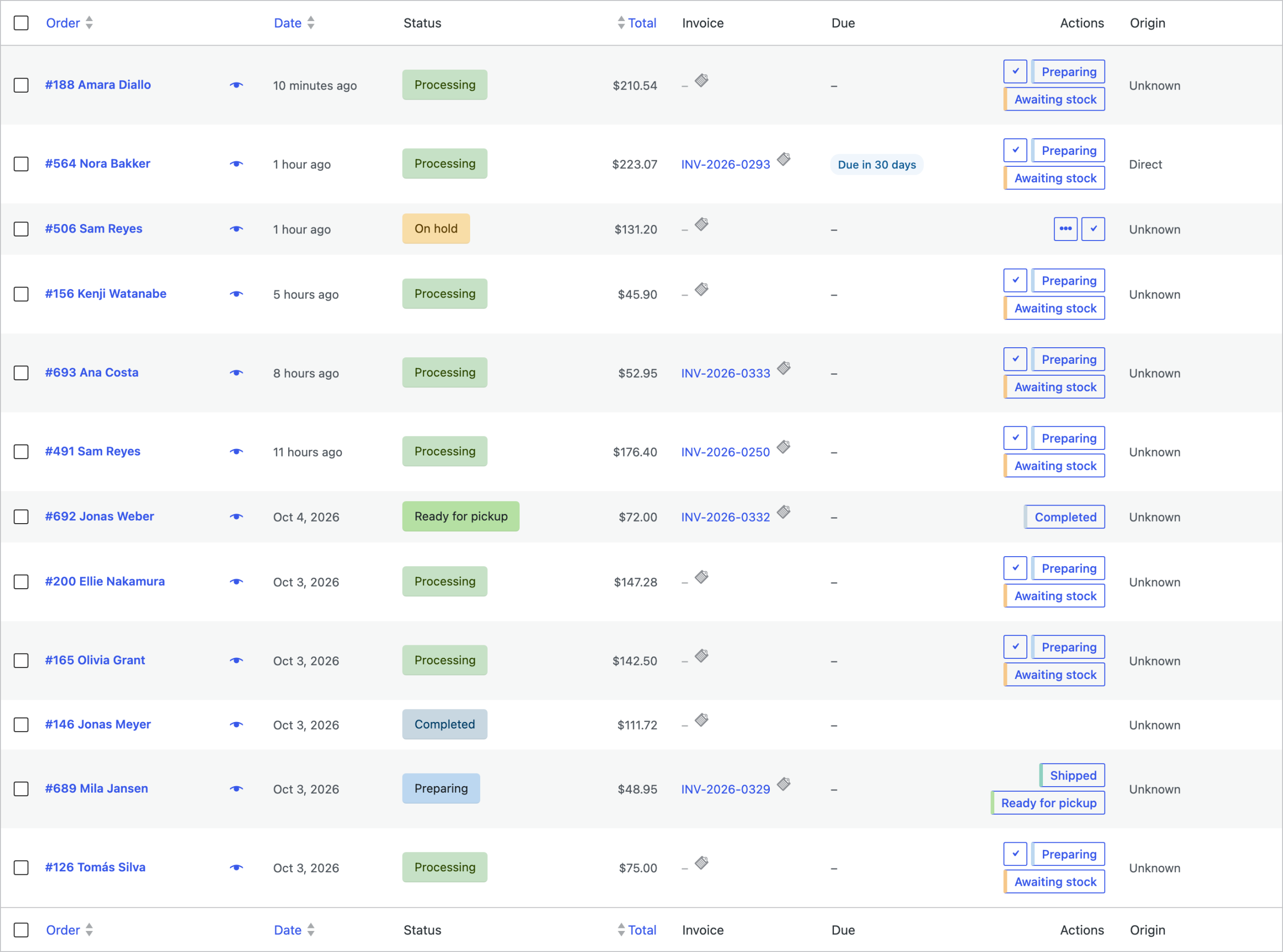
WooCommerce hides the Actions column at first. Open Screen Options at the top of the orders list and tick Actions.
Emails
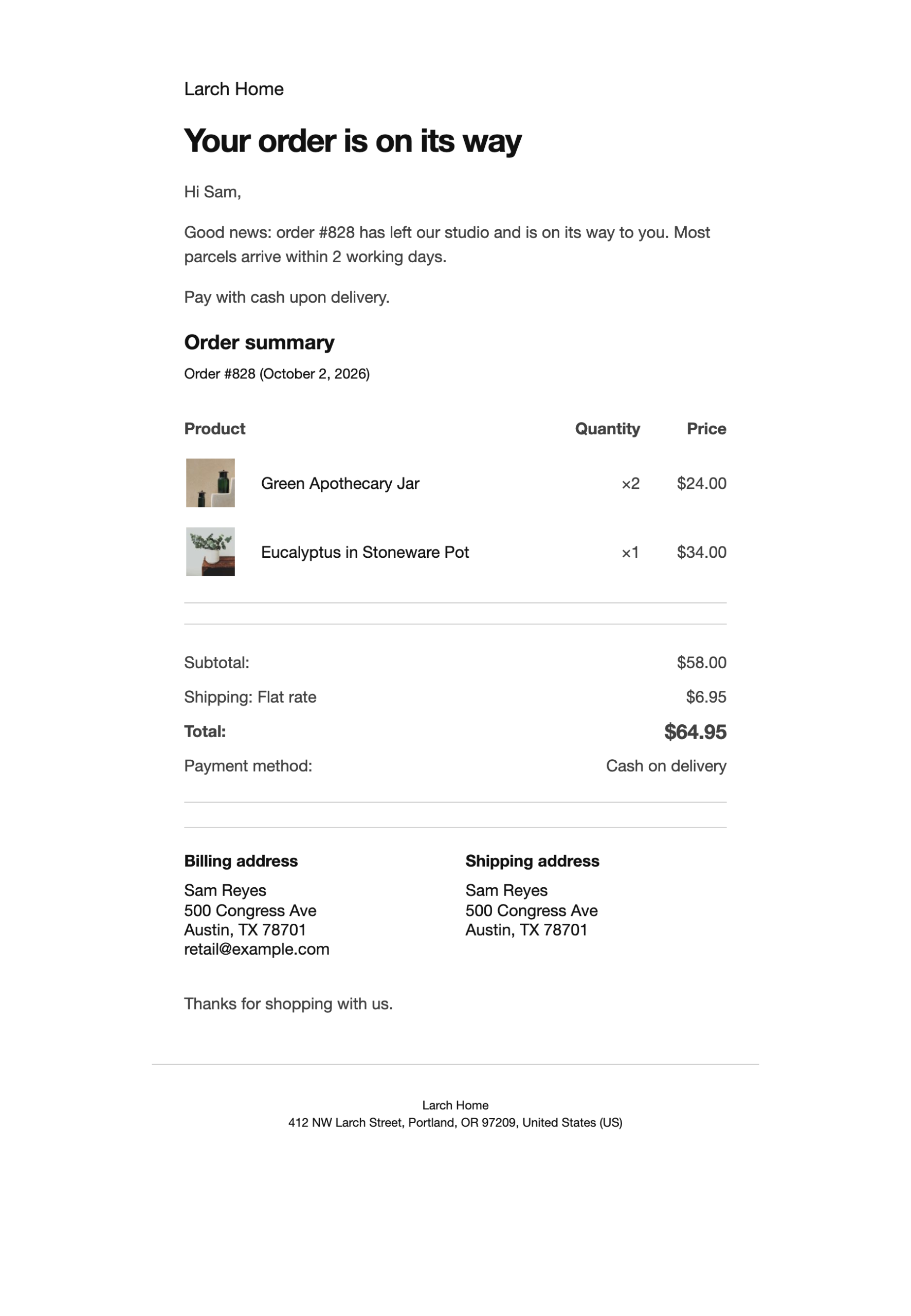
Each status can send Order status update to the customer and Order status changed (store) to you, with its own subject, heading and message. The emails use your WooCommerce email design and include the order details. Placeholders such as {order_number} and {customer_first_name} fill themselves in. Recipients and the email design are under WooCommerce > Settings > Emails.
Customers see the status and its text in My account. To send it again, choose Send “Shipped” email to customer (with the order’s status name) in the order actions.
Automations
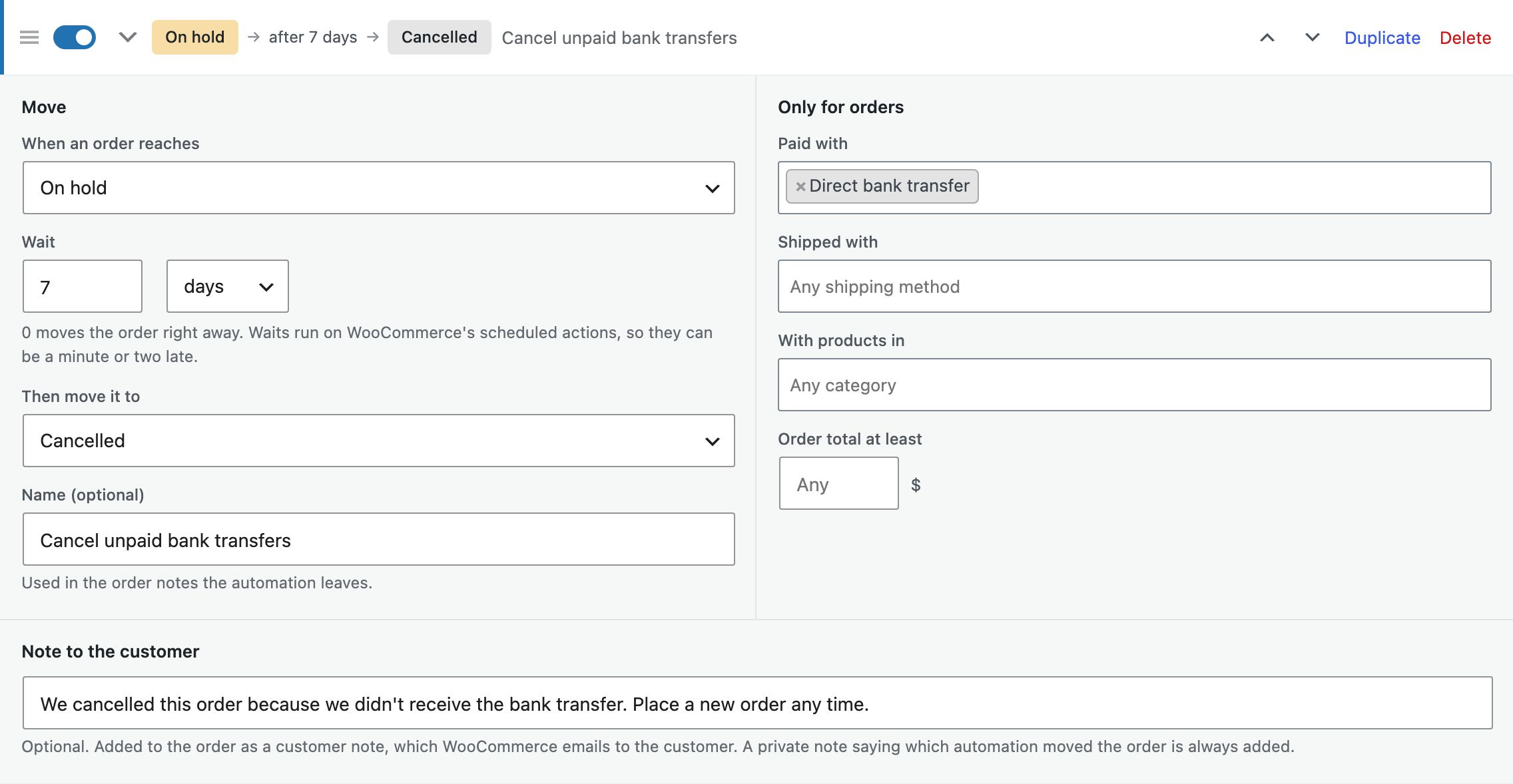
Under Order statuses > Automations, an automation moves an order to another status when it reaches a status, right away or after a wait in minutes, hours or days. For example:
- Complete Shipped orders after 14 days.
- Cancel bank transfer orders that are still on hold after 7 days.
- Send local pickup orders straight to Ready for pickup.
- Hold orders over a set amount for a check.
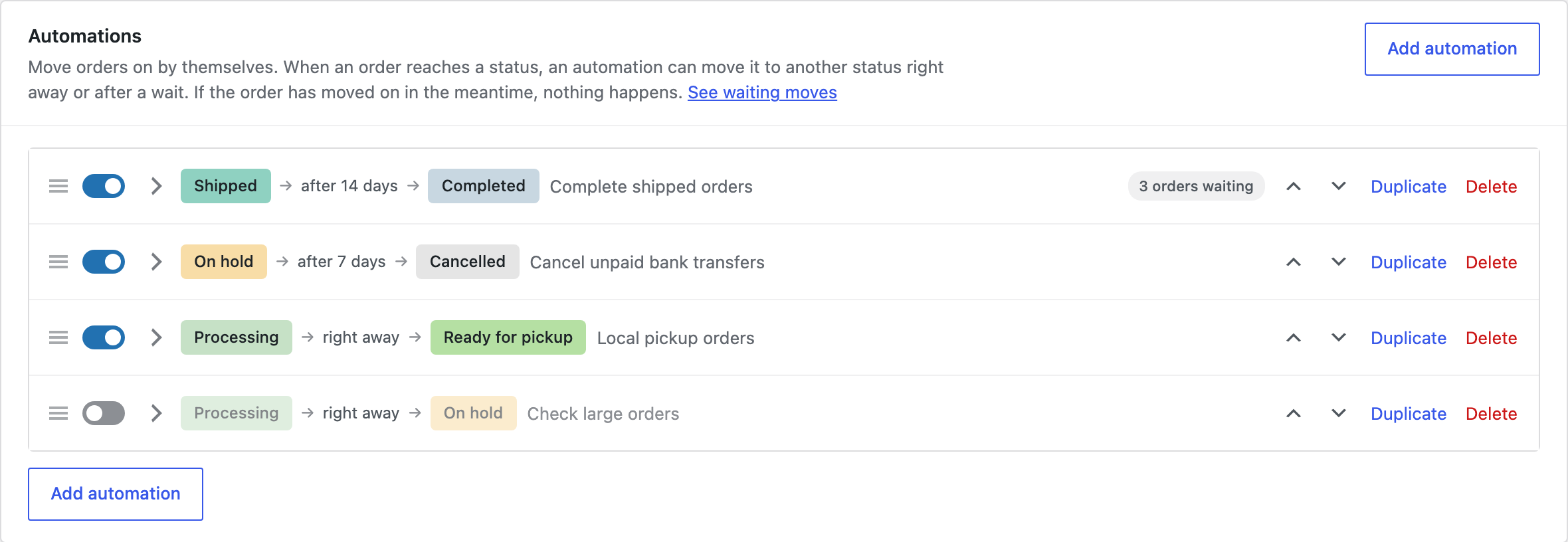
An automation can be limited to payment methods, shipping methods, products in categories and a minimum order total, and can add a note to the customer. If the order has moved on before the wait is over, nothing happens. Every move leaves an order note.
Waiting moves show in the order’s Workflow box, where you can Move now or Cancel. Automations use WooCommerce’s scheduled actions, which run every minute or so while the site has visitors.
Deleting a status
Deleting a status that orders still have moves those orders to the status chosen in Move their orders to, in the background, with a note on each order.
Settings
| Setting | What it does |
|---|---|
| Status text | Show the “Text for customers” of a status above the order details in My account. |
| Move their orders to | Where orders go when you delete their status. |
| Remove data | Deletes statuses, automations and settings when the plugin is deleted. |
Orders keep their status in the database when the plugin is deactivated, but WordPress no longer knows custom statuses, so those orders don’t show in the orders list. Move them to one of WooCommerce’s statuses before deactivating, or reactivate the plugin and they come back.
For developers
| Hook | Use |
|---|---|
cosw_statuses, cosw_automations | The statuses and automations. |
cosw_automation_matches | Whether an automation applies to an order. |
cosw_automation_ran | Runs after an automation moves an order. |
cosw_customer_email_message | The message of the customer email. |
cosw_example_statuses, cosw_example_automations | The examples offered. |
cosw_admin_capability | The capability needed to change statuses and automations. |
Copy public/templates/status-note.php or the emails in public/templates/emails/ to yourtheme/custom-order-status-workflows/ to change them.
Frequently asked questions
Can two automations move an order back and forth?
An order can only be moved a few times in a row by automations, and the editor warns you when two automations move orders straight back to each other.
Do custom statuses count in Analytics?
Yes. WooCommerce Analytics counts every status except those under Analytics > Settings > Excluded statuses, where you can leave out a custom status too.
Changelog
1.4.0 · September 24, 2026
Compatibility update
- Updated compatibility checks for current WooCommerce releases.
- Improved translated notices and settings labels.
1.3.3 · April 24, 2026
Maintenance
- Fixed a delayed action changing the status after the order had already been cancelled.
1.3.0 · April 10, 2026
Feature update
- Added automatic status changes based on order conditions.
- Added delayed actions for workflows that need a waiting period.
1.2.1 · December 9, 2025
Maintenance
- Fixed a next-step button remaining visible after an order had moved to its final status.
1.2.0 · November 30, 2025
Feature update
- Added next-step buttons to the orders list and individual order screens.
- Added controls for the allowed next statuses in each workflow.
1.1.1 · June 29, 2025
Hotfix
- Fixed the same status email being sent again when an order note was saved.
1.1.0 · June 16, 2025
Feature update
- Added customer and store email notifications for custom statuses.
- Added email previews and editable subject lines.
- Compatibility: updated integration checks for WooCommerce 9.x.
1.0.2 · February 11, 2025
Hotfix
- Fixed a custom status label not appearing in the order filter immediately after it was saved.
1.0.0 · January 30, 2025
Initial release
- Initial release.
- Create custom WooCommerce order statuses with labels and colours.