
Request a Quote & PDF Quotes lets customers send a list of products for a quote. You price the request in the order editor and send a PDF quote; the customer accepts and pays online, asks for changes, or declines.
Requirements
- WordPress 6.8 or newer
- WooCommerce 10.0 or newer
- PHP 7.4 or newer
- Works with classic and block themes, the Cart and Checkout blocks, and High-Performance Order Storage. The PDF is made by the plugin itself.
Installation
- Download
request-a-quote-pdf-quotes.zipfrom My account > Downloads. - In WordPress, go to Plugins > Add New Plugin > Upload Plugin, choose the zip file and click Install Now.
- Click Activate. The plugin adds a Request a quote page and shows Add to quote on every product. Quotes are under WooCommerce > Quotes, settings under WooCommerce > Settings > Quotes.
Quick start: your first quote
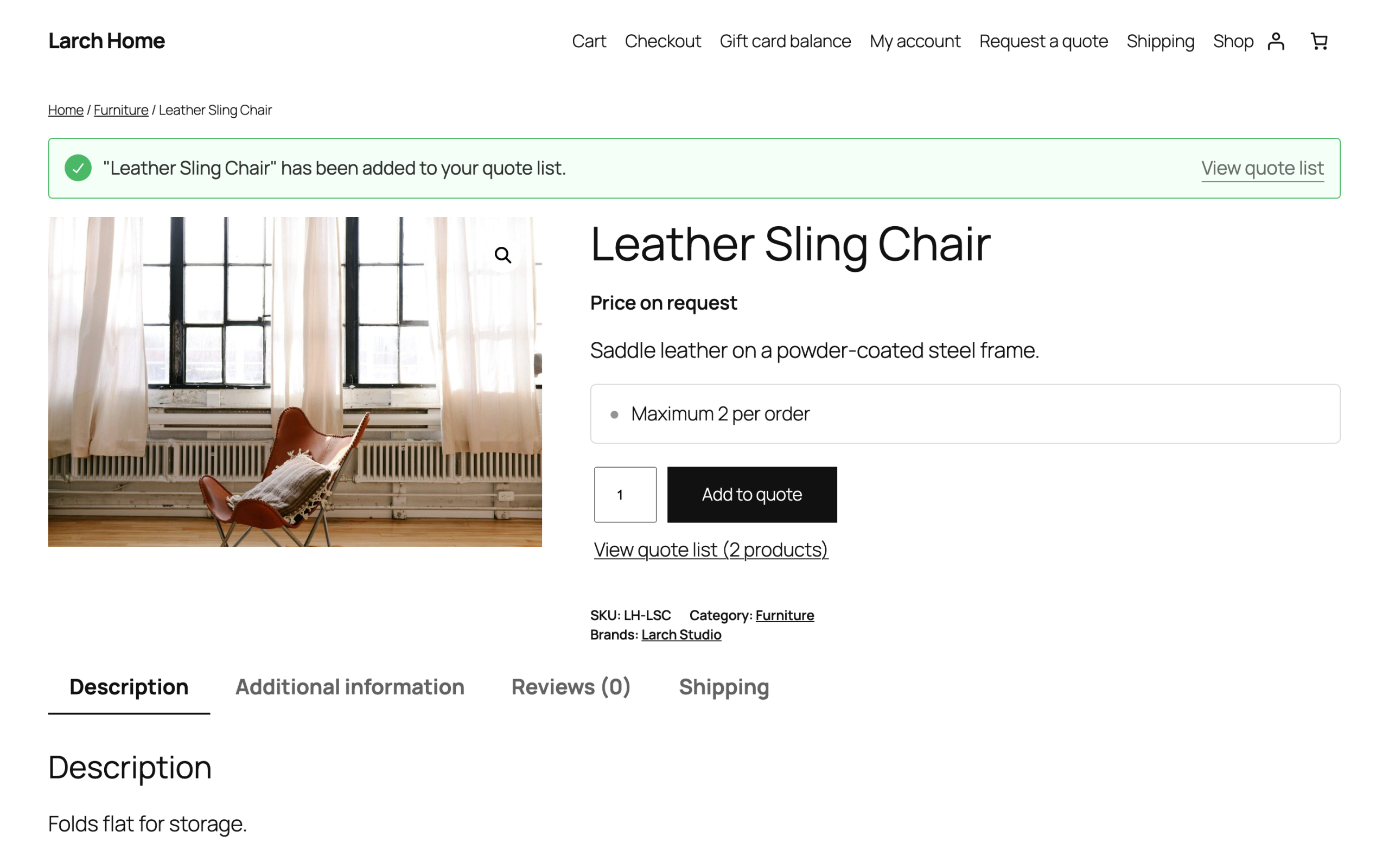
- Open any product in your store and click Add to quote, then View quote list.
- Fill in your details and click Request quote. You get a “New quote request” email.
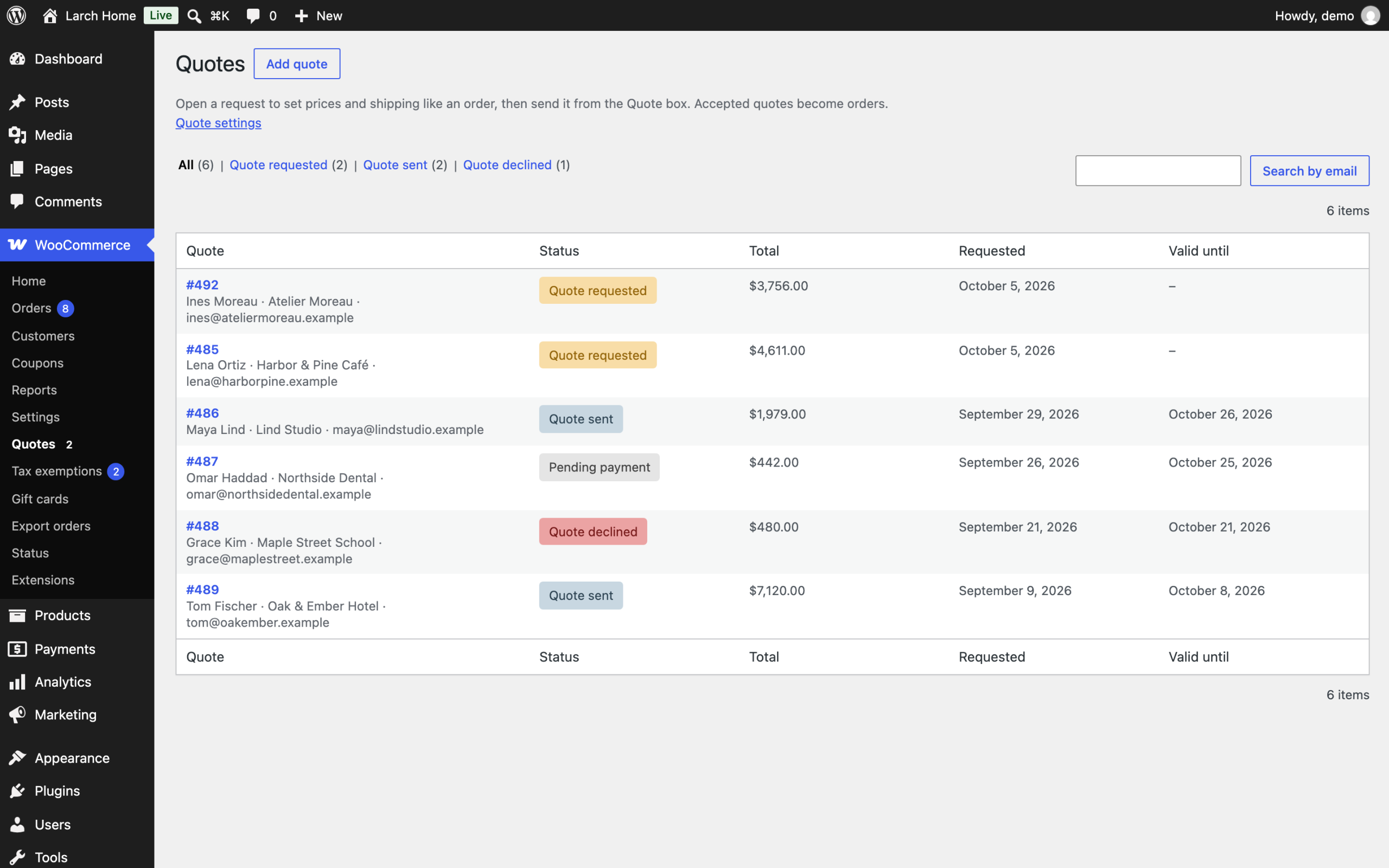
- Go to WooCommerce > Quotes and open the request. Set the prices, add shipping if needed, and click Recalculate.
- In the Quote box, check the valid-until date, add a message and click Send quote. The customer gets an email with the PDF and a link to accept and pay.
Quote buttons
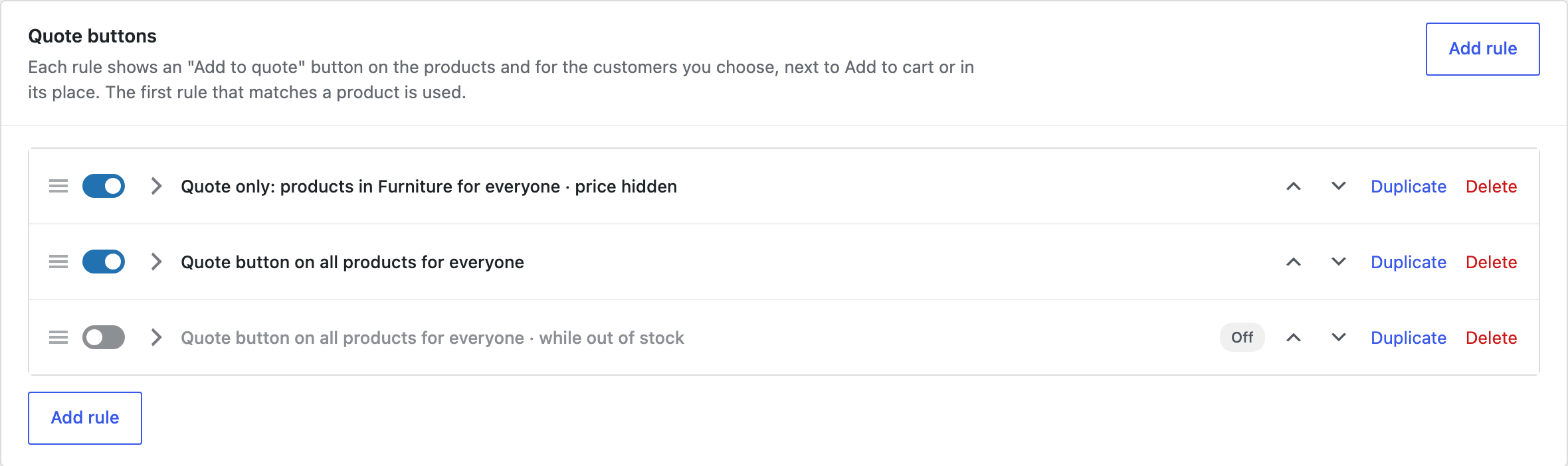
Rules under Quotes > Quote buttons decide where the button appears. Each rule chooses:
| Choice | Options |
|---|---|
| Button | Add to quote next to Add to cart, or Replace Add to cart so the product can only be ordered by quote. |
| Products | All products, categories, tags, brands or single products, or all products except them. |
| Customers | Everyone, guests, user roles or chosen customers, or everyone except them. |
| Only when out of stock | Show the quote button only while the product is out of stock. |
| Price | Hide the price and show your own text, such as “Price on request”. |
The quote list and request
Customers collect products, with their options and quantities, in the quote list. The Request a quote page shows the list and the request form: name, email, phone, company and a message. Logged-in customers have their details filled in. The page uses the Quote request block; in a classic theme use the shortcode [raqp_quote].
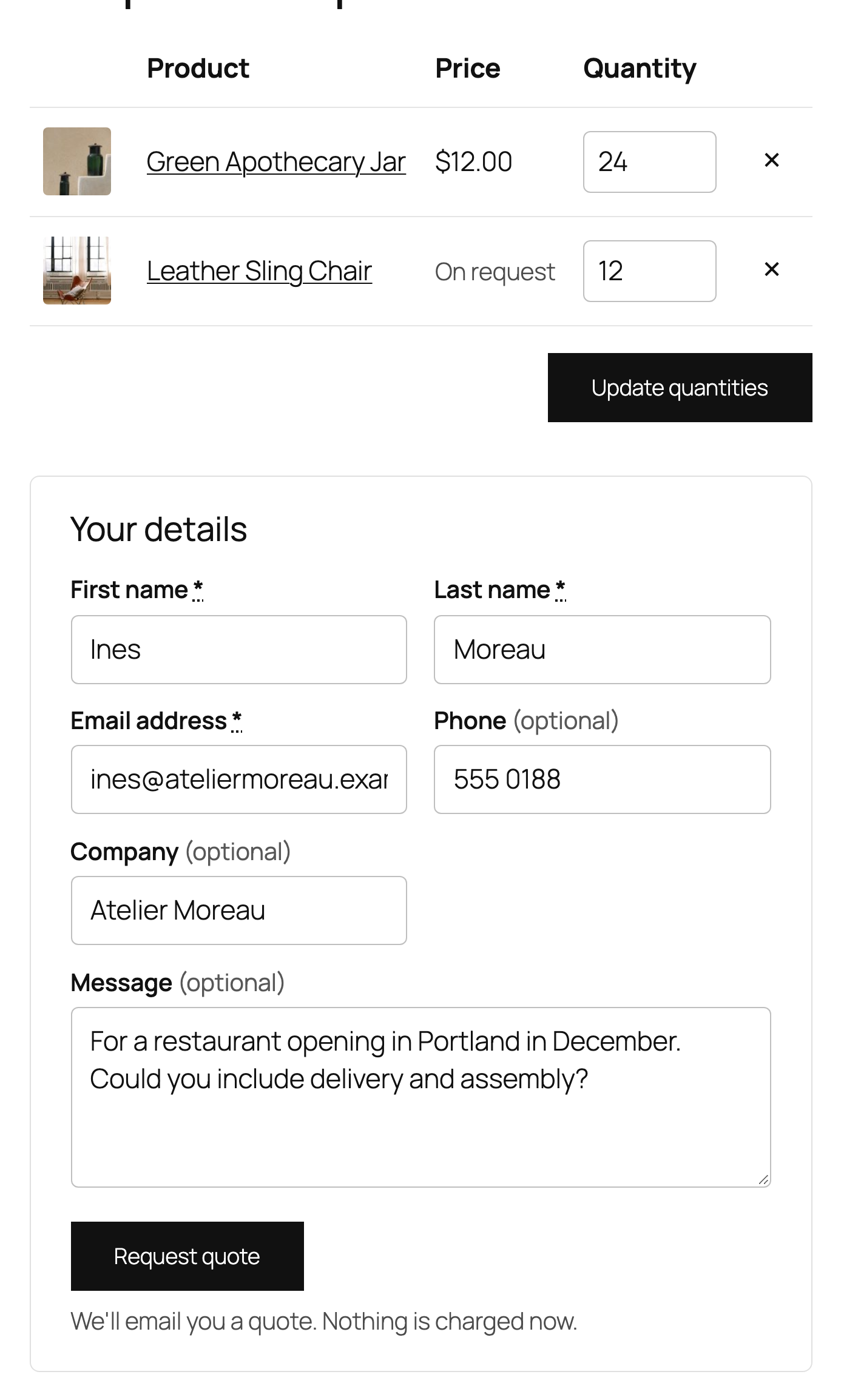
After sending, the customer sees a confirmation and gets a “Quote request received” email; you get “New quote request”. Spam bots are stopped with a hidden field and a limit of 10 requests per hour from one address.
Pricing a quote
Every request is a WooCommerce order with the status Quote requested, so you edit it in the order editor you already know: change prices and quantities, add products, shipping, fees or coupons, and recalculate tax. Quotes don’t reduce stock, don’t count as sales and stay out of the Orders list’s “All” view and Analytics until they are accepted.
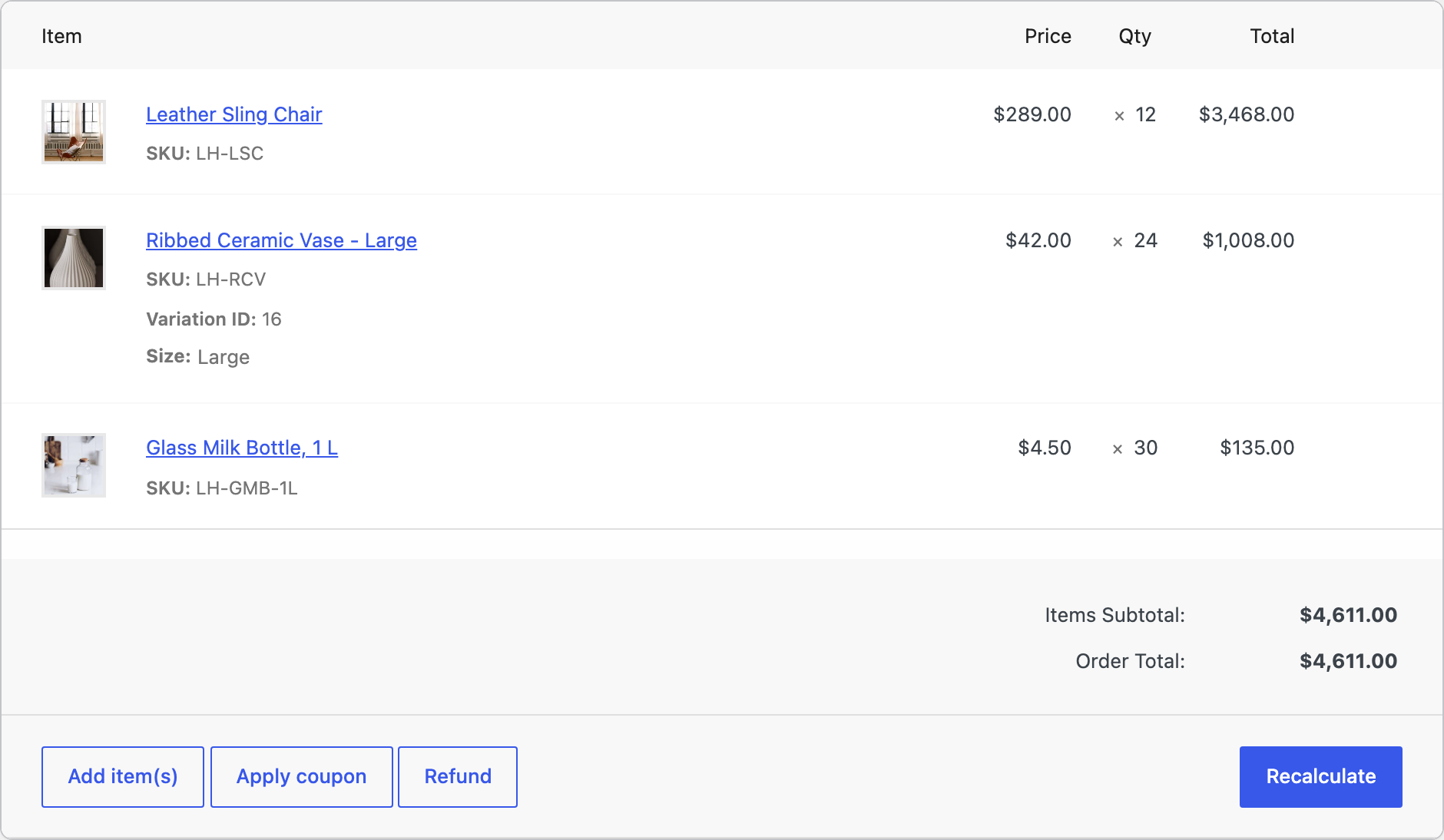
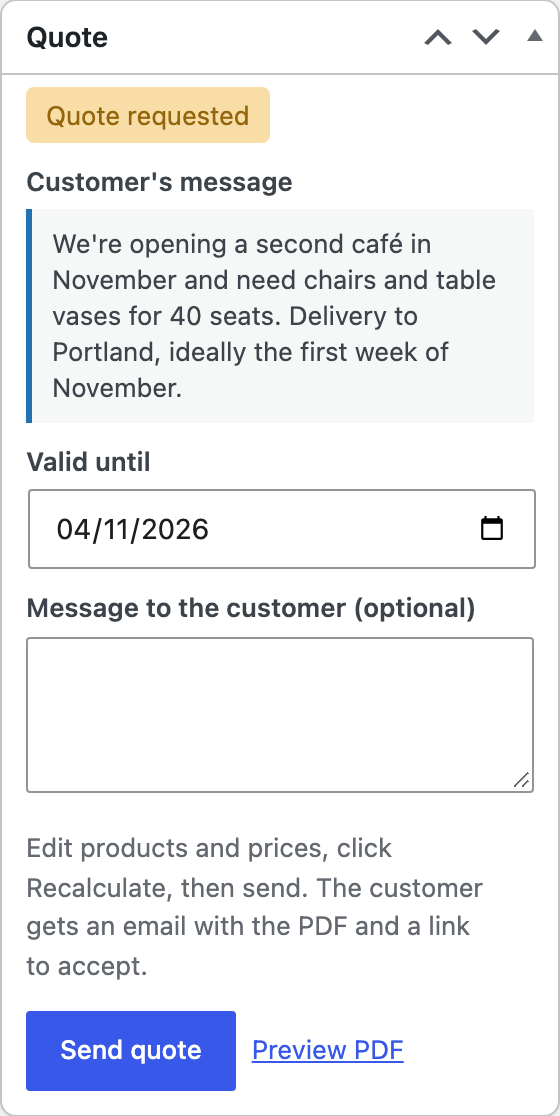
The Quote box on the right shows the customer’s message. Set the valid-until date and an optional message, then click Send quote. To quote a customer who hasn’t asked, click Add quote on WooCommerce > Quotes.
The PDF quote
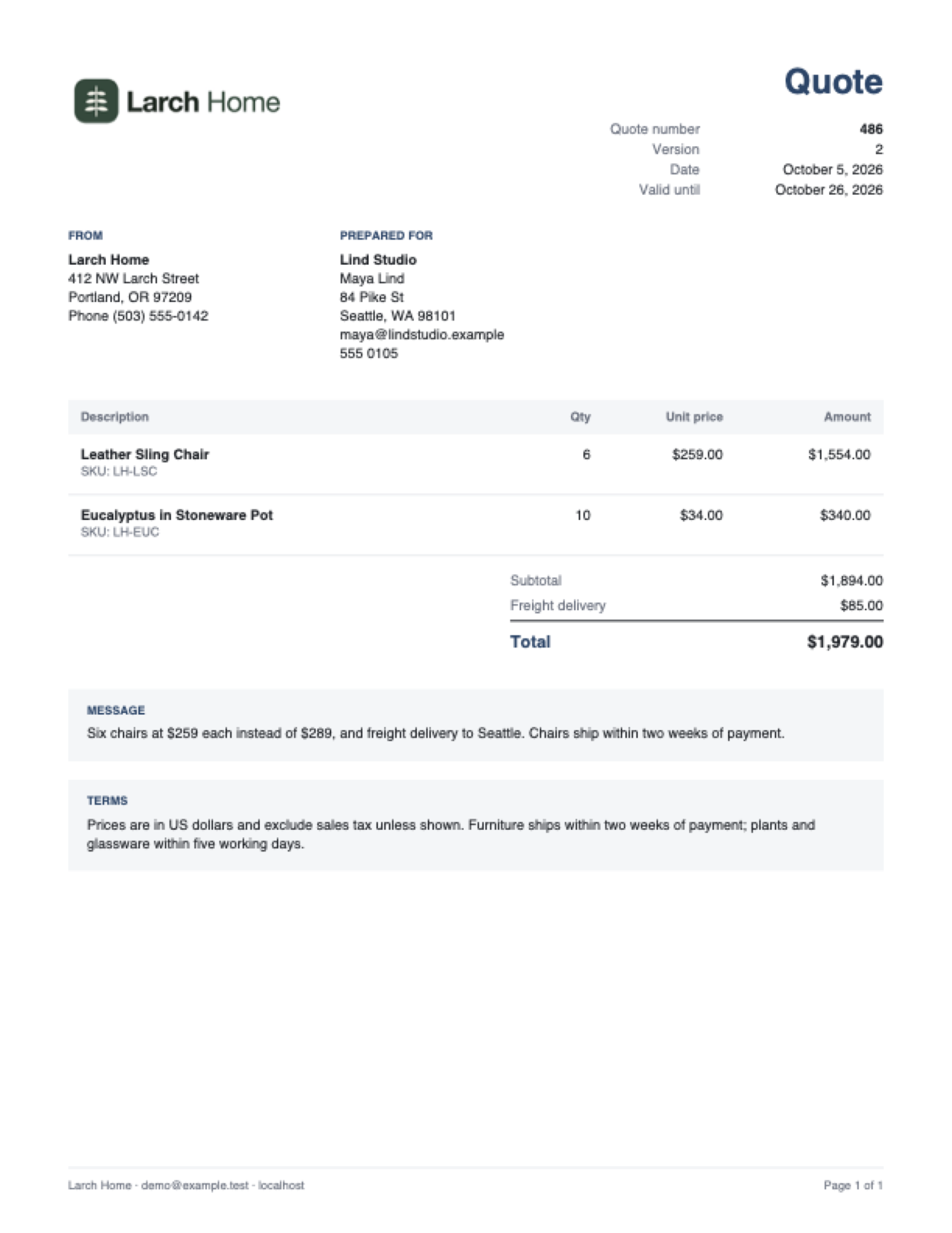
The PDF is attached to the Quote email and can be downloaded from the order and from the customer’s quote page. It shows your logo, address and extra details, the customer’s details, the lines and totals, your message, the valid-until date and your terms. Set these under Quotes > Settings > PDF quote.
The customer’s answer
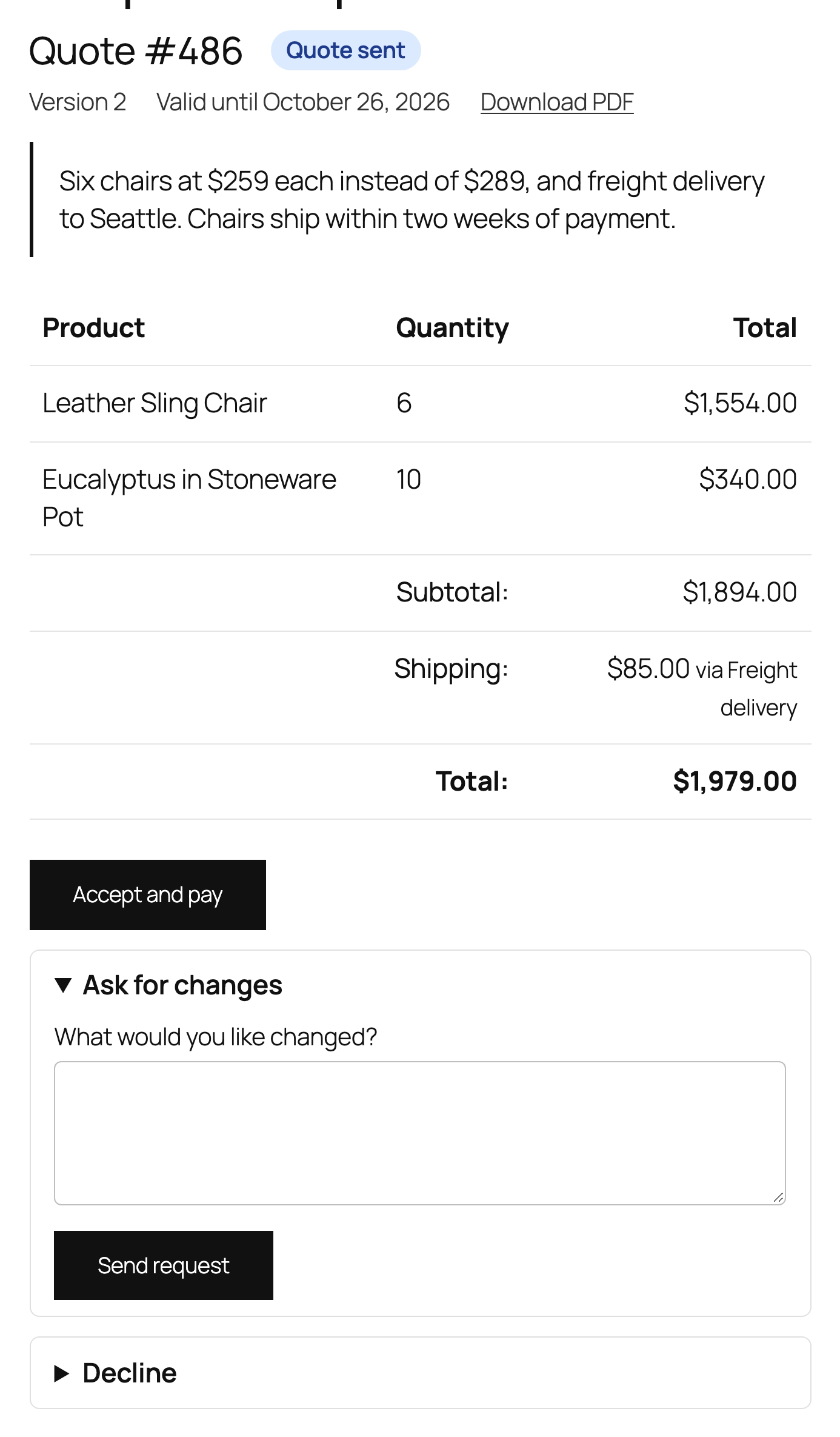
The email links to the quote page, where the customer can:
- Accept and pay: they go to WooCommerce’s payment page, and the quote becomes a normal order with the same number. With When a customer accepts set to “Mark the quote accepted”, the quote is marked accepted and you arrange payment yourself.
- Ask for changes: with a message. The quote comes back to you as Quote requested.
- Decline: with an optional reason.
You get a “Quote response” email for every answer. Logged-in customers also find their quotes under My Account > Quotes.
Revisions and versions
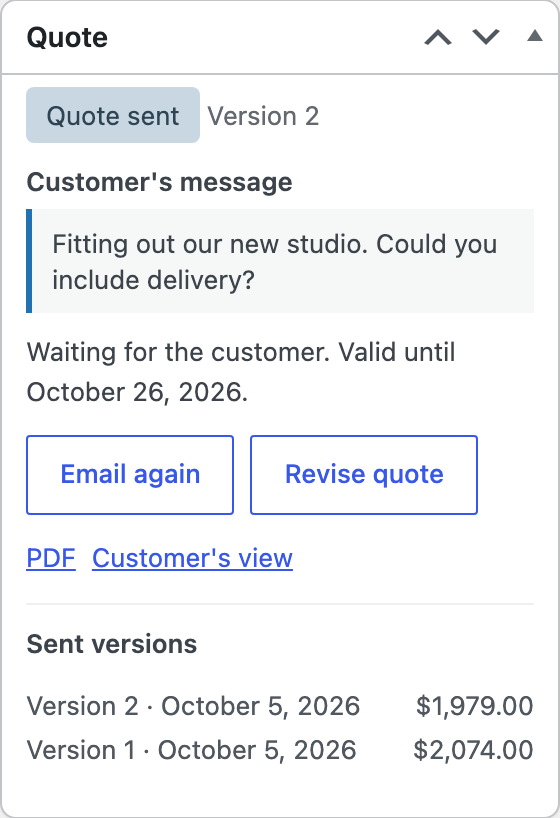
To change a quote after sending it, click Revise quote in the Quote box, make your changes and send it again. Each sent version is kept with its date and total, and the customer can only accept the latest one.
Expiry and reminders
Quotes that aren’t answered by their valid-until date get the status Quote expired. A reminder email goes to the customer a few days before, if you set Reminder in the settings. To reopen an expired quote, click Revise quote and send a new version.
Statuses
| Status | Meaning |
|---|---|
| Quote requested | Waiting for you to set prices and send it. |
| Quote sent | Waiting for the customer, until the valid-until date. |
| Quote accepted | Accepted in “accept only” mode, for you to invoice. In “pay” mode the quote becomes Pending payment, then Processing when paid. |
| Quote declined | Declined by the customer, with their reason. |
| Quote expired | Not answered in time. |
Settings
| Setting | What it does |
|---|---|
| Quote page | The page with the Quote request block. |
| Button text | The text of the Add to quote button. |
| Phone field, Company field | Hidden, optional or required on the request form. |
| Valid for | Days a quote is valid after sending. You can change the date of each quote. |
| Reminder | Days before expiry to email the customer. 0 for no reminder. |
| When a customer accepts | Send them to the payment page, or mark the quote accepted and arrange payment yourself. |
| Logo, Accent color, Paper size | How the PDF looks. |
| Extra company details, Terms | Printed under your address and at the end of every quote. |
| Remove data | Deletes the quote rules and settings when the plugin is deleted. Quotes stay in your orders. |
The five emails (New quote request, Quote request received, Quote, Quote response and Quote expiring) are under WooCommerce > Settings > Emails.
For developers
| Hook | Use |
|---|---|
raqp_rules, raqp_product_rule | The quote button rules, and the rule that applies to a product. |
raqp_can_quote_product_type | Which product types can be quoted. |
raqp_request_errors | Validate the request form. |
raqp_pdf_details | The store details printed on the PDF. |
raqp_quote_requested, raqp_quote_sent, raqp_quote_response | Run when a quote is requested, sent or answered. |
raqp_admin_capability | The capability needed to manage quotes. |
Copy any file from public/templates/ to yourtheme/request-a-quote-pdf-quotes/ to change the buttons, the quote list, the quote page or My Account > Quotes.
Frequently asked questions
Can customers order some products and quote others?
Yes. With Add to quote next to Add to cart, customers choose. With Replace Add to cart, those products can only be quoted.
Can guests request quotes?
Yes. Guests open their quote from the link in the email; it is protected by a key in the link.
Do quotes work with my payment gateways?
Yes. Accepted quotes are paid on WooCommerce’s own payment page, with any gateway that supports it.
Changelog
1.5.2 · October 6, 2026
Maintenance
- Fixed a settings notice remaining visible after the configuration had been saved.
- Improved validation of saved settings during plugin updates.
1.5.0 · September 26, 2026
Compatibility update
- Updated compatibility checks for current WooCommerce releases.
- Improved translated notices and settings labels.
1.4.2 · May 26, 2026
Hotfix
- Fixed an expired quote still showing an active acceptance button.
1.4.0 · May 12, 2026
Feature update
- Added automatic reminders and expiry handling.
- Improved customer messages for expired quotes.
- Compatibility: updated integration checks for WooCommerce 10.x.
1.3.1 · February 4, 2026
Maintenance
- Fixed a reminder email linking to an older revision of the quote.
1.3.0 · January 20, 2026
Feature update
- Added quote revisions and a history of earlier versions.
- Improved the indication of which revision is awaiting a response.
1.2.5 · September 30, 2025
Maintenance
- Fixed an accepted quote remaining available for editing after payment had started.
1.2.0 · September 24, 2025
Feature update
- Added online quote acceptance and payment from the customer account.
- Added options to request changes or decline a quote.
- Compatibility: updated integration checks for WooCommerce 10.x.
1.1.5 · June 26, 2025
Hotfix
- Fixed long product names overlapping the price column in a PDF quote.
1.1.0 · June 19, 2025
Feature update
- Added PDF quotes with a store logo, terms and expiry date.
- Added clearer quote totals and item details to the PDF.
1.0.1 · February 27, 2025
Hotfix
- Fixed the requested quantity being reset when an item was edited in the quote list.
1.0.0 · February 16, 2025
Initial release
- Initial release.
- Let customers request a quote and manage requested items in WooCommerce.