
Quick Order Form & Variation Grid gives customers who buy in quantity two faster ways to order: a grid of every variation with its own quantity on the product page, and a quick order form with search by name or SKU, pasted lists and order again.
Requirements
- WordPress 6.8 or newer
- WooCommerce 10.0 or newer
- PHP 7.4 or newer
- Works with classic and block themes, the Cart and Checkout blocks, and High-Performance Order Storage.
Installation
- Download
quick-order-form-variation-grid.zipfrom My account > Downloads. - In WordPress, go to Plugins > Add New Plugin > Upload Plugin, choose the zip file and click Install Now.
- Click Activate. Settings are under WooCommerce > Settings > Quick order, where a button creates the quick order page.
Quick start
- Go to WooCommerce > Settings > Quick order and click Create a Quick order page. It holds the Quick order form block.
- Open a variable product: every variation now has its own quantity field.
- Open the quick order page, search for a product by name or SKU, enter quantities and click Add to cart.
The variation grid
On variable product pages, the grid replaces the dropdowns with every variation and its own quantity field. Products with two options, such as size and glaze, show as rows and columns. The grid shows stock, prices and SKUs, and the number of items with their total as customers type. One button adds all the quantities to the cart.
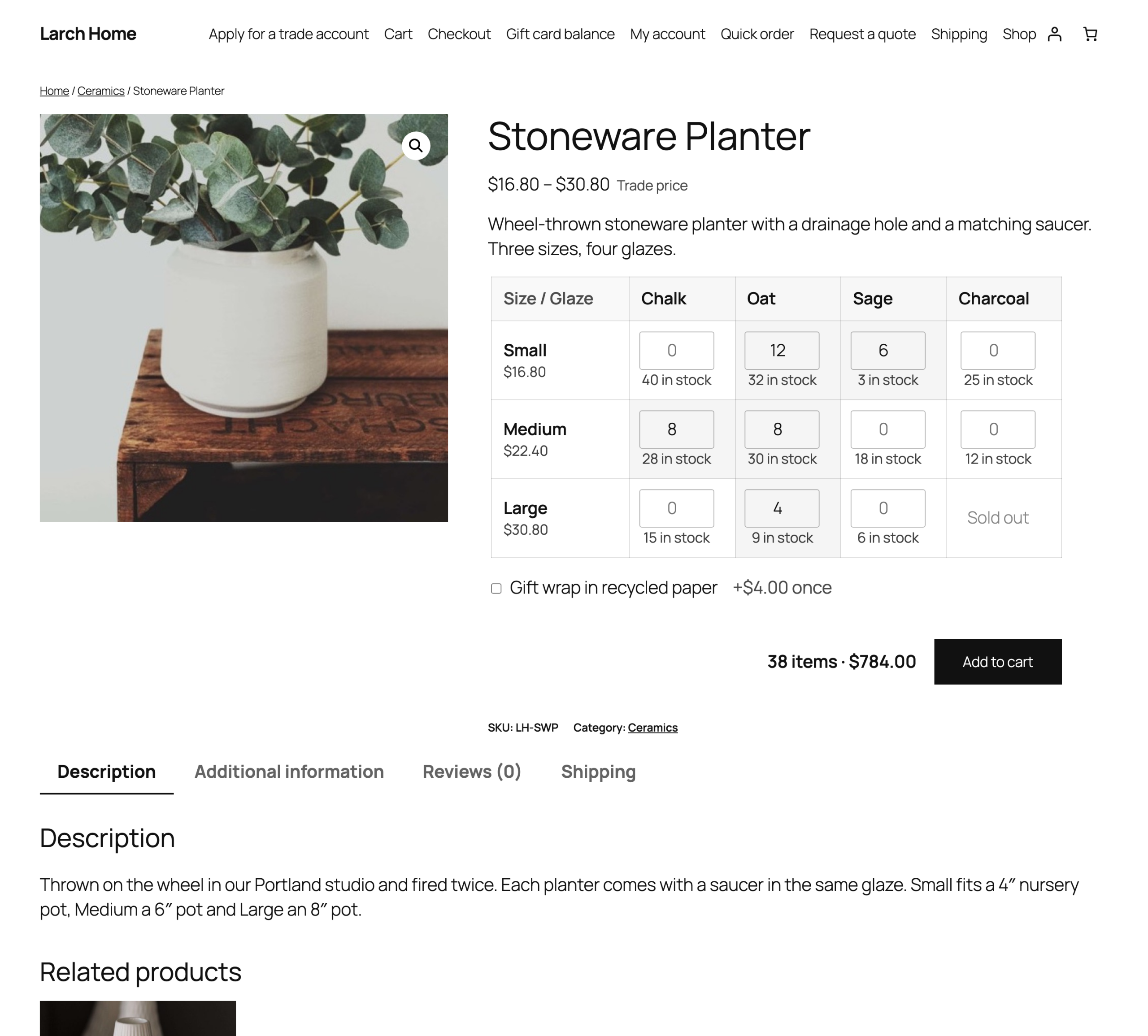
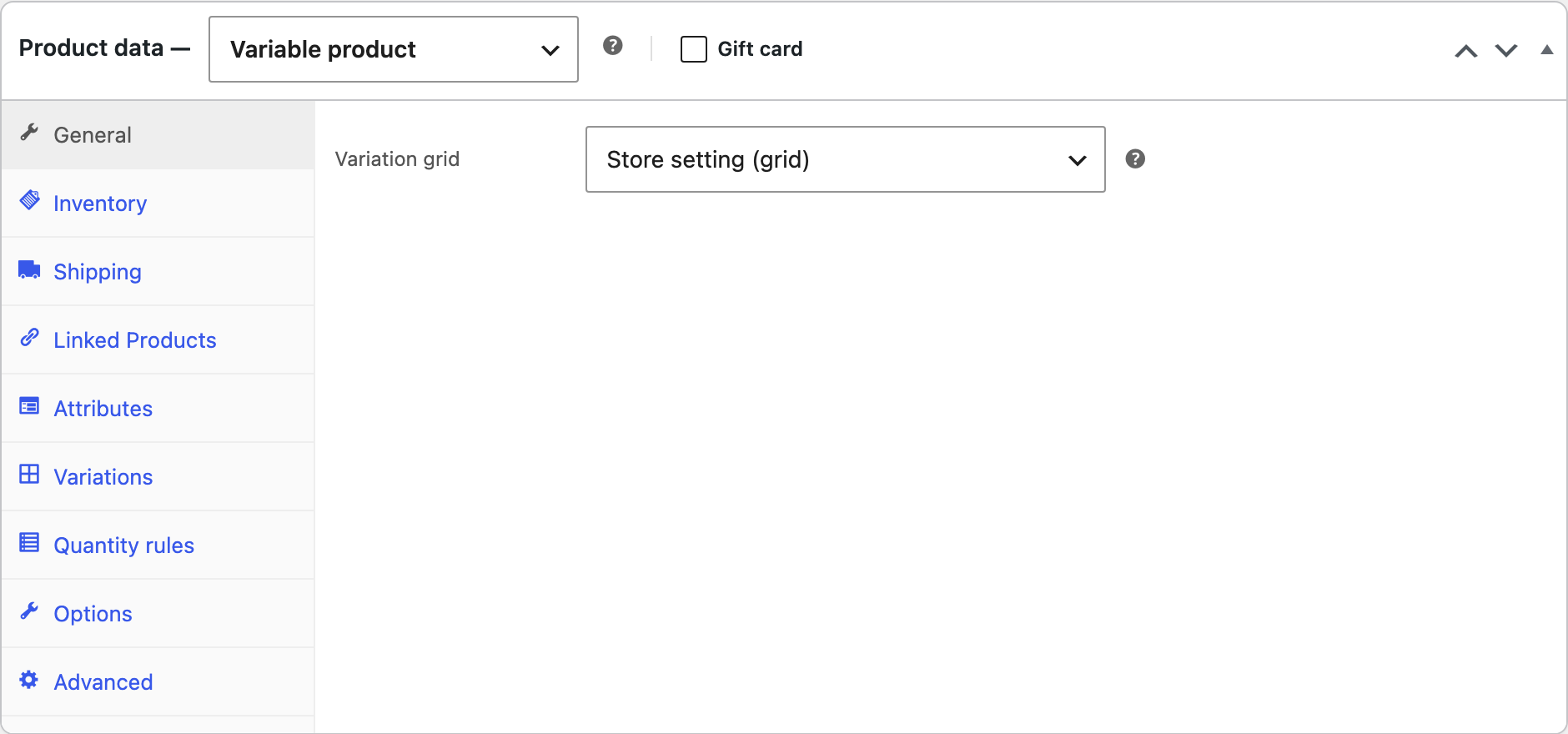
The grid is on for all variable products when Variable products is ticked. Change it per product in the product’s General tab.
Products with “Any” for an option and products with an upload field from Product Options & Add-ons keep the dropdowns, because they need choices the grid can’t show.
The quick order form
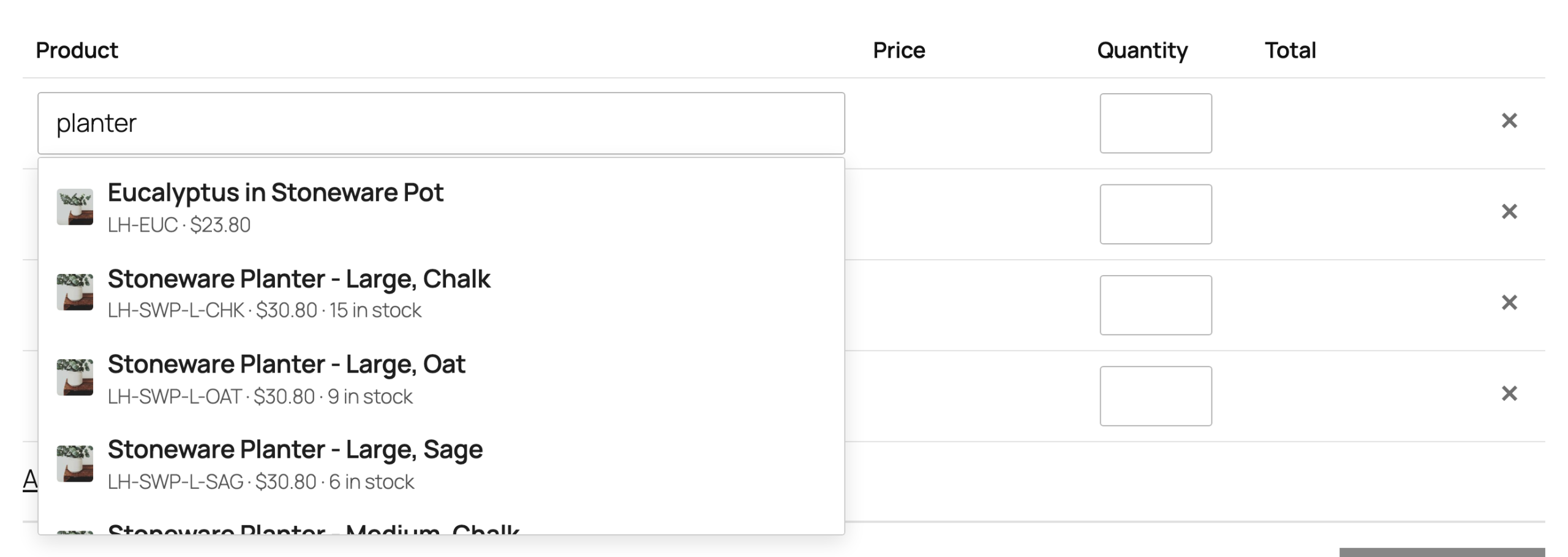
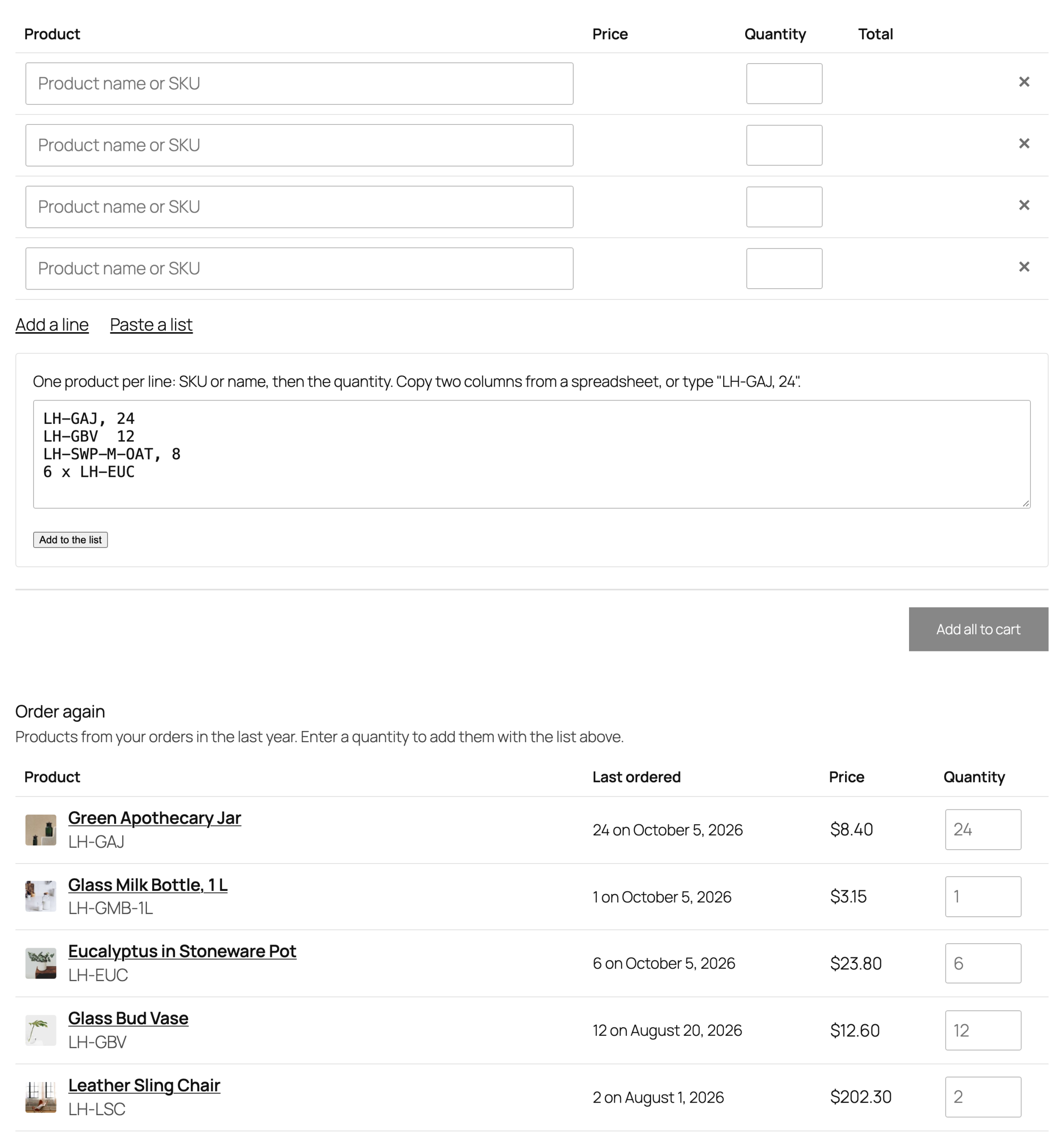
The form is a block, or the shortcode [qofg_quick_order], on a page of its own. Customers search by product name or SKU, variations included, and see prices as they pay them.
Paste a list
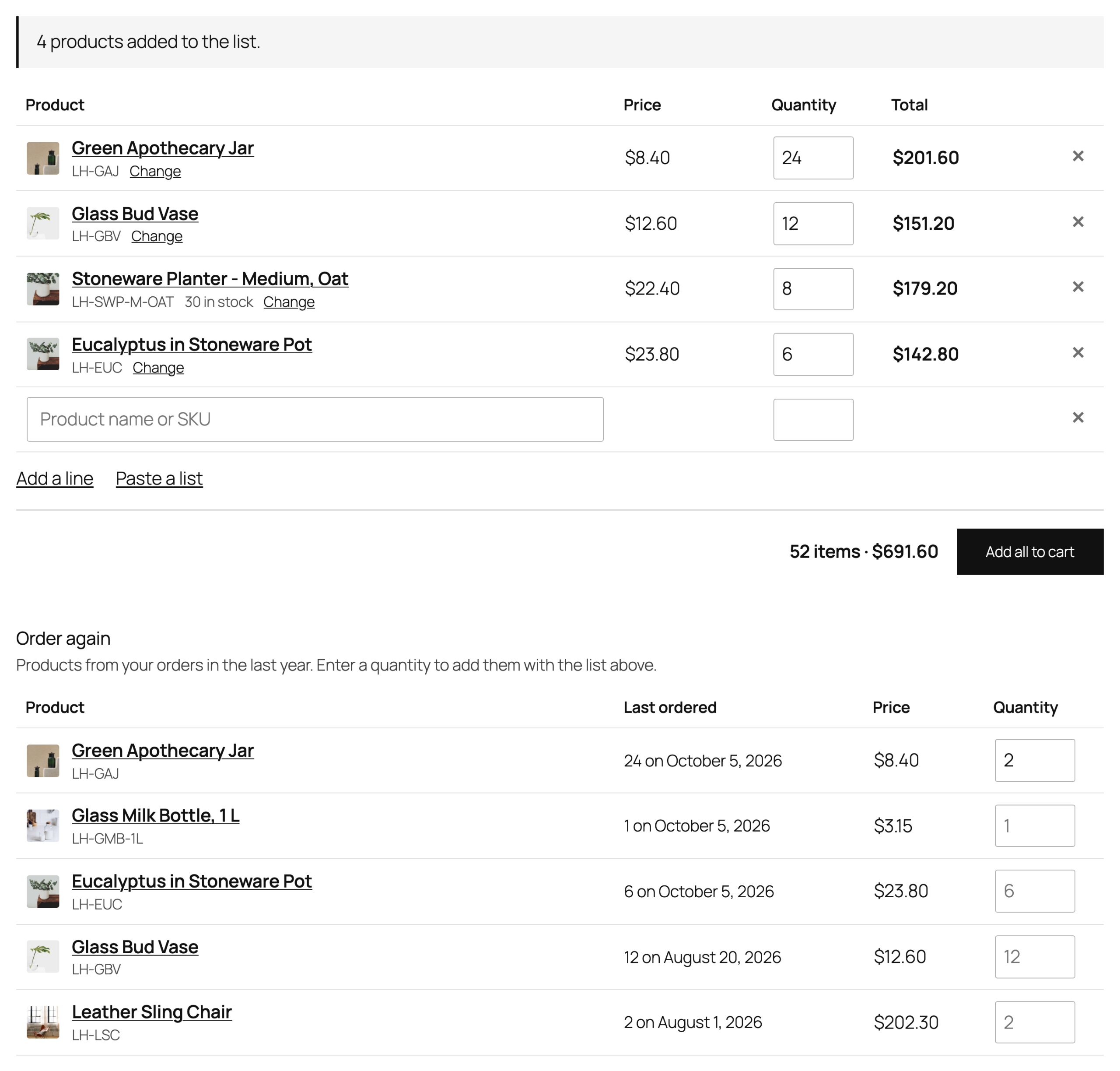
Customers can paste one product per line with its quantity, typed as “LH-GAJ, 24” or copied from two columns of a spreadsheet. The form finds each product by SKU or name and fills in the lines.
Order again
With Order again on, logged-in customers see the products from their orders in the last year, with the last quantity and date, and a quantity field for each.
Your rules still apply
Everything is added to the cart in one go, and every line goes through the same checks as a normal add to cart: stock, minimum and maximum quantities, role prices and discount rules. Lines that can’t be added, such as products out of stock or below a minimum quantity, show why.
Settings
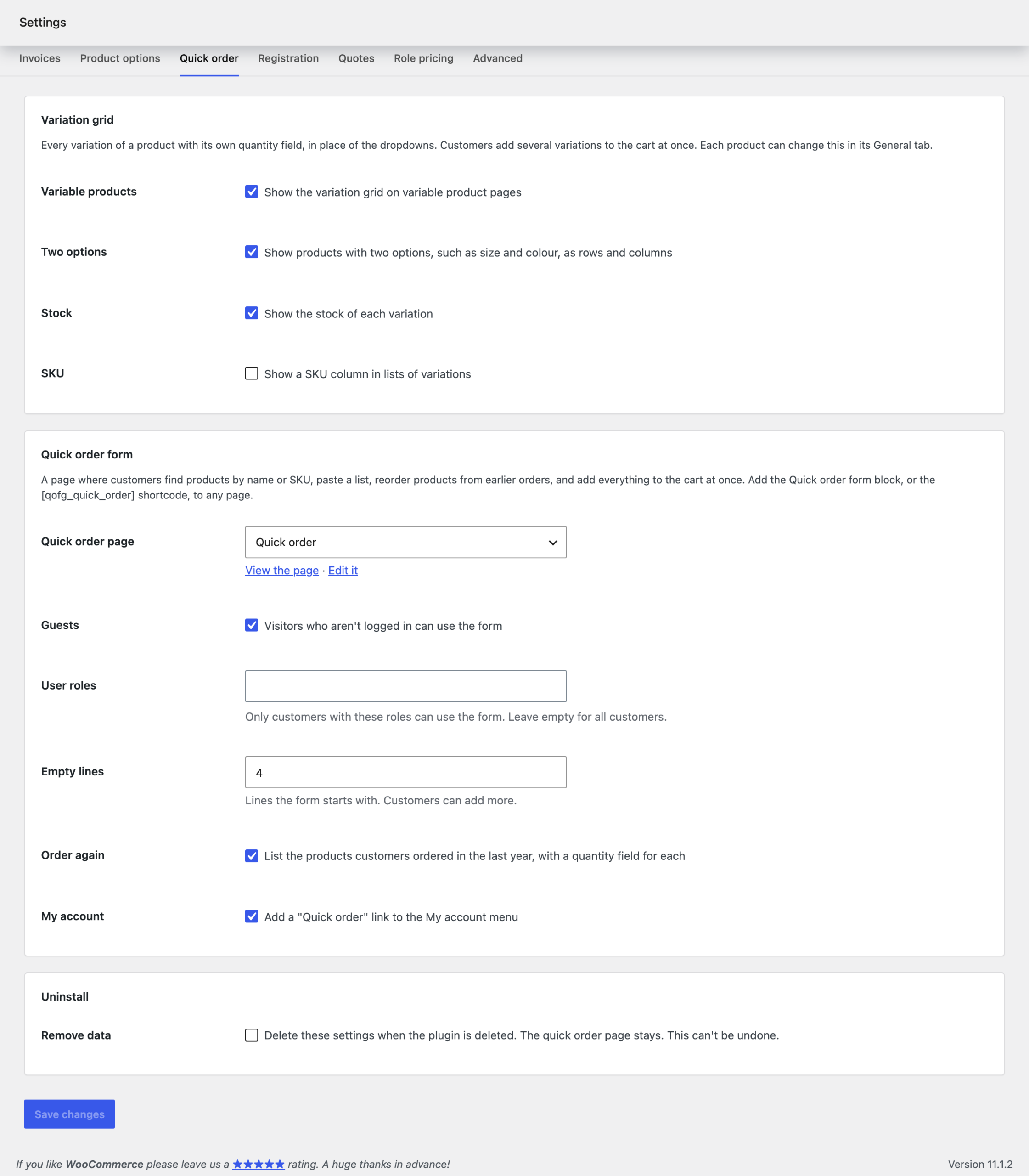
| Setting | What it does |
|---|---|
| Variable products | Show the variation grid on variable product pages. |
| Two options | Show products with two options, such as size and colour, as rows and columns. |
| Stock, SKU | Show the stock of each variation, and a SKU column. |
| Guests, User roles | Who can use the quick order form. |
| Empty lines | Lines the form starts with. Customers can add more. |
| Order again | List the products customers ordered in the last year. |
| My account | Add a “Quick order” link to the My account menu. |
| Remove data | Deletes these settings when the plugin is deleted. The quick order page stays. |
For developers
| Hook | Use |
|---|---|
qofg_use_grid | Whether a product shows the variation grid. |
qofg_can_use_form | Whether the current customer can use the quick order form. |
qofg_search_results, qofg_history_products | The search results and the order again list. |
qofg_added_to_cart | Runs after lines are added to the cart. |
qofg_before_quick_order, qofg_after_quick_order | Run around the quick order form. |
qofg_admin_capability | The capability needed to change the settings. |
Copy public/templates/variation-grid.php or quick-order-form.php to yourtheme/quick-order-form-variation-grid/ to change the grid or the form. Keep the input names and data attributes.
Frequently asked questions
Do product options work with the grid?
Yes. Fields from Product Options & Add-ons show under the grid and apply to every variation added from it.
Can I keep the form for trade customers only?
Yes. Untick Guests and choose the user roles that can use it. Others see a message instead of the form.
Changelog
1.6.0 · August 20, 2026
Compatibility update
- Updated compatibility checks for current WooCommerce releases.
- Improved translated notices and settings labels.
1.5.2 · March 2, 2026
Hotfix
- Fixed successful rows being added twice after retrying a partially completed order.
1.5.0 · February 13, 2026
Feature update
- Improved quick ordering with the mini-cart and Cart block.
- Added clearer feedback when only some rows can be added because of stock limits.
1.4.2 · September 13, 2025
Maintenance
- Fixed the grid subtotal including a row after its quantity had been cleared.
1.4.0 · September 9, 2025
Feature update
- Added a subtotal preview for each variation and the full grid.
- Improved keyboard navigation between quantity fields.
1.3.5 · April 3, 2025
Maintenance
- Fixed a removed variation preventing the remaining reorder items from being added.
1.3.0 · March 28, 2025
Feature update
- Added reorder controls for products from previous customer orders.
- Improved notices for items that are no longer available.
1.2.2 · October 7, 2024
Hotfix
- Fixed blank lines in a pasted list being treated as invalid product rows.
1.2.0 · October 4, 2024
Feature update
- Added paste-a-list ordering using product SKUs and quantities.
- Added a clearer preview for unknown SKUs and invalid quantities.
- Compatibility: updated integration checks for WooCommerce 9.x.
1.1.3 · April 29, 2024
Maintenance
- Fixed a variation search result using the parent product stock status.
1.1.0 · April 20, 2024
Feature update
- Added a standalone quick order form with product search.
- Added stock and price information to the search results.
1.0.1 · November 15, 2023
Hotfix
- Fixed an empty quantity field being submitted as a quantity of one.
1.0.0 · November 6, 2023
Initial release
- Initial release.
- Order several product variations from a quantity grid on the product page.