Min Max Order Quantity & Amount adds quantity and spend rules to WooCommerce: minimums, maximums and pack sizes for products, variations, categories and brands, plus limits for the whole order. Customers see the rules on the product page, in the cart and at checkout.
Requirements
- WordPress 6.8 or newer
- WooCommerce 10.0 or newer
- PHP 7.4 or newer
- Works with classic and block themes, the Cart, Checkout and Mini-Cart blocks, and High-Performance Order Storage.
Installation
- Download
min-max-order-quantity.zipfrom My account > Downloads. - In WordPress, go to Plugins > Add New Plugin > Upload Plugin, choose the zip file and click Install Now.
- Click Activate. Settings are under WooCommerce > Settings > Products > Quantity rules.
Quick start: sell a product in packs of 6
- Edit the product and open the Quantity rules tab in the Product data box.
- Enter 6 in Pack size. Optionally set a Minimum quantity (for example 12) and a Maximum quantity (for example 96).
- Check the Effective rules box at the top of the tab. It shows the result, and the text customers will see.
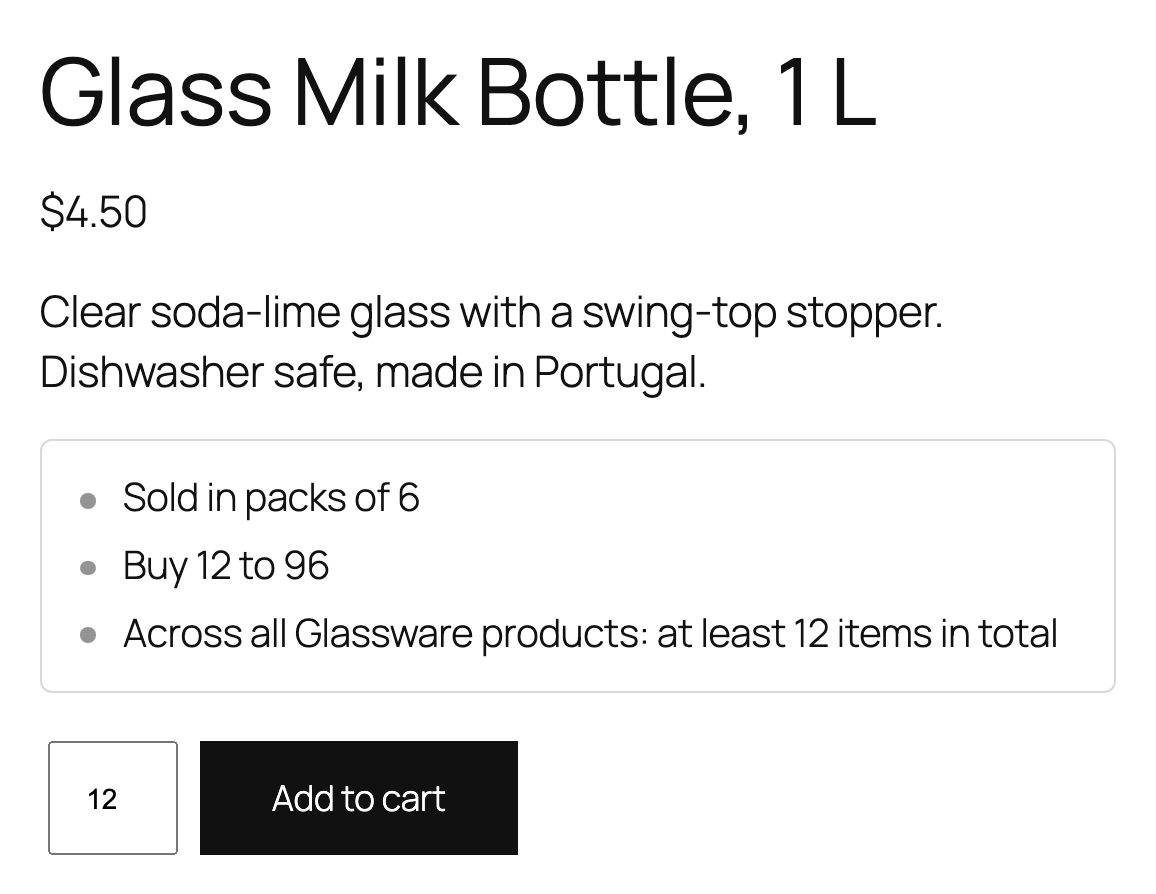
- Update the product. The product page now shows “Sold in packs of 6”, and the quantity box moves in steps of 6.
Product rules
Each product has a Quantity rules tab. Leave a field empty to use the category or brand default, or to have no limit.
| Field | What it does |
|---|---|
| Minimum quantity | Customers must buy at least this many. |
| Maximum quantity | Customers can buy up to this many per order. |
| Pack size | Quantities must be a multiple of this number. The minimum is rounded up to a whole pack, the maximum down. |
| Minimum spend | The line total for this product must reach this amount. |
| Maximum spend | The line total for this product can’t exceed this amount. |
| Category and brand rules | Tick Ignore them for this product to use only the product’s own rules. |
| Store-wide order rules | Tick Don’t count this product towards them to leave it out of order minimums and maximums. |
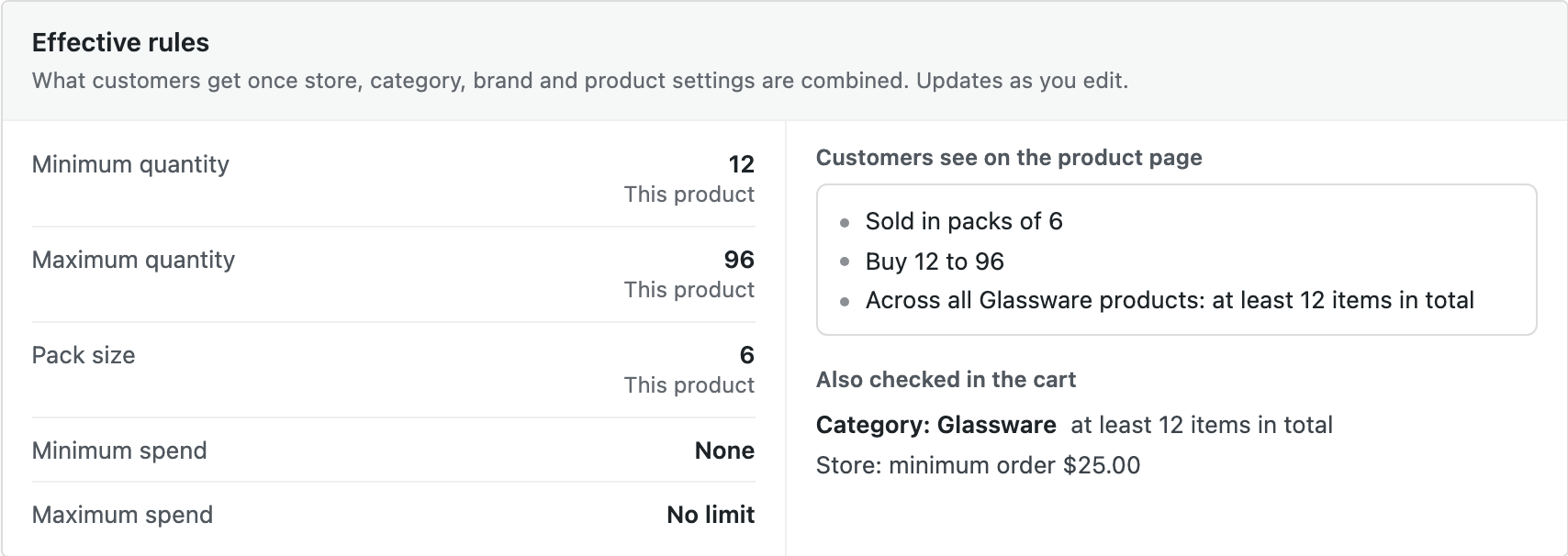
The Effective rules box updates as you type, and warns you if a maximum is lower than the minimum.
Variable products
For variable products, choose how the product’s quantity rules are counted under Variations > Count the rules for:
- Each variation separately: a minimum of 6 means 6 of each size or color.
- All variations together: a minimum of 6 means any mix, such as 2 small and 4 large.
A single variation can also have its own rules. Open the variation, switch on Quantity rules, and enter its values. Variation values win over the product’s values.
Category and brand rules
Edit a product category (Products > Categories) or brand (Products > Brands) to find two groups of fields:
- Default rules for each product: minimum, maximum and pack size used by every product in the category, unless the product has its own value.
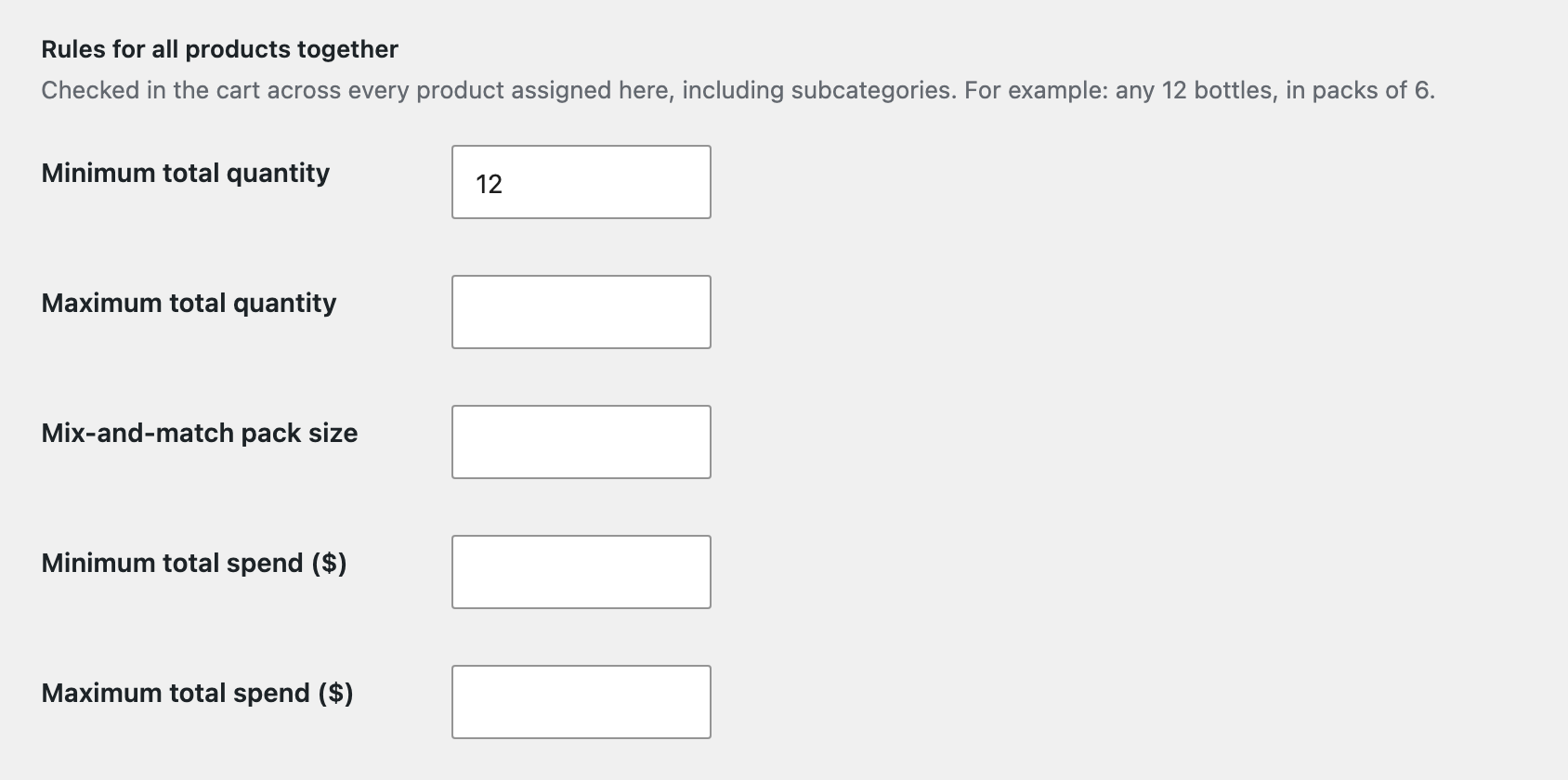
- Rules for all products together: totals checked in the cart across every product in the category, such as “any 12 bottles, in packs of 6”, or a minimum spend for the category.
Category and brand lists show each one’s rules in a Quantity rules column, so you can see your setup at a glance.
When a product is in several categories, the least strict default wins: the lowest minimum and pack size, and the highest maximum.
Store-wide order rules
Go to WooCommerce > Settings > Products > Quantity rules to set limits for the whole order: Minimum items per order, Maximum items per order, Minimum order amount and Maximum order amount. Tick Include tax in spend rules if your amounts should include tax. Spend rules use prices before coupons.
Quantity boxes and automatic correction
- Follow the rules: quantity boxes start at the minimum and move in pack-size steps, up to the maximum, on product pages and in the cart.
- Wrong quantities: when a product is added with a quantity that breaks its rules, for example from a shop page, a side cart or a wishlist, the plugin corrects it to the nearest allowed quantity and tells the customer.

What customers see
Under Show rules to customers, choose where the plain-language rules appear: on product pages, in the cart, mini-cart and checkout, and on shop and category pages. When the cart doesn’t meet a rule, the message says exactly what to change.

In block themes, you can move the notice by adding the Product Quantity Rules block to the single product template. In classic themes, copy public/templates/rules-notice.php to yourtheme/min-max-order-quantity/rules-notice.php and edit the copy.
Stock
When a product’s stock can’t cover its minimum quantity, it shows as out of stock, so customers never see a purchase they can’t complete. Products on backorder stay available.
For developers
Every rule passes through a filter, so you can change rules in code:
| Filter | Use |
|---|---|
mmoq_product_rules | Quantity rules of a product (min, max, step). |
mmoq_variation_rules | Quantity rules of a variation. |
mmoq_amount_rules | Minimum and maximum spend of a product. |
mmoq_term_total_rules | Totals for all products of a category or brand. |
mmoq_order_rules | Store-wide order rules. |
mmoq_rule_taxonomies | Taxonomies that can hold rules (categories and brands by default). |
// Wholesale customers: no maximum on any product.
add_filter( 'mmoq_product_rules', function ( $rules, $product ) {
	if ( current_user_can( 'wholesale_customer' ) ) {
		$rules['max'] = 0;
	}
	return $rules;
}, 10, 2 );
Frequently asked questions
Do spend rules include coupons?
No. Spend rules use product prices before coupons. You can choose whether tax is included.
Which rule wins when a product has several?
Values set on a variation win over the product, and the product wins over category and brand defaults. Category totals, brand totals and store-wide rules are checked in addition, in the cart.
Does it work with side carts and wishlists?
Yes. Quantities added from anywhere are checked in the cart, and with automatic correction switched on, they are fixed straight away.
Changelog
1.0.0 · October 4, 2026
- Minimum, maximum and pack-size rules for products, variations, categories and brands.
- Minimum and maximum spend for products, and for all products of a category or brand together.
- Store-wide minimum and maximum items and order amount.
- Effective rules summary on the product screen, with a live preview of what customers see.
- Plain-language rules on product pages, in the cart, mini-cart and checkout, and on shop pages.
- Quantity boxes that follow the rules in classic pages and the Cart and Checkout blocks.
- Automatic quantity correction for items added from shop pages, side carts and wishlists.
- Product Quantity Rules block for block themes.